bmus
BmuS is a powerful free bash based enterprise level backup program for the automated backup of files, directories, and…
Shell★ 59
🗃 Open source self-hosted web archiving. Takes URLs/browser history/bookmarks/Pocket/Pinboard/etc., saves HTML, JS, PD…
 ArchiveBox
▶️ Quickstart | Demo | GitHub | Documentation | Info & Motivation | Community
ArchiveBox is a self-hosted app that lets you preserve content from websites in a variety of formats.
We aim to make your data immediately useful, and kept in formats that other programs can read directly. As output, we save standard HTML, PNG, PDF, TXT, JSON, WARC, SQLite, all guaranteed to be readable for decades to come. ArchiveBox also has a CLI, REST API, and webhooks so you can set up integrations with other services.
Without active preservation effort, everything on the internet eventually disappears or degrades.
ArchiveBox is an open source tool that lets organizations & individuals archive both public & private web content while retaining control over their data. It can be used to save copies of bookmarks, preserve evidence for legal cases, backup photos from FB/Insta/Flickr or media from YT/Soundcloud/etc., save research papers, and more...
➡️ Get ArchiveBox with
uv tool install --python 3.13 --upgrade 'git+https://github.com/ArchiveBox/ArchiveBox.git@dev'on Linux/macOS, or via Docker ⭐️ on any OS.
Once installed, you can interact with it through the: Browser Extension, CLI, self-hosted web interface, Python API, or filesystem.
📥 You can feed ArchiveBox URLs one at a time, or schedule regular imports from your bookmarks or history, social media feeds or RSS, link-saving services like Pocket/Pinboard, our Browser Extension, and more.
See Input Formats for a full list of supported input formats...

It saves snapshots of the URLs you feed it in several redundant formats.
It also detects any content featured inside pages & extracts it out into a folder:
original HTML+CSS+JS, singlefile HTML, screenshot PNG, PDF, WARC, title, article text, favicon, headers, ...post content TXT, comments, title, author, images, ...MP3/MP4s, subtitles, metadata, thumbnail, ...clone of GIT source code, README, images, ...You can run ArchiveBox as a Docker web app to manage these snapshots, or continue accessing the same collection using the uv-installed CLI, Python API, and SQLite3 APIs.
All the ways of using it are equivalent, and provide matching features like adding tags, scheduling regular crawls, viewing logs, and more...
🛠️ ArchiveBox uses standard tools like Chrome, wget, & yt-dlp, and stores data in ordinary files & folders.
(no complex proprietary formats, all data is readable without needing to run ArchiveBox)
The goal is to sleep soundly knowing the part of the internet you care about will be automatically preserved in durable, easily accessible formats for decades after it goes down.
📦 Install ArchiveBox using your preferred method: docker / uv / brew / apt / etc. (see full Quickstart below).
# Option A: Get ArchiveBox with Docker Compose (recommended):
mkdir -p ~/archivebox/data && cd ~/archivebox
curl -fsSL 'https://docker-compose.archivebox.io' > docker-compose.yml   # edit options in this file as-needed
docker compose run archivebox init
# docker compose run archivebox add 'https://example.com'
# docker compose run archivebox help
# docker compose up


# Option B: Or use it as a plain Docker container:
mkdir -p ~/archivebox/data && cd ~/archivebox/data
docker run -it -v $PWD:/data archivebox/archivebox:dev init
# docker run -it -v $PWD:/data archivebox/archivebox:dev add 'https://example.com'
# docker run -it -v $PWD:/data archivebox/archivebox:dev help
# docker run -it -v $PWD:/data -p 8000:8000 archivebox/archivebox:dev


# Option C: Or install it with uv (see Quickstart below for apt, brew, and more)
uv tool install --python 3.13 --upgrade 'git+https://github.com/ArchiveBox/ArchiveBox.git@dev'
mkdir -p ~/archivebox/data && cd ~/archivebox/data
archivebox init
archivebox install
# archivebox add 'https://example.com'
# archivebox help
# archivebox server 0.0.0.0:8000


# Option D: Or use the optional auto setup script to install it
curl -fsSL 'https://get.archivebox.io' | bash
http://web.archivebox.localhost:8000 for the public UI and http://admin.archivebox.localhost:8000 for the admin UI ➡️BASE_URL to change the public base domain; web. and admin. subdomains are used automatically. BIND_ADDR only controls the local listen address.


ArchiveBox is free for everyone to self-host, but we also provide support, security review, and custom integrations to help NGOs, governments, and other organizations run ArchiveBox professionally:
crawling during research, preserving cited pages, fact-checking & reviewcollecting & preserving evidence, detecting changes, tagging & reviewanalyzing social media trends, getting LLM training data, crawling pipelinessaving bookmarks, preserving portfolio content, legacy / memoirs archivalsnapshotting public service sites, recordkeeping complianceContact us if your org wants help using ArchiveBox professionally.
We offer: setup & support, CAPTCHA/ratelimit unblocking, SSO, audit logging/chain-of-custody, and more
ArchiveBox is a 🏛️ 501(c)(3) nonprofit FSP and all our work supports open-source development.

🖥 Supported OSs: Linux/BSD, macOS, Windows (Docker) 👾 CPUs: amd64 (x86_64), arm64, arm7 (raspi>=3)

docker-compose (macOS/Linux/Windows) 👈 recommended (click to expand)docker-compose.yml file into a new empty directory (can be anywhere).
mkdir -p ~/archivebox/data && cd ~/archivebox
# Read and edit docker-compose.yml options as-needed after downloading
curl -fsSL 'https://docker-compose.archivebox.io' > docker-compose.yml
docker compose run archivebox init
docker compose up
# completely optional, CLI can always be used without running a server
# docker compose run [-T] archivebox [subcommand] [--help]
docker compose run archivebox add 'https://example.com'
docker compose run archivebox help
For more info, see Install: Docker Compose in the Wiki. ➡️
See below for more usage examples using the CLI, Web UI, or filesystem/SQL/Python to manage your archive.
docker run (macOS/Linux/Windows)mkdir -p ~/archivebox/data && cd ~/archivebox/data docker run -v $PWD:/data -it archivebox/archivebox:dev init
docker run -v $PWD:/data -p 8000:8000 archivebox/archivebox:dev
# completely optional, CLI can always be used without running a server
# docker run -v $PWD:/data -it [subcommand] [--help]
docker run -v $PWD:/data -it archivebox/archivebox:dev help
For more info, see Install: Docker Compose in the Wiki. ➡️
See below for more usage examples using the CLI, Web UI, or filesystem/SQL/Python to manage your archive.

bash auto-setup script (macOS/Linux)curl -fsSL 'https://get.archivebox.io' | bashFor more info, see Install: Bare Metal in the Wiki. ➡️
See below for more usage examples using the CLI, Web UI, or filesystem/SQL/Python to manage your archive.
See setup.sh for the source code of the auto-install script.
See "Against curl | sh as an install method" blog post for my thoughts on the shortcomings of this install method.

uv (macOS/Linux/BSD)uv.
uv tool install --python 3.13 --upgrade 'git+https://github.com/ArchiveBox/ArchiveBox.git@dev'
archivebox version
# install any missing extras shown using apt/brew/pkg/etc. see Wiki for instructions
#    python@3.13 node curl wget git ripgrep ...
See the Install: Bare Metal Wiki for full install instructions for each OS...
mkdir -p ~/archivebox/data && cd ~/archivebox/data   # for example
archivebox init     # instantialize a new collection
archivebox install  # install all the runtime dependencies (e.g. chrome, single-file, yt-dlp, etc.)
archivebox server 0.0.0.0:8000
# completely optional, CLI can always be used without running a server
# archivebox [subcommand] [--help]
archivebox help
See below for more usage examples using the CLI, Web UI, or filesystem/SQL/Python to manage your archive.
See the uv tool documentation for more details about this installation method.

apt (Ubuntu/Debian/etc.)archivebox.
echo 'deb [trusted=yes] https://archivebox.github.io/debian-archivebox dev main' | sudo tee /etc/apt/sources.list.d/archivebox.list
sudo apt update
sudo apt install archivebox
(cd /tmp && archivebox version)            # make sure the package is installed
mkdir -p ~/archivebox
sudo install -d -o archivebox -g archivebox ~/archivebox/data
cd ~/archivebox/data
archivebox init
archivebox install
archivebox add 'https://example.com'
archivebox server 0.0.0.0:8000
# completely optional, CLI can always be used without running a server
# archivebox [subcommand] [--help]
archivebox help
debian-archivebox repo for details, and run sudo archivebox install only if you want it to install missing system packages via apt.

brew (macOS only)brew.
brew tap archivebox/archivebox
brew trust archivebox/archivebox
brew install archivebox
archivebox version                         # make sure all dependencies are installed
See the Install: Bare Metal Wiki for more granular instructions for macOS... ➡️
mkdir -p ~/archivebox/data && cd ~/archivebox/data
archivebox init
archivebox install
archivebox server 0.0.0.0:8000
# completely optional, CLI can always be used without running a server
# archivebox [subcommand] [--help]
archivebox help
See below for more usage examples using the CLI, Web UI, or filesystem/SQL/Python to manage your archive.
See the homebrew-archivebox repo for more details about this distribution.

pacman / 
pkg / 
nix (Arch/FreeBSD/NixOS/more)Warning: These are contributed by external volunteers and may lag behind the official
uvand Docker channels.
yay -S archivebox (contributed by @imlonghao, maintained by @jasongodev)curl -fsSL 'https://get.archivebox.io' | bash (uses pkg + uv under-the-hood)nix-env --install archivebox (contributed by @siraben)guix install archivebox (contributed by @rakino) docker + 
electron Desktop App (macOS/Linux/Windows)ArchiveBox.app.zipArchiveBox.deb (alpha: build manually)ArchiveBox.exe (beta: build manually)
 TrueNAS / UNRAID / YunoHost / Cloudron / etc. (self-hosting solutions)
Warning: These are contributed by external volunteers and may lag behind the official
pipchannel.
 Paid hosting solutions (cloud VPS)
For more discussion on managed and paid hosting options see here: Issue #531.
archivebox persona create --import=chrome personalArchiveBox commands can be run in a terminal directly on your host, or via Docker/Docker Compose.
(depending on how you chose to install it above)
mkdir -p ~/archivebox/data   # create a new data dir anywhere
cd ~/archivebox/data         # IMPORTANT: cd into the directory

# archivebox [subcommand] [--help]
archivebox version
archivebox help

# equivalent: docker compose run archivebox [subcommand] [--help]
docker compose run archivebox help

# equivalent: docker run -it -v $PWD:/data archivebox/archivebox:dev [subcommand] [--help]
docker run -it -v $PWD:/data archivebox/archivebox:dev help

# optional: import your browser cookies into a persona for logged-in archiving
archivebox persona create --import=chrome personal
# supported: chrome/chromium/brave/edge (Chromium-based only)
# use --profile to target a specific profile (e.g. Default, Profile 1)
# re-running import merges/dedupes cookies.txt (by domain/path/name) but replaces chrome_user_data
archivebox help/version to see the list of available subcommands / currently installed version infoarchivebox setup/init/config/status/shell/manage to administer your collectionarchivebox add/schedule to pull in fresh URLs from bookmarks/history/RSS/etc.archivebox list/update/remove to manage existing Snapshots in your collection CLI Usage Examples: non-Docker# make sure you have uv-installed ArchiveBox and it's available in your $PATH first # archivebox [subcommand] [--help] mkdir -p ~/archivebox/data && cd ~/archivebox/data archivebox init archivebox install archivebox add 'https://example.com' archivebox version # get archivebox version info + check dependencies archivebox help # get list of archivebox subcommands that can be runFor more info, see our Usage: CLI Usage wiki. ➡️
CLI Usage Examples: Docker Compose# make sure you have `docker-compose.yml` from the Quickstart instructions first # docker compose run archivebox [subcommand] [--help] docker compose run archivebox init docker compose run archivebox install docker compose run archivebox version docker compose run archivebox help docker compose run archivebox add 'https://example.com' # to start webserver: docker compose upFor more info, see our Usage: Docker Compose CLI wiki. ➡️
CLI Usage Examples: Docker# make sure you create and cd into in a new empty directory first # docker run -it -v $PWD:/data archivebox/archivebox:dev [subcommand] [--help] docker run -v $PWD:/data -it archivebox/archivebox:dev init docker run -v $PWD:/data -it archivebox/archivebox:dev install docker run -v $PWD:/data -it archivebox/archivebox:dev version docker run -v $PWD:/data -it archivebox/archivebox:dev help docker run -v $PWD:/data -it archivebox/archivebox:dev add 'https://example.com' # to start webserver: docker run -v $PWD:/data -it -p 8000:8000 archivebox/archivebox:devFor more info, see our Usage: Docker CLI wiki. ➡️
archivebox shell           # explore the Python library API in a REPL
sqlite3 ./index.sqlite3    # run SQL queries directly on your index
find ./archive/users -path '*/snapshots/*/*/*/index.html'  # inspect snapshot data directly
For more info, see our Python Shell, SQL API, and Disk Layout wikis. ➡️
# Start the server on bare metal (pip/apt/brew/etc):
archivebox manage createsuperuser              # create a new admin user via CLI
archivebox server 0.0.0.0:8000                 # start the server

# Or with Docker Compose:
nano docker-compose.yml                        # setup initial ADMIN_USERNAME & ADMIN_PASSWORD
docker compose up                              # start the server

# Or with a Docker container:
docker run -v $PWD:/data -it archivebox/archivebox:dev archivebox manage createsuperuser
docker run -v $PWD:/data -it -p 8000:8000 archivebox/archivebox:dev
Open http://web.archivebox.localhost:8000 for the public UI and http://admin.archivebox.localhost:8000 for the admin UI ➡️
Set BASE_URL to change the public base domain; web. and admin. subdomains are used automatically. BIND_ADDR only controls the local listen address.
For more info, see our Usage: Web UI wiki. ➡️
Optional: Change permissions to allow non-logged-in users
archivebox config --set PUBLIC_ADD_VIEW=True   # allow guests to submit URLs
archivebox config --set PERMISSIONS=public     # make newly added snapshots public
archivebox config --set PUBLIC_INDEX=True      # allow guests to see list of all snapshots
# or
docker compose run archivebox config --set PERMISSIONS=public

# restart the server to apply any config changes
Tip
Whether in Docker or not, ArchiveBox commands work the same way, and can be used to access the same data on-disk.
For example, you could run the Web UI in Docker Compose, and run one-off commands with uv-installed ArchiveBox.
archivebox add --depth=1 'https://example.com'                     # add a URL with uv-installed archivebox on the host
docker compose run archivebox add --depth=1 'https://example.com'                       # or w/ Docker Compose
docker run -it -v $PWD:/data archivebox/archivebox:dev add --depth=1 'https://example.com'  # or w/ Docker, all equivalent
For more info, see our Docker wiki. ➡️

https://demo.archivebox.io
 From the official ArchiveBox Browser Extension
Provides realtime archiving of browsing history or selected pages from Chrome/Chromium/Firefox browsers.
 From manual imports of URLs from RSS, JSON, CSV, TXT, SQL, HTML, Markdown, etc. files
ArchiveBox supports injesting URLs in any text-based format.
 From manually exported browser history or browser bookmarks (in Netscape format)
Instructions: Chrome, Firefox, Safari, IE, Opera, and more...
 From URLs visited through a MITM Proxy with
 archivebox-proxy
Provides realtime archiving of all traffic from any device going through the proxy.
From bookmarking services or social media (e.g. Twitter bookmarks, Reddit saved posts, etc.)
Instructions: Pocket, Pinboard, Instapaper, Shaarli, Delicious, Reddit Saved, Wallabag, Unmark.it, OneTab, Firefox Sync, and more...

# archivebox add --help
archivebox add 'https://example.com/some/page'
archivebox add --depth=1 --plugins=parse_rss_urls "file://$HOME/Downloads/some_feed.xml"
archivebox add --depth=1 'https://news.ycombinator.com#2020-12-12'
echo 'http://example.com' | archivebox add
echo 'any text with <a href="https://example.com">urls</a> in it' | archivebox add

# if using Docker, add -i when piping stdin:
# echo 'https://example.com' | docker run -v $PWD:/data -i archivebox/archivebox:dev add
# if using Docker Compose, add -T when piping stdin / stdout:
# echo 'https://example.com' | docker compose run -T archivebox add
See the Usage: CLI page for documentation and examples.
It also includes a built-in scheduled import feature with archivebox schedule, handled by the same orchestrator that powers archivebox server, so you can pull in URLs from RSS feeds and websites regularly without a separate cron container.
For each web page added, ArchiveBox creates a Snapshot folder and preserves its content as ordinary files inside the folder (e.g. HTML, PDF, PNG, JSON, etc.).
It uses all available methods out-of-the-box, but you can disable extractors and fine-tune the configuration as-needed.
data/archive/{Snapshot.id}/
index.html & index.json HTML and JSON index files containing metadata and detailssinglefile.html HTML snapshot rendered with headless Chrome using SingleFileexample.com/page-name.html wget clone of the site with warc/TIMESTAMP.gzoutput.pdf Printed PDF of site using headless chromescreenshot.png 1440x900 screenshot of site using headless chromeoutput.html DOM Dump of the HTML after rendering using headless chromearticle.html/json Article text extraction using Readability & Mercuryarchive.org.txt A link to the saved site on archive.orgmedia/ all audio/video files + playlists, including subtitles & metadata w/ yt-dlpgit/ clone of any repository found on GitHub, Bitbucket, or GitLab links
ArchiveBox can be configured via environment variables, by using the archivebox config CLI, or by editing ./ArchiveBox.conf.
archivebox config                               # view the entire config
archivebox config --get CHROME_BINARY           # view a specific value

archivebox config --set CHROME_BINARY=chromium  # persist a config using CLI
# OR edit ArchiveBox.conf and add this under its existing [ARCHIVING_CONFIG] section:
CHROME_BINARY=chromium
# OR
env CHROME_BINARY=chromium archivebox version   # run with a one-off config
These methods also work the same way when run inside Docker, see the Docker Configuration wiki page for details.
The configuration is documented here: Configuration Wiki, and loaded from: archivebox/config/.
# e.g. archivebox config --set TIMEOUT=120
# or   docker compose run archivebox config --set TIMEOUT=120

TIMEOUT=240                # default: 60    add more seconds on slower networks
CHECK_SSL_VALIDITY=False   # default: True  False = allow saving URLs w/ bad SSL

PUBLIC_INDEX=True          # default: True  whether anon users can view index
PERMISSIONS=public         # default: public visibility for newly added snapshots
PUBLIC_ADD_VIEW=False      # default: False whether anon users can add new URLs

USER_AGENT="Mozilla/5.0 ..."  # change this to get around bot blocking
To achieve high-fidelity archives in as many situations as possible, ArchiveBox depends on a variety of 3rd-party libraries and tools that specialize in extracting different types of content.
Under-the-hood, ArchiveBox uses Django to power its Web UI, Django Ninja for the REST API, and SQlite + the filesystem to provide fast & durable metadata storage w/ deterministic upgrades.
ArchiveBox bundles industry-standard tools like Google Chrome, wget, yt-dlp, readability, etc. internally, and its operation can be tuned, secured, and extended as-needed for many different applications.
TIP: For better security while running ArchiveBox, and to avoid polluting your host system with a bunch of sub-dependencies that you need to keep up-to-date,it is strongly recommended to use the ⭐️ official Docker image which provides everything in an easy container with simple one-liner upgrades.
>=3.13daphne (ASGI)./data/index.sqlite3supervisord for worker managementuv / pyright+ty+pytest / ruffabxpkg installs apt/brew/pip/npm pkgs at runtime (e.g. yt-dlp, singlefile, readability, git)These optional subdependencies used for archiving sites include:

chromium / chrome (for screenshots, PDF, DOM HTML, and headless JS scripts)node & npm (for readability, mercury, and singlefile)wget (for plain HTML, static files, and WARC saving)curl (for fetching headers, favicon, and posting to Archive.org)yt-dlp or youtube-dl (for audio, video, and subtitles)git (for cloning git repos)singlefile (for saving into a self-contained html file)postlight/parser (for discussion threads, forums, and articles)readability (for articles and long text content)You don't need to install every dependency by hand. ArchiveBox resolves every extractor dependency through abxpkg: it uses a compatible host installation when one is already available, and otherwise installs and manages the dependency for you.
# install uv + archivebox first (see Quickstart instructions above)

archivebox install     # auto install all the extractors and extras
archivebox --version   # see info and check validity of installed dependencies
Installing directly on Windows without Docker or WSL/WSL2/Cygwin is not officially supported (I cannot respond to Windows support tickets), but some advanced users have reported getting it working.
All of ArchiveBox's state (SQLite DB, content, config, logs, etc.) is stored in a single folder per collection.
Data folders can be created anywhere (~/archivebox/data or $PWD/data as seen in our examples), and you can create as many data folders as you want to hold different collections.
All archivebox CLI commands are designed to be run from inside an ArchiveBox data folder, starting with archivebox init to initialize a new collection inside an empty directory.
mkdir -p ~/archivebox/data && cd ~/archivebox/data   # just an example, can be anywhere
archivebox init
The on-disk layout is optimized to be easy to browse by hand and durable long-term. The main index is a standard index.sqlite3 database in the root of the data folder (it can also be exported as static JSON/HTML). Snapshot data is organized by user, date, domain, and UUID under data/archive/users/.
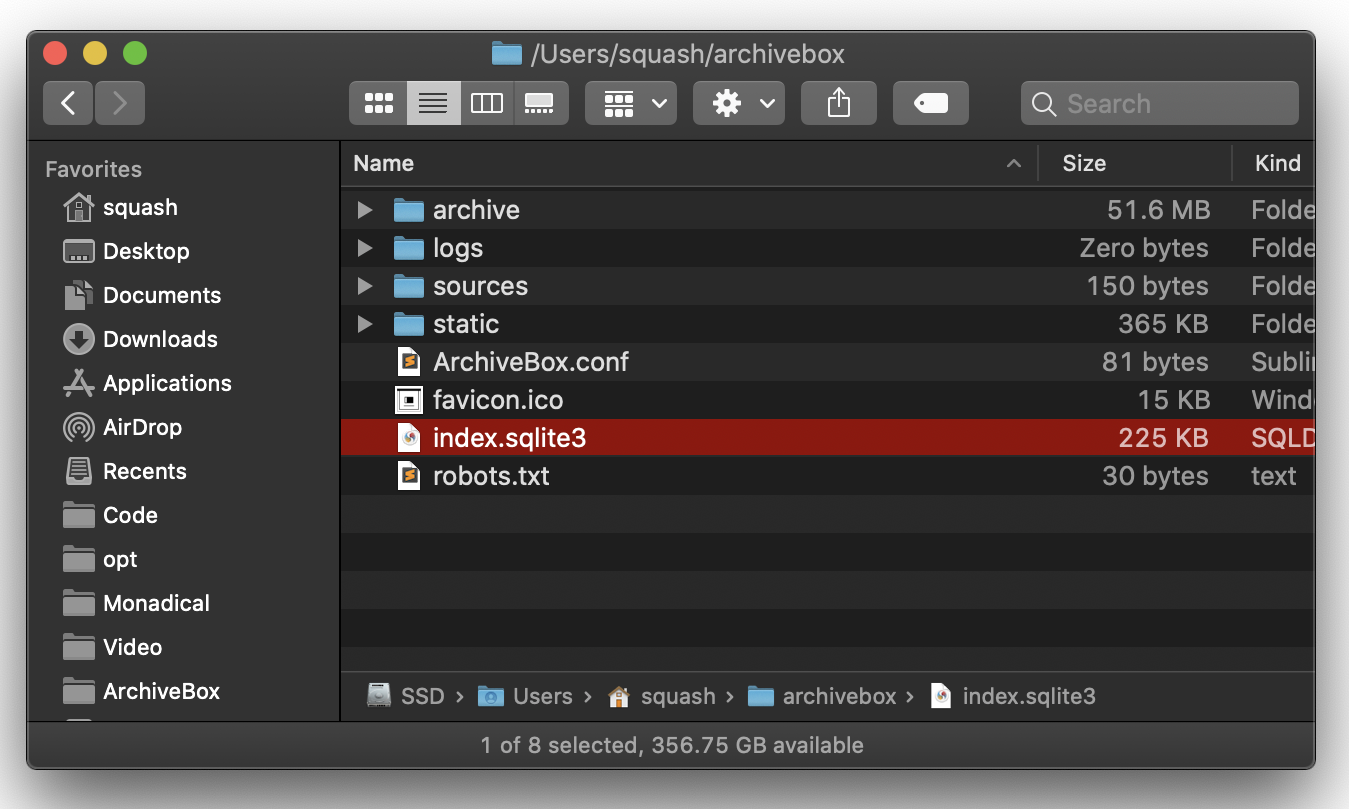
data/
    index.sqlite3
    ArchiveBox.conf
    archive/
        1617687755 -> users/admin/snapshots/20210406/example.com/SNAPSHOT_UUID/
        users/
            admin/
                snapshots/
                    20210406/
                        example.com/
                            SNAPSHOT_UUID/
                                index.html
                                index.jsonl
                                screenshot/screenshot.png
                                ytdlp/media/some_video.mp4
                                wget/warc/example.com.warc.gz
                                git/somerepo.git
                                ...
Each snapshot subfolder includes static metadata and plain extractor output files. ArchiveBox also maintains a backwards-compatible data/archive/TIMESTAMP symlink for each snapshot.
You can export your index as static HTML using archivebox list (so you can view it without an ArchiveBox server).
NOTE: These exports are not paginated, exporting many URLs or the entire archive at once may be slow. Use the filtering CLI flags on the
archivebox listcommand to export specific Snapshots or ranges.
# archivebox list --help
archivebox list --html --with-headers > index.html     # export to static html table
archivebox list --json --with-headers > index.json     # export to json blob
archivebox list --csv=timestamp,url,title > index.csv  # export to csv spreadsheet

# (if using Docker Compose, add the -T flag when piping)
# docker compose run -T archivebox list --html 'https://example.com' > index.html
The paths in the static exports are relative, make sure to keep them next to your ./archive folder when backing them up or viewing them.
If you're importing pages with private content or URLs containing secret tokens you don't want public (e.g Google Docs, paywalled content, unlisted videos, etc.), you may want to disable some of the extractor methods to avoid leaking that content to 3rd party APIs or the public.
# don't save private content to ArchiveBox, e.g.:
archivebox add 'https://docs.google.com/document/d/12345somePrivateDocument'
archivebox add 'https://vimeo.com/somePrivateVideo'

# restrict the main index, Snapshot content, and Add Page to authenticated users as-needed:
archivebox config --set PUBLIC_INDEX=False
archivebox config --set PERMISSIONS=private
archivebox config --set PUBLIC_ADD_VIEW=False
archivebox manage createsuperuser
CAUTION: Assume anyone viewing your archives will be able to see any cookies, session tokens, or private URLs passed to ArchiveBox during archiving. Make sure to secure your ArchiveBox data and don't share snapshots with others without stripping out sensitive headers and content first.
Archived JavaScript is untrusted content. The default SERVER_SECURITY_MODE=safe-subdomains-fullreplay serves replay content on isolated snapshot subdomains so it cannot share the admin UI's cookies or origin. If your deployment cannot use wildcard *.archivebox.localhost subdomains, use safe-onedomain-nojsreplay, which keeps one origin but disables JavaScript replay. See the Security Overview and Issue #239 for details.
# Default: full replay on isolated snapshot subdomains
archivebox config --set SERVER_SECURITY_MODE=safe-subdomains-fullreplay

# Alternative for deployments without wildcard subdomains: disable JS replay
archivebox config --set SERVER_SECURITY_MODE=safe-onedomain-nojsreplay
NOTE: Only the
wget&domextractor methods execute archived JS when viewing snapshots, all other archive methods produce static output that does not execute JS on viewing.
If you do not need JavaScript-capable replay at all, you can also disable those extractors with:
archivebox config --set WGET_ENABLED=False DOM_ENABLED=False.
For various reasons, many large sites (Reddit, Twitter, Cloudflare, etc.) actively block archiving or bots in general. There are a number of approaches to work around this, and we also provide consulting services to help here.
CHROME_USER_AGENT, WGET_USER_AGENT, CURL_USER_AGENT to impersonate a real browser (by default, ArchiveBox reveals that it's a bot when using the default user agent settings)reddit.com/some/url -> teddit.net/some/url: https://github.com/mendel5/alternative-front-endsIn the future we plan on adding support for running JS scripts during archiving to block ads, cookie popups, modals, and fix other issues. Follow here for progress: Issue #51.
ArchiveBox can preserve multiple snapshots of the same URL. The default ONLY_NEW=True skips URLs already in the collection; use --no-only-new when you intentionally want another snapshot.
Re-Snapshot feature works...Each re-archive creates a distinct Snapshot row for the same URL:
archivebox add 'https://example.com'
archivebox add --no-only-new 'https://example.com'
The  button in the Admin UI performs the same explicit re-archive.
Because ArchiveBox is designed to ingest a large volume of URLs with multiple copies of each URL stored by different 3rd-party tools, it can be quite disk-space intensive. There are also some special requirements when using filesystems like NFS/SMB/FUSE.
YTDLP_ENABLED=True and whether you lower YTDLP_MAX_SIZE=750m.fdupes or rdfind.
data/archive/ folder.
data/index.sqlite3 file on local drive (not a network mount) or SSD for maximum performance, however the data/archive/ folder can be on a network mount or slower HDD.data/archive/ folder, make sure the mounted data directory is writable by its intended owner and consider disabling root_squash on your fileshare server.

 
|
 |

|

|
|
|
|
|
|
more like this
BmuS is a powerful free bash based enterprise level backup program for the automated backup of files, directories, and…
Kitty terminal config. Replace tmux's tab functionality with kitty's native tabs with same keybindings as Firefox.
search projects, people, and tags