ShairportQt
An AirPlay Audio-Receiver for your Personal Computer or ARM-SoC (e.g. Raspberry Pi)
 Frank-Friemel
git clone https://github.com/Frank-Friemel/ShairportQt.gitFrank-Friemel/ShairportQtShairportQt
An AirPlay Audio-Receiver for your Personal Computer or ARM-SoC (e.g. Raspberry Pi).
Play audio content from your iPhone, iPad, iPod or iTunes on your PC with ShairportQt. AirPlay lets you wirelessly stream what's on your iOS device whenever you see the AirPlay symbol.
This desktop-software was originally only available for Windows.
But now it's based on Qt and is therefore completely portable/cross platform. Additionally many bugs have been fixed - compared to the
previous version (Shairport4w).
Please download precompiled binaries from Releases.
If asked by your Firewall, you should grant access to your LAN if you are on a secure network. Protect ShairportQt with a password
to be sure nobody is misusing this service.
Installation
ShairportQt consists of a single executable file. So, there's not much to install. Nevertheless I would like to provide some hints for the various operating systems which worked for me. When updating your existing installation, please do the same, but make sure to close the running instance of ShairportQt first.
Windows (x64 and arm64)
The Releases section contains a setup executable.
Alternatively you may install manually by just downloading the zip file and copying the file ShairportQt.exe to your filesystem and create a Desktop-Link. That's it.
New:
ShairportQtdoes not require Apple-Bonjour anymore. If you've installed it previously, feel free to uninstall Apple-Bonjour services, if no other applications depend on them.
On my Arm64 device Smart App Control prevented ShairportQt from starting. I needed to disable Smart App Control. ShairportQt is open
source and the compiled binaries are not signed. Nevertheless they can be trusted.
Linux (x64)
The installation for Linux depends a bit on your Linux distribution.
I myself am using Manjaro-Linux
which worked out of the box and I would expect the same for all KDE-based distributions. You'll need at least Qt 6.7 installed on your machine.
The releases package contains an installation script. So, for now you need to unpack the
zip file, open a terminal, change-directory to
Linux_x64 and start script install.sh as superuser:
chmod a+x install.sh
sudo ./install.sh
Afterwards ShairportQt application should be available from your start menu.
Raspbian (arm64)
The releases package contains an installation script. So, for now you need to unpack the
zip file, open a terminal, change-directory to
Raspbian and start script install.sh as superuser:
chmod a+x install.sh
sudo ./install.sh
Afterwards ShairportQt application should be available from your start menu.
Problem reports
When you have issues with ShairportQt please provide the following information:
- Operating System you're using.
- The device/software which connects to
ShairportQt - Detailed steps on how to reproduce.
- a log file. Which may be enabled from the advanced options dialog. The log file
ShairportQt.logwill be created within your home folder. Alternatively startShairportQtwith command line option-log.
Building
ShairportQt is a CMake project. You'll need a complete c++ development environment and these packages to build it:
opensslspdlogsockppqtbaseWinToastgtest
I recommend to use vcpkg in order to get them.
It works very well on Linux and Windows.
On Windows just open ShairportQt as CMake project with Visual Studio.
On Linux you may use Visual Studio Code or build from the command line (assumed you're using vcpkg):
git clone https://github.com/Frank-Friemel/ShairportQt.git
cd ShairportQt
mkdir build
cd build
cmake .. -DCMAKE_TOOLCHAIN_FILE=${VCPKG_ROOT}/scripts/buildsystems/vcpkg.cmake -DCMAKE_BUILD_TYPE=Release
cmake --build .
Credits
Thanks to James Laird who implemented the original version of "Shairport". Special thanks to Japanese Translator maborosohin.
Screenshots
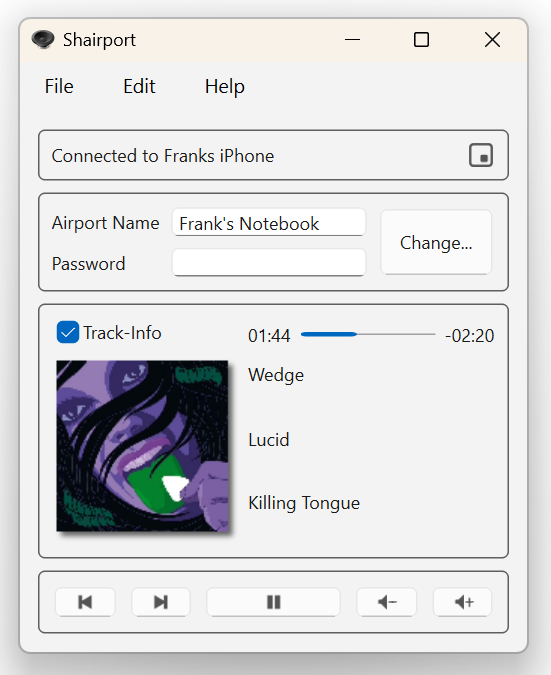
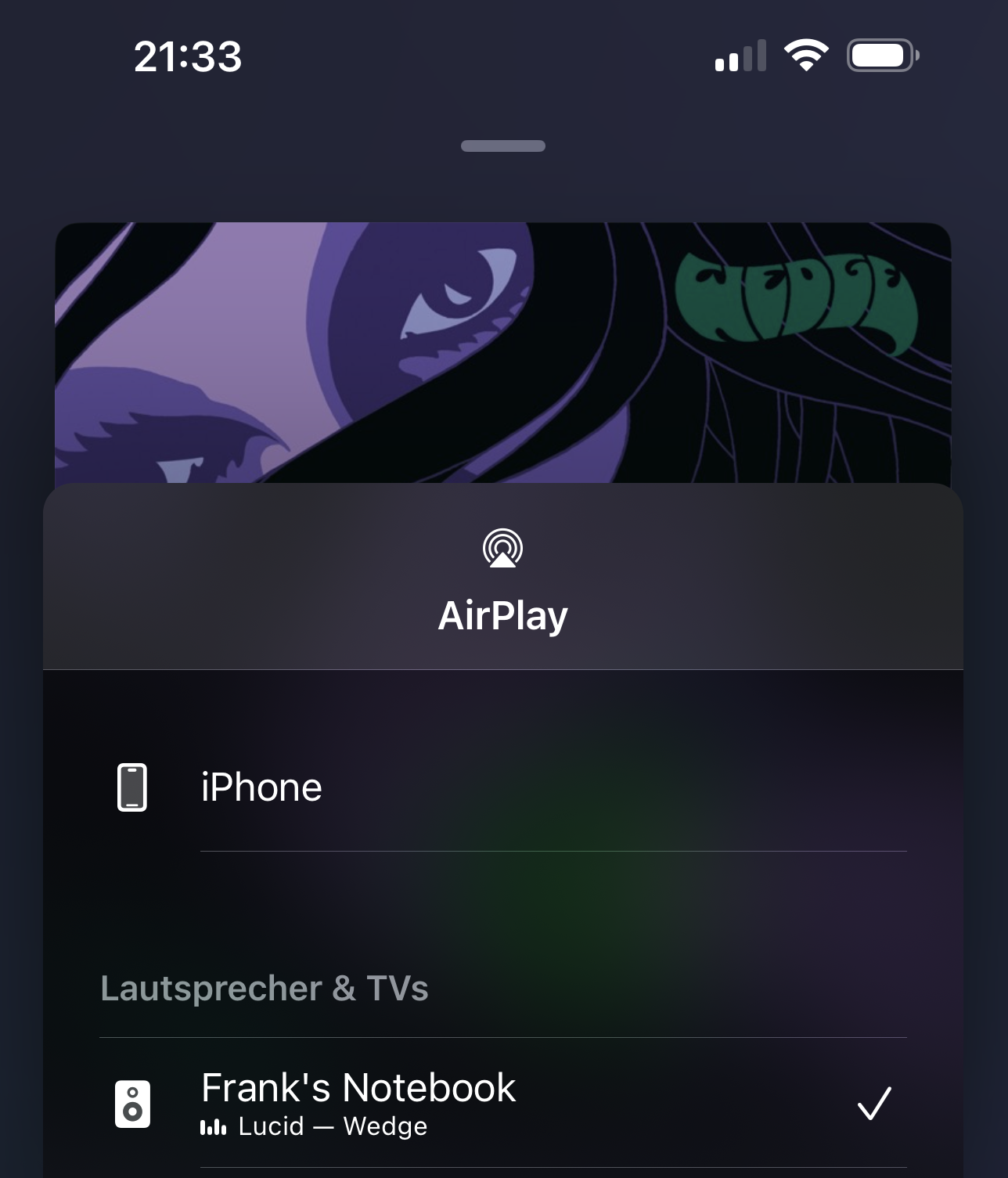
Usage Hints
Click on the time marker to the right of the progress bar to toggle between different display modes.
ShairportQt offers a tray icon which may be
disabled. If the function Show "Now Playing" in Tray is switched on, title information will only appear in
the tray if the main window is not visible on the desktop.
To completely hide/restore the main window from the taskbar you have to click
on the tray icon (for Windows users, a double click may work as well). A tray menu
will show up when you right click on the tray icon. The option "Start minimized" will
minimize the application window to the tray, if the tray icon is enabled.
The multimedia buttons at the bottom of the main window are being used to remotely control your connected device. This also applies to the volume buttons, so it's not your local volume which will increase/decrease.
ShairportQt allows you to start multiple process-instances with different configurations. All you need to
do is to provide a name for your instance configuration by applying the command line parameter
-config=MyConfigurationName. The allowed characters for the configuration-name
are limited to characters A-Z, a-z and 0-9.
ShairportQt supports multiple languages. Your preferred language is being detected automatically, usually.
In case you would like to set it manually ... please edit the file .ShairportQt_Config.json which is located
in your home folder. The format is json. So, please be sure not to break the config when you're making
changes (e.g. please add a comma, if it's not the last entry). You may set the key Language to one of these values:
en-ENfor Englishde-DEfor Germanes-ESfor Spanishca-ESfor Catalanja-JPfor Japanese
Example forcing the language to be Japanese:
"Language": "ja-JP",
Important: Manually editing the config works only when
ShairportQtis not running
System Integrated Media Control
ShairportQt integrates its controls into your system. Windows calls this SMTC, Linux calls it MPRIS. The purpose is the same — allowing the system or other applications to control installed media applications. If you don't need or want this feature, you may disable it by unchecking the checkbox in the options dialog.
Please keep in mind that ShairportQt is designed to act as a media server. The client is the device sending the music, which connects to ShairportQt. So if the remote device disconnects its controls from ShairportQt, those controls will also become unavailable to SMTC/MPRIS.
Avahi (aka Bonjour)
The latest version of ShairportQt does not depend on Apple's Bonjour anymore. Instead the Windows built-in service discovery functions are used.
On my Raspbian ... I had to install libavahi-compat-libdnssd-dev.
sudo apt install libavahi-compat-libdnssd-dev
For other Linux distributions, the package name is different:
- Fedora:
avahi-compat-libdns_sd
Also you may need to enable/start the avahi-daemon:
sudo systemctl enable avahi-daemon
sudo systemctl start avahi-daemon
On some Linux distributions you may have to install avahi via their own desktop installation tool. Please see my
Video Installation of ShairportQt on Suse.
more like this