ecowitt_local
Home Assistant custom integration for Ecowitt weather stations via local web interface
Python★ 54
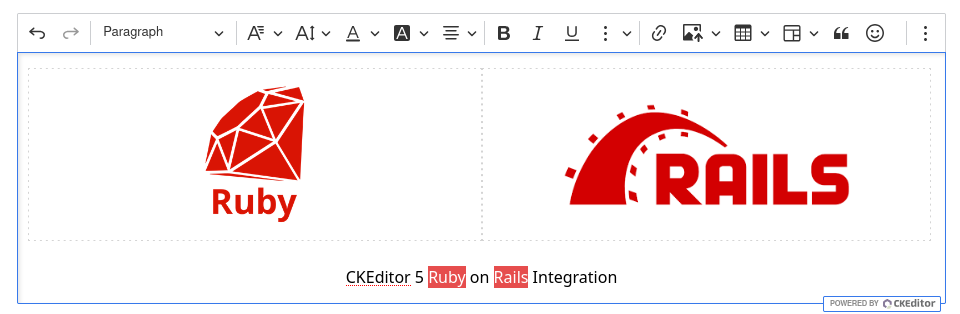
🚀 CKEditor 5 Ruby Gem – a powerful WYSIWYG editor for Rails! Smooth integration with web components and helper methods…
 Mati365
git clone https://github.com/Mati365/ckeditor5-rails.gitMati365/ckeditor5-rails
CKEditor 5 Ruby on Rails integration gem. Provides seamless integration of CKEditor 5 with Rails applications through web components and helper methods. This gem supports various editor types, including classic, inline, balloon, and decoupled editors. It also includes support for custom plugins, translations, and configuration options.
Important
This gem is unofficial and not maintained by CKSource. For official CKEditor 5 documentation, visit ckeditor.com. If you encounter any issues in editor, please report them on the GitHub repository.
| CKEditor 5 Version | Integration Version | Ruby Version | Rails Version |
|---|---|---|---|
| 43.x – 47.x | <= 1.36.x |
>= 2.5 |
>= 5.0 |
| >= 48.0 | >= 1.37.x |
>= 2.5 |
>= 5.0 |
Add this line to your application's Gemfile:
gem 'ckeditor5'
Note
This gem uses importmaps and does not require Webpacker or any other JavaScript bundler. It's compatible with Rails 6.0+ and importmap-rails gem.
While installation is simplified, it's recommended to check if jsdelivr or unpkg CDN is accessible in your environment, otherwise, you may need to configure a custom CDN (or use a commercial one).
In your layout:
<!-- app/views/layouts/application.html.erb -->

<!DOCTYPE html>
<html>
  <head>
    <!--
      ⚠️ **Important**: When using `importmap-rails`, make sure the importmap
      tags are rendered after `ckeditor5_assets` helper. In this scenario,
      content is yielded before rendering `javascript_importmap_tags`.

      If you are not using `importmap-rails`, you can ignore this note and just
      include `ckeditor5_assets` helper in the head section of your layout (or using `content_for`).
    -->
    <!-- javascript_importmap_tags -->

    <%= yield :head %>
  </head>
  <body>
    <%= yield %>
  </body>
</html>
In your view:
<!-- app/views/demos/index.html.erb -->

<% content_for :head do %>
  <!-- 📦 Adds importmap with CKEditor 5 assets. -->
  <!-- 🌍 It'll automatically use your `I18n.locale` language. -->
  <%= ckeditor5_assets %>
<% end %>

<!-- 🖋️ CKEditor 5 might be placed using simple view helper ... -->
<%= ckeditor5_editor %>

<!-- ... or using form input helper -->

<%= form_for @post do |f| %>
  <%= f.ckeditor5 :content, required: true %>
<% end %>
(optional) Customize your config (the default config is defined here):
# config/initializers/ckeditor5.rb

CKEditor5::Rails.configure do
  # 🔖 Specify the version of editor you want.
  # ⚙️ Default configuration includes:
  #    📝 Classic editor build
  #    🧩 Essential plugins (paragraphs, basic styles)
  #    🎛️ Default toolbar layout
  #    📜 GPL license

  # Optionally, you can specify version of CKEditor 5 to use.
  # If it's not specified the default version specified in the gem will be used.
  # version '48.3.1'

  # Upload images to the server using the simple upload adapter, instead of Base64 encoding.
  # simple_upload_adapter

  # Specify global language for the editor.
  # It can be done here, in controller or in the view.
  # By default the `I18n.locale` is used.
  # language :pl
end
Voilà! You have CKEditor 5 integrated with your Rails application. 🎉
If your app uses a custom JS bundler (for example Vite, esbuild, or Webpack), install the npm packages and import the integration in your JavaScript bundle.
npm install ckeditor5-rails ckeditor5
// app/javascript/application.js (or your main bundle entry)

import 'ckeditor5-rails';
import 'ckeditor5/ckeditor5.css';
If you use premium features, also install ckeditor5-premium-features and import its CSS.
npm install ckeditor5-premium-features
import 'ckeditor5-premium-features/ckeditor5-premium-features.css';
Explore various editor configurations with the interactive demo application. For additional inspiration, visit the official CKEditor 5 examples.
To run the demos locally, follow these steps:
npm install
bundle install

# Start the server
npm run npm_package:watch
bundle exec guard -g rails
Open http://localhost:3000/ in a browser to start experimenting. Modify the code as needed.
For extending CKEditor's functionality, refer to the plugins directory to create custom plugins. Community contributions are welcome.
cdn(cdn = nil, &block) methodversion(version, apply_patches: true) methodautomatic_upgrades(enabled: true) methodgpl methodlicense_key(key) methodpremium methodeditable_height(height) methodlanguage(ui, content:) methodtranslations(*languages) methodckbox methodtype(type) methodtoolbar(*items, should_group_when_full: true, &block) methodblock_toolbar(*items, should_group_when_full: true, &block) methodballoon_toolbar(*items, should_group_when_full: true, &block) methodmenubar(visible: true) methodconfigure(name, value) methodplugin(name, premium:, import_name:) methodplugins(*names, **kwargs) methodinline_plugin(name, code) methodexternal_plugin(name, script:, import_as: nil, window_name: nil, stylesheets: []) methodpatch_plugin(plugin)apply_integration_patches(compress: false) methodsimple_upload_adapter(url, compress: true) methodspecial_characters(compress: true, &block) methodwproofreader(version: nil, cdn: nil, compress: true, **config) methodcustom_translations(lang_code = nil, translations = {}, compress: true) methodcompression(enabled: true) methodPresets are predefined configurations of CKEditor 5, allowing quick setup with specific features. The gem includes a :default preset with common features like bold, italic, underline, and link for the classic editor.
You can create your own by defining it in the config/initializers/ckeditor5.rb file using the config.presets.define method. The example below illustrates the setup of a custom preset with a classic editor and a custom toolbar:
# config/initializers/ckeditor5.rb

CKEditor5::Rails.configure do
  # It's possible to override the default preset right in the initializer.
  version '48.3.1'

  # New presets inherit properties from the default preset defined in the initializer.
  # In this example, the custom preset inherits everything from default but disables the menubar:
  presets.define :inherited_custom
    menubar visible: false
  end

  # In order to define preset from scratch, you can use the `inherit: false` option.
  presets.define :blank_preset, inherit: false do
    version '48.3.1'

    # It tells the integration to fetch the newest security patches and bug fixes.
    # It may be disabled, but it's highly recommended to keep it enabled to avoid
    # potential security issues.
    automatic_upgrades

    gpl
    type :classic

    menubar
    toolbar :undo, :redo, :|, :heading, :|, :bold, :italic, :underline, :|,
            :link, :insertImage, :mediaEmbed, :insertTable, :blockQuote, :|,
            :bulletedList, :numberedList, :todoList, :outdent, :indent

    plugins :AccessibilityHelp, :Autoformat, :AutoImage, :Autosave,
            :BlockQuote, :Bold, :CloudServices,
            :Essentials, :Heading, :ImageBlock, :ImageCaption, :ImageInline,
            :ImageInsert, :ImageInsertViaUrl, :ImageResize, :ImageStyle,
            :ImageTextAlternative, :ImageToolbar, :ImageUpload, :Indent,
            :IndentBlock, :Italic, :Link, :LinkImage, :List, :ListProperties,
            :MediaEmbed, :Paragraph, :PasteFromOffice, :PictureEditing,
            :SelectAll, :Table, :TableCaption, :TableCellProperties,
            :TableColumnResize, :TableProperties, :TableToolbar,
            :TextTransformation, :TodoList, :Underline, :Undo, :Base64UploadAdapter

    configure :image, {
      toolbar: ['imageTextAlternative', 'imageStyle:inline', 'imageStyle:block', 'imageStyle:side']
    }
  end
end
In order to override existing presets, you can use the presets.override method. The method takes the name of the preset you want to override and a block with the old configuration. The example below shows how to hide the menubar in the default preset:
# config/initializers/ckeditor5.rb

CKEditor5::Rails.configure do
  presets.override :custom do
    menubar visible: false

    toolbar do
      remove :underline, :heading
    end
  end
end
You can define presets in the controller using the ckeditor5_preset helper method. See it in the section below (Controller / View helpers).
Configuration of the editor can be complex, and it's recommended to use the CKEditor 5 online builder to generate the configuration. It allows you to select the features you want to include and generate the configuration code in JavaScript format. Keep in mind that you need to convert the JavaScript configuration to Ruby format before using it in this gem.
The gem includes a feature that automatically upgrades the CKEditor 5 version when it's released. It's disabled by default for the :default preset. It means that the editor will automatically check the version of the editor during the initialization and upgrade it to the latest version if the new patch or minor version is released.
If you want to enable automatic upgrades, you can use the automatic_upgrades method in the preset configuration.
# config/initializers/ckeditor5.rb

CKEditor5::Rails.configure do
  # ... other configuration

  automatic_upgrades
end
Keep in mind that the version is checked every 4 days, so the editor will not be upgraded immediately after the new version is released. However, it'll slow down the application for certain requests when the version check is performed.
cdn(cdn = nil, &block) methodDefines the CDN to be used for CKEditor 5 assets. The example below shows how to set the CDN to :jsdelivr:
# config/initializers/ckeditor5.rb

CKEditor5::Rails.configure do
  # ... other configuration

  cdn :jsdelivr
end
It also allows you to define a custom CDN by passing a block with the bundle, version, and path arguments. The example below shows how to define it for the jsdelivr CDN:
# config/initializers/ckeditor5.rb

CKEditor5::Rails.configure do
  # ... other configuration

  cdn do |bundle, version, path|
    base_url = "https://cdn.jsdelivr.net/npm/#{bundle}@#{version}/dist"

    "#{base_url}/#{path.start_with?('translations/') ? '' : 'browser/'}#{path}"
  end
end
version(version, apply_patches: true) methodDefines the version of CKEditor 5 to be used. The example below shows how to set the version to 43.2.0:
# config/initializers/ckeditor5.rb

CKEditor5::Rails.configure do
  # ... other configuration

  version '48.3.1'
end
In order to disable default patches, you can pass the apply_patches: false keyword argument to the version method.
# config/initializers/ckeditor5.rb

CKEditor5::Rails.configure do
  # ... other configuration

  version '48.3.1', apply_patches: false
end
The patches are defined in the lib/ckeditor5/rails/plugins/patches directory. If you want to apply custom patches, you can use the patch_plugin method.
automatic_upgrades(enabled: true) methodDefines if automatic upgrades should be enabled. It's disabled for the :default preset by default. The example below shows how to enable automatic upgrades:
# config/initializers/ckeditor5.rb

CKEditor5::Rails.configure do
  # ... other configuration

  automatic_upgrades
end
It means that the editor will automatically upgrade to the latest version when the gem is updated. It'll upgrade the editor only if the new patch or minor version is released. If you want to disable automatic upgrades, you can pass the enabled: false keyword argument to the automatic_upgrades method.
Version is checked every nth day, where n is the number of days since the last check. Currently it's 4 days.
gpl methodDefines the license of CKEditor 5. The example below shows how to set the license to GPL:
# config/initializers/ckeditor5.rb

CKEditor5::Rails.configure do
  # ... other configuration

  gpl
end
license_key(key) methodDefines the license key of CKEditor 5. It calls premium method internally. The example below shows how to set the license key:
# config/initializers/ckeditor5.rb

CKEditor5::Rails.configure do
  # ... other configuration

  license_key 'your-license-key'
end
premium methodDefines if premium package should be included in JS assets. The example below shows how to add ckeditor5-premium-features to import maps:
# config/initializers/ckeditor5.rb

CKEditor5::Rails.configure do
  # ... other configuration

  premium
end
editable_height(height) methodDefines the height of the editor. The example below shows how to set the height to 300px:
# config/initializers/ckeditor5.rb

CKEditor5::Rails.configure do
  # ... other configuration

  editable_height 300
end
language(ui, content:) methodDefines the language of the editor. You can pass the language code as an argument. Keep in mind that the UI and content language can be different. The example below shows how to set the Polish language for the UI and content:
# config/initializers/ckeditor5.rb

CKEditor5::Rails.configure do
  # ... other configuration

  language :pl
end
In order to set the language for the content, you can pass the content keyword argument:
# config/initializers/ckeditor5.rb

CKEditor5::Rails.configure do
  # ... other configuration

  language :pl, content: :en
end
The example above sets the Polish language for the UI and content. If pl language was not defined in the translations, the builder will append the language to the list of translations to fetch. In order to prefetch more translations, use the helper below.
translations(*languages) methodDefines the translations of CKEditor 5. You can pass the language codes as arguments. The example below shows how tell integration to fetch Polish and Spanish translations:
# config/initializers/ckeditor5.rb

CKEditor5::Rails.configure do
  # ... other configuration

  translations :pl, :es
end
⚠️ You need to use language method to set the default language of the editor, as the translations only fetch the translations files and makes them available to later use.
# config/initializers/ckeditor5.rb

CKEditor5::Rails.configure do
  # ... other configuration

  translations :pl
  language :pl
end
ckbox methodDefines the CKBox plugin to be included in the editor. The example below shows how to include the CKBox plugin:
# config/initializers/ckeditor5.rb

CKEditor5::Rails.configure do
  # ... other configuration

  ckbox '2.6.0', theme: :lark
end
type(type) methodDefines the type of editor. Available options:
:classic - classic edytor:inline - inline editor:decoupled - decoupled editor:balloon - balloon editor:multiroot - editor with multiple editing areasThe example below sets the editor type to multiroot in the custom preset:
# config/initializers/ckeditor5.rb

CKEditor5::Rails.configure do
  # ... other configuration

  type :multiroot
end
toolbar(*items, should_group_when_full: true, &block) methodDefines the toolbar items. You can use predefined items like :undo, :redo, :| or specify custom items. There are a few special items:
:_ - breakpoint:| - separatorThe should_group_when_full keyword argument determines whether the toolbar should group items when there is not enough space. It's set to true by default.
# config/initializers/ckeditor5.rb

CKEditor5::Rails.configure do
  # ... other configuration

  toolbar :undo, :redo, :|, :heading, :|, :bold, :italic, :underline, :|,
          :link, :insertImage, :ckbox, :mediaEmbed, :insertTable, :blockQuote, :|,
          :bulletedList, :numberedList, :todoList, :outdent, :indent
end
Keep in mind that the order of items is important, and you should install the corresponding plugins. You can find the list of available plugins in the CKEditor 5 documentation.
If you want to add or prepend items to the existing toolbar, you can use the block syntax:
# config/initializers/ckeditor5.rb

CKEditor5::Rails.configure do
  # ... other configuration

  toolbar do
    append :selectAll, :|, :selectAll, :selectAll
    # Or prepend: prepend :selectAll, :|, :selectAll, :selectAll
  end
end
If you want to remove items from the toolbar, you can use the remove method:
# config/initializers/ckeditor5.rb

CKEditor5::Rails.configure do
  # ... other configuration

  toolbar do
    remove :selectAll, :heading #, ...
  end
end
If you want to append groups of items, you can use the group method:
# config/initializers/ckeditor5.rb

CKEditor5::Rails.configure do
  # ... other configuration

  toolbar do
    group :text_formatting, label: 'Text Formatting', icon: 'threeVerticalDots' do
      append :bold, :italic, :underline, :strikethrough, separator,
             :subscript, :superscript, :removeFormat
    end
  end
end
If you want add new line or the separator, you can use the break_line or separator methods:
# config/initializers/ckeditor5.rb

CKEditor5::Rails.configure do
  # ... other configuration

  toolbar do
    append :bold, break_line
    append separator, :italic
  end
end
block_toolbar(*items, should_group_when_full: true, &block) methodAPI is identical to the toolbar method, but it's used for block toolbar items. The example below shows how to define block toolbar items:
# config/initializers/ckeditor5.rb

CKEditor5::Rails.configure do
  # ... other configuration

  block_toolbar :paragraph, :heading, :blockQuote, :|, :bulletedList, :numberedList, :todoList
end
It is useful when you want to use Block Balloon Editor or Block Toolbar features.
balloon_toolbar(*items, should_group_when_full: true, &block) methodAPI is identical to the toolbar method, but it's used for balloon toolbar items. The example below shows how to define balloon toolbar items:
# config/initializers/ckeditor5.rb

CKEditor5::Rails.configure do
  # ... other configuration

  balloon_toolbar :bold, :italic, :underline, :link, :insertImage, :mediaEmbed, :insertTable, :blockQuote
end
It is useful when you want to use Balloon Editor or Balloon Toolbar features.
menubar(visible: true) methodDefines the visibility of the menubar. By default, it's set to true. In order to hide the menubar, you can pass the visible: false keyword argument.
The example below shows how to set the menubar visibility:
# config/initializers/ckeditor5.rb

CKEditor5::Rails.configure do
  # ... other configuration

  menubar visible: false
end
configure(name, value) methodAllows you to set custom configuration options. You can pass the name of the option and its value as arguments. The ckeditor5_element_ref(selector) helper allows you to reference DOM elements that will be used by the editor's features. It's particularly useful for features that need to check element presence or operate on specific DOM elements.
For example, you can use it to configure font family dropdown to show only fonts available in specific elements:
# config/initializers/ckeditor5.rb

CKEditor5::Rails.configure do
  # ... other configuration

  configure :fontFamily, {
    supportAllValues: true,
    options: [
      'default',
      'Arial, Helvetica, sans-serif',
      'Courier New, Courier, monospace',
      'Georgia, serif',
      'Lucida Sans Unicode, Lucida Grande, sans-serif',
      'Tahoma, Geneva, sans-serif',
      'Times New Roman, Times, serif',
      'Trebuchet MS, Helvetica, sans-serif',
      'Verdana, Geneva, sans-serif'
    ]
  }
end
plugin(name, premium:, import_name:) methodDefines a plugin to be included in the editor. You can pass the name of the plugin as an argument. The premium keyword argument determines whether the plugin is premium. The import_name keyword argument specifies the name of the package to import the plugin from.
The example below show how to import Bold plugin from the ckeditor5 npm package:
# config/initializers/ckeditor5.rb

CKEditor5::Rails.configure do
  # ... other configuration

  plugin :Bold
end
In order to import a plugin from a custom ESM package, you can pass the import_name keyword argument:
# config/initializers/ckeditor5.rb

CKEditor5::Rails.configure do
  # ... other configuration

  plugin :YourPlugin, import_name: 'your-package'
end
In order to import a plugin from a custom Window entry, you can pass the window_name keyword argument:
# config/initializers/ckeditor5.rb

CKEditor5::Rails.configure do
  # ... other configuration

  plugin :YourPlugin, window_name: 'YourPlugin'
end
If there is no window.YourPlugin object, the plugin will dispatch window event to load. To handle this event, you can use the window.addEventListener method:
window.addEventListener('ckeditor:request-cjs-plugin:YourPlugin', () => {
  window.YourPlugin = (async () => {
    const { Plugin } = await import('ckeditor5');

    return class YourPlugin extends Plugin {
      // Your plugin code
    };
  })();
});
⚠️ The event handler must be attached before the plugin is requested. If the plugin is requested before the event handler is attached, the plugin will not be loaded.
plugins(*names, **kwargs) methodDefines the plugins to be included in the editor. You can specify multiple plugins by passing their names as arguments. The keyword arguments are identical to the configuration of the plugin method defined below.
# config/initializers/ckeditor5.rb

CKEditor5::Rails.configure do
  # ... other configuration

  plugins :Bold, :Italic, :Underline, :Link
end
Methods such as remove, append, and prepend can be used to modify the plugins configuration. To remove a plugin, you can use the remove method with the plugin name as an argument:
# config/initializers/ckeditor5.rb

CKEditor5::Rails.configure do
  # ... other configuration

  plugins do
    remove :Heading
  end
end
inline_plugin(name, code) method⚠️ Warning: Use with caution as this is an inline definition of the plugin code, and it can potentially cause XSS vulnerabilities. Only use this method with static, trusted JavaScript code. In order to pass some dynamic data to such plugin, you can use the configure method and override the selected preset in your controller.
The example below shows how to define a custom plugin that doesn't do anything:
# config/initializers/ckeditor5.rb

CKEditor5::Rails.configure do
  # ... other configuration

  inline_plugin :MyCustomPlugin, <<~JS
    const { Plugin } = await import( 'ckeditor5' );

    return class extends Plugin {
      static get pluginName() {
        return 'MyCustomPlugin';
      }

      init() {
        const config = this.editor.config.get('myCustomPlugin') || {};

        // ... Your plugin code
      }
    }
  JS
end
To configure the custom plugin, use the configure method in your initializer. The example below shows how to configure the myCustomPlugin:
# config/initializers/ckeditor5.rb

CKEditor5::Rails.configure do
  # ... other configuration

  configure :myCustomPlugin, {
    option1: 'value1',
    option2: 'value2'
  }
end
This approach is resistant to XSS attacks as it avoids inline JavaScript.
external_plugin(name, script:, import_as: nil, window_name: nil, stylesheets: []) methodDefines an external plugin to be included in the editor. You can pass the name of the plugin as an argument. The script keyword argument specifies the URL of the script to import the plugin from. The import_as keyword argument specifies the name of the package to import the plugin from. The window_name keyword argument specifies the name of the plugin in the window object. The stylesheets keyword argument specifies the URLs of the stylesheets to import.
The example below shows how to define an external plugin that highlights the text:
# config/initializers/ckeditor5.rb

CKEditor5::Rails.configure do
  # ... other configuration

  external_plugin :MyExternalPlugin,
                  script: 'https://example.com/my-external-plugin.js'
end
In order to import a plugin from a custom ESM package, you can pass the import_as keyword argument:
# config/initializers/ckeditor5.rb

CKEditor5::Rails.configure do
  # ... other configuration

  external_plugin :MyExternalPlugin,
                  script: 'https://example.com/my-external-plugin.js',
                  import_as: 'Plugin'
end
It's equivalent to the following JavaScript code:
import { Plugin } from 'my-external-plugin';
In order to import a plugin from a custom Window entry, you can pass the window_name keyword argument:
# config/initializers/ckeditor5.rb

CKEditor5::Rails.configure do
  # ... other configuration

  external_plugin :MyExternalPlugin,
                  script: 'https://example.com/my-external-plugin.js',
                  window_name: 'MyExternalPlugin'
end
It's equivalent to the following JavaScript code:
const Plugin = window.MyExternalPlugin;
In order to import a plugin with stylesheets, you can pass the stylesheets keyword argument:
# config/initializers/ckeditor5.rb

CKEditor5::Rails.configure do
  # ... other configuration

  external_plugin :MyExternalPlugin,
                  script: 'https://example.com/my-external-plugin.js',
                  stylesheets: ['https://example.com/my-external-plugin.css']
end
patch_plugin(plugin)Defines a plugin that applies a patch to the specific versions of CKEditor 5. The example below shows how to define a plugin that applies a patch to the 44.1.0 version:
# config/initializers/ckeditor5.rb

CKEditor5::Rails.configure do
  # ... other configuration

  patch_plugin MyPatchPlugin.new
end
where the MyPatchPlugin should inherit from KEditor5::Rails::Editor::PropsPatchPlugin and implement the initialize method. For example:
class YourPatch < CKEditor5::Rails::Editor::PropsPatchPlugin
  PLUGIN_CODE = <<~JS
    const { Plugin, ColorPickerView, debounce } = await import( 'ckeditor5' );

    return class YourPatch extends Plugin {
      static get pluginName() {
        return 'YourPatch';
      }

      constructor(editor) {
        super(editor);

        // ... your patch
      }
    }
  JS

  def initialize
    super(:YourPatch, PLUGIN_CODE, min_version: nil, max_version: '45.0.0')
  end
end
apply_integration_patches(compress: false) methodDefines a method that applies patches to the specific versions of CKEditor 5. The example below shows how to apply patches to the 44.1.0 version:
# config/initializers/ckeditor5.rb

CKEditor5::Rails.configure do
  # ... other configuration

  apply_integration_patches
end
It's useful when you want to apply patches to the specific versions of CKEditor 5. The patches are defined in the lib/ckeditor5/rails/plugins/patches directory.
simple_upload_adapter(url, compress: true) methodDefines the URL for the simple upload adapter. The default endpoint is /uploads and the method is POST. The example below shows how to set the URL to /uploads:
# config/initializers/ckeditor5.rb

CKEditor5::Rails.configure do
  # ... other configuration

  simple_upload_adapter
  # or: simple_upload_adapter '/uploads'
end
special_characters(compress: true, &block) methodDefines the special characters plugin to be included in the editor. The example below shows how to include the special characters plugin:
# config/initializers/ckeditor5.rb

CKEditor5::Rails.configure do
  # ... other configuration

  special_characters do
    # Enable built-in packs using symbols
    packs :Text, :Essentials, :Currency, :Mathematical, :Latin

    # Custom groups
    group 'Emoji', label: 'Emoticons' do
      item 'smiley', '😊'
      item 'heart', '❤️'
    end

    group 'Arrows',
          items: [
            { title: 'right arrow', character: '→' },
            { title: 'left arrow', character: '←' }
          ]

    group 'Mixed',
          items: [{ title: 'star', character: '⭐' }],
          label: 'Mixed Characters' do
      item 'heart', '❤️'
    end

    order :Text, :Currency, :Mathematical, :Latin, :Emoji, :Arrows, :Mixed
  end
end
For more info about the special characters plugin, check the official documentation.
wproofreader(version: nil, cdn: nil, compress: true, **config) methodDefines the WProofreader plugin to be included in the editor. The example below shows how to include the WProofreader plugin:
# config/initializers/ckeditor5.rb

CKEditor5::Rails.configure do
  # ... other configuration

  wproofreader serviceId: 'your-service-ID',
               srcUrl: 'https://svc.webspellchecker.net/spellcheck31/wscbundle/wscbundle.js'
end
The version keyword argument allows you to specify the version of the WProofreader plugin. The cdn keyword argument allows you to specify the CDN to be used for the WProofreader plugin.
# config/initializers/ckeditor5.rb

CKEditor5::Rails.configure do
  # ... other configuration

  wproofreader version: '2.0.0',
               cdn: 'https://cdn.jsdelivr.net/npm/@ckeditor/ckeditor5-wproofreader@2.0.0/dist',
               serviceId: 'your-service-ID',
               srcUrl: 'https://svc.webspellchecker.net/spellcheck31/wscbundle/wscbundle.js'
end
If no language is set, the plugin will use the default language of the editor. If you want to set the language of the WProofreader plugin, you can use the language keyword argument:
# config/initializers/ckeditor5.rb

CKEditor5::Rails.configure do
  # ... other configuration

  wproofreader serviceId: 'your-service-ID',
               srcUrl: 'https://svc.webspellchecker.net/spellcheck31/wscbundle/wscbundle.js',
               language: :en_US,
               localization: :pl
end
For more info about the WProofreader plugin, check the official documentation.
custom_translations(lang_code = nil, translations = {}, compress: true) methodAllows setting custom translations for editor components, UI elements, and headings. The translations are applied globally since they override the global translation object.
[!NOTE] This helper allows overriding builtin translations of the editor, but translations are overridden globally, as the CKEditor 5 uses a single translation object for all instances of the editor. It's recommended to use the
ckeditor5_translation_refhelper to reference the translations in the configuration.
# config/initializers/ckeditor5.rb

CKEditor5::Rails.configure do
  # ... other configuration

  custom_translations :en, {
    'Heading 1': 'Your custom translation value'
  }

  configure :heading, {
    options: [
      { model: 'heading1', title: ckeditor5_translation_ref('Heading 1') },
      # ...
    ]
  }
end
compression(enabled: true) methodDefines whether the inline plugins should be compressed. It must be called before the inline_plugin and version methods. The example below shows how to disable compression:
# config/initializers/ckeditor5.rb

CKEditor5::Rails.configure do
  compression enabled: false

  # ... other configuration
end
⚠️ Compression is enabled by default, and it's recommended to keep it enabled for production environments. It reduces the size of the inline plugins and patches, which improves the loading time of the editor.
If you want to disable compression for a specific plugin, you can pass the compress: false keyword argument to the inline_plugin method:
# config/initializers/ckeditor5.rb

CKEditor5::Rails.configure do
  # ... other configuration

  inline_plugin :MyCustomPlugin, plugin_code, compress: false
end
ckeditor5_translation_ref(key) methodAllows you to reference CKEditor 5 translations in the configuration. It's particularly useful when you want to use custom translations in the editor configuration.
# config/initializers/ckeditor5.rb

CKEditor5::Rails.configure do
  # ... other configuration

  custom_translations :en, {
    'Heading 1': 'Your custom translation value'
  }

  configure :heading, {
    options: [
      { model: 'heading1', title: ckeditor5_translation_ref('Heading 1') },
      # ...
    ]
  }
end
ckeditor5_element_ref(selector) methodIn other words, it allows you to reference DOM elements that will be used by the editor's features. It's particularly useful for features that need to check element presence or operate on specific DOM elements. The primary example is the presence list feature that requires a reference to the element that will be used to display the list.
# config/initializers/ckeditor5.rb

CKEditor5::Rails.configure do
  # ... other configuration

  configure :yourPlugin, {
      element: ckeditor5_element_ref("body")
  }
end
ckeditor5_preset(name = nil, &block) methodIt may be useful when you want to define a preset based on the current user or request.
# app/controllers/application_controller.rb

class ApplicationController < ActionController::Base
  def show
    @preset = ckeditor5_preset do
      version '48.3.1'

      toolbar :sourceEditing, :|, :bold, :italic, :underline, :strikethrough,
              :subscript, :superscript, :removeFormat, :|, :bulletedList, :numberedList,
              :fontFamily, :fontSize, :|, :link, :anchor, :|,
              :fontColor, :fontBackgroundColor

      plugins :Essentials, :Paragraph, :Bold, :Italic, :Underline, :Strikethrough,
              :Subscript, :Superscript, :RemoveFormat, :List, :Link, :Font,
              :FontFamily, :FontSize, :FontColor, :FontBackgroundColor, :SourceEditing, :Essentials, :Paragraph
    end
  end
end
In order to use the preset in the view, you can pass it to the ckeditor5_assets helper method:
<!-- app/views/demos/index.html.erb -->

<% content_for :head do %>
  <%= ckeditor5_assets preset: @preset %>
<% end %>

<%= ckeditor5_editor %>
If you want to override the preset defined in the initializer, you can search for the preset by name and then override it (it'll create copy of the preset):
# app/controllers/application_controller.rb

class ApplicationController < ActionController::Base
  def show
    @preset = ckeditor5_preset(:default).override do
      version '48.3.1'

      toolbar :sourceEditing, :|, :bold, :italic, :underline, :strikethrough,
              :subscript, :superscript, :removeFormat, :|, :bulletedList, :numberedList,
              :fontFamily, :fontSize, :|, :link, :anchor, :|,
              :fontColor, :fontBackgroundColor

      plugins :Essentials, :Paragraph, :Bold, :Italic, :Underline, :Strikethrough,
              :Subscript, :Superscript, :RemoveFormat, :List, :Link, :Font,
              :FontFamily, :FontSize, :FontColor, :FontBackgroundColor, :SourceEditing, :Essentials, :Paragraph
    end
  end
end
To include CKEditor 5 assets in your application, you can use the ckeditor5_assets helper method. This method takes the version of CKEditor 5 as an argument and includes the necessary resources of the editor. Depending on the specified configuration, it includes the JS and CSS assets from the official CKEditor 5 CDN or one of the popular CDNs.
Keep in mind that you need to include the helper result in the head section of your layout. In examples below, we use content_for helper to include the assets in the head section of the view.
The example below users the default preset defined here.
<!-- app/views/demos/index.html.erb -->

<% content_for :head do %>
  <%= ckeditor5_assets %>
<% end %>
If you want to fetch some additional translations, you can extend your initializer with the following configuration:
# config/initializers/ckeditor5.rb

CKEditor5::Rails.configure do
  # ... rest of the configuration

  translations :pl, :es
end
To specify a custom preset, you need to pass the preset keyword argument with the name of the preset. The example below shows how to include the assets for the custom preset:
<!-- app/views/demos/index.html.erb -->

<% content_for :head do %>
  <%= ckeditor5_assets preset: :custom %>
<% end %>

<%-# This editor will use `custom` preset defined in `ckeditor5_assets` above %>
<%= ckeditor5_editor %>
In order to define such preset, you can use the following configuration:
# config/initializers/ckeditor5.rb

CKEditor5::Rails.configure do
  # ... rest of the configuration

  presets.define :custom do
    # ... your preset configuration

    translations :pl, :es
  end
end
⚠️ Keep in mind that all ckeditor5_editor helpers will use the configuration from the preset defined in the ckeditor5_assets. If you want to use a different preset for a specific editor, you can pass the preset keyword argument to the ckeditor5_editor helper.
<!-- app/views/demos/index.html.erb -->

<% content_for :head do %>
  <%= ckeditor5_assets preset: :custom %>
<% end %>

<%= ckeditor5_editor preset: :default %>
It's possible to define the preset directly in the ckeditor5_assets helper method. It allows you to dynamically specify version, cdn provider or even translations in the view. The example below inherits the default preset and adds Polish translations and other options:
<!-- app/views/demos/index.html.erb -->

<% content_for :head do %>
  <%= ckeditor5_assets version: '43.3.0', cdn: :jsdelivr, translations: [:pl], license_key: '<YOUR KEY> OR GPL' %>
<% end %>
All JS assets defined by the ckeditor5_assets helper method are loaded asynchronously. It means that the assets are loaded in the background without blocking the rendering of the page. However, the CSS assets are loaded synchronously to prevent the flash of unstyled content and ensure that the editor is styled correctly.
It has been achieved by using web components, together with import maps, which are supported by modern browsers. The web components are used to define the editor and its plugins, while the import maps are used to define the dependencies between the assets.
ckeditor5_lazy_javascript_tags helperThis method is slow as content is being loaded on the fly on the client side. Use it only when necessary.
If you want to include the CKEditor 5 JavaScripts and Stylesheets when the editor is being appended to the DOM using Turbolinks, Stimulus, or other JavaScript frameworks, you can use the ckeditor5_lazy_javascript_tags helper method.
This method does not preload the assets, and it's appending web component that loads the assets when the editor is being appended to the DOM. It's useful when turbolinks frame is being replaced or when the editor is being appended to the DOM dynamically.
The example below shows how to include the CKEditor 5 assets lazily:
<!-- app/views/demos/index.html.erb -->

<% content_for :head do %>
  <%= ckeditor5_lazy_javascript_tags %>
<% end %>

<%= turbo_frame_tag 'editor' do %>
  <%= ckeditor5_editor %>
<% end %>
⚠️ Keep in mind that the ckeditor5_lazy_javascript_tags helper method should be included in the head section of the layout and it does not create controller context for the editors. In other words, you have to specify preset every time you use ckeditor5_editor helper (in ckeditor5_assets it's not necessary, as it's inherited by all editors).
If you want to keep inheritance of the presets and enforce integration to inject CKEditor 5 files on the fly, you can use the lazy keyword argument in the ckeditor5_assets helper method:
<!-- app/views/demos/index.html.erb -->

<% content_for :head do %>
  <%= ckeditor5_assets preset: :custom, lazy: true %>
<% end %>

<!-- This time preset will be inherited but stylesheets and js files will be injected on the client side. -->
<%= ckeditor5_editor %>
If you want to use CKEditor 5 under the GPL license, you can include the assets using the ckeditor5_assets without passing any arguments. It'll include the necessary assets for the GPL license from one of the most popular CDNs. In our scenario, we use the jsdelivr CDN which is the default one.
Example:
<!-- app/views/demos/index.html.erb -->

<% content_for :head do %>
  <%= ckeditor5_assets %>
<% end %>
In that scenario it's recommended to add gpl method to the initializer along with the version:
# config/initializers/ckeditor5.rb

CKEditor5::Rails.configure do
  gpl
  version '48.3.1'
end
In order to use unpkg CDN, you can extend your initializer with the following configuration:
# config/initializers/ckeditor5.rb

CKEditor5::Rails.configure do
  # ... rest of the configuration

  cdn :unpkg
end
However, you can also specify the CDN directly in the view:
<!-- app/views/demos/index.html.erb -->

<% content_for :head do %>
  <%= ckeditor5_assets cdn: :unpkg %>
<% end %>
or using helper function:
<!-- app/views/demos/index.html.erb -->

<% content_for :head do %>
  <%= ckeditor5_jsdelivr_assets %>
<% end %>
If you want to use CKEditor 5 under a commercial license, you have to specify license key. It can be done in the initializer:
# config/initializers/ckeditor5.rb

CKEditor5::Rails.configure do
  license_key 'your-license-key'
end
<!-- app/views/demos/index.html.erb -->

<% content_for :head do %>
  <%= ckeditor5_assets %>
<% end %>
or directly in the view:
<!-- app/views/demos/index.html.erb -->

<% content_for :head do %>
  <%= ckeditor5_assets license_key: 'your-license-key' %>
<% end %>
In this scenario, the assets are included from the official CKEditor 5 CDN which is more reliable and provides better performance, especially for commercial usage.
The ckeditor5_editor helper renders CKEditor 5 instances in your views. Before using it, ensure you've included the necessary assets in your page's head section otherwise the editor won't work as there are no CKEditor 5 JavaScript and CSS files loaded.
ckeditor5_editor(
  preset: nil,          # Symbol, PresetBuilder - preset to use (default: context preset or :default)
  config: nil,          # Hash - custom config; replaces the preset's config (use extra_config to merge instead)
  extra_config: {},     # Hash - additional config, deep-merged on top of the preset/custom config
  type: nil,            # Symbol - :classic, :inline, :balloon, :decoupled, :multiroot (default: preset's type)
  initial_data: nil,    # String - initial HTML content for the editor (mutually exclusive with a block)
  watchdog: true,       # Boolean - enables/disables the CKEditor 5 crash-recovery watchdog
  editable_height: nil, # Integer, String - fixed height of the editing area, e.g. 300 or '300px' (:classic/:balloon only)
  language: nil,        # Symbol - UI language override for this editor instance
  inline: false,        # Boolean - use the $inlineRoot model element instead of $root for the (single) root
                         # (not applicable to :multiroot - use `inline` on ckeditor5_editable per root instead)
  **html_attributes     # any other keyword becomes an HTML attribute: style:, class:, id:, data-*,
                         # form attributes (name:, required:, value:), event handlers (oneditorready:, oneditorchange:, oneditorerror:), ...
)
# &block - nested content: initial data for single-root editors, or ckeditor5_toolbar / ckeditor5_menubar / ckeditor5_editable
#          for multiroot/decoupled editors. Mutually exclusive with `initial_data`.
You can set the initial content of the editor using the initial_data keyword argument or by passing the content directly to the ckeditor5_editor helper block.
The example below shows how to set the initial content of the editor using the initial_data and language keyword arguments:
<!-- app/views/demos/index.html.erb -->

<%= ckeditor5_editor initial_data: "<p>Initial content</p>" %>
The example below shows how to set the initial content of the editor using the ckeditor5_editor helper block.
<!-- app/views/demos/index.html.erb -->

<%= ckeditor5_editor do %>
  <p>Initial content</p>
<% end %>
$inlineRoot) 📏If you want the (single) root to behave as a single-line editable area — e.g. a title field — instead of a regular multi-block $root, pass the inline keyword argument:
more like this
Home Assistant custom integration for Ecowitt weather stations via local web interface
Ember addon for simplest and smallest (1kB) WYSIWYG text editor for web, with no dependencies
search projects, people, and tags