Midnight-Lizard
Сustom color schemes for all websites
 Midnight-Lizard
git clone https://github.com/Midnight-Lizard/Midnight-Lizard.gitMidnight-Lizard/Midnight-LizardMidnight Lizard 


Midnight Lizard web-extension for Google Chrome™ and Mozilla Firefox™ provides custom color schemes for all websites. Each color scheme works on all websites and will never become outdated. There are many predefined color schemes and you can install more from midnight-lizard.org
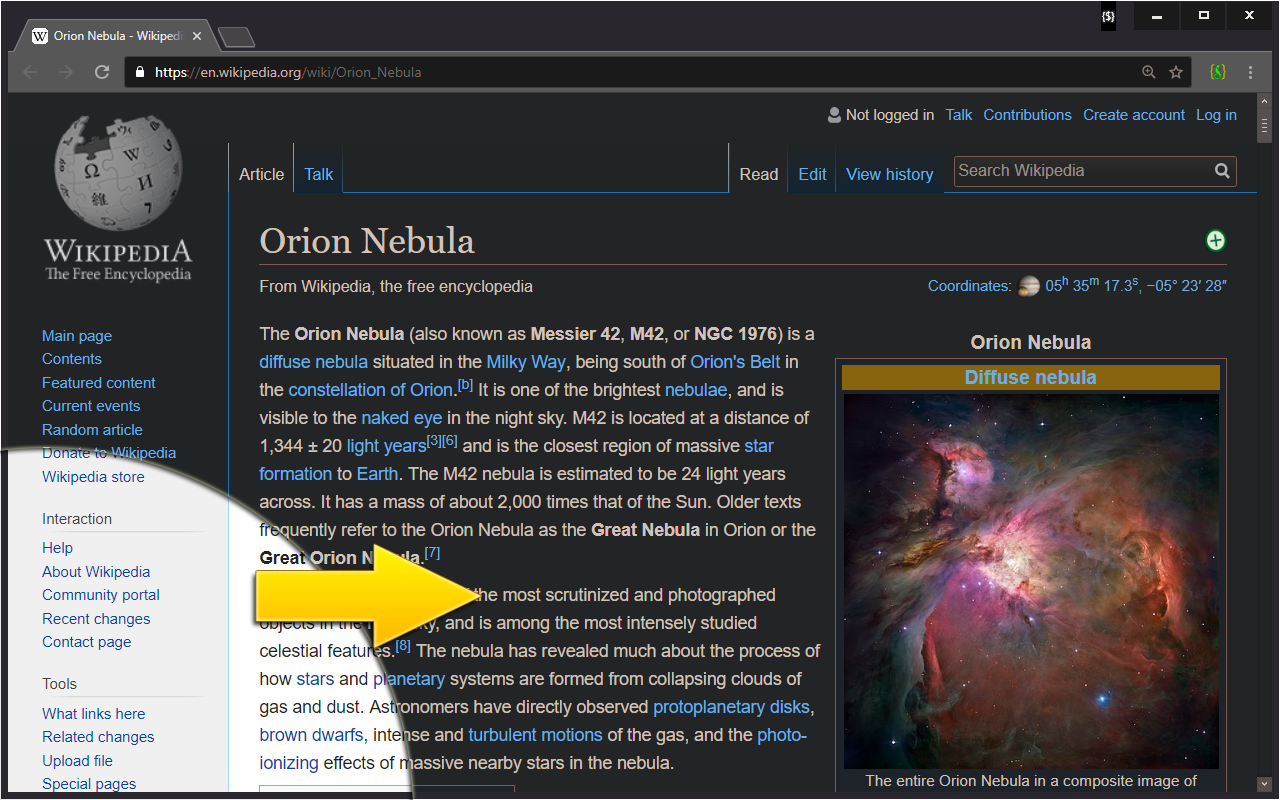
✔ Choose between dark, light, grayscale or colorful color schemes
✔ Modify existing or create new color schemes
✔ Use different color schemes on each website
✔ Adjust brightness, saturation, contrast and hues
✔ Improve accessibility and readability
✔ Increase contrast to make text easier to read
✔ Apply blue light filter to shift all colors towards red light
✔ Keep original images and hues without inversion
✔ Schedule automatic activation and deactivation
✔ Or follow system color scheme schedule
✔ Use with PDF and local files (enable in browser settings)
PDF processing is available only in Chromium-based browsers
✔ Dynamically change Firefox theme (disabled by default)
✔ Shade bright colors and images
✔ Change any colour you want
✔ Synchronize your settings
✔ Configure background, text, buttons, links, borders, images and scrollbars
✔ Apply globally, per-website or with url match patterns
✔ Switch between websites blacklist and whitelist modes
✔ Use Simplified mode to improve performance on heavy websites
✔ Use keyboard shortcuts to toggle extension
⮚ on current website: Alt+Shift+L
⮚ globally: Alt+Shift+M
🎉 MANIFEST V3 UPDATE
This extension has been updated to Manifest V3 to comply with Google Chrome's latest requirements. All functionality remains the same while meeting modern extension standards.
⚠️ Important: The extension requires building before installation. See Build Instructions below.
📦 BUILD INSTRUCTIONS
This is a TypeScript project that needs to be compiled to JavaScript before it can be installed in Chrome or Firefox. Follow the instructions below for your operating system.
Prerequisites
You need Node.js and npm installed on your system.
Installing Node.js
Windows:
- Download Node.js LTS from nodejs.org
- Run the installer (
.msifile) - Accept the license agreement and keep default settings
- Make sure "Add to PATH" is checked during installation
- Restart your terminal/PowerShell after installation
- Verify installation:
node --version
npm --version
Linux (Ubuntu/Debian):
# Using NodeSource repository for latest LTS version
curl -fsSL https://deb.nodesource.com/setup_lts.x | sudo -E bash -
sudo apt-get install -y nodejs

# Verify installation
node --version
npm --version
Linux (Fedora/RHEL/CentOS):
# Using NodeSource repository
curl -fsSL https://rpm.nodesource.com/setup_lts.x | sudo bash -
sudo dnf install -y nodejs

# Verify installation
node --version
npm --version
macOS:
# Using Homebrew
brew install node

# Verify installation
node --version
npm --version
Building on Windows
-
Open PowerShell or Command Prompt
- Press
Win + Xand select "Windows PowerShell" or "Terminal"
- Press
-
Navigate to the project directory
cd C:\path\to\Midnight-Lizard-manifest-3
Replace
C:\path\to\with your actual path -
Install dependencies
npm install
This will download all required packages (~213 packages). Takes 1-2 minutes.
-
Build the extension
For PowerShell:
$env:NODE_OPTIONS="--openssl-legacy-provider"; npm run prod-build
For Command Prompt (cmd):
set NODE_OPTIONS=--openssl-legacy-provider && npm run prod-build
-
Verify the build
dir js
You should see these files:
background-page.js(247 KB)content-script.js(418 KB)popup.js(483 KB)page-script.js(4.7 KB)custom\folder with additional scripts
✅ Build complete! The js/ folder now contains all compiled JavaScript files.
Building on Linux
-
Open Terminal
- Press
Ctrl + Alt + Tor open your preferred terminal
- Press
-
Navigate to the project directory
cd /path/to/Midnight-Lizard-manifest-3
Replace
/path/to/with your actual path -
Install dependencies
npm install
This will download all required packages (~213 packages). Takes 1-2 minutes.
-
Build the extension
NODE_OPTIONS=--openssl-legacy-provider npm run prod-build
-
Verify the build
ls -lh js/
You should see these files:
background-page.js(247 KB)content-script.js(418 KB)popup.js(483 KB)page-script.js(4.7 KB)custom/folder with additional scripts
✅ Build complete! The js/ folder now contains all compiled JavaScript files.
🚀 INSTALLATION
Installing in Google Chrome
-
Open Chrome Extensions page
- Navigate to
chrome://extensions/ - Or: Menu → More Tools → Extensions
- Navigate to
-
Enable Developer Mode
- Toggle the "Developer mode" switch in the top-right corner
-
Load the extension
- Click "Load unpacked"
- Select the
Midnight-Lizard-manifest-3folder (the root folder, not thejs/folder) - The extension will now appear in your extensions list
-
Pin the extension (optional)
- Click the puzzle icon in Chrome toolbar
- Find "Midnight Lizard" and click the pin icon
✅ Installation complete! The extension is now active.
Installing in Mozilla Firefox
-
Open Firefox Add-ons page
- Navigate to
about:debugging#/runtime/this-firefox - Or: Menu → Add-ons and themes → Settings (gear icon) → Debug Add-ons
- Navigate to
-
Load temporary add-on
- Click "Load Temporary Add-on..."
- Navigate to the
Midnight-Lizard-manifest-3folder - Select the
manifest.jsonfile
-
Make it permanent (optional)
- For permanent installation, you'll need to sign the extension through Mozilla
- Or rebuild for Firefox:
npm run prod-pack:firefox
✅ Installation complete! The extension is now active.
🔧 DEVELOPMENT
Watch Mode (Auto-rebuild on changes)
npm run watch
This will automatically rebuild the extension whenever you modify TypeScript files.
Development Build (with source maps)
npm run dev-build
Includes source maps for easier debugging.
Production Build
npm run prod-build
Optimized build without source maps.
Create Distribution Package
# For Chrome
npm run prod-pack:chrome

# For Firefox
npm run prod-pack:firefox

# For both
npm run prod-pack
Creates .zip (Chrome) or .xpi (Firefox) files in the releases/ folder.
📝 BUILD TROUBLESHOOTING
Problem: npm: command not found or 'npm' is not recognized
Solution: Install Node.js (see Prerequisites)
Problem: Error: digital envelope routines::unsupported
Solution: Use the legacy OpenSSL provider: NODE_OPTIONS=--openssl-legacy-provider npm run prod-build
Problem: Build warnings about file sizes Solution: These are normal performance warnings and don't affect functionality. You can safely ignore them.
Problem: js/ folder is empty after build
Solution: Make sure the build completed without errors. Check the terminal output for error messages.
Problem: Extension doesn't load in Chrome
Solution: Ensure you've built the project first and the js/ folder exists with all JavaScript files.
CONTRIBUTING
🌍 Help translate Midnight Lizard into other languages
🐛 Found a bug or have a new feature proposal?
💰 Donate to help us cover infrastructure expenses
BACKERS
SPONSORS
more like this
gns3theme
Custom color themes for GNS3 GUI. Built-in schemes, custom JSON themes, device symbols. Supports Linux and macOS.
Aritim-Light
A Light theme for both KDE and GTK based distros, pleasant to the eyes and perfect for your daily workload.