r2
Free open-source Cloudflare R2 desktop client and S3 GUI for macOS, Windows, and Linux. Manage Cloudflare R2, AWS S3, M…
TypeScript★ 50
A fast, minimal, and customizable text editor.
 TrisH0x2A
git clone https://github.com/TrisH0x2A/loom.gitTrisH0x2A/loom
A fast, minimal, and customizable text editor.
Built with C++ and Qt, featuring Lua scripting for configuration and plugins
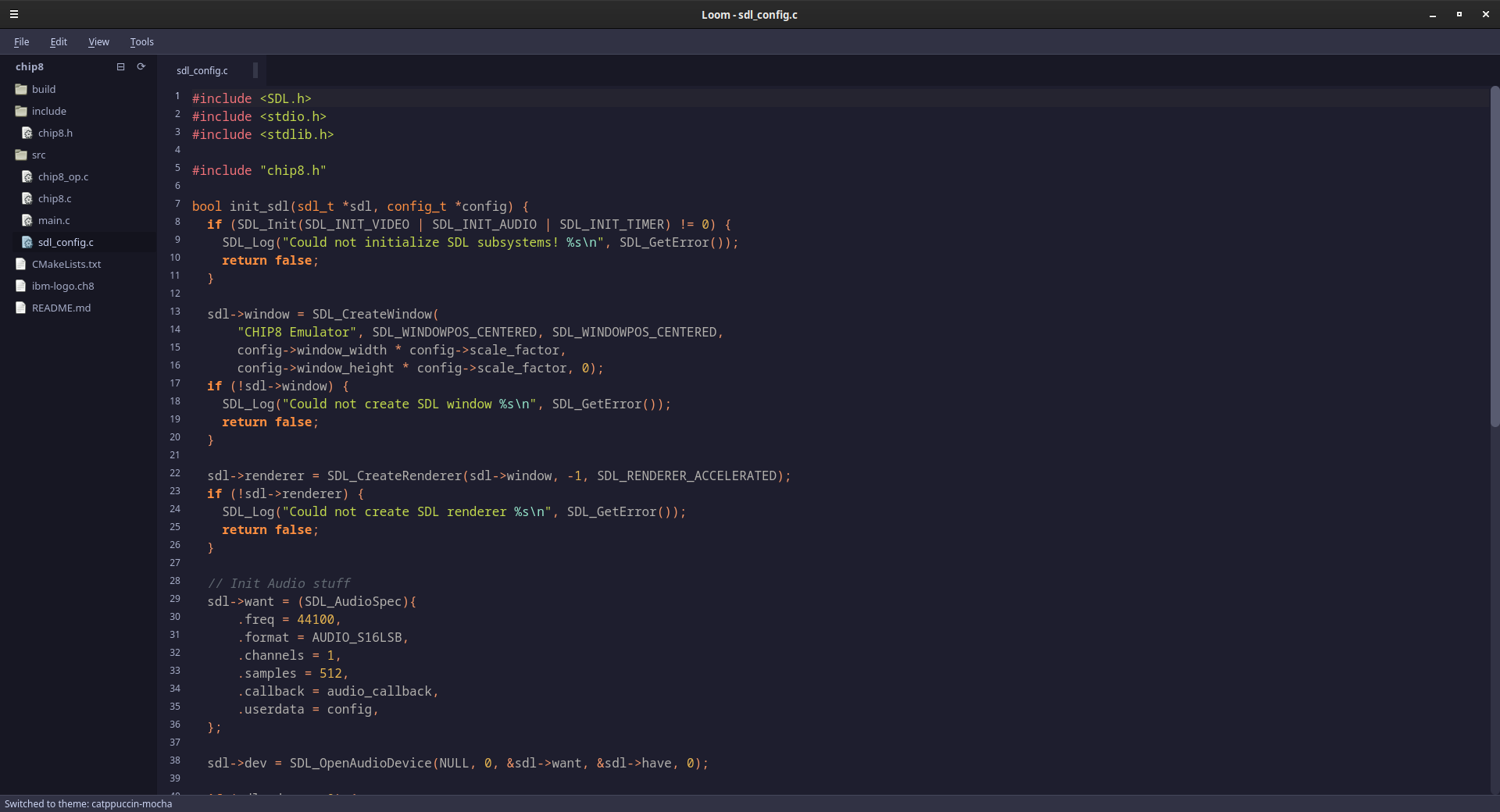
Ctrl+Shift+T or Tools menuLoom features optimized syntax highlighting powered by KDE's KSyntaxHighlighting framework, providing smooth, fast, and comprehensive language support with beautiful, customizable colors.
Professional text editing powered by KDE Frameworks with comprehensive syntax highlighting and modern editing features.
Loom integrates two powerful KDE Framework components:
Supported Languages & Formats (300+):
KTextEditor Features:
KSyntaxHighlighting Features:
Loom features a single unified theme system that applies consistent styling across both the application UI and syntax highlighting. No separate configuration is needed - one theme setting controls everything.
config/config.lua)Configure your theme with a single setting:
theme = {
    name = "gruvbox Dark" -- Single unified theme for both app UI and syntax highlighting
    -- Available themes: "Atom One Dark", "Atom One Light", "Breeze Dark", "Breeze Light",
    --                   "Dracula", "Falcon", "GitHub Dark", "GitHub Light", "Monokai",
    --                   "Nord", "Oblivion", "Printing", "Radical", "Solarized Dark",
    --                   "Solarized Light", "Vim Dark", "ayu Dark", "ayu Light",
    --                   "ayu Mirage", "gruvbox Dark", "gruvbox Light"
}
Loom supports 21 built-in themes that provide consistent styling for both the application interface and code syntax highlighting:
Dark Themes:
Atom One Dark - GitHub's Atom editor dark themeBreeze Dark - KDE's elegant dark themeDracula - Popular dark theme with purple accentsFalcon - Unique dark theme with orange highlightsGitHub Dark - GitHub's modern dark interfaceMonokai - Classic dark theme with bright colorsNord - Arctic-inspired blue-tinted dark themeOblivion - High-contrast dark themeRadical - Cyberpunk-inspired dark theme with neon accentsSolarized Dark - Low-contrast scientific dark themeVim Dark - Traditional terminal-inspired dark themeayu Dark - Modern dark theme with muted colorsayu Mirage - Ayu's balanced dark variantgruvbox Dark - Retro groove dark theme (default)Light Themes:
Atom One Light - Clean and minimal light themeBreeze Light - KDE's bright and airy light themeGitHub Light - GitHub's clean light interfaceSolarized Light - Scientific light theme with warm tonesayu Light - Bright and modern light themegruvbox Light - Warm retro light variantSpecial Purpose:
Printing - High-contrast theme optimized for printing documentsEach theme provides:
Change themes instantly without restart:
config/config.lua and save⚠️ IMPORTANT: The AutoFormat plugin requires external formatting tools to be installed on your system! Run
./scripts/install_formatters.shto install all required formatters automatically.
config/config.luaBefore building Loom, ensure you have the following installed:
# Download the latest DEB package from GitHub releases
wget https://github.com/dexter-xd/loom/releases/download/beta_1.3.0/loom_1.3.0_amd64.deb

# Install the package
sudo dpkg -i loom_1.3.0_amd64.deb
sudo apt-get install -f  # Fix any dependency issues

# Run Loom
loom
# Install dependencies
sudo apt update
sudo apt install cmake qtbase5-dev liblua5.4-dev build-essential \
                 libkf5texteditor-dev libkf5syntaxhighlighting-dev

# Clone the repository
git clone https://github.com/dexter-xd/loom.git
cd loom

# Build using the provided script
chmod +x scripts/build_release.sh
./scripts/build_release.sh

# Run Loom
./scripts/run_loom.sh
# Install dependencies
sudo dnf install cmake qt5-qtbase-devel lua-devel gcc-c++ \
                 kf5-ktexteditor-devel kf5-syntax-highlighting-devel

# Clone and build
git clone https://github.com/dexter-xd/loom.git
cd loom
chmod +x scripts/build_release.sh
./scripts/build_release.sh
# Install dependencies with Homebrew
brew install cmake qt@5 lua kde-frameworks

# Clone and build
git clone https://github.com/dexter-xd/loom.git
cd loom
chmod +x scripts/build_release.sh
./scripts/build_release.sh
Release Build (Optimized)
./scripts/build_release.sh
Debug Build (Development)
./scripts/build_debug.sh
Running Loom
# Recommended way (suppresses Qt warnings)
./scripts/run_loom.sh [optional-file-path]

# Direct execution
./build/loom [optional-file-path]
# Create build directory
mkdir build && cd build

# Configure with CMake
cmake -DCMAKE_BUILD_TYPE=Release ..

# Build the project
cmake --build . -j$(nproc)

# Run the editor
./loom
The AutoFormat plugin requires external formatting tools to be installed on your system. The plugin uses these external formatters to provide professional code formatting:
I provide an automated installation script for all required formatters:
# Make the script executable and run it
chmod +x scripts/install_formatters.sh
./scripts/install_formatters.sh
The script will:
If you prefer manual installation:
# Ubuntu/Debian
sudo apt install clang-format nodejs npm python3-pip
npm install -g prettier
pip3 install black
cargo install stylua  # if you have Rust installed

# macOS (with Homebrew)
brew install clang-format node python
npm install -g prettier
pip3 install black
cargo install stylua  # if you have Rust installed

# Fedora/RHEL
sudo dnf install clang-tools-extra nodejs npm python3-pip
npm install -g prettier
pip3 install black
cargo install stylua  # if you have Rust installed
Note: The AutoFormat plugin will automatically detect which formatters are available and only format files for languages where the corresponding formatter is installed.
Loom uses a powerful Lua-based configuration system that allows you to customize every aspect of the editor.
config/
└── config.lua          # Main configuration file
plugins/
├── autoformat.lua      # Auto-formatting plugin
└── autosave.lua       # Auto-save plugin
config/config.lua)The main configuration file controls editor behavior, appearance, and keybindings:
config = {
    -- Editor Settings
    editor = {
        font_family = "JetBrains Mono",
        font_size = 12,
        tab_width = 8,
        show_line_numbers = true,
        word_wrap = true,
        auto_indent = true,
        highlight_current_line = true
    },

    -- Theme Settings
    theme = {
        name = "gruvbox" -- Options: "gruvbox", "dracula", "catppuccin-mocha"
    },

    -- Window Settings
    window = {
        width = 1224,
        height = 768,
        remember_size = true,
        remember_position = true
    },

    -- Keybindings
    keybindings = {
        ["Ctrl+S"] = "save_file",
        ["Ctrl+O"] = "open_file",
        ["Ctrl+N"] = "new_file",
        ["Ctrl+T"] = "new_tab",
        ["Ctrl+W"] = "close_file",
        ["Ctrl+Q"] = "quit_application",
        ["Ctrl+Z"] = "undo",
        ["Ctrl+Y"] = "redo",
        ["Ctrl+C"] = "copy",
        ["Ctrl+V"] = "paste",
        ["Ctrl+X"] = "cut",
        ["Ctrl+A"] = "select_all",
        ["Ctrl+F"] = "find",
        ["Ctrl+H"] = "replace",
        ["F11"] = "toggle_fullscreen",
        ["F12"] = "toggle_file_tree",         -- File tree panel toggle
        ["Ctrl+Shift+T"] = "toggle_theme",    -- Theme switching
        ["Ctrl+Shift+F"] = "format_document", -- Document formatting
        -- Add your custom keybindings here
    },

    -- Plugin Configuration
    plugins = {
        enabled = true,
        auto_load = true,
        error_recovery = true,

        -- Individual plugin settings
        theme_switcher = {
            enabled = true,
            auto_load = true
        },

        autosave = {
            enabled = false,
            interval = 10, -- seconds
            save_on_focus_lost = false
        },

        autoformat = {
            enabled = true,
            auto_load = true,
            format_on_save = true,
            use_external_formatters = true
        }
    }
}
The configuration system provides helper functions:
-- Get configuration value with fallback
local font_size = get_config("editor.font_size", 12)

-- Set configuration value
set_config("editor.font_size", 14)
Loom features a robust plugin system powered by Lua scripting. Plugins can extend functionality, add new features, and integrate with external tools.
plugins/theme_switcher.lua)Provides easy theme switching functionality with multiple beautiful themes.
Features:
Ctrl+Shift+TAvailable Themes:
Configuration:
plugins = {
    theme_switcher = {
        enabled = true,     -- Enable/disable theme switcher
        auto_load = true    -- Load plugin on startup
    }
}

-- Set default theme
theme = {
    name = "gruvbox"  -- Options: "gruvbox", "dracula", "catppuccin-mocha"
}
Usage:
Ctrl+Shift+T to cycle through themesconfig.luatoggle_theme() or switch_to_theme("theme_name")plugins/autosave.lua)Automatically saves your files at regular intervals to prevent data loss.
Features:
Configuration:
plugins = {
    autosave = {
        enabled = true,           -- Enable/disable autosave
        interval = 30,           -- Save interval in seconds
        save_on_focus_lost = false, -- Save when window loses focus
        backup_files = false     -- Create backup files
    }
}
Usage:
autosave.toggle()plugins/autoformat.lua)Automatically formats your code using external formatters for consistent code style.
Supported Languages & Formatters:
clang-format (Google style)prettierprettierprettierstyluablackrustfmtFeatures:
Configuration:
plugins = {
    autoformat = {
        enabled = true,                    -- Enable/disable plugin
        auto_load = true,                  -- Load plugin on startup
        format_on_save = true,            -- Format when saving files
        use_external_formatters = true    -- Use external tools
    }
}
Required External Tools:
# Install formatters as needed
npm install -g prettier          # JavaScript/TypeScript/JSON/HTML/CSS
pip install black               # Python
cargo install stylua           # Lua
# clang-format usually comes with clang
# rustfmt comes with Rust toolchain
Usage:
Ctrl+Shift+F to format current documentformat_on_save in configurationautoformat.format_document()autoformat.show_status() to see available formattersPlugins are automatically loaded from the plugins/ directory on startup. The plugin manager:
.lua files in the plugins directoryEach plugin can be configured in the main config.lua file:
plugins = {
    enabled = true,        -- Global plugin system toggle
    auto_load = true,      -- Load plugins on startup
    error_recovery = true, -- Continue loading other plugins if one fails

    -- Plugin-specific settings
    plugin_name = {
        enabled = true,
        -- plugin-specific options
    }
}
Create a new .lua file in the plugins/ directory:
-- my_plugin.lua
my_plugin = {
    name = "my_plugin",
    version = "1.0",
    description = "My custom plugin",
    enabled = true
}

-- Initialize plugin
function my_plugin.initialize()
    print("My plugin initialized!")

    -- Register event handlers
    events.connect("file_saved", "my_plugin.on_file_saved")
end

-- Cleanup plugin
function my_plugin.cleanup()
    print("My plugin cleaned up!")
end

-- Event handler
function my_plugin.on_file_saved(event_name, file_path)
    print("File saved: " .. file_path)
end

-- Make event handler globally accessible
_G["my_plugin.on_file_saved"] = my_plugin.on_file_saved

print("My plugin loaded!")
Loom includes an integrated HTTP server with hot reload functionality for web development, similar to VS Code's Live Server extension.
Tools → Start Live Server or use the keyboard shortcutTools → Stop Live Server when doneConfigure the live server in config/config.lua:
live_server = {
    enabled = true,
    port = "8080",
    auto_open_browser = false,
    default_directory = "", -- empty means use current file's directory
    executable_path = "", -- empty means use live-server from same directory as loom executable
    log_level = "quiet" -- "quiet", "normal", or "verbose"
}
Log Level Options:
"quiet" - Only show errors (default, recommended for production)"normal" - Standard server output (startup messages, basic info)"verbose" - Detailed debug output (file watching, WebSocket events)The live-server can be built with or without integration:
cmake -S . -B build -DCMAKE_BUILD_TYPE=Release
make -C build -j$(nproc)
The live-server can also be used independently:
# Build standalone live-server
cd live-server
make

# Run standalone
./build/live-server -d ./my-website -p 3000 -v
Loom now supports multiple beautiful themes that you can switch between easily.
A warm, retro groove color scheme providing comfortable dark theme optimized for long coding sessions.
A dark theme with vibrant purple and pink accents, popular among developers.
A soothing pastel theme with warm colors on a dark background.
Change themes instantly without restarting:
Ctrl+Shift+T to cycle through themesconfig.lua:
theme = {
    name = "gruvbox"  -- Options: "gruvbox", "dracula", "catppuccin-mocha"
}
toggle_theme()                    -- Cycle to next theme
switch_to_theme("dracula")       -- Switch to specific theme
get_current_theme()              -- Get current theme name
list_themes()                    -- List available themes
Themes are defined in themes/*.qss files using Qt stylesheets. You can customize:
| Shortcut | Action |
|---|---|
Ctrl+N |
New file |
Ctrl+O |
Open file |
Ctrl+S |
Save file |
Ctrl+T |
New tab |
Ctrl+W |
Close current file |
Ctrl+Q |
Quit application |
Ctrl+Z |
Undo |
Ctrl+Y |
Redo |
Ctrl+C |
Copy |
Ctrl+V |
Paste |
Ctrl+X |
Cut |
Ctrl+A |
Select all |
Ctrl+F |
Find |
Ctrl+H |
Replace |
F11 |
Toggle fullscreen |
F12 |
Toggle file tree |
Ctrl+Shift+T |
Toggle theme |
Ctrl+Shift+F |
Format document |
Add custom keybindings in config/config.lua:
keybindings = {
    ["Ctrl+Shift+T"] = "toggle_theme",     -- Theme switching
    ["Ctrl+Shift+F"] = "format_document",  -- Document formatting
    ["Ctrl+/"] = "toggle_comment",         -- Comment toggling
    ["Ctrl+D"] = "duplicate_line",         -- Line duplication
    -- Add your custom bindings here
}
loom/
├── src/                    # Main source code
│   ├── main.cpp           # Application entry point
│   ├── editor_window.cpp  # Main window and UI logic
│   ├── code_editor.cpp    # KTextEditor integration
│   ├── buffer.cpp         # File buffer management
│   ├── lua_bridge.cpp     # Lua scripting interface
│   ├── plugin_manager.cpp # Plugin system
│   └── file_tree_widget.cpp # File tree sidebar
├── include/               # Header files
├── config/               # Lua configuration files
├── plugins/              # Lua plugins
├── themes/               # Qt stylesheet themes (21 themes)
├── test_files/           # Sample files for testing KTextEditor
Loom uses KTextEditor and KSyntaxHighlighting from KDE Frameworks for professional-grade text editing and syntax highlighting:
Ubuntu/Debian:
sudo apt install libkf5texteditor-dev libkf5syntaxhighlighting-dev
Fedora/RHEL:
sudo dnf install kf5-ktexteditor-devel kf5-syntax-highlighting-devel
Arch Linux:
sudo pacman -S ktexteditor syntax-highlighting
Note: Both libraries are standard KDE Frameworks components and are typically available in most Linux distributions' package repositories.
For development and debugging:
./scripts/build_debug.sh
Debug builds include:
Loom includes a comprehensive logging system:
// In C++ code
LOG_ERROR("Error message");
DEBUG_LOG("Debug message");

// In Lua plugins
editor.debug_log("Debug message from Lua")
Test your changes with the provided sample files in test_files/:
# Test KSyntaxHighlighting for various languages
./scripts/run_loom.sh test_files/sample.cpp
./scripts/run_loom.sh test_files/sample.py
./scripts/run_loom.sh test_files/sample.js
./scripts/run_loom.sh test_files/sample.html
./scripts/run_loom.sh test_files/sample.json
./scripts/run_loom.sh test_files/sample.java
./scripts/run_loom.sh test_files/sample.go
./scripts/run_loom.sh test_files/sample.lua
./scripts/run_loom.sh test_files/sample.md
./scripts/run_loom.sh test_files/style.css
For maintainers and contributors who want to create distribution packages:
# Build, test, and package everything in one command
./scripts/package.sh
This single script will:
The DEB package includes:
/usr/bin/loom)/usr/share/loom/config/)/usr/share/loom/plugins/)/usr/share/loom/themes/).desktop file and icon)I welcome contributions! Here's how you can help:
git checkout -b feature/amazing-feature)git commit -m 'Add amazing feature')git push origin feature/amazing-feature)This project is licensed under the MIT License - see the LICENSE file for details.
⭐ Star this project if you find it useful!
more like this
search projects, people, and tags