moxon-frame-generator
simple generator for 3D-printed frames for a moxon rectangle antenna
OpenSCAD★ 50
GNU Radio Android Toolchain
 bastibl
git clone https://github.com/bastibl/gnuradio-android.gitbastibl/gnuradio-android
This is a development environment for GNU Radio on Android. It provides a real-time stream-data processing framework for Android, targeted towards (but not limited to) software defined radio systems. More detailed information is available in the accompanying paper.
armeabi-v7a and arm64-v8a).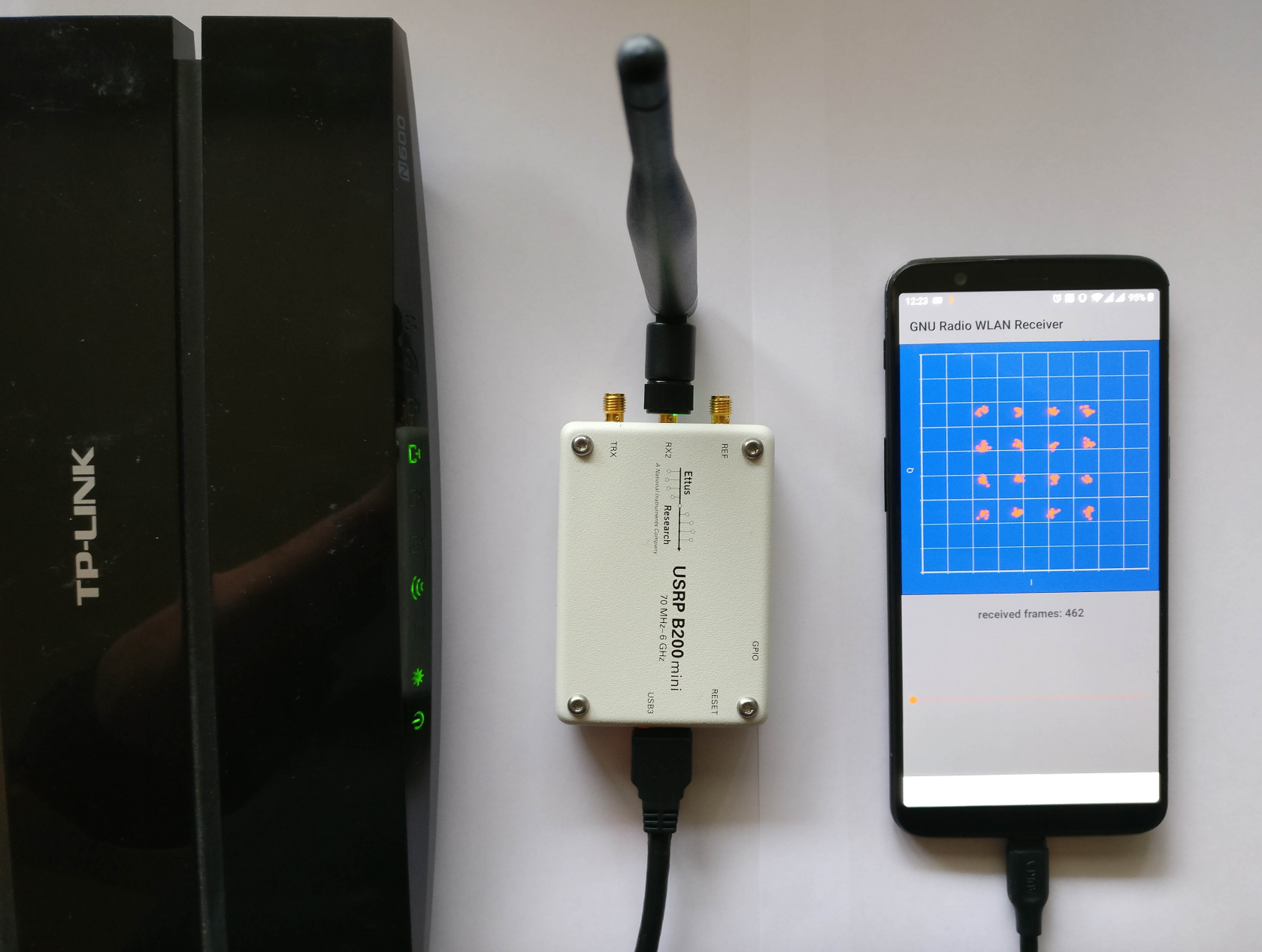
The easiest way to get started is to setup a development environment in Docker. The Dockerfile also serves as documentation on how to set up a native environment. There is also a pre-built image available on DockerHub.
Install Docker. Some installations seem to restrict the maximum container size. This container requires ~18Gb.
Checkout the repository (mainly to get the Dockerfile)
git clone --depth=1 https://github.com/bastibl/gnuradio-android.git
cd gnuradio-android/docker
docker build -t gnuradio-android .
privileged flag and the /dev/bus/usb mount seem to be required to access the phone from the container. The DISPLAY variable and the Xauthority mount allow to start GUI applications in the container.docker run -it --privileged -v /dev/bus/usb:/dev/bus/usb --net=host --env="DISPLAY" --volume="$HOME/.Xauthority:/home/android/.Xauthority:rw" gnuradio-android
~/src/android-studio/bin/studio.sh
Put your phone in developer mode (see instructions).
Now the phone should show up in Android Studio. If it does not work, check if the host auto-started adb and, in case, kill it, since the phone can only be connected to one adb server at a time.
The container comes with several example projects, e.g., an FM receiver in ~/src/android-fm. Open the project in Android Studio to test the toolchain.
The application is a proof-of-concept and doesn't come with a comprehensive lists of USB vendor and product IDs for SDRs. So, you'll likely have to make some manual adjustments.
Set the USB Product and Vendor Id: https://github.com/bastibl/android-fm/blob/master/app/src/main/java/net/bastibl/fmrx/MainActivity.kt#L113
Specify if it is a HackRF (hackrf=0) or an RTL-SDR (rtl=0):
https://github.com/bastibl/android-fm/blob/master/app/src/main/cpp/native-lib.cpp#L93
Build the app and install it to your phone. When you connect the phone to Android Studio for the first time, the phone will ask for permissions.
Close the app, disconnect the phone from the PC, enable OTG mode on your phone, connect your SDR to the phone, and start the application.
If everything is working, it should like in this demo video:
While the Android applications should work out-of-the-box in the Docker container, native installations require to adapt some paths to link correctly against the toolchain.
The 32-bit armeabi-v7a toolchain is built with the build.sh script. The 64-bit arm64-v8a toolchain is built with build_aarch64.sh script. These scripts have to know the location of the Android Native Development Kit (NDK), so you might have to adapt the TOOL_CHAIN_ROOT variable.
Libraries, headers, and other build artifacts are installed in the toolchain directory. It will create subdirectories for the different architectures, resulting, for example, in toolchain/armeabi-v7a/lib/libgnuradio-runtime.so.
Android Studio requires a different directory layout to link to external libraries (e.g. armeabi-v7a/libgnuradio-runtime.so). This structure is created through symlinks in the toolchain/jni directory.
Apps can be built for multiple architectures. For development purposes, you might want to limit to a particular one. This can be configured in app/build.gradle, which includes a section like:
ndk {
    abiFilters "armeabi-v7a", "arm64-v8a"
}
The path to the toolchain needs to be adapted in two places. The TOOLCHAIN variable in the CMakeLists.txt file that builds the native library, which is usually at app/src/main/cpp. In the jniLibs.srcDirs variable in apps/build.gradle. It should point to the jni directory, described in the previous section.
The Docker container includes an Android application to profile the kernels of the Volk library. The project is at ~/src/android-volk in the container and also available on GitHub. Running the application generates a config file with the fastest implementation for the architecture and stores it on Android's External Storage (this can be a SD card or an internal partition). Running this benchmark can speed-up your GNU Radio flowgraphs.
Android lacks native support for OpenCL. Yet, many smartphone processors have capable GPUs and come with the corresponding drivers. For example, the 2017 OnePlus 5T features a Snapdragon 835 processor with an Adreno 540 GPU that supports OpenCL 2.0.
To create Android applications that use OpenCL, the libraries have to be copied from the phone into the toolchain/<arch>/lib directory. libopenCL.so (and its dependencies) are in the /system/lib(64) and /vendor/lib(64) directories. In case of runtime errors due to missing libraries (i.e., dependencies of libopenCL.so), the missing libraries have to be added to the toolchain directory as well.
USB-based SDRs like the RTL-SDR, the HackRF, and the Ettus B2XX series are interesting options for smartphones and tablets. Their drivers are based on libusb. On Linux, these drivers traverse the usbfs device tree to find and initialize supported devices. Android does not support this kind of direct access to usbfs. Instead, the app has to interact with Android's UsbManager, which provides a file descriptor to talk to the device. All hardware drivers were, therefore, adapted to support initialization with a file descriptor.
The B2XX series of devices uses a rather complicated initialization procedure: the device attaches to the host, the host uploads firmware, the device reattaches (as a different device), the host uploads the FPGA image. On Android, this is supported through a dedicated app. It registers a service that is called whenever a B2XX is attached and uploads the firmware. The actual GNU Radio application uses the reattached device directly and only uploads the FPGA image.
This toolchain is based on an earlier Android port by Tom Rondeau.
If you use this toolchain, we would appreciate a reference to:
more like this
simple generator for 3D-printed frames for a moxon rectangle antenna
Install and monitor KlipperScreen on Android via DroidKlipp APK, USB ADB forwarding, and WiFi fallback
search projects, people, and tags