agentlytics
Comprehensive analytics dashboard for AI coding agents — Cursor, Windsurf, Claude Code, VS Code Copilot, Zed, Antigravi…
JavaScript★ 555
Jasspa's MicroEmacs is a powerful and efficient terminal and window based text editor. Designed to be lightweight yet f…
 bjasspa
git clone https://github.com/bjasspa/jasspa.gitbjasspa/jasspa Jasspa MicroEmacs Text Editor


MicroEmacs text editor is an Emacs like text editor suitable for experienced programmers and as well beginners.
In contrast to other editors it offers a set of unique features:
As other editors it has obviously:
Cons (because it is a Micro-Emacs):
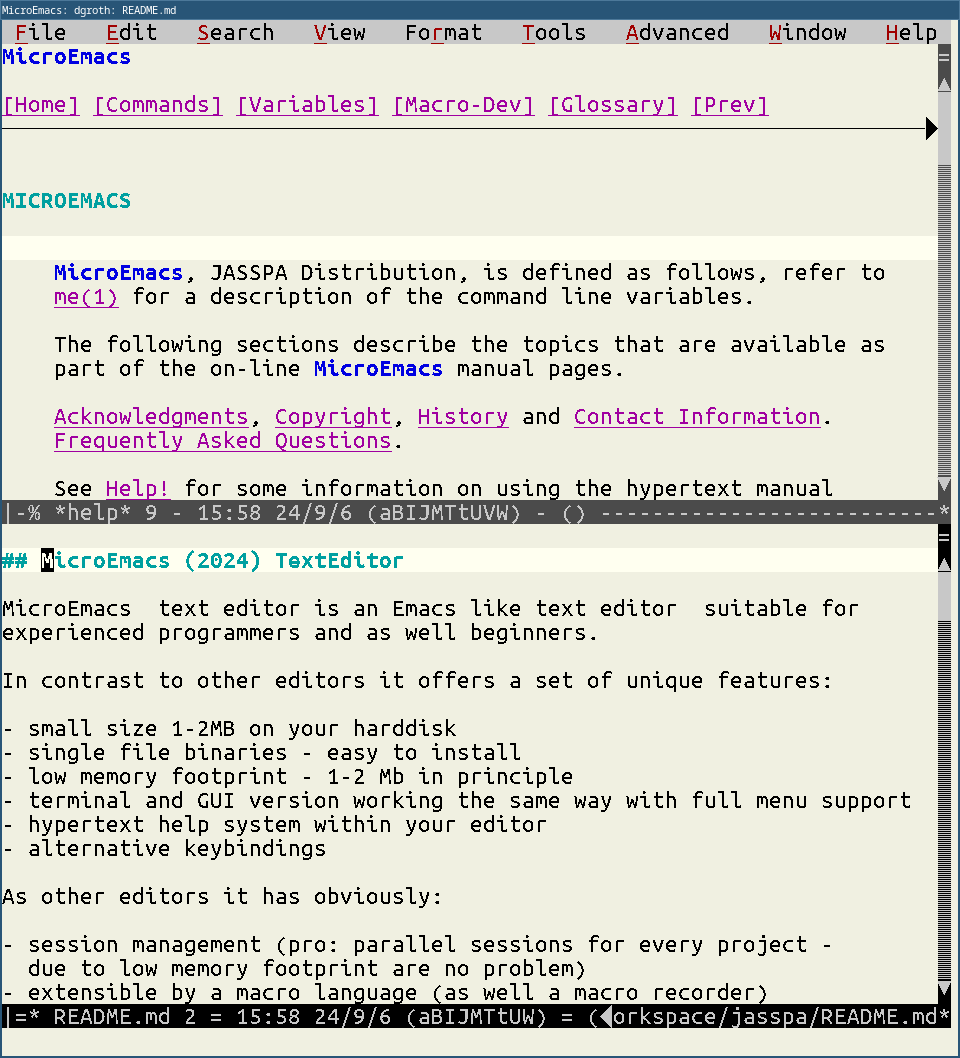
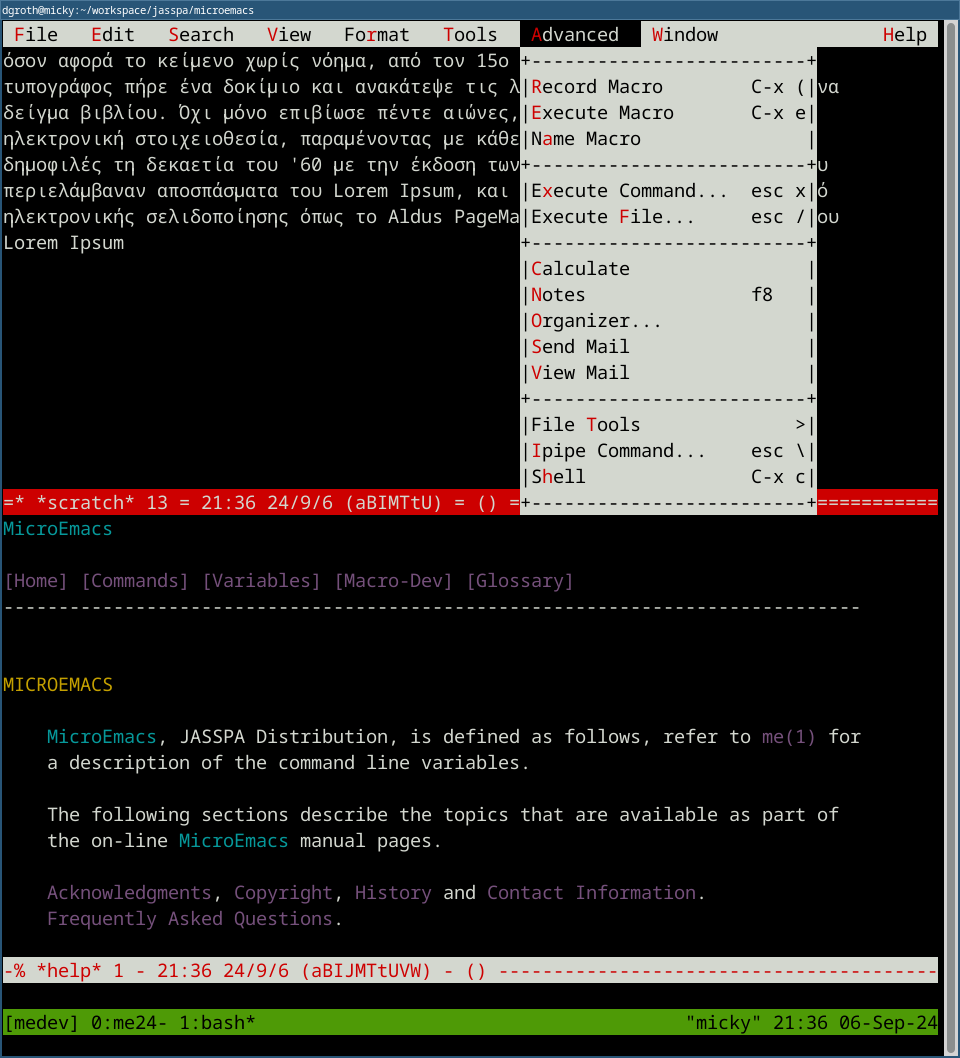
Left: GUI version - theme "Basic Black on Cream", Right: Greek Text in the Terminal version within a Tmux session with an open menu entry - theme: "Default White on Black". The menu entry can be opened on a terminal version usually with "Esc =". There are more than 25 themes (schemes) to choose from ... The main appplication frame is split here into two windows, one is for editing a file, the other here has the hyperhelp documentation open. You can as well edit the same file within several separate windows, for instance writing something on top, and then in the other windows more down in the same file ... but obviously editing one file in a single window is as well possible.
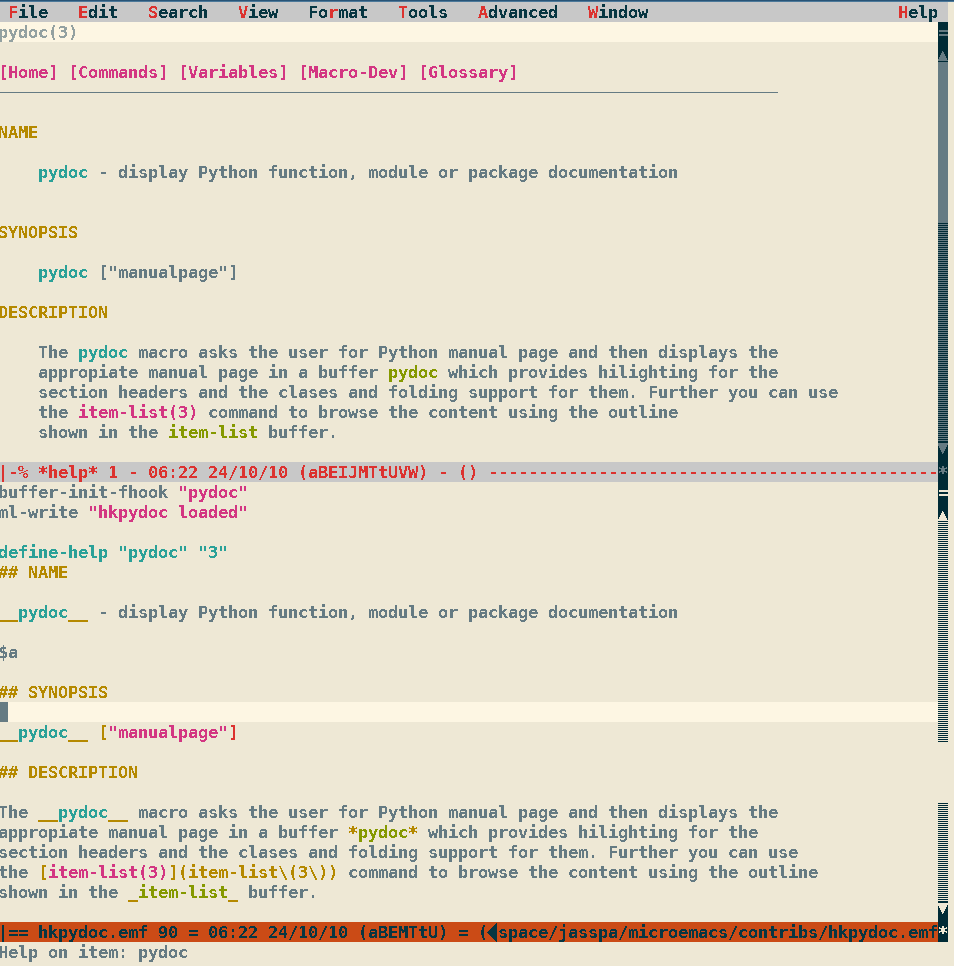
Left: GUI version - theme "Solarized Light", displaying on top a help page defined using Markdown (bottom window) for the pydoc macro,
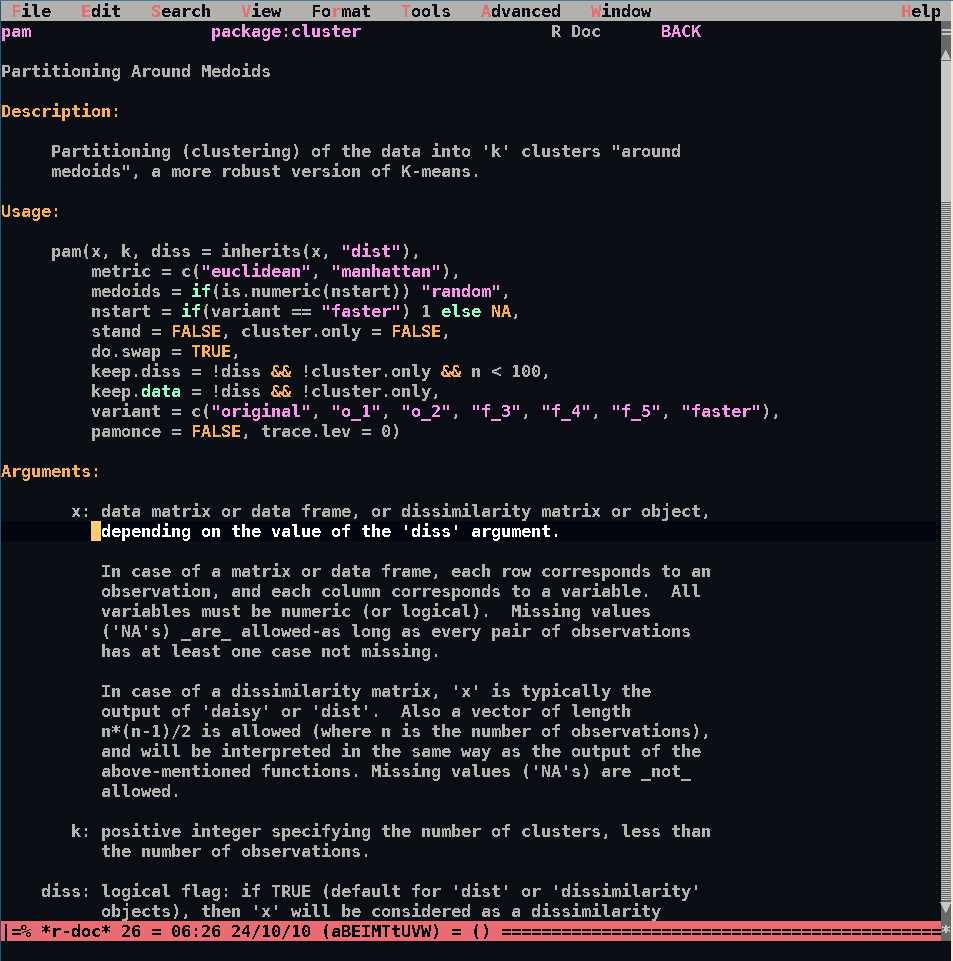
Right: GUI version - theme "Ayu Dark", displaying the hypertext enabled R documentation browser defined with the r-doc command.
Install by running the miscroemacs-install script, available in the latest release. This can be done by running the following command in a terminal:
/bin/sh -c "$(curl -fsSL https://github.com/bjasspa/jasspa/releases/latest/download/microemacs-install)"
This install method will provide you with the terminal version of MicroEmacs (mec) and the GUI version (mew). Please note that the mew GUI version requires X11, we recommend MobaXterm for Cygwin and XQuartz for MacOS.
As of June 2026 there is a new native MacOS app version which does not require X11, this can be installed using the same install script.
There is an MSI installer available for Windows here
or you can run the microemacs-install.ps1 PowerShell installer script, run the following in a PowerShell:
Invoke-RestMethod -Uri https://github.com/bjasspa/jasspa/releases/latest/download/microemacs-install.ps1 | Invoke-Expression
Alternatively download the script first and run the following in a Command prompt or PowerShell:
powershell -ExecutionPolicy Bypass -File microemacs-install.ps1
Note that this will always install the latest release and to install for all users the PowerShell needs to be run as Administrator. If the script encounters issues during the installation processes, typically insufficient permissions, please follow the instructions given.
This will install a Console version of MicroEmacs, mec, and GUI version, mew. For the latter you should have an
entry in your start menu after installation.
Note
If you get an error about a missing VC-runtime (vcruntime140.dll) you have to download and install the Microsoft VC runtime.
For Intel processors the x86 architecture should be installed, not x64.
The MicroEmacs single file executables with macro files embedded come in two flavors:
Download one of the following zip archives with the binaries inside and place the executables into a folder belonging to your PATH variable.
| Platform | Console/Terminal | GUI (X11 on Linux/Mac) |
|---|---|---|
| Linux intel | mesc | mesw |
| Linux aarch | mesc | mesw |
| MacOS apple | mesc | mesw |
| MacOS intel | mesc | mesw |
| Windows intel | mesc | mesw |
| Windows arm | mesc | mesw |
| Cygwin intel | mesc | mesw |
| MSYS2 intel | mesc | N/A |
To test the integrity of the downloads you can use the sha256 hash keys
Then test the executable in your terminal:
mesc -V
This should printout the version and exit MicroEmacs.
On a Linux system you can compile the code yourself using the build scripts in microemacs/src. You need the ncurses library for the terminal version and the libxt and the libxft libraries for the X-Windows version. Optionally for supporting the https protocol you might as well install the libssl library. Here the procedure for a Debian based system like Ubuntu or MX Linux:
### install required packages
sudo apt install libssl-dev libz-dev libncurses-dev libxt-dev libxft-dev git
### download the current source code
git clone https://github.com/bjasspa/jasspa.git
cd jasspa/microemacs/src
### compile the barebone executables
bash build.sh -t c
bash build.sh -t w
### the executables are now in a folder .linux-PLATFORM-GCCVERSION-release-meX
### and in a folder bin in the parent directory
### create a standalone executable with embedded macro files
cd ../mesingle
PATH=`pwd`/../bin/linux6-intel64-gcc14:$PATH bash mesgen.sh \
    -p ../bin/linux6-intel64-gcc14/mec -o mesc
PATH=`pwd`/../bin/linux6-intel64-gcc14:$PATH bash mesgen.sh \
    -p ../bin/linux6-intel64-gcc14/mew -o mesw
You should replace the LINUX-PLATFORM-GCC part with your kernel, platform and GCC versions you are usng
Jasspa's MicroEmacs ships with a comprehensive set of documentation which covers most aspects of the use of the editor. It can also be browsed on-line here.
Further there is a Wiki with some tips and tricks. New documentation and scripts will be often described therein first and later go into the official editor release.
After starting your first real session you are proposed to do call the
init-session function if you like to save your settings on the current system.
You can do this by calling the init-session function. Press Esc and then
the x key, you see that you are in the command line at the bottom can write
some text, write init-session press ENTER.
Then you should select your keyboard layout. Either you use the menubar on top
to find that functionality "Esc =" should work in the terminal and in the GUI
application, the latter can use as well mouse or "Alt-t" key and then u
combination, or you enter the command Esc x user-setup. In the Menu you have
to access the "(T)ools - (U)ser Setup" entry.
In User setup select in the "Start-Up" tab your keyboard layout and in GUI mode in the "Platform" tab your font. X11 users here will greatly benefit if they installed the xfontsel tool as it allows to visually select the font on a MacOS or Linux system.
If you are ready use "File-Save All" to save your settings. The next ME session should start with these saved settings.
MicroEmacs versions before 20241001 might as require the tools luit and abduco for better support of international character encodings on UTF-8 enabled terminals.
In order to compile the program yourself here are a few hints for different platforms on how to do this.
Debian based systems like Ubuntu or MX-Linux:
sudo apt install ncurses-dev libssl-dev libxt-dev libxft-dev
Red Hat based systems like Fedora, Alma Linux:
sudo dnf install ncurses-devel libXt-devel libXft-devel
Arch based systems like Manjaro Linux:
sudo pacman -S make gcc ncurses xorg-xfontsel ttf-fira-mono
Fira Mono is a font which provides Windows CP1252 encoding and it is automatically indexed on Manjaro so that it can be directly used in MicroEmacs using the user-setup command and then the font selection tool xfontsel.
GPL - see the file LICENSE
more like this
Comprehensive analytics dashboard for AI coding agents — Cursor, Windsurf, Claude Code, VS Code Copilot, Zed, Antigravi…
Free open-source Cloudflare R2 desktop client and S3 GUI for macOS, Windows, and Linux. Manage Cloudflare R2, AWS S3, M…
search projects, people, and tags