hellwal
Pywal-like color palette generator, but faster and in C
 danihek
git clone https://github.com/danihek/hellwal.gitdanihek/hellwalHellwal - Fast, Extensible Color Palette Generator
Star History
Click to expand star history
Installation
- Archlinux:
yay -S hellwal
- Mac/Linux via Homebrew:
brew install hellwal
- NixOS, nixpkgs unstable:
environment.systemPackages = [
  pkgs.hellwal
];
Building
Clone git repo, run make command and you are ready to go! - you just need a C compiler and gnumake!
git clone https://github.com/danihek/hellwal && cd hellwal && make
How to use?
Run this with your wallpaper image:
hellwal -i [image]
You can also randomly pick an image from a given directory like this:
hellwal -i <folder> --random
Generated templates are saved in ~/.cache/hellwal/.
Templates
[INFO] - if you got hellwal from the AUR, examples of default templates can be
found in /usr/share/docs/.
There are also examples in the templates folder. They look more-less like this:
# Main
background='%%background%%'
foreground='%%foreground%%'

# Path
wallpaper_path='%%wallpaper%%'

# Colors
color0='%%color0.hex%%'
color1='%%color1.hex%%'

# ... and so on and so forth.

color15='%%color15.hex%%'


# RGB
backgroundRGB='%%background.rgb%%'
foregroundRGB='%%foreground.rgb%%'

color15butRGB='%%color15.rgb%%'
You can get any generated color for values 0 to 15.
After the color keyword, you can specify the format: hex, rgb, or a single rgb channel. By default, the template output is in hex.
Available color template formats:
| Type | Input | Output |
|---|---|---|
| hex | color0.hex | 000000 |
| rgb | color0.rgb | 0, 0, 0 |
| r | color0.r | 0 |
| g | color0.g | 0 |
| b | color0.b | 0 |
Additional variables accepted by templates
Alongside colors, you can specify some variables to make them more suitable for your needs. For now these variables are available:
| Variable | Description | Usage |
|---|---|---|
| alpha | Set transparency value | %% color1.hex alpha=0.5 %% |
alpha is ignored for single rgb channels.
JSON
You can use the --json argument to suppress any other output and write colors to stdout in JSON format.
You can then manipulate the output with jq. For example:
hellwal -i [wallpaper] --json | jq '.'
Themes
You can set your own theme, re-run it anytime and apply it to your config or other programs! It can be a previously generated palette from an image, gruvbox, Tokyo Night, or anything you want! For example, gruvbox theme:
%% color0  = #282828 %%
%% color1  = #cc241d %%
%% color2  = #98971a %%
%% color3  = #d79921 %%
%% color4  = #458588 %%
%% color5  = #b16286 %%
%% color6  = #689d6a %%
%% color7  = #a89984 %%
%% color8  = #928374 %%
%% color9  = #fb4934 %%
%% color10 = #b8bb26 %%
%% color11 = #fabd2f %%
%% color12 = #83a598 %%
%% color13 = #d3869b %%
%% color14 = #8ec07c %%
%% color15 = #ebdbb2 %%
Save the text above as a file or copy gruvbox from this repo and just run hellwal:
hellwal --theme ./themes/gruvbox.hellwal
I recommend putting all themes in the default theme folder ~/.config/hellwal/themes.
This way, you can provide the theme name without specifying the path, and hellwal will pick it
up automatically. Of course if you want, you can also set a different theme folder.
For example:
hellwal -t gruvbox.hellwal --theme-folder ~/dotfiles/configs/hellwal/themes
NEON Mode
Neon mode boosts colors to make them look more vibrant and bold. Sometimes it's a pain in the EYE, but it often looks better. Turned off by default.
hellwal -i [wallpaper] --neon-mode
Modes
You can select -d/--dark or -l/--light mode on any given image, theme, etc., no
matter if it's generated from an image or from a theme file. There is also --color mode.
Dark mode (on by default)
hellwal -i [wallpaper] --dark
Light mode
hellwal -i [wallpaper] --light
color mode (crazyy one)
hellwal -i [wallpaper] --color
The best thing about it is that you are able to combine all of these together. Usually it's not a good idea, but sometimes you can achieve some crazy color combinations!
hellwal -i [wallpaper] --color --light --dark
Also, you have a couple of cool arguments to manipulate how colors will be computed:
- you can darken all colors by specifying
--dark-offsetfrom 0-1 (the higher the value, the darker the colors):
hellwal -i [wallpaper] --light --dark-offset 0.5
- same with
--bright-offset(the higher the value, the brighter the colors):
hellwal -i [wallpaper] --bright-offset 0.5
- invert colors with
--invert:
hellwal -i [wallpaper] --light --invert
- specify grayscale, if you want monochromatic colors, with
--gray-scale:
hellwal -i [wallpaper] --color --gray-scale 0.8
- ensure colors are readable against the background with
--check-contrast:
hellwal -i [wallpaper] --check-contrast
Scripts
With --script or -s you can run a script (or any shell command) after hellwal.
Note: it will only run if hellwal does not encounter any errors.
On a side note:
If you want your new terminals to open with a previously generated or specified color palette,
add these templates to your ~/.config/hellwal/templates/ folder:
Run hellwal with an image or theme to generate the output scripts from the templates.
Then in .bashrc, add following lines:
source ~/.cache/hellwal/variables.sh
sh ~/.cache/hellwal/terminal.sh
Alternatively if you use fish:
Then add this to your fish config:
source ~/.cache/hellwal/variablesfish.fish
sh ~/.cache/hellwal/terminal.sh
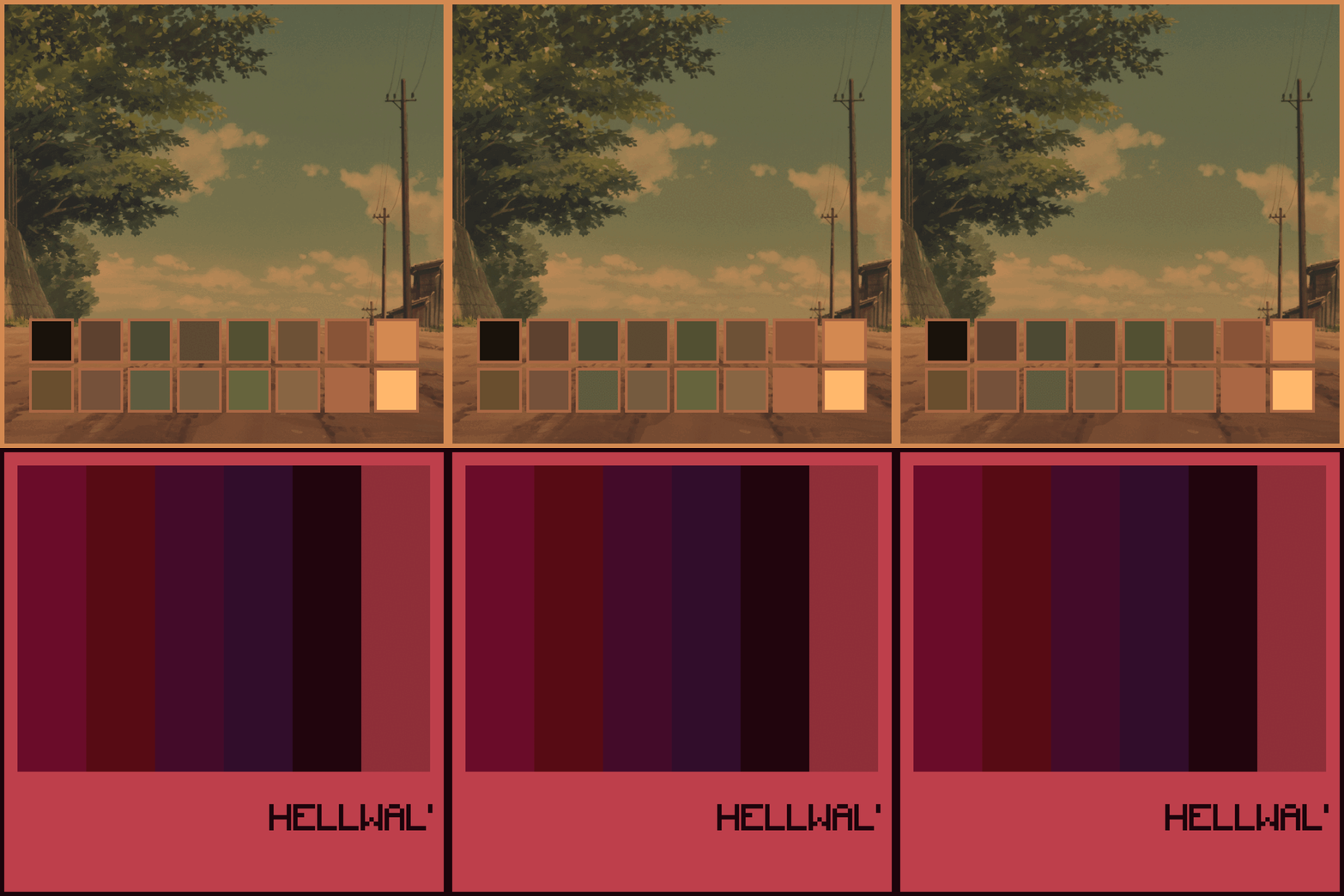
Showcase

Special thanks:
- dylanaraps - for pywal and other amazing stuff he created.
more like this
smb-vanilla-port
A C and C++ decompilation of the NES games "Super Mario Bros" and "Super Mario Bros: The Lost Levels"
awesome-nord
This repository contains community-created ports and themes of this color palette for all our beloved applications.