meine
meine 🌒 - A CLI file manager and system utility built with Textual. It combines intuitive command parsing with rich t…
Python★ 50
The database client every command line junkie deserves.
 danvergara


Interactive client for PostgreSQL, MySQL, SQLite3, Oracle and SQL Server.
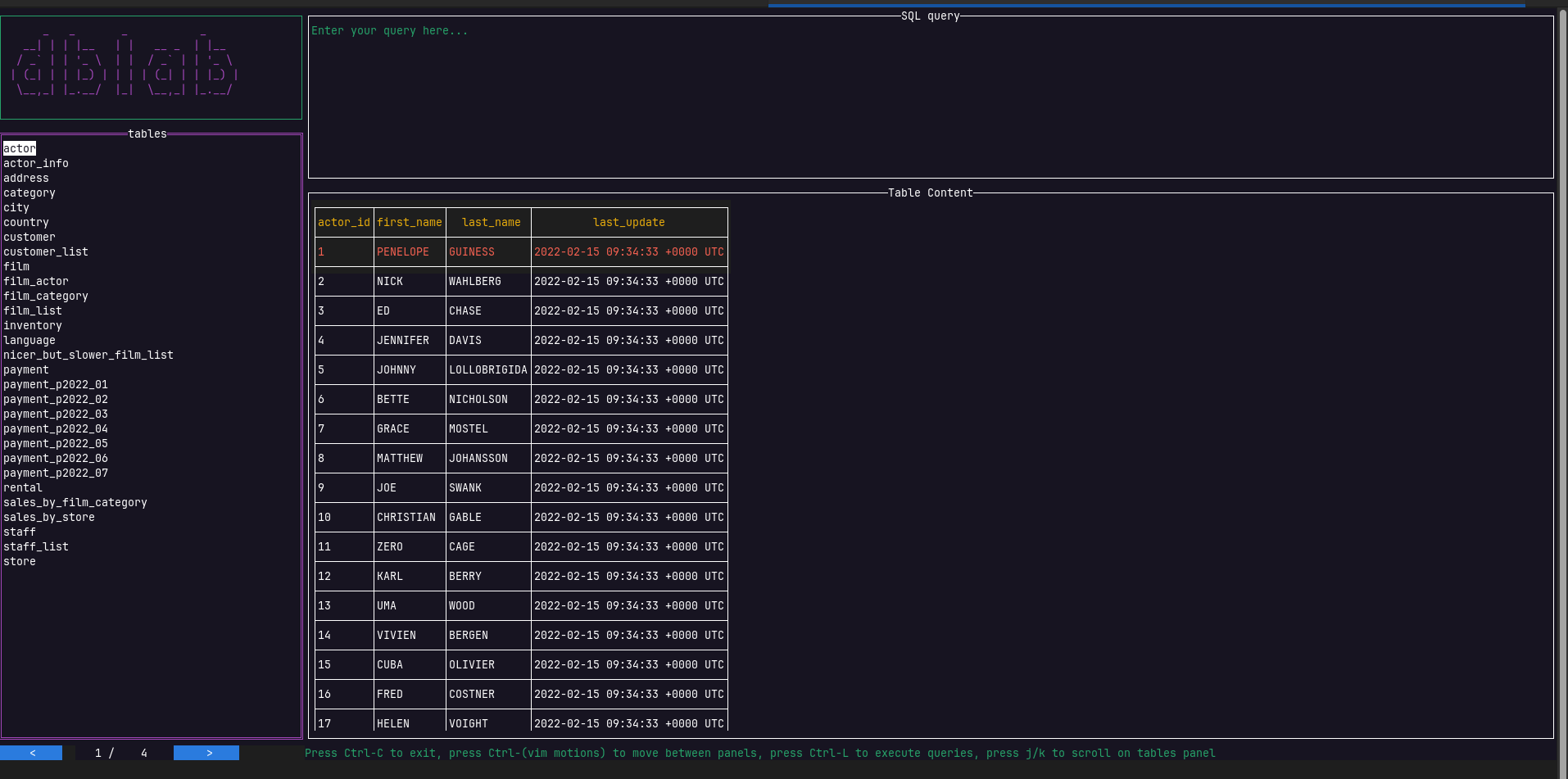
Documentation: https://dblab.app
dblab is a fast and lightweight interactive terminal-based UI application for PostgreSQL, MySQL, and SQLite3, written in Go and works on macOS, Linux, and Windows machines. The main idea behind using Go for backend development is to utilize the ability of the compiler to produce zero-dependency binaries for multiple platforms. dblab was created as an attempt to build a very simple and portable application to work with local or remote PostgreSQL/MySQL/SQLite3/Oracle/SQL Server databases.
; and run them concurrently with results displayed in separate tabs.--readonly to prevent accidental writes by forcing the database session into read-only mode (supported for PostgreSQL, MySQL, SQLite, Oracle, and SQL Server).It works with Linux, too.
brew install --cask danvergara/tools/dblab
Or
brew tap danvergara/tools
brew install --cask dblab
You can manually download a binary release from the release page.
Don't forget to always verify what you're piping into bash
Install the binary using our bash script:
curl https://raw.githubusercontent.com/danvergara/dblab/master/scripts/install_update_linux.sh | bash
dblab is a terminal UI-based interactive database client

Usage:
  dblab [flags]
  dblab [command]

Available Commands:
  connect     Re-use saved connection profiles
  help        Help about any command
  version     The version of the project

Flags:
      --cfg-name string                   Database config name section
      --config                            Get the connection data from a config file (default locations are: current directory, $HOME/.dblab.yaml or $XDG_CONFIG_HOME/.dblab.yaml)
      --keybindings, -k                   Get the keybindings configuration from the config file (default locations are: current directory, $HOME/.dblab.yaml or $XDG_CONFIG_HOME/.dblab.yaml)
      --db string                         Database name
      --driver string                     Database driver
      --encrypt string                    [strict|disable|false|true] whether data sent between client and server is encrypted
  -h, --help                              help for dblab
      --host string                       Server host name or IP
      --limit uint                        Size of the result set for the table content query (should be greater than zero, otherwise the app will error out) (default 100)
      --pass string                       Password for user
      --port string                       Server port
      --save-as string                    Save the connection as a named profile for later reuse
      --schema string                     Database schema (optional for postgres and oracle only)
      --socket string                     Path to a Unix socket file
      --ssh-host string                   SSH Server Hostname/IP
      --ssh-key string                    File with private key for SSH authentication
      --ssh-key-pass string               Supports connections with protected private keys with passphrase
      --ssh-pass string                   SSH Password (Empty string for no password)
      --ssh-port string                   SSH Port
      --ssh-user string                   SSH User
      --ssl string                        SSL mode
      --ssl-verify string                 [enable|disable] or [true|false] enable ssl verify for the server
      --sslcert string                    This parameter specifies the file name of the client SSL certificate, replacing the default ~/.postgresql/postgresql.crt
      --sslkey string                     This parameter specifies the location for the secret key used for the client certificate. It can either specify a file name that will be used instead of the default ~/.postgresql/postgresql.key, or it can specify a key obtained from an external “engine”
      --sslpassword string                This parameter specifies the password for the secret key specified in sslkey
      --sslrootcert string                This parameter specifies the name of a file containing SSL certificate authority (CA) certificate(s). The default is ~/.postgresql/root.crt
      --timeout string                    in seconds (default is 0 for no timeout), set to 0 for no timeout. Recommended to set to 0 and use context to manage query and connection timeouts
      --trace-file string                 File name for trace log
      --trust-server-certificate string   [false|true] whether the server certificate is checked
  -u, --url string                        Database connection string
      --user string                       Database user
  -v, --version                           version for dblab
      --readonly                            Forces a read-only connection with the target database
      --wallet string                     Path for auto-login oracle wallet

Use "dblab [command] --help" for more information about a command.
You can start the app without passing flags or parameters; you'll be asked for connection data instead.

$ dblab --host localhost --user myuser --db users --pass password --ssl disable --port 5432 --driver postgres --limit 50
$ dblab --db path/to/file.sqlite3 --driver sqlite
$ dblab --host localhost --user system --db FREEPDB1 --pass password --port 1521 --driver oracle --limit 50
$ dblab --host localhost --user SA --db msdb --pass '5@klkbN#ABC' --port 1433 --driver sqlserver --limit 50
Connection URL scheme is also supported:
$ dblab --url 'postgres://user:password@host:port/database?sslmode=[mode]'
$ dblab --url 'mysql://user:password@tcp(host:port)/db'
$ dblab --url 'file:test.db?_pragma=foreign_keys(1)&_time_format=sqlite'
$ dblab --url 'oracle://user:password@localhost:1521/db'
$ dblab --url 'sqlserver://SA:myStrong(!)Password@localhost:1433?database=tempdb&encrypt=true&trustservercertificate=false&connection+timeout=30'
If you're using PostgreSQL or Oracle, you have the option to define the schema you want to work with. The --schema flag is optional: if omitted, dblab will display all schemas the connected user has access to in the sidebar tree. If provided, only that specific schema will be shown.
# Postgres
$ dblab --host localhost --user myuser --db users --pass password --schema myschema --ssl disable --port 5432 --driver postgres --limit 50
$ dblab --url postgres://user:password@host:port/database?sslmode=[mode] --schema myschema

# Oracle
$ dblab --host localhost --user user2 --db FREEPDB1 --pass password --port 1521 --driver oracle --limit 50 --schema user1
$ dblab --url 'oracle://user2:password@localhost:1521/FREEPDB1' --schema user1
You can use the --readonly flag to open a connection in read-only mode. This prevents any write operations (INSERT, UPDATE, DELETE, etc.) from being executed, which is useful when you want to safely browse a production database. The same can be achieved via the configuration file by setting readonly: true on a database profile (see Configuration).
# Postgres
$ dblab --host localhost --user myuser --db users --pass password --ssl disable --port 5432 --driver postgres --limit 50 --readonly

# MySQL
$ dblab --host localhost --user myuser --db mydb --pass password --ssl disable --port 3306 --driver mysql --limit 50 --readonly

# SQLite
$ dblab --db path/to/file.sqlite3 --driver sqlite --readonly

# Oracle
$ dblab --host localhost --user system --db FREEPDB1 --pass password --port 1521 --driver oracle --limit 50 --readonly

# SQL Server
$ dblab --host localhost --user SA --db msdb --pass '5@klkbN#ABC' --port 1433 --driver sqlserver --limit 50 --readonly
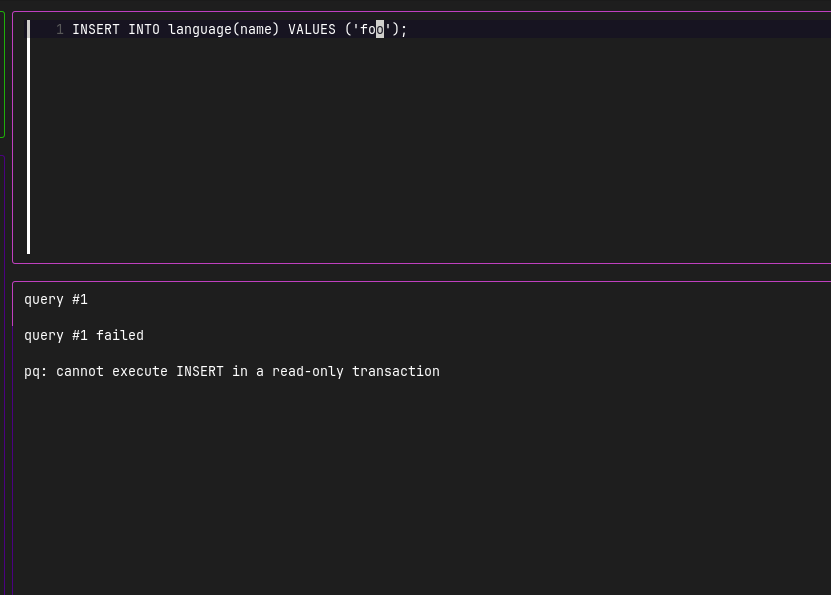
As requested in #125, support for MySQL/MariaDB sockets was integrated.
$ dblab --url "mysql://user:password@unix(/path/to/socket/mysql.sock)/dbname?charset=utf8"
$ dblab --socket /path/to/socket/mysql.sock --user user --db dbname --pass password --ssl disable --port 5432 --driver mysql --limit 50
Postgres connection through Unix sockets:
$ dblab --url "postgres://user:password@/dbname?host=/path/to/socket"
$ dblab --socket /path/to/socket --user user --db dbname --pass password --ssl disable --port 5432 --driver postgres --limit 50
Now, it is possible to ensure SSL connections with PostgreSQL databases. SSL-related parameters have been added, such as --sslcert, --sslkey, --sslpassword, and --sslrootcert. More information on how to use such connection flags can be found here.
dblab --host db-postgresql-nyc3-56456-do-user-foo-0.fake.db.ondigitalocean.com --user myuser --db users --pass password --schema myschema --port 5432 --driver postgres --limit 50 --ssl require --sslrootcert ~/Downloads/foo.crt
Now, it's possible to connect to Postgres or MySQL (more to come later) databases on a server via SSH using a password or SSH key files.
To do so, 6 new flags have been added to the dblab command:
| Flag | Description |
|---|---|
| --ssh-host | SSH Server Hostname/IP |
| --ssh-port | SSH Port |
| --ssh-user | SSH User |
| --ssh-pass | SSH Password (Empty string for no password) |
| --ssh-key | File with private key for SSH authentication |
| --ssh-key-pass | Passphrase for protected private key files |
Postgres connection via SSH tunnel using a password:
dblab --host localhost --user postgres --pass password --schema public --ssl disable --port 5432 --driver postgres --limit 50 --ssh-host example.com --ssh-port 22 --ssh-user root --ssh-pass root
Postgres connection via SSH tunnel using an SSH private key file:
dblab --host localhost --user postgres --pass password --schema public --ssl disable --port 5432 --driver postgres --limit 50 --ssh-host example.com --ssh-port 22 --ssh-user root --ssh-key my_ssh_key --ssh-key-pass password
Postgres connection using the url parameter via SSH tunnel using a password:
dblab --url postgres://postgres:password@localhost:5432/users?sslmode=disable --schema public --ssh-host example.com --ssh-port 22 --ssh-user root --ssh-pass root
MySQL connection via SSH tunnel using a password:
dblab --host localhost --user myuser --db mydb --pass 5@klkbN#ABC --ssl enable --port 3306 --driver mysql --limit 50 --ssh-host example.com --ssh-port 22 --ssh-user root --ssh-pass root
MySQL connection via SSH tunnel using an SSH private key file:
dblab --host localhost --user postgres --pass password --ssl enable --port 3306 --driver mysql --limit 50 --ssh-host example.com --ssh-port 22 --ssh-user root --ssh-key my_ssh_key --ssh-key-pass passphrase
MySQL connection using the url parameter via SSH tunnel using a password:
dblab --url "mysql://myuser:5@klkbN#ABC@mysql+tcp(localhost:3306)/mydb" --driver mysql --ssh-host example.com --ssh-port 22 --ssh-user root --ssh-pass root
Entering these flags every time is tedious, so dblab provides a couple of flags to help with it: --config and --cfg-name.
dblab is going to look for a file called .dblab.yaml. Currently, there are three places where you can drop a config file:
If you want to use this feature, --config is mandatory and --cfg-name may be omitted. The config file can store one or multiple database connection sections under the database field. database is an array; previously it was an object only able to store a single connection section at a time.
We strongly encourage you to adopt the new format as of v0.18.0. --cfg-name takes the name of the desired database section to connect with. It can be omitted and its default value will be the first item in the array.
As of v0.21.0, SSL connection options are supported in the config file.
# default: test
$ dblab --config

$ dblab --config --cfg-name "prod"
Key bindings can be configured through the .dblab.yaml file. There is a field called keybindings where key bindings can be modified. Under keybindings, an editor section configures the Vim-style query editor (movement between normal and insert mode, cursor motion in normal mode, and the editor’s execute-query shortcut). By default, the keybindings are not loaded, so you need to use the --keybindings or -k flag to load them. See the example to see the full list of the key bindings subject to change. The file shows the default values. The list of the available key bindings belongs to the bubbletea library. Specifically, see the KeyNames map for an accurate reference.
Deprecated: the top-level execute-query field under keybindings. Use execute-query under keybindings.editor instead.
database:
  - name: "test"
    host: "localhost"
    port: 5432
    db: "users"
    password: "password"
    user: "postgres"
    driver: "postgres"
    # optional for postgres and oracle
    # if omitted, all accessible schemas are shown
    schema: "myschema"
    # optional: set to true to force a read-only session
    readonly: true
  - name: "prod"
    # example endpoint
    host: "mydb.123456789012.us-east-1.rds.amazonaws.com"
    port: 5432
    db: "users"
    password: "password"
    user: "postgres"
    schema: "public"
    driver: "postgres"
    ssl: "require"
    sslrootcert: "~/.postgresql/root.crt."
  - name: "oracle"
    host: "localhost"
    port: 1521
    db: "FREEPDB1"
    schema: "user1"
    password: "password"
    user: "user2"
    driver: "oracle"
    ssl: "enable"
    wallet: "path/to/wallet"
    ssl-verify: true
  - name: "sqlserver"
    driver: "sqlserver"
    host: "localhost"
    port: 1433
    db: "msdb"
    password: "5@klkbN#ABC"
    user: "SA"
  - name: "ssh-tunnel"
    host: "localhost"
    port: 5432
    db: "users"
    password: "password"
    user: "postgres"
    schema: "public"
    driver: "postgres"
    ssh-host: "example.com"
    ssh-port: 22
    ssh-user: "ssh-user"
    ssh-pass: "password"
  - name: "realistic-ssh-example"
    host: "rds-endpoint.region.rds.amazonaws.com"
    port: 5432
    db: "database_name"
    user: "db_user"
    password: "password"
    schema: "schema_name"
    driver: "postgres"
    ssl: "require"
    ssh-host: "bastion.host.ip"
    ssh-port: 22
    ssh-user: "ec2-user"
    ssh-key-file: "/path/to/ssh/key.pem"
    ssh-key-pass: "hiuwiewnc092"
# should be greater than 0, otherwise the app will error out
limit: 50
keybindings:
  next-tab: 'tab'
  prev-tab: 'shift+tab'
  page-top: 'g'
  page-bottom: 'G'
  end-of-line: '$'
  beginning-of-line: '0'
  help: '?'
  quit: 'ctrl+c'
  navigation:
    up: 'ctrl+k'
    down: 'ctrl+j'
    left: 'ctrl+h'
    right: 'ctrl+l'
  editor:
    up: 'k'
    down: 'j'
    left: 'h'
    right: 'l'
    insert: 'i'
    normal: 'esc'
    execute-query: 'ctrl+e'
    execute-single-query: 'ctrl+r'
Or for SQLite:
database:
  - name: "prod"
    db: "path/to/file.sqlite3"
    driver: "sqlite"
Only the host, ssl, and schema fields are optional. host defaults to 127.0.0.1, ssl defaults to disable. The schema field is only applicable to PostgreSQL and Oracle; if omitted, all accessible schemas are shown.
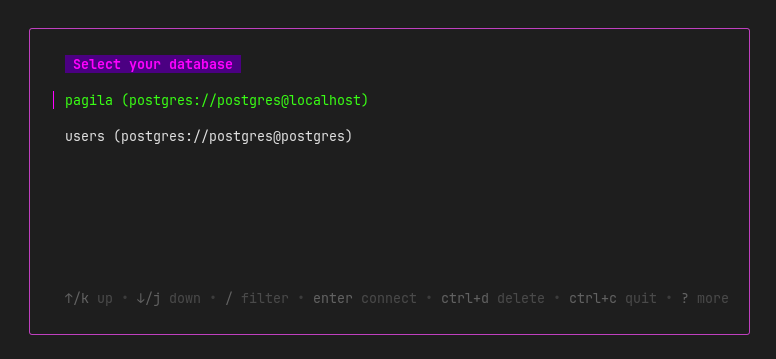
dblab supports saving and reusing database connection profiles. When you successfully connect to a database, you can store the connection parameters as a named profile using the --save-as flag. Both the database password and the SSH tunnel password (when using SSH connections) are stored securely in your operating system's keyring (e.g., GNOME Keyring, macOS Keychain, or Windows Credential Manager) rather than in plain text.
Use the --save-as flag with any connection to save it as a named profile:
$ dblab --host localhost --user myuser --db users --pass password --ssl disable --port 5432 --driver postgres --limit 50 --save-as myprofile
The connection parameters are saved to $XDG_CONFIG_HOME/dblab/dblab.json (excluding passwords), while the database password and SSH password (if provided) are stored in the OS keyring.
Use the connect command to launch an interactive menu that lists all saved profiles:
$ dblab connect
This opens a TUI selector where you can:
The password is automatically retrieved from the OS keyring when connecting.
Profiles are stored in $XDG_CONFIG_HOME/dblab/dblab.json:
{
  "profiles": {
    "myprofile": {
      "host": "localhost",
      "port": "5432",
      "db": "users",
      "user": "postgres",
      "schema": "public",
      "driver": "postgres"
    }
  }
}
The UI is split into three panels: the sidebar tree on the left, the query editor on the top right, and the result set panel below it. Move focus between them with Ctrl+H, Ctrl+J, Ctrl+K and Ctrl+L.
Every key binding in this README is the default. All of them can be replaced through the .dblab.yaml configuration file — there are no flags for it — so if you've customized a binding, substitute yours for the default shown here. See Key bindings configuration.
dblab connects to a single database (the --db flag is mandatory) and displays its catalog as a tree in the sidebar. For PostgreSQL and Oracle, the tree shows the database, its schemas, and the tables under each schema. For MySQL, SQLite, and SQL Server, the tree shows the database and its tables directly. If the --schema flag is provided for PostgreSQL or Oracle, only that schema is shown; otherwise, all accessible schemas are listed.
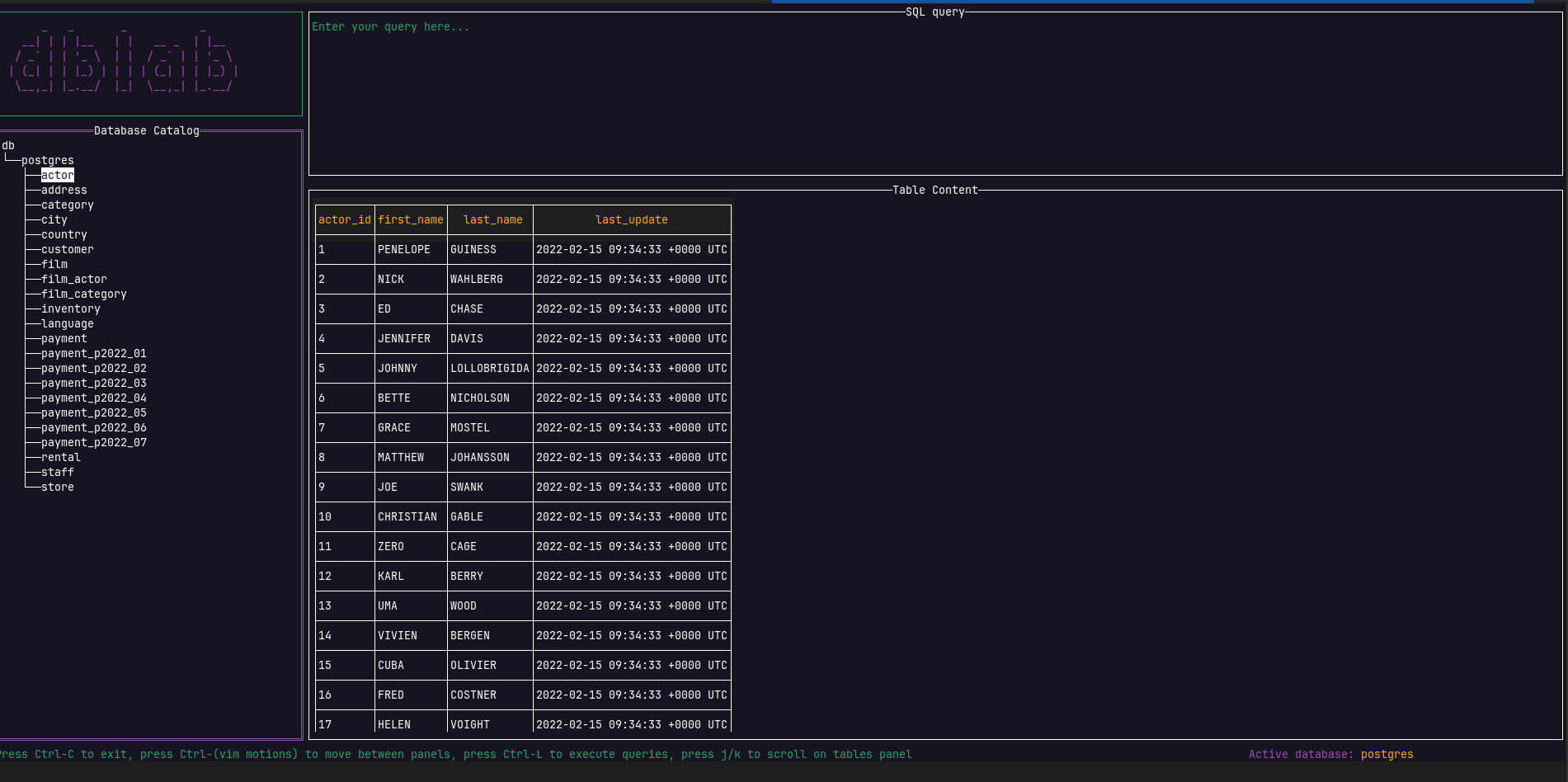
Navigate the tree with Up and Down (or k and j), and press Enter on a table to load its rows into the result set panel.
Selecting a table populates the result set panel, which has one tab per view of the table. Press tab and shift+tab to move between them:
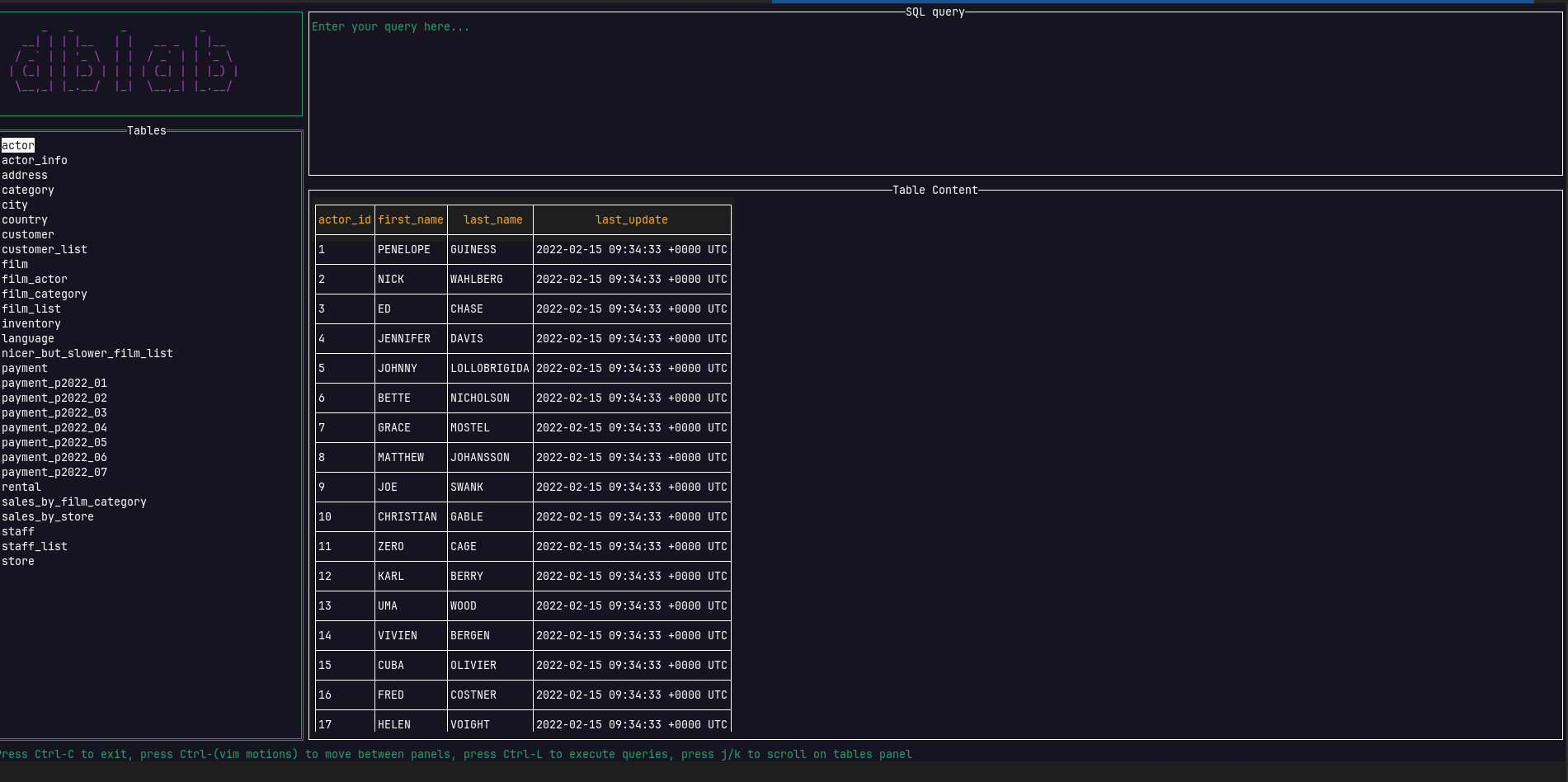
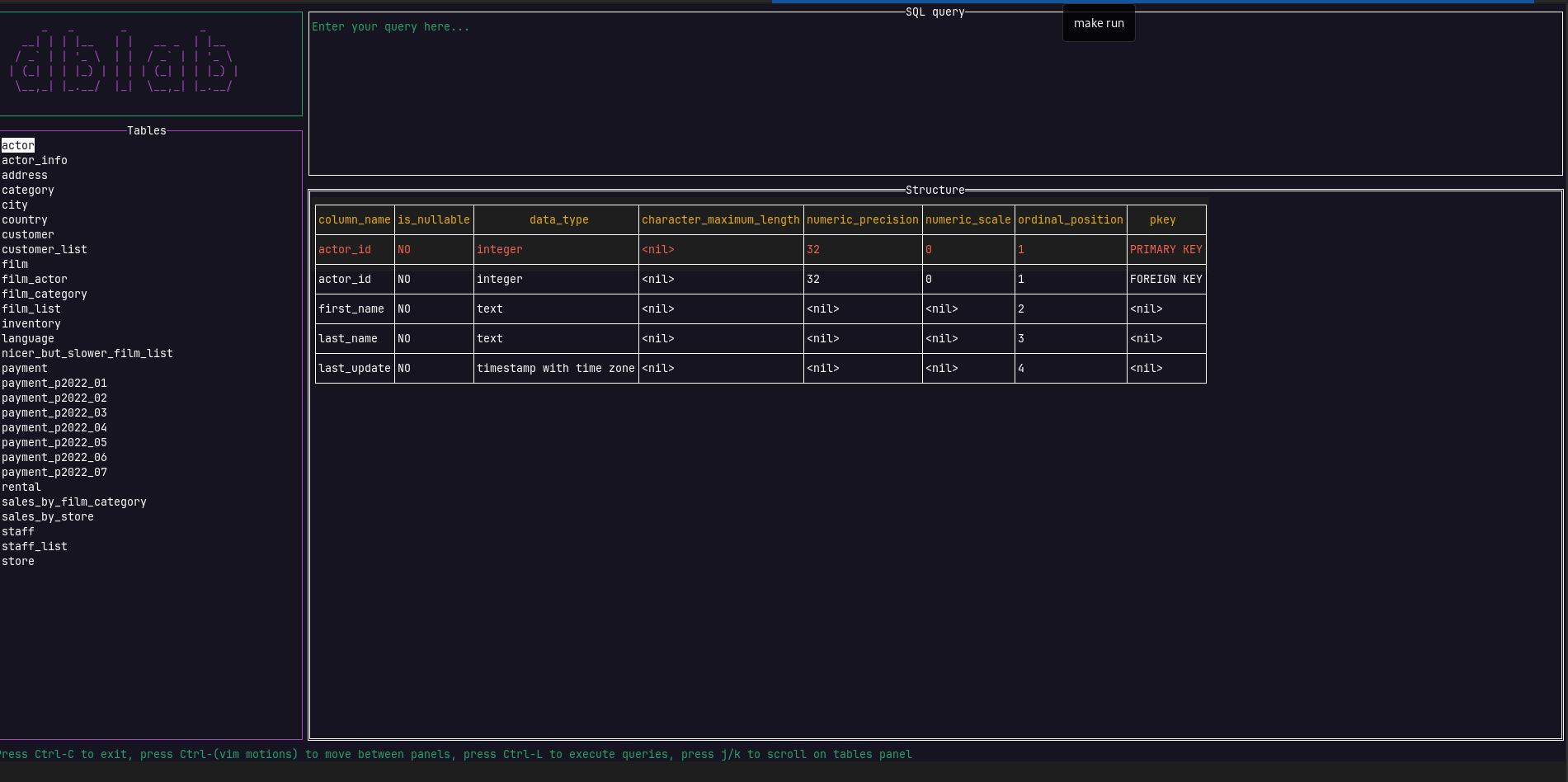
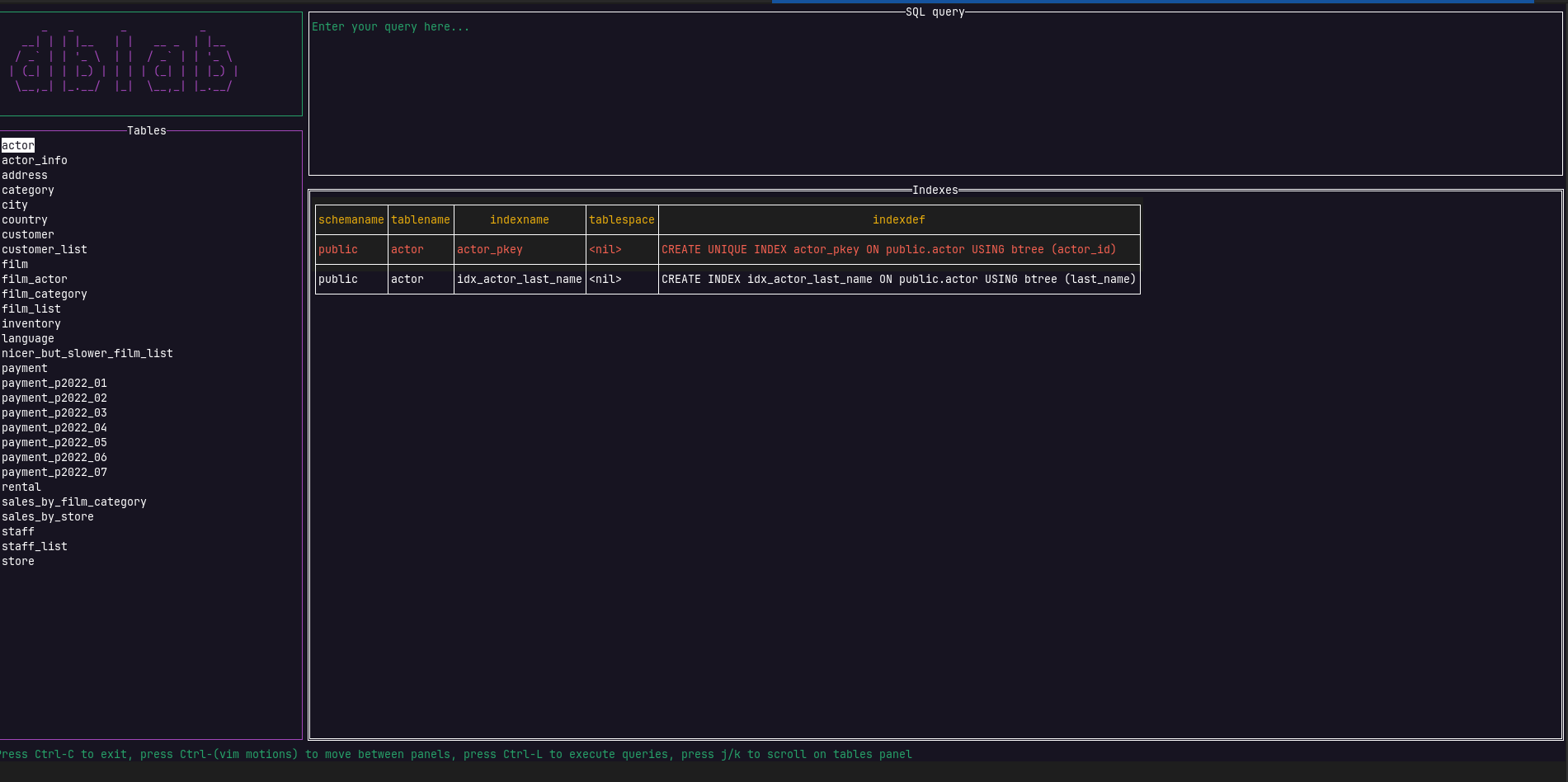
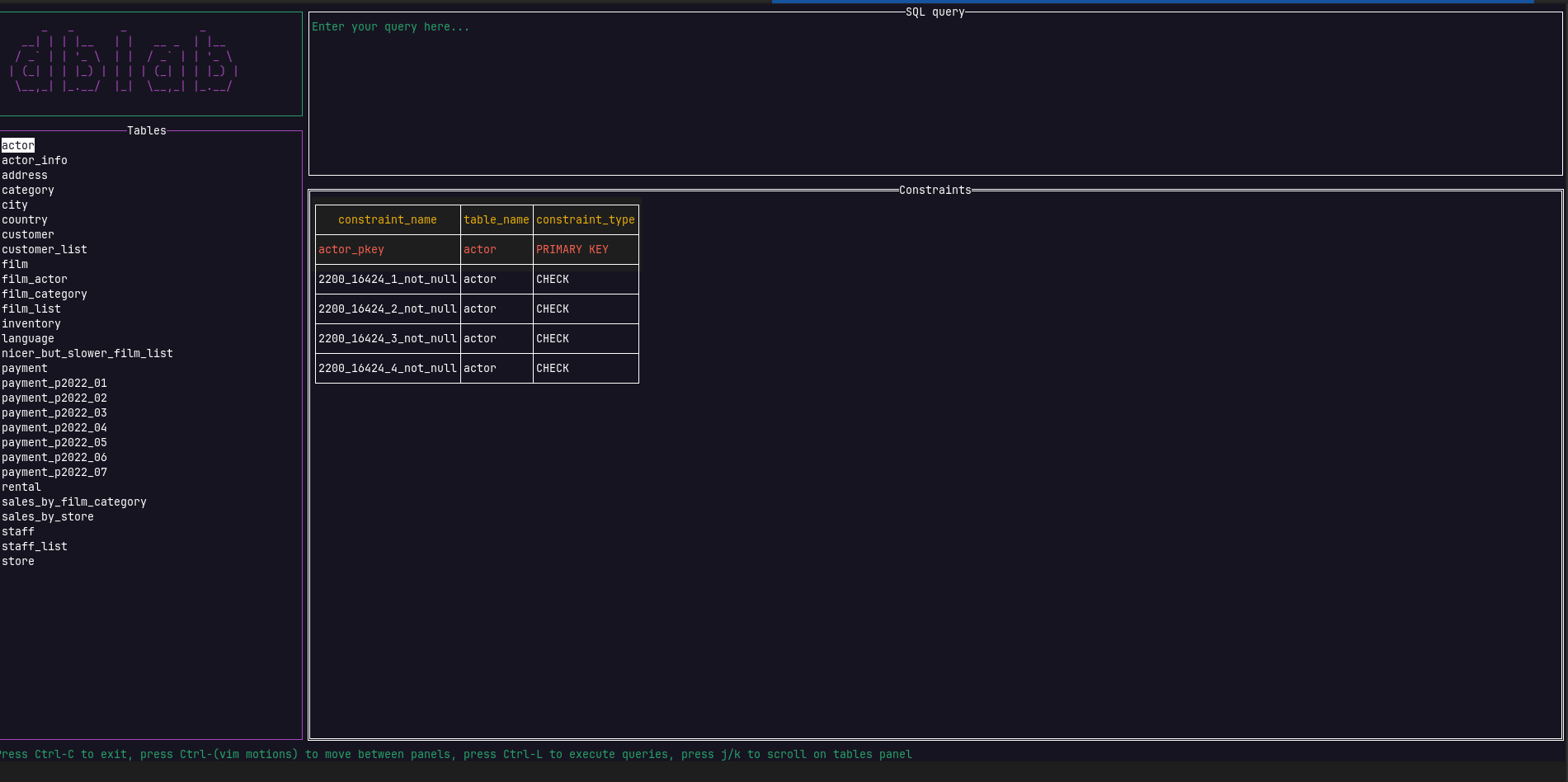
Move around a result set with the arrow keys or h/j/k/l. The selected cell is highlighted so you can see where you are; press Enter on a cell to copy its content.
There are no pagination controls — they proved too slow to page through a table effectively. To work through a large table, write a SELECT with explicit OFFSET and LIMIT instead.
The query editor uses normal and insert modes, similar to Vim. When you focus the editor it starts in normal mode. Press i to enter insert mode and type or edit SQL; press Escape to return to normal mode (the cursor moves one character to the left, as in Vim).
Cursor movement depends on the mode: in insert mode use the arrow keys, in normal mode use h, j, k and l.
In normal mode:
Press ctrl+e to execute the contents of the editor (keybindings.editor.execute-query). Whitespace-only queries are ignored.
Press ctrl+r to execute only the query on the current cursor line (keybindings.editor.execute-single-query), leaving the other statements in the editor untouched. Both bindings work from either mode.
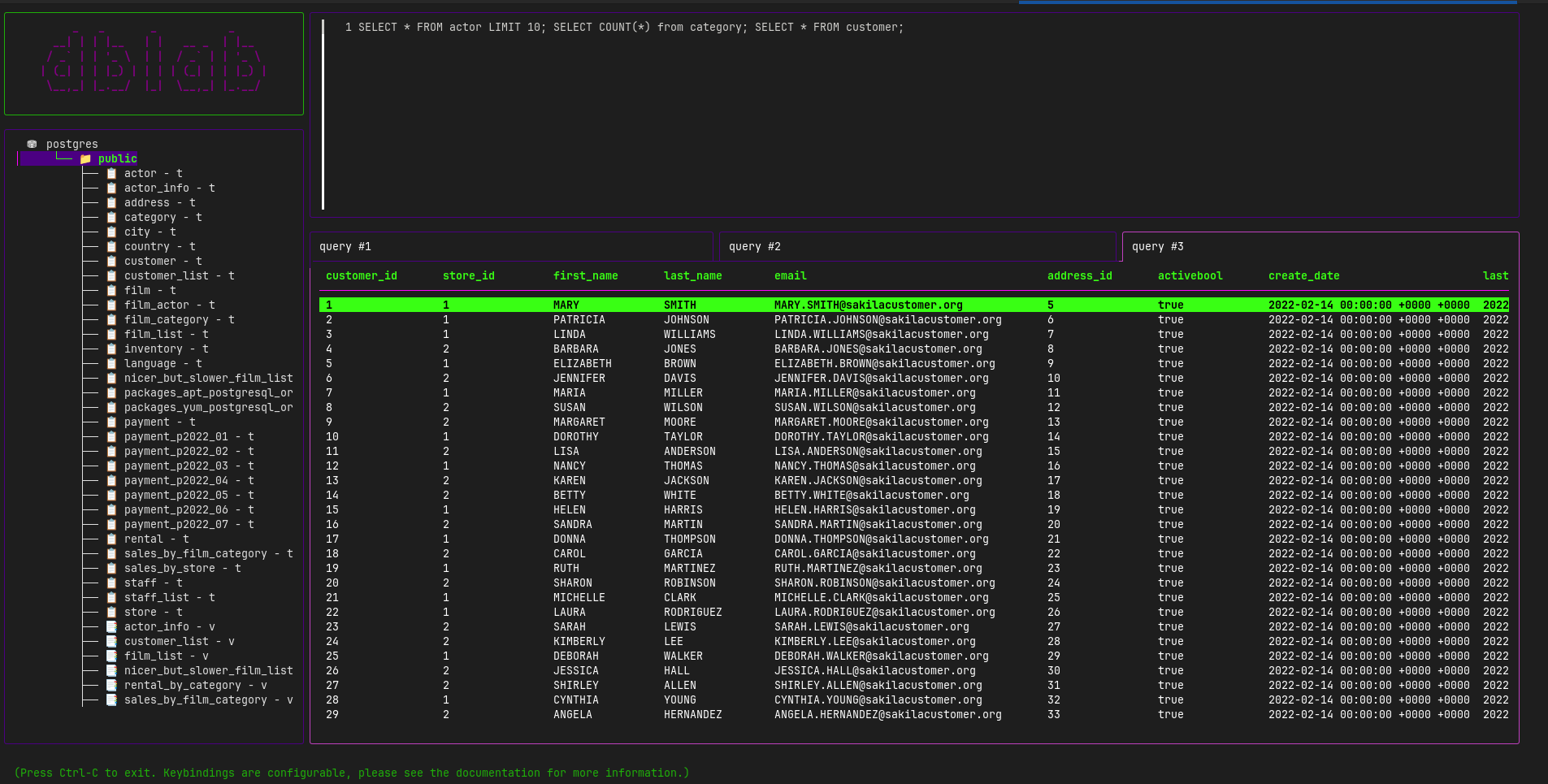
You can write multiple SQL statements separated by semicolons (;) and execute them all at once with ctrl+e:
SELECT * FROM users; SELECT * FROM orders; SELECT count(*) FROM products;
The statements run concurrently and each result is displayed in its own tab ("query #1", "query #2", and so on) — three tabs, for the example above. If a statement fails, its tab shows the error message while the successful ones still show their results. A maximum of 5 statements can be executed per batch.
While a batch is running, press Ctrl+c to cancel it; press Ctrl+c again to quit dblab.
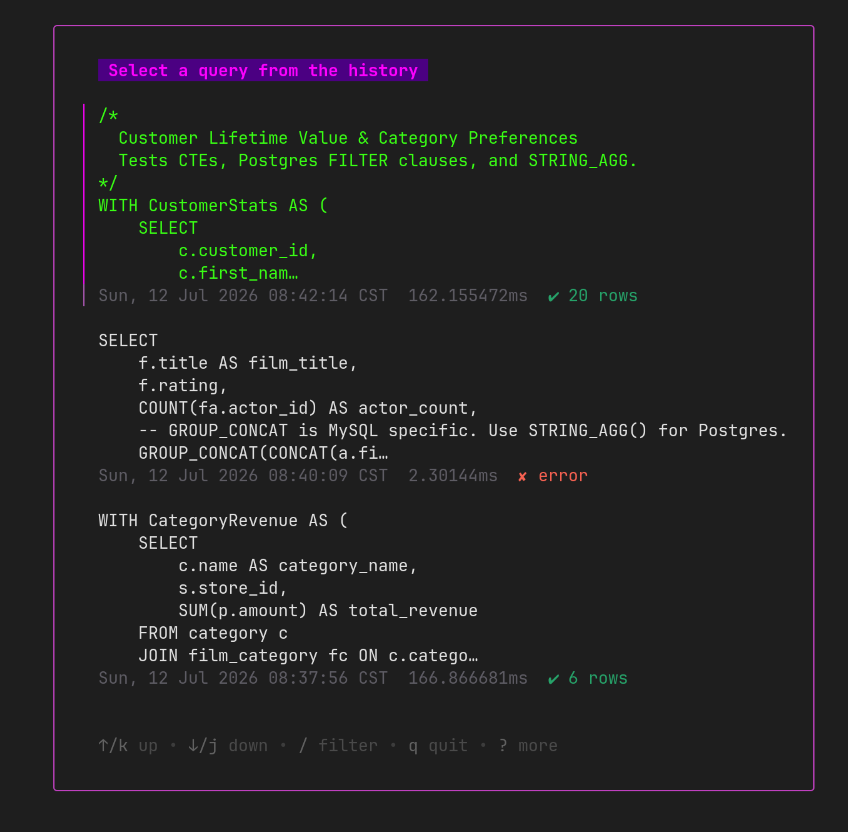
dblab automatically saves every executed query to a local history file ($XDG_CONFIG_HOME/dblab/dblab.gob). Press F8 to open the query history view, which displays past queries sorted newest-first in a filterable list. Use the built-in search to narrow results, press Enter to load the selected query back into the editor, or press Esc to return without selecting anything.
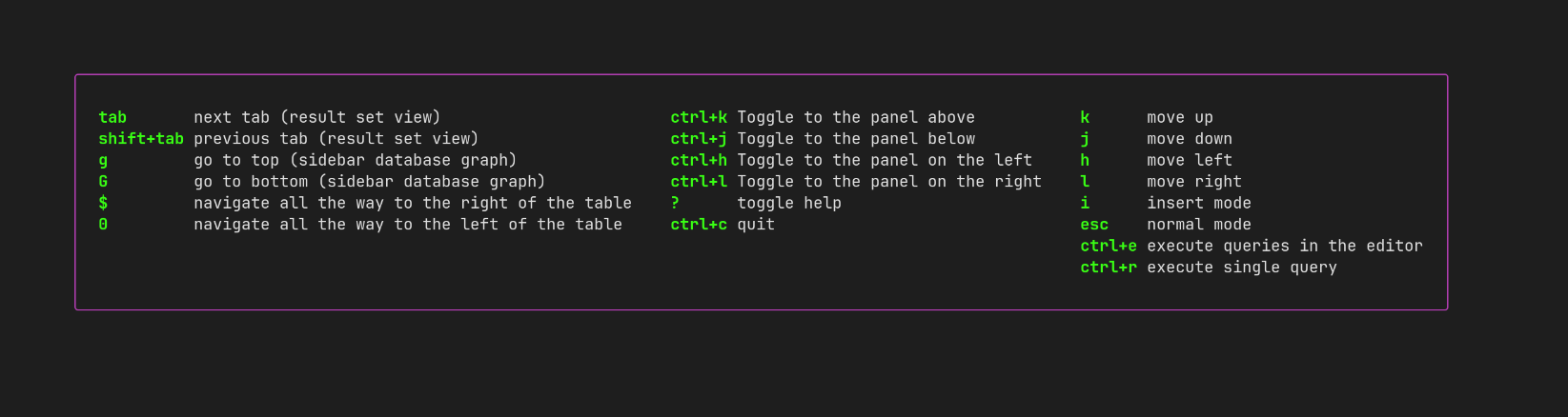
Press ? at any time to open the help modal, which displays all available key bindings in a centered overlay. Press Esc to dismiss it; focus returns to the query editor.
These are the defaults; see Key bindings configuration to change them.
| Key | Description |
|---|---|
| Ctrl+H | Toggle to the panel on the left |
| Ctrl+J | Toggle to the panel below |
| Ctrl+K | Toggle to the panel above |
| Ctrl+L | Toggle to the panel on the right |
| Key | Description |
|---|---|
| ctrl+e | Execute the contents of the editor |
| ctrl+r | Execute only the query on the current cursor line |
| Key | Description |
|---|---|
| i | Enter insert mode |
| h j k l | Move the cursor left, down, up, right |
| dd | Delete the current line |
| yy | Yank the current line |
| p | Paste the yanked or deleted line after the current line |
| x | Delete the character under the cursor |
| 0 / $ | Move to the start / end of the current line |
| g / G | Jump to the first / last line of the buffer |
| Ctrl+D | Clear the entire editor content |
| Key | Description |
|---|---|
| Escape | Return to normal mode |
| Arrow keys | Move the cursor |
| Key | Description |
|---|---|
| Arrow Up / k | Move up the tree |
| Arrow Down / j | Move down the tree |
| Enter | List all rows of the selected table and display its structure |
Applies to all tabs of the result set panel.
| Key | Description |
|---|---|
| tab / shift+tab | Navigate to the next / previous metadata tab |
| Arrow Up / k | Navigate the table upward |
| Arrow Down / j | Navigate the table downward |
| Arrow Left / h | Navigate the table to the left |
| Arrow Right / l | Navigate the table to the right |
| g / G | Move to the top / bottom of the dataset |
| 0 / $ | Move to the left / right edge of the row |
| Enter | Copy the content of the selected cell |
| Key | Description |
|---|---|
| F8 | Open the query history view |
| ? | Open the help modal showing all key bindings |
| Esc | Dismiss the help modal (or return to normal mode in the query editor) |
| Ctrl+c | Cancel running queries if any; otherwise quit the application |
The MIT License (MIT). See LICENSE file for more details.
more like this
search projects, people, and tags