xmb-bigscreen
XMB for Plasma BigScreen, console-like fullscreen launcher for living room gamepad users
QML★ 50
A game and app launcher for Linux - native, Windows, and retro. KDE-first, lightweight, no frills.
 dekomote
git clone https://github.com/dekomote/vermouth.gitdekomote/vermouth



A game and app launcher for Linux - native, Windows, and retro.
KDE-first, lightweight, no frills.
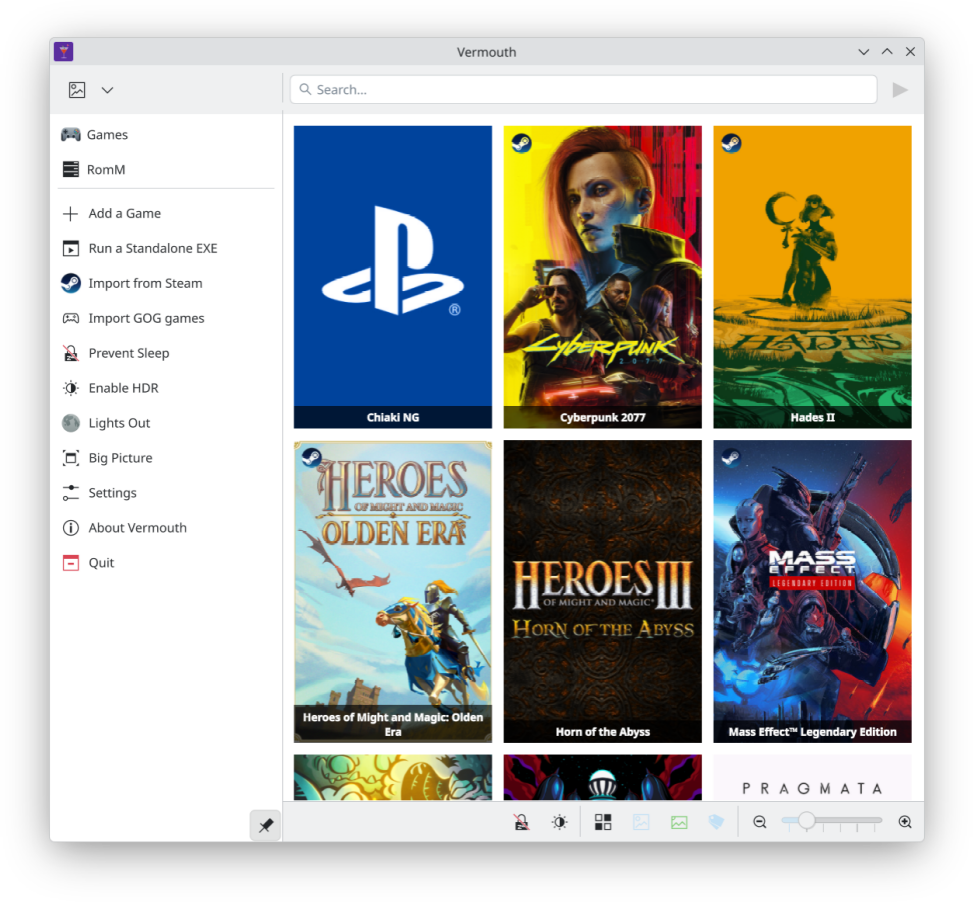
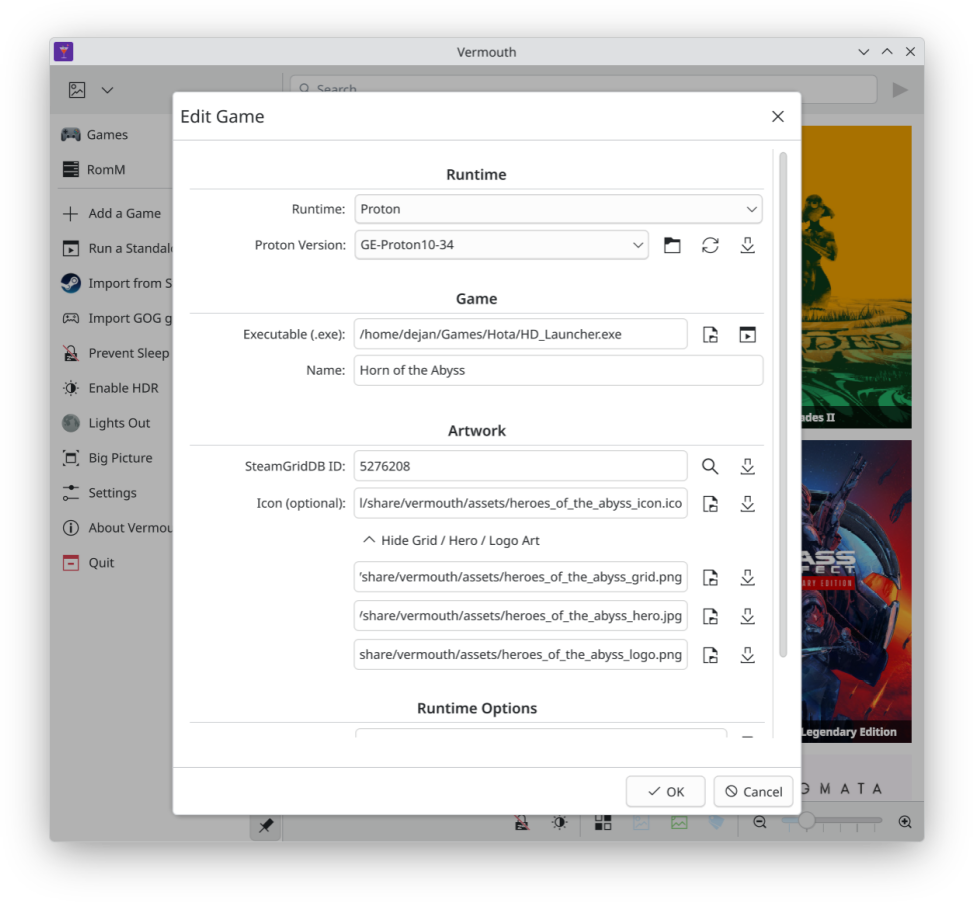
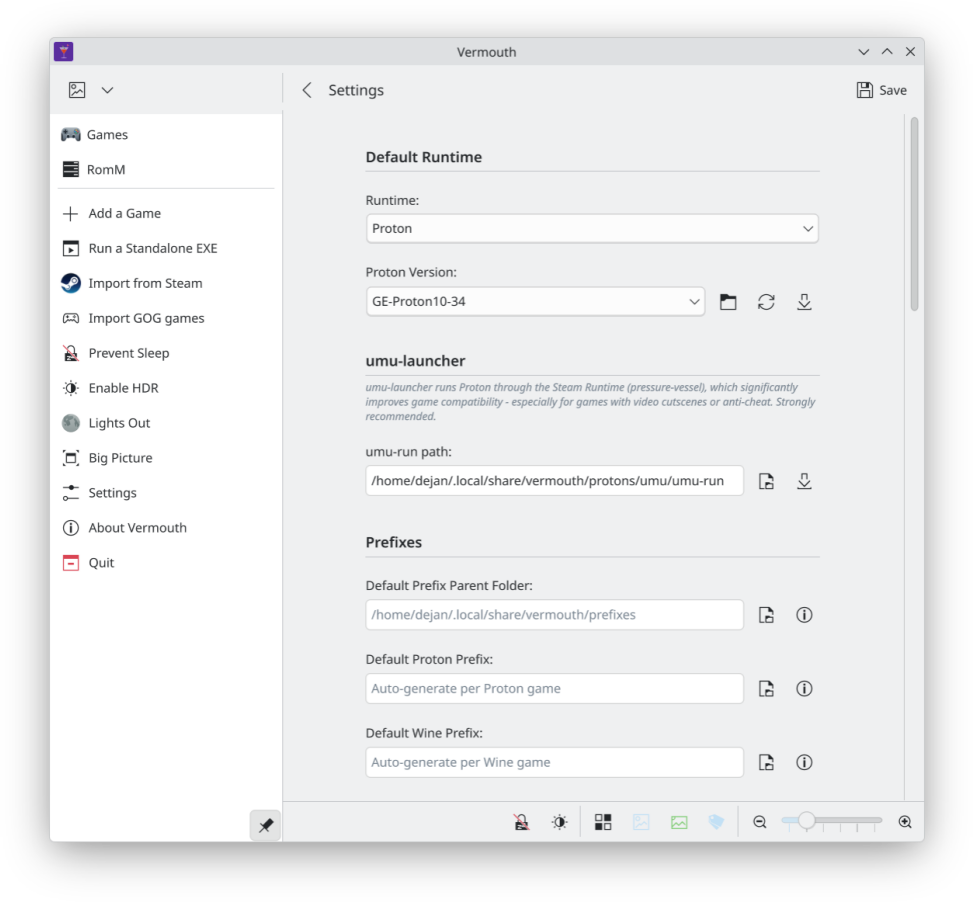
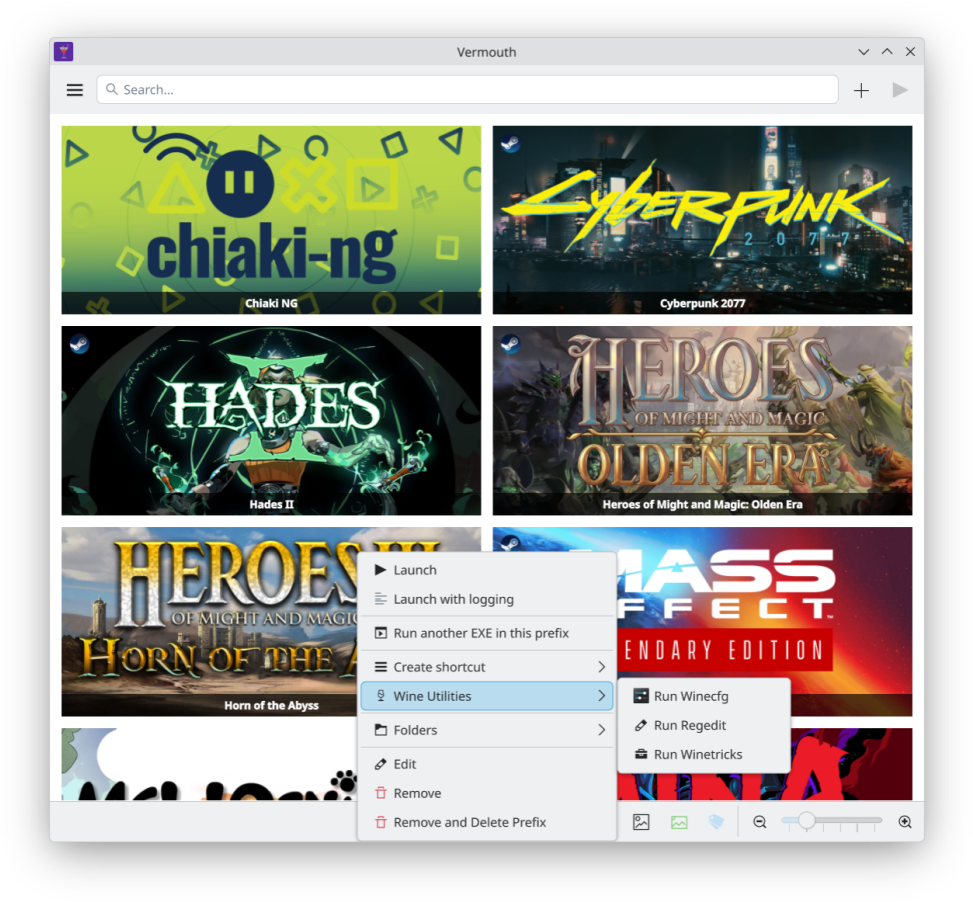
Vermouth is a KDE-first launcher with four modes:
.exe files with Proton or Wine, with umu-launcher support for full Steam Runtime compatibility.desktop entries, and AppImages directlyIt works like Lutris, Heroic, or Bottles, but lighter and KDE-first - less buttons, checks and knobs, just the bare necessities.
Proton / Wine
~/.local/share/vermouth/protons%command% placeholder, same as Steam (e.g. mangohud %command%, GAMEID=12345 %command%).exe inside an existing prefix (useful for installers and config tools)Library
.exe files automatically (requires icoutils)UI
icoutils for automatic icon extraction from .exe filesUbuntu 25.04 / Debian Trixie or newer are required on Debian-based systems due to the Qt 6.8+ dependency.
.exe, binary, ROM, or .desktop fileFor Steam games, use Menu → Import from Steam if you don't want to search for game IDs.
Windows / native games: Click Add Game, browse for the .exe or binary, choose a runtime (Proton, Wine, or native), and launch from the grid. Optional fields can be omitted - the name and icon are inferred automatically (requires icoutils for .exe icons), and the prefix is set based on the game name.
The Launch Options field wraps the command with tools like mangohud, gamescope, or gamemoderun. Use %command% as the placeholder - if omitted, options are prepended automatically. You can also set environment variables here, e.g. GAMEID=12345 %command% to pass a Steam App ID to umu-launcher.
Steam games: Click Menu → Import from Steam. Vermouth scans your Steam library, shows all installed games, and lets you select which ones to import. Art is resolved from your local Steam cache and any gaps are filled from SteamGridDB automatically.
GOG games: Open the GOG Library tab to log into your GOG account and download, install, and play your games straight from the app. This is still in beta. If you'd rather use games you already have on disk, click Menu → Import GOG games and point Vermouth at the folder where they live. See GOG support for the full rundown.
RetroArch games: Click Add Game, select RetroArch as the runtime, choose the ROM file and platform. Vermouth will pick the right core automatically or prompt you to select one.
Retro games via RomM: Configure your RomM server URL and API key in Settings. Switch to the RomM tab, and double-click a ROM to download and launch it. Cores can be overridden per game via right-click.
Big Picture mode: Click Big Picture in the sidebar or press the assigned shortcut to enter full-screen mode. The entire UI is navigable with a gamepad - L1/R1 switch tabs, L2 opens the platform picker in the RomM tab, and face buttons map to the primary actions.
In Settings you can:
Vermouth supports umu-launcher, which runs Proton through the full Steam Runtime (pressure-vessel). This significantly improves game compatibility - especially for games with video cutscenes, media codecs, or anti-cheat. It is strongly recommended.
If umu-run is found in your PATH or configured in Settings, Vermouth will use it automatically for all Proton launches. You can also download it directly from Settings → umu-launcher.
Vermouth supports SteamGridDB for fetching icons, grid and hero images and logos. You need an API key which you can get by registering an account with them and getting your API key here.
Vermouth can import your installed Steam library in one click. Go to Menu → Import from Steam, select the games you want, and they will appear in your library. Launching them opens Steam directly to that game. Art is fetched from your local Steam cache automatically; any missing artwork is downloaded from SteamGridDB if you have an API key configured.
Steam is detected from all standard install locations, including native and Flatpak installs.
There are two ways to get your GOG games into Vermouth.
GOG Library (Beta). The GOG Library tab connects to your GOG account and lists everything you own. Log in once from the tab, then double-click a game to download and install it. Windows games run with your default runtime (Proton or Wine), native Linux games are installed directly. Still beta, so expect a few rough edges.
Importing an existing install. Already have GOG games on disk? Use Menu → Import GOG games, point it at the folder they live in, and pick what you want. Windows games run through Proton with a dedicated prefix, native Linux games launch from their start.sh.
ROMs can be added to your library directly - no RomM required. Click Add Game, select RetroArch as the runtime, pick the ROM file and platform, and it will appear in your library alongside your other games.
Vermouth auto-detects RetroArch cores for each platform. You can override the core per entry from the right-click menu → Change Core.
Vermouth integrates with RomM, a self-hosted retro game library manager. Point Vermouth at your RomM server URL and API key in Settings, and the RomM tab will let you browse platforms and ROMs, download them locally, and launch them with RetroArch.
ROMs are launched via RetroArch. Vermouth will auto-detect whether RetroArch is installed natively or as a Flatpak. You can assign a RetroArch core per game from the right-click menu. Cores must be installed separately in RetroArch before use.
Vermouth is available on COPR:
sudo dnf copr enable dekomote/Vermouth
sudo dnf install vermouth
sudo dnf5 copr enable dekomote/Vermouth
sudo rpm-ostree -y install vermouth
Also, you can download the latest package from the releases page.
sudo dnf install ./vermouth-*.rpm
Install via COPR:
sudo zypper addrepo https://copr.fedorainfracloud.org/coprs/dekomote/Vermouth/repo/opensuse-tumbleweed/dekomote-Vermouth-opensuse-tumbleweed.repo
sudo zypper install vermouth
Or install the RPM from the releases page:
sudo zypper install ./vermouth-opensuse-*.rpm
Requires Ubuntu 25.04 / Debian Trixie or newer (Qt 6.8+ and KF6 are required). Download the latest deb package from the releases page.
sudo apt install ./vermouth-*.deb
Install from the AUR:
yay -S vermouth
Or install the package from the releases page:
sudo pacman -U vermouth-*-arch.pkg.tar.zst
Or build from the included PKGBUILD:
cd packaging && makepkg -si
Install it from flathub
flatpak install com.dekomote.vermouth
or
Download the latest flatpak package from the releases page.
flatpak install ./vermouth-*.flatpak
Note: The Flatpak sandbox restricts filesystem access to your home directory. If your games or Steam live elsewhere, you'll need to grant additional permissions. See Flatpak Notes.
Download Vermouth-*.AppImage from the releases page, make it executable and run it:
chmod +x Vermouth-*.AppImage
./Vermouth-*.AppImage
For icon extraction from .exe files, install icoutils (provides wrestool and icotool).
You need Qt 6.8+, KDE Frameworks 6, and CMake.
Fedora:
sudo dnf install cmake gcc-c++ extra-cmake-modules qt6-qtbase-devel qt6-qtdeclarative-devel \
  qt6-qtquickcontrols2-devel kf6-kirigami-devel kf6-kcoreaddons-devel kf6-ki18n-devel \
  kf6-qqc2-desktop-style icoutils
Ubuntu / Debian:
sudo apt install build-essential cmake extra-cmake-modules qt6-base-dev qt6-declarative-dev \
  qt6-tools-dev-tools libkirigami-dev libkf6coreaddons-dev libkf6i18n-dev \
  libkf6qqc2desktopstyle-dev icoutils
Arch Linux:
sudo pacman -S --needed base-devel cmake ninja extra-cmake-modules qt6-base qt6-declarative \
  kirigami ki18n kcoreaddons qqc2-desktop-style icoutils
Then inside the root folder of the project:
cmake -B build
cmake --build build
./build/bin/vermouth
Games are stored in ~/.config/vermouth/apps.json. When umu-launcher is available, Proton is launched through it with PROTONPATH and STEAM_COMPAT_DATA_PATH set. Without umu, Vermouth calls the proton run script directly, the same way Steam does. Wine games get WINEPREFIX set and the binary called directly.
When running Vermouth as a Flatpak, it is sandboxed and only has access to your home directory by default. If your games are stored outside your home folder, grant filesystem access using Flatseal or your desktop environment's application permissions settings. Add the relevant paths under Filesystem permissions.
HDR toggle on KDE requires the org.freedesktop.Flatpak talk permission — see Flatpak RetroArch below for how to grant it.
Vermouth detects and launches RetroArch installed as a Flatpak (org.libretro.RetroArch). If Vermouth is also running as a Flatpak, an extra permission is needed to let it talk to the host and launch other Flatpak apps:
flatpak override --user --talk-name=org.freedesktop.Flatpak com.dekomote.vermouth
You can also add it via Flatseal under Session Bus → Talks.
Contributions are welcome. Please open a pull request on GitHub.
Build from source (see Building from source), make your changes, and open a pull request. Keep changes focused - one feature or fix per PR.
Vermouth uses the KDE i18n system (gettext .po files). To add or update a translation:
po/<language_code>/ (e.g. po/fr/ for French, po/pt_BR/ for Brazilian Portuguese).po/vermouth.pot into it as vermouth.po (e.g. po/fr/vermouth.po).msgstr fields with your translations.To update an existing translation after new strings have been added:
sh po/update-pot.sh     # regenerate vermouth.pot from source
sh po/update-po.sh      # merge new strings into all .po files
Then fill in any new empty msgstr "" entries in your .po file.
Development included assistance of AI tools.
Please use the issue tracker for bug reports and feature requests.
more like this
XMB for Plasma BigScreen, console-like fullscreen launcher for living room gamepad users
search projects, people, and tags