meine
meine 🌒 - A CLI file manager and system utility built with Textual. It combines intuitive command parsing with rich t…
Python★ 50
🦊 Firefox user CSS theme looks similar to Chrome
 edelvarden
git clone https://github.com/edelvarden/material-fox-updated.gitedelvarden/material-fox-updated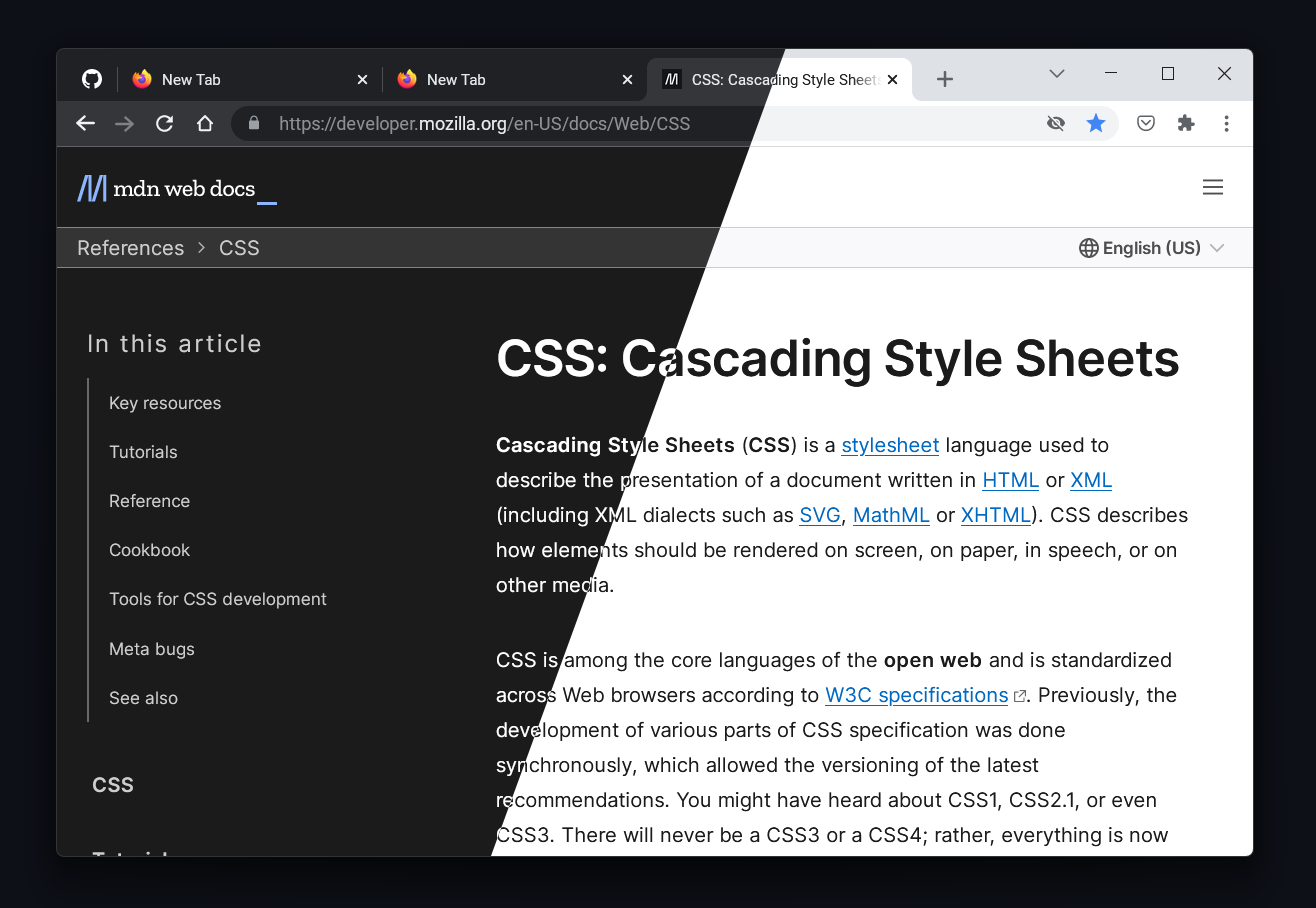
To start using MaterialFox UPDATED, follow these steps:
Open Firefox and type about:config in the address bar, then press Enter.
If a warning page appears, click Accept the Risk and Continue to access the about:config page.
Search for the following preferences using the search bar at the top of the about:config page, and ensure the following preferences are true:
toolkit.legacyUserProfileCustomizations.stylesheetssvg.context-properties.content.enabledType about:support in the address bar and press Enter.
Scroll down to the Profile Folder section and click Open Folder.
Download the chrome.zip file from the latest release.
Extract the contents of chrome.zip into your Firefox profile directory.
Restart Firefox to apply the changes.
As an alternative to manual installation, you can use a PowerShell script.
For Windows, run the following PowerShell command:
$env:MATERIAL_FOX_VERSION = "latest"; PowerShell -ExecutionPolicy Unrestricted -c "iwr https://raw.githubusercontent.com/edelvarden/material-fox-updated/main/install.ps1 -useb | iex"
For Firefox version 119 or below (Firefox ESR, Floorp or Waterfox)
$env:MATERIAL_FOX_VERSION = "tags/v1.0.7"; PowerShell -ExecutionPolicy Unrestricted -c "iwr https://raw.githubusercontent.com/edelvarden/material-fox-updated/main/install.ps1 -useb | iex"
If you enjoy this project and want to help me maintain it further, buying me a coffee would be greatly appreciated! ☕️
Your suggestions and bug reports are also welcome on GitHub Issues.
You can apply visual design changes by adding some about:config customization options (preferences).
To set a preference, type about:config in the address bar and press Enter.
To enable a preference:
userChrome.ui-chrome-refresh enables the new Chrome design.To disable a preference:
false.Warning
Use only one preference with the prefix theme.
| Preference | Description |
|---|---|
userChrome.ui-chrome-refresh |
Enable the new Chrome design named "Chrome Refresh".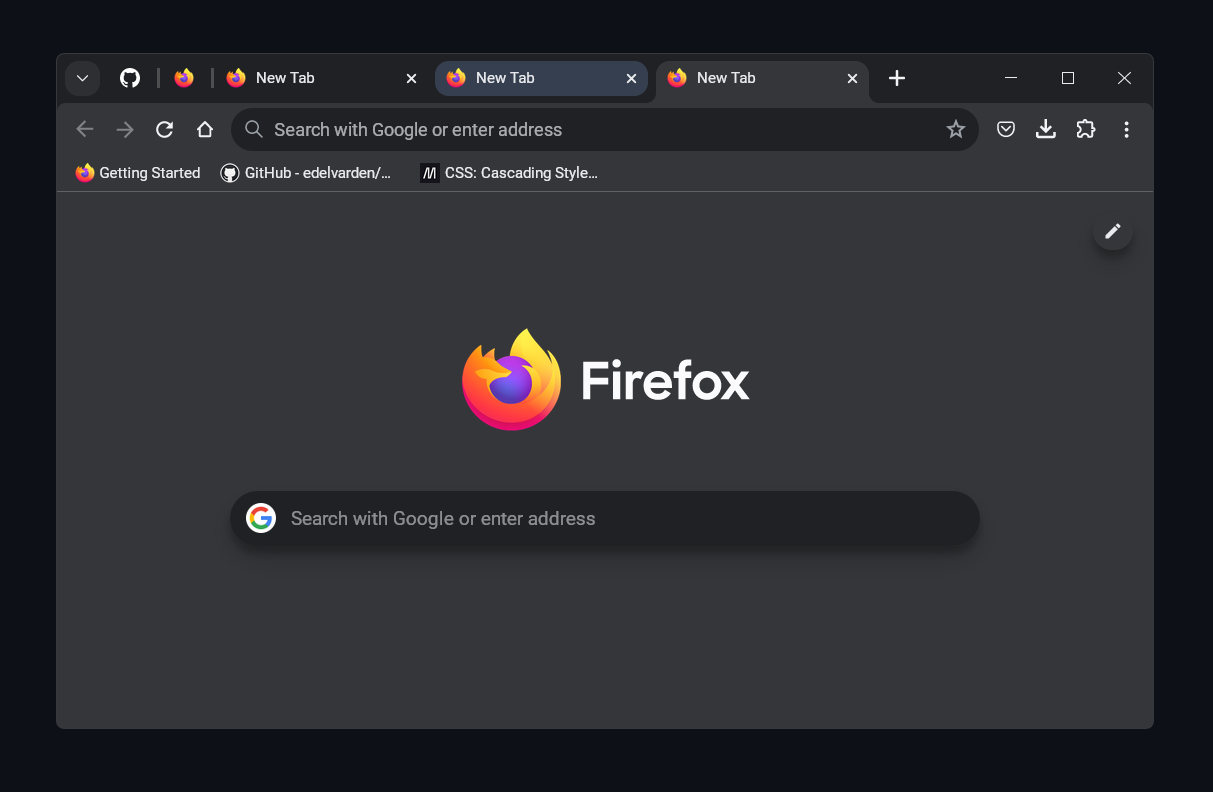 |
userChrome.theme-chrome-refresh |
Enable a new color scheme like in "Chrome Refresh". |
userChrome.theme-material |
Enable Material color schemes. Read more. |
userChrome.theme-default |
Enable the default color scheme. This can be useful if you want to use it with Adaptive Tab Bar Color or native Firefox themes |
userChrome.ui-compact-url-bar |
Make the URL bar more compact by reducing its height. |
userChrome.ui-context-menu-icons |
Display context menu icons. |
userChrome.ui-no-menu-icons |
Hide the menu icons |
userChrome.ui-force-animation |
Force enable control animation, because it respects the user's animation disable preference by default. (Not required if you do not disable animation) |
userChrome.ui-system-font |
(Windows only) Use the default system font instead of Roboto. |
userChrome.ui-force-old-icons |
Force the old icons to be used even if the userChrome.ui-chrome-refresh preference is enabled. |
userChrome.ui-no-ripple |
Disable ripple effect from buttons |
You can also add your own user CSS rules by using the custom.css file. Additionally, if you want to change some colors, you can override the default variable values with your own.
Follow these steps:
custom_example.css file in the root folder to custom.css.custom.css in a text editor.:root,
html,
body {
/* add your css variables below */
--md-accent-color: #ea4335 !important;
}
Note
Using this custom.css file can separate your changes from the source project. You can easily back up your file and not worry about overwriting your changes when updating or reinstalling the main files.
| Variable name | Description |
|---|---|
--md-accent-color |
accent color |
--md-background-color-0 |
dark tones |
--md-background-color-50 |
middle tones |
--md-background-color-100 |
light tones |
--md-text-primary |
main text color |
--md-text-secondary |
secondary text color |
--md-text-on-accent |
text on primary button |
--md-menu-background-color |
menu background color |
--md-menu-background-color-hover |
menu items background color on mouse over |
--md-menu-border-color |
controls border color |
--md-icon-color-primary |
navigation bar icons color |
--md-icon-color-secondary |
URL bar icons color |
--md-content-separator-color |
separator line between browser and content area |
--md-selection-text-color |
text selection color |
--md-selection-background-color |
selection background color |
Tip
You can find more variables in the variables/_colors.scss file. To use these variables, simply add the --md- prefix. For example, "accent-color": #a8c7fa, becomes --md-accent-color: #a8c7fa;.
Here are some examples of how you can use the custom.css file:
Replacing the font with your own. Change "YourFontName" to the name of your font:
:root,
html,
body {
  /* add your css variables below */
}

/* add your user css below */
*,
*::before,
*::after {
  font-family: "YourFontName" !important;
}
Removing the separator line between the browser and content:
:root,
html,
body {
  /* add your css variables below */
  --md-content-separator-color: transparent !important;
}
Tip
You can use variables to completely recolor the theme. Here are some preset examples with code:
| Description | Preview |
|---|---|
System accent colorsSource code:theme-system-accent.css |
   |
Github themeSource code:theme-github.css |
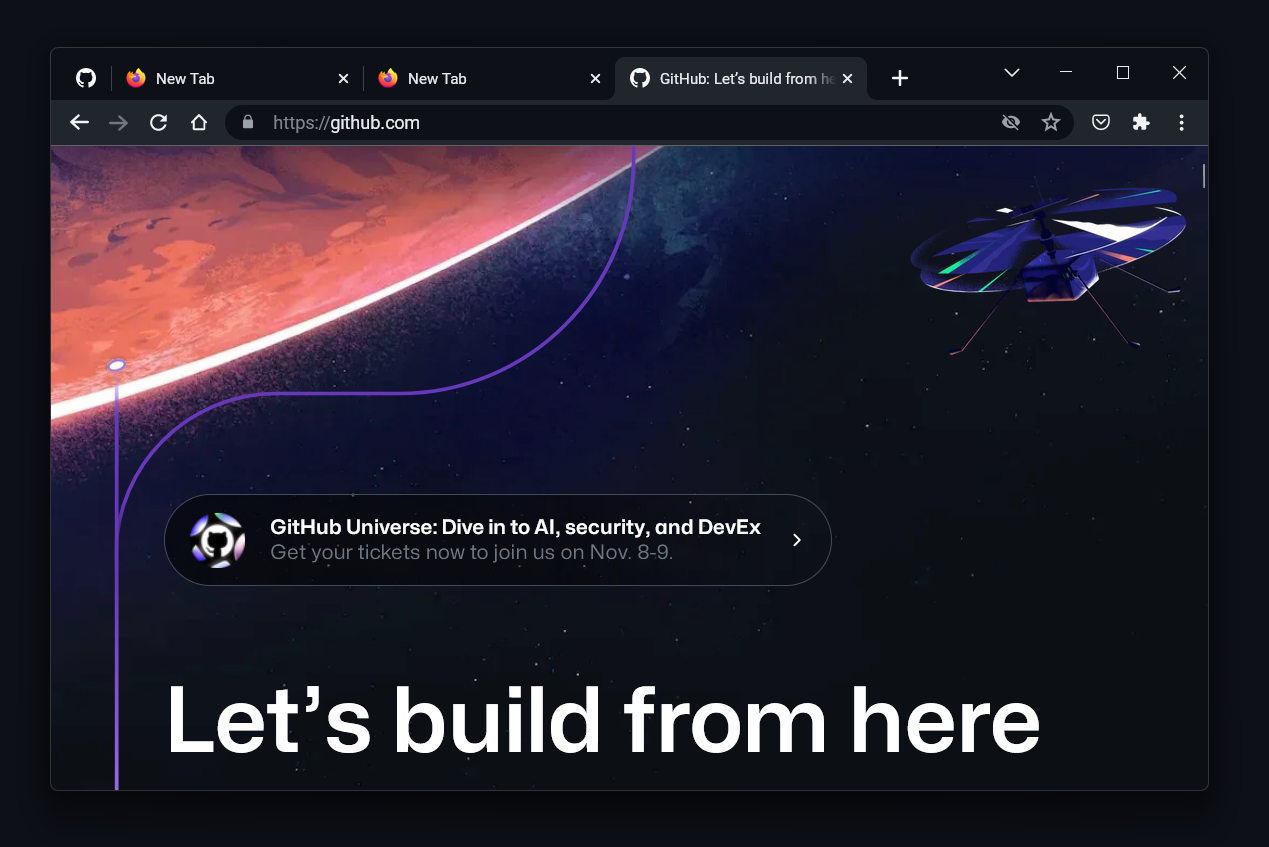 |
Dracula themeSource code:theme-dracula.css |
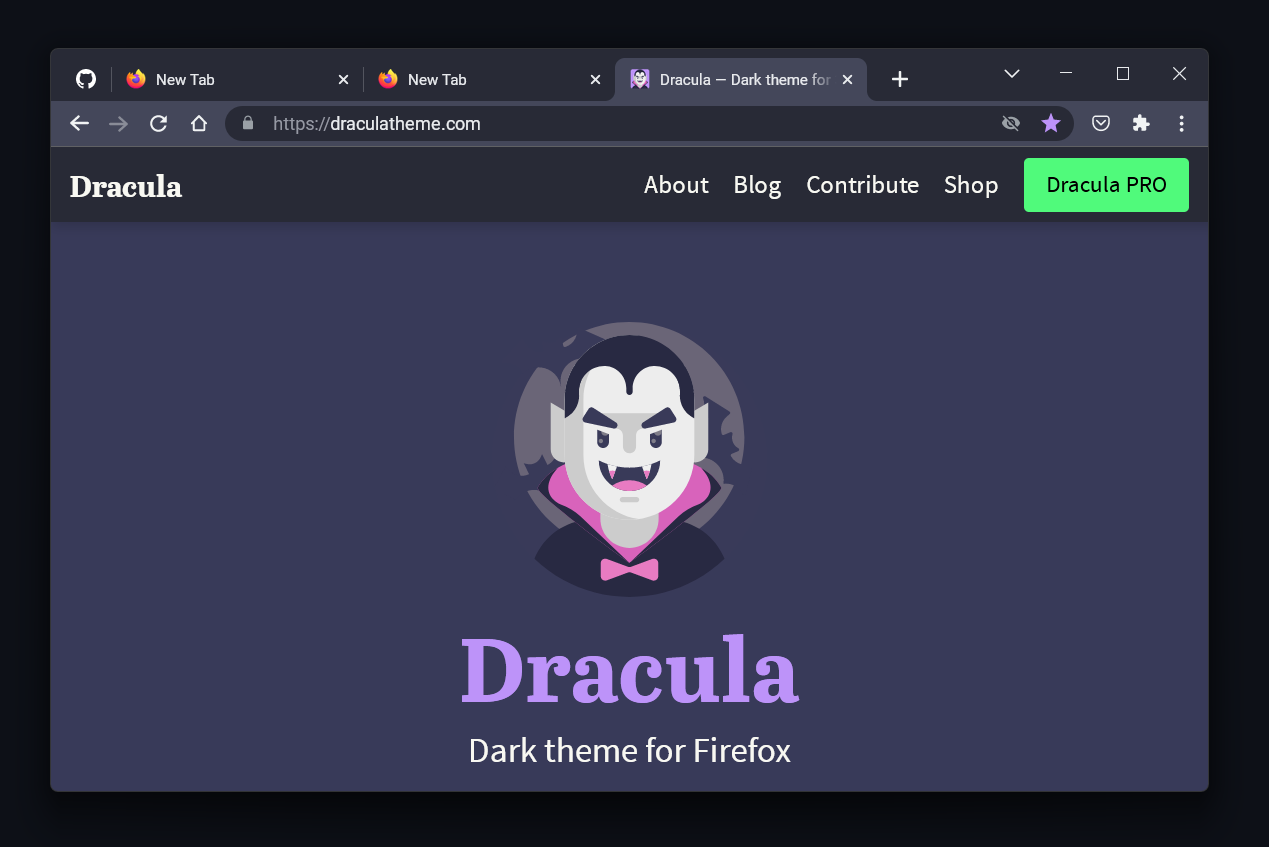 |
You can use the Material Theme Builder to create a color theme from an image.
Create the userChrome.theme-material preference in the about:config page.
Go to the Material Theme Builder website.
Select from the presented images, upload your own, or use the "Random color" button to generate a theme.
Click the "Pick your fonts" button in the bottom right corner.
Skip this step and click the "Export theme" button.
Click "Export" and select "Web (CSS)" from the dropdown menu.
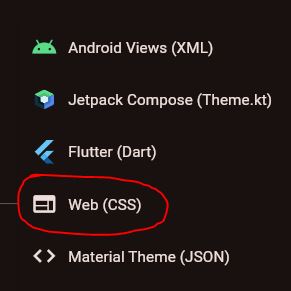
This will download an archive of CSS files. You only need two files: light.css and dark.css. Open these in a text editor and extract the variables to your custom.css file. Wrap the variables in the appropriate media rule for light and dark themes.
Examples with previews
| Example | Preview |
|---|---|
| theme-material-blue.css |  |
| theme-material-red.css |  |
| theme-material-yellow.css |  |
| theme-material-green.css |  |
git clone https://github.com/edelvarden/material-fox-updated.git chrome
cd chrome
npm install
npm run dev
Project structure
[Profile Folder]
└── chrome
    ├── chrome
    ├── src
    │   ├── user-chrome
    │   ├── user-content
    │   ├── user-chrome.scss
    │   └── user-content.scss
    ├── package-lock.json
    ├── package.json
    ├── userChrome.css
    └── userContent.css
src directory, all changes will be automatically build in the [Profile Folder]/chrome/chrome folder.To subsequently start the development mode, just use the following command:
npm run dev
more like this
meine 🌒 - A CLI file manager and system utility built with Textual. It combines intuitive command parsing with rich t…
A Light theme for both KDE and GTK based distros, pleasant to the eyes and perfect for your daily workload.
search projects, people, and tags