language-translator
An Obsidian plugin to translate selected text in the desired language
TypeScript★ 53
An obsidian plugin which turns a math code block into a full featured calculator
 gtg922r
git clone https://github.com/gtg922r/obsidian-numerals.gitgtg922r/obsidian-numerals
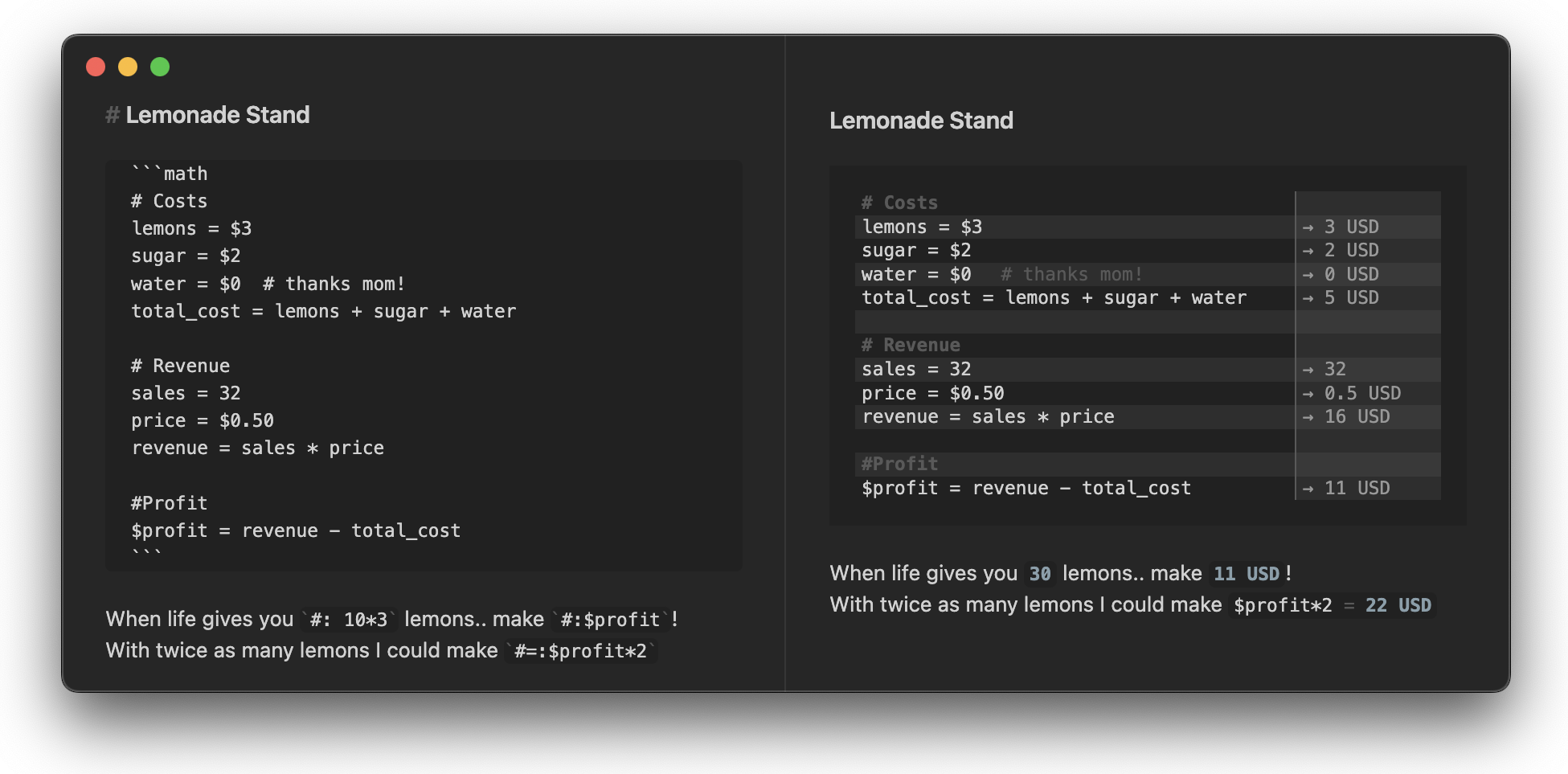
Numerals turns Obsidian notes into living calculations. Use math blocks or inline expressions to calculate with units, currencies, variables, functions, frontmatter, Dataview metadata, and values from other notes.
| Feature | Example |
|---|---|
| Inline calculations | `#: 3ft * 4ft` -> 12 ft^2 |
| Show-your-work equations | `#=: 2 * (3ft + 4ft)` -> 2 * (3 ft + 4 ft) = 14 ft |
| Full math blocks | 2.235 m / s |
| Units and conversions | 100 km/hr in mi/hr -> 62.137 mi / hr |
| Currency math | $100/hr * 3 days -> 7,200.00 USD |
| Note-wide variables | $rate = $150/hr, then `#: $rate * 40hr` |
| Cross-note references | [[Client Settings]].rates.hourly * 8hr |
| Result insertion | @[profit] = revenue - expenses writes @[profit::10.00 USD] |
Add a math code block anywhere in a note:
```math
revenue = $2,400
expenses = $850
profit = revenue - expenses =>
```
Or calculate directly in a sentence:
The project total is `#: $150/hr * 8hr`.
Use equation mode when the calculation itself is important:
The room perimeter is `#=: 2 * (12ft + 10ft)`.
Inline Numerals expressions are ordinary inline code with a trigger prefix:
| Syntax | Renders as | Best for |
|---|---|---|
`#: 3ft * 4ft` |
12 ft^2 |
Showing just the answer |
`#=: 3ft * 4ft` |
3 ft * 4 ft = 12 ft^2 |
Showing the expression and answer |
`#$: 3ft * 4ft` |
12 ft² typeset with MathJax | A TeX-rendered answer |
`#$=: 3ft * 4ft` |
3 ft · 4 ft = 12 ft² typeset with MathJax | A TeX-rendered equation |
Inline calculations work in Live Preview and Reading mode. They support the same math engine, number formatting, units, currency symbols, variables, frontmatter, and Dataview values as math blocks.
The #$: and #$=: triggers render the result (and, in equation mode, the expression) as TeX-style MathJax, inline with surrounding text in both Live Preview and Reading mode. All four trigger prefixes are configurable in the Numerals settings.
Numerals math blocks are ideal for longer calculations:
```math
# Lemonade stand
cups = 120
price = $1.50
revenue = cups * price
lemons = $18
sugar = $7
profit = revenue - lemons - sugar =>
```
Use => to highlight important results. Lines without a highlighted result can be dimmed or hidden depending on your settings.
Numerals uses mathjs for calculations and adds Obsidian-friendly preprocessing for currency symbols and readable number input.
| Type | Examples |
|---|---|
| Units | 1ft + 12in -> 2 ft |
| Conversions | 72 degF to degC -> 22.222 degC |
| Currency | $1,000 * 2 -> 2,000.00 USD |
| Rates | $100/hr * 3 days -> 7,200.00 USD |
| Functions | sqrt(144), sin(pi/2), log(1000, 10) |
| Bases | 0xff + 0b100 -> 259 |
| Fractions | fraction(1/3) + fraction(1/4) -> 7/12 |
Currency symbols can be customized in settings.
Prefix a variable or function with $ to make it available across the whole note:
```math
$rate = $150/hr
$discount(x) = x * 0.9
```

Estimate: `#: $rate * 40hr`
Discounted: `#: $discount($rate * 40hr)`
Note-wide variables work across math blocks and inline expressions.
Use @prev to refer to the previous result:
```math
base = 100
base * 1.2
@prev * 1.08
```
Inline expressions can use @prev too:
First year: `#: 100 * 1.2`
Second year: `#: @prev * 1.08`
Use @total or @sum to add previous results up to the last blank line or heading/comment:
```math
$12
$18
$25
@total =>
```
Numerals can read selected note properties from frontmatter:
---
numerals: [price, quantity]
price: 29.99
quantity: 150
---

`#=: price * quantity`
Use numerals: all to expose all frontmatter properties to Numerals. $-prefixed frontmatter values are automatically available as note-wide variables.
Dataview inline fields and metadata can also be used in calculations when Dataview is installed.
Reference frontmatter and Dataview metadata from other notes with [[note]].property:
```math
hours = 12 hr
subtotal = [[Client Settings]].rates.hourly * hours
tax = subtotal * [[Client Settings]].taxRate
total = subtotal + tax =>
```
Nested properties use dot notation:
[[config]].rates.hourly
[[project/invoice]].lineItems.total
Cross-note references work in math blocks and inline expressions. When referenced metadata changes, Numerals rerenders dependent inline values.
Use @[label] to write a result back into the raw note as Dataview-style inline metadata:
```math
@[profit] = $2,400 - $850
```
Numerals updates the source text to:
@[profit::1550.00 USD]
Auto-complete suggestions work in math blocks and inline Numerals expressions. Suggestions can include:
$ variables[[note]].:, such as :mu -> μRendered math blocks remain easy to edit. Click or tap a rendered Numerals line in Live Preview to focus the matching source line.
Numerals is designed to fit naturally with Obsidian themes and supports multiple render styles.
Choose a default render style in settings, or set it per block:
| Block language | Style |
|---|---|
math |
Uses your configured default |
math-plain |
Plain text |
math-tex |
TeX-style rendering |
math-highlight |
Syntax-highlighted input |

Choose how results appear next to calculations:


Configure how rendered numbers are displayed:
Override formatting for one math block with display-only directives:
```math
@format comma-period
@decimalPlaces 2
subtotal = 1234.5
third = 1 / 3
```
@format accepts system, fixed, exponential (or scientific), engineering, comma-period, period-comma, space-comma, and indian. @decimalPlaces accepts an integer from 0 through 20; @decimalPlace is also accepted.
These directives change displayed and inserted results, not values in calculation scope. For computational rounding, use mathjs directly: round(value, 2) for numbers or round(amount, 2, GBP) for currency Units.
Currency results use Currency standard precision and Currency code display by default. Pure currency values therefore render with the conventional number of decimal places for their currency while keeping an unambiguous unit code.
Examples of the default precision are:
120.00 GBP120 JPY120.000 KWDA custom currency mapping uses the configured Custom currency decimal places value, from 0 through 20. This setting is enabled when currency-standard precision is selected.
Choose Use rendered number format when currency values should instead follow the general number-format behavior used by other Units.
Choose Configured symbol to display the symbol from Numerals' active currency mapping instead of its code. Symbol order, spacing, digits, and signs follow the selected locale, while the configured symbol itself is preserved. For example, a $ mapping to CAD still uses $, rather than substituting CA$.
Currency presentation applies to pure currency results, including derived values such as remaining / 8. Compound rates such as GBP / hour retain the general number format and code. A block-level @decimalPlaces directive takes precedence over currency-standard digits.
Result insertion always writes the currency code, never a display symbol. For example, a result displayed as £12.50 is inserted as 12.50 GBP.
Install Numerals from Obsidian's Community Plugins browser.
To test upcoming releases before they reach the stable Obsidian directory:
Obsidian42 - BRAT: Add a beta plugin for testing.gtg922r/obsidian-numerals.Numerals is an Obsidian community plugin written in TypeScript and bundled with esbuild.
npm install
npm run dev
npm test
npm run lint
npm run build
Update the version number in package.json:
npm run version:patch
npm run version:minor
npm run version:major
These commands only update package.json. Stable release metadata is updated by the production release script.
Auto-complete suggestions for mathjs functions and constants are kept as a static list in src/mathjsUtilities.ts.
When upgrading mathjs, run:
npm run symbols:check
If the check finds intentional changes, run:
npm run symbols:update
Review the generated diff and adjust explicit exclusions in scripts/mathjs-symbols.ts for documented symbols that should not appear in suggestions.
Create a pre-release for BRAT users:
npm run release:beta
Promote a tested version to the stable Obsidian release channel:
npm run release
Production releases update manifest.json and versions.json, build the project, commit stable release metadata, and promote the matching GitHub release. GitHub Actions generates release assets from the tag, including a tag-matched manifest.json, and creates GitHub Artifact Attestations for uploaded files.
Other Obsidian calculation plugins may fit different workflows:
Numerals is also inspired by calculator-as-notes apps such as Numi, Numbr, and Soulver.
more like this
An Obsidian plugin to translate selected text in the desired language
🧠 卡片盒笔记法:面向未来的第二大脑 Your future-proof second brain and digital garden for free! Make it truly yours with unlimited cust…
search projects, people, and tags