zsh-shift-select
Select text in Zsh command line using Shift, as in many text editors and GUI programs
 jirutka
git clone https://github.com/jirutka/zsh-shift-select.gitjirutka/zsh-shift-selectZsh Shift Select Mode
Emacs shift-select mode for Zsh – select text in the command line using Shift as in many text editors, browsers and other GUI programs.
This plugin does not override any existing widgets and binds only shifted keys (see Key Bindings).
It creates a new shift-select keymap that is automatically activated when the shift selection is invoked (using any of the defined shifted keys) and deactivated (the current keymap switches back to main) on any key that is not defined in the shift-select keymap.
Thanks to this approach, it does not interfere with other plugins (for example, it works with zsh-autosuggestions without any change).
Key bindings for moving the cursor without selection (e.g. Ctrl + arrows, Home etc.) are out of scope of this plugin.[1] So is synchronization with the system clipboard.[2]
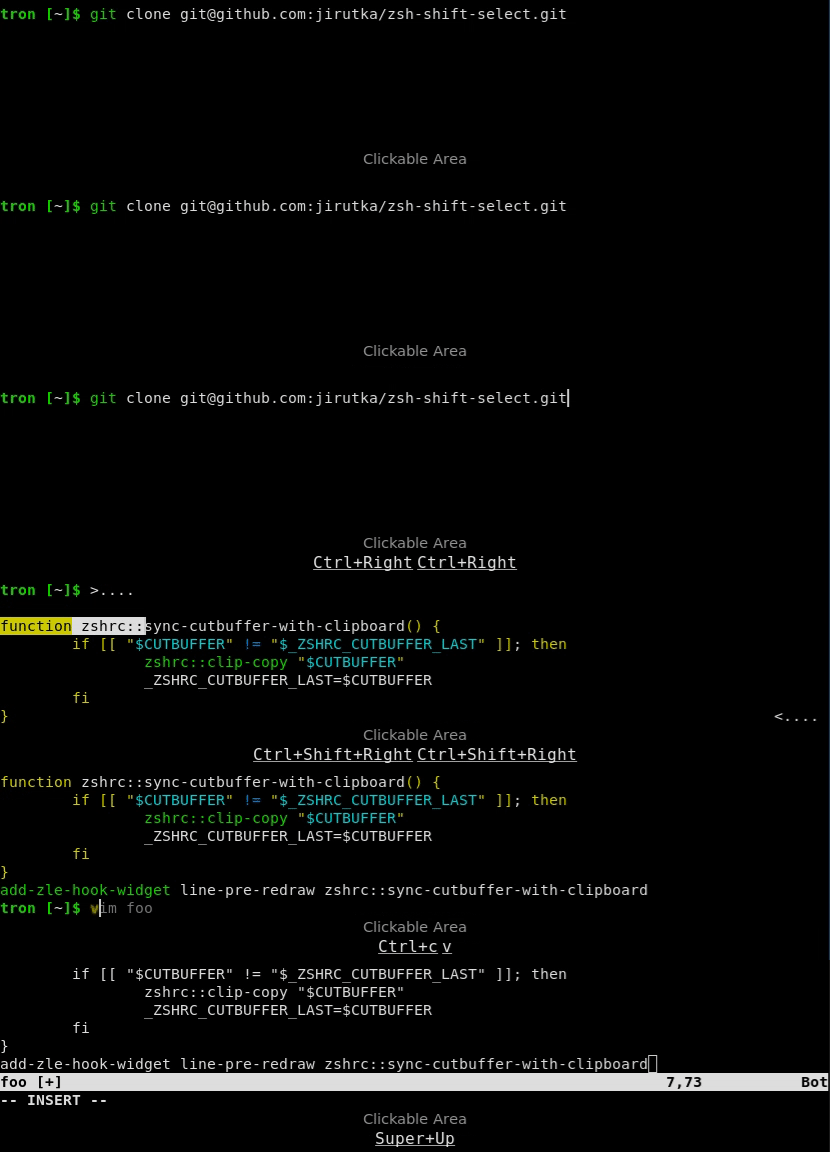
Key Bindings
List of keys defined in the emacs and shift-select keymap:
-
Shift+Left Arrow – select one character to the left
-
Shift+Right Arrow – select one character to the right
-
Shift+Up Arrow – select one line up
-
Shift+Down Arrow – select one line down
-
Shift+Home or Shift+Ctrl+A – select to the beginning of a line
-
Shift+End or Shift+Ctrl+E – select to the end of a line
-
Shift+Ctrl+Left Arrow – select to the beginning of a word
-
Shift+Ctrl+Right Arrow – select to the end of a word
-
Shift+Ctrl+Home – select to the beginning of an input buffer
-
Shift+Ctrl+End – select to the end of an input buffer
The last four actions use Shift+Option instead of Shift+Ctrl on macOS.
List of keys defined in the shift-select keymap only:
-
Delete or Backspace – delete selected text
If you want to add custom key bindings to manipulate with active selection, define them in the shift-select keymap (bindkey -M shift-select …).
| Tip |
You can use default Alt+W or Ctrl+W key bindings to copy (copy-region-as-kill) or cut (backward-kill-word) selected text to the “kill buffer”, and Ctrl+Y to paste (yank) the contents of the “kill buffer”.
|
Terminals Compatibility
Some keys may not work in your terminal by default.
To find out if this is the case, run cat (without any arguments) in your terminal and press the key sequence in question.
If nothing is printed, it means that your terminal or operating system has intercepted the key sequence.
This plugin has been tested in the following terminals:
| Terminal | State |
|---|---|
Alacritty |
✔️ works out-of-box |
Kitty |
⚙️ Shift+Ctrl doesn’t work out-of-box, apply fix |
WezTerm |
⚙️ Shift+Ctrl+arrows doesn’t work out-of-box, apply fix |
Kitty
Kitty uses Shift+Ctrl as the modifier for all its shortcuts (kitty_mod) by default.
Add the following snippet to your kitty.conf to unmap the key strokes used by this plugin.
# Don't intercept the following key strokes to make zsh-shift-select work.
map ctrl+shift+left no_op
map ctrl+shift+right no_op
map ctrl+shift+home no_op
map ctrl+shift+end no_op
WezTerm
WezTerm uses Shift+Ctrl+Left Arrow and Shift+Ctrl+Right Arrow to activate a pane in the left and right direction, respectively (see Default Key Assignments in the docs).
If you want to use these keys in Zsh instead, you can disable the default assignments in your wezterm.lua:
return {
  keys = {
    { key = 'LeftArrow', mods = 'CTRL|SHIFT', action = 'DisableDefaultAssignment' },
    { key = 'RightArrow', mods = 'CTRL|SHIFT', action = 'DisableDefaultAssignment' },
  },
}
Installation
Using sheldon
If you use sheldon plugin manager, run the following command:
sheldon add zsh-shift-select --github jirutka/zsh-shift-select
Using zgenom
If you use zgenom (successor of zgen) plugin manager, add zgenom load "jirutka/zsh-shift-select" to your .zshrc.
Using Oh My Zsh
If you use Oh My Zsh framework:
-
Clone this repository into
$ZSH_CUSTOM/plugins(by default~/.oh-my-zsh/custom/plugins):git clone https://github.com/jirutka/zsh-shift-select.git ${ZSH_CUSTOM:-~/.oh-my-zsh/custom}/plugins/zsh-shift-select -
Add the plugin to the list of plugins for Oh My Zsh to load (inside
$ZDOTDIR/.zshrc, by default~/.zshrc):plugins=( # other plugins... zsh-shift-select ) -
Start a new terminal session.
On Alpine Linux
If you use Alpine Linux v3.16+ or Edge, you can install zsh-shift-select via apk and load it using the plugin loader provided in the default Zsh configuration on Alpine (see /etc/zsh/zshrc).
-
Install zsh-shift-select package (as root).
apk add zsh-shift-select
-
Symlink zsh-shift-select plugin to your Zsh plugins directory [3]:
mkdir -p ~/.local/share/zsh/plugins
ln -s /usr/share/zsh/plugins/zsh-shift-select ~/.local/share/zsh/plugins/
Manually (Git Clone)
-
Clone this repository somewhere on your machine. This guide will assume
~/.local/share/zsh/plugins/zsh-shift-select.git clone https://github.com/jirutka/zsh-shift-select ~/.local/share/zsh/plugins/zsh-shift-select
-
Add the following to your
$ZDOTDIR/.zshrc(by default~/.zshrc):source ~/.local/share/zsh/plugins/zsh-shift-select/zsh-shift-select.plugin.zsh
-
Start a new terminal session.
References
-
Zsh zle shift selection – StackOverflow (the first inspiration, but the used approach is different)
License
This project is licensed under MIT License. For the full text of the license, see the LICENSE file.
1. You can take inspiration from key bindings in alpine-zsh-config. 2. For an example, see clipboard integration in alpine-zsh-config. 3. Alternatively, you can add
ZSH_LOAD_SYSTEM_PLUGINS=yes to your .zshenv to automatically load all Zsh plugins installed from Alpine packages.
more like this