nextdash
Your bookmarks. Your terminal. Your rules.
 jordibrouwer
🚀 nextDash
A keyboard-first, self-hosted bookmark dashboard. No accounts, no cloud, no noise.
Self-host on any machine or container. Open it in your browser, organise bookmarks across multiple pages, and navigate everything from your keyboard. Based on ThinkDashboard by MatiasDesuu.
📖 Full user manual (MANUAL.md) — step-by-step guide for new users: concepts, keyboard workflow, config, import/backup, health, extension, and efficient daily use.
📋 Changelog (CHANGELOG.md) — complete release history (new / fix).
🗂️ Cheat sheet (PDF) — one-page printable reference of the keyboard shortcuts and command palette for quick lookup.
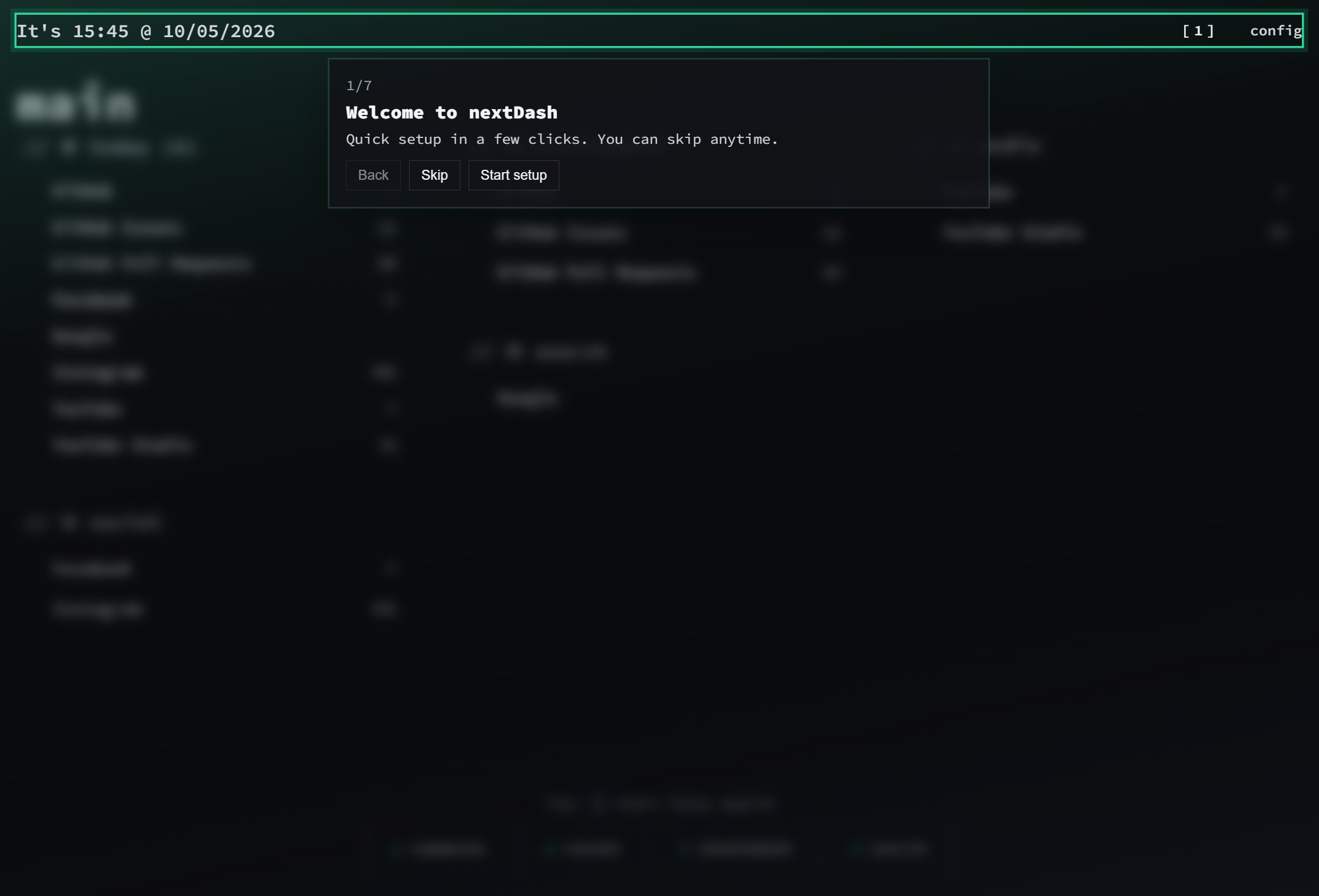
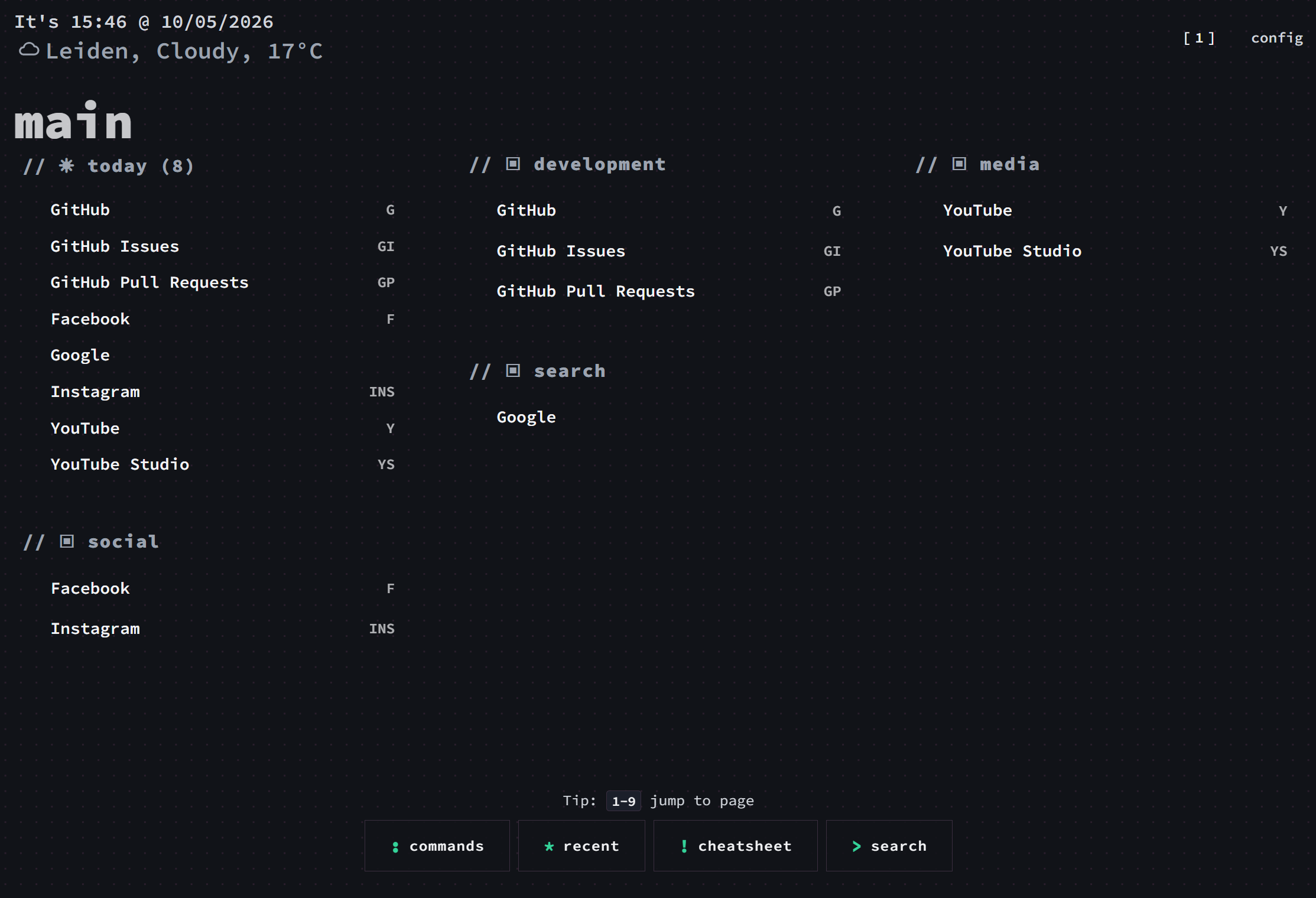
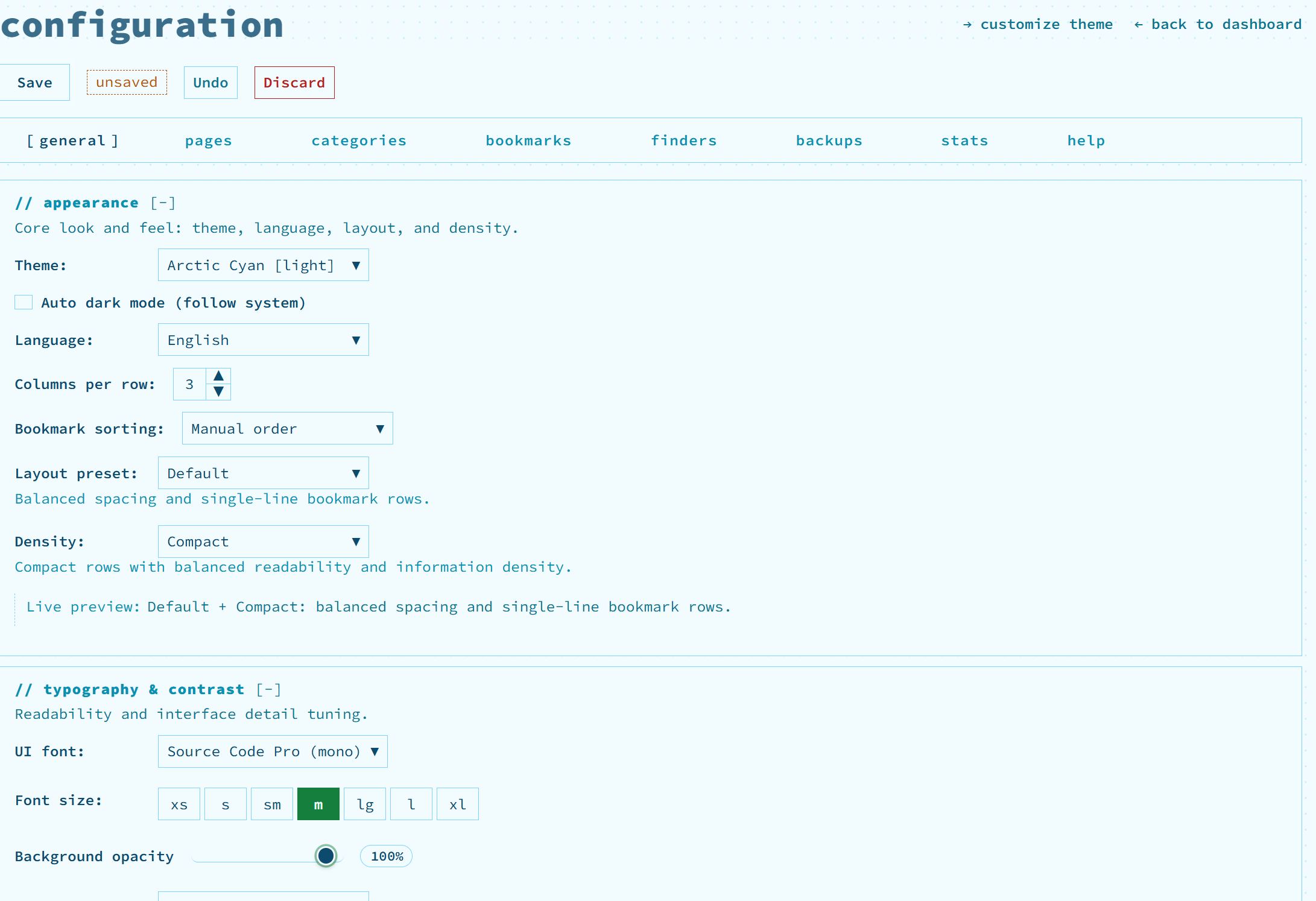
Screenshots
 |
 |
|---|---|
 |
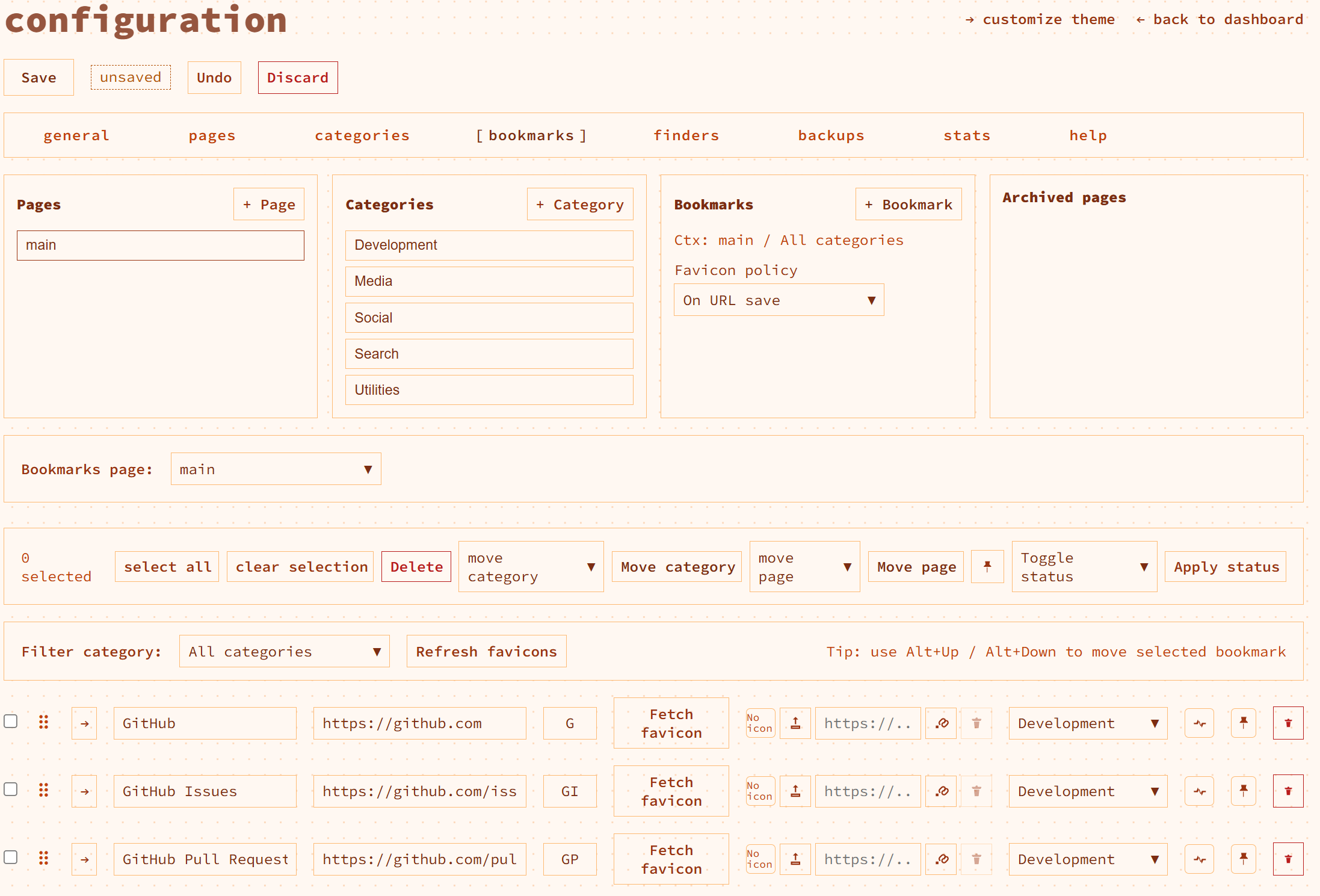 |
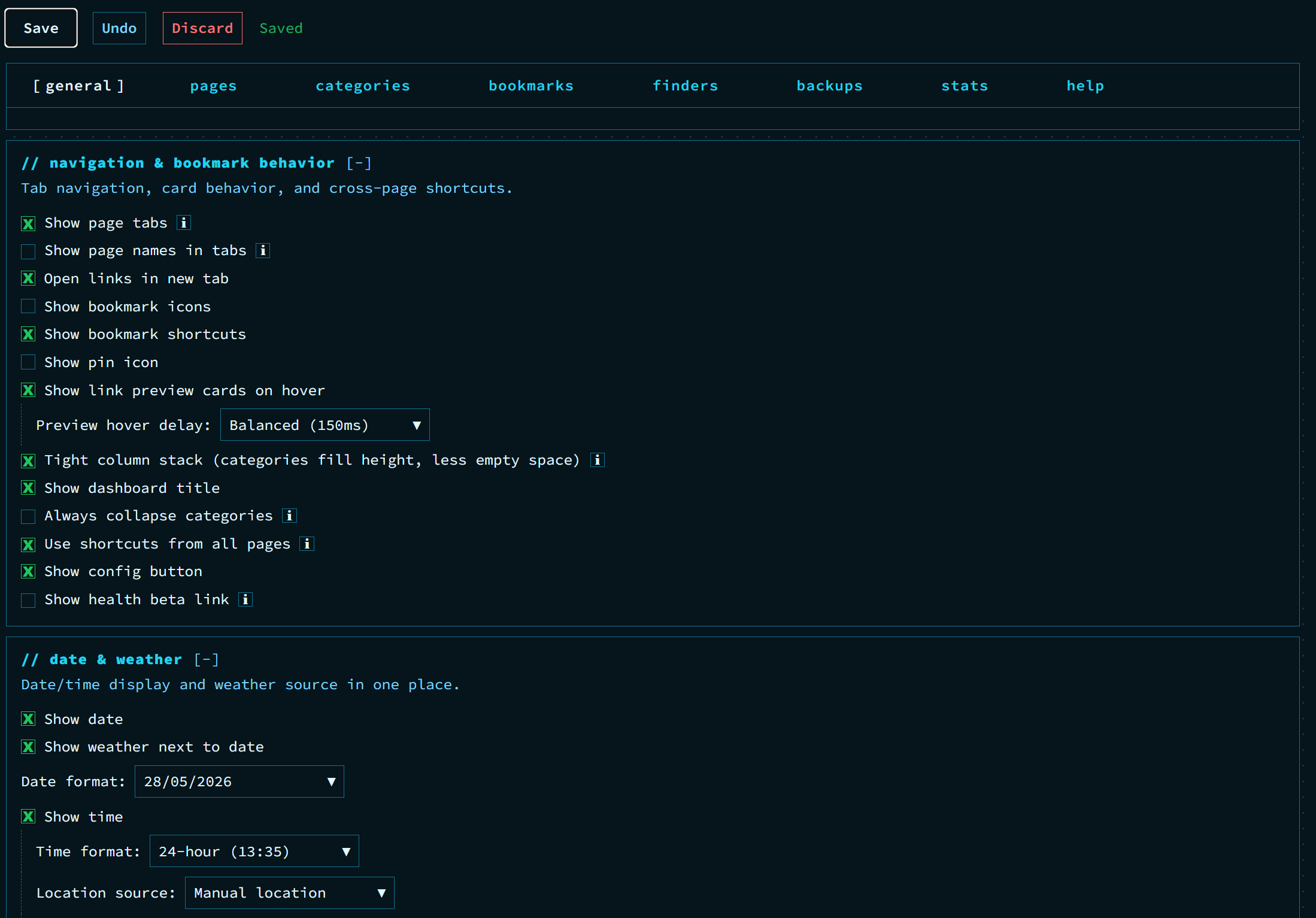
| Customize your dashboard | Your statistics |
 |
 |
| Tags management | Monitoring your bookmarks |
 |
 |
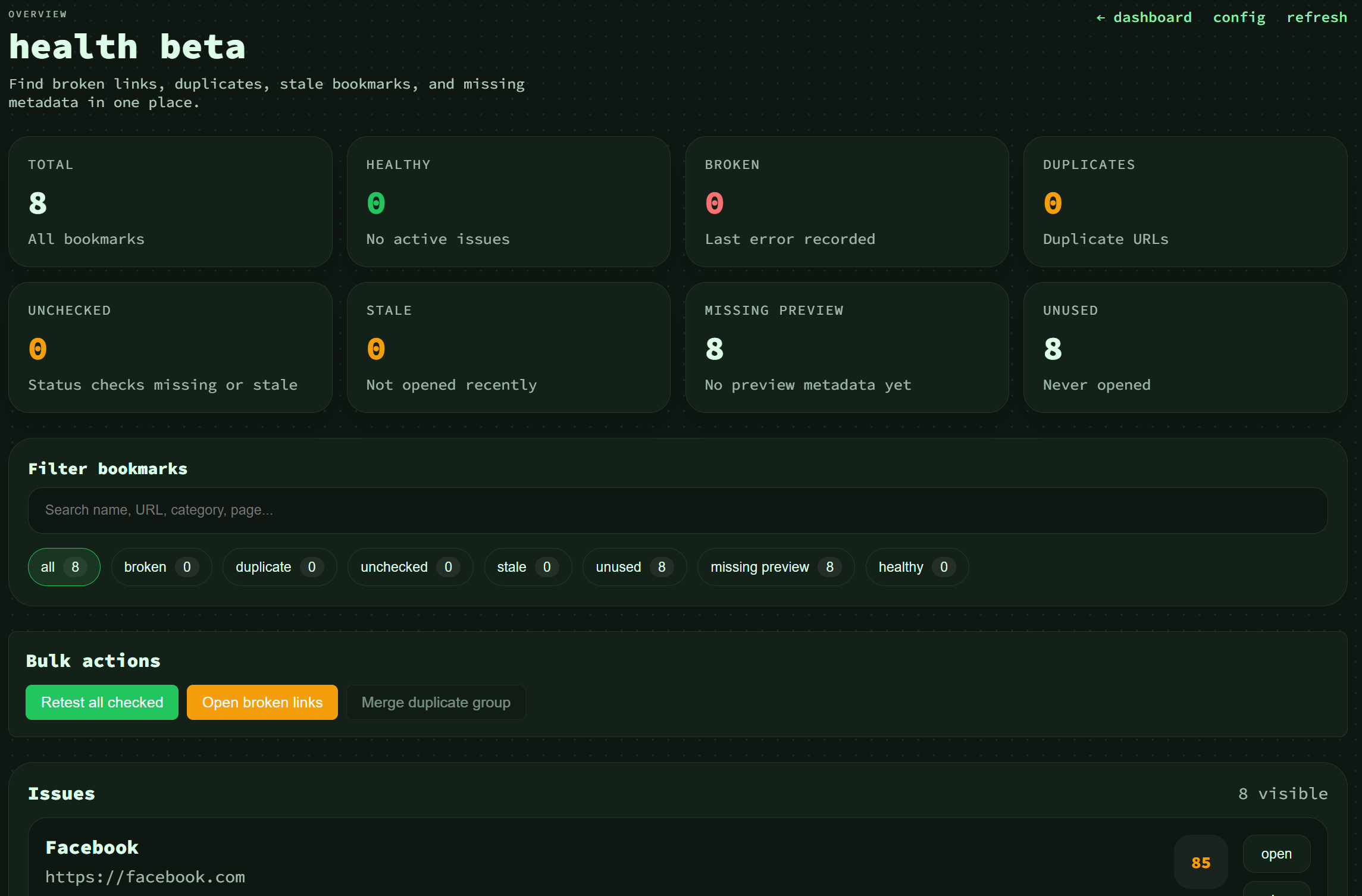
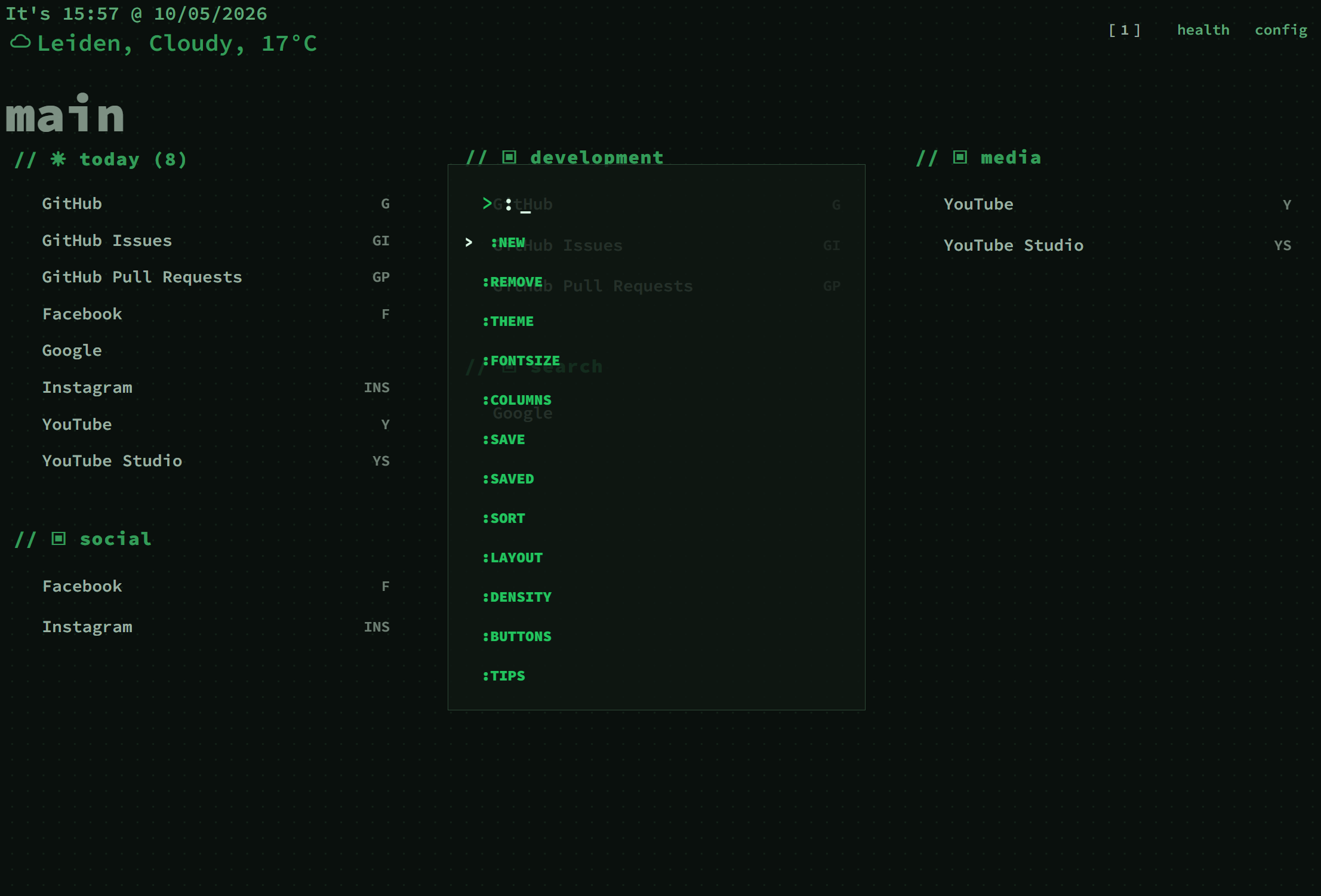
| Health view | Backup & Resdtore |
 |
 |
| Bookmarks that need attention | Links saved to read or review later |
Quick Start
Docker Compose (recommended)
services:
  nextDash:
    image: ghcr.io/jordibrouwer/nextdash:latest
    container_name: nextDash
    ports:
      - "8080:8080"
    volumes:
      - ./data:/app/data
    environment:
      - PORT=8080
      # Optional on LAN/VPS — require X-NextDash-Token on destructive API calls (see Security):
      # - NEXTDASH_WRITE_TOKEN=change-me-to-a-long-random-string
    restart: unless-stopped
docker compose up -d
Build from a git checkout: use docker-compose.prod.yml for production (only ./data is mounted; CSS/JS come from the image). Use docker-compose.yml for development (mounts ./static and ./templates so changes apply without rebuild).
docker compose -f docker-compose.prod.yml up -d --build
Build from source
go build -o nextDash && ./nextDash
By default, data is stored in ./data. Override with NEXTDASH_DATA_DIR (absolute or relative path) when you need a separate data location.
Security
nextDash is built for personal or small-team use on a trusted network. There are no user accounts — anyone who can reach the URL can read and change data unless you add protection.
Do not expose nextDash directly to the public internet. Recommended setups:
- Private overlay network — Tailscale or another mesh VPN so nextDash never gets a public listener.
- Reverse proxy with auth — Traefik, Caddy, or nginx inside your home/lab/VPC, with HTTP basic auth, OAuth2 Proxy, or SSO in front.
- Local-only — bind to
127.0.0.1and use SSH port forwarding or a same-machine browser.
Optional write token (LAN / VPS)
Set environment variable NEXTDASH_WRITE_TOKEN to a long random string. Protected endpoints then require header X-NextDash-Token with that value. The dashboard injects the token automatically when you open it in a browser.
Protected actions include: reset all data (also requires {"confirm":true}), download or import backup, delete page, bookmark preview fetch, bookmark ping (/api/ping), health delete / retest / merge / auto-heal / open-broken / cache-scan / update-status, clear or refresh all bookmark previews, bookmark/page/category/finder/settings saves, uploads (favicon, font, icon), and reset theme colours.
When the token is not set, behaviour is unchanged — everything stays open for local dev. When it is set, the dashboard injects the token automatically so normal browser use is unaffected. The browser extension can store the same write token in Settings → Write token.
Outbound fetches (preview, ping, icons, auto-heal) use dial-time IP validation to block DNS-rebinding to private networks unless allow localhost bookmarks is enabled in settings.
Optional CORS allowlist (LAN / VPS / extension)
By default, bookmark API responses send Access-Control-Allow-Origin: * so the browser extension and cross-origin tools work without extra config.
Set NEXTDASH_CORS_ORIGINS to a comma-separated allowlist when you want to restrict cross-origin reads/writes, for example:
NEXTDASH_CORS_ORIGINS=https://dash.example.com,chrome-extension://your-extension-id
Only matching Origin headers receive Access-Control-Allow-Origin in the response. Unset or empty keeps the default *.
Activity log (bookmark events)
Structured JSON activity lines are written to the server log for bookmark mutations and status checks by default. Opens are off unless enabled.
# Default: mutate + status (opens off)
NEXTDASH_ACTIVITY_LOG=mutate,status,open   # include opens
NEXTDASH_ACTIVITY_LOG=off                  # disable all activity logs

# Optional rotating file under the data directory
NEXTDASH_ACTIVITY_LOG_PERSIST=1
NEXTDASH_ACTIVITY_LOG_FILE=/path/to/activity.log   # optional; default data/activity.log

# Optional security events (auth denied, rate limits)
NEXTDASH_ACTIVITY_LOG=mutate,status,security
Example log line:
activity: {"ts":"2026-07-03T12:00:00Z","event":"bookmark.add","pageId":1,"name":"GitHub","url":"https://github.com","source":"dashboard"}
Status pings are deduplicated for the same URL + result for 10 minutes unless refresh=1 is passed to /api/ping. URLs appear in logs — treat log files as sensitive on shared hosts.
Rate limits (outbound & SSRF APIs)
Optional per-IP limits on server-initiated fetches and user-triggered SSRF-sensitive endpoints:
NEXTDASH_OUTBOUND_REQUESTS_PER_MIN=120   # preview, ping, favicon, auto-heal (default 120)
NEXTDASH_SSRF_API_RATE_PER_MIN=60        # /api/bookmark-preview, /api/ping, icon uploads (default 60)
When exceeded, the API returns 429 and (if enabled) logs a security activity event.
Content-Security-Policy
nextDash sends a restrictive CSP on HTML pages by default. Set NEXTDASH_CSP=off only when a reverse proxy or custom integration requires it.
Analytics & privacy
nextDash can record anonymous, privacy-friendly usage statistics through a self-hosted Umami instance at stats.nextdash.cc. It is opt-in: off until you turn it on, and nothing is measured before then.
On a fresh install a card offers Turn on, What is recorded?, or No thanks. Upgrading does not change a setting you already made — if you had analytics on, it stays on.
Turn it on or off
Config → Behavior → Privacy → tick or clear Privacy-friendly analytics. It applies after the page reloads.
From the keyboard: press : and run :telemetry on (or :telemetry off). Typing :telemetry on its own shows the current state. It writes the same setting and reloads the page for you.
Disable it for the whole instance
Set the environment variable DISABLE_TELEMETRY=true to switch analytics off server-wide, regardless of what any user has configured:
environment:
  - DISABLE_TELEMETRY=true
The tracker is then never emitted, the setting cannot be turned back on through the API or the :telemetry command, and the Privacy checkbox in config renders disabled with a note explaining why. :telemetry shows a single row saying it is off for this server, rather than an on option that could not take effect. Accepts true, 1, yes, or on; unset or false leaves analytics under user control.
Each user's own preference is left stored and untouched, so it returns exactly as it was if you ever unset the variable.
When it is off, the tracker script is not emitted into the page at all — it is never even downloaded, and no request leaves your machine. There is no client-side flag quietly suppressing calls; the code simply is not there. The choice is stored per user in settings.json as analyticsOptIn, so it follows you across devices.
Why it exists
nextDash was built without any picture of how it is actually used. Which views do people open? Does anyone use finders, the tag cloud, or the inbox? Where do people abandon the add-bookmark form? Without answers, every decision about what to build, fix, or remove is guesswork.
These statistics exist to answer exactly that — which features get used, and what can be improved — and nothing else. They are explicitly not for following individual users. The measurement is abstract and technical: flow through the app and feature usage, aggregated across everyone.
What is measured
- Page views — the dashboard, config, health, and colors pages.
- Views and navigation — opening the health and inbox views, switching dashboard pages (by position, never by name), which config tab you land on, and use of the
<dashboard↔config shortcut. Within config, which of the eight sections you open, which sub-tab you land on and whether you got there by click or by arrow key, and whether an overview needs attention row was followed. - Settings changes — the name of the setting you changed, never what you typed into it. Toggles also report
true/false, since on/off is the whole point of measuring one and cannot identify anyone. Free-text fields — dashboard title, webhook URL, custom text — report the name alone, and search boxes are not reported at all. - List shape in health and inbox — which filter or sort you picked, and whether you used a summary tile or a filter pill. The search box in either view is never reported.
- Overlays — opening search, commands, finders, the cheat sheet, the tag cloud, what's-new, and the add-bookmark form.
- Bookmark opens — the fact that one was opened and where from (
dashboard,search, orrecent). - Commands — which command palette command was run, by its name (
theme,config,density, …). Only names from the built-in command list are recorded; anything else you typed is discarded. - Bookmark maintenance — starting an edit and saving it (with whether that was on the dashboard or in config), deleting, moving to another category (with a bucketed count, so a bulk move counts once), and reordering by drag.
- Outcomes — whether adding a bookmark succeeded, or hit a duplicate, shortcut conflict, validation error, or failure. This shows where the form trips people up.
- Inbox and health actions — snooze, mark-read, wake, promote, delete, and bulk clean-ups; health rechecks, retest-all, redirect detection, title refresh, and delete.
- A settings snapshot — once per page load, which features you have switched on (theme, layout preset, columns, packed columns, inbox, health view, status checks, smart collections, weather, and similar), as plain booleans and small enums. It carries the release you are running (
v2026.07.24), so adoption can be read per version — without it a default that changed between releases looks like a gradual drift rather than the switch it was. The version is the published release tag, not your hostname, install or machine.
What is never measured
No bookmark names, URLs, search queries, page or category names, notes, or tags. No cookies are set, no personal profile is built, and there is no tracking across other websites. Counts that could identify a specific setup are bucketed (for example 2-5 rather than an exact number), and the instance is self-hosted, so nothing is shared with an advertising network.
The tracker loads from stats.nextdash.cc, which is allow-listed in the CSP (script-src and connect-src).
DNS rebinding (IP pinning)
Outbound HTTP(S) dials pin resolved public IPs for ~2 minutes so a hostname cannot switch to a private address between the safety check and the connection (unless allow localhost bookmarks is enabled).
Startup validation
On boot, nextDash validates PORT (1–65535, default 8080) and ensures NEXTDASH_DATA_DIR exists and is writable. Invalid config exits with a clear error before listening.
Production Docker example
docker-compose.prod.yml serves CSS/JS from the image (only ./data is mounted). Recommended LAN/VPS environment block:
environment:
  - PORT=8080
  - NEXTDASH_WRITE_TOKEN=change-me-to-a-long-random-string
  - NEXTDASH_CORS_ORIGINS=https://dash.example.com,chrome-extension://your-extension-id
  - NEXTDASH_ACTIVITY_LOG=mutate,status,security
  - NEXTDASH_ACTIVITY_LOG_PERSIST=1
  # Optional tuning:
  # - NEXTDASH_OUTBOUND_REQUESTS_PER_MIN=120
  # - NEXTDASH_SSRF_API_RATE_PER_MIN=60
  # - NEXTDASH_CSP=off
  # - NEXTDASH_DISABLE_PREFETCH=1
GET /version returns build metadata (version, commit). GET /api/data-revision returns a hash so open dashboard tabs detect bookmark/settings changes without a full reload.
Environment variables (reference)
| Variable | Default | Purpose |
|---|---|---|
PORT |
8080 |
HTTP listen port (validated 1–65535) |
NEXTDASH_DATA_DIR |
./data |
Pages, bookmarks, settings, uploads |
NEXTDASH_WRITE_TOKEN |
(unset) | Require X-NextDash-Token on write/destructive APIs |
NEXTDASH_CORS_ORIGINS |
* |
Comma-separated Origin allowlist for API CORS |
NEXTDASH_ACTIVITY_LOG |
mutate,status |
off, mutate, status, open, security (comma-separated) |
NEXTDASH_ACTIVITY_LOG_PERSIST |
off | 1 = rotate activity.log under data dir |
NEXTDASH_ACTIVITY_LOG_FILE |
data/activity.log |
Custom activity log path |
NEXTDASH_OUTBOUND_REQUESTS_PER_MIN |
120 |
Rate limit for server outbound fetches |
NEXTDASH_SSRF_API_RATE_PER_MIN |
60 |
Rate limit for preview/ping/icon APIs |
NEXTDASH_CSP |
on | Set off to disable Content-Security-Policy headers |
NEXTDASH_DISABLE_PREFETCH |
off | 1 = skip background favicon prefetch on startup |
Features
Keyboard-first workflow
Navigation
0— open Inbox (when search is closed)Shift + I— open Inbox view directly (recommended;0still works)1–9— jump directly to a bookmark page tabShift + ←/→— cycle between page tabs (plain arrows move bookmarks only, not pages)Shift + H— open Health view directly (inside dashboard),— page overview: all pages with bookmark counts (Tab/Shift+Tabmove between rows; arrow keys do not affect bookmarks behind the overlay)<— open config (<isShift+,); in config,<returns to the dashboard, confirming first if there are unsaved changes↑/↓/←/→— move bookmark selection (first arrow key starts navigation);1–9page switch also selects the first visible bookmark; mouse hover softens the stale keyboard highlight until your next keypress; on Modern, keyboard-selected rows use a full-row accent fillTab/Shift+Tab— step linearly through all bookmarks when one is already selectedG + 1–9— jump to the nth category or smart collection and select its first bookmark (holdG~300 ms, or pressGthen a digit; a quick tap onGopens bookmark shortcuts starting withGinstead)G + P— jump to the first pinned bookmark on the page (holdGorGthenP)GG— jump to the very first bookmark (secondGwhile the chord is pending)Ctrl + Home/Ctrl + End— first / last bookmark on the page (Cmdon Mac)Enter/Space— open the focused bookmark (middle-click also counts toward open stats and smart collections)Esc— clear selection, close overlay, or undo an unsaved drag reorder (before the 1s save completes)
Blocking overlays — While search (>), the cheat sheet (! / F1), recent bookmarks (*), tag cloud (/), page overview (,), quick-add omnibox (&), quick-move/delete/tag popovers (Shift+M / Shift+D / Shift+T), inline edit (;), or an app modal is open, keyboard focus stays inside that overlay (Tab cycles within it) and the bookmark grid behind it is inert (not clickable). With an active tag filter, only the filtered bookmark list is inert — the filter banner and bulk toolbar stay interactive while the tag cloud is open. Closing the overlay restores mouse and keyboard access to the grid; quick-move/delete/tag popovers also restore the keyboard highlight on the same bookmark row.
Bookmarks
+— open the full new-bookmark modal (dashboard only, when no input is focused)&— quick-add omnibox: typename | url | shortcutin one lineCtrl + Shift + A— same full new-bookmark modal from anywhereCtrl + V— paste a URL on the dashboard: choose Save to Inbox or open the new-bookmark modal (blocked while inline edit or the tag word cloud is open; default under General → Paste URL default);— inline-edit the focused bookmarkShift + M— Move to… quick-move popover: choose a category or page with arrow keysShift + T— Quick tag popover beside the focused bookmark:↑/↓navigate ranked tags;Enter/Spacetoggle a tag and advance to the next;✓shows tags already on the bookmarkShift + D— quick-delete popover with undo in the toastShift + C— Checking popover beside the focused bookmark: choose Off, Periodic, or Monitor witho/p/m, or arrow to one and pressEnterCtrl + C/Cmd + C— copy the URL of the focused bookmark (row flashes green)[— toggle the hover preview card on the focused bookmarkDelete— delete the focused bookmark
Search & commands
>— open search; empty state shows recent queries and saved searches as chips;←/→select a chip,Enterapplies it/— fuzzy search; ranked by prefix → word-boundary → substring; also matches URL domain, tags, and note text:— command palette (lone:from the dashboard); 5 collapsible groups (Bookmarks, Search & navigate, Look & layout, Smart collections, Settings & tools) — click a header to expand; recent commands appear at the top when you reopen lone:; toggles refresh in place with(on)/(off)or✓afterEnter(no toasts). In an open>search with text already typed,:inserts filter syntax (category:,tag:, …) instead of switching modes?— finders (e.g.?g queryto search Google)*— recent bookmarks panel! or F1— keyboard cheat sheet (filterable with a type-to-search input; blocked while page overview,is open)category:/tag:/page:/status:— filter directly in the search bar; autocomplete suggests values after each prefix (single Filters group):goto <url-or-domain>— navigate to a URL or bare domain (e.g.:goto github.com);:goto config/stats/healthfor quick navigation:new— open new-bookmark modal (same as+/Ctrl+Shift+A):add— quick-add omnibox (same as&):note— edit the note of the focused bookmark:move/:edit/:copy/:quicktag(:qt) — move, inline edit, copy URL, or open quick-tag popover (Shift+T) on the keyboard-selected bookmark:pin/:unpin— toggle pin on the keyboard-selected bookmark:tag— list tags;:tag <name>or:tag:<name>browse bookmarks by tag in the command palette only (dashboard unchanged);:tag +name/:tag -nameadd or remove on the keyboard-selected bookmark:category/:cat— jump to a category or smart collection by number or name:filter <tag>/:filter clear— apply or clear dashboard tag filter (OR logic, same as tag cloud)/(desktop, tag cloud on) — open tag word cloud on dashboard; toggle one or more tags (OR match); bulk toolbar stays clickable while the cloud is open; filtered bookmarks stack vertically; with an active filter the cloud anchors beside the/FAB:open all— open all bookmarks on the current page in new tabs:open pinned— open pinned bookmarks on the current page:open tag <name>/:open category <name>— open bookmarks matching tag or category on the current page:open last [n]— open the N most recently opened bookmarks on the current page (default 5, max 50; same 15-tab safe cap as:open all):page— switch page by name or number (palette stays open,✓on current):recent/:overview/:cheat/:whatsnew/:reload— recent modal (*), page overview (,), cheat sheet, what's new, reload dashboard:inbox/:inbox triage— open Inbox page (Shift + I) or start triage on unread items:config [section]— open config or a tab (bookmarks,backups,stats, …):remove— delete the focused bookmark:sort <method>— per focused category:order/az/recent(palette shows the category name):stale [days]— list stale bookmarks; optional day window (e.g.:stale 7):duplicate/:duplicates— list bookmarks with duplicate URLs (opens health duplicates view):health [filter]— open health view —broken,duplicate,stale,refresh, …;:health page [n]opens health with a page context:monitor— how many bookmarks are being checked;:monitor offstops checking all of them,:monitor onopens the never-checked list where the bulk enable lives:dark/:title/:lang/:animations/:status/:opacity— display and theme toggles:collections— toggle smart collections (today, recent, stale, most used):backup/:export— open config backups or download a ZIP backup:metadata— health missing previews or config bookmarks:layout <preset>—default/compact/cards/masonry/list/launcher…:theme <name>— switch colour theme:density <mode>—comfortable/compact/dense:columns <n>— set column count (1–6)@— global search across all pages at once; each result shows the page name as context:find <text>— hide tiles whose name or URL don't match;:find clearremoves the filter:buttonbar <position>— move the button bar:bottom/bottom-left/bottom-right/side-left:save/:saved— save current query / show saved searches
Config view
Shift+Sor<(Shift+,) — open config from the dashboardEsc— close config and return to the dashboard (dismisses an open modal, search or tag cloud first)←/→— previous/next sub-tab, wrapping at both endsHome/End— first / last sub-tab
Rebinding shortcuts is not available at the moment.
Release history — what changed in each version, with the reasoning behind it, lives in the changelog. The ★ button in the dashboard shows the same notes in-app. This section describes what nextDash does today.
Config (for self-hosters)
Where things live — config is a view inside the dashboard at /#config, opened with Shift+S, <, or the header link, and closed with Escape. It has eight sections: Overview, Pages & tags, Bookmarks, Appearance, Behavior, Data & backups, Statistics, and Help. Sections with sub-tabs are addressable too — /#config/behavior/privacy opens Behavior on Privacy — so a link to any setting can be shared.
The settings a self-hoster reaches for most: Behavior → General (localhost & private-network bookmarks, HyprMode, session tips), Behavior → Privacy (analytics), Behavior → Status & health (background rechecks, downtime webhook), and Data & backups (backup, restore, import/export, and Reset on its own sub-tab).
Saving — most settings save the moment you change them and confirm with a short Saved message. The bookmark editor is the exception: it collects edits and writes them on Save.
Phone vs tablet — every config section is reachable at any width; content stacks and controls reflow on narrow screens. Phones (≤768px) still use the reduced dashboard footer (Search + + Bookmark only).
ℹ and ↺ — many controls carry an ℹ explaining the setting and a ↺ restoring its default.
Keyboard — sub-tab strips follow the ARIA tabs pattern: ←/→ move and wrap, Home/End jump to the ends. Explanations behind ℹ are localised (EN / NL / DE / FR).
Branding & PWA — Custom title and favicon under Advanced → Branding apply to the browser tab, the web app manifest (/manifest.webmanifest), and “Add to Home Screen” / installed PWA name and icon. Advanced → HyprMode includes an Add to home screen panel with platform steps and a browser install button when available.
In-app help: Config → Help tab → General settings (same content, translated).
Config → Keyboard
Open config#keyboard (link from Help → Keyboard shortcuts or the footer tip). Fixed defaults at the top match the cheat sheet — add bookmark (&, + / Ctrl+Shift+A, :new, Ctrl+V), quick actions on a selected row (Shift+M, Shift+T, Shift+D, Ctrl+C, [, Delete), grid navigation chords (G+1–9, G+P, G G, Shift+←/→, Home/End, Tab, F1), and a Config tab bar section (1–9, ←/→ with group wrap, Alt+←/→ between groups, S, Ctrl/Cmd+K, Ctrl/Cmd+Shift+K, Alt+↑/↓ on Bookmarks). Rebindable keys below include search (>), command palette (:), page overview (,), global search (@), tag cloud (/), inline edit (;), arrows, Enter, and page tabs 1–9. Click Rebind, press a key, then Save — conflicts with fixed or existing bindings show a warning. Export / import your rebindable preset as JSON from the toolbar; fixed shortcuts stay on the cheat sheet.
Search filters
Type these directly in the search bar (> mode, or after opening search). Expand Filters in the empty state or start typing a prefix for autocomplete:
category:— filter by category namestatus:online/status:offline/status:broken/status:okstatus:pinned/status:unpinned/status:checked/status:uncheckedpage:current/page:all/page:2tag:name— filter by tag
Partial values (e.g. status:on) keep showing suggestions until the filter is complete. status:online uses persisted reachability on monitored bookmarks, not only the live status cache.
Organisation
- Unlimited pages and categories
- Drag-and-drop reorder within and between categories (drag strip on the left); saves debounce 1s with a success toast on the dashboard; bulk tag-filter move/delete groups rapid toasts into one message
- Per-category sort — A–Z and Rec chips in each category header (including Other and unknown-category blocks); click an active chip again for manual order;
:sortin the command palette; legacy global sort removed from Config → General - Config → pages and config → categories — drag or ↑/↓ to reorder; auto-save after ~600 ms with a localized sync toast; pages support archive (hide without deleting bookmarks); Usage column with popularity bar + bookmark count (Tags-style tier styling)
- Config → tags (desktop) — popularity-scaled word cloud (dashboard-style), structured list with usage bars, sorted by bookmark count; scrolls with the page; global rename/merge/delete; drill-down with Open; filter + clear; auto-save with undo; ↑/↓ moves focus between tag rows
- Config → finders (desktop) — filter list; drag or ↑/↓ reorder with auto-save; usage stats on tab open; stable ids + duplicate shortcut guard
- Long-press a bookmark row (~500 ms) to open inline edit — nearly opaque panel with a full-page blur behind it (including the launcher preset); Save / Ctrl+Enter persists immediately on the dashboard; Esc cancels; edits and deletes from smart-collection rows sync to the category column and global bookmark store; page switches confirm before discarding unsaved edits; swipe and Ctrl+V paste are blocked while the editor is open
- Press and hold a category header (~500 ms, not on sort buttons) to rename it — double-click still works
- Double-click a page tab to rename it — also set an emoji icon and a colour dot per page
- Collapsible categories with optional always-collapsed default
- Tags on bookmarks with autocomplete; filter by tag in search and collections
Smart collections
Dynamic bookmark groups that appear automatically:
- Today — bookmarks matching your work/evening/weekend keyword sets
- Recently opened — bookmarks you've opened lately
- Most used — your highest open-count bookmarks
- Stale — bookmarks you haven't visited in a while
- Tag collections — one group per tag, shown when a tag has enough entries
Appearance
- 37+ built-in theme families, dark and light variants (including Terminal Amber, Dusk Horizon, Moss & Stone, Candy Pop, Midnight Ink)
- Custom theme editor (
config#colors) — dark/light default palettes, packaged themes subtab (edit built-in families), custom theme list with export/import and undo; live preview on palette cards with contrast warnings; on mobile the editor is read-only (viewer mode) - Auto dark mode — follows system light/dark without overwriting your saved theme palette id
- Layout presets: Default, Compact, Cards, Terminal-ish, Masonry, Detailed List, Launcher (large favicon tiles)
- Show favicons — toggle bookmark favicons in Config → General → Bookmarks or with
:favicons on/offon the dashboard - Launcher layout preset — switch via Config → General → Layout or
:layout launcherin search; icon size configurable (small / normal / large) - Button bar position: center-bottom (default) or corner dock (bottom-left / bottom-right) via Config or
:buttonbar - ★ What's New star button in the corner opposite the button bar — always visible; latest release loads first; scroll for up to 25 recent versions (each loads on demand)
- Font presets: Source Code Pro, JetBrains Mono, IBM Plex Mono, Inter, IBM Plex Sans, DM Sans, System UI
- Adjustable columns (1–6), font size, font weight, background opacity, and density
- Optional hover preview cards (off by default) — enable in Config → General → Advanced → Bookmarks; configurable hover delay
- Background image or gradient support
- Clickable date/time header showing a week-overview popover; optional calendar URL link
Monitoring & health
-
Real-time online/offline status with ping timings per bookmark
-
Health view (
/#health) — dashboard-first health triage with summary tiles, quick filters, search, sort, retest, row score breakdown, and keyboard-first navigation (j/k,Tab,g/G,s,p,f,x,m,c,Enter,o). Every row also shows when you last opened it (just opened, yesterday, 3d ago, then a date), since whether a broken link is worth fixing usually depends on whether you still use it. Per-row overflow actions include detect redirect, refresh title, archive, and delete. Edit opens the dashboard inline editor. Optional server-side background rechecks under Config → General → Status monitoring. Legacy/healthURLs now redirect into this view. The header Health entry is always available. -
Uptime monitoring — set a bookmark to Monitor and it is checked on its own interval (5 minutes to 24 hours, default 15) with 30 days of history behind it, giving an uptime percentage over 24h / 7d / 30d, a heartbeat bar, a response-time sparkline, and an outage list with durations and causes. Open the whole picture at full size with ⤢ on the row or
i— a large response-time chart with min/average/max, the three uptime windows side by side, interval, last check, and the complete outage list. Change a row's mode from the health view (c), the dashboard right-click menu, orShift + C; a filtered list can be switched in bulk after confirming the count. Optional downtime webhook under Config → General, alerting after N consecutive failures (default 3) and again on recovery. The same alerts can go to your browser instead, arriving while nextDash is closed — allow notifications once per device from the dashboard card or Config → Behavior → Status & health. That needs HTTPS: Safari and every browser on iPhone and iPad refuse notifications overhttp://localhost. History lives indata/health-history.json, pruned to 30 days and 2000 samples per URL. -
Health badge on the dashboard and config headers: compact count-only pill (e.g.
3) with theme accent colours for broken vs warnings; screen readers get a fullaria-label; bulk open broken links asks for confirmation with a per-batch limit -
Filter, sort, and search state in the health view persists across page refreshes (sessionStorage) and syncs to URL query parameters (
hv_filter,hv_sort,hv_q) -
Favicon display and refresh from the health view (per row)
-
Config → stats (desktop) — insights block, finder usage, period filters with honest lifetime-open labels, week-over-week comparison on Activity when the week period is selected, Refresh / Export CSV, global table filter, row click opens bookmark editor, mobile chip-nav, formatted Last backup on overview; conflicts link to health
Bookmarks
- Metadata auto-fetch (title, description, preview image) when adding a URL
- Hover preview card (opt-in) shows full URL, open count, and last-opened date when enabled in config
- Flash animation on bookmark open — subtle ripple confirms the action was registered
- Plain-text notes per bookmark — visible on the dashboard, in hover previews, and editable via command bar (
:note), inline edit, or the config detail panel - Open-count badge tracking usage per bookmark
- Share a bookmark from the right-click menu, or from a row's More menu in the health view — hands its name and URL to the system share sheet. Sharing needs a secure context, and Safari on macOS refuses it over plain
http://,localhostincluded; use HTTPS (reverse proxy or Tailscale) for a real sheet. Chrome and Firefox on macOS/Linux have no Web Share at all. Where a sheet cannot open, the entry copiesname — URL, says so, and re-labels itself Copy name + URL - Pin bookmarks to keep them at the top of their category (no pin badge on dashboard rows; use
:pin/ inline edit) - Import from browser HTML export (Chrome, Firefox, Edge) — folders become categories, duplicate URLs skipped; missing icons are batch-fetched with a progress bar
- Export all bookmarks to CSV (localized headers: Name, URL, Category, Page, Shortcut, Tags, Notes)
- Full ZIP backup and restore (pages, bookmarks, categories, finders, settings, themes,
data/icons/, custom favicon/font); atomic import with orphan cleanup — finders preserved when omitted from ZIP; last backup date shown in Config → Backups; after restore, missing bookmark icons are prefetched the same way - Settings-only export/import of
settings.json(migration-safe) from Config → Backups - Bookmark icons: upload, URL fetch, link-preview fetch; re-upload overwrites same filename
Notifications
- Toast notifications with undo support
- Configurable toast duration
Localisation
Full UI translations available for English, Dutch, German, and French.
Mouse gestures
| Gesture | Action |
|---|---|
| Right-click a bookmark | Actions in one place: open in new tab, copy URL, share, edit, tags, move, availability checking, delete (Shift + right-click gives the browser's own menu) |
| Drag the left strip of a bookmark | Reorder within category or move to another category |
| Long press a bookmark row (~500 ms) | Open inline edit (save with Save or Ctrl+Enter) |
| Hover over a bookmark | Show preview card when enabled (Config → General → Advanced → Bookmarks) |
| Long press a category header (~500 ms) | Rename the category (not on sort buttons; double-click still works) |
| Double-click a page tab | Rename the page |
Browser Extension
The nextDash Bookmark Saver extension (extension/) lets you save the current browser tab directly to a nextDash page.
Install (Chrome / Chromium)
- Open
chrome://extensions/ - Enable Developer mode (top right)
- Click Load unpacked
- Select the
extension/folder from this repository
First-time setup
- Click the extension icon
- Open the Settings tab
- Enter your nextDash server URL (e.g.
http://localhost:8080) - If the server uses
NEXTDASH_WRITE_TOKEN, paste the same value under Write token (optional) - Choose a default page and save
Save tab
- Pre-filled title and URL; optional shortcut (auto-suggested from the name when left empty)
- Pick page/category, tags, and note — or Save to Inbox for a quick capture without choosing a page
- Duplicate URL warning; 409 when the shortcut is already taken on that page
- If a dashboard tab is open on the same server, it may toast and refresh
When you restrict CORS with NEXTDASH_CORS_ORIGINS, include your extension origin (chrome-extension://… from chrome://extensions).
See extension/README.md for full usage and development notes.
Contributing
Issues and pull requests are welcome — bugs, features, and translations alike.
Branch workflow
| Branch | Purpose |
|---|---|
dev |
Day-to-day development (tests, CI, scripts) |
main |
Published release for Docker and the public repo page |
-
Branch from
dev, make changes, and open pull requests intodev. -
CI runs on pushes and PRs to
dev. -
When a release is ready, merge
dev→mainwith:git checkout dev ./scripts/release-to-main.sh v2026.07.02
That script merges, strips dev-only files from
main(tests, Playwright, internal scripts), tags the release, pushes, and publishes a GitHub Release (sidebar “Latest”) viagh.One-time setup:
brew install ghandgh auth login.
Do not merge dev into main manually on GitHub — the compare banner after pushing to dev is informational only until you run the release script.
Clone for development: git clone then git checkout dev.
Clone for Docker / stable use: stay on the default main branch.
License
MIT
more like this
linkstash
Stash Your Links, Revisit Anytime - LinkStash: Your Self-Hosted Bookmark Manager