sageport
A free, open-source SSH workbench for macOS, Windows, and Linux.
 joygqz
git clone https://github.com/joygqz/sageport.gitjoygqz/sageport
Sageport
One workspace for every server you run.
Terminal, file transfer, monitoring, port forwarding, and scheduled automation — in a single free, open-source desktop app that talks plain SSH.
English · 简体中文
Why Sageport
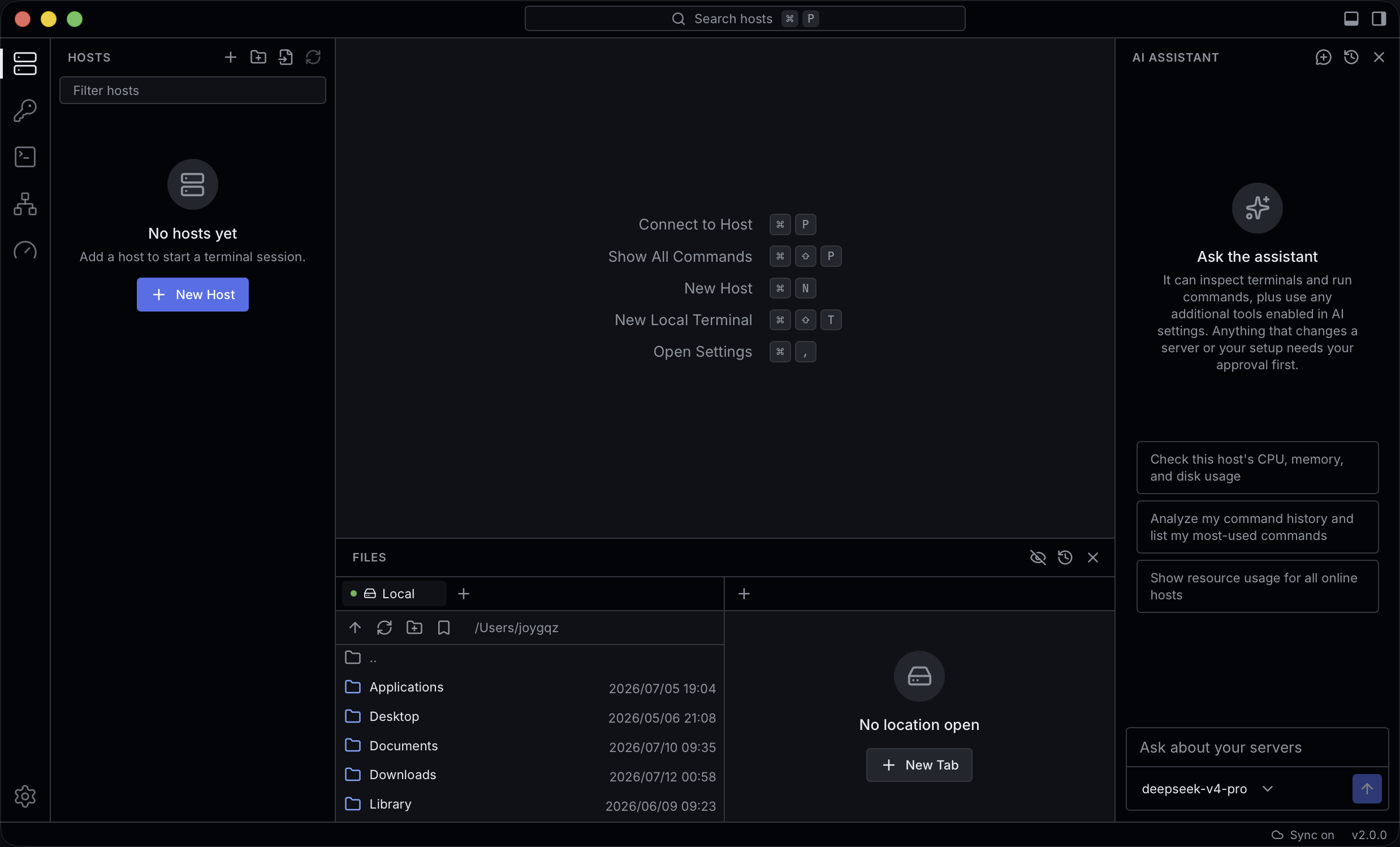
Server work usually means a pile of tools: a terminal here, an SFTP client there, cron scripts on some box, a notes file full of commands, and a key manager you half trust. Sageport folds all of that into one VS Code-style workspace.
| You are juggling… | Sageport gives you |
|---|---|
| A terminal per server | Tabs, split panes, and broadcast input across servers |
| A separate SFTP client | A two-pane file browser with drag-and-drop and remote edit |
| Deploy scripts and cron jobs | Visual tasks with schedules, retries, and run history |
htop over SSH |
Live CPU, memory, disk, and network — no agent |
| A notes file of commands | Snippets with variables, runnable across many hosts |
ssh -L incantations |
One-click port forwarding, auto-start included |
Three principles run through everything:
- Nothing to install on your servers. Sageport speaks standard SSH and SFTP. If
sshworks, Sageport works. - Local-first. No account, no cloud service. Hosts, keys, history, and settings live in a database on your device.
- You stay in charge. Unknown host keys, destructive actions, and AI operations all ask before they act.
Feature tour
Terminal
Tabs and split panes, one-click reconnect, scrollback search, and command autocomplete. Broadcast mode types into every connected terminal at once — ideal for fleet-wide changes. In a hurry, type user@host in the command palette to connect without saving anything.
File transfer
A two-pane browser puts your machine and the server side by side: drag and drop to transfer, filter and sort large directories instantly, and open remote files in a syntax-highlighted Monaco editor that saves straight back to the server. Recursive deletes scan first, run in parallel, and show live progress — even on huge trees. Every transfer is logged with both endpoints.
Automation
Chain steps into a task: run a local build, upload the artifacts, restart the service — each step a local command, upload, download, or remote command. Start from a template (frontend release, backend release, database backup, config push, log collection) or from scratch. Give flaky steps automatic retries, watch live output per step, and audit every run in a persistent history.
Put a task on a cron schedule and it runs by itself. Closing the window doesn't stop anything: Sageport keeps working from the system tray, where upcoming runs and active port forwards stay one click away.
Hosts and credentials
Group hosts however you think about them, share logins across hosts with reusable identities, and reach machines behind a bastion through jump-host chains. Import everything you already have from ~/.ssh/config in one step. Generate, import, and manage SSH keys inside the app.
Monitoring
Open the monitor on any connected host for live CPU, memory, disk, and network charts — gathered over the existing SSH session, with nothing to deploy.
Snippets and batch runs
Save the commands you keep retyping, with {{variable}} placeholders filled in at run time. Run a snippet on one host or across many at once, with per-host output and status.
Port forwarding
Local, remote, and dynamic (SOCKS) forwards, defined once and started with a click — through jump hosts too. Mark a forward to auto-start and your database GUI or internal dashboard is always reachable.
AI assistant
Bring your own provider — any OpenAI- or Anthropic-compatible endpoint — and the assistant can see your workbench, suggest and run commands, manage files, and build automation tasks for you. It operates under a strict approval model: reading terminal or remote file content always requires consent, every other action waits for your approval unless you enable autonomous mode, and even then it pauses again after touching untrusted content.
Sync and backup
Optionally sync your setup between devices through GitHub Gist, Google Drive, OneDrive, WebDAV, or S3 — encrypted with your passphrase before anything leaves the device. Prefer to stay offline? Export a single encrypted backup file.
The workbench
A command palette for everything, keyboard shortcuts throughout, light and dark themes, English and 简体中文 interfaces, and a JSON settings editor with schema validation for those who would rather type than click.
Install
Download from the latest release:
| Platform | Package |
|---|---|
| macOS (Apple Silicon and Intel) | Universal .dmg |
| Windows (64-bit) | .exe installer or portable .zip |
| Linux (64-bit) | .AppImage or .deb |
Installed builds update themselves — new versions install right from the app.
Portable mode (Windows). The portable .zip installs nothing: unzip anywhere — a USB drive included — and every setting, host, key, and record lives in the data folder next to Sageport.exe. Move the folder, and your whole setup moves with it. Portable builds do not self-update or register for startup, and anyone holding the folder can read the credentials inside, so guard the drive itself.
Quick start
- Add a server. Press ⌘ N and enter the address, username, and password or key — or import your
~/.ssh/confighosts in one go. - Connect. Click the host in the sidebar, or press ⌘ P and type its name.
- Move files. Press ⌘ J and drag files between the two panes.
- Automate something. Open the Tasks view, pick a template, point it at your host, and run it. Once you trust it, add a schedule and let the tray take it from there.
On Windows and Linux, read ⌘ as Ctrl.
FAQ
Do I need to install anything on my servers? No. Sageport uses standard SSH and SFTP. Monitoring runs ordinary commands over the existing session.
Where is my data stored? In a local database on your device. There is no Sageport cloud and no account. Note that passwords and keys are stored unencrypted in that database — anything that can read your user files can read them, so protect the device itself.
Do scheduled tasks run when the app is closed? They run as long as Sageport is running — in the window or minimized to the tray. Closing the window hides it to the tray and keeps schedules alive; quitting from the tray menu stops everything. Every run is recorded locally either way.
Is the sync passphrase recoverable? No. Backups are encrypted with your passphrase before upload, the provider never sees it, and the developer cannot recover it. Keep a copy somewhere safe.
Which AI providers work? Any endpoint that speaks the OpenAI or Anthropic API — commercial or self-hosted. You supply the base URL, key, and model; nothing about your servers is sent anywhere unless the assistant is asked to look, and reads of terminal or file content always require your approval.
Build from source
You need Node.js with pnpm, a Rust toolchain, and the Tauri 2 prerequisites for your platform.
pnpm install
pnpm tauri dev     # run the app in development
pnpm tauri build   # produce a release bundle
pnpm test runs the frontend suite; cargo test inside src-tauri runs the backend suite.
Under the hood: a Rust core (russh, SQLite via sqlx, tokio) behind a React 19 + TypeScript workbench (xterm.js, Monaco, Tailwind), packaged with Tauri 2.
License
more like this