desto
web-interface and cli to manage python and shell scripts in tmux sessions
 kalfasyan
git clone https://github.com/kalfasyan/desto.gitkalfasyan/desto

desto lets you run and manage your bash and Python scripts in the background (inside tmux sessions) through a simple web dashboard. Launch scripts, monitor their and your system's status, view live logs, and control sessions—all from your browser.

The key features are:
- One-click session control: Launch, monitor, and stop
tmuxsessions from your browser. - 🐚 Bash & 🐍 Python support: Run both bash (
.sh) and Python (.py) scripts seamlessly. - Script management: Use your existing scripts, write new ones, edit, save, or delete them directly in the dashboard.
- ⭐ Favorite commands: Save, organize, and quickly run your frequently used commands with usage tracking and search.
- Live log viewer: Watch script output in real time and view logs for each session.
- Live system stats: See real-time CPU, memory, and disk usage at a glance.
- Scheduling: Schedule scripts or script chains to launch at a specific date and time.
- Script chaining: Queue multiple scripts to run sequentially in a single session.
- Session history: Redis integration for persistent session tracking and history. See what is Redis →
- Long-term persistence: Optional SQLite database for durable session history that survives Redis key expiration—no extra services needed.
- Scheduled job control: Manage scheduled jobs with a dedicated table—cancel any scheduled job with a click.
- Session & log cleanup: Clear session history and delete logs for all or selected sessions.
- Notifications: Optional Pushbullet notifications for job/session finishes — set the
DESTO_PUSHBULLET_API_KEYenvironment variable or add the key in Settings to receive desktop/mobile pushes when jobs complete. - Persistent script & log storage: Scripts and logs are saved in dedicated folders for easy access.
- 🖥️ Command-line interface: Manage sessions, view logs, and control scripts from the terminal with our modern CLI. Learn more →
🎬 Demo
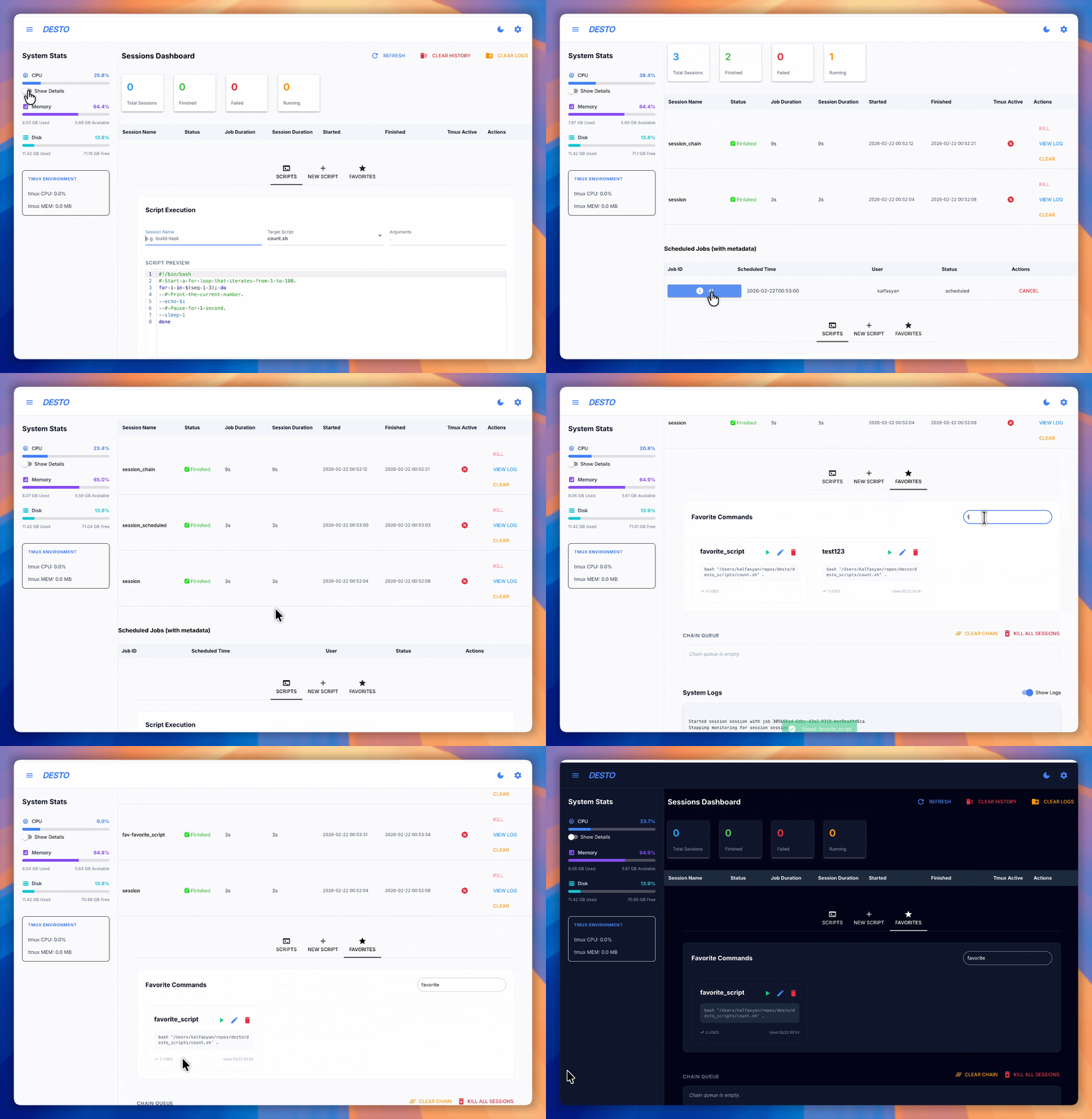
✨ desto Overview
👀 Dashboard Overview
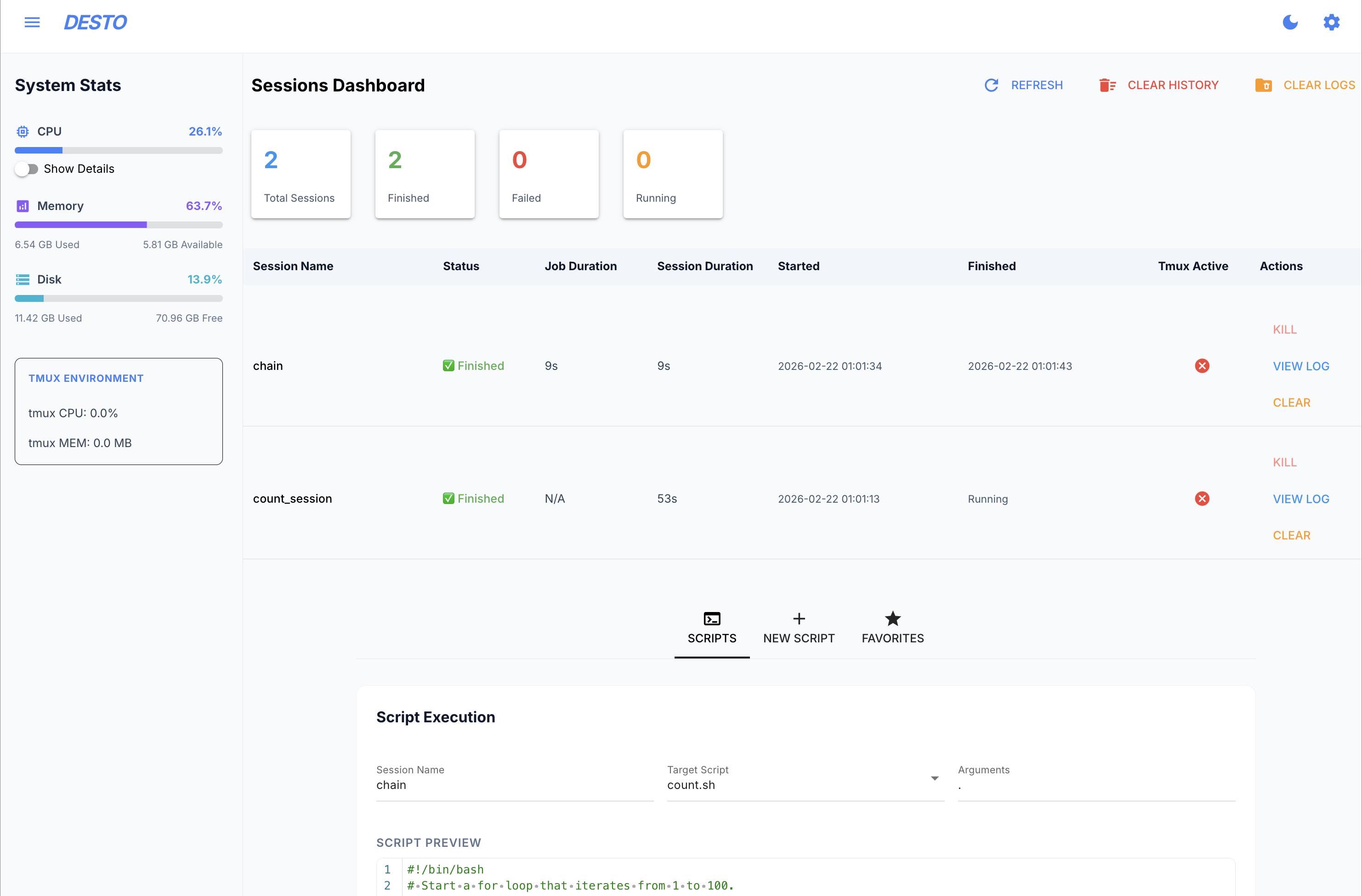
🚀 Launch your scripts as `tmux` sessions
When you start desto, it creates desto_scripts/ and desto_logs/ folders in your current directory. Want to use your own locations? Just change these in the settings, or set the DESTO_SCRIPTS_DIR and DESTO_LOGS_DIR environment variables.
Your scripts show up automatically—no setup needed. Both .sh (bash) and .py (Python) scripts are supported with automatic detection and appropriate execution. Ready to launch? Just:
- Name your
tmuxsession - Select one of your scripts
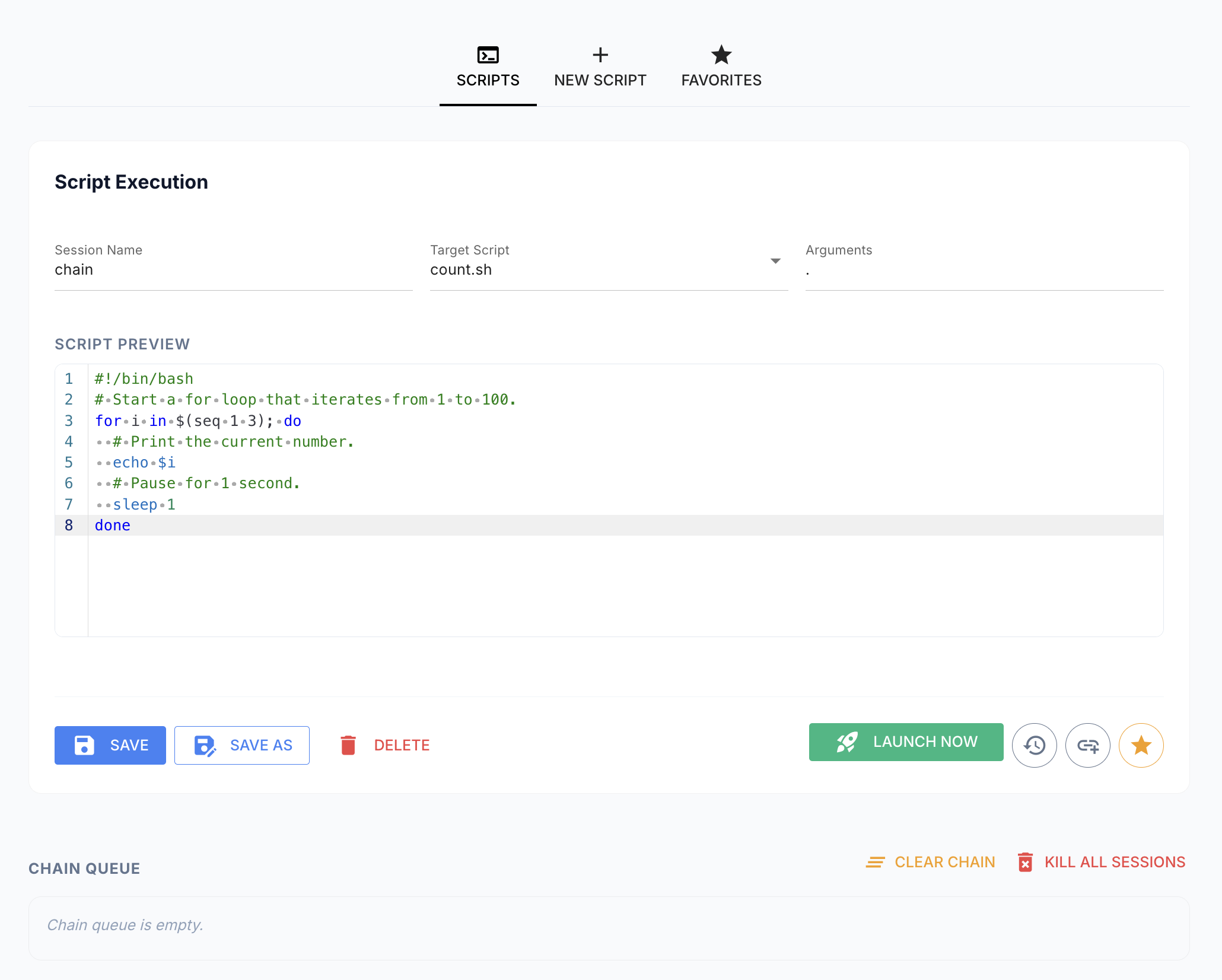
- (OPTIONAL) edit and save your changes
- Click "Launch"! 🎬
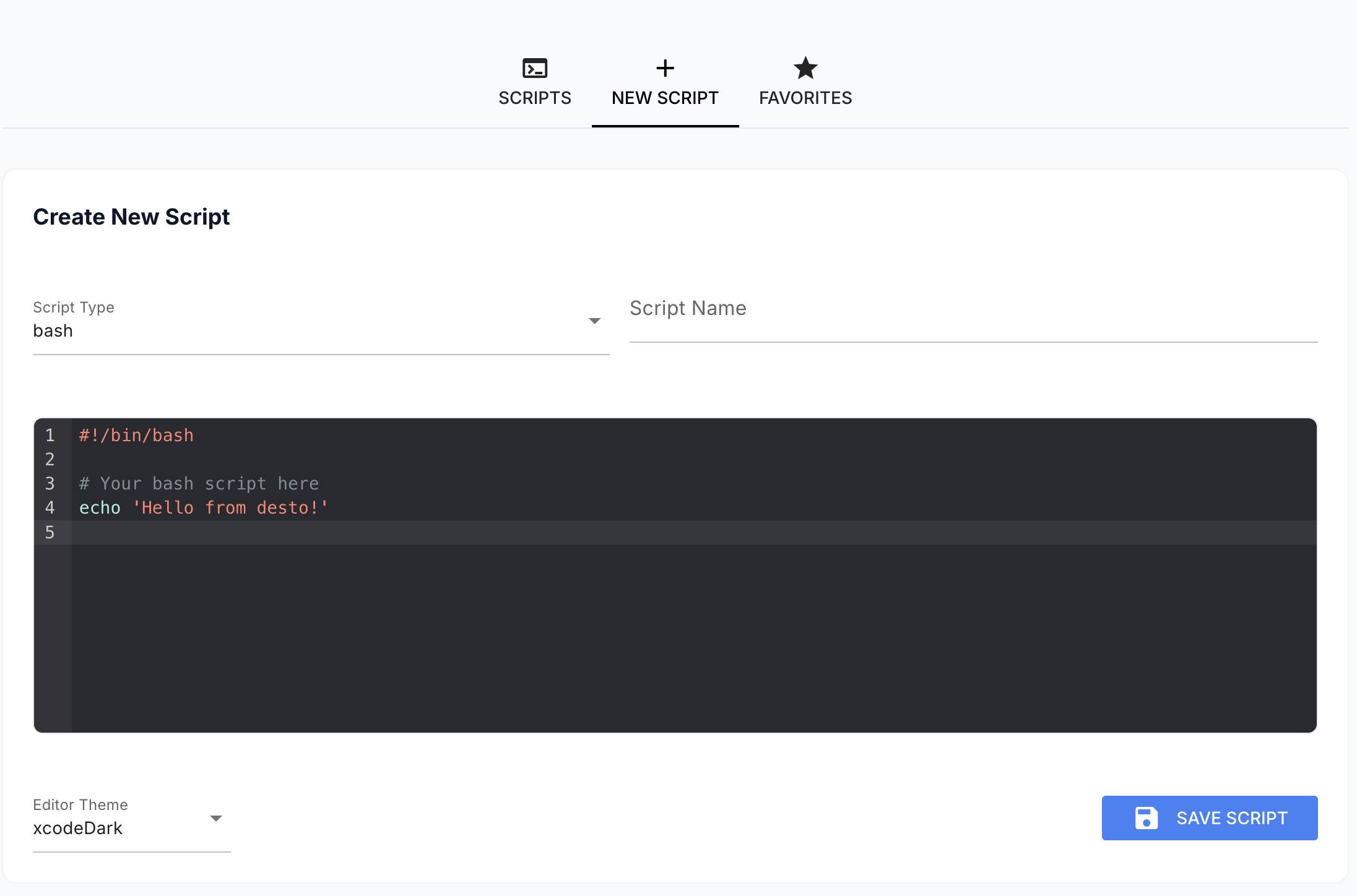
✍️ Write new scripts and save them
If you want to compose a new script, you can do it right here, or simply just paste the output of your favorite LLM :) Choose between bash and Python templates with syntax highlighting and smart defaults.
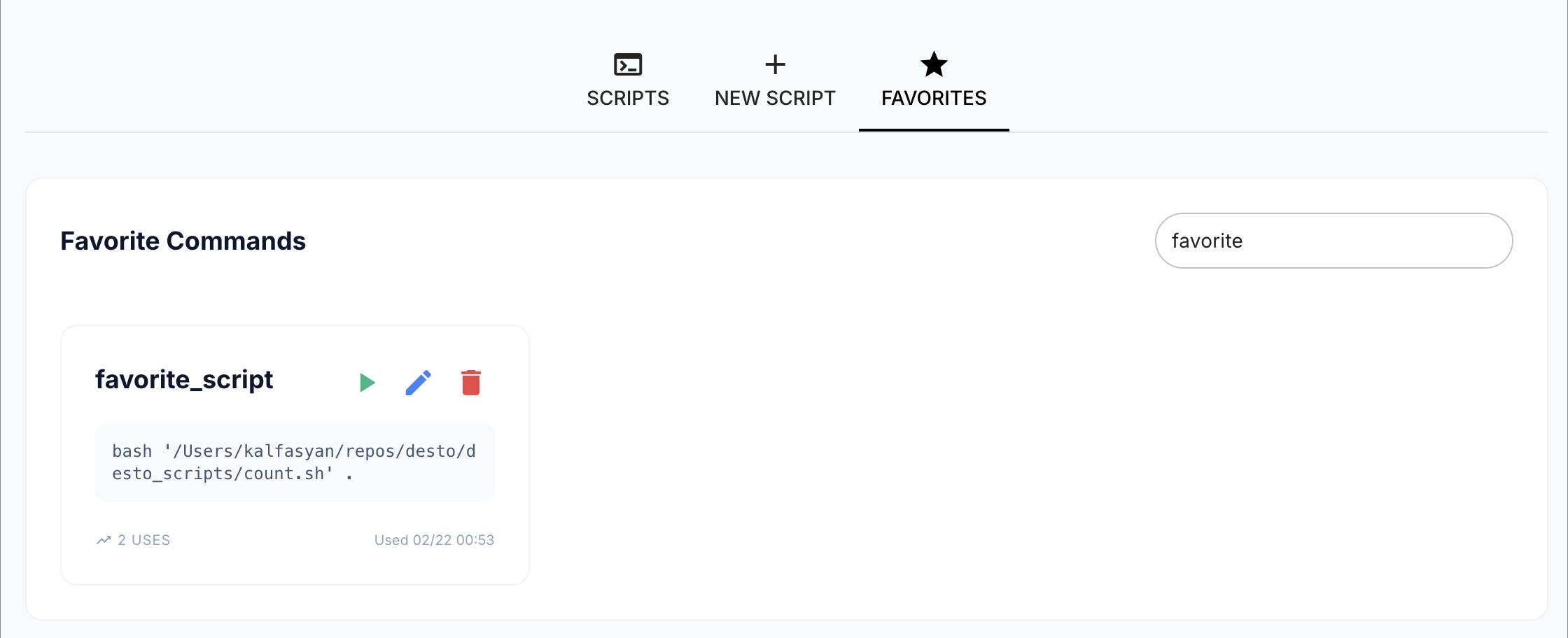
⭐ Favorite Commands
Save, organize, and quickly run your frequently used commands with usage tracking and search.
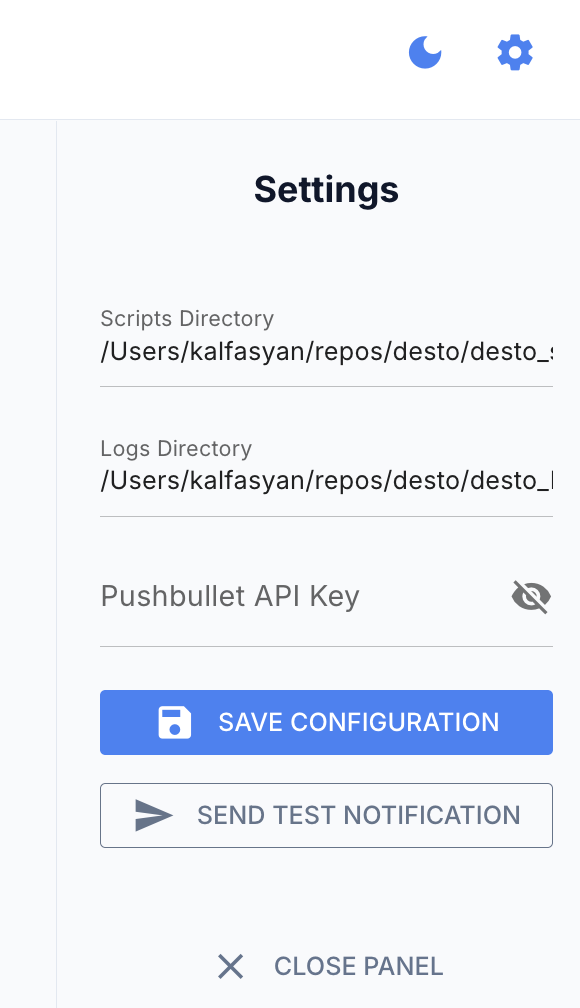
⚙️ Change settings
More settings to be added!
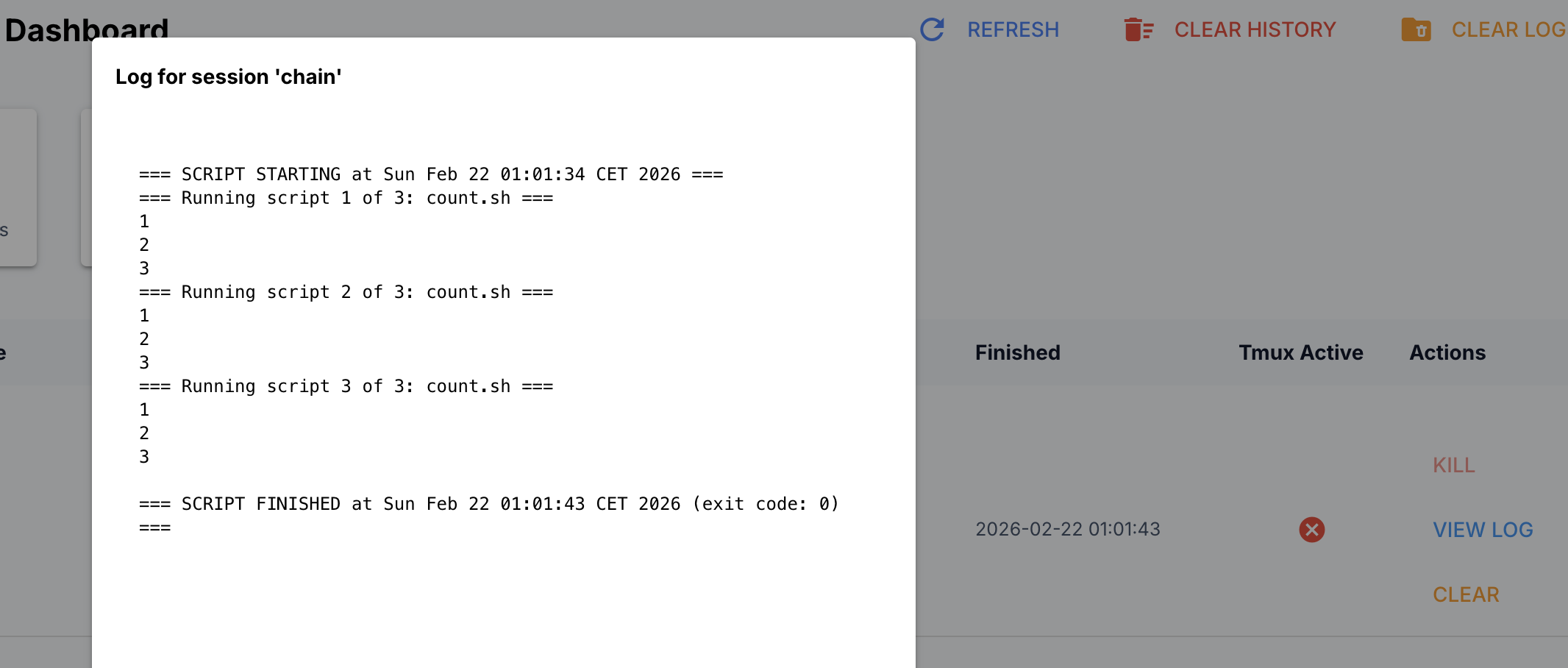
📜 View your script's logs
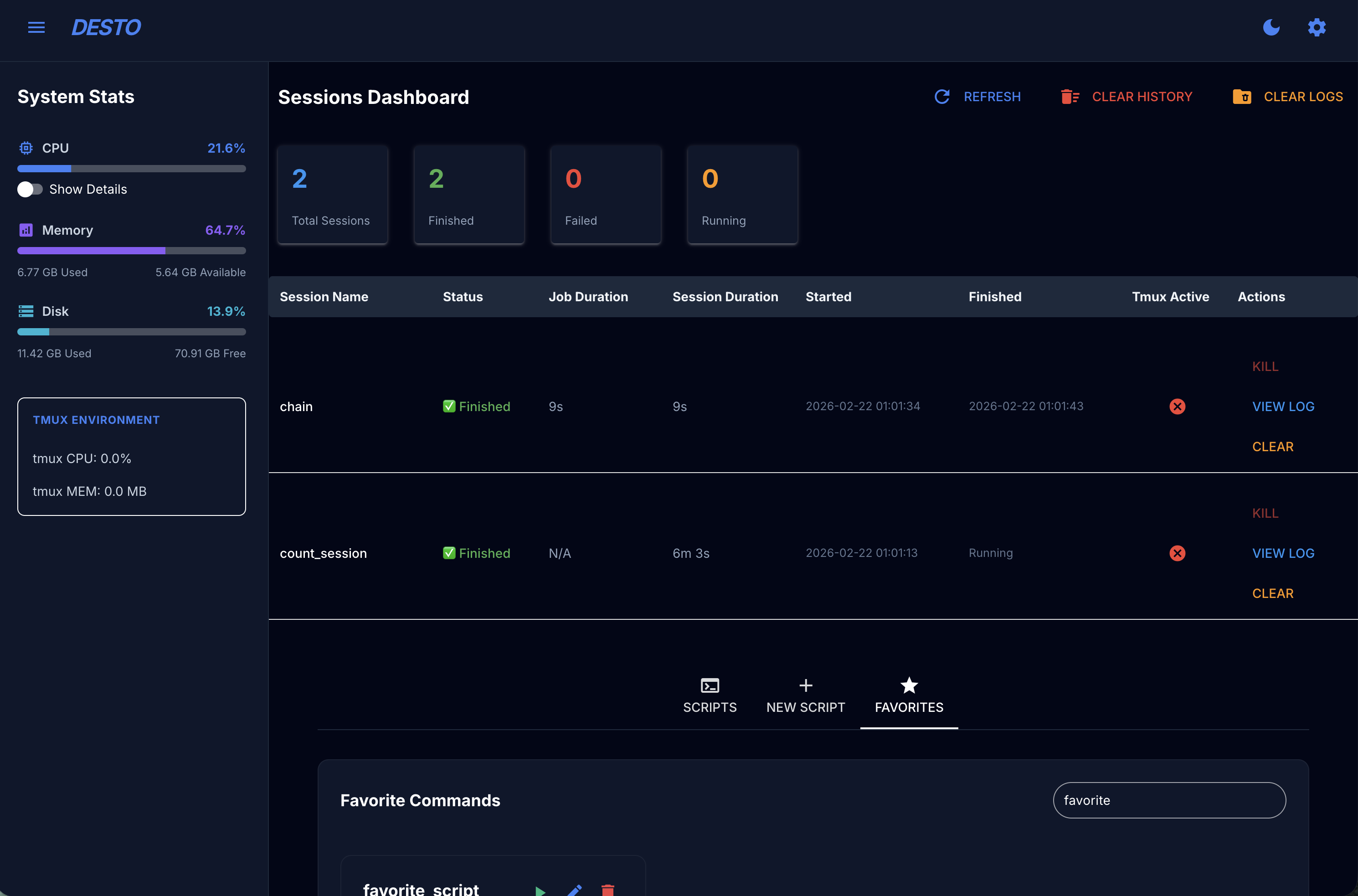
🌙 Dark Mode
Switch to dark mode for comfortable viewing in low-light environments.
⚡ Quick Start with Docker 🐳
The fastest way to ship desto is by using Docker Compose 🚢
You only need Docker and Docker Compose installed on your machine. If you don't have them yet, you can find installation instructions on the Docker website and Docker Compose documentation (or follow your favorite LLM's instructions 😉).
Start desto in just a few steps:
-
Clone the repository and go to it's main directory
git clone https://github.com/kalfasyan/desto.git && cd desto
-
Start the application with Docker Compose
docker compose up -d
✅ Done! 🎉
You’re all set—your desto dashboard is now running at:
🌐 http://localhost:8809
🚀 Essential Docker & Docker Compose Commands
# Start the app in background (Docker Compose)
docker compose up -d
# View logs (Docker Compose)
docker compose logs -f
# Stop and remove services (Docker Compose)
docker compose down
# Rebuild and start (Docker Compose)
docker compose up -d --build
# Run the container directly (plain Docker)
docker run -d -p 8809:8809 \
  -v $PWD/desto_scripts:/app/desto_scripts \
  -v $PWD/desto_logs:/app/desto_logs \
  --name desto-dashboard \
  desto:latest
# View logs (plain Docker)
docker logs -f desto-dashboard
# Stop and remove the container (plain Docker)
docker stop desto-dashboard && docker rm desto-dashboard
🗄️ Optional: Enable SQLite Long-Term Persistence
By default, desto uses Redis for session tracking with a 7-day expiration. To keep session history indefinitely, enable the built-in SQLite store by setting the SQLITE_ENABLED environment variable:
# In docker-compose.yml, change:
- SQLITE_ENABLED=true
Or when running without Docker:
export SQLITE_ENABLED=true
desto
The SQLite database is stored at desto_data/desto.db (configurable via SQLITE_DB_PATH). It requires no additional services—just a file on disk. Your data persists across Redis restarts and key expirations.
Note
Why SQLite over PostgreSQL? SQLite requires zero configuration, no additional Docker service, and no network setup. It's ideal for single-node deployments like desto. For most users, it provides all the durability benefits of a SQL database without any installation hassle.
🖥️ CLI & 📊 Dashboard Installation with uv or pip
If you are not familiar with uv, you may visit uv's official website for more information.
uv is a super-fast Python package manager and virtual environment tool, written in Rust. It helps you manage dependencies, create isolated environments, and install packages much faster than traditional tools like pip.
Requirements
Check pyproject.toml
Installation Steps
-
Install
tmuxandatInstructions for different package managers
- Debian/Ubuntu
sudo apt install tmux at
- Almalinux/Fedora
sudo dnf install tmux at
- Arch Linux
sudo pacman -S tmux at
Note: The
atpackage is required for scheduling features. If you don't plan to use script scheduling, you can skip installingat. - Debian/Ubuntu
-
Install
destoInstallation Steps
-
(Recommended) With uv, simply run:
uv add desto
This will install desto in your project ✅
Or if you don't have a project yet, you can set up everything withuv:-
Install
uvby following the instructions on the official site. -
Create and set up your project:
mkdir myproject && cd myproject
uv init
uv venv
source .venv/bin/activate
uv add desto
Done!
-
-
With pip:
pip install desto
-
-
Run the Application
desto
🔄 Auto-start on Boot (systemd)
If you want desto to start automatically when your system boots, you can install a systemd service using the CLI. This works for non-Docker installations.
# Install as a user service (recommended)
desto-cli service install

# Or install as a system service (requires sudo)
sudo desto-cli service install --system
This ensures the dashboard is always available after a reboot.
Note
Docker users: If you are using Docker Compose, desto is already configured to auto-start via the restart: always policy in docker-compose.yml. No further action is needed.
🎉 Done!
Open your browser and visit: http://localhost:8809 🚀
Global desto Installation as a uv Tool (includes CLI)
# Install desto CLI globally
uv tool install desto

# Or install from source
cd /path/to/desto
uv tool install . --force
This installs two executables:
desto- Web dashboarddesto-cli- Command-line interface (work in progress)
Quick CLI Usage

# Check system status
desto-cli doctor
# List all sessions
desto-cli sessions list
# Start a new session
desto-cli sessions start "my-task" "python my_script.py"
# View session logs
desto-cli sessions logs "my-task"
# Kill a session
desto-cli sessions kill "my-task"
# List all scripts
desto-cli scripts list
# Create new script
desto-cli scripts create "my_script" --type python
# Edit script in $EDITOR
desto-cli scripts edit "my_script"
# Run script in tmux session
desto-cli scripts run "my_script"
# Run script directly
desto-cli scripts run "my_script" --direct
The CLI provides the same functionality as the web interface but optimized for terminal use, including rich formatting, real-time log viewing, and comprehensive session management.
License
Shield:
This work is licensed under a Creative Commons Attribution 4.0 International License.
TODO
- Explore possibility to pause processes running inside a session
desto makes handling tmux sessions and running scripts approachable for everyone—no terminal gymnastics required!
more like this
meine
meine 🌒 - A CLI file manager and system utility built with Textual. It combines intuitive command parsing with rich t…