moxon-frame-generator
simple generator for 3D-printed frames for a moxon rectangle antenna
OpenSCAD★ 50
An enhanced, user-friendly version of nrsc5-gui that is not heavily dependent upon Python processing for audio generati…
 markjfine
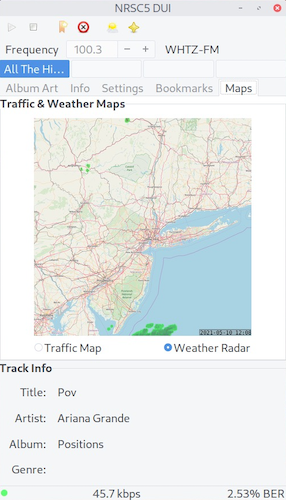
git clone https://github.com/markjfine/nrsc5-dui.gitmarkjfine/nrsc5-duiNRSC5-DUI is a graphical interface for nrsc5. It makes it easy to play your favorite FM HD radio stations using an RTL-SDR or SDRPlay dongle. It will also display weather radar and traffic maps found on most iHeart radio stations.
This version is really a fork of a fork of the original nrsc5-gui: The first was developed by cmnybo and subsequently modified by zefie. It merges the features of the former to the architecture of the latter, while adding several additional control and display features.
As such, we have changed the name to 'DUI' as a play on the Italian word for 'two', this being a second generation graphical user interface for nrsc5. (I'll be here all week. Please tip your waitresses.)
The following programs are required to run NRSC5-DUI
It is also assumed you have a fully operational Gtk3 environment installed from Homebrew, if running on macOS.
pip install -r <path_to requirements.txt>macOS arm64 or linux intel x86_64 binary version of nrsc5-dui, download the the appropriate file from the Releases page. Uncompress it and copy the file nrsc5-dui to the same directory where nrsc5-dui.py resides. Note that the macOS version has only been tested on a MacBook Pro with an Apple M1 chip, running Tahoe 26.3 in an arm64 architecture. Similarly, the linux version has only been tested on a Lenovo Legion 5 Pro with a 12th Gen Intel Core i7 chip, running Fedora 43 in an x86_64 architecture. Your mileage may vary.The configuration and resource directories will be created in a new cfg and res directory under where nrsc5-dui.py resides. Similarly, an aas directory will be created for downloaded files and a map directory will be created to store weather & traffic maps. The aas, cfg, and map directories may optionally be created in a separate user-defined path as specified within a $NRSC5DUI_DATA environment variable.
nrsc5 should be installed in a directory that is in your $PATH environment variable. Otherwise the full path to nrsc5 (e.g., /usr/local/bin/) may be entered at runtime (see Usage for details, below).
One of the goals of this project was to provide a stand-alone, cross-platform application. Please note that NRSC5-DUI will not operate natively in this manner under Windows 10 at this time. This is even when built under a MinGW environment (such as MSYS2) or cross-compiled using MinGW-compatible compilers. The issues found are as follows:
0 thru 3 keypress) as well as exiting it properly (qkeypress) without typing Ctrl-C.pip or pacman, however, some have had success installing PyGObject using conda.The bottom line is that some have had success installing and running the application and it's dependencies under specific MinGW environments such as WSL2, but may still require the dongle to operate under RTL_TCP and not directly via NRSC5.EXE. Some legacy Windows executables and libraries have been provided in the bin directory for those that wish to experiment further. Feel free to use them at your own risk.
Stephen Ferrell has graciously taken a look at stability issues when running under WSL2g. Specifically, the application would run for ~3 hours until which time the audio would start skipping and the interface would freeze. He used Claude Code to isolate the issues and was extremely successful tracking down several issues impacting nrsc5-dui operation.
If skipping is still experienced, Stephen recommends disabling the time sync due to a known conflict between the WSL2 backend (PulseAudio) and the Windows host. This can be done by entering:
sudo systemctl stop systemd-timesyncd
If this works, you can permanently disable it with:
sudo systemctl disable systemd-timesyncd
If the issue still persists, try adjusting the PulseAudio configuration within your Linux distribution. This can be done by editing the configuration file /etc/pulse/daemon.conf and adding/updating the following lines:
high-priority = yes
nice-level = -15
default-fragments = 8
default-fragment-size-msec = 10
Once the configuration file is edited, kill PulseAudio by entering pulseaudio -k and let it restart automatically.
You are cautioned that both PulseAudio and pipewire implementations have been known to be buggy under WSL2. Although the above suggestions will improve things, choppy audio may still occur at some point. The only solution is to close and restart nrsc5-dui.
Much of the audio skipping problems associated with WSL2 can be avoided by using a version of nrsc5-dui specifically modified by Stephen Ferrell for use under MSYS2/Cygwin. The MSYS2-specific version can be found in the MSYS2 directory. It has been tested for over 36 hours under MSYS2 on Windows 11 without any audio issues. It includes all the features of nrsc5-dui with none of the reliance on Posix-compliant dependencies, such as tty.
It is recommended that you install each of the dependencies using MSYS2 pacman. As an example:
pacman -S mingw-w64-x86_64-python-numpy
This may not work correctly for musicbrainz, which under a managed environment should be installed using pip as follows:
pip install musicbrainzngs --break-system-packages
For those that wish to create a quick-launch CMD file, simply create a CMD file and add the following line:
C:\msys64\msys2_shell.cmd -defterm -no-start -mingw64 -here -c /c/msys64/home/<user name>/<nrsc5-dui directory>/nrsc5-dui-msys2.py
Remember to change <user name> to your user name, and <nrsc5-dui directory> to the directory where nrsc5-dui-msys2.py resides. The CMD file could then be double-clicked to launch the application.
Please ensure your RTL-SDR dongle or SDRPlay is first connected to an available USB port. Then, from the terminal, start nrsc5-dui by entering:
python3 nrsc5-dui.py
or something like:
python3 nrsc5-dui.py /usr/local/bin/
The latter includes the path to nrsc5 when using scripts (like Apple Script) that seemingly ignore the environment.
You may optionally use the binary version by running it without python3 or the .py extension as follows:
nrsc5-dui /usr/local/bin/
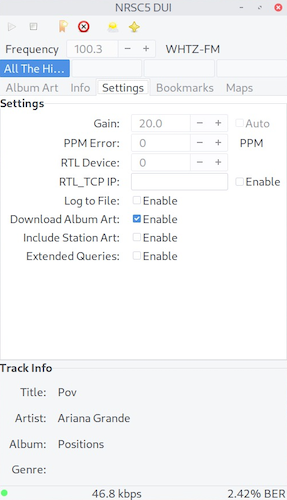
You may first change some optional parameters of how nrsc5 works from the Settings tab in nrsc5-dui:
Set the radio you are using to either RTL_SDR or SDRPlay.
Set the gain to Auto, or optionally enter an RF gain in dB that has known to work well for some stations.
Enter a PPM correction value if your RTL-SDR dongle has an offset.
If using an RTL_SDR:
Enter the number of the desired device if you have more than one RTL-SDR dongle.
Enter the IP address that rtl_tcp is listening to and check the Enabled box if you are using a remote RTL-SDR.
If using an SDRPlay:
Enter the serial number of the SDRPlay.
Enter the antenna port used by the SDRPlay.
Other settings:
Check Log to file to enable writing debug information from nrsc5 to nrsc5.log.
Check Download Album Art to enable automated downloading of album art from MusicBrainz.
Check Include Station Art to display album art that is generated by the station in addition to downloading from MusicBrainz.
Check Extended Queries to apply several MusicBrainz queries to find album art. Turning this option on may be slower than non-extended queries.
Enter the frequency in MHz of the station you want to play and either click the triangular Play button on the toolbar, or just hit return. When the receiver attains synchronization, the pilot in the lower left corner of the status bar will turn green. It will return to gray if synchronization is lost. If the device itself becomes 'lost', the pilot will turn red to indicate an error has occurred (this is the theory, though I've yet to see this status message happen in practice). The synchronization process may take about 10 seconds, and the station will begin to play. This depends upon signal strength and whether it's relatively free from adjacent interference. After a short while, the station name will appear to the right of the frequency, and the available streams will show on the two rows of buttons just beneath the frequency entry. Clicking one of these buttons will change to that particular stream. Note: No settings other than stream may be changed while the device is playing.
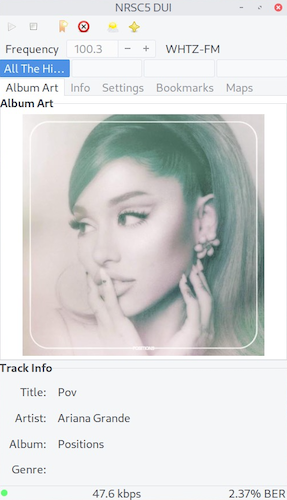
Some stations will send album art and station logos. These will fill the Album Art tab, as they are made available by the station. Most stations will send the song title, artist, album, and genre. These are displayed in the Track Info pane, also if available. The user can override what the stations send by enabling the DL Album Art setting. This will use the Title and Artist information to retrieve album art from MusicBrainz. If no album art is found, the station logo will be used, if available. The title, artist, album, and genre (if available) will be cached when new album art is found, and will be automatically displayed when that art is used. The user can change the logo of the playing station by right-clicking in the Album Art area. This will display a popup prompting you for the URL of an image found on the web. Pasting the URL in the box and clicking 'Ok' will download the image and set the logo of the playing station with it.
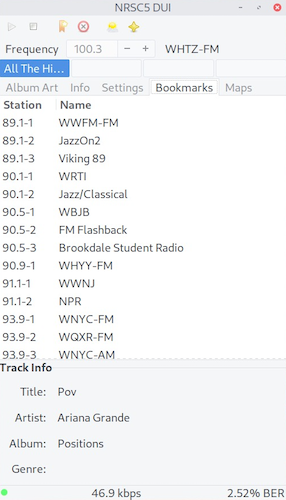
When a station is playing, you can click the Bookmark Station button to add it to the bookmarks list. You can click on the Name in the bookmarks list to edit it. Double click the Station to tune to that particular station and stream. Click the Delete Bookmark button to delete it. Note that some stations use the default MPS/SPS or HDn naming for their streams. In this case, the respective bookmark will be used to name the stream button.
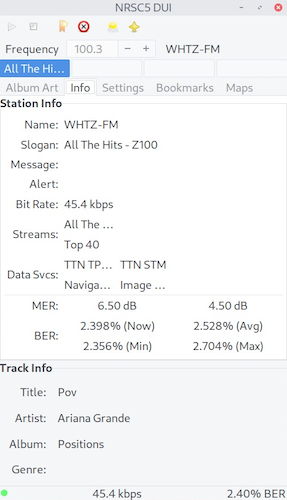
The station name, slogan, message, and optional alert message will display if the station as pre-programmed them. The current audio bit rate will be displayed here as well as on the status bar. The station's available streams and data services, with a description of each will display, as the station has pre-programmed them. This is a useful feature for noting which stations have Total Traffic & Weather Network traffic and weather images.
The Modulation Error Ratio for the lower and upper sidebands are displayed as they are determined. Important: High MER values for both sidebands indicates a strong signal. The current, average, minimum and maximum Bit Error Rates will also be displayed as they are determined. High BER values will cause the audio to glitch or drop out. The current BER is also shown on the status bar and may be used as a tuning tool.
Note: The nrsc5 application initially operates on an inverted spectrum for FM signals, using the terms 'lower' and 'upper' to report the MER of the sidebands in a reversed state. The resulting MER values will therefore appear reversed from what a user would see on a standard spectrum display.
When listening to radio stations operated by iHeartMedia, you may view live traffic maps and weather radar. The images are typically sent every few minutes and will fill the tab area once received, processed, and loaded. Clicking the Map Viewer button on the toolbar will open a larger window to view the maps at full size. The weather radar information from the last 12 hours will be stored and can be played back by selecting the Animate Radar option. The delay between frames (in seconds) can be adjusted by changing the Animation Speed value. Other stations provide Navteq/HERE navigation and weather information which is also displayed. Note that the display of Navteq/HERE data requires the use of nrsc5 v3.00.
The default map used for the weather radar comes from OpenStreetMap. You can replace the map.png image with a map from any website that will let you export map tiles. The tiles used are (35,84) to (81,110) at zoom level 8. The image is 12032x6912 pixels. The portion of the map used for your area is cached in the map directory. If you change the map image, you will have to delete the BaseMap images in the map directory so they will be recreated with the new map.
1.0.0 Initial Release
1.0.1 Fixed compatibility with display scaling
1.1.0 Added weather radar and traffic map viewer
1.2.0 zefie update to modern nrsc5 build
2.0.0 Updated to use the nrsc5 API
2.1.0 Updated and enhanced operation and use
2.2.0 Updated for use with SDRPlay and operates with up to 8 possible audio channels (per nrsc5 spec)
more like this
simple generator for 3D-printed frames for a moxon rectangle antenna
meine 🌒 - A CLI file manager and system utility built with Textual. It combines intuitive command parsing with rich t…
search projects, people, and tags