iTerm2-Color-Schemes
Over 450 terminal color schemes/themes for iTerm/iTerm2. Includes ports to Terminal, Konsole, PuTTY, Xresources, XRDB,…
 mbadolato
git clone https://github.com/mbadolato/iTerm2-Color-Schemes.gitmbadolato/iTerm2-Color-SchemesiTerm Color Schemes
- Intro
- Installation Instructions
- Contribute
- Screenshots
- Credits
- Extra
- Previewing color schemes
- X11 Installation
- Konsole color schemes
- Terminator color schemes
- Mac OS Terminal color schemes
- PuTTY color schemes
- Xfce Terminal color schemes
- FreeBSD vt(4) color schemes
- MobaXterm color schemes
- LXTerminal color schemes
- Visual Studio Code color schemes
- Windows Terminal color schemes
- Alacritty color schemes
- Ghostty color schemes
- Termux color schemes
- Generic color schemes
- Vim color schemes
Intro
This is a set of color schemes for iTerm (aka iTerm2). It also includes ports to Terminal, Konsole, PuTTY, Xresources, XRDB, Remmina, Termite, XFCE, Tilda, FreeBSD VT, Terminator, Kitty, Ghostty, MobaXterm, LXTerminal, Microsoft's Windows Terminal, Visual Studio, Alacritty, Vim
Screenshots below and in the screenshots directory.
Installation Instructions
There are 3 ways to install an iTerm theme:
-
Direct way via keyboard shortcut:
- Launch iTerm 2. Get the latest version at iterm2.com
- Type CMD+i (⌘+i)
- Navigate to Colors tab
- Click on Color Presets
- Click on Import
- Click on the schemes folder
- Select the .itermcolors profiles you would like to import
- Click on Color Presets and choose a color scheme
-
Via iTerm preferences (go to the same configuration location as above):
- Launch iTerm 2. Get the latest version at iterm2.com
- Click on iTerm2 menu title
- Select Preferences... option
- Select Profiles
- Navigate to Colors tab
- Click on Color Presets
- Click on Import
- Select the .itermcolors file(s) of the schemes you'd like to use * Click on Color Presets and choose a color scheme
-
Via Bash script
- Launch iTerm 2. Get the latest version at iterm2.com
- Run the following command:
# Import all color schemes
tools/import-scheme.sh schemes/*

# Import all color schemes (verbose mode)
tools/import-scheme.sh -v schemes/*

# Import specific color schemes (quotations are needed for schemes with spaces in name)
tools/import-scheme.sh 'schemes/SpaceGray Eighties.itermcolors' # by file path
tools/import-scheme.sh 'SpaceGray Eighties'       # by scheme name
tools/import-scheme.sh Molokai 'SpaceGray Eighties'     # import multiple
- Restart iTerm 2. (Need to quit iTerm 2 to reload the configuration file.)
Contribute
Using Docker
If docker is installed, the script generate-all.sh will do most of the
steps described in Prerequisites, except for the instructions
related to pyenv as this is not required in a docker container dedicated to
generating the required files.
With docker, there is no need to install python and its dependencies on your computer.
The remaining manual tasks are to update README.md to include your theme and
screenshot, and to update CREDITS.md to credit yourself for your contribution.
Debugging using Docker
In cases where new tools have to be tested, ./generate-all.sh debug will start
an interactive terminal session inside the container.
Prerequisites
- For convenient work with generation scripts, it is recommended to install pyenv.
- Run
pyenv installinside project folder to install python version from.python-versionfile. - Run
pip install -r requirements.txtto install the project dependencies.
How to add new theme
Have a great theme? Send it to me via a Pull Request!
Theme naming
Name source files exactly as the theme should be displayed. Use the human-readable name — no slugification, no replacing spaces with underscores.
- iTerm2:
schemes/Your Theme Name.itermcolors - YAML:
yaml/Your Theme Name.yml(see yaml/README.md)
Quote names with spaces in shell commands: python3 tools/gen.py -s "Your Theme Name".
Have an iTerm theme?
- Get your theme's
.itermcolorsfile.- Launch iTerm 2
- Type CMD+i (⌘+i)
- Navigate to Colors tab
- Click on Color Presets
- Click on Export
- Save the .itermcolors file
- Put your theme file into
/schemes/, named as you want it displayed.mv <your-itermcolors-file> schemes/"Your Theme Name.itermcolors"
Have a theme in another format?
- Convert it to the YAML format specified in yaml/README.md.
This is an extension of the format supported by the Gogh project.
- If it helps, you can use
tools/kitty_to_yaml.pyandtools/ghostty_to_yaml.py. These tools accept configuration file streamed into stdin, and output a YAML fragment to stdout.
- If it helps, you can use
- Put the YAML file in
yaml/asYour Theme Name.yml.
Test your theme
- Generate other formats for your theme using the
gen.pyscript.python3 tools/gen.py -s "Your Theme Name"
- Optionally check WCAG contrast (
.itermcolorsonly; YAML themes must be generated first).python3 tools/wcag_check.py -s "Your Theme Name"- Failing checks are OK —
gen.pymay adjust colors during generation to meet the minimum contrast threshold (1.75:1).
- Generate a screenshot of your theme using the
screenshot_gentool.pushd tools && python3 -m screenshot_gen && popd. This will generate new screenshots where they are missing.- If you have
oxipngorzopflipnginstalled, the screenshot will be optimized for you.
Update CREDITS.md (optional)
- Update
CREDITS.mdto credit yourself for your contribution.
How to add new template
Do you want to convert existing iTerm themes to themes for your favorite terminal/editor/etc?
- Get config file from your terminal/editor/etc.
- Change actual colors in config to template placeholders from the list below.
  {{ Background_Color }}
  {{ Bold_Color }}
  {{ Cursor_Color }}
  {{ Cursor_Text_Color }}
  {{ Foreground_Color }}
  {{ Selected_Text_Color }}
  {{ Selection_Color }}
  {{ Ansi_0_Color }} // black
  {{ Ansi_1_Color }} // red
  {{ Ansi_2_Color }} // green
  {{ Ansi_3_Color }} // yellow
  {{ Ansi_4_Color }} // blue
  {{ Ansi_5_Color }} // magenta
  {{ Ansi_6_Color }} // cyan
  {{ Ansi_7_Color }} // white
  {{ Ansi_8_Color }} // bright black
  {{ Ansi_9_Color }} // bright red
  {{ Ansi_10_Color }} // bright green
  {{ Ansi_11_Color }} // bright yellow
  {{ Ansi_12_Color }} // bright blue
  {{ Ansi_13_Color }} // bright magenta
  {{ Ansi_14_Color }} // bright cyan
  {{ Ansi_15_Color }} // bright white

  Each color has these fields:
 - {{ Background_Color.hex }} for hex representation
 - {{ Background_Color.rgb }} for rgb representation as a "(r, g, b)" string
 - {{ Backgroun_Color.guint16 }} for guint16 representation

  Also you have access to this metadata fields:
 - {{ Guint16_Palette }} with a string containing all ansi colors as guint16 values
 - {{ Dark_Theme }} which contains a sign that the theme is dark
- If you need a new value type for color, add it too
tools/converter.py - Put your template file into
tool/templates. A folder with schemas will be created based on the filename. And the file extension will remain with all generated ones. Example:editor.extfile will generate schemas aseditor/scheme_name.ext - Generate all existing themes for all templates
cd tools/ && ./gen.py. Or, if you only want to generate schemas for your template, you can use the-tflag.
./gen.py -t kitty
- If in the process you had to add new dependencies or update the version of python, do not forget to indicate this in
requirements.txtor.python-version.
Screenshots
The screenshots are categorized.
Dark Themes
0x96f
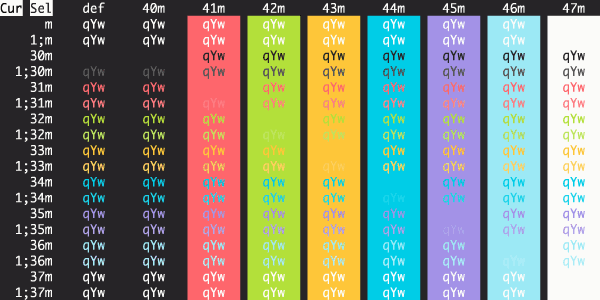
12-bit Rainbow
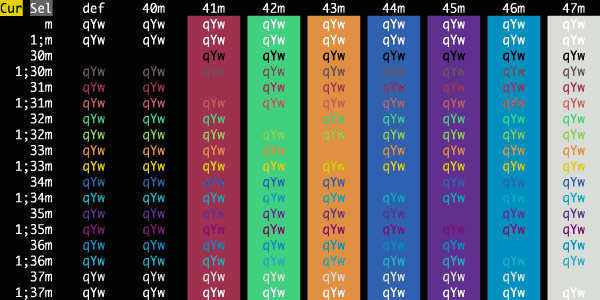
3024 Night
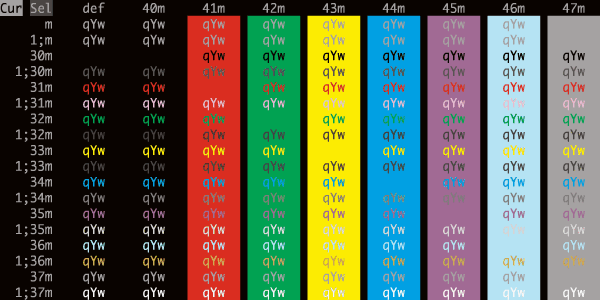
Aardvark Blue
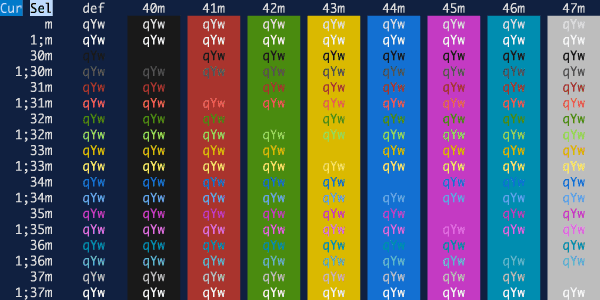
Aardvark Ink
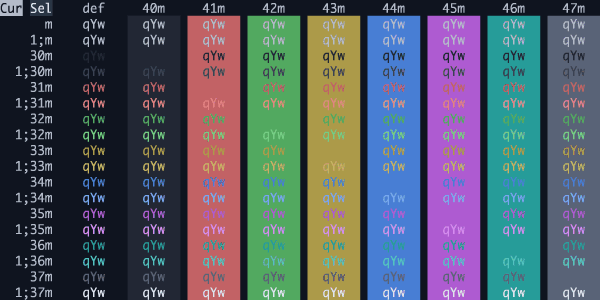
Abernathy
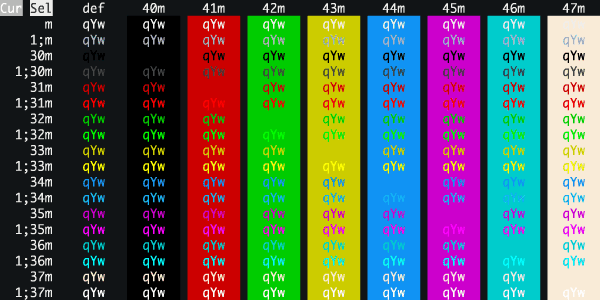
Acid Lime
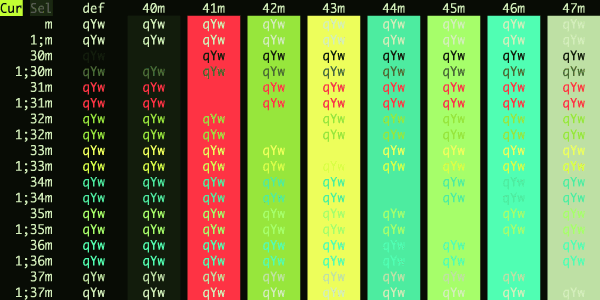
Adventure Time
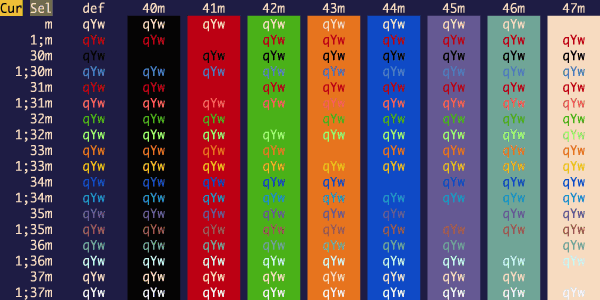
Adventure
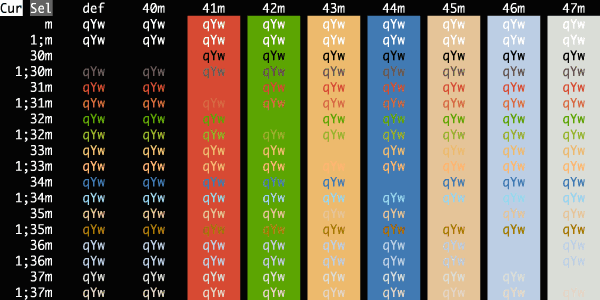
Adwaita Dark
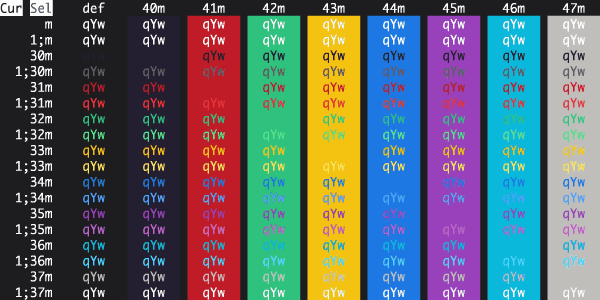
Afterglow
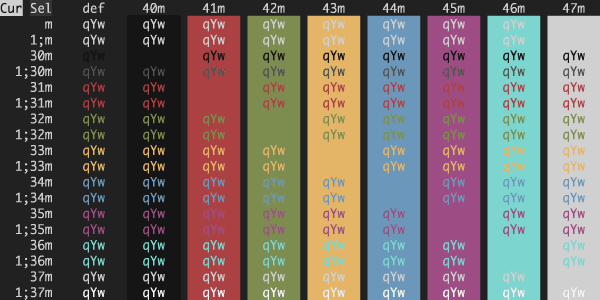
Aizen Dark
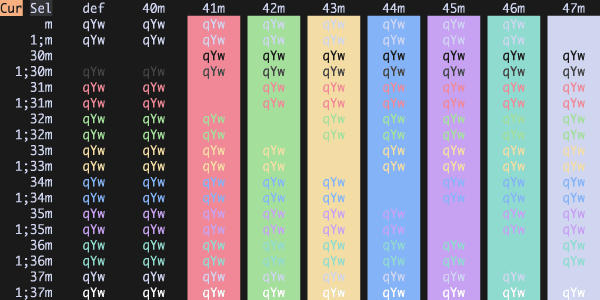
Alien Blood
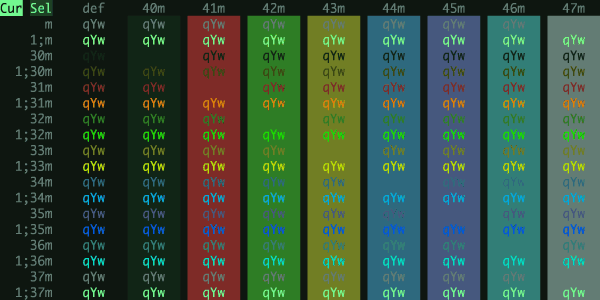
Amber CRT Retro
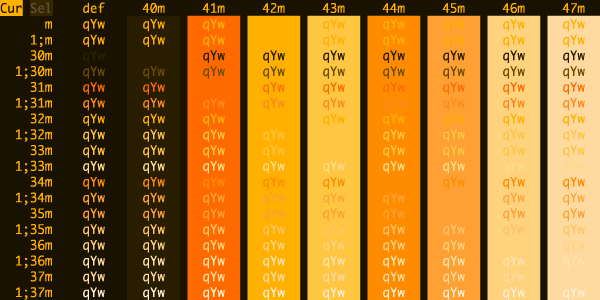
Andromeda
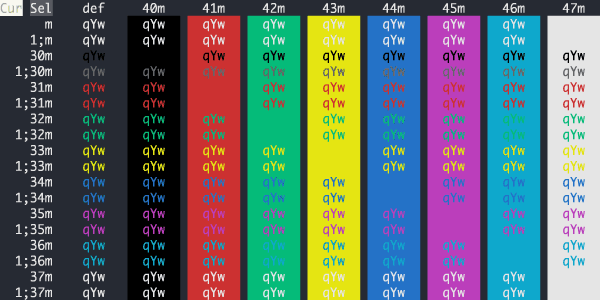
Apple Classic
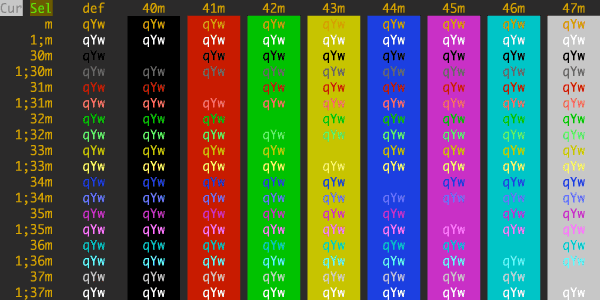
Apple System Colors
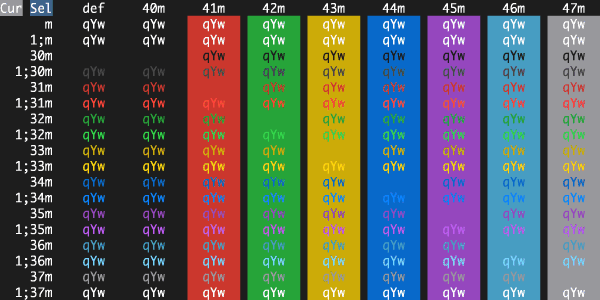
Arcoiris
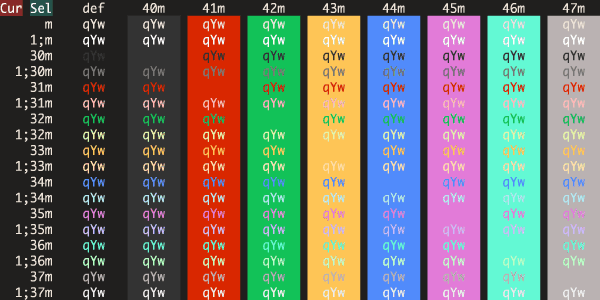
Ardoise
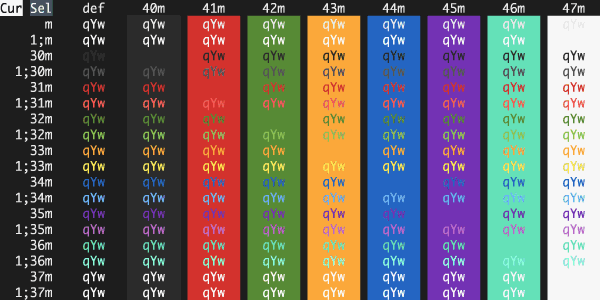
Argonaut
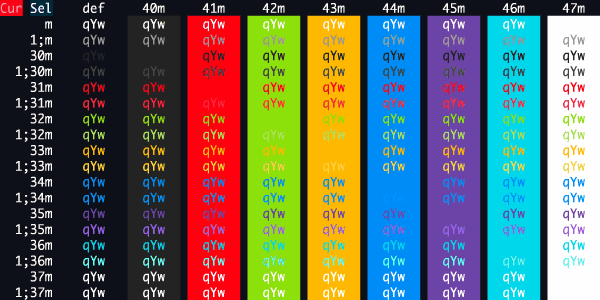
Arthur
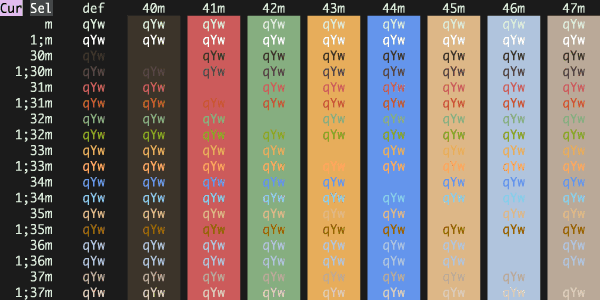
Atelier Sulphurpool
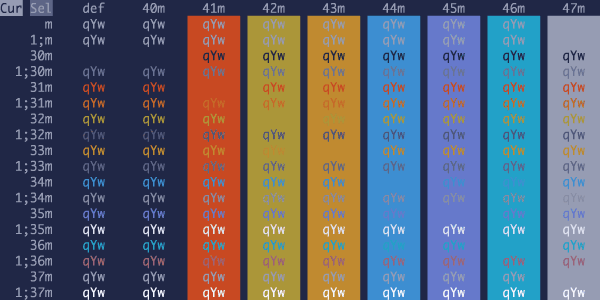
Atlas Ragnarok
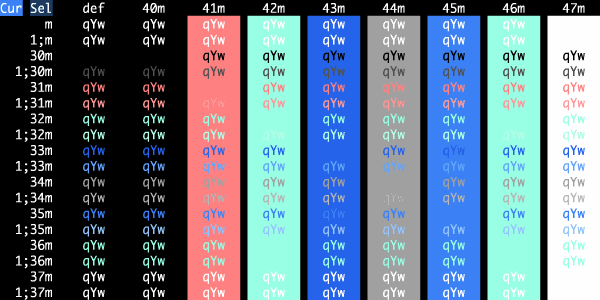
Atom One Dark
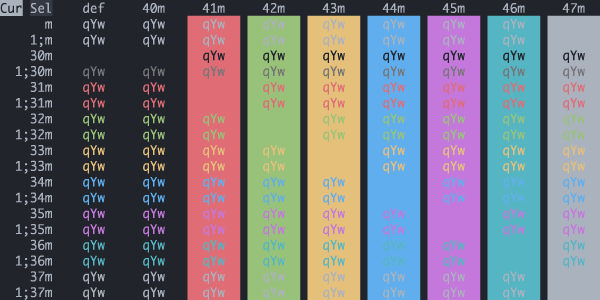
Atom
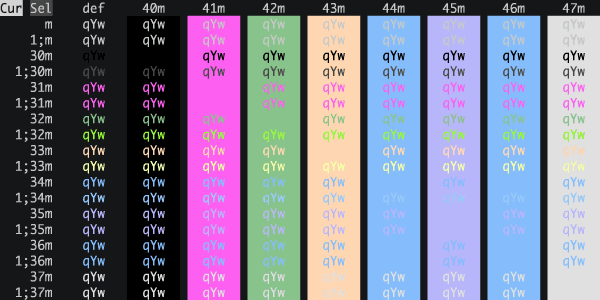
Aura Dark
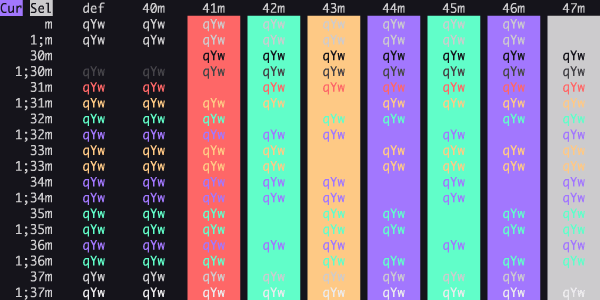
Aura
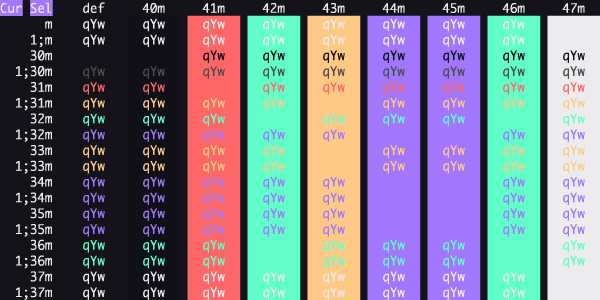
Aurora
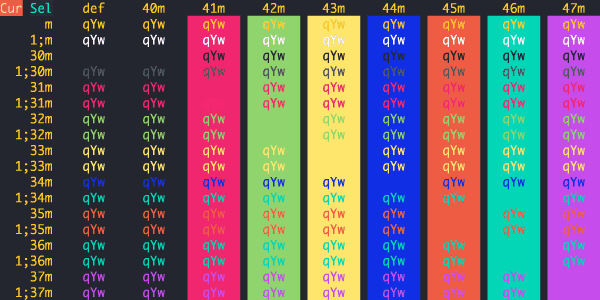
Ayu Mirage
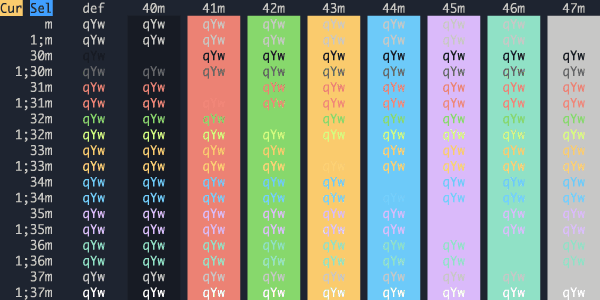
Ayu
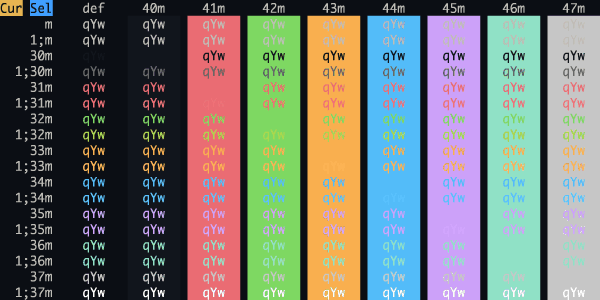
Banana Blueberry
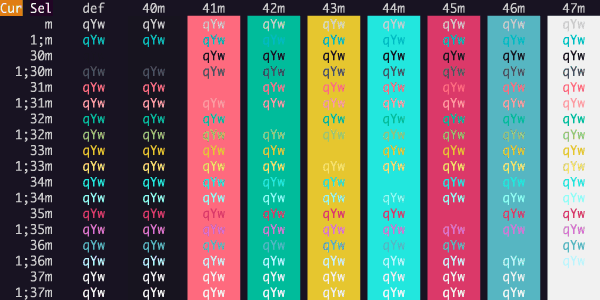
base16-icy
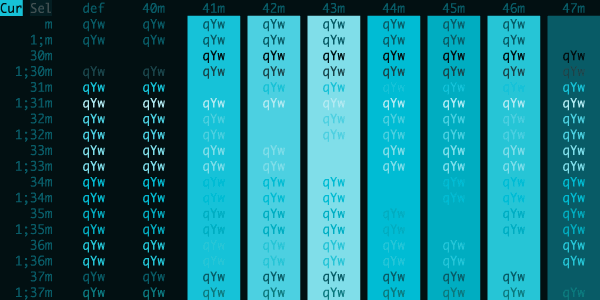
Batman
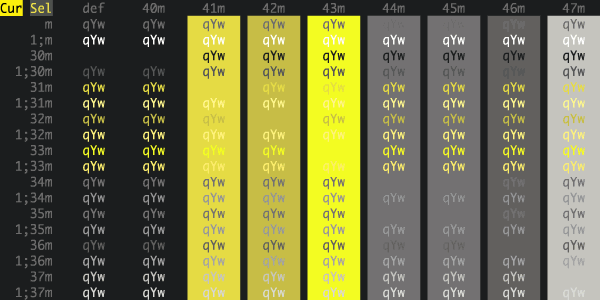
Belafonte Night
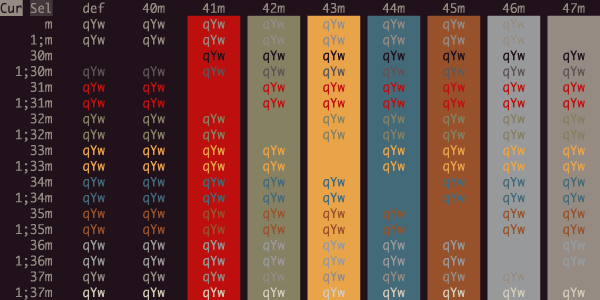
Birds Of Paradise
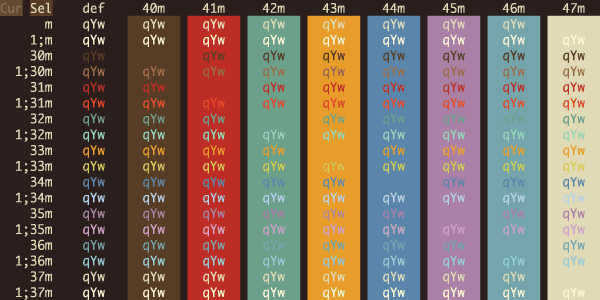
Black Metal (Bathory)
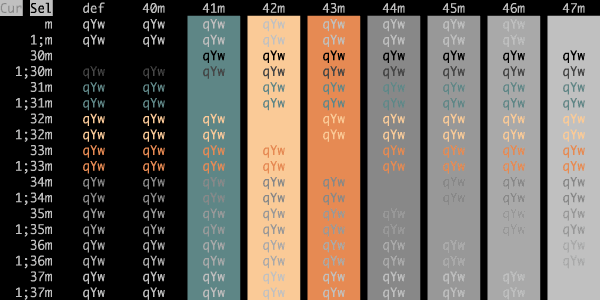
Black Metal (Burzum)
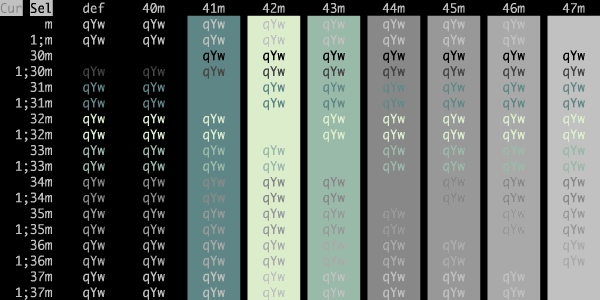
Black Metal (Dark Funeral)
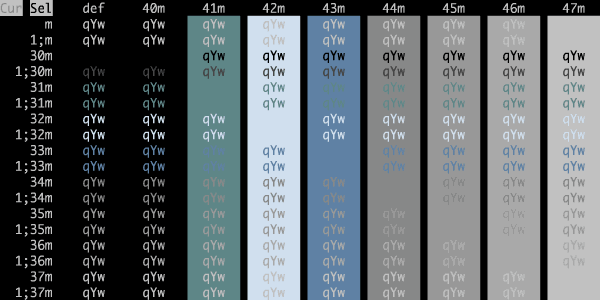
Black Metal (Gorgoroth)
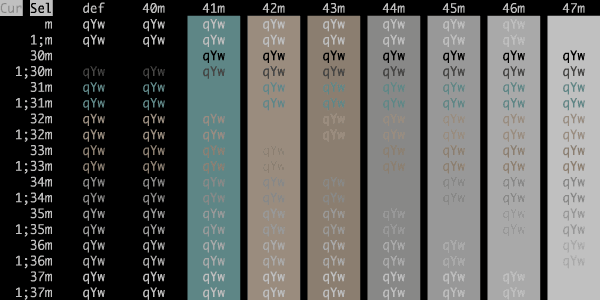
Black Metal (Immortal)
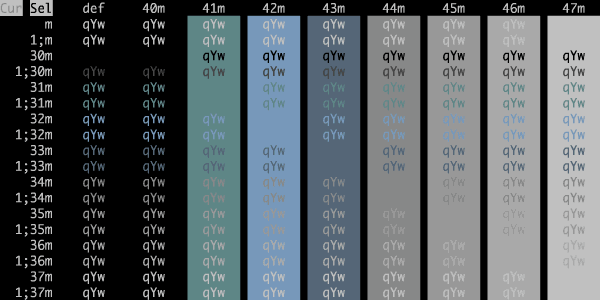
Black Metal (Khold)
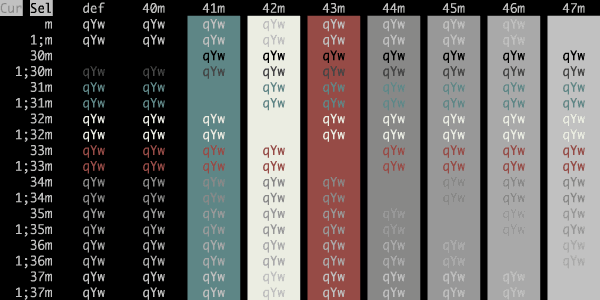
Black Metal (Marduk)
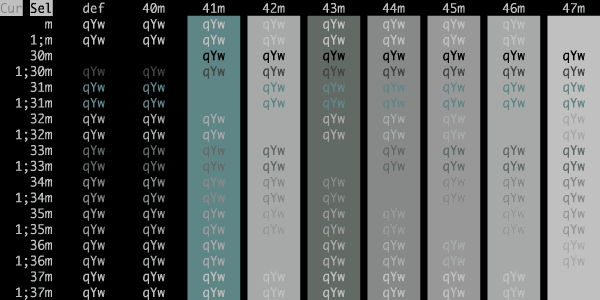
Black Metal (Mayhem)
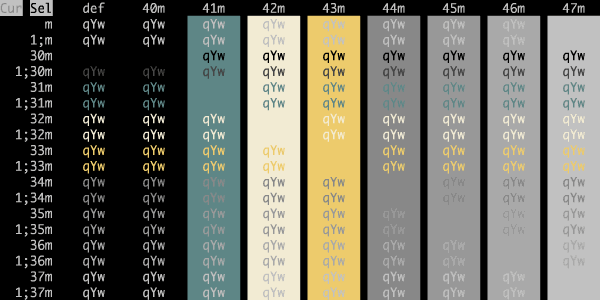
Black Metal (Nile)
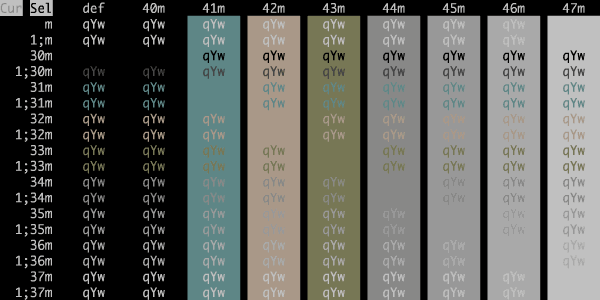
Black Metal (Venom)
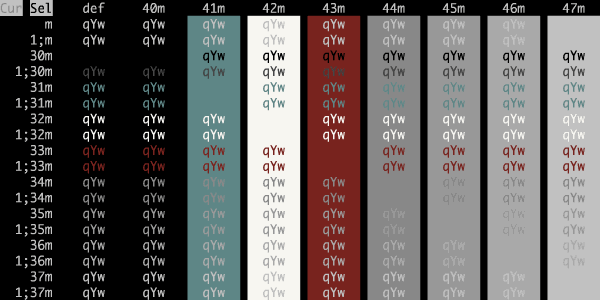
Black Metal
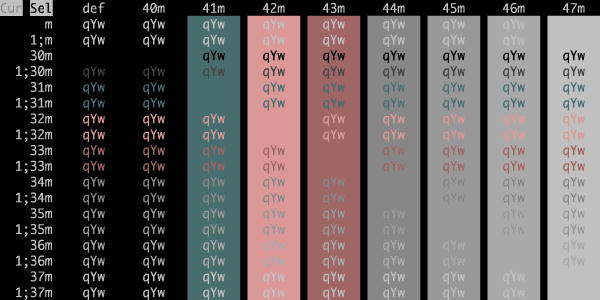
Blazer
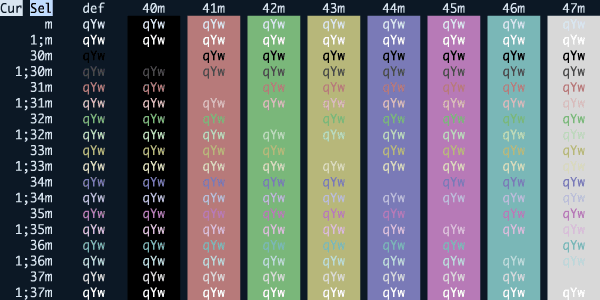
Blue Berry Pie
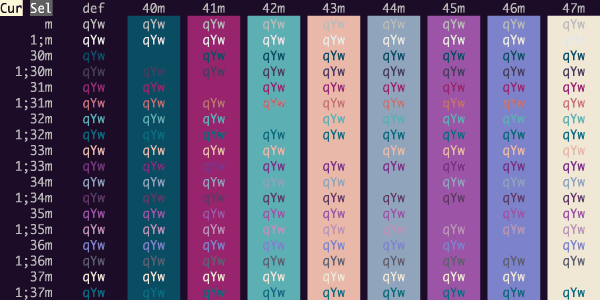
Blue Dolphin
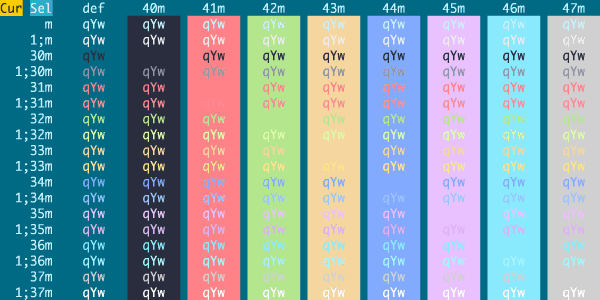
Blue Matrix
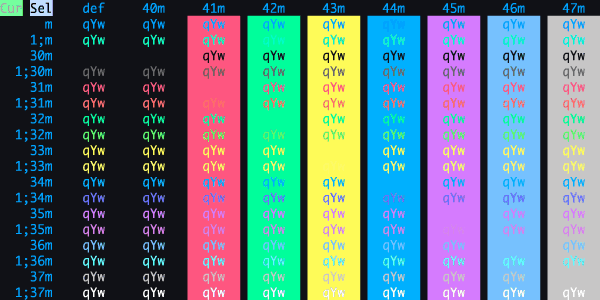
Bluloco Dark
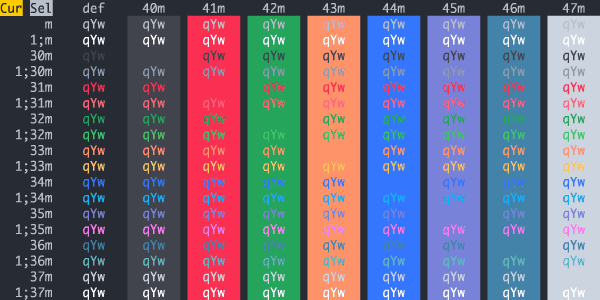
Borland
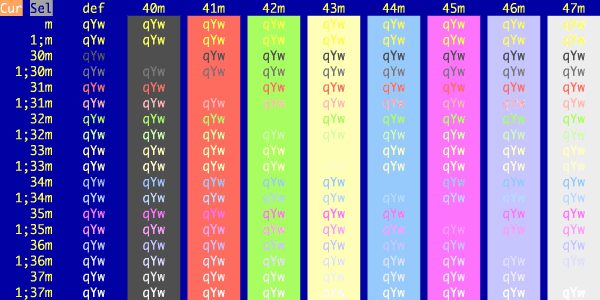
Box
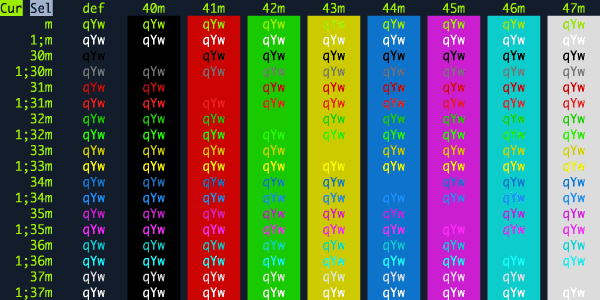
branch
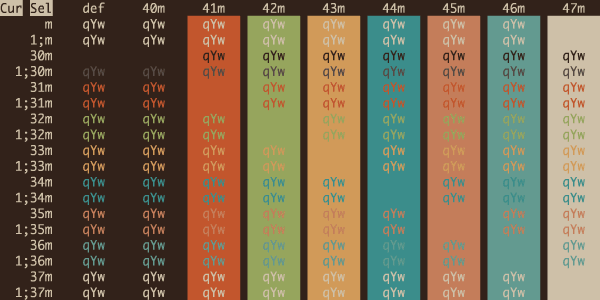
Breeze
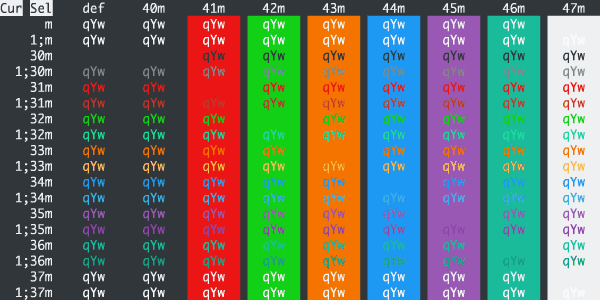
Bright Lights
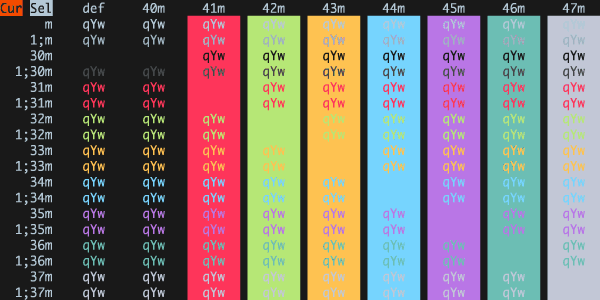
Broadcast
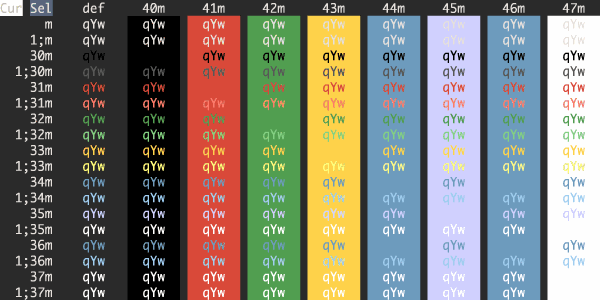
Brogrammer
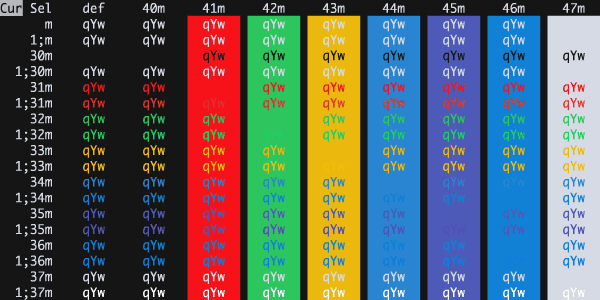
Builtin Dark
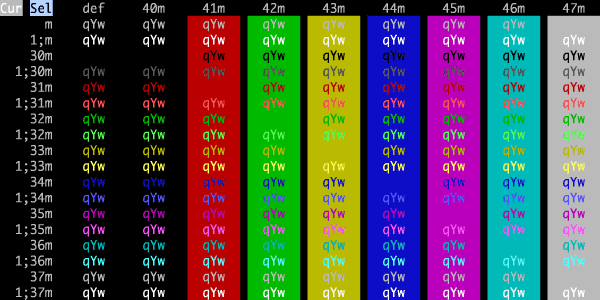
Builtin Pastel Dark
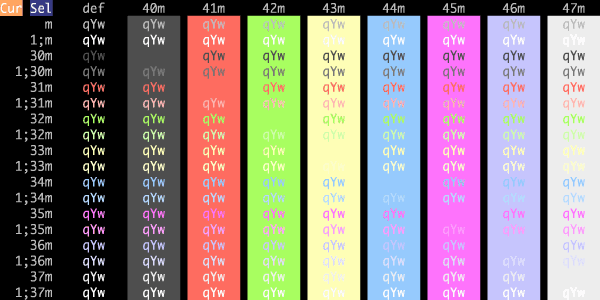
Builtin Tango Dark
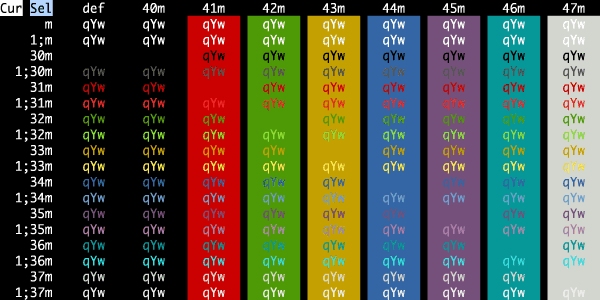
C64
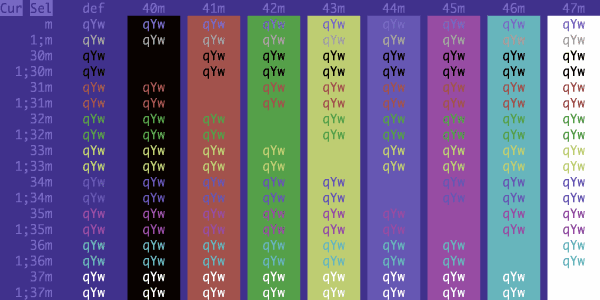
Calamity
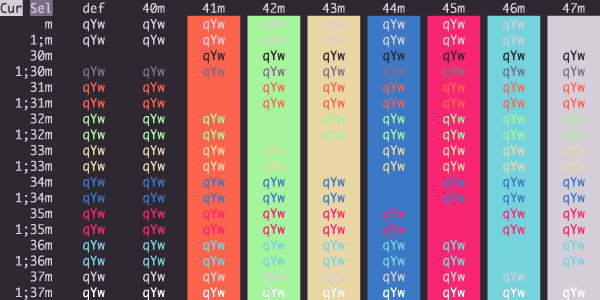
Carbonfox
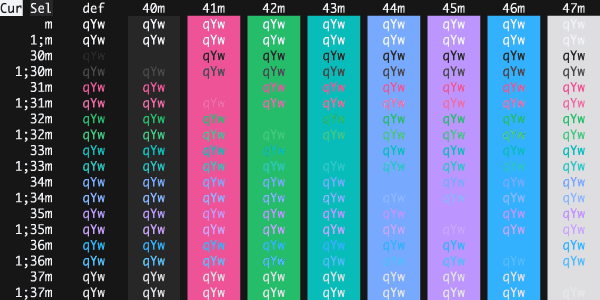
Catppuccin Frappe
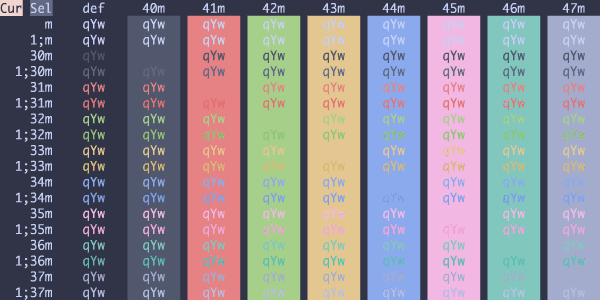
Catppuccin Macchiato
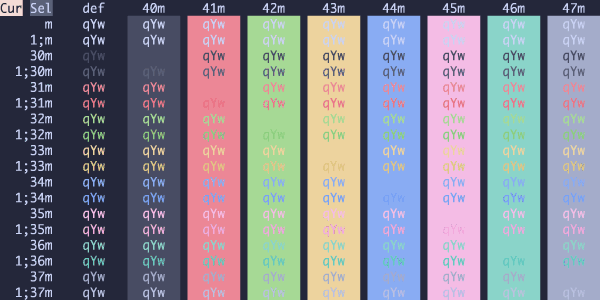
Catppuccin Mocha
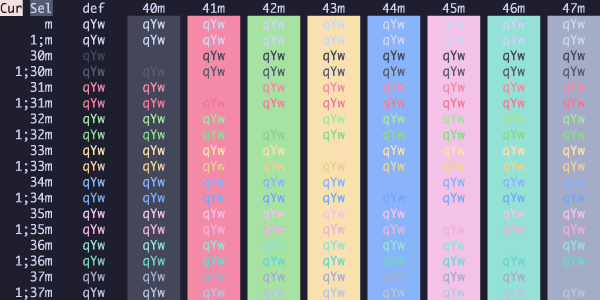
CGA
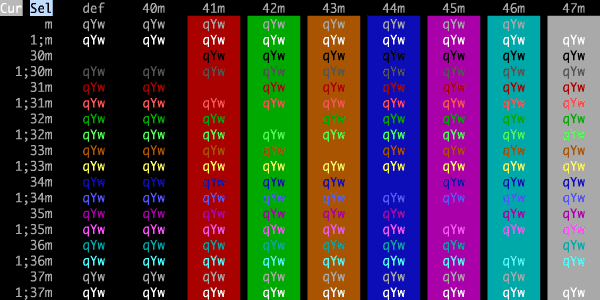
Chalk
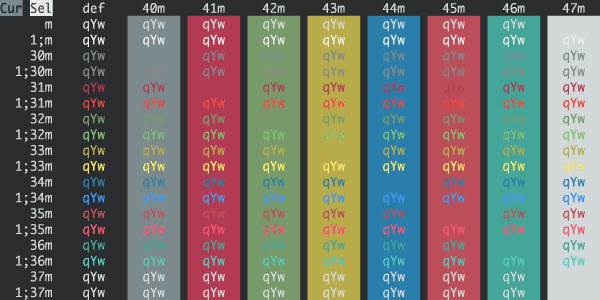
Chalkboard
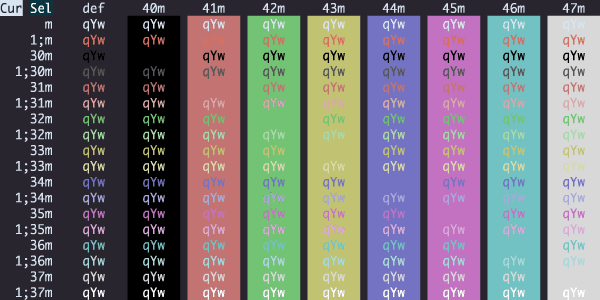
Challenger Deep
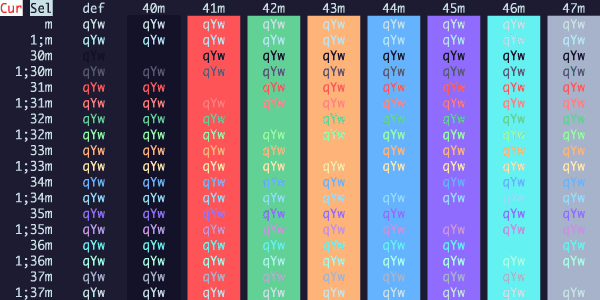
Chester
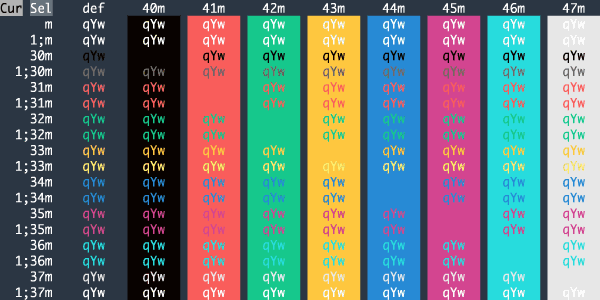
Ciapre
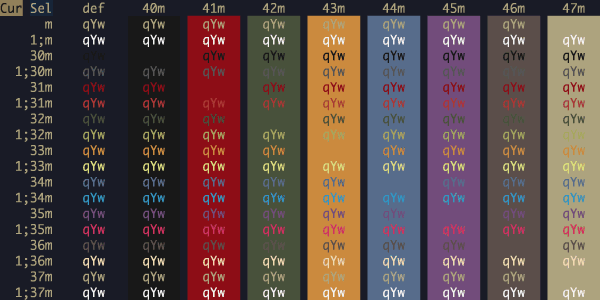
Citrus Ink
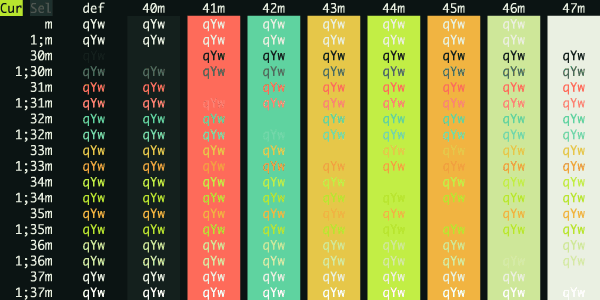
Citruszest
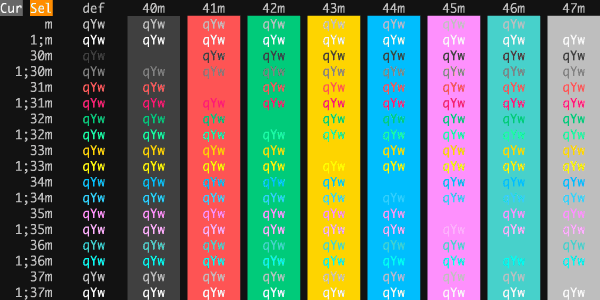
Claude Dark
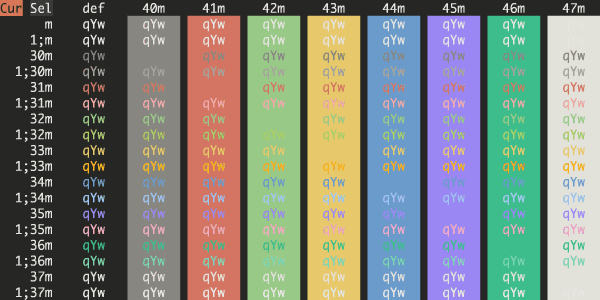
Clear Dark
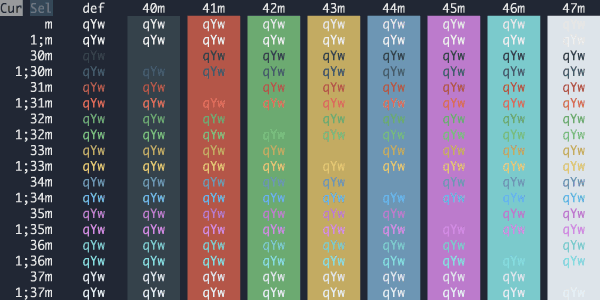
Cobalt Neon
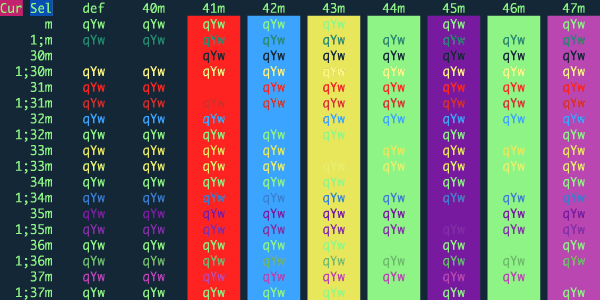
Cobalt Next Dark
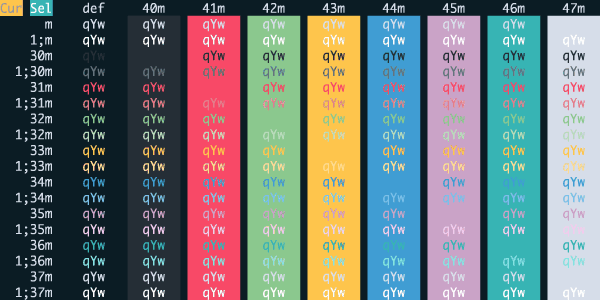
Cobalt Next Minimal
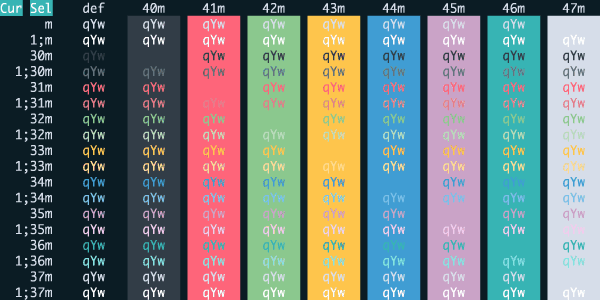
Cobalt Next
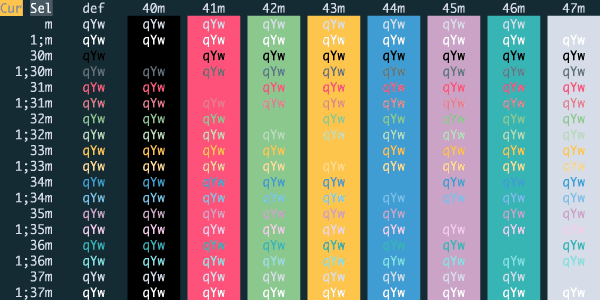
Cobalt2
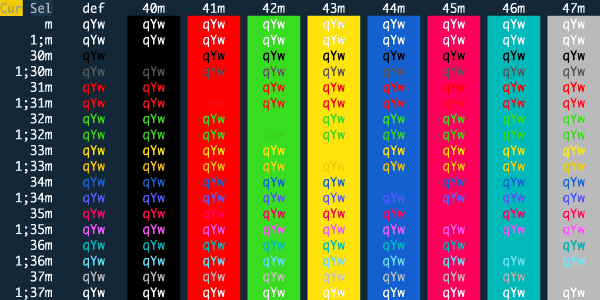
Cool Night
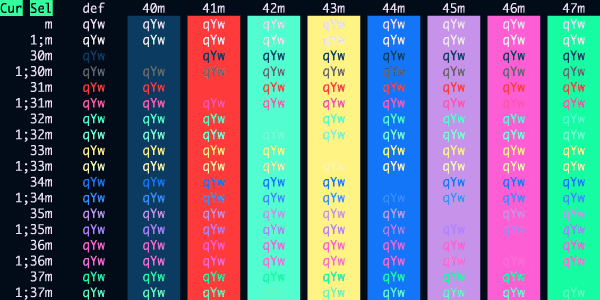
Crayon Pony Fish
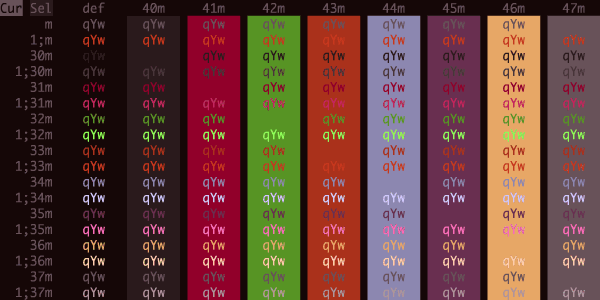
CRT Amber
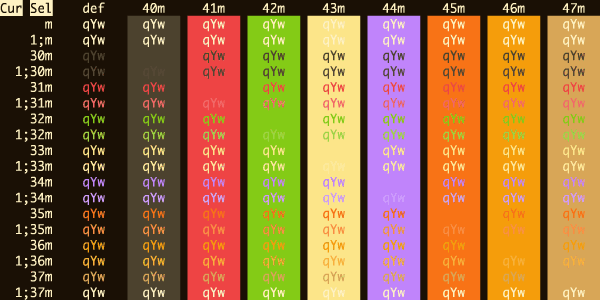
Cursor Dark
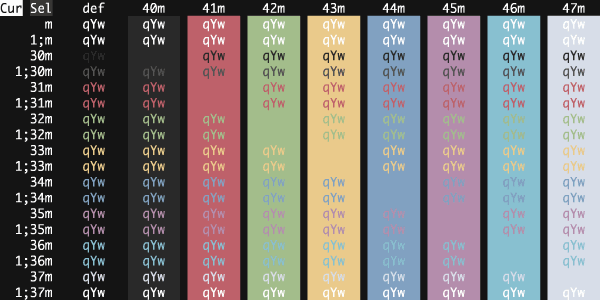
Cutie Pro
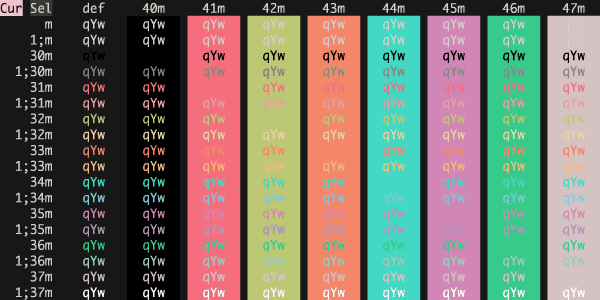
Cyberdyne
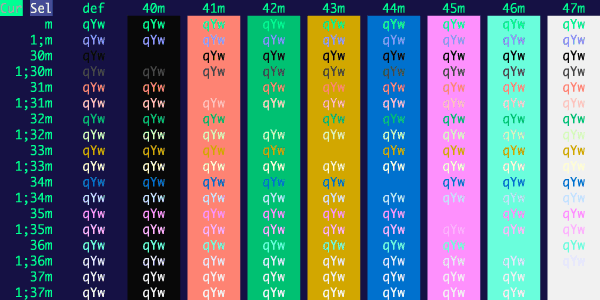
Cyberpunk Scarlet Protocol
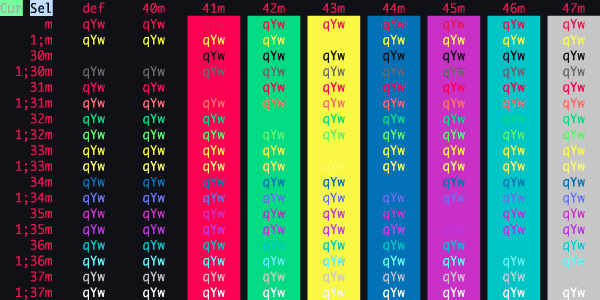
cyberpunk-icy
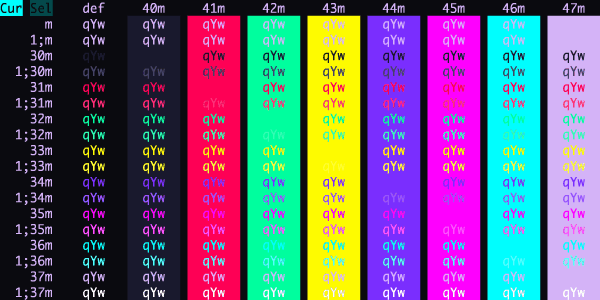
Cyberpunk
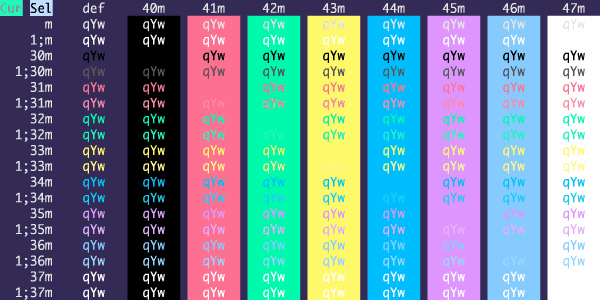
Dalton Dark
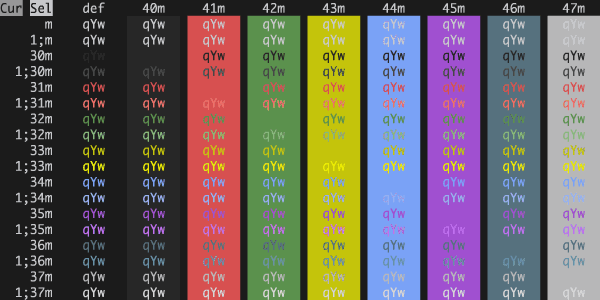
Dark Modern
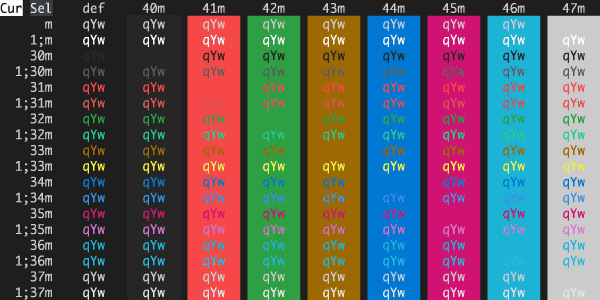
Dark Pastel
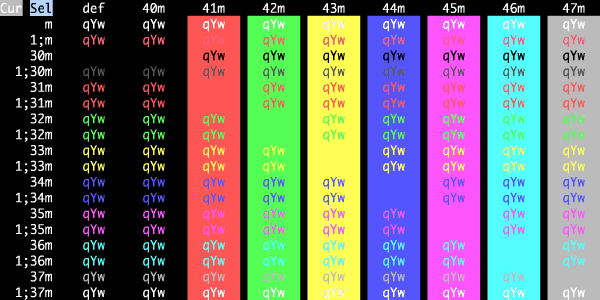
Dark+
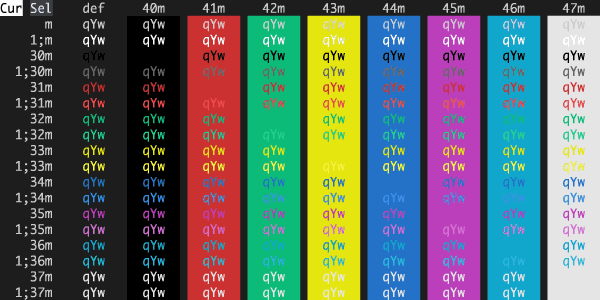
Darkermatrix
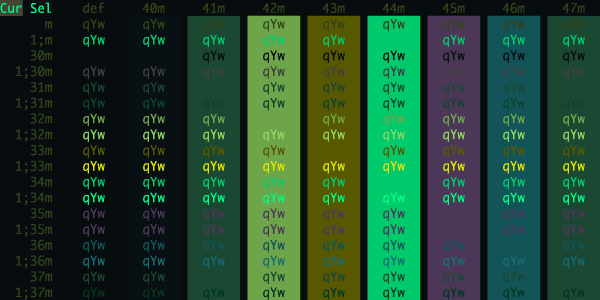
Darkmatrix
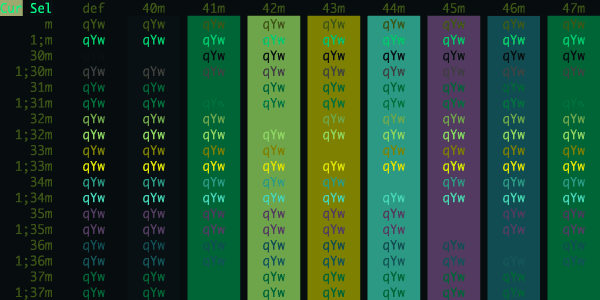
Darkside
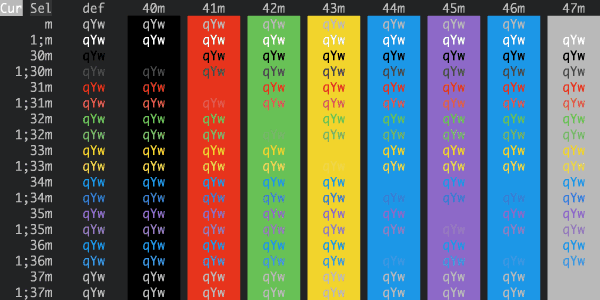
datum (dark)
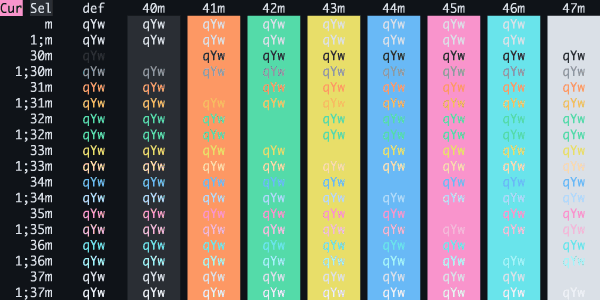
Deep
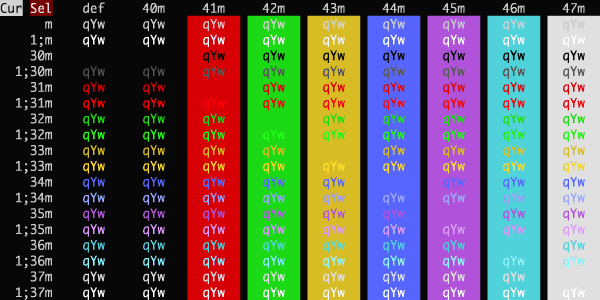
Desert
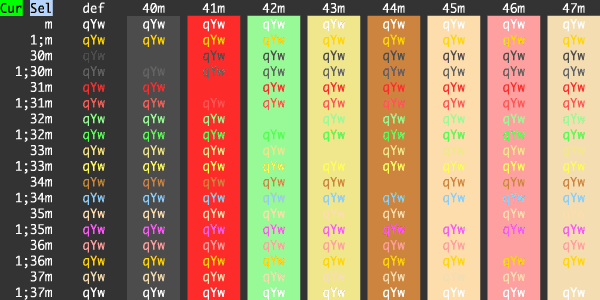
Detuned
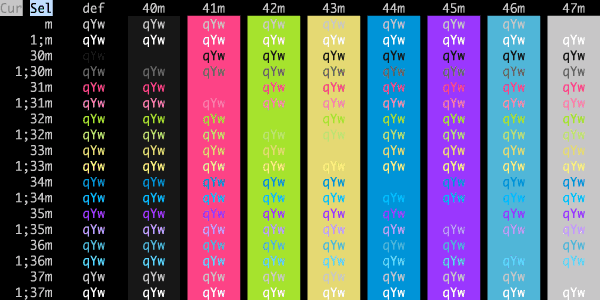
Dimidium
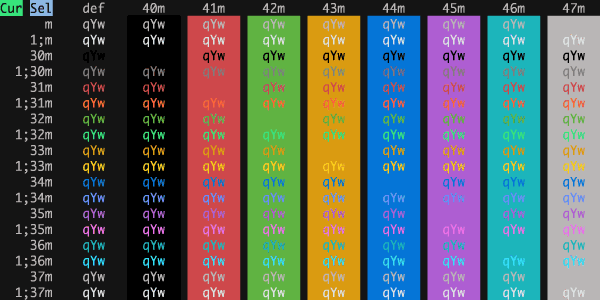
Dimmed Monokai
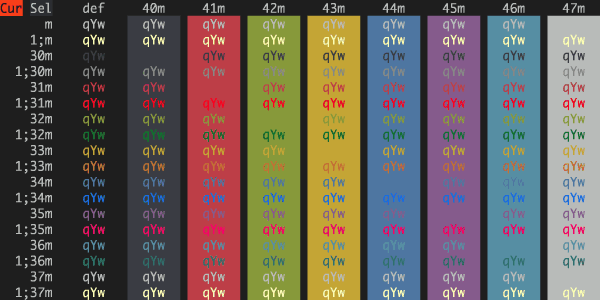
Django Reborn Again
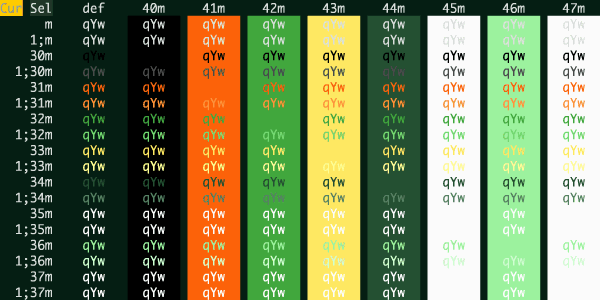
Django Smooth
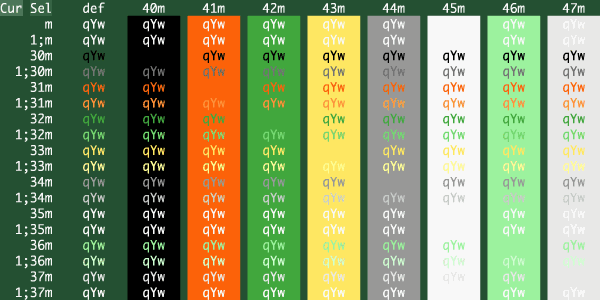
Django
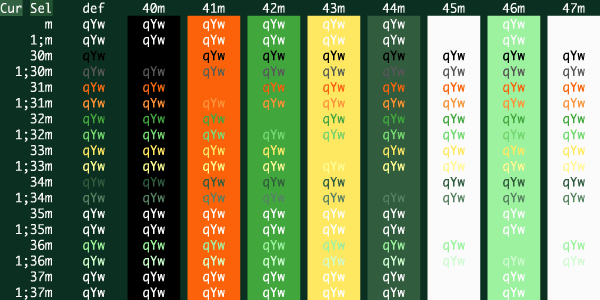
Dogxi Misty
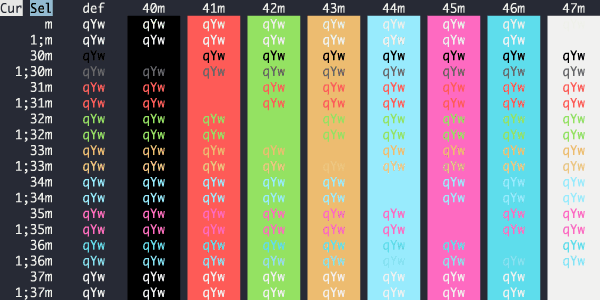
Doom One
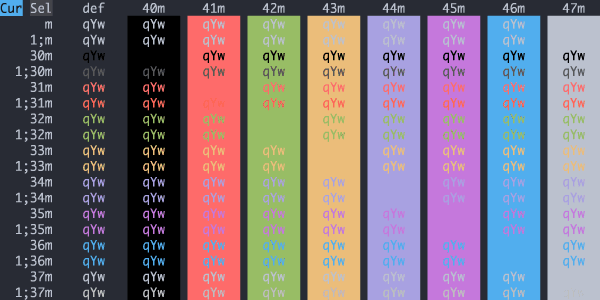
Doom Peacock
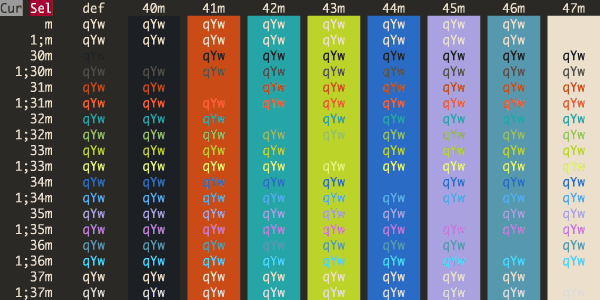
Dot Gov
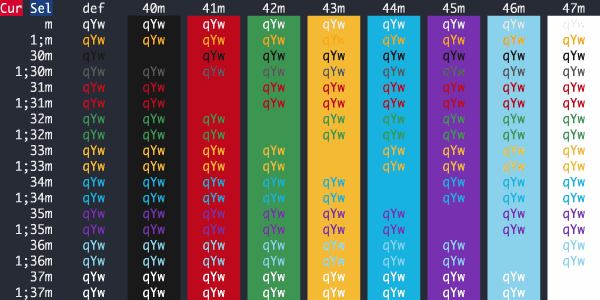
Dracula+
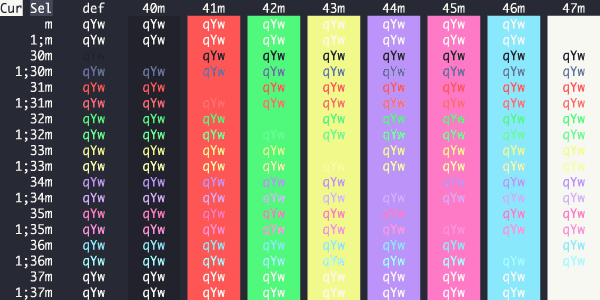
Dracula
Driftwood
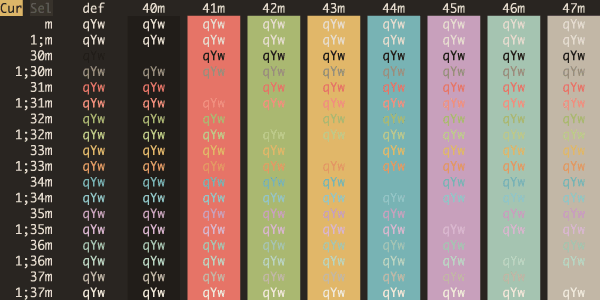
Duckbones
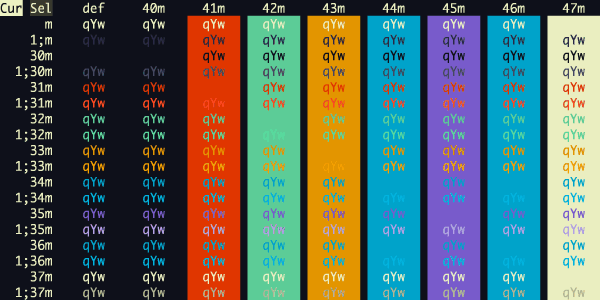
Duotone Dark
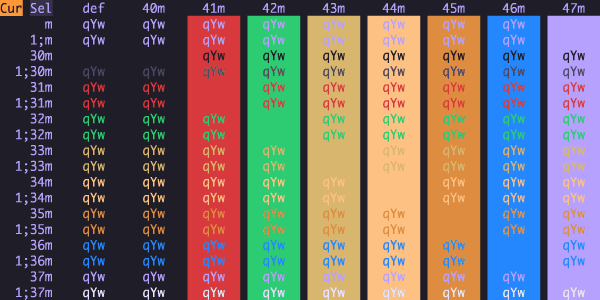
Duskfox
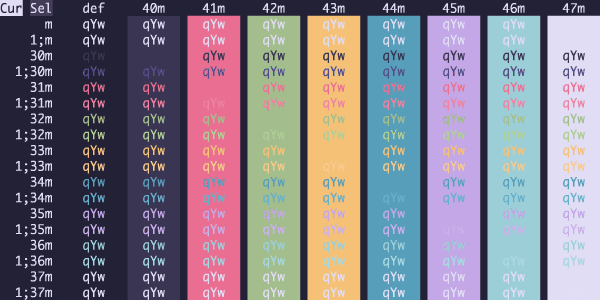
Earthsong
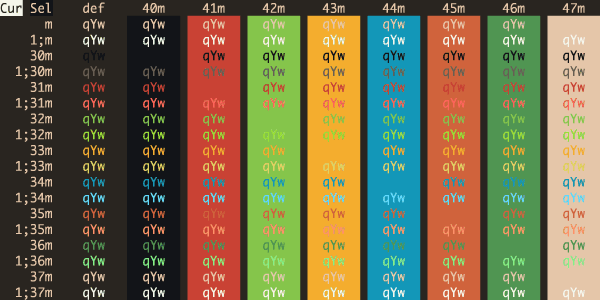
Eclipse
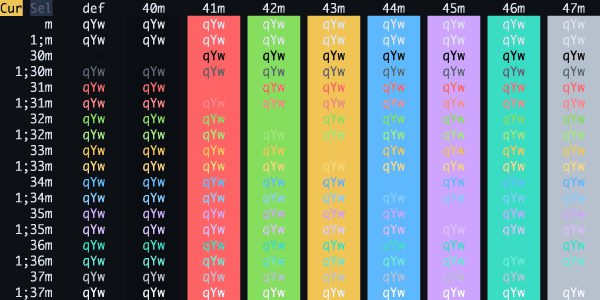
Electron Highlighter
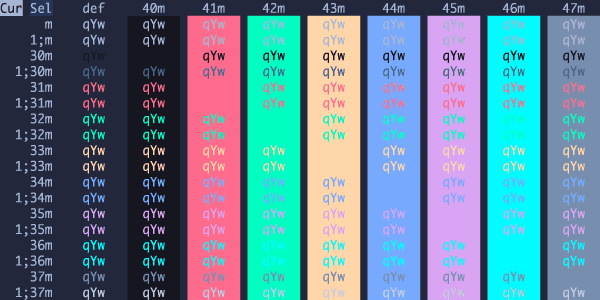
Elegant
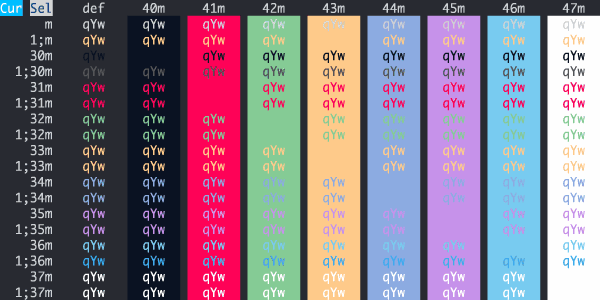
Elemental
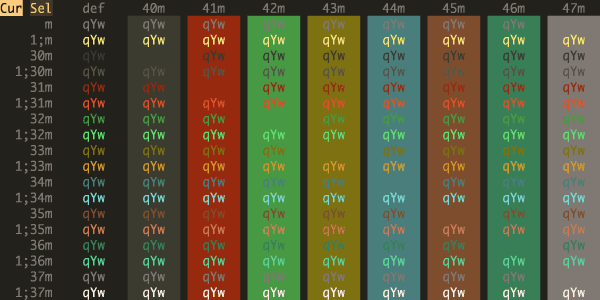
Elementary
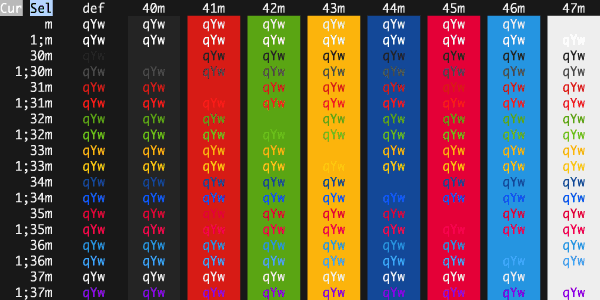
Embark
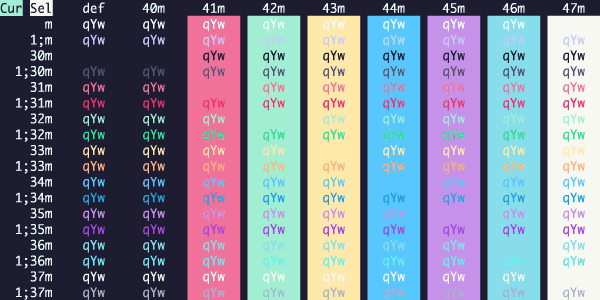
Embers Dark
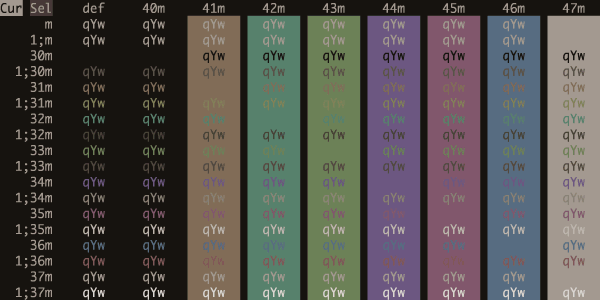
Emerald Synth
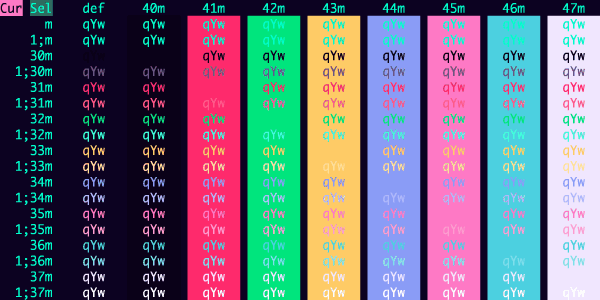
ENCOM
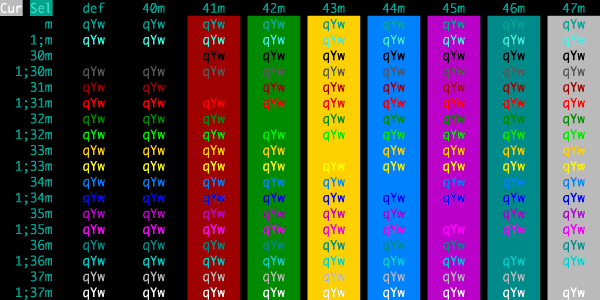
Espresso Libre
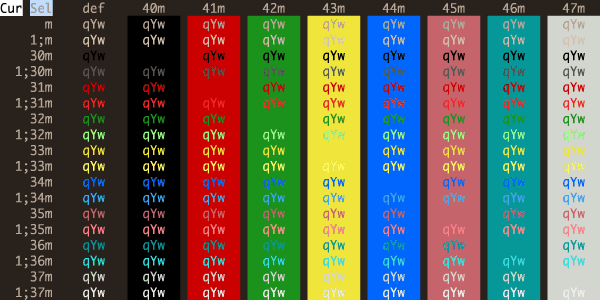
Espresso
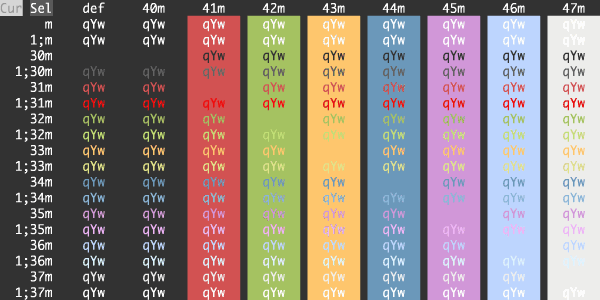
Everblush
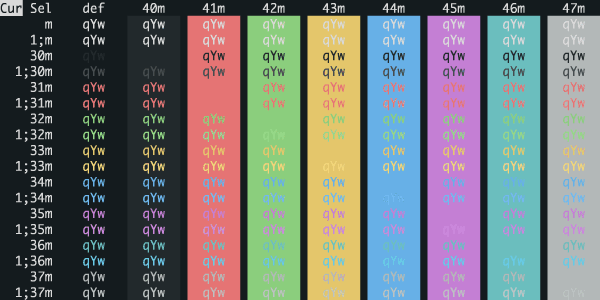
Everforest Dark Hard
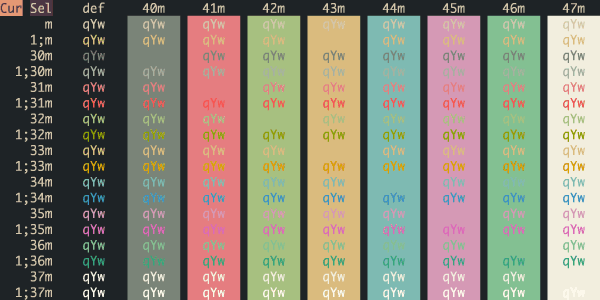
Everforest Dark Med
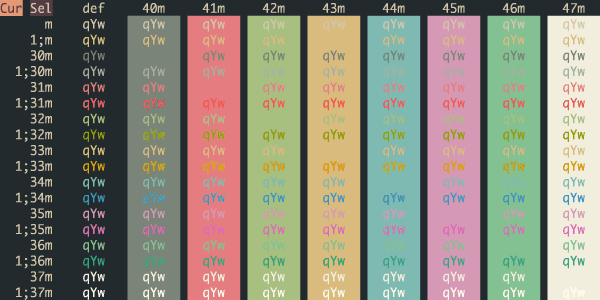
Everforest Dark Soft
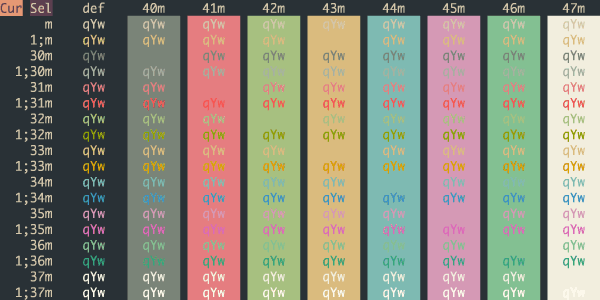
Fahrenheit
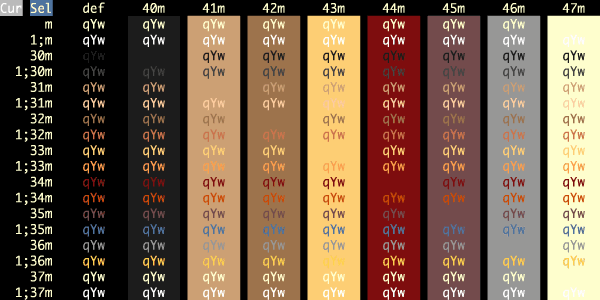
Fairyfloss
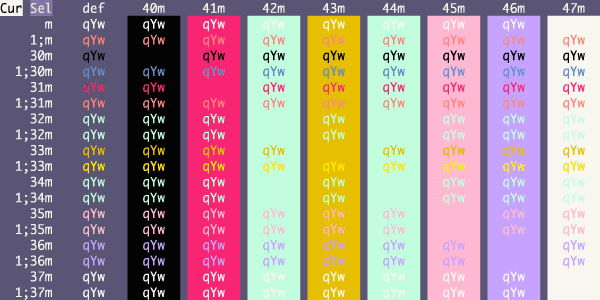
Farmhouse Dark

Fideloper
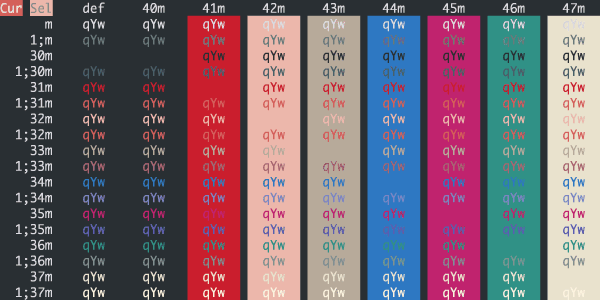
Firefly Traditional
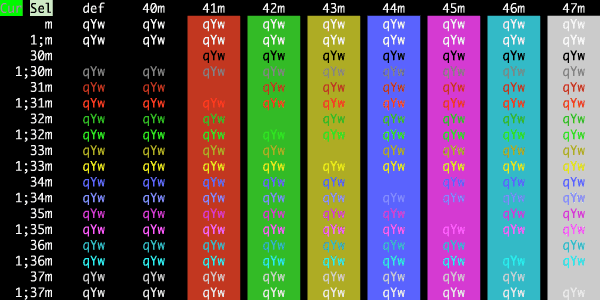
Firefox Dev
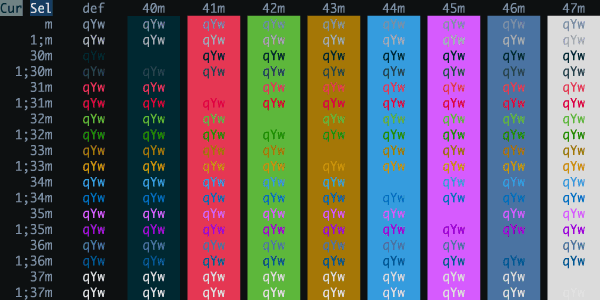
Firewatch
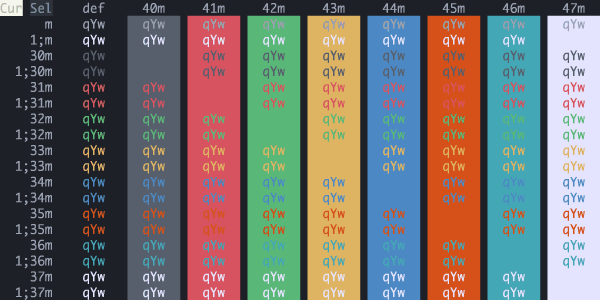
Fish Tank
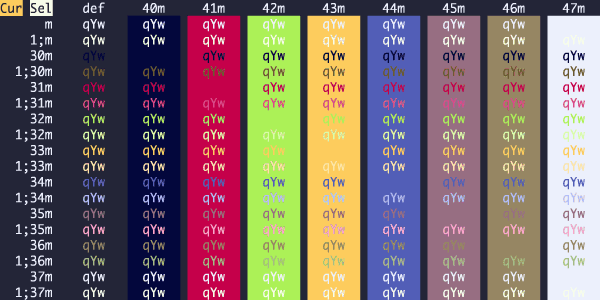
Flat
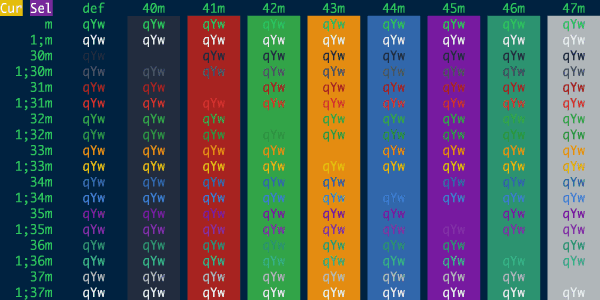
Flatland
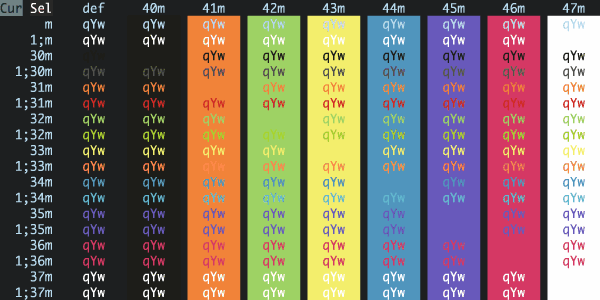
Flexoki Dark
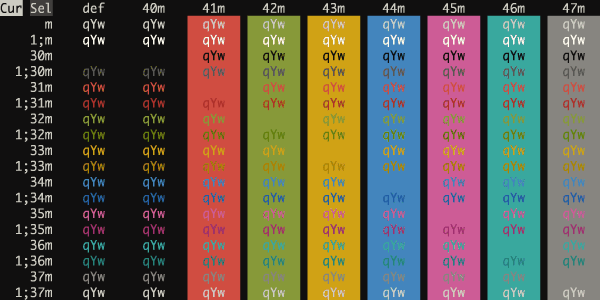
Floraverse
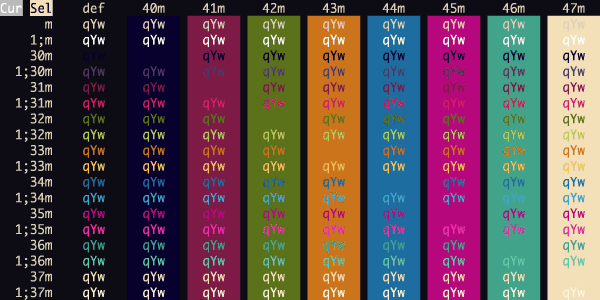
Forest Blue
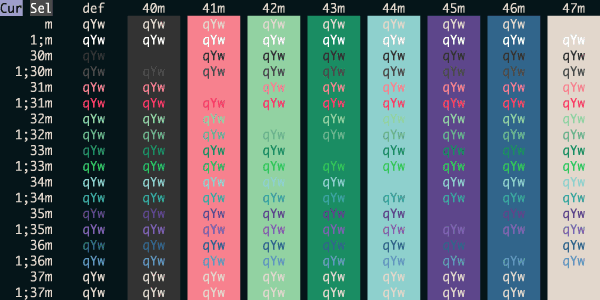
Forge Ember
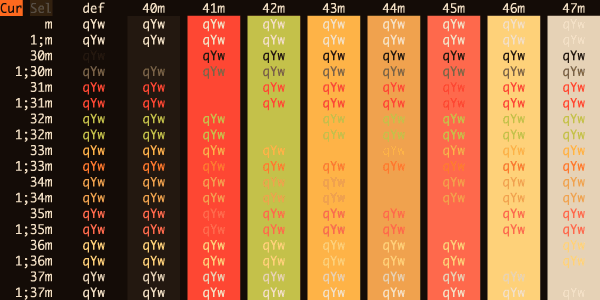
Framer
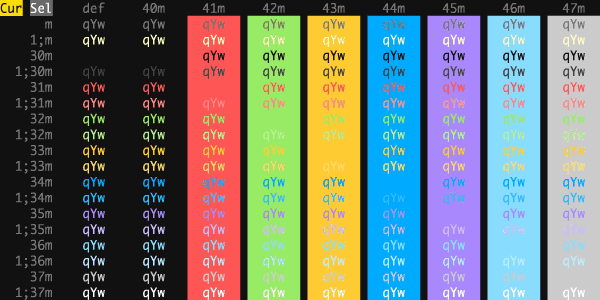
Front End Delight
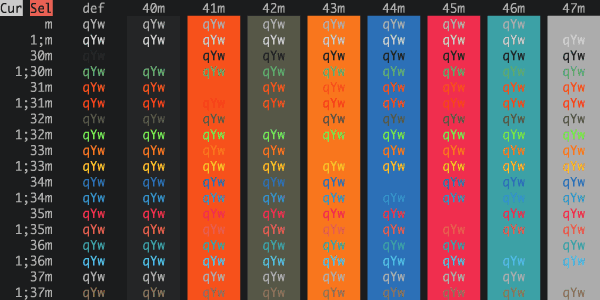
Fun Forrest
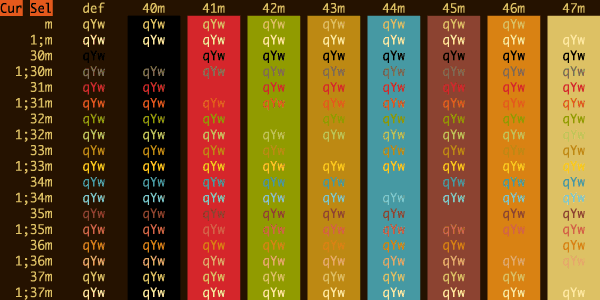
Galaxy
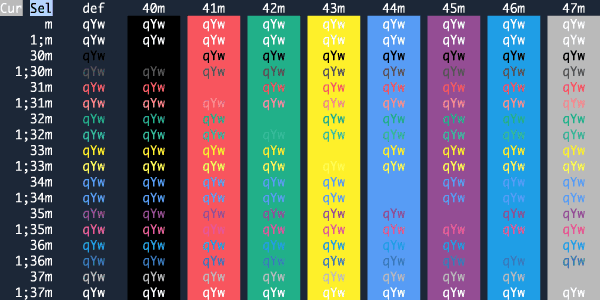
Galizur
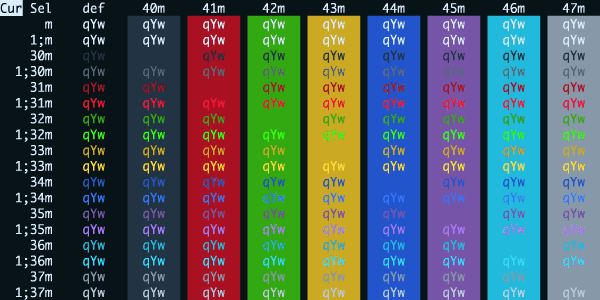
Ghostty Default Style Dark
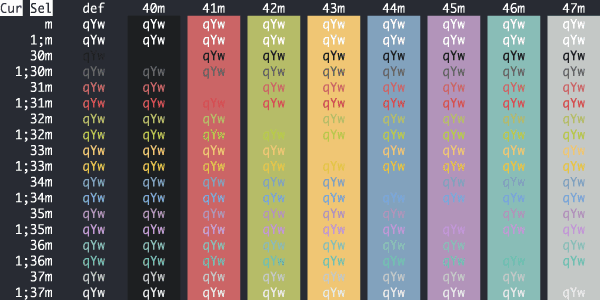
GitHub Dark Colorblind
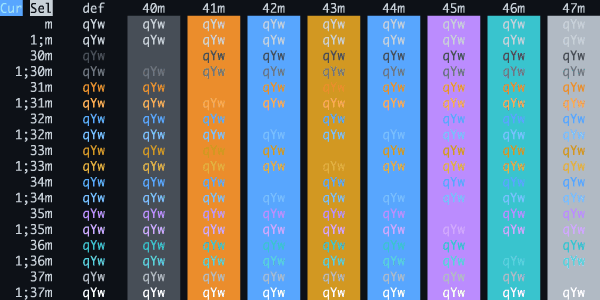
GitHub Dark Default
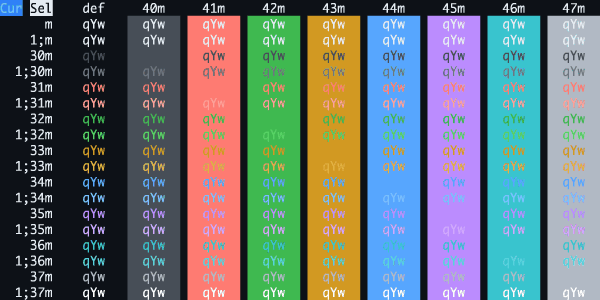
GitHub Dark Dimmed
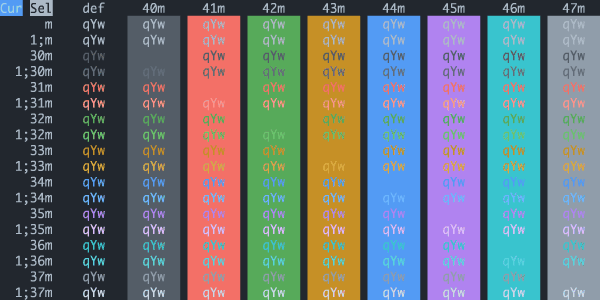
GitHub Dark High Contrast
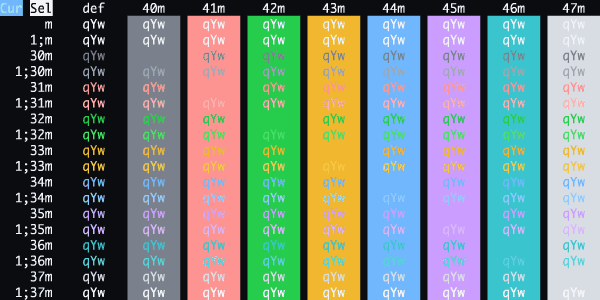
GitHub Dark
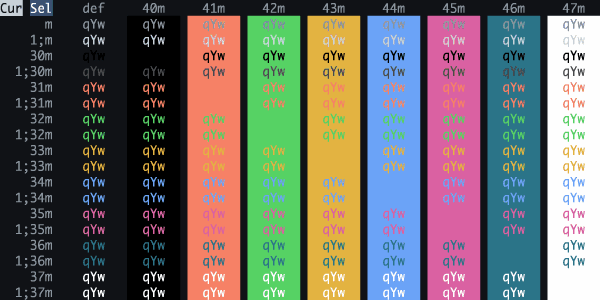
GitLab Dark Grey
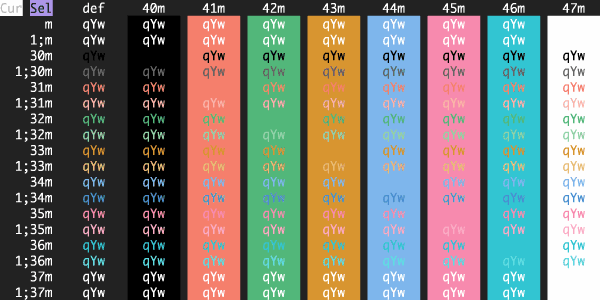
GitLab Dark
more like this
gns3theme
Custom color themes for GNS3 GUI. Built-in schemes, custom JSON themes, device symbols. Supports Linux and macOS.
Aritim-Light
A Light theme for both KDE and GTK based distros, pleasant to the eyes and perfect for your daily workload.