perplexity-cli
🧠 A simple command-line client for the Perplexity API. Ask questions and receive answers directly from the terminal! 🚀🚀🚀
Python★ 176
Local-first media manager that auto-catalogs files as you open them. AI-powered tagging for images, games & apps. Built…
 miragecoa
git clone https://github.com/miragecoa/AI-Cubby.gitmiragecoa/AI-Cubby中文 | English

Everything you've ever opened — always findable.
🌐 aicubby.app · Download · Discord
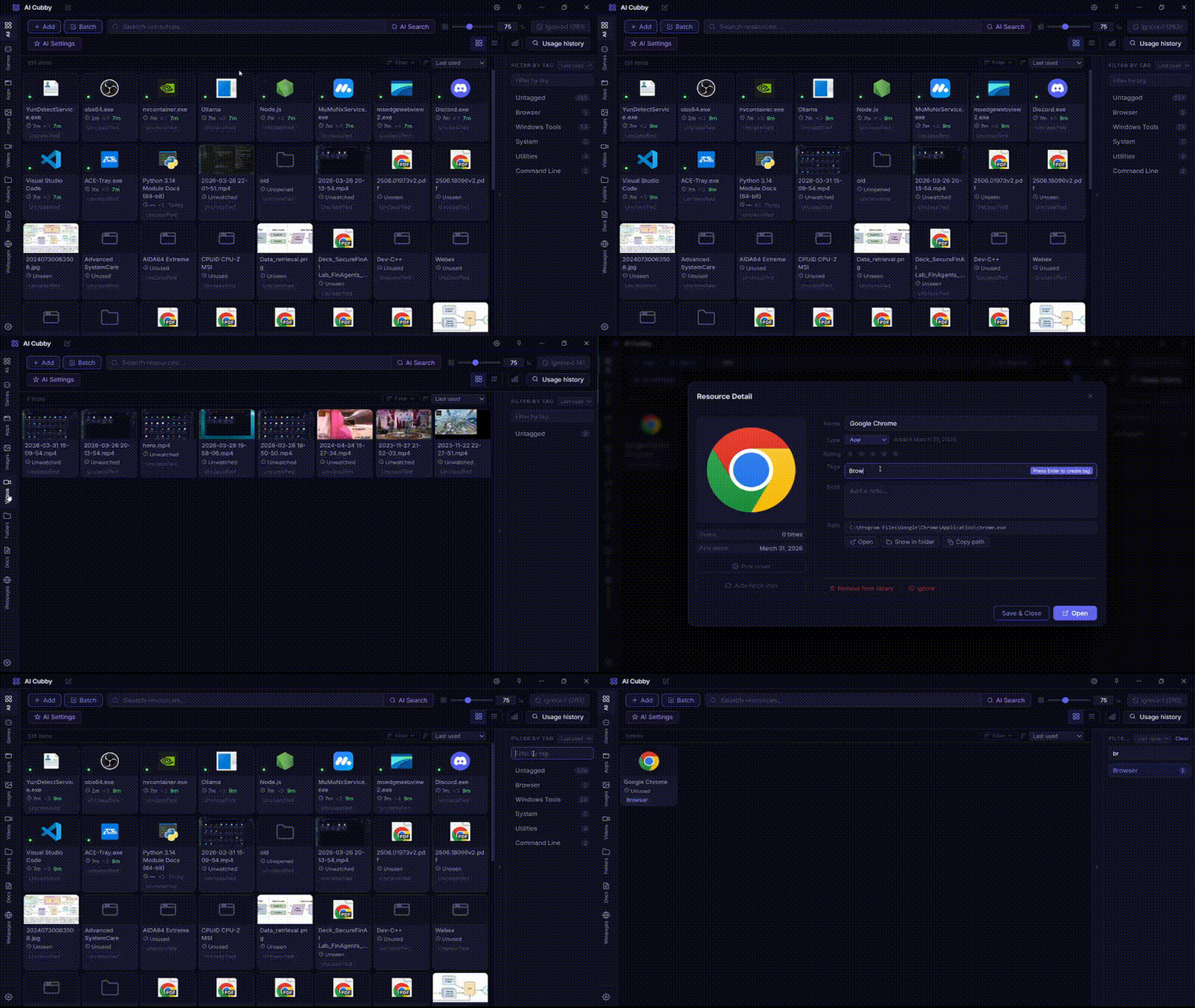
Your desktop is buried under screenshots, installers, and random files you saved "just for now." Finding anything takes forever, and the mess itself is draining. You tell yourself you'll organize it — spend an afternoon sorting into folders — and three days later it's chaos again. So you give up, and next time you still have to dig.
With AI Cubby:
No categories. No folder hierarchies. Desktop stays clean, nothing is lost.
You found a great tool that fixed your corrupted MP4. Used it once, problem solved. Six months later the same issue comes up — what was that tool called? Where did you install it? No idea.
That's me with WizTree — the perfect disk analyzer I use when my C: drive fills up. Can never remember the name. Every single time I have to search for it all over again.
AI Cubby silently logs every program and file you open during normal computer use. Next time you need it, one search is all it takes.
At first I thought manual tagging was a non-starter — nobody bothers. But after talking to real users, the picture was more nuanced: people won't tag random files, but they absolutely will tag the handful of tools and files they care about most.
So before AI fully takes over, AI Cubby's core identity is a usage history recorder — the kind of tool that gets more useful the longer you use it.
You finally track down that one specific cleanup utility, and this time you slap a tag on it. The app also silently records that you opened it. Next time you need it — one second. Every find is a deposit. Over time, your "digital memory" comes alive.
Runs silently in the background and logs everything you use:
No manual imports needed. Just use your computer normally.
You can also drag files or folders directly into the window for instant import.
Not just what you used — but how: open count, total runtime, live timer, last opened time.
That game from three months ago, that batch of photos from last week — open AI Cubby and see it all at a glance.
Natural language search — describe what you remember, not the filename:
AI auto-categorization — use it, let AI organize it:
| AI Cubby | Everything | Playnite | |
|---|---|---|---|
| Auto-records usage history | Yes | No | No |
| Zero configuration | Works out of the box | Filename search only | Requires plugin setup |
| Runtime tracking | Built-in | None | Plugin required |
| All resource types | Games / apps / images / video / docs | Files only | Games only |
| Data privacy | Fully local | Fully local | Fully local |
.nfo files to import existing media libraries automatically| Drag & Drop Import | Usage Tracking |
|---|---|
| Search & Filter | Themes & Customization |
|---|---|
Visit aicubby.app for the latest release, changelog, and screenshots.
Or go directly to the Releases page:
AI-Cubby-x.x.x-portable-win-x64.zip — unzip and runRequires Windows 10 or later
git clone https://github.com/miragecoa/AI-Resource-Manager.git
cd AI-Resource-Manager/app

# Install dependencies
npm install --ignore-scripts

# Compile native module (better-sqlite3)
npm run rebuild

# Development mode
npm run dev

# Production build + package
npm run package
Electron 29 + Vue 3 + TypeScript + SQLite (better-sqlite3) + electron-vite
No. All data is stored 100% locally on your machine — nothing is uploaded to any server. AI Cubby only records programs and files you actively open; it does not capture screenshots or read file contents. You can delete any record at any time from the ignored list.
No. AI Cubby uses the Windows native filesystem watch API (fs.watch) to detect recently opened files — a standard system API. Process detection uses WMI event subscriptions, not process list polling.
All data is stored in a local SQLite database. The exact path is shown on the Settings page. Cover image thumbnails are cached in a covers/ folder in the same directory.
Windows is the current focus. macOS and Linux support is on the roadmap.
System service processes (svchost, services, etc.) and helper processes (updater, crashpad, etc.) are automatically filtered out. Only programs you actively use are recorded.
Almost none. File monitoring uses OS-native event push (no polling). Process detection uses WMI event subscriptions (no polling). Typical memory usage is 80–120 MB; CPU usage is near 0%.
Contributions are welcome — feel free to fork and open a pull request.
For feedback, bug reports, and suggestions:
Discord: discord.gg/BKr8VMQB4R
GitHub Issues: Report a bug / request a feature
QQ Group (Chinese community): 687623885

AGPL-3.0 — open source, modifications must be released under the same license. For commercial licensing, contact the author.
If you find this useful, a star goes a long way
more like this
🧠 A simple command-line client for the Perplexity API. Ask questions and receive answers directly from the terminal! 🚀🚀🚀
Comprehensive analytics dashboard for AI coding agents — Cursor, Windsurf, Claude Code, VS Code Copilot, Zed, Antigravi…
Free open-source Cloudflare R2 desktop client and S3 GUI for macOS, Windows, and Linux. Manage Cloudflare R2, AWS S3, M…
meine 🌒 - A CLI file manager and system utility built with Textual. It combines intuitive command parsing with rich t…
search projects, people, and tags