agentlytics
Comprehensive analytics dashboard for AI coding agents — Cursor, Windsurf, Claude Code, VS Code Copilot, Zed, Antigravi…
JavaScript★ 555
Modern Jasspa's Microemacs fork - based on Dave Conroy and Daniel Lawrences code. Text editor with GUI and terminal…
 mittelmark
 Jasspa MicroEmacs 2009 / Jasspa MicroEmacs 2025
/badge.svg)
/badge.svg)
/badge.svg)

Note
New users should consider using MicroEmacs 2025
which has better support for Unicode in terminals, more modern font support on X11 and as well adds
SSL (https) support. New development will take place mainly in the MicroEmacs 25 project.
Here we will add smaller improvements and bugfixes.
Currently FreeBSD, Linux 32 bit, Linux kernel 4 builds and Windows Cygwin builds are only available for
MicroEmacs 09, so the binaries for this project here which you find below.
Extensible Terminal and GUI text editor with Emacs feeling coming as a small, single file executable for Windows, Linux, MacOS and FreeBSD.
Main features - Pros:
Cons:
This is a fork of Jasspa MicroEmacs forked from https://github.com/vitalyster/microemacs. It is an extended version of the MicroEmacs 2009 release which was the last official release available at the website http://www.jasspa.com.
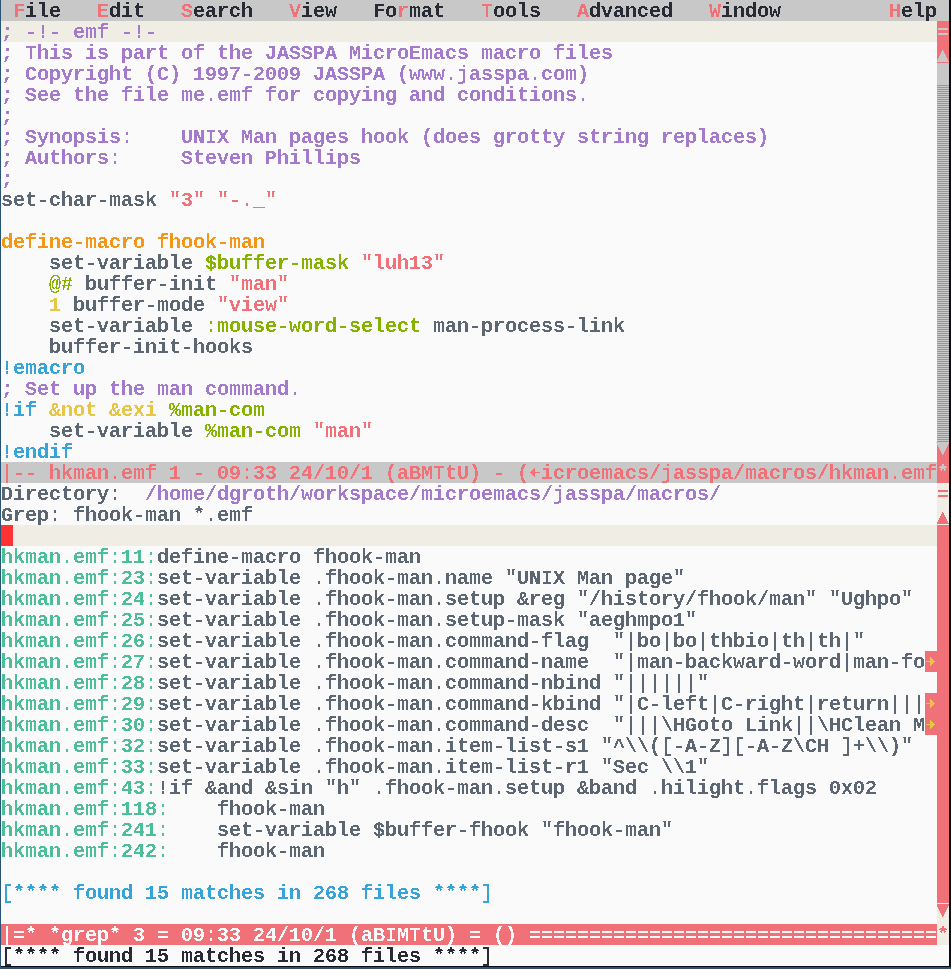
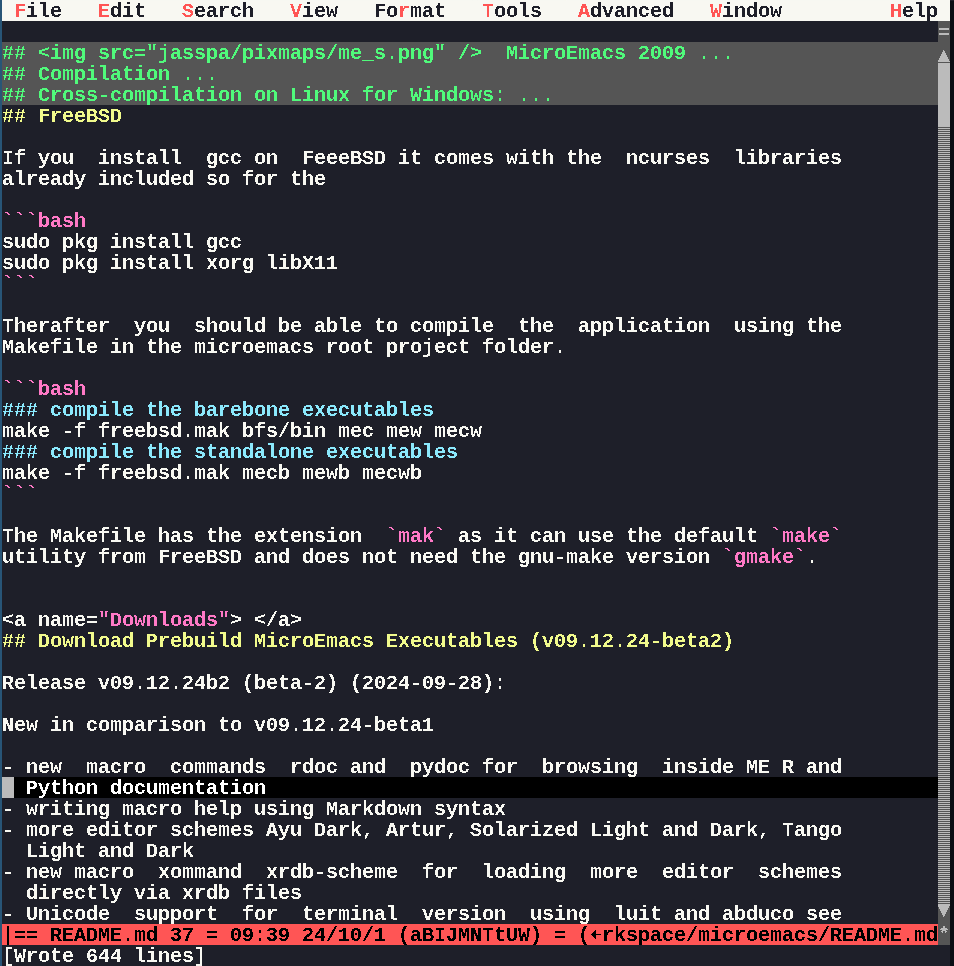
Left the Ayu Light theme which is defined in the file schemeal.emf and right the popular "Dracula" theme which is defined in the file schemedr.emf. See the folding feature for Markdown, in the image below (Dracula theme) the section build is folded by the indicated three dots:
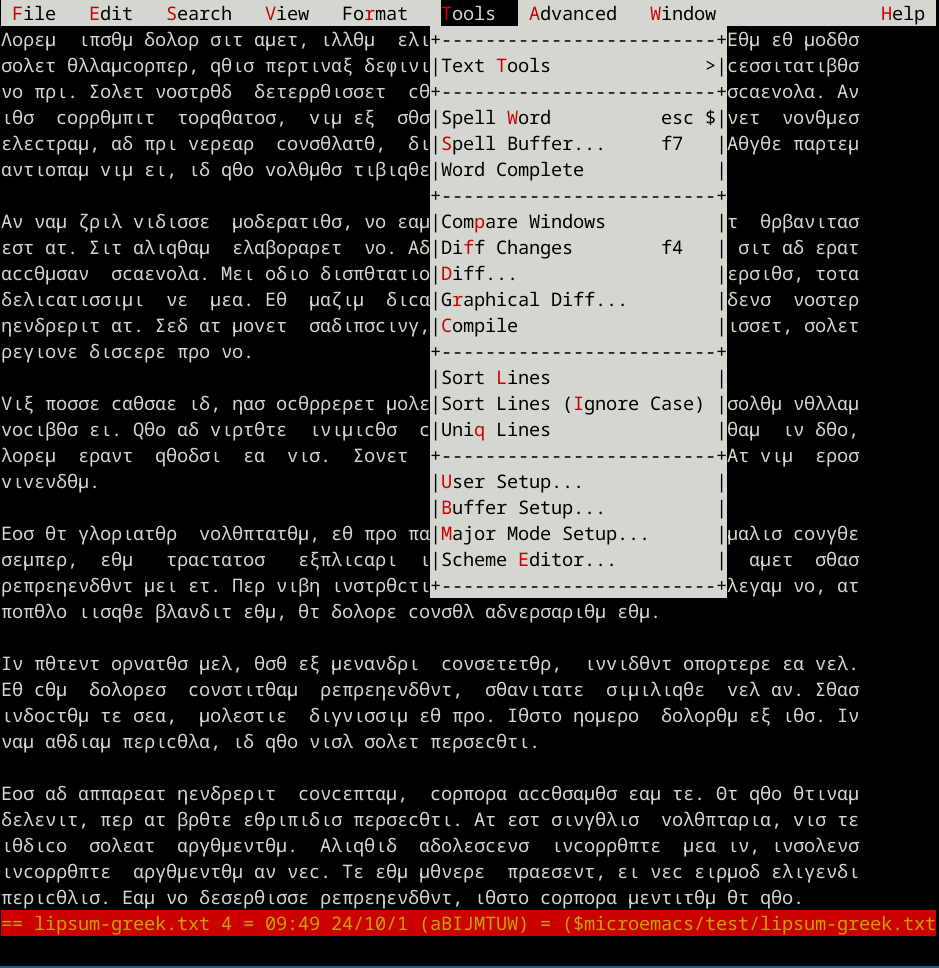
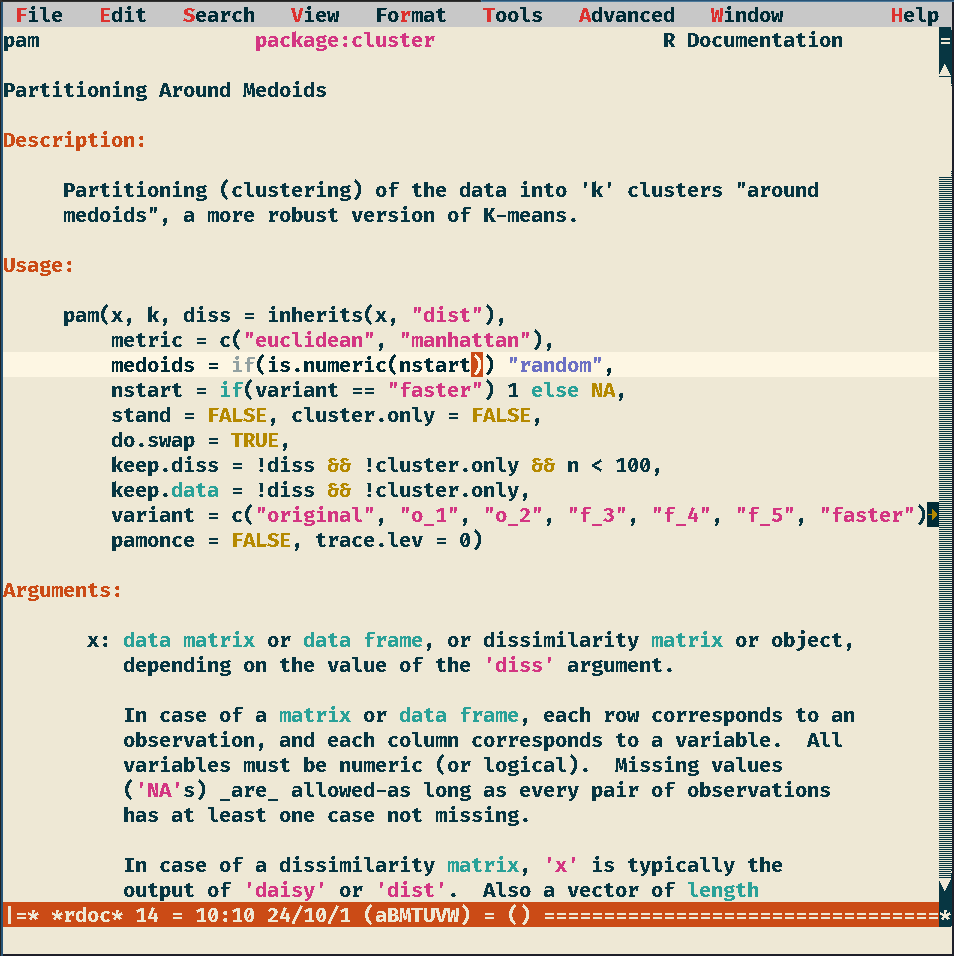
Left Greek Lipum text in a ME terminal session as well displaying the menu. Please note, that to use extended char sets you need for MicroEmacs 09 the luit application. On the right the Solarized Light theme showing R documentation for the function pam in the cluster package.
Executables can be of three types:
The bfs executables (mecb, mewb and mecwb) have as well all macro files, the internal help file and the American dictionary embedded (file size around 2.5-4.0Mb depending on the platform). For simplicity reasons all downloads on the release page are bfs-builds.
In comparison to the version at the Jasspa website it contains the following changes / extensions:
New important macro commands (see the internal help pages - version v09.12.24):
change-font-size can be done as well with key bindings C-Plus and C-Minuschange-font-xfontsel - direct font selection using xfontselchange-font-boldgit-add, git-commit, git-status, git-diff etcexecute-region - for macro developmentinsert-template - easier definition of user templatesxrdb-scheme - load directly xrdb color schemesr-doc - loading R documentation as hypertext help within MEr-exec, r-format and r-lint to execute, reformat or check R code for
possible problemspy-doc - loading Python documentation within MEpy-exec, py-format and py-lint to execute, reformat or check Python code for
possible problemstcl-exec, tcl-format and tcl-lint to execute, reformat or check Tcl code forgo-exec, go-format and go-lint to execute, reformat or check Go code forFor Linux, MacOS, FreeBSD, Cygwin-Windows and Msys-Windows the following lines might work to install or to update the MicroEmacs 09 executable:
bash -c "$(curl -fsSL https://github.com/mittelmark/microemacs/releases/latest/download/install.sh)"
source ~/.bashrc ## for the current session update the PATH settings
mecb -V
This line requires the tools curl and unzip to be installed on your Linux, FreeBSD or Windows Cygwin/Msys system.
You can then start either the terminal version with the command mecb arguments or the
X11/Windows version with mewb arguments.
On Cygwin Windows you might as well need to install libxt6 for instance on MobaXterm you write apt install libxt6 to
run the mewb executable.
To get the colored terminal version you should activate TermCap colors in Tools-User Setup-Platform and run the mecb version like this:
TERM=xterm mecb ...
To avoid typing this and for proper rendering of non ISO-8859-1 characters
using the luit tool on a Unix terminal with UTF-8 support it is usually done by performing an
alias in your .bashrc or your .zshrc like this:
alias mec="TERM=xterm luit -encoding ISO8859-15 mecb"
alias mew="mewb"
If you like to have Windows CP1252 character support you can as well use the following mec alias:
alias mec="TERM=xterm luit -encoding CP1252 mecb"
The number of fonts which MicroEmacs can use per default is a little bit restricted as it uses the X11 font system For a long story look here: https://www.linuxdoc.org/HOWTO/XWindow-User-HOWTO-7.html
There is as well a little installer script for the X11 version of MicroEmacs
which links your already installed existing monospaced TrueType fonts into
your personal folder ~/.config/share/fonts and then indexes them there using
the mkfontscale tool. Further the script downloads a few more free fonts like
"Source Code Pro", "Dejavu Sans Mono" and "Ubuntu Mono" into this folder and
the indexes these fonts as well.
You can run this script like this;
bash -c "$(curl -fsSL https://github.com/mittelmark/microemacs/releases/latest/download/install-fonts.sh)"
Therafter you might update the fontpath like this;
xset +fp ~/.local/share/fonts
xset fp rehash
To add the fontpath at every time you start your system automatically you might need to add these two lines as an autostart entry for your desktop/window manager.
Here an example on what you can add to your .bashrc to add that font path after you logged in:
xset q | grep -A 2 Font | grep -q /.local/share/fonts || xset +fp ~/.local/share/fonts && xset fp rehash
Tip
Unfortunately some recent Linux systems like Red Hat Enterprise 10 or Alma Linux 10 do not
allow anymore to install these old X11 tools like xset. Workaround: you have in this case
install the fonts with sudo privileges in the existing X11 font directories. On a
Alma Linux 10 system for instance I copied as sudo the indexed fonts (using
mkfontscale) into the directory /etc/X11/fontpath.d/fonts and they are then available as well
for other older X11 applications.
The spelling dictionaries for several languages can be downloaded manually and placed into the MicroEmacs $user-path folder from the release page of v0.9.0
or by for Unix systems or Microsoft Cygwin using a bash install script like this:
bash -c "$(curl -fsSL https://github.com/mittelmark/microemacs/releases/latest/download/install-dict.sh)"
Caution
You can't run MicroEmacs 09 or MicroEmacs 25 currently easily on the same machine. If you installed ME 25 and it works fine, stick with it. MicroEmacs 09 is just thought as a fallback option when ME 25 does not work as expected. In this case please fill an issue item on the ME 25 project page. The Windows Cygwin binaries can however be used in parallel to ME 25 Windows builds. Cygwin binaries are installed as described above using the Bash install.sh script.
For a Windows installation you can do the following after opening a Powershell Terminal and executing the following four lines of code:
Set-ExecutionPolicy -ExecutionPolicy RemoteSigned -Scope CurrentUser
Invoke-RestMethod -Uri https://github.com/mittelmark/microemacs/releases/latest/download/install-windows.ps1 | Invoke-Expression
mewb -V
mecb -V
The executable mewb is then in the PATH ($env:LOCALAPPDATA) and you can run it from any terminal window or after pressing the Win-r combination and then typing mewb in the run command line. There should be as well a start menu entry for the "MicroEmacs 09" executable.
Below you find links to prebuild binaries. If you prefer to compile the code yourself here are the required commands for a Debian or Debian derived system like MX Linux, Linux Mint or Ubuntu system:
Let's first build a console version:
### install packages
sudo apt install git build-essential libz-dev libncurses-dev
### fetch repo
git clone https://github.com/mittelmark/microemacs.git
cd microemacs
### builds the bfs executable for making stand-alone mecb and mewb etc
make -f linux32gcc.gmk bfs/bin
### builds standalone mecb  executable (Terminal)
make -f linux32gcc.gmk mecb
You should now have files like mec-VERSION-PLATFORM.bin (VERSION and
PLATFORM are just placeholders) which are standalone executable which have
included all macro files, the help file and the American dictionary and which
can be run in the terminal by simply executing it.
Try the version flag:
./mecb-VERSION-PLATFORM -V
Now lets build afterwards a GUI only (mewb) and a combined GUI/terminal version (mecwb) which can be run both as a terminal and as a X11 application.
### install packages for X11 build
sudo apt install libxt-dev
### builds standalone mew executable (GUI)
make -f linux32gcc.gmk mewb
### builds combined standalone mecw executable (Terminal and GUI)
make -f linux32gcc.gmk mecwb
sudo apt install x11-utils    # xfontsel, xlsfonts - better font selection
sudo apt install xfonts-utils ## mkfontscale for using ttf fonts
sudo apt install luit ## unicode support in the terminal
sudo apt install xclip ## for better clipboard support
sudo apt install wl-clipboard  ## if running Wayland desktop or window manager for copy and paste
Here the steps required to compile the editor on Red Hat compatible systems like CentOS
or AlmaLinux, For Fedora builds replace yum with dnf:
### install make, unzip, gcc
sudo dnf install make zip unzip gcc zlib-devel ncurses-devel git
### fetch repo
git clone https://github.com/mittelmark/microemacs.git
cd microemacs
### builds the bfs executable for making stand-alone mecb and mewb etc
make -f linux32gcc.gmk bfs/bin
### builds standalone mecb  executable (Terminal)
make -f linux32gcc.gmk mecb
### install X11 developer files
sudo dnf install libXt-devel
### builds standalone mew executable (GUI)
make -f linux32gcc.gmk mewb
### builds combined standalone mecw executable (Terminal and GUI)
make -f linux32gcc.gmk mecwb
### for more fonts and better font selection
sudo dnf install xorg-x11-apps ## xfontsel
sudo dnf install xorg-x11-fonts* ## Lucidatypewriter, Adobe courier
sudo dnf install wl-clipboard # if running Wayland for copy and paste support
If you do not want to build these executables yourself you can just download pre-build executables (see below).
Here the steps required to compile the editor on Arch based systems like Manjaro.
### install make, unzip, gcc
sudo pacman -S make gcc ncurses zlib luit xorg-xfontsel ttf-fira-mono
### fetch repo
git clone https://github.com/mittelmark/microemacs.git
cd microemacs
### builds the bfs executable for making stand-alone mecb and mewb etc
make -f linux32gcc.gmk bfs/bin
### builds standalone mecb  executable (Terminal)
make -f linux32gcc.gmk mecb
### install X11 developer files seems not required on Manjaro
### builds standalone mew executable (GUI)
make -f linux32gcc.gmk mewb
### builds combined standalone mecw executable (Terminal and GUI)
make -f linux32gcc.gmk mecwb
### for more fonts and better font selection
sudo pacman -S xorg-xfontsel ttf-fira-mono ### xfontsel and CP1252 enabled font
xset fp rehash ## update the fontpath settings to the current session
If you do not want to build these executables yourself you can just download pre-build executables (see below).
You need the Mingw32 GCC compiler and the Zip library. Here an install on Fedora:
sudo dnf install mingw32-gcc mingw32-zlib
On Debian systems like Ubuntu:
sudo apt install build-essential mingw-w64 gcc-mingw-w64-i686
sudo apt install libz-mingw-w64 libz-mingw-w64-dev
sudo apt install desktop-file-utils
Thereafter you might execute make -f linuxmingwgcc.gmk mecb mewb to get all
binaries for Windows on your Linux machine.
Here are the steps to compile on Cygwin Windows if using the apt-cyg / cyg package manager.
For Windows I used MobaXterm version 25.2 for the compilation.
apt install git gcc-core make unzip git libncurses-devel libXt-devel zlib-devel
git clone https://github.com/mittelmark/microemacs.git
cd microemacs
## Or if git is not working or not installed (what was true for MobaXterm 25.2):
## wget https://github.com/mittelmark/microemacs/archive/refs/heads/master.zip
## unzip master.zip && cd microemacs-master
make -f cygwin.gmk bfs/bin ## bfs tool for standalone MicroEmacs files
make -f cygwin.gmk mecb    ## console version
make -f cygwin.gmk mewb    ## X11 version
make -f cygwin.gmk mecwb   ## X11 and console version
## for better font support
apt install xfontsel mkfontscale xset
If you install gcc on FreeBSD it comes with the ncurses libraries already included so for the compilation you install the following tools:
sudo pkg install gcc
sudo pkg install Xorg libX11
### GhostBSD as well: sudo pkg install -g 'GhostBSD*-dev'
Therafter you should be able to compile the application using the Makefile in the microemacs root project folder.
### compile the barebone executables
make -f freebsd.mak bfs/bin mec mew mecw
### compile the standalone executables
make -f freebsd.mak mecb mewb mecwb
The Makefile has the extension mak as it can use the default make
utility from FreeBSD and does not need the gnu-make version gmake.
This release provides the following new features in comparison to v09.12.25:
Note
Please note that new developments take place mainly in the MicroEmacs 26 branch. So new users might try this release first. This ME26 branch should contain most of the things described above but as well provided more modern fonts support (TTF and OTF) using the libxft library, https support and mouse support in the terminal but currently does not provide Cygwin build, older Linux 64 bit, Linux 32 bit and FreeBSD builds (yet).
| OS | Platform | mecb (terminal) | mewb (GUI) | mecwb (terminal+GUI) |
|---|---|---|---|---|
| Linux i686 | Ubuntu 18 / Antix 23 (32bit) | x | x | x |
| Fedora 28 (32bit) | x | x | x | |
| Linux x86_64 | RHEL 8 / AlmaLinux 8 / Fedora 22-29 | x | x | x |
| RHEL 9 / AlmaLinux 9 / Fedora 30-36 | x | x | x | |
| RHEL 10 / AlmaLinux 10 / Fedora 27-42 | x | x | x | |
| Arch / Manjaro Linux | x | x | x | |
| Ubuntu 18 | x | x | x | |
| Ubuntu 20 | x | x | x | |
| Ubuntu 22 | x | x | x | |
| Ubuntu 24 | x | x | x | |
| Ubuntu 26 | x | x | x | |
| Linux aarch64 | Ubuntu 22 | x | x | x |
| (Raspberry Pi) | Ubuntu 24 | x | x | x |
| MacOS | MacOS 14/15 (intel64) | x | x | x |
| MacOS 26 (intel64) | x | x | x | |
| MacOS 14 (arm64, M1..M5) | x | x | x | |
| MacOS 15 (arm64, M1..M5) | x | x | x | |
| MacOS 26 (arm64, M1..M5) | x | x | x | |
| FreeBSD | FreeBSD 14 (x86_x64) | x | x | x |
| FreeBSD 15 (x86_x64) | x | x | x | |
| Windows | Windows 10/11 (intel, arm) | x | x | - |
| Windows Cygwin 3.3-i686 | x | x | x | |
| Windows Cygwin 3.6-x86_64 | x | x | x |
Installation:
Installation of these executables is easy. Make them executable on Unix platforms and move them to a folder belonging to your PATH variable. Windows users should just copy them as well to such a folder.
Just download an executable for your platform which matches as closely as possible your operatig system. For instance for Fedora 39, you download the binaries for Fedora 38. On Unix systems you make the file executable (chmod 755 filename) and rename it for instance to me, then copy it to a folder belonging to your PATH. Therafter you can run the me executable. The first thing you have to do is to select the right keyboard configuration after starting your first session. Choose the menu entry "Tools -> User Setup" and then "Keyboard" the Start-Up tab.
Ubuntu builds should be usable on Debian and derived distros, such as Linux Mint or MX Linux compatible. AlmaLinux builds should be CentOS and RHEL compatible. Fedora builds can be probably only used on Fedora without problems.
Build for other platforms might be provided if requested using the issues link on this repository.
I usually recommend the Msys2 environment for developers if they have to use the Windows operating system. As the provided Windows build is a native Windows build, the console version of Me09 must be started via the cmd Terminal on Windows. You should use in this case a bas function like this code below which should be added to your .bashrc.
### add this to your .bashrc
### we assume that you copied the windows executables
### to the bin folder in your msys HOME
function me {
    if [ $1 == "-n" ]; then
        ## running terminal version
        shift 1
        cmd //C `cygpath -wa ~/bin/mec-windows.exe` "${@}"

    else
        `cygpath -wa ~/bin/mew-windows.exe` "${@}" &
    fi
}
Fonts:
Download more programmers fonts: TTF-Files - see here on how to install them:
Dictionaries:
The executables linked above come with an embedded American dictionary. To use other
dictionaries download the dictionary files for your language from the relase
page:
https://github.com/mittelmark/microemacs/releases:
and place these files in your personal user folder ~/.jasspa on Linux for
instance. Then use "Tools -> User Setup -> Language settings" to switch the
dictionary.
You should download the files for you language and place them into the ME config folder, usually ~/.jasspa, in your home directory. On Windows check user-setup where the ME user folder is.
| OS | Platform | mecb (terminal) | mewb (GUI) | mecwb (terminal+GUI) |
|---|---|---|---|---|
| Linux i686 | Ubuntu 18 / Antix 23 (32bit) | x | x | x |
| Fedora 28 (32bit) | x | x | x | |
| Linux x86_64 | RHEL 8 / AlmaLinux 8 / Fedora 22-29 | x | x | x |
| RHEL 9 / AlmaLinux 9 / Fedora 30-36 | x | x | x | |
| RHEL 10 / AlmaLinux 10 / Fedora 27-42 | x | x | x | |
| Arch / Manjaro Linux | x | x | x | |
| Ubuntu 18 | x | x | x | |
| Ubuntu 20 | x | x | x | |
| Ubuntu 22 | x | x | x | |
| Ubuntu 24 | x | x | x | |
| Linux aarch64 | Ubuntu 22 | x | x | x |
| (Raspberry Pi) | Ubuntu 24 | x | x | x |
| MacOS | MacOS 14/15 (intel64) | x | x | x |
| MacOS 26 (intel64) | x | x | x | |
| MacOS 14 (arm64, M1..M5) | x | x | x | |
| MacOS 15 (arm64, M1..M5) | x | x | x | |
| MacOS 26 (arm64, M1..M5) | x | x | x | |
| FreeBSD | FreeBSD 14 (x86_x64) | x | x | x |
| FreeBSD 15 (x86_x64) | x | x | x | |
| Windows | Windows 10/11 (intel, arm) | x | x | - |
| Windows Cygwin 3.3-i686 | x | x | x | |
| Windows Cygwin 3.6-x86_64 | x | x | x |
This release provides the following new features:
| OS | Platform | mecb (terminal) | mewb (GUI) | mecwb (terminal+GUI) |
|---|---|---|---|---|
| Linux i686 | Ubuntu 18 / Antix 23 (32bit) | x | x | x |
| Fedora 28 (32bit) | x | x | x | |
| Linux x86_64 | RHEL 8 / AlmaLinux 8 / Fedora 22-29 | x | x | x |
| RHEL 9 / AlmaLinux 9 / Fedora 30-36 | x | x | x | |
| RHEL 10 / AlmaLinux 10 / Fedora 27-42 | x | x | x | |
| Arch / Manjaro Linux | x | x | x | |
| Ubuntu 18 | x | x | x | |
| Ubuntu 20 | x | x | x | |
| Ubuntu 22 | x | x | x | |
| Ubuntu 24 | x | x | x | |
| Linux aarch64 | Ubuntu 22 | x | x | x |
| (Raspberry Pi) | Ubuntu 24 | x | x | x |
| MacOS | MacOS 14/15 (intel64) | x | x | x |
| MacOS 26 (intel64) | x | x | x | |
| MacOS 14 (arm64, M1..M5) | x | x | x | |
| MacOS 15 (arm64, M1..M5) | x | x | x | |
| MacOS 26 (arm64, M1..M5) | x | x | x | |
| FreeBSD | FreeBSD 14 (x86_x64) | x | x | x |
| FreeBSD 15 (x86_x64) | x | x | x | |
| Windows | Windows 10/11 (intel, arm) | x | x | - |
| Windows Cygwin 3.3-i686 | x | x | x | |
| Windows Cygwin 3.6-x86_64 | x | x | x |
Installation:
Installation of these executables is easy. Make them executable on Unix platforms and move them to a folder belonging to your PATH variable. Windows users should just copy them as well to such a folder.
Just download an executable for your platform which matches as closely as possible your operatig system. For instance for Fedora 39, you download the binaries for Fedora 38. On Unix systems you make the file executable (chmod 755 filename) and rename it for instance to me, then copy it to a folder belonging to your PATH. Therafter you can run the me executable. The first thing you have to do is to select the right keyboard configuration after starting your first session. Choose the menu entry "Tools -> User Setup" and then "Keyboard" the Start-Up tab.
Ubuntu builds should be usable on Debian and derived distros, such as Linux Mint or MX Linux compatible. AlmaLinux builds should be CentOS and RHEL compatible. Fedora builds can be probably only used on Fedora without problems.
Build for other platforms might be provided if requested using the issues link on this repository.
I usually recommend the Msys2 environment for developers if they have to use the Windows operating system. As the provided Windows build is a native Windows build, the console version of Me09 must be started via the cmd Terminal on Windows. You should use in this case a bas function like this code below which should be added to your .bashrc.
### add this to your .bashrc
### we assume that you copied the windows executables
### to the bin folder in your msys HOME
function me {
    if [ $1 == "-n" ]; then
        ## running terminal version
        shift 1
        cmd //C `cygpath -wa ~/bin/mec-windows.exe` "${@}"

    else
        `cygpath -wa ~/bin/mew-windows.exe` "${@}" &
    fi
}
Fonts:
For X11 systems on Linux and FreeBSD Use the font installer script to install a few more monsospaces TrueType fonts.
See the section <a href "#x11fonts"> X11 fonts for more details.
Dictionaries:
The executables linked above come with an embedded American dictionary. To use other
dictionaries download the dictionary files for your language from the release
page:
https://github.com/mittelmark/microemacs/releases:
and place these files in your personal user folder ~/.jasspa on Linux for
instance. Then use "Tools -> User Setup -> Language settings" to switch the
dictionary.
You should download the files for you language and place them into the ME config folder, usually ~/.jasspa, in your home directory. On Windows check user-setup where the ME user folder is. Alernatively there is as well and installer for these dictionaries, see the section Spelling Dictionaries for more details.
This is an updated release providing a new architecture: Aarch64 for Linux as well as a lot of new programming languages, extended support for existing languages and documentation extensions. The main new features and changes in comparison to the 2025 beta1 Release are:
| OS | Platform | mecb (terminal) | mewb (GUI) | mecwb (terminal+GUI) |
|---|---|---|---|---|
| Linux i686 | Ubuntu 18 / Antix 23 (32bit) | x | x | x |
| Fedora 28 (32bit) | x | x | x | |
| Linux x86_64 | RHEL 8 / AlmaLinux 8 / Fedora 22-29 | x | x | x |
| RHEL 9 / AlmaLinux 9 / Fedora 30-36 | x | x | x | |
| RHEL 10 / AlmaLinux 10 / Fedora 27-42 | x | x | x | |
| Arch / Manjaro Linux | x | x | x | |
| Ubuntu 18 | x | x | x | |
| Ubuntu 20 | x | x | x | |
| Ubuntu 22 | x | x | x | |
| Ubuntu 24 | x | x | x | |
| Linux aarch64 | Ubuntu 22 | x | x | x |
| Ubuntu 24 | x | x | x | |
| MacOS | MacOS 13 (intel64) | x | x | x |
| MacOS 14 (arm64) | x | x | x | |
| MacOS 15 (arm64,M1..M5) | x | x | x | |
| FreeBSD | FreeBSD 14 (x86_x64) | x | x | x |
| Windows | Windows 10/11 (intel32,intel64, arm) | x | x | - |
| Windows Cygwin 3.3-i686 | x | x | x | |
| Windows Cygwin 3.5-x86_64 | x | x | x | |
| Windows Cygwin 3.6-x86_64 | x | x | x |
Release v09.12.25.beta1 (2025-04-11):
New in comparison to v09.12.24
| OS | Platform | mecb (terminal) | mewb (GUI) | mecwb (terminal+GUI) |
|---|---|---|---|---|
| Linux 32bit | AntiX (Debian 12) | x | x | x |
| Ubuntu 18 | x | x | x | |
| Linux 64bit | AppImage | - | - | x |
| AlmaLinux 8 | x | x | x | |
| AlmaLinux 9 | x | x | x | |
| Fedora 30 | x | x | x | |
| Fedora 40 | x | x | x | |
| Manjaro Linux | x | x | x | |
| Ubuntu 18 | x | x | x | |
| Ubuntu 20 | x | x | x | |
| Ubuntu 22 | x | x | x | |
| Ubuntu 24 | x | x | x | |
| MacOS | MacOS 12 (intel) | x | x | x |
| MacOS 13 (intel) | x | x | x | |
| MacOS 14 (arm) | x | x | x | |
| MacOS 15 (arm) | x | x | x | |
| FreeBSD | FreeBSD 14 | x | x | x |
| Windows | Windows 10/11 | x | x | - |
| Windows Cygwin 3.5 | x | x | x | |
| Windows Cygwin 3.6 | x | x | x |
Release v09.12.24 (2024-12-28):
New in comparison to v09.12.24-beta3
| OS | Platform | mecb (terminal) | mewb (GUI) | mecwb (terminal+GUI) |
|---|---|---|---|---|
| Linux 32bit | AntiX (Debian 12) | x | x | x |
| Ubuntu 18 | x | x | x | |
| Linux 64bit | AppImage | - | - | x |
| AlmaLinux 8 | x | x | x | |
| AlmaLinux 9 | x | x | x | |
| Fedora 30 | x | x | x | |
| Fedora 40 | x | x | x | |
| Manjaro Linux | x | x | x | |
| Ubuntu 18 | x | x | x | |
| Ubuntu 20 | x | x | x | |
| Ubuntu 22 | x | x | x | |
| Ubuntu 24 | x | x | x | |
| MacOS | MacOS 12 (intel) | x | x | x |
| MacOS 13 (intel) | x | x | x | |
| MacOS 14 (arm) | x | x | x | |
| MacOS 15 (arm) | x | x | x | |
| FreeBSD | FreeBSD 14 | x | x | x |
| Windows | Windows 10/11 | x | x | - |
| Windows Cygwin 3.5 | x | x | x |
For older releases look here: RELEASES-old.md
The BFS executables can be used to extract the binary and the macro files from the MicroEmacs executables and to build you own executables with other dictionary files, other user templates, or additional macro files. So you can customize your MicroEmacs version.
Here an example on how to do so:
### get the German dictionary files
wget http://www.jasspa.com/spelling/ls_dede.zip
### extract the arcive from the file me-linux.bin
bfs -x jasspa me-linux.bin
### add new spellings
cd jasspa/spelling
unzip ../../ls_dede.zip
### create the new file
bfs -a me-linux.bin ./jasspa -o me-linux2.bin
### test the terminal
MEPATH="" TERM=rxvt ./me-linux2.bin -n
### in case of problems with the backslash key try
MEPATH="" TERM=xterm ./me-linux2.bin -n
Luit and Abduco for using ME on Unicode terminals
To use the full ISO-8859-XX or Windows-CP125X character sets on Unicode terminals you can run ME 2009 using the Luit and Abduco terminal utilities.
Luit as a wrapper application translates Unicode and ISO characters between the Terminal emulator and MicroEmacs and Abduco allows you to suspend both applications together. Instead of Abduco other supend tools like Dtach could be used. Here a simple wrapper script which allows allows all Western ISO-8859-15 characters (like the Euro symbol) to be used inside MicroEmacs:
#!/bin/sh
### file: mecu
### Description: wrapper to run MicroEmacs with extended character settings
###              on UTF-8 enabled terminals
###
### Tools required:
###   abduco: session management and detacher
###           https://www.brain-dump.org/projects/abduco/
###   luit:   filter between non-utf-8 applications and utf-8 terminals
###           https://invisible-island.net/luit/
### Installation:
###           fedora: sudo dnf install abduco luit
###           debian: sudo apt install abduco luit

### session name creation for the current tty
tty=$(tty | grep -Eo '[0-9]+')
## already running? list abduco sessions
res=$(abduco -l | grep mecb$tty)

### running session, if no create an new one
### otherwise attach to the old one
### (press in ME Ctrl-l to update screen if neccesary)

if [[ "$res" == "" ]] ; then
    ### need a new one
   TERM=xterm abduco -A -e ^z mecb$tty luit -encoding ISO-8859-15 mecb "$@"
else
    ### attach to the old one
    abduco -a -e ^z mec$tty
fi
Change the filename mecb to the name you give you MicroEmacs terminal
instance. Name the bash script above mec, Make it executable and move to a
folder belonging to your PATH variable. With this little shell script using
two small tools, you can run MicroEmacs nicely as well on all UTF-8 terminals
with a more extended character set. Obviously you can as well change the
encoding. Here is a list of all ISO encodings with a short description of
their usable letters - https://en.wikipedia.org/wiki/ISO/IEC_8859.
Esc q for paragraph wrapping! Or use the wrap buffer modeI currently build on Fedora ad Ubuntu using the file src/linux32gcc.gmk. Other Makefiles you should take from https://github.com/ipstone/microemacs/tree/master/src
To build switch into the src directory and then run the Makefile for your plaform. On my Linux machine I did:
cd src && make -f linux32gcc.gmk
Which then produces in the folder .linux32gcc-release-mecw the required executable.
I as well cross compile on my Linux systems for Windows. You can do the same assuming that you have installed on your Linux system the mingw32 gcc compiler and the required tools. The you can do this:
cd src && make -f linuxmingwgcc.mak CC=i686-w64-mingw32-gcc RC=i686-w64-mingw32-windres
cd src && make -f linuxmingwgcc.mak CC=i686-w64-mingw32-gcc RC=i686-w64-mingw32-windres BTYP=c
Which then produces in the folder .win32mingw-release-mew and -mec the required executables.
If you place the file zlib1.dll and eventuall the file dssp-0.dll in the same folder as the executable that file should be run using wine directly on a Linux system. To check the executable on Linux using wine you do something like this:
MEPATH=Z:/home/username/workspace/microemacs/jasspa/macros wine ~/path/to/mew32.exe
You can as well create an alias to shorten the command line.
The menu access is usually available using the F1 key, but sometimes this does not work as it is already bound by the terminal to some other function. As an alternative you can use the key binding "Esc =" to access the main menu on top.
The backspace key for some terminals is not mapped to delete the last
caracter, you might use instead C-h to delete the last character.
As the capabilities of Terminals differ widely MicroEmacs starts usually in
black/white mode in the terminal. You can set this to color mode by selecting the
"Tools -> User Setup -> Platform" Termcap option. If this does not work you might
in addition declare the terminal type before starting me like so:
TERM=xterm me -n or TERM=rxvt me -n given the me
is you executable that could be as well defined as an alias in your .bashrc
file for instance like this:
### .bashrc
alias mec="TERM=xterm me -n"
### or alias mec="TERM=rxvt me -n"
You should check which of the two aliases works best with your terminal emulator (lxterminal, gnome-terminal, etc) and screen mulitplexer (tmux, gnu-screen, etc).
Here the link to the original Jasspa MicroEmacs README.
MicroEmacs is released with the GPL, see the file license.txt and COPYING.
more like this
Comprehensive analytics dashboard for AI coding agents — Cursor, Windsurf, Claude Code, VS Code Copilot, Zed, Antigravi…
Free open-source Cloudflare R2 desktop client and S3 GUI for macOS, Windows, and Linux. Manage Cloudflare R2, AWS S3, M…
search projects, people, and tags