retro-adsb-radar
Aircraft radar display with retro styling. Visualises real-time aircraft positions and information from an ADS-B feed.
 nicespoon
git clone https://github.com/nicespoon/retro-adsb-radar.gitnicespoon/retro-adsb-radarRetro ADS-B Radar ✈
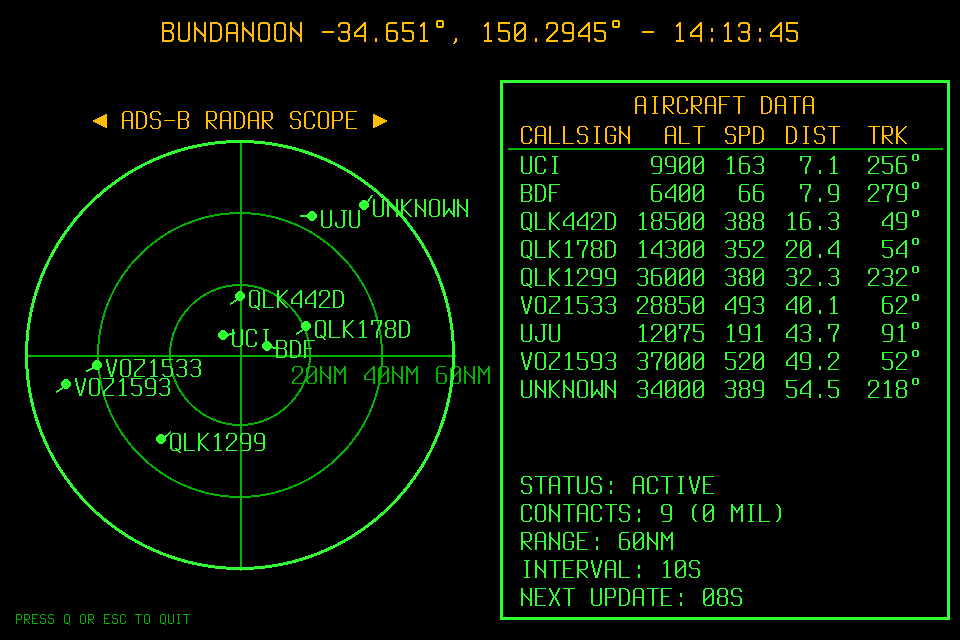
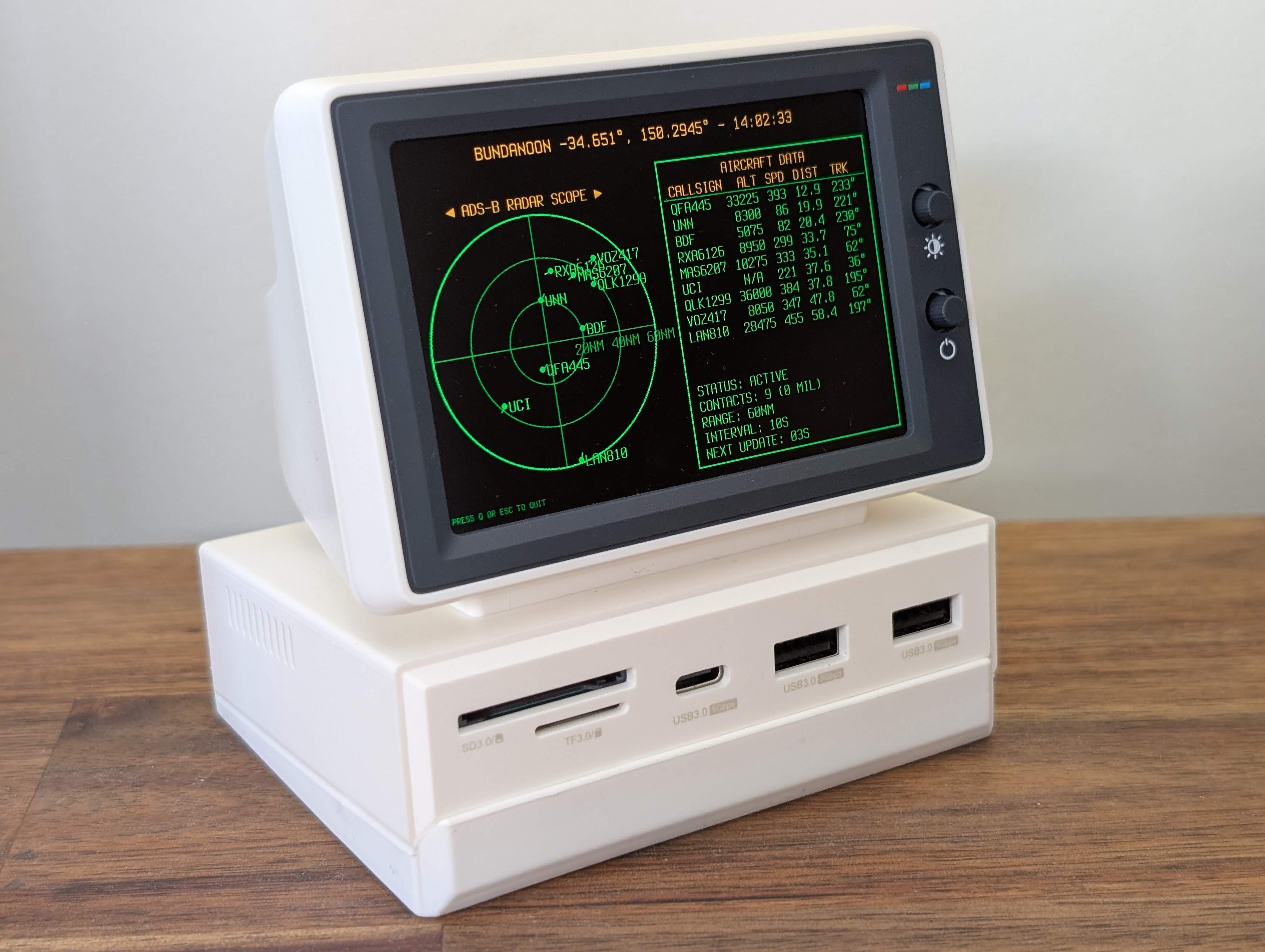
Aircraft radar display built with Python and Pygame. Visualises real-time aircraft positions and metadata from a tar1090 server, with a retro interface.
Features
- Real-time radar visualisation of aircraft within a configurable radius
- Military aircraft detection with configurable hex code prefixes and blinking effect
- Configurable font sizes and display settings
- Tabular display of aircraft data (callsign, altitude, speed, distance, track)
- Live ATC audio either from a local stream URL or via remote MQTT mute control
- Retro colour palette and font
- Default configuration is compatible with the Hagibis Mini PC USB-C Hub
Quick Start
Hardware Setup
- Connect your ADS-B USB dongle (e.g. RTL-SDR) to a Raspberry Pi or similar single-board computer.
- Attach a suitable 1090 MHz antenna to the dongle.
- Ensure the dongle is running software that provides ADS-B data in JSON format, such as tar1090.
- Connect your Raspberry Pi to your display, such as the Hagibis Mini PC USB-C Hub, with an HDMI cable.
Software Setup
Clone the repository:
git clone https://github.com/nicespoon/retro-adsb-radar.git
cd retro-adsb-radar
Create and activate a virtual environment:
python3 -m venv venv
source venv/bin/activate
Install dependencies:
pip install -r requirements.txt
Make a copy of the example configuration and edit to suit your setup:
cp config.ini.example config.ini
nano config.ini
See below for configuration details.
Run the Radar UI
After configuring config.ini, start the radar application:
python3 main.py
To quit, press Q or ESC in the radar window. If ATC audio is enabled either by setting ATC_STREAM_URL or by configuring MQTT audio control, press A to toggle audio on/off.
Configuration
The application is configured via config.ini.
[General]
FETCH_INTERVAL = 10                # Data fetch interval (seconds)
MIL_PREFIX_LIST = 7CF              # Comma-separated list of military aircraft hex prefixes (e.g. 7CF,AE,43C)
TAR1090_URL = http://localhost/tar1090/data/aircraft.json  # tar1090 data source URL
BLINK_MILITARY = true              # Toggle blinking effect for military aircraft (true/false)

[Audio]
ATC_STREAM_URL =                   # URL of live ATC audio stream (leave blank to disable)
AUTO_START = false                 # Start ATC stream automatically (true/false)

# MQTT Configuration (Uncomment to enable remote mute control)
# MQTT_BROKER = "192.168.1.100"    # MQTT broker host; when set with topics, MQTT mode is used instead of ATC_STREAM_URL
# MQTT_PORT = 1883                 # MQTT broker port
# MQTT_USER = ""                   # Optional MQTT username
# MQTT_PASSWORD = ""               # Optional MQTT password
# COMMAND_TOPIC = "home/rpi-volume/rtl_airband/mute/set"   # Topic used to publish mute commands
# STATE_TOPIC = "home/rpi-volume/rtl_airband/mute/state"   # Topic subscribed to for current mute state

[Location]
LAT = -31.9522                     # Radar centre latitude
LON = 115.8614                     # Radar centre longitude
AREA_NAME = PERTH                  # Displayed area name
RADIUS_NM = 60                     # Radar range (nautical miles)

[Display]
SCREEN_WIDTH = 960                 # Window width (pixels)
SCREEN_HEIGHT = 640                # Window height (pixels)
FPS = 6                            # Frames per second
MAX_TABLE_ROWS = 10                # Maximum number of aircraft to show in the table
FONT_PATH = fonts/TerminusTTF-4.49.3.ttf  # Path to TTF font
BACKGROUND_PATH =                  # Path to background image (leave blank for black background)
TRAIL_MIN_LENGTH = 8               # Minimum length of aircraft trail
TRAIL_MAX_LENGTH = 25              # Maximum length of aircraft trail
TRAIL_MAX_SPEED = 500              # Speed (knots) at which trail reaches maximum length
HEADER_FONT_SIZE = 32              # Font size for the header text
RADAR_FONT_SIZE = 28               # Font size for radar labels and callsigns
TABLE_FONT_SIZE = 28               # Font size for the data table
INSTRUCTION_FONT_SIZE = 28         # Font size for instruction text
If MQTT_BROKER, COMMAND_TOPIC, and STATE_TOPIC are set, the radar uses MQTT audio control and ignores ATC_STREAM_URL. The UI shows A: ATC [SYNC] until the current mute state arrives on STATE_TOPIC, then updates to ON or OFF automatically.
Pygame SDL Dependency Check and Troubleshooting
Pygame relies on several SDL subsystems, including:
- Video subsystem (
libsdl2) - Font rendering (
libsdl2-ttf) - Image loading (
libsdl2-image)
The availability of these modules is checked at startup. If dependencies are installed on your system, the output will be:
Checking Pygame module support...
Video: Supported
Font: Supported
Image: Supported
If modules are missing, the output will look like this:
Checking Pygame module support...
Video: Not available - install libsdl2-2.0-0
Font: Not available - install libsdl2-ttf-2.0-0
Image: Not available - install libsdl2-image-2.0-0
How to Fix Missing Dependencies
If you see errors indicating missing dependencies, you can install the required system packages using the following command:
sudo apt update
sudo apt install libsdl2-2.0-0 libsdl2-ttf-2.0-0 libsdl2-image-2.0-0
License
- The project code is licensed under the MIT License (see
LICENSE). - Fonts used in this project are licensed under the SIL Open Font License Version 1.1. See font license files in the
fontsdirectory for details.
more like this