meine
meine 🌒 - A CLI file manager and system utility built with Textual. It combines intuitive command parsing with rich t…
Python★ 50
Tasks, boards & notes for the command-line habitat
 perryrh0dan
git clone https://github.com/perryrh0dan/taskline.gitperryrh0dan/taskline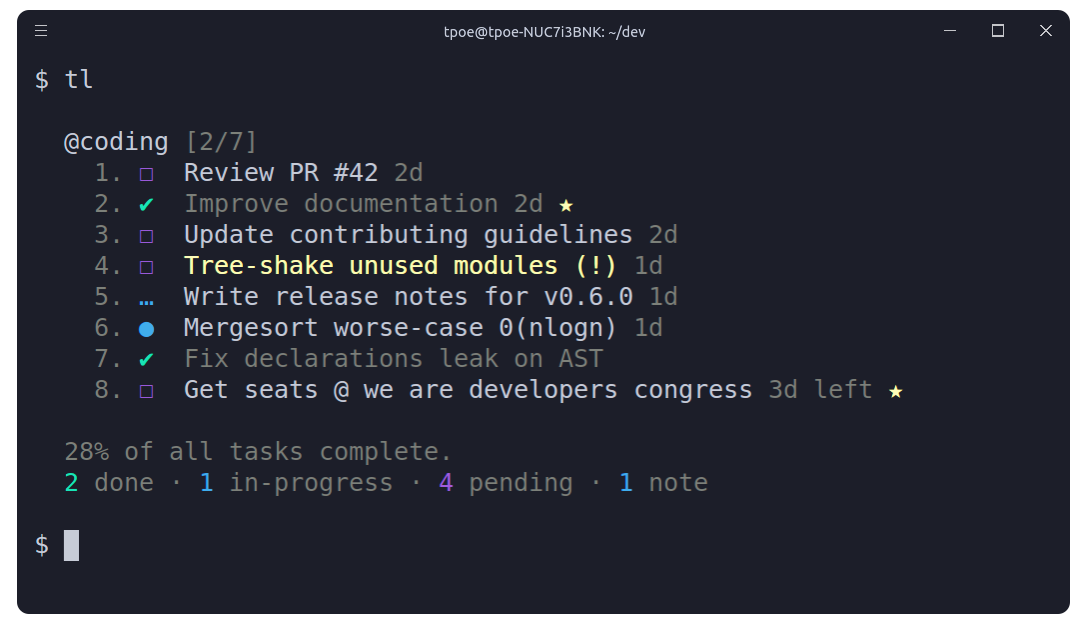
By utilizing a simple and minimal usage syntax, that requires a flat learning curve, Taskline enables you to effectively manage your tasks and notes across multiple boards from within your terminal. All data is written atomically to the storage in order to prevent corruptions. At the moment there are two storage modules. The Local storage module where your task and are never shared with anyone or anything, or the firestore module, where your tasks are saved in your firestore database and can be shared across all your devices. Deleted items are automatically archived and can be inspected or restored at any moment.
Visit the contributing guidelines to learn more on how to translate taskline or this document into more languages.
Come over to Gitter or Twitter to share your thoughts on the project.
This project was heavily inspired by taskbook. Due to the lack of some critical features mentioned below, I decided to rewrite the complete app in a more modern approach.
~/.taskline.json~/.taskline/storageView highlights in a taskline board.
yarn global add @perryrh0dan/taskline
npm install --global @perryrh0dan/taskline
snap install taskline
snap alias taskline tl # set alias
Note: Due to the snap's strictly confined nature, both the storage & configuration files will be saved under the $SNAP_USER_DATA environment variable instead of the generic $HOME one.
> tl --help
Usage: tl [command] [options]

Tasks, boards & notes for the command-line habitat

Options:
  -V, --version                   output the version number
  -h, --help                      output usage information

Commands:
  archive|a                       Display archived items
  begin|b <ids>                   Start/pause task
  cancel <ids>                    Cancel/revive task
  check|c <ids>                   Check/uncheck task
  clear                           Delete all checked items
  copy|y <ids>                    Copy description to clipboard
  delete|d <ids>                  Delete item
  due <ids> <dueDate>             Update duedateof task
  edit|e <id> <description>       Edit item description
  find|f <terms>                  Search for items
  list|l <terms>                  List items by attributes
  move|m <ids> <board>            Move item between boards
  note|n [options] <description>  Create note
  priority|p <id> <priority>      Update priority of task
  restore|r <ids>                 Restore items from archive
  star|s <ids>                    Star/unstar item
  task|t [options] <description>  Create task
  timeline|i                      Display timeline view
  refactor                        Rearrange the IDs of all items

Detailed description under: https://github.com/perryrh0dan/taskline#flight-manual
Invoking taskline without any options will display all saved items grouped into their respective boards.
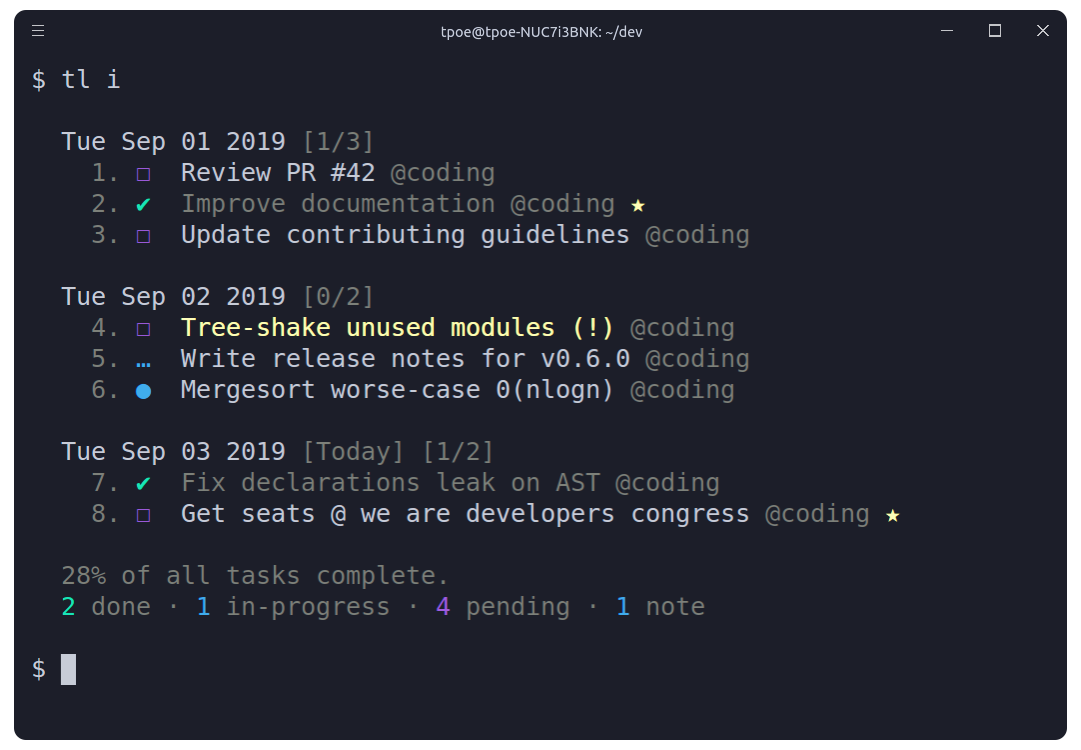
In order to display all items in a timeline view, based on their creation date, the --timeline / -i option can be used.
To configure taskline navigate to the ~/.taskline.json file and modify any of the options to match your own preference. To reset back to the default values, simply delete the config file from your home directory.
The following illustrates all the available options with their respective default values.
{
  "language": "en",
  "tasklineDirectory": "~",
  "displayCompleteTasks": true,
  "displayProgressOverview": true,
  "storageModule": "local",
  "firestoreConfig": {
    "type": "",
    "project_id": "",
    "private_key_id": "",
    "private_key": "",
    "client_email": "",
    "client_id": "",
    "auth_uri": "",
    "token_uri": "",
    "auth_provider_x509_cert_url": "",
    "client_x509_cert_url": ""
  },
  "dateformat": "dd.mm.yyyy HH:MM",
  "theme": {
    "colors": {
      "pale": "grey",
      "error": "red",
      "task": {
        "priority": {
          "medium": "yellow",
          "high": "red"
        }
      },
      "icons": {
        "note": "blue",
        "success": "green",
        "star": "yellow",
        "progress": "blue",
        "pending": "magenta",
        "canceled": "red"
      }
    }
  }
}
tasklineDirectoryString~Filesystem path where the storage will be initialized, i.e: /home/username/the-cloud or ~/the-cloud
If left undefined the home directory ~ will be used and taskline will be set-up under ~/.taskline/ .
displayCompleteTasksbooleantrueDisplay tasks that are marked as complete.
displayProgressOverviewbooleantrueDisplay progress overview below the timeline and board views.
storageModuleEnumlocallocal , firestore , gitChoice of storage module. Currently there are three modules local , firestore and git . For the firestore module the firestoreConfig is needed.
Note:
To enable syncing across devices or with a remote server, your Git storage repository must be connected to a remote (such as GitHub, GitLab, or Bitbucket).
If no remote is configured, changes will only be saved locally and will not sync globally.
firestoreConfigGoogle DienstkontoschlüsselEmptyConfiguration of the firestore module.
dateformatStringdd.mm.yyyy HH:MMDateformat used for duedate.
themeCustomize colors of all texts and icons. Available are all foreground colors of chalk. More information under Themes
When you want to use the local storage module there is no further configuration need. When you want to use the firestore module follow this steps:
or follow this instruction page.
The following is a minor walkthrough containing a set of examples on how to use taskline. In case you spotted an error or think that an example is not to clear enough and should be further improved, please feel free to open an issue or pull request.
To create a new task use the task / t command with your task's description following right after.
> tl t "Improve documentation"
To create a new note use the note / n command with your note's body following right after.
> tl n "Mergesort worse-case O(nlogn)"
Boards are automatically initialized when creating a new task or note. To create one or more boards, use the --board / -b option, followed by a list of boardnames, after the description of the about-to-be created item. As a result the newly created item will belong to all of the given boards. By default, items that do not contain any board option are automatically added to the general purpose: My Board .
> tl t "Update contributing guidelines" -b coding,docs
To mark a task as complete/incomplete, use the check / c command followed by the ids of the target tasks. Note that the command will update to its opposite the complete status of the given tasks, thus checking a complete task will render it as pending and a pending task as complete. Duplicate ids are automatically filtered out. Instead of listing all ids its also possible to specify id ranges.
> tl c (1,2,3 || 1-3)
To mark a task as started/paused, use the begin / b command followed by the ids of the target tasks. The functionality of this command is the same as the one of the above described check command. When a task is in progress the elapsed time is measured.
> tl b 2,3
To mark a task as canceled/revived, use the cancel command followed by the ids of the target tasks. The functionality of this command is the same as the one of the above described check command.
> tl cancel 1-3,5,6
To mark one or more items as favorite, use the star / s command followed by the ids of the target items. The functionality of this command is the same as the one of the above described check command.
> tl s 1,3
To copy to your system's clipboard the description of one or more items, use the copy / y command followed by the ids of the target items. Note that the command will also include the newline character as a separator to each pair of adjacent copied descriptions, thus resulting in a clear and readable stack of sentences on paste.
> tl y (1,2,3 || 1-3)
Invoking taskline without any commands and options will display all of saved items grouped into their respective boards.
> tl
In order to display all items in a timeline view, based on their creation date, the timeline / i command can be used.
> tl i
To set a priority level for a task while initializing it, use the --priority / -p option followed by the priority. Priority can be an integer of value 1 , 2 or 3 . Note that all tasks by default are created with a normal priority: 1 .
1 - Normal priority2 - Medium priority3 - High priority
> tl t "Fix issue `#42` " -b coding -p 3
To update the priority level of a specific task after its creation, use the priority / p command along with the id of the target tasks and an integer of value 1 , 2 or 3 .
> tl p (1,2,3,23 2 || 1-3,23)
To set a duedate for a task while initializing it, use the --due / -d option followed by the duedate. Duedate must be a date of the format specified in the configuration file under dateformat or use the defined humanized date structure described below. Default is dd.mm.yyyy HH:MM. Note that all tasks by default have no duedate.
> tl t "Solve puzzle" -b coding -d 23.08.2019
To update the duedate of a specified task after its creation, use the due command along with the id of the target tasks and an date. The due command has no available shorter alias.
> tl due 1,2,23 "15.09.2019 13:15"
The time left before the duedate is displayed humanized instead of the age of an task right next to the description.
Instead of using normal dates its also possible to use verbal dates like today, tonight, tomorrow or next monday.
To move items to one or more boards, use the move / m command, followed by the target items ids and the name of the destination boards. The default My board can be accessed through the myboard keyword.
> tl m 1,2 myboard,reviews
To delete one or more items, use the delete / d command followed by the ids of the target items. Note that deleted items are automatically archived, and can be inspected or restored at any moment. Duplicate ids are automatically filtered out.
> tl d 1,2
To delete/clear all complete tasks at once across all boards, use the clear command. Note that all deleted tasks are automatically archived, and can be inspected or restored at any moment. In order to discourage any possible accidental usage, the clear command has no available shorter alias.
> tl clear
To display all archived items, use the archive / a command. Note that all archived items are displayed in timeline view, based on their creation date.
> tl a
To restore one or more items, use the restore / r command followed by the id of the target items. Note that the ids of all archived items can be seen when invoking the archive / a command. Duplicate ids are automatically filtered out.
> tl r 1,2
To list a group of items where each item complies with a specific set of attributes, use the list / l command followed by the desired attributes. Board names along with item traits can be considered valid listing attributes. For example to list all items that belong to the default myboard and are pending tasks, the following could be used;
> tl l myboard,pending
The by default supported listing attributes, together with their respective aliases, are the following;
myboard - Items that belong to My boardtask , tasks , todo - Items that are tasks.note , notes - Items that are notes.pending , unchecked , incomplete - Items that are pending tasks.progress , started , begun - Items that are in-progress tasks.done , checked , complete - Items that complete tasks.canceled - Items that are canceled.star , starred - Items that are starred.default , medium , high - Tasks with the given priority.To search for one of more items, use the find / f command, followed by your search terms.
> tl f documentation
To reset/rearrange the ids of all item, when they are getting to high, run the refactor command. The refactor command has no available shorter alias. This command will keep the correct order of all items but shift all ids back starting by 1.
> tl refactor
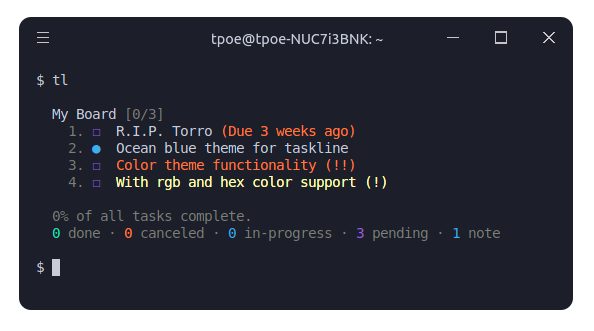
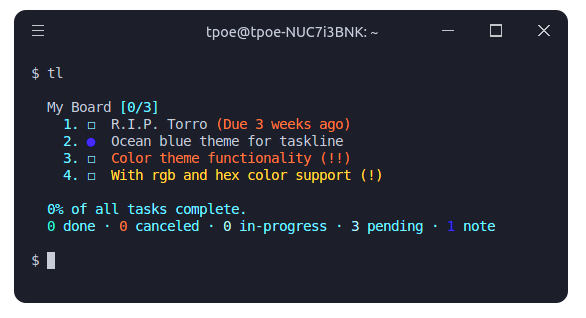
Since Taskline 1.1.0 custom themes can be created. The colors of the individual icons and texts can be adjusted in the configuration file under theme. Valid colors are all foreground colors of chalk, rgb or hex codes.
"theme": {
  "colors": {
    "pale": "grey",
    "error": "#F53240",
    "task": {
      "priority": {
        "medium": "#F9BE02",
        "high": "#F53240"
      }
    },
    "icons": {
      "note": "rgb(0,0,255)",
      "success": "#02C8A7",
      "star": "#F9BE02",
      "progress": "#7EDCD5",
      "pending": "#0099CC",
      "canceled": "#F53240"
    }
  }
}
Change the language in the configuration file under language. Following languages are supported:
Hopefully with your help we are able to translate taskline in much more languages. Visit the contributing guidelines to learn more on how to translate taskline into more languages.
For more info on how to contribute to the project, please read the contributing guidelines.
cd tasklinenpm installnpm run dev to start the gulp build job. A watcher is initialized to build automatically during development.node dist\cli.jsCurrently there are three automated test. ESLint, JSHint and unit tests written with jest. To Run all tests at the same time use npm test. To run unit tests for other storage modules than the local storage module you have to edit the test/config.json file and insert your db credentials.
Run the build script from '/scripts/build.sh'
100% automated;
snapcraft login

snapcraft push --release=stable taskline_1.3.4_multi.snap
This repository was generated by tmpo
more like this
meine 🌒 - A CLI file manager and system utility built with Textual. It combines intuitive command parsing with rich t…
Create and add progress bars, Office365 Files and Dropbox Paper papers by labels and link them to your Todoist tasks.
search projects, people, and tags