spaceduck-terminal
🚀 🦆Spaceduck theme but for terminal!
 pineapplegiant
git clone https://github.com/pineapplegiant/spaceduck-terminal.gitpineapplegiant/spaceduck-terminalSpaceduck terminal theme 🚀🦆
A intergalactic space theme for your terminal! This is the spaceduck repo for terminal themes. If you're looking for other applications here's the link to the spaceduck home.
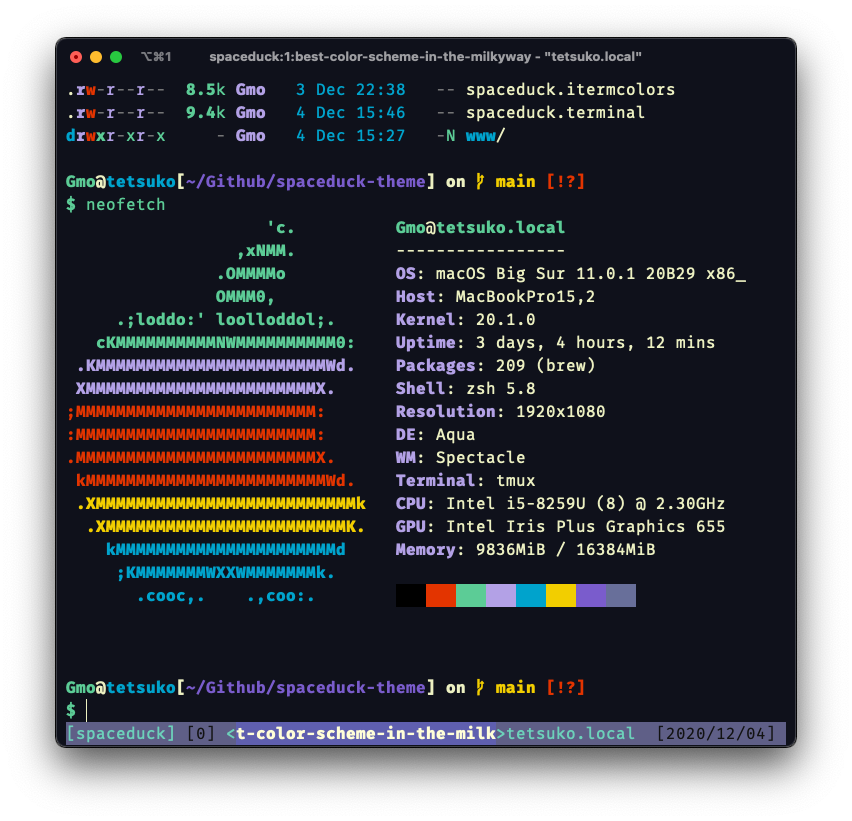
Color Disclaimer:
I've personally swapped the yellow and purple colors in most terminal themes. This is a personal preference as I've found it to render the colorscheme how I like since Spaceduck is dark purple oriented. Feel free to change the colorscheme locally to be more semantically correct! I'm open to change the repo here if any bugs are found however. Take a look at this thread to see the visual differences at this change.
Currently Ported Terminals
Iterm2
To get the theme into Iterm, download the spaceduck.itermcolors file and import it into your settings.
Terminal.app MacOS
To get the theme into the Mac Terminal app, download the spaceduck.terminal file and import it into your settings.
Alacritty
The color scheme for Alacritty is in the spaceduck.yml file or you can copy it here!
# Space Duck
colors:
  # Default colors
  primary:
    background: '#0f111b'
    foreground: '#ecf0c1'
  # Normal colors
  normal:
    black:   '#000000'
    red:     '#e33400'
    green:   '#5ccc96'
    yellow:  '#b3a1e6'
    blue:    '#00a3cc'
    magenta: '#f2ce00'
    cyan:    '#7a5ccc'
    white:   '#686f9a'

  # Bright colors
  bright:
    black:   '#686f9a'
    red:     '#e33400'
    green:   '#5ccc96'
    yellow:  '#b3a1e6'
    blue:    '#00a3cc'
    magenta: '#f2ce00'
    cyan:    '#7a5ccc'
    white:   '#f0f1ce'
st
The color theme for st is located in spaceduck.h, open config.h (usually in ~/.local/src/st), search for static const char *colorname, delete that part of the configuration until unsigned int defaultcs = 257; replace that with the content of spaceduck.h, save the file and exit your editor, then run sudo make install where st is located to recompile it, close the terminal and launch the terminal again and voila!, you should have spaceduck up and running!
Kitty
The Color theme for Kitty is in the spaceduck.conf file or you can copy it here!
  background #0f111b
  foreground #ecf0c1
  cursor #ecf0c1
  selection_background #686f9a
  color0 #000000
  color8 #686f9a
  color1 #e33400
  color9 #e33400
  color2 #5ccc96
  color10 #5ccc96
  color3 #b3a1e6
  color11 #b3a1e6
  color4 #00a3cc
  color12 #00a3cc
  color5 #f2ce00
  color13 #f2ce00
  color6 #7a5ccc
  color14 #7a5ccc
  color7 #686f9a
  color15 #f0f1ce
  selection_foreground #ffffff
Windows Terminal
Color theme is in the spaceduck_windowsterminal.json file or you can copy it here! Put it in your Windows Terminal settings.json
"schemes": [
        {
            "name": "SpaceDuck",
            "foreground": "#ecf0c1",
            "background": "#0f111b",
            "black": "#000000",
            "red": "#e33400",
            "green": "#5ccc96",
            "yellow": "#b3a1e6",
            "blue": "#00a3cc",
            "purple": "#f2ce00",
            "cyan": "#7a5ccc",
            "white": "#686f9a",
            "brightBlack": "#686f9a",
            "brightRed": "#e33400",
            "brightGreen": "#5ccc96",
            "brightYellow": "#b3a1e6",
            "brightBlue": "#00a3cc",
            "brightPurple": "#f2ce00",
            "brightCyan": "#7a5ccc",
            "brightWhite": "#f0f1ce"
        }
Tmux
You can go ahead and check out readme for tmux here.
But if you're too lazy to click the link you can put this in your tmux.conf for an easy spaceduck themed bottom bar:
  # Basic color support setting
  set-option -g default-terminal "screen-256color"

  # Default bar color
  set-option -g status-style bg='#1b1c36',fg='#ecf0c1'

  # Active Pane
  set -g pane-active-border-style "fg=#5ccc96"

  # Inactive Pane
  set -g pane-border-style "fg=#686f9a"

  # Active window
  set-option -g window-status-current-style bg='#686f9a',fg='#ffffff'

  # Message
  set-option -g message-style bg='#686f9a',fg='#ecf0c1'
  set-option -g message-command-style bg='#686f9a',fg='#ecf0c1'

  # When Commands are run
  set -g message-style "fg=#0f111b,bg=#686f9a"
Konsole
Copy spaceduck.colorscheme to the .local/share/konsole/. After that run konsoleprofile colors="spaceduck" OR in Konsole's settings navigate to Configure Konsole... > Profiles > Select your active profile e.g. Shell (Default) > Edit... > Appearence > Find and select SpaceDuck in the Color scheme & font > Press Apply.
Termux
Copy spaceduck.properties file to the ~/.termux/ and rename it to colors.properties. After that exit Termux's session and launch it again.
Note: if you have Termux:Styling plugin installed - changing color scheme with it will overwrite colors.properties file with selected theme.
Xresources
Copy the settings from spaceduck.xresources to your ~/.Xresources file, or you can include it from a separate file with #include "path/to/spaceduck.xresources", just be sure to specify the directory that the file is located in to xrdb with xrdb -I$HOME ~/.Xresources.
! special
*.foreground:   #ecf0c1
*.background:   #0f111b
*.cursorColor:  #ecf0c1

! black
*.color0:       #000000
*.color8:       #686f9a

! red
*.color1:       #e33400
*.color9:       #e33400

! green
*.color2:       #5ccc96
*.color10:      #5ccc96

! yellow
*.color3:       #b3a1e6
*.color11:      #b3a1e6

! blue
*.color4:       #00a3cc
*.color12:      #00a3cc

! magenta
*.color5:       #f2ce00
*.color13:      #f2ce00

! cyan
*.color6:       #7a5ccc
*.color14:      #7a5ccc

! white
*.color7:       #686f9a
*.color15:      #f0f1ce
Mintty
Themes are usually found on the /usr/share/mintty/themes/ folder. Either copy the spaceduck.minttyrc as /usr/share/mintty/themes/spaceduck or create a spaceduck file in such folder and copy the following text:
# REGULAR COLORS
# Color 0
Black=0,0,0             # #000000

# Color 1
Red=227,52,0            # #E33400

# Color 2
Green=92,204,150        # #5CCC96

# Color 3
Yellow=179,161,230      # #B3A1E6

# Color 4
Blue=0,163,204          # #00A3CC

# Color 5
Magenta=242,206,0       # #F2CE00

# Color 6
Cyan=122,92,204         # #7A5CCC

# Color 7
White=104,111,154       # #686F9A


# BOLD COLORS
# Color 10
BoldBlack=104,111,154   # #686F9A

# Color 11
BoldRed=227,52,0        # #E33400

# Color 12
BoldGreen=92,204,150    # #5CCC96

# Color 13
BoldYellow=179,161,230  # #B3A1E6

# Color 14
BoldBlue=0,163,204      # #00A3CC

# Color 15
BoldMagenta=242,206,0   # #F2CE00

# Color 16
BoldCyan=122,92,204     # #7A5CCC

# Color 17
BoldWhite=240,241,206   # #F0F1CE

# EXTRA COLORS
# Foreground
ForegroundColour=236,240,193    # #ECF0C1
# Background
BackgroundColour=15,17,27       # #0F111B
# Cursor
CursorColour=236,240,193        # #ECF0C1
vivid
copy spaceduck-vivid.yml to your .config then add export LS_COLORS="$(vivid generate ~/.config/spaceduck-vivid.yml)" to the end of your .bashrc
Ghostty
Copy the spaceduck file to your $HOME/.config/ghostty/themes directory, set theme = spaceduck in $HOME/.config/ghostty/config, then reload configuration in Ghostty or restart it.
more like this
gns3theme
Custom color themes for GNS3 GUI. Built-in schemes, custom JSON themes, device symbols. Supports Linux and macOS.
Aritim-Light
A Light theme for both KDE and GTK based distros, pleasant to the eyes and perfect for your daily workload.