meine
meine 🌒 - A CLI file manager and system utility built with Textual. It combines intuitive command parsing with rich t…
Python★ 50
A light-weight CSS framework to quickly implement skeletons into your projects.
 ritterim
git clone https://github.com/ritterim/skellyCSS.gitritterim/skellyCSS
A light-weight CSS framework to quickly implement skeletons into your projects.
To install via node package manager:
npm install @ritterim/skellycss
Include the Skelly css file wherever you add your CSS:
<link rel="stylesheet" href="..@ritterim/skellycss/dist/style.css">
Include the skelly.js file wherever you add your JavaScript:
<script src="..@ritterim/skellycss/dist/skelly.js"></script>
You can quickly get started using skellyCSS using the JavaScript utility, like so:
<h2 class="skeleton skeleton--md" data-animation="true"></h2>
<p class="skeleton" data-lines="4" data-animation="true"></p>
See full JavaScript Utility docs below
Skeletons can be quickly added to any project with a few simple lines of code.
Apply the skeleton class to any type of header and it will automatically adjust to the font-size of the header stylings:
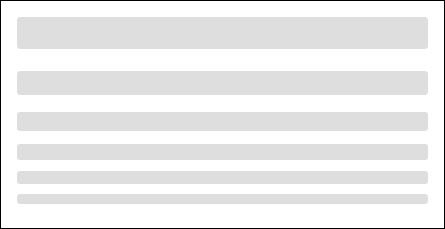
<h1 class="skeleton"></h1>
<h2 class="skeleton"></h2>
<h3 class="skeleton"></h3>
<h4 class="skeleton"></h4>
<h5 class="skeleton"></h5>
<h6 class="skeleton"></h6>
You can create paragraph skeletons by applying the skeleton class to the paragraph tag, then including however many span tags you'd like with the skeleton__line class within the paragraph. In order to make the paragraph skeleton look more like a paragraph, the last line is set to 50% width.
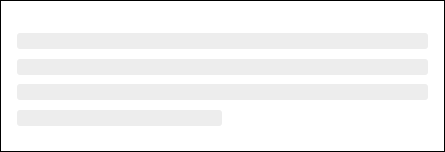
<div>
  <p class="skeleton">
    <span class="skeleton__line"></span>
    <span class="skeleton__line"></span>
    <span class="skeleton__line"></span>
    <span class="skeleton__line"></span>
  </p>
</div>
You can adjust the line width by applying a size modifier class:
| Width | Modifier Class |
|---|---|
| Small, 25% | .skeleton--sm |
| Medium, 50% | .skeleton--md |
| Large, 75% | .skeleton--lg |
| Full, 100% | .skeleton--full |
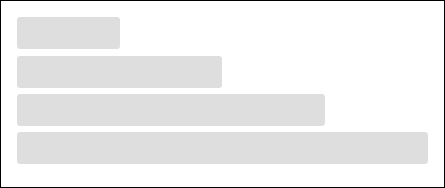
<h1 class="skeleton skeleton--sm"></h1>
<h1 class="skeleton skeleton--md"></h1>
<h1 class="skeleton skeleton--lg"></h1>
<h1 class="skeleton skeleton--full"></h1>
You can text align the skeleton using alignment modifier classes:
| Alignment | Modifier Class |
|---|---|
| Left | .skeleton--left |
| Center | .skeleton--center |
| Right | .skeleton--right |

<!-- Left Align -->
<p class="skeleton skeleton--left">
  <span class="skeleton__line"></span>
  <span class="skeleton__line"></span>
  <span class="skeleton__line"></span>
  <span class="skeleton__line"></span>
</p>

<!-- Center Align -->
<p class="skeleton skeleton--center">
  <span class="skeleton__line"></span>
  <span class="skeleton__line"></span>
  <span class="skeleton__line"></span>
  <span class="skeleton__line"></span>
</p>

<!-- Right Align -->
<p class="skeleton skeleton--right">
  <span class="skeleton__line"></span>
  <span class="skeleton__line"></span>
  <span class="skeleton__line"></span>
  <span class="skeleton__line"></span>
</p>
You can create an image skeleton by using the .skeleton-image class. By default this will apply the image skeleton at 100% height and width of the parent container.
Here are some default sizes we have included for skeleton images:
| Size | Modifier Class |
|---|---|
| Small, 50x50 | .skeleton-image--sm |
| Medium, 100x100 | .skeleton-image--md |
| Large, 200x200 | .skeleton-image--lg |
| X-Large, 400x400 | .skeleton-image--xl |
| Full, 100% x 100% | .skeleton-image--full |
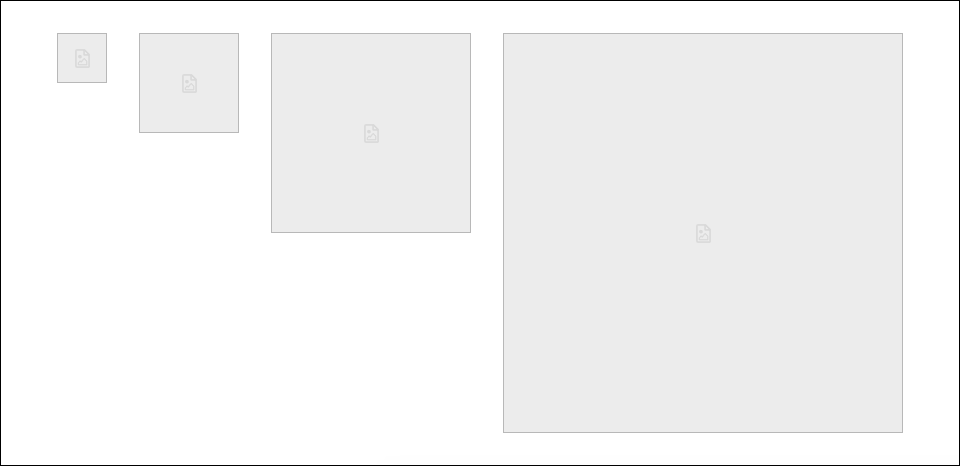
<img class="skeleton-image skeleton-image--md" />
<img class="skeleton-image skeleton-image--sm" />
<img class="skeleton-image skeleton-image--lg" />
<img class="skeleton-image skeleton-image--xl" />
You can also make different image shapes using shape modifier classes:
| Shape | Description | Modifier Class |
|---|---|---|
| Square | Sets the image aspect ratio to 1/1 (default) | .skeleton-image--square |
| Circle | Sets the border radius to 50% | .skeleton-image--circle |
| Landscape Rectangle | Sets the image aspect ratio to 4/3 | .skeleton-image--landscape |
| Portrait Rectangle | Sets the image aspect ratio to 3/4 | .skeleton-image--portrait |
| Wide Rectangle | Sets the image aspect ratio to 16/9 | .skeleton-image--wide |
| Tall Rectangle | Sets the image aspect ratio to 9/16 | .skeleton-image--tall |
<div class="skeleton-image skeleton-image--lg skeleton-image--square"></div>
<div class="skeleton-image skeleton-image--lg skeleton-image--circle"></div>
<div class="skeleton-image skeleton-image--lg skeleton-image--landscape"></div>
<div class="skeleton-image skeleton-image--lg skeleton-image--portrait"></div>
<div class="skeleton-image skeleton-image--lg skeleton-image--wide"></div>
<div class="skeleton-image skeleton-image--lg skeleton-image--tall"></div>
To add animation, add a span.skeleton--animation within the .skeleton__line elements in headers or paragaphs.

<div>
  <p class="skeleton">
    <span class="skeleton__line">
      <span class="skeleton--animation"></span>
    </span>
        <span class="skeleton__line">
      <span class="skeleton--animation"></span>
    </span>
    <span class="skeleton__line">
      <span class="skeleton--animation"></span>
    </span>
    <span class="skeleton__line">
      <span class="skeleton--animation"></span>
    </span>
  </p>
</div>
The easiest and our preferred way to add Skeletons is by using the included JavaScript utilities.
On either a header tag or a paragraph tag, add the skeleton class and a data-lines attribute with the number of lines you'd like the skeleton to have:
<h2 class="skeleton skeleton--md" data-lines="2"></h2>
<p class="skeleton" data-lines="7"></p>
You can also give the skeleton animation by adding the data-animation attribute and setting it to true:
<h2 class="skeleton skeleton--md" data-animation="true"></h2>
<p class="skeleton" data-lines="7" data-animation="true"></p>
You can alter the way skeleton looks by utilizing other data-attributes as well, including opacity and color:
<!-- Opacity -->
<h2 class="skeleton skeleton--md" data-animation="true"></h2>
<p class="skeleton" data-lines="7" data-opacity="0.3"></p>

<!-- Color -->
<h2 class="skeleton skeleton--md" data-animation="true"></h2>
<p class="skeleton" data-lines="7" data-color="tomato"></p>
| Attribute | Description | Type |
|---|---|---|
data-lines |
Determines how many lines to output | Integer |
data-animation |
Adds animation to the skeleton lines | Boolean |
data-opacity |
Sets the opacity of the skeleton lines (sets opacity between 0 and 1) | Float |
data-color |
Sets the color of the skeleton lines | Color |
more like this
meine 🌒 - A CLI file manager and system utility built with Textual. It combines intuitive command parsing with rich t…
A specialized swipe card for todo lists in Home Assistant with custom styling
A web-component to add code editors to your web page powered via Ace Editor
search projects, people, and tags