xmb-bigscreen
XMB for Plasma BigScreen, console-like fullscreen launcher for living room gamepad users
QML★ 50
A ULauncher/Albert extension that supports currency, units and date time conversion, as well as a calculator that suppo…
 tchar
tchargit clone https://github.com/tchar/ulauncher-albert-calculate-anything.gittchar/ulauncher-albert-calculate-anything Calculate Anything



Ulauncher/Albert Calculate Anything is an extension for Ulauncher and Albert to calculate things like currency, time, percentage, units, complex equations, base-n expressions and more.
The calculate_anything module does not depend on Ulauncher or Albert so it is extensible for other use cases (see demo with prompt_toolkit).
See Features for supported features, Contents for installation instructions and more
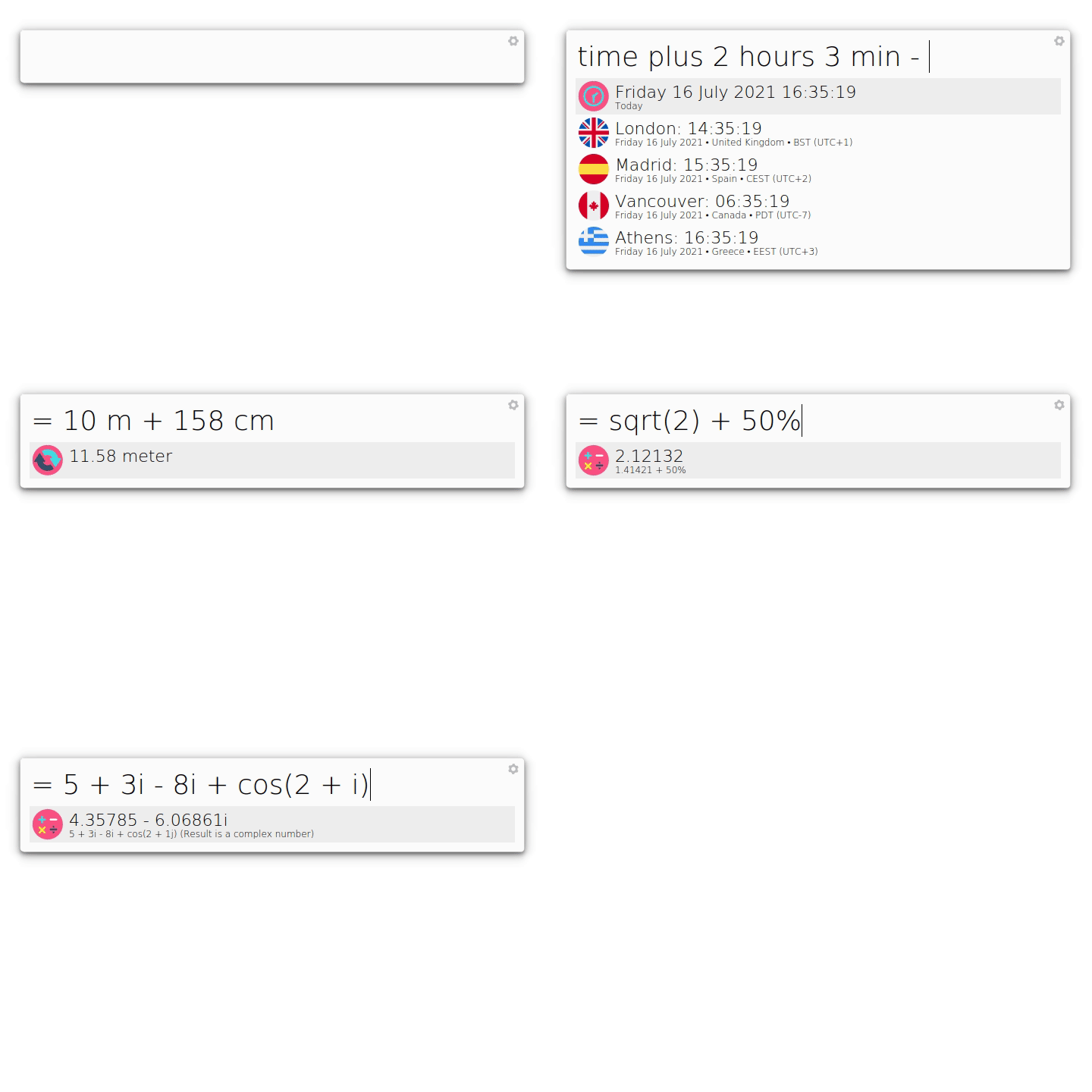
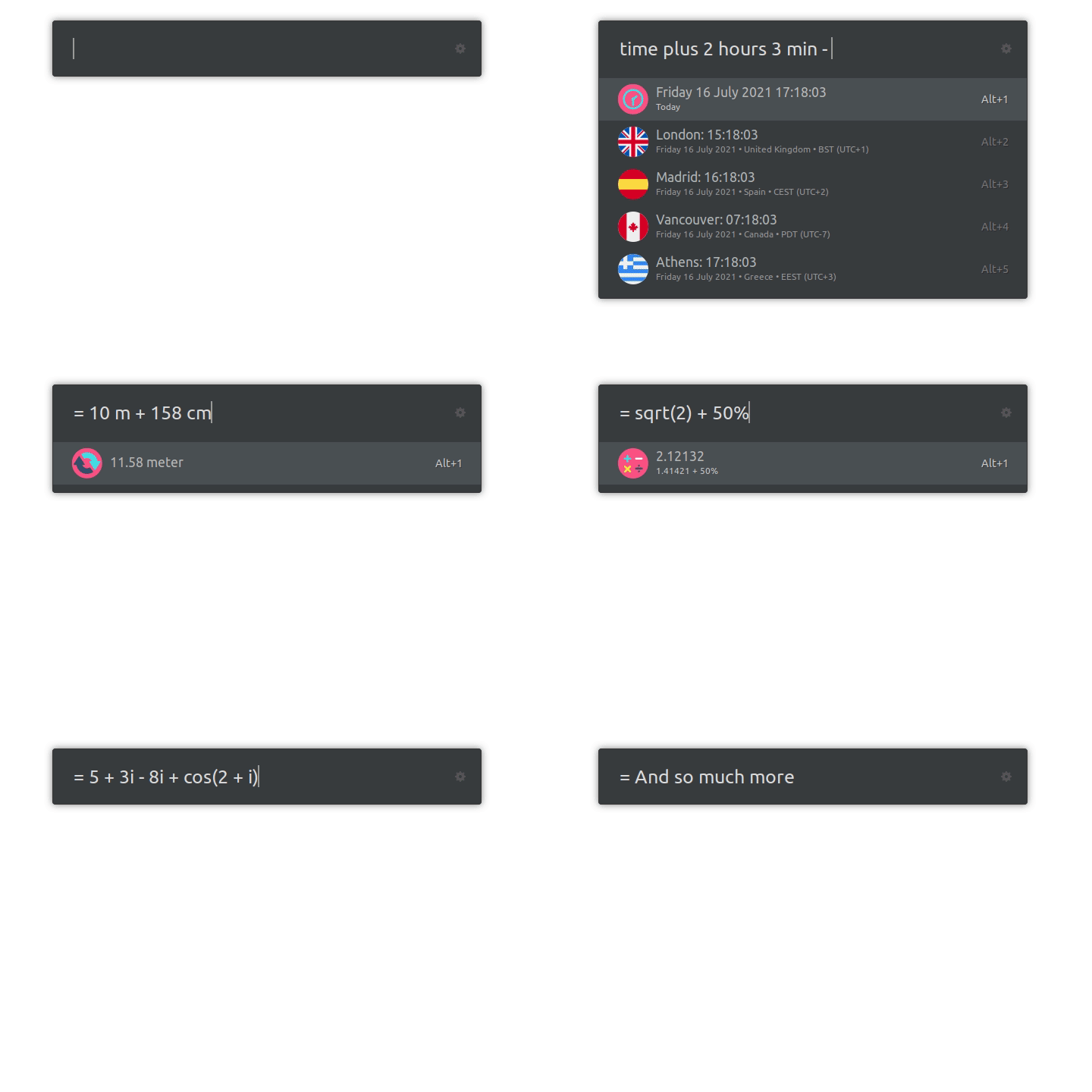
Calculator for Anything
Currency Converter: See Currency for examplesTime Converter: Convert time to other timezones and compute time expressions or find time remaining until any date-time. See Time for examples.Units Converter: Compute and Convert units to other units. See Units for examples.Normal Calculator: Supports functions such as cos, sin, tan. Check Calculator for examples.Complex Numbers Calculator: Also supports Normal Calculator's functions. Check Calculator for examples.Percentage Calculator Calculate percentages see Percentages for examples.
Base N Calculator: Calculate numbers and expressions to other number base. See Base N Calculator for examples.
hex): Calculates expression to decimal, biniary, octal, color (i.e RGB, YSV, etc), Bytes (representation of string)bin), Base 8 (oct), Base 10 (dec)or, xor, and, mod, div, +, -, /The only launcher specific files for ulauncher and albert are main.py, __init__.py in the root of this project
Dependencies: simpleeval, pint parsedatetime and pytz (for parsedatetime) Currency and Unit converter as well as a Calculator for numbers, complex numbers, percentages and time that supports mathematical functions and Complex Numbers.
Optional Dependencies: babel. Installing this will format your results in your language/locale.
Thus extension depends on Pint, simpleeval and parsedatetime. Install them with:
# You probably have some of them already installed
/usr/bin/python3 -m pip install Pint simpleeval parsedatetime pytz

# Optionally for translations and formatting to your locale
/usr/bin/python3 -m pip install babel
Open Ulauncher go to Extensions > Add extension and paste https://github.com/tchar/ulauncher-albert-calculate-anything
Similarly to Ulauncher the same dependencies are are required.
To install the extension for Albert run
# You probably have some of them already installed
/usr/bin/python3 -m pip install Pint simpleeval parsedatetime pytz

# Optionally for translations and formatting to your locale
/usr/bin/python3 -m pip install babel

# Determine Install location
[ -z "$XDG_DATA_HOME" ] && INSTALL_DIR=~/.local/share || INSTALL_DIR=$XDG_DATA_HOME

# Create module directory if not exists
mkdir -p $INSTALL_DIR/albert/org.albert.extension.python/modules/

# Install extension
git clone https://github.com/tchar/ulauncher-albert-calculate-anything $INSTALL_DIR/albert/org.albert.extension.python/modules/
Open albert, enable Python extensions and then enable the Calculate Anything extension.
You can double click it to open module's location and edit __init__.py to add your preferences.
If you are using Albert open the extension location normally at ~/.local/share/albert/org.albert.extension.python/modules/ulauncher-albert-calculate-anything/__init__.py and edit the preferences mentioned below in the apropriate variable API_KEY, CACHE, DEFAULT_CURRENCIES, DEFAULT_CITIES, SHOW_EMPTY_PLACEHOLDER or __triggers__ for the keyword
The extension can work in albert without keywords if you comment out the __triggers__ option, however if another extension has the keyword you type, Calculate Anything won't trigger (see relevant issue)
If you are using Ulauncher use the extension preferences.
You can select from different currency providers. Supported providers are:
fixer.io dashboard and get your API key). This will include all providers from InternalPreferences:
CURRENCY_PROVIDER in __init__.py to one of [fixerio, internal (European Central Bank)]In order for the currency conversion to work for providers that need an API Key, you need to set it in the preferences.
API KEY box in preferencesAPI_KEY in __init__.pyFor currency conversion you can enable the cache for a minimum of 1 day up to 1 year. This will store the results fetched by your currency provider to prevent redundant requests. This is especially helpful if you have a free plan on a paid currency provider that limits your requests. It will also display the results faster, since no request is made. If all requested currencies have been cached, no request is made.
Currency Cache in the extension preferencesCACHE=86400 in __init__.py and set it to your interval in secondsIn the preferences you can define a comma separated list of default currencies to show when typing conversion without target unit/currency.
Defaults to USD,EUR,CAD,GBP,AUD
Default Currencies preferencesDEFAULT_CURRENCIES in __init__.pyIn the preferences you can define a comma separated list of default cities when using the time command
Default Currencies preferencesDEFAULT_CITIES in __init__.pyIn the preferences you can define a units conversion mode. For now there is normal (default) and crazy.
Crazy means that the unit converter/calculator tries to convert all possible units (currency included) available under the name.
See Currency and Units for more
Crazy mode is experimental and bugs are to be expected
Units Conversion mode preferencesUNITS_CONVERSION_MODE in __init__.pyNo. Set to Yes to show an empty placeholder when extension doesn't return anythingSHOW_EMPTY_PLACEHOLDER=True in __init__.pyTo calculate/convert anything you can use the keywords
=: For currency, units and calculatortime: For time calculationsdec/hex/bin/oct: For base-n and calculationsYou can go directly to examples or use the ones from the demo
To convert currency type your keyword and then
AMOUNT CURRENCY to get conversion in the default currencies set in the preferences (requires cache)AMOUNT CURRENCY in(or to) CURRENCY1,CURRENCY2,CURRENCY3CURRENCY in(or to) CURRENCY1,CURRENCY2,CURRENCY3To convert units use
AMOUNT UNIT in(or to) UNIT1,UNIT2,UNIT3UNIT in(or to) UNIT1,UNIT2,UNIT3Comma separated units and currencies can have spaces between them.
For time you can use the time keyword with a syntax
time To get the current time plus the default cities you defined in the preferencestime at CITY,[COUNTRY|COUNTRY CODE|STATE CODE] to get the current time for a specified citytime + AMOUNT [MONTH|YEAR|WEEK|DAY|HOUR|MINUTE|SECOND] [+ AMOUNT ...] [at CITY, [COUNTRY|COUNTRY CODE|STATE CODE]] to get the time after the calculation at a specified city.To calculate an expression just type your expression as in the demo
tan,atan,asinh1 + 5iTo calculate percentages you can use one of the following
AMOUNT1% of AMOUNT2 to calculate the AMOUNT1 percent of AMOUNT2AMOUNT1 as % of AMOUNT2 to calculate AMOUNT1 as a percentage of AMOUNT2If you select one results it will be copied to clipboard.
10 eur to USD10 euros to $10 eurs to dollars10 EUR to USD,canadian,bitcoin,mexicancrazy mode must be enabled in preferences
1 $ / pound to EUR / kg10 $ / foot ^ 2 to CAD / meter ^ 2You can also add and subtract time
For example if now is 2021-07-05 14:14:42 then you can use the following
Be careful to use date timespans like 2 years 5 months 2 weeks 3 days 1 hour 4 minutes 3 seconds and not dates like December 2022.
In the following examples the time returned is accompanied by the date time in the default cities you specified in the extension preferences
time: Returns 2021-07-05 14:14:42 as well as the date time in the default cities specified in settingstime plus 1 hour: Returns Today at 15:14:42time + 1 day: Returns Tomorrow at 14:14:42time minus 1 day: Returns Yesterday at 14:14:42time + 2 hours 2 minutes 5 seconds: Returns Today at 15:16:47time + 1 year: Returns 2022-07-05 14:14:42time + 1 year 2 days 2 hours - 4 years 4 minutes: Returns 2018-07-07 16:10:42You can use all the commands above followed by at CITY NAME or at CITY NAME, COUNTRY NAME|COUNTRY CODE|STATE CODE to get te result in your local time as well as the specified city
time at Praguetime + 2 hours at Madridtime + 2 hours at Vancouver, CA: (There are two Vancouvers, so by specifying CA as returns the Canadian Vancouver)time + 2 days 3 seconds at Vancouver, Canadatime + 1 hour + 3 years at Athens, AL: (Athens AL refers to Athens at Alabama)You can also use the until command (Experimental) to calculate duration of time until a specific date
Note: The midnight keyword shifts one day after, so midnight is considered to belong in the next day
In the following examples you can specify a specific date and time or say for example a number of years months etc.
Keywords such as a/next/last/previous/ago, years/months/weeks/days/hours/minutes/seconds, morning/noon/afternoon/evening/night/midnight, tomorrow/yesterday and the combination of those will work like in the normal mode.
time until December 31 midnight: Returns remaining days, hours minutes until January 00:00:00 (end of day for December)time until midnight: Returns remaining hours minutes seconds until midnight for this day (midnight is at 00:00:00)time until tomorrow: Day starts at 09:00time until tomorrow evening: Hours/Days until tomorrow at 18:00time until a year ago: Negative resulttime until 2000000 year: Easter eggAnd many more combinations
The units supported are all units that pint supports (which is quite a lot)
100 f to c20 cm to inches, m20 cm to inches,meters20 km/h to cm/min, km/minute, in/s, cm/sec10 kw/sec to hp/h, mw/s10 m/s^2 to km/h^210 mb/s to gb/hYou can lieterally convert anything if the apropriate units match
10 km * cm * s / gb to inches * meter * hour / mbcrazy mode must be enabled in preferences
1 m to cm may have two compatible units meter and mole, so it will return both results10% of 40: Answer is 45 is what % of 30: Answer is 16.6667%5 is what % 305 as % of 305 in % of 305 in % 3010% of cos(pi) + 5: Answer is 0.43 + 2 * pi % of cos(pi) + 5: Answer is 0.3713285 as % sqrt(2) + 5: Answer is 77.9519%1 + sin(pi) as % sqrt(2) + 5: Answer is 15.5904%The calculator works like a normal calculator, but is able to work with complex numbers too.
The following constants exist: pi, e, tau and others from cmath
The following functions exist: phase, polar, rect, exp, log, log10, sqrt, acos, asin, atan, cos, sin, tan, acosh, asinh, atanh, cosh, sinh, tanh and others from cmath
10 + sqrt(2): Answer is 11.414210 + cos(pi) + 30 * e ^ 2: Answer is 230.672Use i as the imaginary unit
10 + sqrt(2) + i: Answer is 11.4142 + icos(1 + i): Answer is 0.83373 - 0.988898ie ^ (pi * i) + 1: Answer is 0 (Euler's identity)Use with the keywords hex, dec, bin, oct by default.
dec 1000: Returns result in hex, bin, octhex ffa12: Returns result in dec, bin, oct as well as bytes representation of the input query (including spaces)bin 10101: Returns result in dec, hex, octhexThe hex calculator will always produce the byte representation of its input query.
hexIf the input is in the format of #xxxxxx where xxxxxx is a valid hex number, it will convert the number representing a color to other color formats.
hex #fa1234: Returns colors result in rgb, hsv, hsl, cmyk.dec/hex/bin/oct 10101 and 10110 xor 10 + 1010 - 1010 div 10 and 10101: Returns the result in all available base-n (dec, hex, oct, bin)
bin)If at any moment currency stops showing try removing the currency cache file and restart the Launcher/program
Linux
rm ~/.cache/com.github.tchar.calculate-anything/currency_data.json
Windows
rm ~\AppData\Local\tchar\com.github.tchar.calculate-anything\Cache\currency_data.json
macOS
rm ~/Library/Caches/com.github.tchar.calculate-anything/currency_data.json
The calculate_anything module does not depend on ulauncher or albert, only the main.py (for Ulauncher) and __init__.py (for albert) do. You can extend it for other cases.
See the documentation for API call examples
You can also find a sample usage of the API using prompt_toolkit at the prompt.py file.
Here is a demo
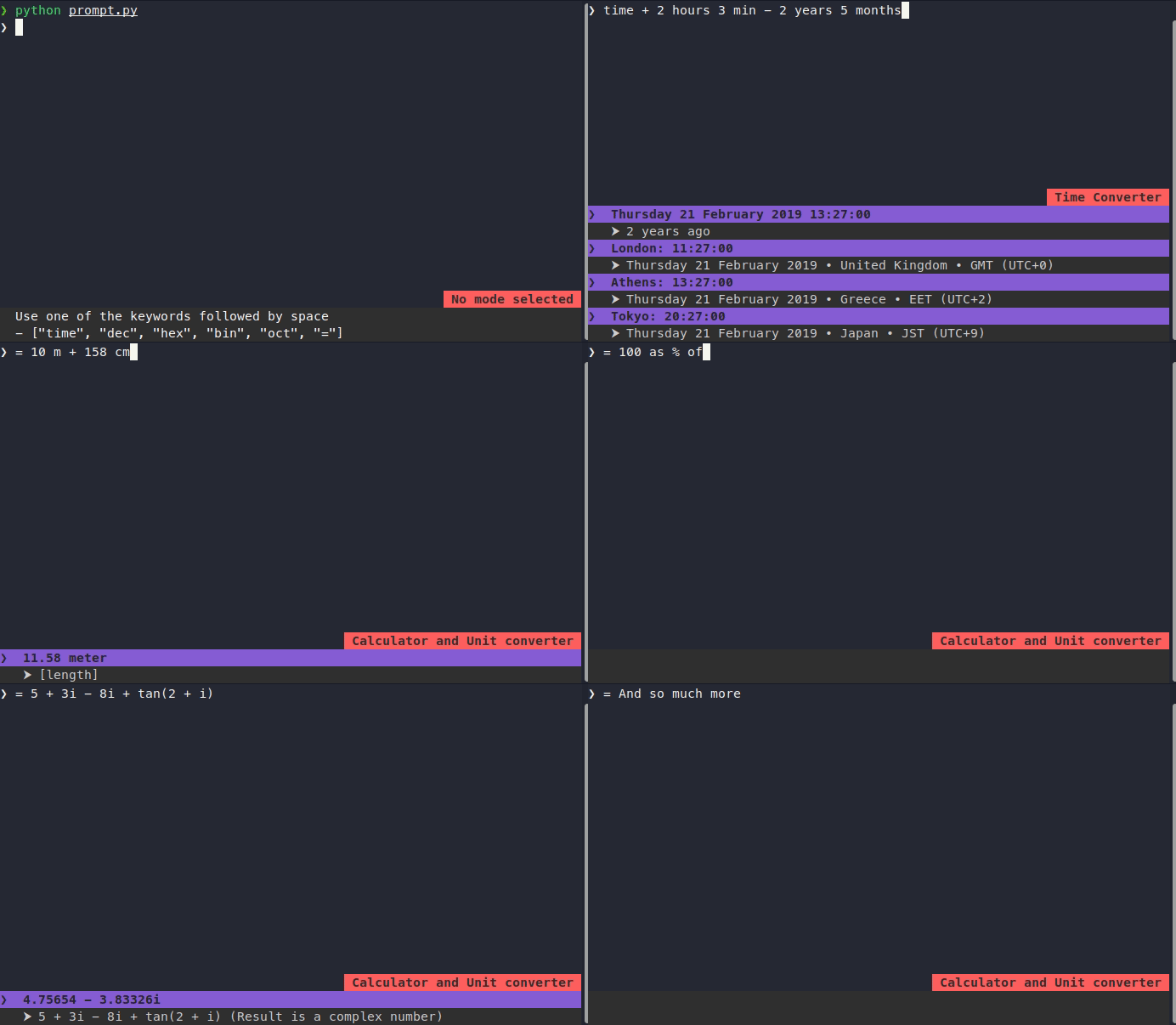
If your currencie's flag is missing you can place it in the extension's flags directory at calculate_anything/images/flags/ and restart your launcher or make a pull request to include it.
Make sure to name your flag image in uppercase 2 letter name of your country. To make a currency flag, simply link the country flag you want to the currency e.g ln -s US.svg USD.svg or add a completely new flag For example American Dollar's flag is in calculate_anything/images/flags/USD.svg. You can use most image formats (i.e svg, png)
more like this
XMB for Plasma BigScreen, console-like fullscreen launcher for living room gamepad users
Launcher and management utility for running an Astroneer Dedicated Server on Linux using WINE
search projects, people, and tags