ForwardWidgets
Widgets for Douban and Trakt watchlists plus personalized recommendations, live TV streaming including PlutoTV, Yatu ra…
JavaScript★ 247
A simple DIY library to generate your own custom Calendar View using RecyclerView, written in Kotlin
 tejpratap46
git clone https://github.com/tejpratap46/RecyclerCalendarAndroid.gittejpratap46/RecyclerCalendarAndroidA DIY calendar generator library for android written in Kotlin.
Step 1. Add the JitPack repository to your build file Add it in your root build.gradle at the end of repositories:
allprojects {
  repositories {
    ...
    maven {
      url 'https://jitpack.io'
    }
  }
}
Step 2. Add the dependency
dependencies {
 implementation 'com.github.tejpratap46:RecyclerCalendarAndroid:LATEST_RELEASE_TAG'
}
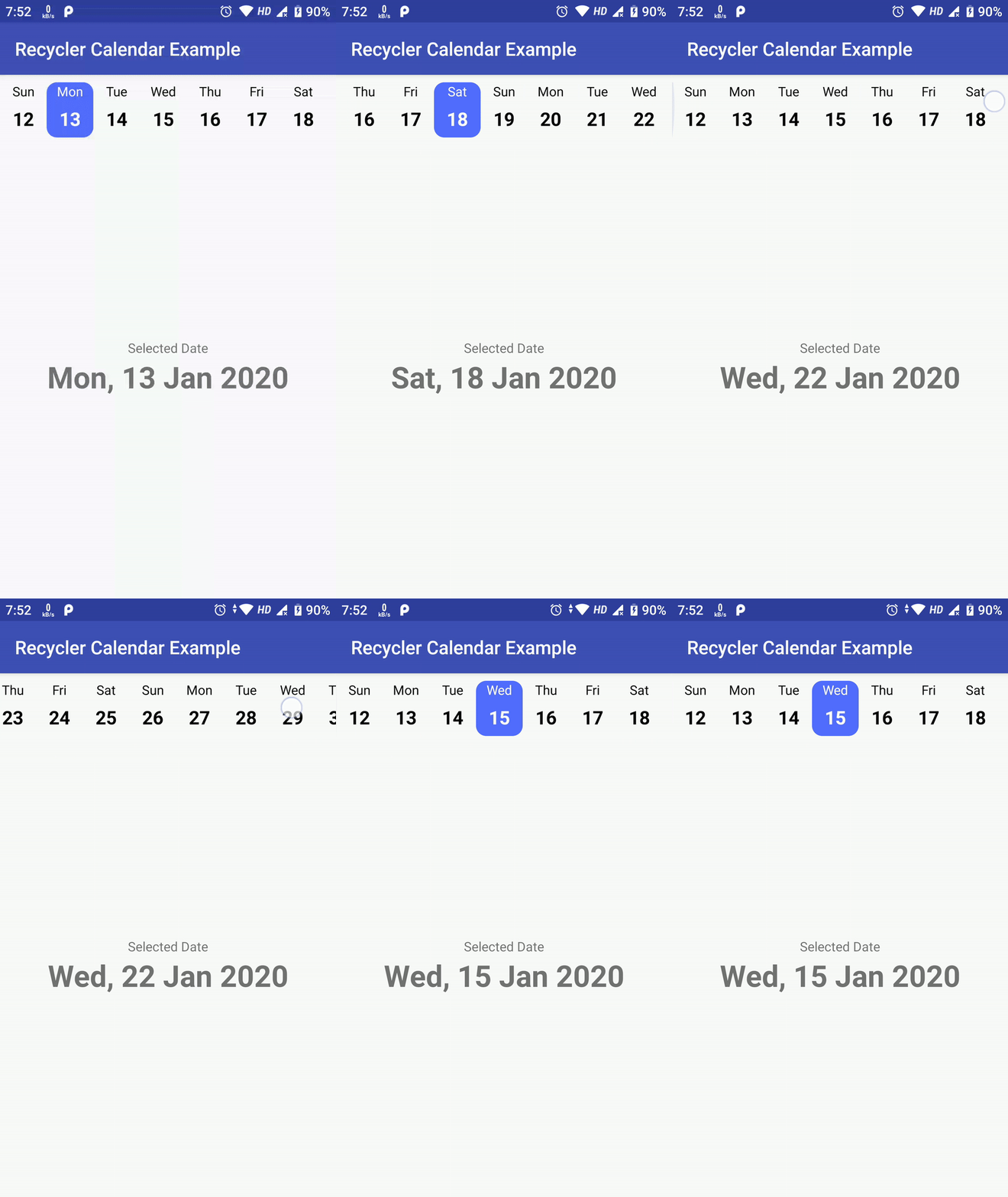
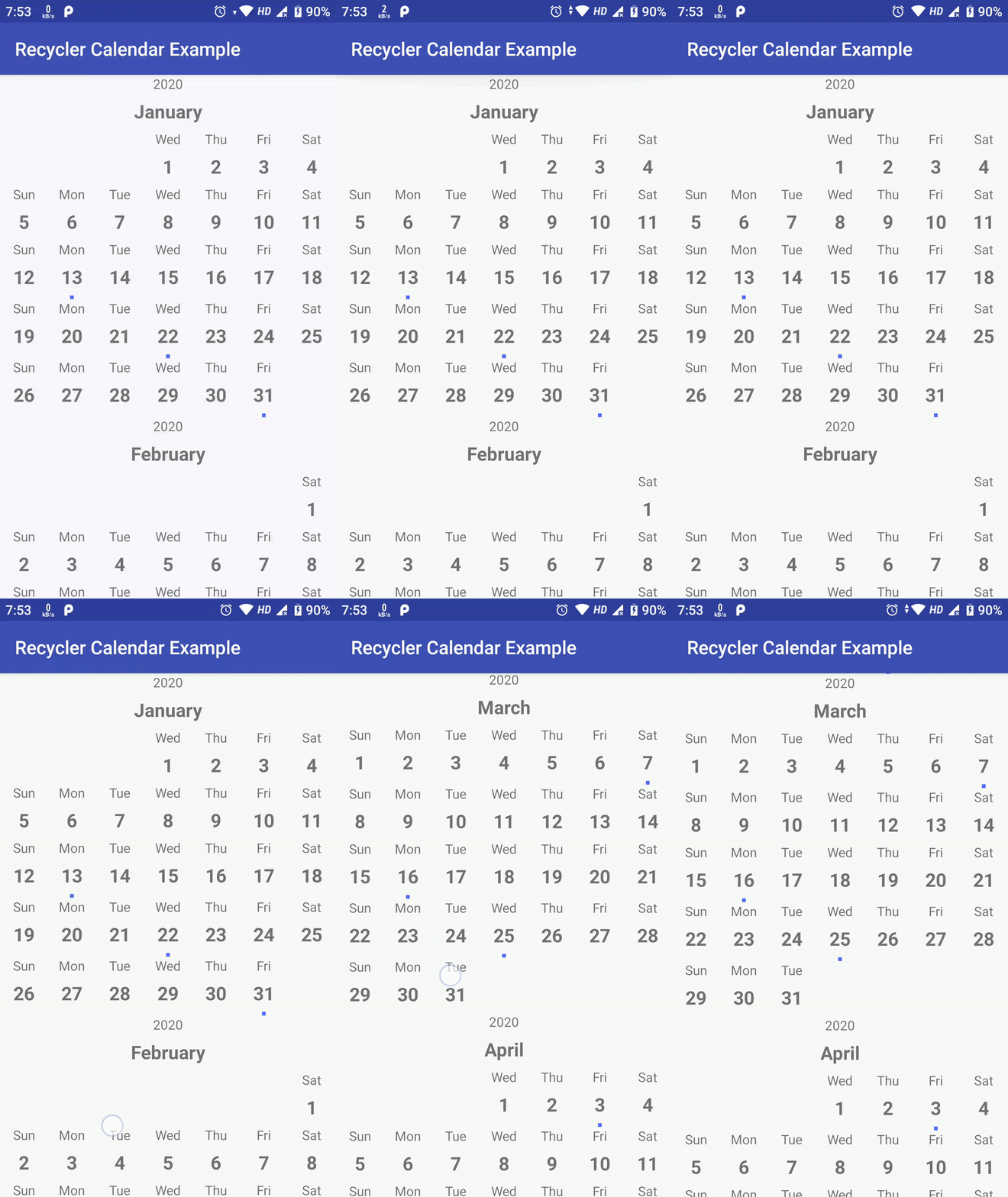
| Week Calendar | Month With Events | Month With Swipe Pages |
|---|---|---|
| Code At: horizontal | Code At: vertical | Code At: viewpager |
 |
 |
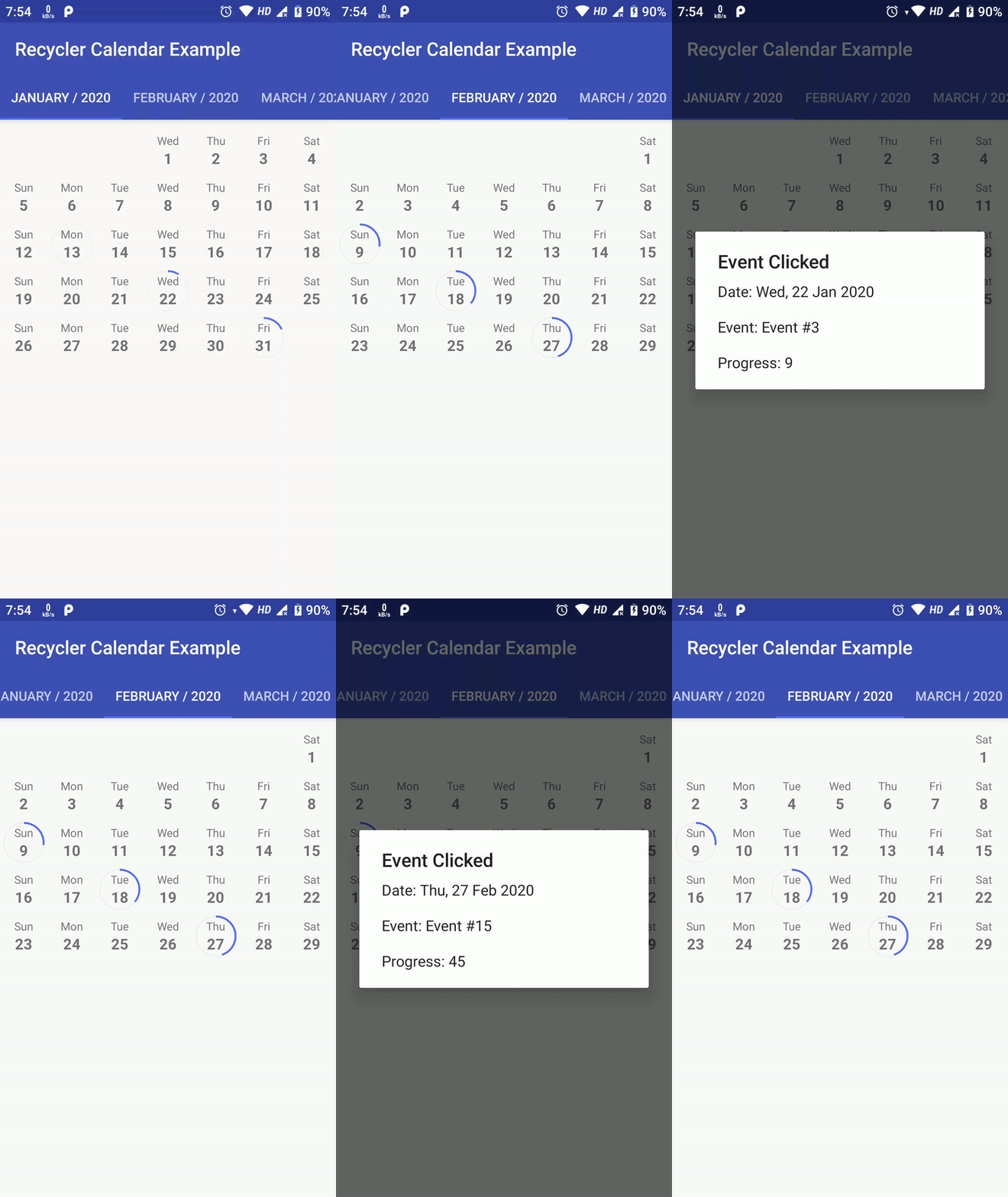 |
Above sample are not the limit of this library, possiblities are endless as you can create custom view for each date as well as add custom Business Login on top of it.
Here is how you can create your own Calendar using RecyclerCalendarAndroid.
Create a RecyclerView Adapter which extends RecyclerCalendarBaseAdapter
override fun onCreateViewHolder(parent: ViewGroup, viewType: Int): RecyclerView.ViewHolder {
    val view: View = LayoutInflater.from(parent.context).inflate(R.layout.item_calendar_horizontal, parent, false)
    return MonthCalendarViewHolder(view)
}
ViewHolder Class for you View which extends RecyclerView.ViewHolder:class MonthCalendarViewHolder(itemView: View) : RecyclerView.ViewHolder(itemView) {
val textViewDay: TextView = itemView.findViewById(R.id.textCalenderItemVerticalDay)
val textViewDate: TextView = itemView.findViewById(R.id.textCalenderItemVerticalDate)
val viewEvent: View = itemView.findViewById(R.id.viewCalenderItemVerticalEvent)
}
onBindViewHolderoverride fun onBindViewHolder(
holder: RecyclerView.ViewHolder,
position: Int,
calendarItem: RecyclerCalenderViewItem
) {
val monthViewHolder: MonthCalendarViewHolder = holder as MonthCalendarViewHolder
// first reset view of current item as it will be reused for different dates and header.
{
// Reset all you view here...
monthViewHolder.itemView.visibility = View.VISIBLE
monthViewHolder.itemView.setOnClickListener(null)
}
// Calendar item as 3 parts
// 1. Header -> Where you put month name, year etc.
// 2. Empty Space -> This is empty space to fill days before first day of month start, hide every view of ViewHolder Here
// 3. Date -> This is a date, customise your date with event, tecket information, Available slot OR just selection etc here
if (calendarItem.isHeader) {
val selectedCalendar = Calendar.getInstance(Locale.getDefault())
selectedCalendar.time = calendarItem.date
val month: String = CalendarUtils.getMonth(selectedCalendar.get(Calendar.MONTH)) ?: ""
val year = selectedCalendar[Calendar.YEAR].toLong()
monthViewHolder.textViewDay.text = year.toString()
monthViewHolder.textViewDate.text = month
} else if (calendarItem.isEmpty) {
monthViewHolder.itemView.visibility = View.GONE
monthViewHolder.textViewDay.text = ""
monthViewHolder.textViewDate.text = ""
} else {
val calendarDate = Calendar.getInstance(Locale.getDefault())
calendarDate.time = calendarItem.date
val day: String = CalendarUtils.getDay(calendarDate.get(Calendar.DAY_OF_WEEK)) ?: ""
monthViewHolder.textViewDay.text = day
val dateInt: Int =
(CalendarUtils.dateStringFromFormat(calendarDate.time, CalendarUtils.DB_DATE_FORMAT)
?: "0").toInt()
if (eventMap.contains(dateInt)) {
// As an example, here im checking if this date has any event passed from constructor
monthViewHolder.viewEvent.visibility = View.VISIBLE
// Set background color from event information
monthViewHolder.viewEvent.setBackgroundColor(eventMap.get(dateInt)!!.color)
}
// Set Date to textView
monthViewHolder.textViewDate.text = CalendarUtils.dateStringFromFormat(calendarDate.time, CalendarUtils.DISPLAY_DATE_FORMAT) ?: ""
// Here as an example, im sending Tap data to listener
monthViewHolder.itemView.setOnClickListener {
dateSelectListener.onDateSelected(calendarItem.date, eventMap[dateInt])
}
}
}
above code is direct example from VerticalRecyclerCalendarAdapter
SimpleRecyclerCalendarViewTo use SimpleRecyclerCalendarView, just include following in your .xml
<com.tejpratapsingh.recyclercalendar.views.SimpleRecyclerCalendarView
  android:id="@+id/calendarRecyclerView"
  android:layout_width="match_parent"
  android:layout_height="match_parent" />
And in Your Activity, include following
val calenderView: SimpleRecyclerCalendarView = findViewById(R.id.calendarRecyclerView)

val date = Date()
date.time = System.currentTimeMillis()

// Start From Date
val startCal = Calendar.getInstance()

// End Date
val endCal = Calendar.getInstance()
endCal.time = date
endCal.add(Calendar.MONTH, 3)

val configuration: SimpleRecyclerCalendarConfiguration =
    SimpleRecyclerCalendarConfiguration(
        calenderViewType = RecyclerCalendarConfiguration.CalenderViewType.VERTICAL, // calendarViewType could be VERTICAL OR HORIZONTAL
        calendarLocale = Locale.getDefault(),
        includeMonthHeader = true,
        selectionMode = SimpleRecyclerCalendarConfiguration.SelectionModeNone() // selectionMode could be one of [SelectionModeNone, SelectionModeSingle, SelectionModeMultiple, SelectionModeRange]
    )
configuration.weekStartOffset = RecyclerCalendarConfiguration.START_DAY_OF_WEEK.MONDAY


calenderView!!.initialise(
    startDate,
    endDate,
    configuration,
    object : SimpleRecyclerCalendarAdapter.OnDateSelected {
        override fun onDateSelected(date: Date) {
            Toast.makeText(
                calenderView!!.context,
                "Date Selected: ${CalendarUtils.getGmt(date)}",
                Toast.LENGTH_LONG
            ).show()
        }
    })
To know More about SimpleRecyclerCalendarView visit SimpleRecyclerCalendarActivity
InfiniteRecyclerCalendarViewTo use InfiniteRecyclerCalendarView, just include following in your .xml
<com.tejpratapsingh.recyclercalendar.views.InfiniteRecyclerCalendarView
  android:id="@+id/calendarRecyclerView"
  android:layout_width="match_parent"
  android:layout_height="match_parent" />
And in Your Activity, include following
val calenderView: InfiniteRecyclerCalendarView = findViewById(R.id.calendarRecyclerView)

val date = Date()
date.time = System.currentTimeMillis()

// Start From Date
val startCal = Calendar.getInstance()

// End Date
val endCal = Calendar.getInstance()
endCal.time = date
endCal.add(Calendar.MONTH, 3)

val configuration: InfiniteRecyclerCalendarConfiguration =
    InfiniteRecyclerCalendarConfiguration(
        calenderViewType = RecyclerCalendarConfiguration.CalenderViewType.VERTICAL, // calendarViewType could be VERTICAL OR HORIZONTAL
        calendarLocale = Locale.getDefault(),
        includeMonthHeader = true,
        selectionMode = InfiniteRecyclerCalendarConfiguration.SelectionModeNone() // selectionMode could be one of [SelectionModeNone, SelectionModeSingle, SelectionModeMultiple, SelectionModeRange]
    )
configuration.weekStartOffset = RecyclerCalendarConfiguration.START_DAY_OF_WEEK.MONDAY

calenderView!!.initialise(
    configuration,
    object : InfiniteRecyclerCalenderAdapter.OnDateSelected {
        override fun onDateSelected(date: Date) {
            Toast.makeText(
                calenderView!!.context,
                "Date Selected: ${CalendarUtils.getGmt(date)}",
                Toast.LENGTH_LONG
            ).show()
        }
    })
To know More about InfiniteRecyclerCalendarActivity visit InfiniteRecyclerCalendarActivity
more like this
Widgets for Douban and Trakt watchlists plus personalized recommendations, live TV streaming including PlutoTV, Yatu ra…
Install and monitor KlipperScreen on Android via DroidKlipp APK, USB ADB forwarding, and WiFi fallback
search projects, people, and tags