ESPHome_nuki_lock
ESPHome lock platform for Nuki Smartlock
 uriyacovy
git clone https://github.com/uriyacovy/ESPHome_nuki_lock.gituriyacovy/ESPHome_nuki_lockESPHome Nuki Lock Component (ESP32) 
Seamlessly integrate Nuki Smart Locks (1st–5th Gen, Ultra, Go, Pro) with ESPHome, enabling a full-featured Home Assistant lock platform with many available entities. The lock state is always up-to-date thanks to Nuki's BLE advertisement mechanism—whether controlled through the Nuki app, Home Assistant, or physically at the door.
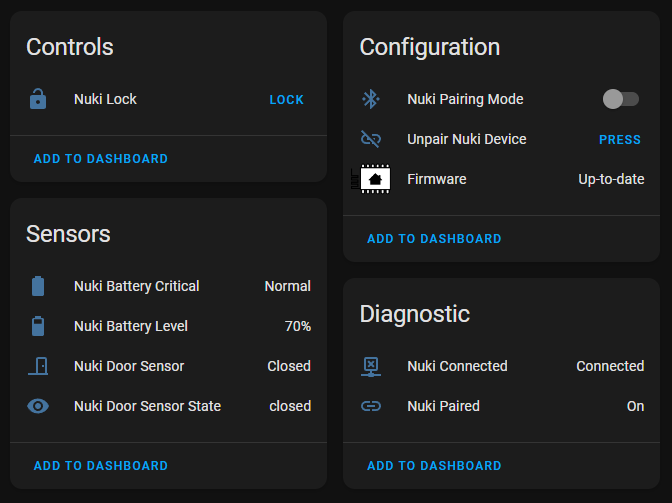
🚀 Quick Start
Requirements
Important
Requires an ESP32
Important
Requires ESPHome >= 2025.11.0
Important
This component uses NimBLE, which is incompatible with ESPHome's BLE stack. Remove all BLE components (esp32_ble, esp32_improv, ...) from your configuration.
Tip
If your ESP32 has PSRAM, add the psram component to improve BLE stability.
Example Configuration
ESP-IDF Example YAML
esphome:
  name: esphome-nuki-lock
  friendly_name: ESPHome Nuki Lock

esp32:
  variant: "esp32"  # Or whatever other board you're using
  framework:
    type: esp-idf

wifi:
  ssid: "SSID"
  password: "PASSWORD"

# In case you want to use the Home Assistant services
# you need to enable custom_services
# In case you want to send nuki event logs to Home Assistant
# you need to enable homeassistant_services
api:
  custom_services: true
  homeassistant_services: true

external_components:
  - source: github://uriyacovy/ESPHome_nuki_lock

lock:
  # Required
  - platform: nuki_lock
    name: Nuki Lock

  # Component Settings
  # Change if you want to use event logs
    event: "none"

  # Needed to change most of the lock settings
  # Needed to pair with Smart Lock Ultra/5th Gen/Go/Pro (6 digit pin)
  # Supports templating
    security_pin: 1234

  # Optional: Advanced Settings
    pairing_as_app: false
    pairing_mode_timeout: 300s
    query_interval_config: 3600s
    query_interval_auth_data: 7200s
    ble_general_timeout: 3s
    ble_command_timeout: 3s


  # Component Entities
  # Switches
    pairing_mode:
      name: "Pairing Mode"
  # Binary Sensors
    connected:
      name: "Connected"
    paired:
      name: "Paired"
  # Buttons
    unpair:
      name: "Unpair Smart Lock"


  # Nuki Smart Lock Entities
  # Optional: Binary Sensors
    battery_critical:
      name: "Nuki Battery Critical"
    door_sensor:
      name: "Nuki Door Sensor"

  # Optional: Sensors
    battery_level:
      name: "Nuki Battery Level"
    bt_signal_strength:
      name: "Nuki Bluetooth Signal Strength"

  # Optional: Text Sensors
    door_sensor_state:
      name: "Nuki Door Sensor: State"
    last_unlock_user:
      name: "Nuki Last Unlock User"
    last_lock_action:
      name: "Nuki Last Lock Action"
    last_lock_action_trigger:
      name: "Nuki Last Lock Action Trigger"
    pin_status:
      name: "Nuki Security Pin Status"

  # Optional: Number Inputs
    led_brightness:
      name: "Nuki LED: Brightness"
    timezone_offset:
      name: "Nuki Timezone: Offset"
    lock_n_go_timeout:
      name: "Nuki Lock 'n' Go Timeout"
    auto_lock_timeout:
      name: "Nuki Auto Lock Timeout"
    unlatch_duration:
      name: "Nuki Unlatch Duration"
    # Advanced Calibration
    unlocked_position_offset:
      name: "Nuki Unlocked Position Offset Degrees"
    locked_position_offset:
      name: "Nuki Locked Position Offset Degrees"
    single_locked_position_offset:
      name: "Nuki Single Locked Position Offset Degrees"
    unlocked_to_locked_transition_offset:
      name: "Nuki Unlocked to Locked Transition Offset Degrees"

  # Optional: Switches
    pairing_enabled:
      name: "Nuki Button: Bluetooth Pairing"
    auto_unlatch:
      name: "Nuki Auto unlatch"
    button_enabled:
      name: "Nuki Button: Locking operations"
    led_enabled:
      name: "Nuki LED: Signal"
    night_mode_enabled:
      name: "Nuki Night Mode"
    night_mode_auto_lock_enabled:
      name: "Nuki Night Mode: Auto Lock"
    night_mode_auto_unlock_disabled:
      name: "Nuki Night Mode: Reject Auto Unlock"
    night_mode_immediate_lock_on_start_enabled:
      name: "Nuki Night Mode: Lock at Start Time"
    auto_lock_enabled:
      name: "Nuki Auto Lock"
    auto_unlock_disabled:
      name: "Nuki Auto Unlock: Disable"
    immediate_auto_lock_enabled:
      name: "Nuki Auto Lock: Immediately"
    auto_update_enabled:
      name: "Nuki Automatic Updates"
    single_lock_enabled:
      name: "Nuki Single Lock"
    dst_mode_enabled:
      name: "Nuki Daylight Saving Time"
    auto_battery_type_detection_enabled:
      name: "Nuki Automatic Battery Type Detection"
    slow_speed_during_night_mode_enabled:
      name: "Nuki Slow Speed During Night Mode"
    detached_cylinder_enabled:
      name: "Nuki Detached Cylinder"

  # Optional: Select Inputs
    single_buton_press_action:
      name: "Nuki Button: Single Press Action"
    double_buton_press_action:
      name: "Nuki Button: Double Press Action"
    fob_action_1:
      name: "Nuki Fob: Action 1"
    fob_action_2:
      name: "Nuki Fob: Action 2"
    fob_action_3:
      name: "Nuki Fob: Action 3"
    timezone:
      name: "Nuki Timezone"
    advertising_mode:
      name: "Nuki Advertising Mode"
    battery_type:
      name: "Nuki Battery Type"
    motor_speed:
      name: "Nuki Motor Speed"

  # Optional: Callbacks
    on_pairing_mode_on_action:
      - lambda: ESP_LOGI("nuki_lock", "Pairing mode turned on");
    on_pairing_mode_off_action:
      - lambda: ESP_LOGI("nuki_lock", "Pairing mode turned off");
    on_paired_action:
      - lambda: ESP_LOGI("nuki_lock", "Paired sucessfuly");
    on_event_log_action:
      - lambda: |-
          ESP_LOGI("nuki_lock", "Event Log (NukiLock::LogEntry) received index: %i, authId: %i", x.index, x.authId);
Run ESPHome:
esphome run <yamlfile.yaml>
Then continue with the pairing instructions below.
🔐 Pairing Your Nuki Lock
Pairing with Nuki Smart Lock (1st – 4th Gen)
-
In the official Nuki App, make sure Bluetooth pairing is enabled:
Settings → Features & Configuration → Button and LED.
After enabling it, press and hold the button on the Nuki lock until the LED ring lights up and stays on. -
Enable pairing mode in the ESPHome component.
You can do this either by toggling the Pairing Mode switch in Home Assistant or by calling thenuki_lock.set_pairing_modeaction in an automation. -
Once pairing is successful, ESPHome entities will automatically update to reflect the lock status, and pairing mode will disable itself.
Note
The ESPHome bridge can run alongside an official Nuki Bridge, but this is not recommended (except in hybrid mode). Running both may increase battery drain and cause missed updates. If you need both, set pairing_as_app: true before pairing. Otherwise, pairing with the ESPHome bridge will unregister the official Bridge.
Pairing with Nuki Smart Lock Ultra / 5th Gen / Go / Pro
-
In the official Nuki App, ensure Bluetooth pairing is enabled:
Settings → Features & Configuration → Button and LED. -
Before activating pairing mode on the lock, configure ESPHome with:
security_pin: 123456: your 6-digit PIN for the Nuki Smart Lock Ultra/5th Gen/Go/Pro
Important
If your PIN starts with zeros, remove them (e.g., 000548 → 548). Pairing will fail if you include leading zeros.
-
Press and hold the button on the Nuki lock until the LED ring lights up and stays on.
-
Enable pairing mode in the ESPHome component.
You can do this either by toggling the Pairing Mode switch in Home Assistant or by calling thenuki_lock.set_pairing_modeaction in an automation. -
Once pairing is successful, ESPHome entities will automatically update to reflect the lock status, and pairing mode will disable itself.
⚙️ Configuration Options
The following configuration options allow you to customize the behavior of the Nuki Lock component, optimizing its performance and reliability. You can configure these in your ESPHome YAML file.
| Option | Description | Default |
|---|---|---|
security_pin |
Required for event logs & advanced operations (mandatory for Ultra/5th Gen/Go/Pro pairing - remove leading zeros: 000548 → 548) | — |
pairing_mode_timeout |
Auto-timeout for pairing mode | 300s |
event |
Event log event name (none disables logs) |
none |
pairing_as_app |
Pair as app | false |
query_interval_config |
Config refresh interval | 3600s |
query_interval_auth_data |
Auth data refresh interval | 7200s |
ble_general_timeout |
General BLE timeout | 3s |
ble_command_timeout |
Command BLE timeout | 3s |
🧩 Home Assistant Actions
Important
In order to use the services, you have to enable them in your api configuration.
Set custom_services to true as in the example below:
api:
  custom_services: true
Unlatch
To unlatch doors without a handle, call the open action in Home Assistant:
action: lock.open
data: {}
target:
  entity_id: lock.<NODE_NAME>
Lock ’n’ Go
To activate the Lock 'n' Go feature on your Nuki Smart Lock, call the following action in Home Assistant:
action: esphome.<NODE_NAME>_lock_n_go
data: {}
Print Keypad Entries
To print the Keypad Entries in the ESPHome Console call the following action in Home Assistant:
action: esphome.<NODE_NAME>_print_keypad_entries
data: {}
Add a Keypad Entry
To add a Keypad Entry, call the following action in Home Assistant:
action: esphome.<NODE_NAME>_add_keypad_entry
data:
  name: "Name"
  code: 12345678
Remove a Keypad Entry
To remove a Keypad Entry, call the following action in Home Assistant:
action: esphome.<NODE_NAME>_delete_keypad_entry
data:
  id: 1
Update a Keypad Entry
To update a Keypad Entry, call the following action in Home Assistant:
action: esphome.<NODE_NAME>_update_keypad_entry
data:
  id: 1
  name: "Name"
  code: 12345678
  enabled: True
🤖 ESPHome Automations
Action: Pairing Mode
To toggle the components Pairing Mode, use the following action:
on_...:
  - nuki_lock.set_pairing_mode:
      pairing_mode: True
Action: Unpair
To unpair your Nuki Smart Lock, use the following action:
on_...:
  - nuki_lock.unpair:
Action: Request Calibration
To request a calibration of your Nuki Smart Lock, use the following action:
on_...:
  - nuki_lock.request_calibration:
Action: Security Pin
Caution
Overriding the security PIN will save it to flash!
To revert back to the PIN defined in your YAML configuration, you must set the override PIN to 0.
To override the security pin without recompiling, use the following action:
on_...:
  - nuki_lock.set_security_pin:
      security_pin: 1234
Condition: Connected
To check if the component recently established a connection to a smart lock, use the following condition:
on_...:
  - if:
      condition:
        nuki_lock.connected:
      then:
        - logger.log: "Recently connected to smart lock! Lock should be available."
Condition: Paired
To check if the component is already paired with a smart lock, use the following condition:
on_...:
  - if:
      condition:
        nuki_lock.paired:
      then:
        - logger.log: "Paired!"
Callbacks
To run specific actions when certain events occur, you can use the following callbacks:
on_pairing_mode_on_action:
  - lambda: ESP_LOGI("nuki_lock", "Pairing mode turned on");
on_pairing_mode_off_action:
  - lambda: ESP_LOGI("nuki_lock", "Pairing mode turned off");
on_paired_action:
  - lambda: ESP_LOGI("nuki_lock", "Paired sucessfuly");
on_event_log_action:
  - lambda: |-
      ESP_LOGI("nuki_lock", "Event Log (NukiLock::LogEntry) received index: %i, authId: %i", x.index, x.authId);
📡 Event Logs (Optional)
This component can send Nuki logs as events to Home Assistant, enabling you to use them in automations. This is disabled by default.
Important
In order to use the event logs, you have to enable them in your api configuration.
Set homeassistant_services to true as in the example below:
api:
  homeassistant_services: true
Note
To receive events, you must set your security PIN. Without it, it's not possible to access any event logs from your lock.
-
To Enable Logs: Set the
eventproperty in your YAML configuration to something else thannoneif you want to receive log events. -
To View Log Events: Go to Home Assistant Developer Tools -> Events, and listen for
esphome.nukievents to monitor log activity. You can also use theon_event_log_actioncallback to access the LogEntry which is available asx.
These log events provide insights into lock operations and help fine-tune automations based on lock data. Keep in mind that the logs are not displayed in real-time and may take up to a minute to arrive.
Example Event:
event_type: esphome.nuki
data:
  device_id: 373c62d6788cf81d322763235513310e
  action: Unlatch
  authorizationId: "3902896895"
  authorizationName: Nuki ESPHome
  completionStatus: success
  index: "92"
  timeDay: "25"
  timeHour: "0"
  timeMinute: "46"
  timeMonth: "10"
  timeSecond: "11"
  timeYear: "2024"
  trigger: system
  type: LockAction
origin: LOCAL
time_fired: "2024-10-25T00:46:33.398284+00:00"
context:
  id: 01JB0J7AXPMS5DWHG188Y6XFCP
  parent_id: null
  user_id: null
📦 Entities
Note
Most settings entities require the security PIN to make changes.
Without the PIN, modifying these settings is not possible.
Additionally, the Last Unlock User feature will only function if events are enabled!
ESPHome
Binary Sensor:
- Paired
- Connected
Text Sensor:
- Pin Status
Switch:
- Pairing Mode
Button:
- Unpair Device
Nuki Lock
Lock:
- Lock
Binary Sensor:
- Critical Battery
- Door Sensor
Sensor:
- Battery Level
- Bluetooth Signal Strength
Text Sensor:
- Door Sensor State
- Last Unlock User
- Last Lock Action
- Last Lock Action Trigger
Switch:
- Button: Bluetooth Pairing
- Button: Locking operations
- LED Signal
- Night Mode
- Night Mode: Auto Lock
- Night Mode: Reject Auto Unlock
- Night Mode: Lock at Start Time
- Auto Lock
- Auto Unlock: Disable
- Auto Lock: Immediately
- Single Lock
- Daylight Saving Time
- Automatic Updates
- Automatic Battery Type Detection (Smart Lock Gen 1-4)
- Slow Speed During Night Mode (Smart Lock Ultra)
- Detached Cylinder
Button:
- Request Calibration
Select Input:
- Single Button Press Action
- Double Button Press Action
- Fob Action 1
- Fob Action 2
- Fob Action 3
- Timezone
- Advertising Mode
- Battery Type (Smart Lock Gen 1-4)
- Motor Speed (Smart Lock Ultra)
Number Input:
- LED: Brightness
- Timezone Offset
- Lock 'n' Go Timeout
- Auto Lock Timeout
- Unlatch Duration
- Unlocked Position Offset Degrees
- Locked Position Offset Degrees
- Single Locked Position Offset Degrees
- Unlocked to Locked Transition Offset Degrees
🔗 Dependencies
This component is based on NukiBleEsp32 by I-Connect, using a maintained ESP-IDF-compatible fork.
🧪 Tested Hardware
- ESP32
- ESP32-S3
- Nuki Smart Lock 2nd gen
- Nuki Smart Lock 3rd gen
- Nuki Smart Lock 4th gen
- Nuki Smart Lock 5th gen
- Nuki Smart Lock Ultra
- Nuki Door Sensor
more like this
PowerDisplayESPHome
A small display for ESPHome and Home Assistant to retrieve the current house consumption and energy price via a sensor…