ansible-role-zsh
Setup antigen with oh-my-zsh, powerlevel10k theme, fzf, autosuggestions, syntax-highlighting
 viasite-ansible
git clone https://github.com/viasite-ansible/ansible-role-zsh.gitviasite-ansible/ansible-role-zshTested on Ubuntu 20.04, Ubuntu 22.04, Ubuntu 24.04, MacOS 26.
Tested long time ago: Ubuntu 18.04, MacOS 14.4, MacOS 10.12, CentOS 8
1.5 mins demo
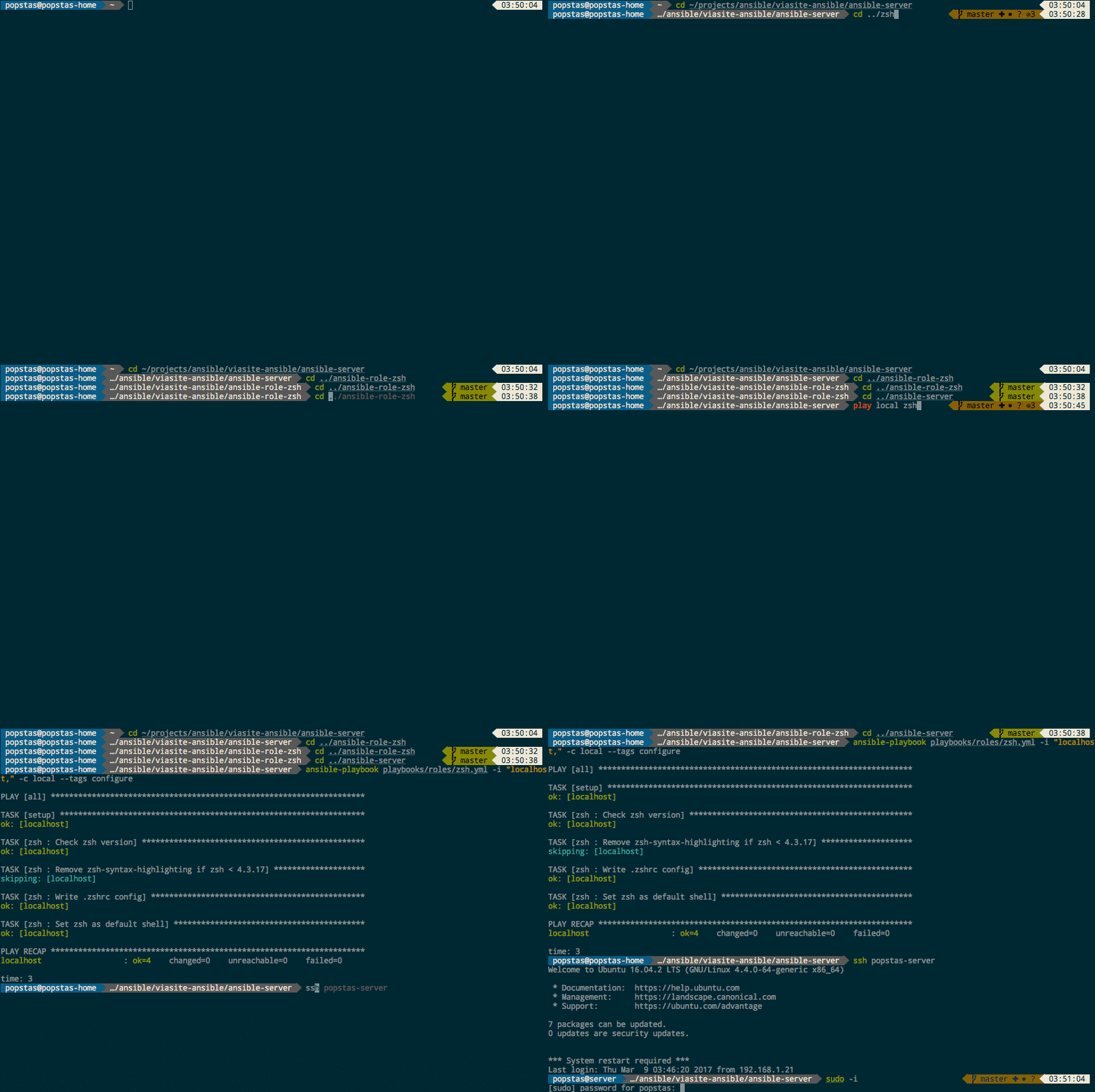
Color schemes

Zero-knowledge install:
If you are not familiar with Ansible, you can just execute install.sh on the target machine. It detects the OS (Ubuntu/Debian or macOS), installs Ansible, and sets up zsh for the current user:
curl https://raw.githubusercontent.com/viasite-ansible/ansible-role-zsh/master/install.sh | bash
- Ubuntu/Debian: installs pip3, Ansible (into
~/ansible-venv) and zsh. - macOS: requires
brewandpython; installs Ansible via brew and zsh. - It runs non-interactively when possible — you are only asked for a password if
sudois not passwordless. - To also provision the root user, set
ZSH_INSTALL_ROOT=1:curl https://raw.githubusercontent.com/viasite-ansible/ansible-role-zsh/master/install.sh | ZSH_INSTALL_ROOT=1 bash
The previous
install-macos.shURL still works — it now forwards toinstall.sh.
Then configure terminal application.
Windows (PowerShell / cmd)
zsh does not run in native Windows shells, so on Windows this repo installs the
portable parts of the setup — the starship prompt plus a fzf / autosuggestion
/ history experience — into PowerShell (and the starship prompt plus Ctrl+R
fzf history into cmd.exe via clink).
It uses a standalone install.ps1; no Ansible, Python, or WSL.
Requires a preinstalled package manager: winget, scoop, or choco.
irm https://raw.githubusercontent.com/viasite-ansible/ansible-role-zsh/master/install.ps1 | iex
If your ExecutionPolicy blocks it, run PowerShell once as:
powershell -ExecutionPolicy Bypass -Command "irm https://raw.githubusercontent.com/viasite-ansible/ansible-role-zsh/master/install.ps1 | iex"
To pass flags, download-and-invoke instead of piping:
& ([scriptblock]::Create((irm https://raw.githubusercontent.com/viasite-ansible/ansible-role-zsh/master/install.ps1))) -NoCmd -NoPoshGit
Flags
| Flag | Effect |
|---|---|
-NoCmd |
Skip clink install and cmd.exe prompt setup |
-NoAutosuggestions |
Skip PSReadLine history predictions |
-NoPSFzf |
Skip PSFzf (fzf Ctrl+R / Ctrl+T) |
-NoPoshGit |
Skip posh-git |
-Force |
Overwrite an existing ~/.config/starship.toml |
-PackageManager <winget|scoop|choco> |
Force a specific manager |
What maps over
| zsh feature | Windows equivalent |
|---|---|
| starship prompt | starship (PowerShell + cmd via clink) |
| zsh-autosuggestions | PSReadLine -PredictionSource History |
| fast-syntax-highlighting | PSReadLine built-in token coloring |
fzf widgets / Ctrl+R |
fzf + PSFzf (PowerShell); fzf Ctrl+R history in cmd.exe via clink |
| git/docker/kubectl completions | posh-git + native completers |
| ~25 antigen completion bundles | not ported (PowerShell has its own completion model) |
The Windows starship prompt is generated from the same template as the
Linux/macOS default (windows/starship.toml, kept in sync by CI).
Includes:
- zsh
- antigen
- oh-my-zsh
- starship prompt (default prompt)
- powerlevel9k/powerlevel10k theme (optional, via
zsh_theme: powerlevel10k) - zsh-autosuggestions
- zsh-syntax-highlighting
- unixorn/autoupdate-antigen.zshplugin
- sorenson-axial/fzf-widgets
- urbainvaes/fzf-marks
Features
- selectable prompt theme: starship (default) or powerlevel10k (see Prompt theme)
- customize powerlevel9k theme prompt segments and colors
- default colors tested with solarized dark and default grey terminal
- add custom prompt elements from yml
- custom zsh config with
~/.zshrc.localor/etc/zshrc.local - load
/etc/profile.dscripts - install only plugins that useful for your machine. For example, plugin
dockerwill not install if you have not Docker
Prompt theme
The role supports two selectable prompt themes via the zsh_theme variable:
starship(default since v4) — the cross-shell starship prompt, installed as a standalone binary.powerlevel10k— the classic antigen-bundled powerlevel10k prompt.
Starting with v4 the default is starship (earlier versions defaulted to powerlevel10k).
If you were relying on the previous powerlevel10k default,
set zsh_theme: powerlevel10k to keep the old prompt:
- hosts: all
  vars:
    zsh_theme: powerlevel10k
  roles:
    - viasite-ansible.zsh
When starship is selected, the powerlevel10k/powerlevel9k wiring is skipped, the starship binary is
installed to zsh_starship_path, the prompt is activated in .zshrc with eval "$(starship init zsh)",
and a ~/.config/starship.toml is generated to reproduce the role's p9k-style prompt segments and colors.
starship-related variables:
| Variable | Default | Description |
|---|---|---|
zsh_theme |
starship |
Prompt theme: starship or powerlevel10k. |
zsh_starship_version |
"1.26.0" |
Pinned starship binary version to install. |
zsh_starship_path |
"$HOME/bin" |
Install directory for the starship binary (already on PATH; /usr/local/bin when zsh_shared). |
zsh_starship_manage_config |
yes |
Render and manage ~/.config/starship.toml (and export STARSHIP_CONFIG). Set no to leave the config alone. |
zsh_starship_config |
"" |
Raw verbatim starship.toml content. When set, it is written as-is instead of the generated preset (and no merge happens). |
zsh_starship_config_user_file |
~<user>/.config/starship.user.toml |
User-editable override file. If present, its keys are deep-merged over the generated preset, so you can tweak a few settings while keeping the rest. |
zsh_starship_config_user |
"" |
Inline starship.toml override string. Merged last, so it beats both the generated preset and the user file. |
Customizing the generated config
Starship reads a single config file and has no include/merge mechanism of its own, so the role
deep-merges your overrides into the generated preset at provision time and writes the result to
~/.config/starship.toml. You only specify the keys you want to change — everything else stays as
the generated preset.
Override precedence (low → high):
generated preset → zsh_starship_config_user_file → zsh_starship_config_user
A table you override is merged key-by-key (your keys win); a scalar or array replaces the generated
value outright. To override a whole prompt without merging, use zsh_starship_config instead — it is
written verbatim and bypasses the merge entirely.
Example — keep the generated prompt but change the right side and restyle the command-duration segment (as an inline override in host/group vars):
zsh_starship_config_user: |
  right_format = "$status$cmd_duration$time"

  [cmd_duration]
  style = "fg:green"
The same content can instead live in a host-side file (default ~/.config/starship.user.toml) that
users edit directly; it is merged on every run if present. If both are set, the inline
zsh_starship_config_user wins over the file.
Requirements/notes for the merge:
- Needs Python 3.11+ on the managed host (uses the stdlib
tomllib); no extra pip/collection deps. - The merged file is re-serialized, so the generated header comment is dropped and strings are
normalized (single → double quotes, inline tables expanded to
[table.subtable]). The result is equivalent, valid TOML.
Note: like powerlevel10k, starship needs a Nerd Font installed in your terminal to render the prompt icons/glyphs correctly.
Midnight Commander Solarized Dark skin
If you are using Solarized Dark scheme and mc, you should want to install skin, then set zsh_mc_solarized_skin: yes
Testing
The role is tested with Molecule. See CONTRIBUTING.md for how to run the test scenarios.
Install for real machine
Zero-knowledge install: see above.
Manual install
- Install Ansible. For Ubuntu:
sudo apt update
sudo apt install python3-venv python3-pip -y
python3 -m venv ~/ansible-venv
source ~/ansible-venv/bin/activate
pip install ansible
For macOS: brew install ansible.
- Download role:
ansible-galaxy install viasite-ansible.zsh --force
- Write playbook or use playbook.yml:
- hosts: all
  vars:
    zsh_antigen_bundles_extras:
      - nvm
      - joel-porquet/zsh-dircolors-solarized
    zsh_autosuggestions_bind_key: "^U"
  roles:
    - viasite-ansible.zsh
- Provision playbook:
ansible-playbook -i "localhost," -c local -K playbook.yml
If you want to provision role for root user on macOS, you should install packages manually:
brew install zsh git wget
It will install zsh environment for ansible remote user. If you want to setup zsh for other users,
you should define variable zsh_user:
Via playbook:
- hosts: all
  roles:
    - { role: viasite-ansible.zsh, zsh_user: otheruser }
    - { role: viasite-ansible.zsh, zsh_user: thirduser }
Or via command:
ansible-playbook -i hosts zsh.yml -e zsh_user=otheruser
- Install fzf without shell extensions, download binary
or
brew install fzffor macOS.
Note: I don't use tmux-fzf and don't tested work of it.
Multiuser shared install
If you have 10+ users on host, probably you don't want manage tens of configurations and thousands of files.
In this case you can deploy single zsh config and include it to all users.
It causes some limitations:
- Users have read only access to zsh config
- Users cannot disable global enabled bundles
- Possible bugs such cache write permission denied
- Possible bugs with oh-my-zsh themes
For install shared configuration you should set zsh_shared: yes.
Configuration will install to /usr/share/zsh-config, then you just can include to user config:
Install for all users
Set zsh_source_for_all_users: yes
source /usr/share/zsh-config/.zshrc
You can still provision custom configs for several users.
Configure
You should not edit ~/.zshrc!
Add your custom config to ~/.zshrc.local (per user) or /etc/zshrc.local (global).
.zshrc.local will never touched by ansible.
Configure terminal application
-
Download and install a Nerd Font of your choice, then select it in your terminal. Both starship and powerlevel10k need a Nerd Font to render the prompt icons/glyphs correctly.
-
Set a color scheme. Personally, I prefer the Solarized Dark color scheme.
Hotkeys
You can view hotkeys in defaults/main.yml, zsh_hotkeys.
Sample hotkey definitions:
- { hotkey: '^r', action: 'fzf-history' }
# with dependency of bundle
- { hotkey: '`', action: autosuggest-accept, bundle: zsh-users/zsh-autosuggestions }
Useful to set autosuggest-accept to ` hotkey, but it conflicts with Midnight Commander (break Ctrl+O subshell).
You can add your custom hotkeys without replace default hotkeys with zsh_hotkeys_extras variable:
zsh_hotkeys_extras:
  - { hotkey: '^[^[[D', action: backward-word } # alt+left
  - { hotkey: '^[^[[C', action: forward-word } # alt+right
  # Example <Ctrl+.><Ctrl+,> inserts 2nd argument from end of prev. cmd
  - { hotkey: '^[,', action: copy-earlier-word } # ctrl+,
Aliases
You can use aliases for your command with easy deploy. Aliases config mostly same as hotkeys config:
zsh_aliases:
  - { alias: 'dfh', action: 'df -h | grep -v docker' }
# with dependency of bundle and without replace default asiases
- zsh_aliases_extra
  - { alias: 'dfh', action: 'df -h | grep -v docker', bundle: }
Default hotkeys from plugins:
- → - accept autosuggestion
- Ctrl+Z - move current application to background, press again for return to foreground
- Ctrl+G - jump to bookmarked directory. Use
markin directory for add to bookmarks - Ctrl+R - show command history
- Ctrl+@ - show all fzf-widgets
- Ctrl+@,C - fzf-change-dir, press fast!
- Ctrl+\ - fzf-change-recent-dir
- Ctrl+@,G - fzf-change-repository
- Ctrl+@,F - fzf-edit-files
- Ctrl+@,. - fzf-edit-dotfiles
- Ctrl+@,S - fzf-exec-ssh (using your ~/.ssh/config)
- Ctrl+@,G,A - fzf-git-add-file
- Ctrl+@,G,B - fzf-git-checkout-branch
- Ctrl+@,G,D - fzf-git-delete-branches
fzf options file
Simple fzf options are exported in FZF_DEFAULT_OPTS (see zsh_fzf_height, zsh_fzf_reverse,
zsh_fzf_border). Options that don't survive shell quoting — nested quotes, $VARS that must be
expanded by fzf at runtime — go to a separate options file, rendered to ~/.fzfrc
(/usr/share/zsh-config/fzfrc when zsh_shared) and exported as FZF_DEFAULT_OPTS_FILE.
The file needs fzf >= 0.48, older versions just ignore it.
The whole thing is opt-in, nothing changes until you set zsh_fzf_manage_opts_file: yes:
- hosts: all
  vars:
    zsh_fzf_manage_opts_file: true
  roles:
    - viasite-ansible.zsh
Note that enabling it overwrites an existing ~/.fzfrc (the old one is kept as a backup).
| Variable | Default | Description |
|---|---|---|
zsh_fzf_manage_opts_file |
no |
Render the options file and export FZF_DEFAULT_OPTS_FILE. |
zsh_fzf_opts_extra |
[] |
Extra verbatim lines for the options file, one option per line. |
zsh_fzf_ruen |
yes |
ЙЦУКЕН → QWERTY fallback for queries typed in the wrong keyboard layout. |
zsh_fzf_ruen_command |
ruen |
Command that converts the query. |
With zsh_fzf_ruen a query that matched nothing is retyped from the russian layout
to latin, so ыукср becomes search and the search keeps going. Queries that do match
are left untouched, so searching russian text still works.
It needs the ruen script from
viasite/server-scripts (installed by the viasite-ansible.server-scripts role); on hosts without
it the bind is guarded by command -v and does nothing.
Configure bundles
You can check default bundles in defaults/main.yml.
If you like default bundles, but you want to add your bundles, use zsh_antigen_bundles_extras variable (see example playbook above).
If you want to remove some default bundles, you should use zsh_antigen_bundles variable.
Format of list matches antigen. All bellow variants valid:
- docker # oh-my-zsh plugin
- zsh-users/zsh-autosuggestions # plugin from github
- zsh-users/zsh-autosuggestions@v0.3.3 # plugin from github with fixed version
- ~/projects/zsh/my-plugin --no-local-clone # plugin from local directory
Note that bundles can use conditions for load. There are two types of conditions:
- Command conditions. Just add
commandto bundle:
- { name: docker, command: docker }
- name: docker-compose
  command: docker-compose
Bundles docker and docker-compose will be added to config only if commands exists on target system.
- When conditions. You can define any ansible conditions as you define in
whenin tasks:
# load only for zsh >= 4.3.17
- name: zsh-users/zsh-syntax-highlighting
  when: "{{ zsh_version is version_compare('4.3.17', '>=') }}"
# load only for macOS
- { name: brew, when: "{{ ansible_os_family != 'Darwin' }}" }
Note: you should wrap condition in "{{ }}"
Custom config
You can add any code in variable zsh_custom_before, zsh_custom_after.
- zsh_custom_before - before include antigen.zsh
- zsh_custom_after - before include ~/.zshrc.local
Known bugs
su username caused errors
See antigen issue.
If both root and su user using antigen, you should use su - username in place of su username.
Or you can use bundled alias suser.
Also, you can try to fix it, add to ~/.zshrc.local:
alias su='su -'
But this alias can break you scripts, that using su.
more like this
deoplete-zsh
term-dmenu
Replace dmenu with a floating terminal and FZF! Comes with helper scripts for program/app launching, window switching,…