meine
meine 🌒 - A CLI file manager and system utility built with Textual. It combines intuitive command parsing with rich t…
Python★ 50
CLI Epub Reader
 wustho
git clone https://github.com/wustho/epr.gitwustho/epr$ epr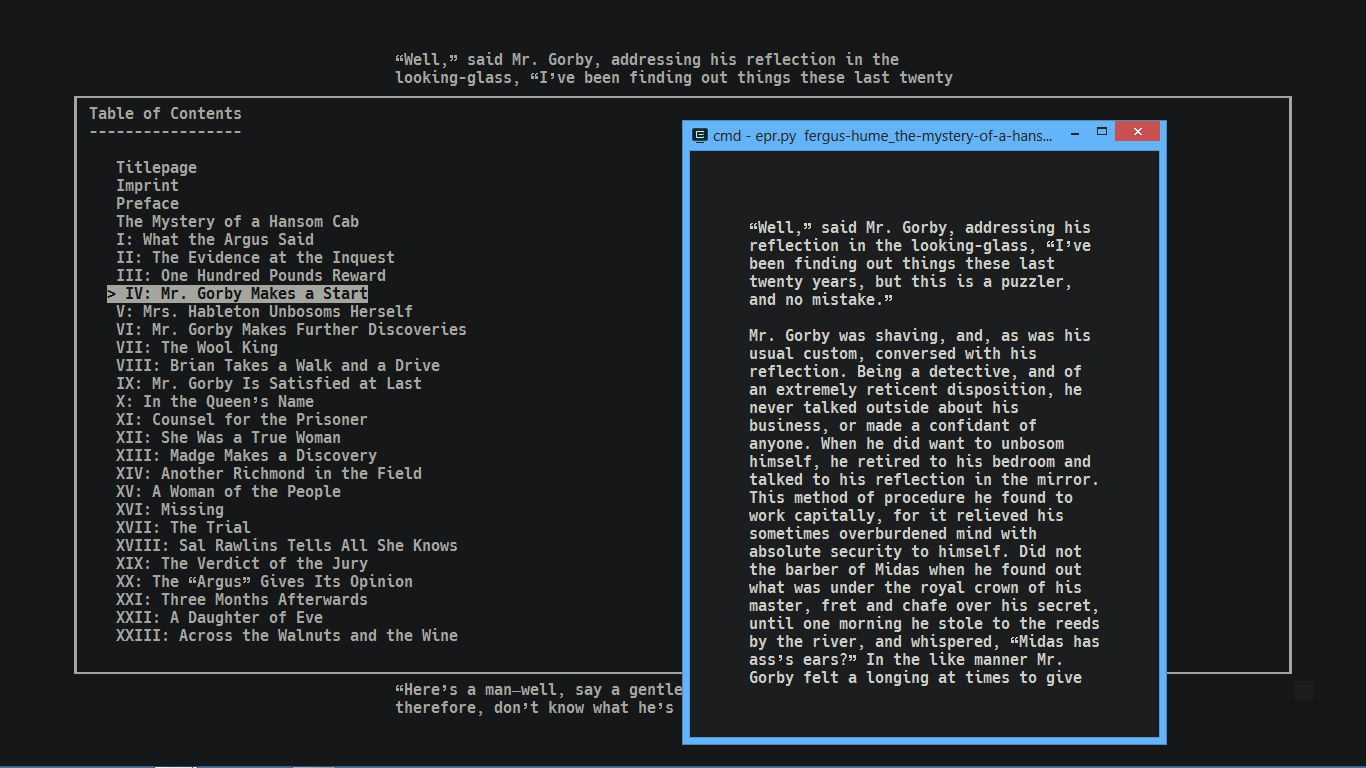
Terminal/CLI Epub reader written in Python 3.6 with features:
epr without any argument)$HOME/.config/epr/config or $HOME/.epr respectively depending on availability)^{Superscript} and _{subscript}.windows-cursesVia PyPI
$ pip3 install epr-reader
Via Pip+Git
$ pip3 install git+https://github.com/wustho/epr.git
Via Homebrew for macOS or Linux
$ brew install epr
Via Chocolatey
Maintained by cybercatgurrl
$ choco install epr
Via AUR
Maintained by jneidel
$ yay -S epr-git
Manually
Clone this repo, tweak epr.py as much as you see fit, rename it to epr, make it executable and put it somewhere in PATH.
epy!It's just a fork of this epr with little more features:
Install it with:
$ pip3 install git+https://github.com/wustho/epy
Rather than invoking epr /path/to/file each time you are going to read, you might find it easier to do just epr STRINGS.
Example:
$ epr dumas count mont
If STRINGS is not any file, epr will choose from reading history, best matched path/to/file with those STRINGS. So, the more STRINGS given the more accurate it will find.
Run epr -r to show list of all reading history.
Just hit o when [IMG:n] (n is any number) comes up on a page. If there's only one of those, it will automatically open the image using viewer, but if there are more than one, cursor will appear to help you choose which image then press RET to open it and q to cancel.
This is just a simple colorscheme involving foreground dan background color only, no syntax highlighting.
You can cycle color between default terminal color, dark or light respectively by pressing c.
You can also switch color to default, dark or light by pressing 0c, 1c or 2c respectively.
Customizing dark/light colorscheme needs to be done inside the source code by editing these lines:
# colorscheme
# DARK/LIGHT = (fg, bg)
# -1 is default terminal fg/bg
DARK = (252, 235)
LIGHT = (239, 223)
To see available values assigned to colors, you can run this one-liner on bash:
$ i=0; for j in {1..16}; do for k in {1..16}; do printf "\e[1;48;05;${i}m %03d \e[0m" $i; i=$((i+1)); done; echo; done
Search function can't find occurrences that span across multiple lines
Only capable of finding pattern that span inside a single line, not sentence. So works more effectively for finding word or letter rather than long phrase or sentence.
As workarounds, You can increase text area width to increase its reach or dump
the content of epub using -d option, which will dump each paragraph into a single line separated by empty line
(or lines depending on the epub), to be later piped into grep, rg etc. Pretty useful to find book quotes.
Example:
# to get 1 paragraph before and after a paragraph containing "Overdue"
$ epr -d the_girl_next_door.epub | grep Overdue -C 2
Some TOC issues (Checkout epy if you're bothered with these issues):
"-" chapters in TOC
This happens because not every chapter file (inside some epubs) is given navigation points.
Some epubs even won't let you navigate between chapter, thus you'll find all chapters named as
"-" using epr for these kind of epubs.
Skipped chapters in TOC
Example:
Table of Contents
-----------------

    1. Title Page
    2. Chapter I
    3. Chapter V
This happens because Chapter II to Chapter IV is probably in the same file with Chapter I,
but in different sections, e. g. ch000.html#section1 and ch000.html#section2.
But don't worry, you should not miss any part to read. This just won't let you navigate to some points using TOC.
Sometimes page flipping itself to new chapter when scrolling
This might be disorienting. To avoid this issue, you can use epy instead
which fixed this issue by setting its config SeamlessBetweenChapters.
more like this
meine 🌒 - A CLI file manager and system utility built with Textual. It combines intuitive command parsing with rich t…
Launcher and management utility for running an Astroneer Dedicated Server on Linux using WINE
search projects, people, and tags