jovial
Jovial - A lovely zsh theme with responsive-design, it's pretty fast, keep simple but useful
 zthxxx
git clone https://github.com/zthxxx/jovial.gitzthxxx/jovialJovial
A clean and fast ZSH theme with responsive design, providing simple yet powerful features
Overview
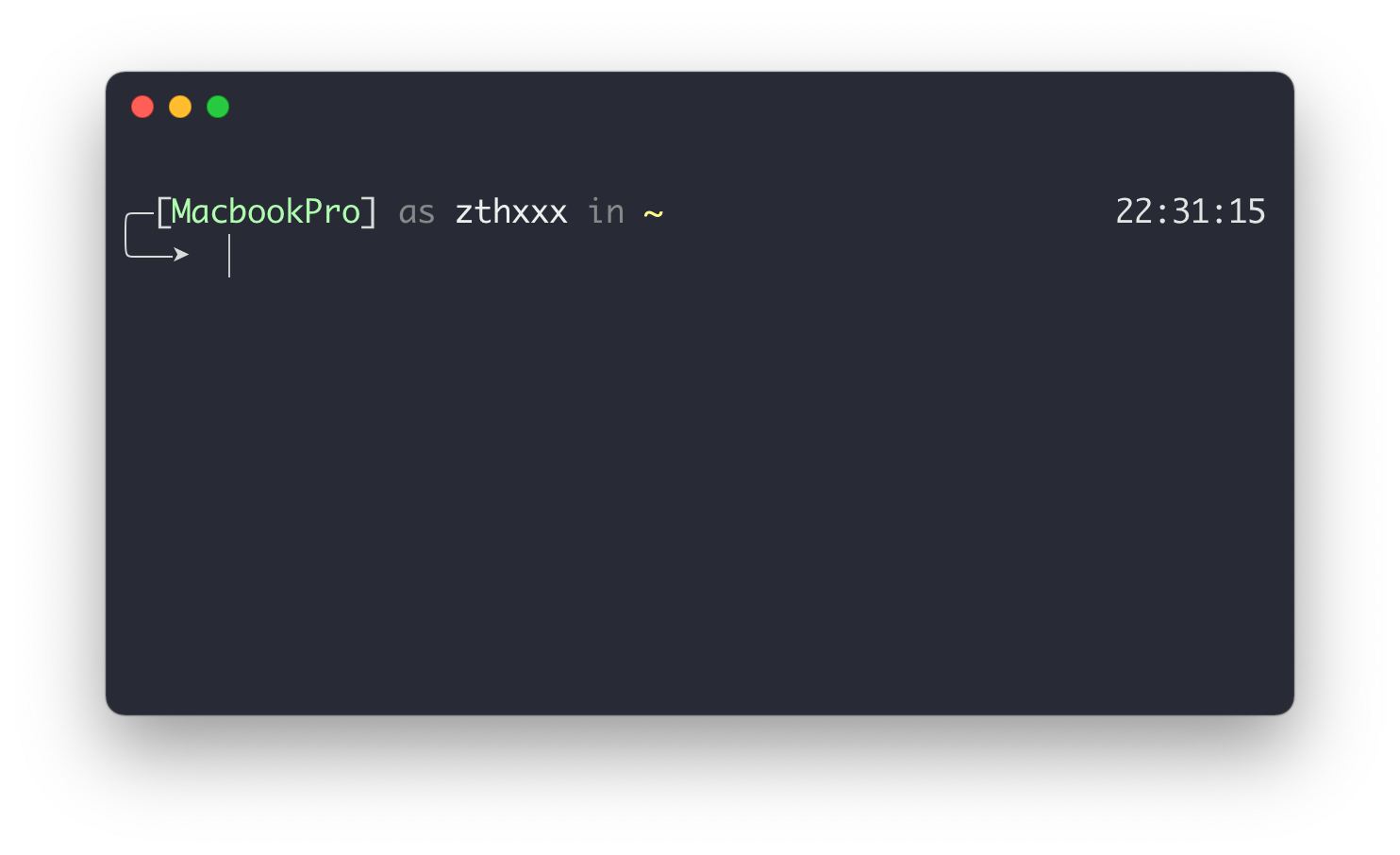
Jovial is designed for users who want a straightforward ZSH experience without unnecessary complexity. Whether you're new to ZSH or an experienced user, Jovial offers an intuitive interface with helpful features that enhance your command-line workflow.
TOC
· Features / Plugins / Install / Customization / Benchmark / Migration ·
Features & Preview
Complete Feature Set
Jovial comes packed with useful features. Here's how it looks with all features enabled:
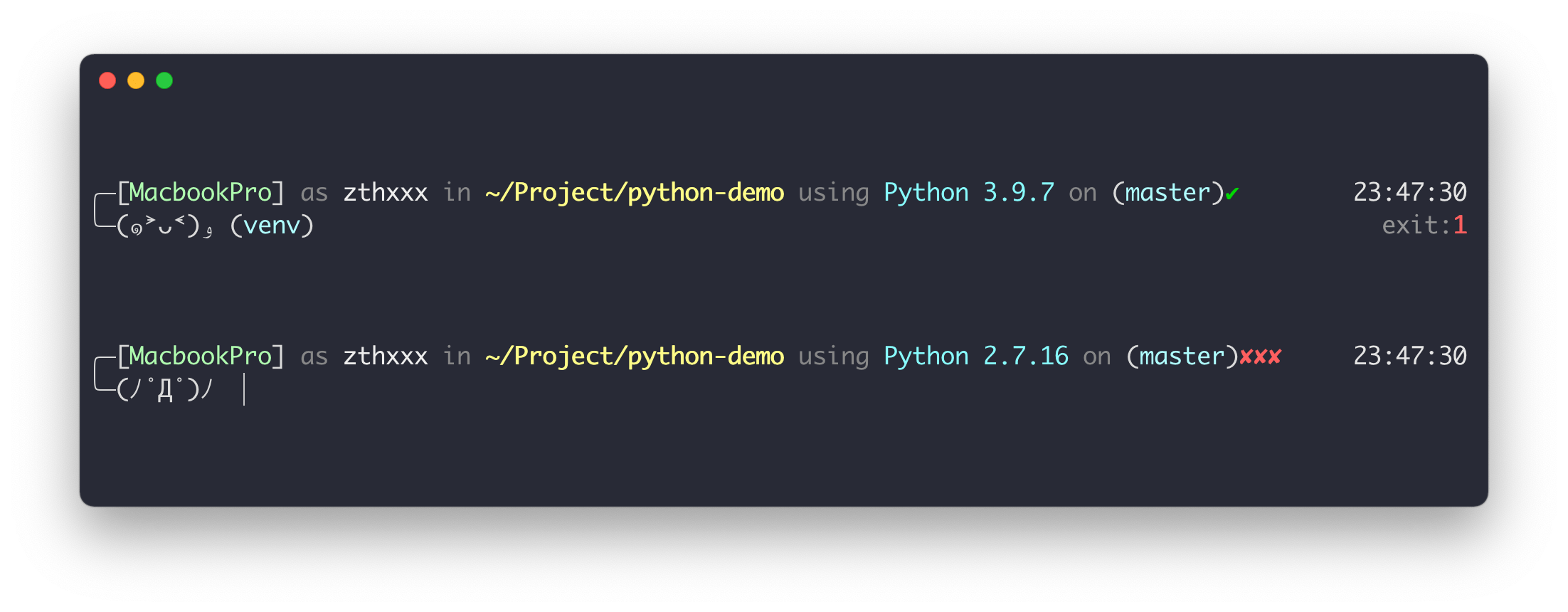
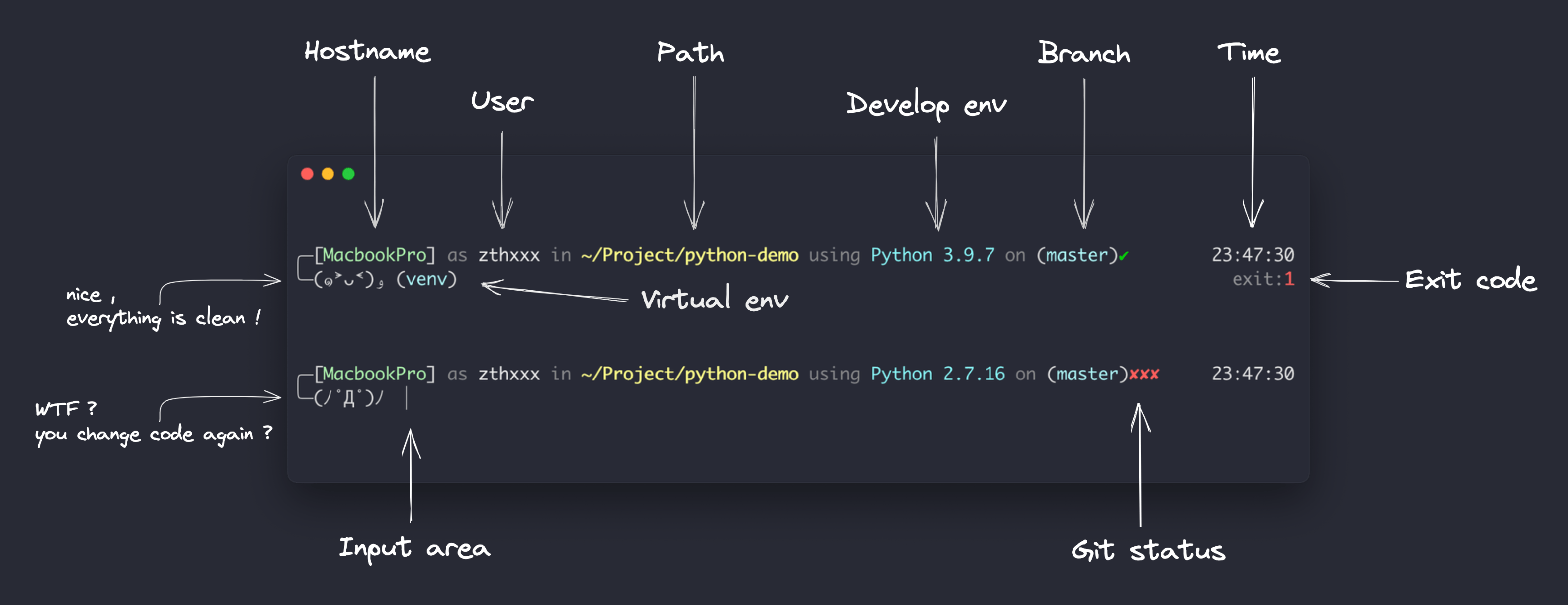
The description of each part:
Responsive Design
Each part of the prompt is "responsive" to the terminal window's width, so you can safely use it in a narrow terminal.
jovial-responsive-desigin.mp4
Git Actions State
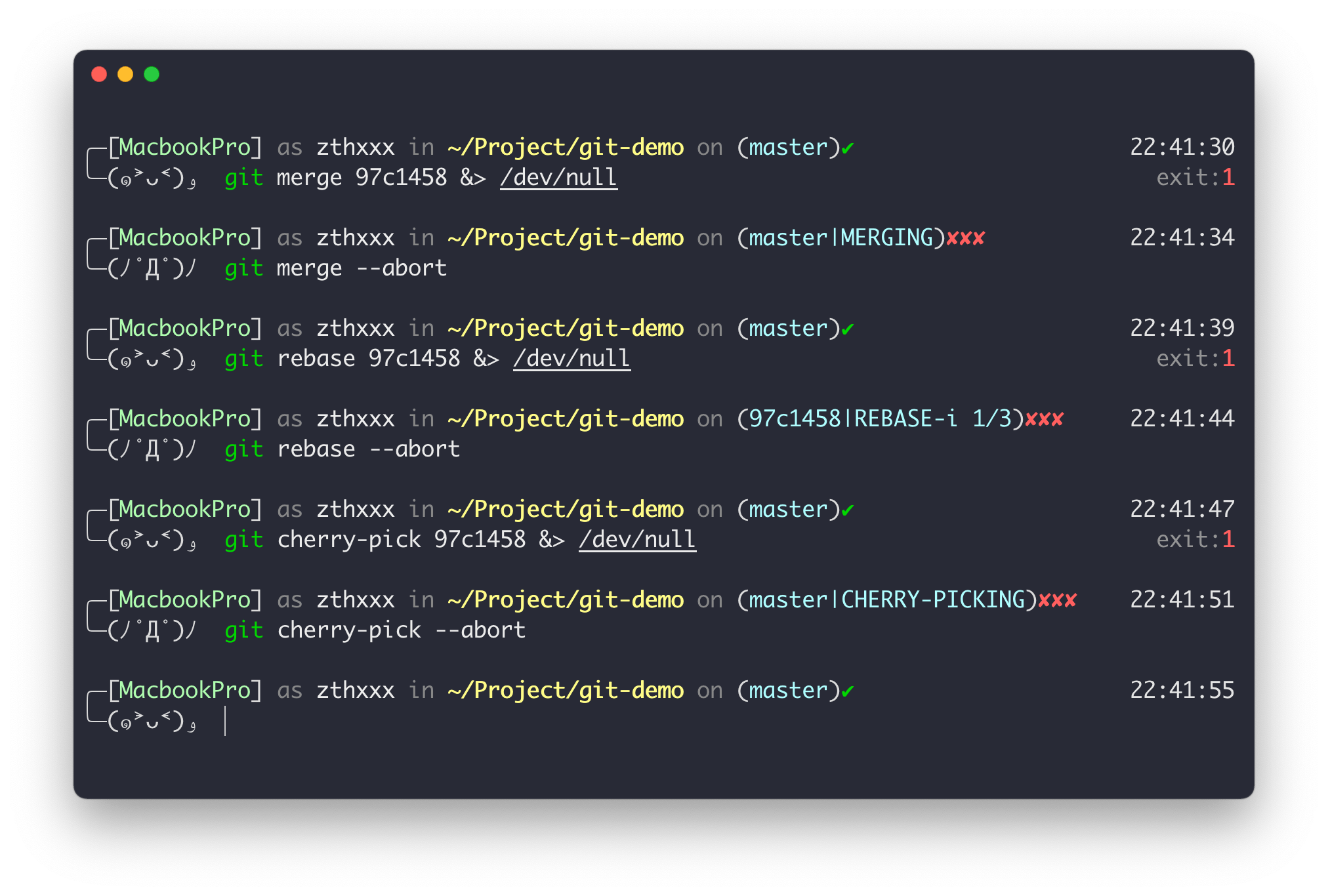
In addition to the basic git state (branch / tag / hash, dirty or clean),
there are also some prompts to hint that you are in merge / rebase / cherry-pick now with conflict or not.
Note that all git states will be updated asynchronously, so this theme is pretty fast even in a huge git repo.
Development Environment Detection
It will detect and show your development programming language and version in the current working directory,
support Python, Conda, NodeJs, Golang, PHP out-of-box, such as:
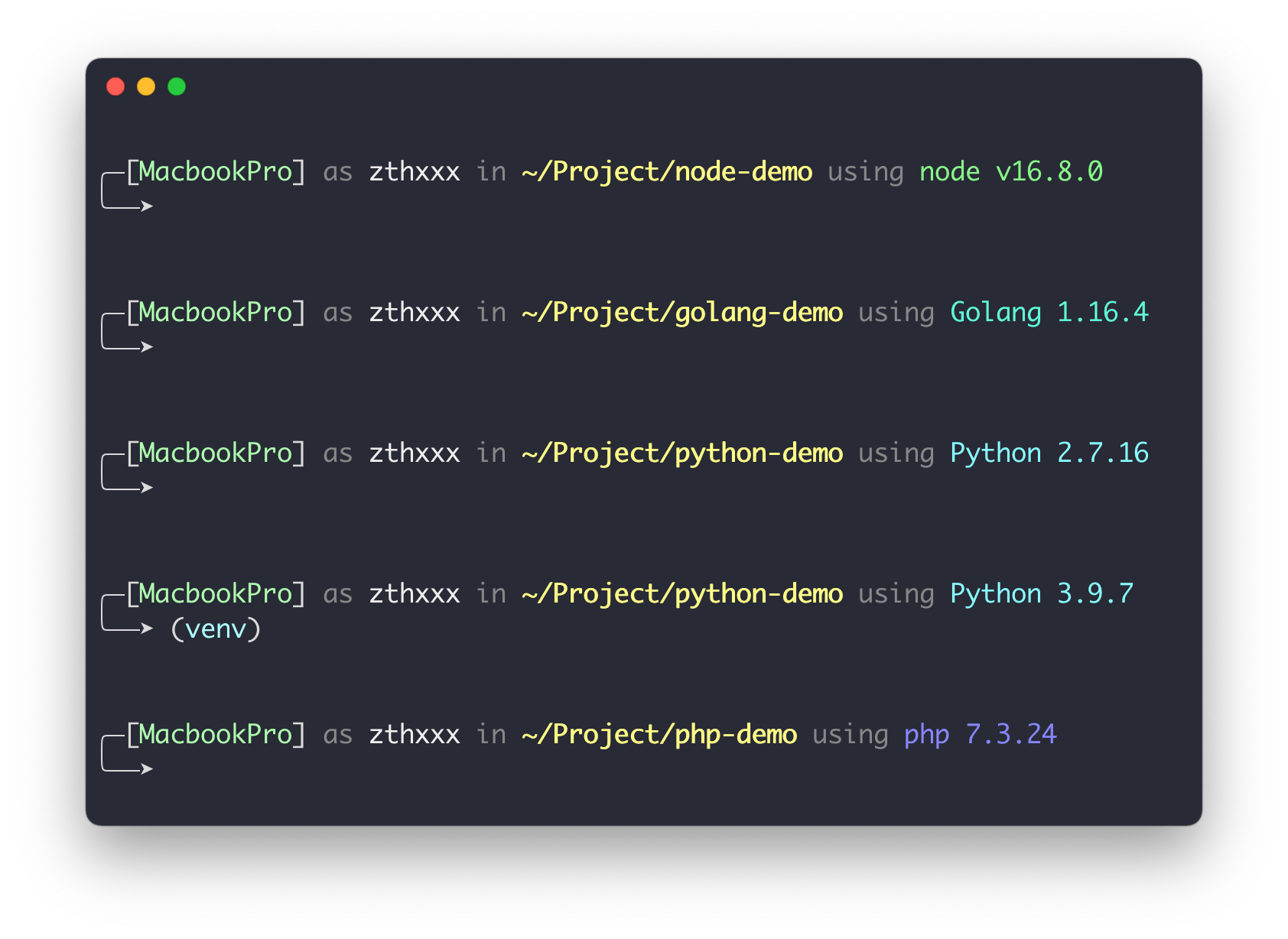
venv environment for Python:
Support detecting the venv, virtualenv, conda environment activated by default.
For conda (miniconda), you need set conda config --set changeps1 false to avoid conda auto change the theme's prompt.
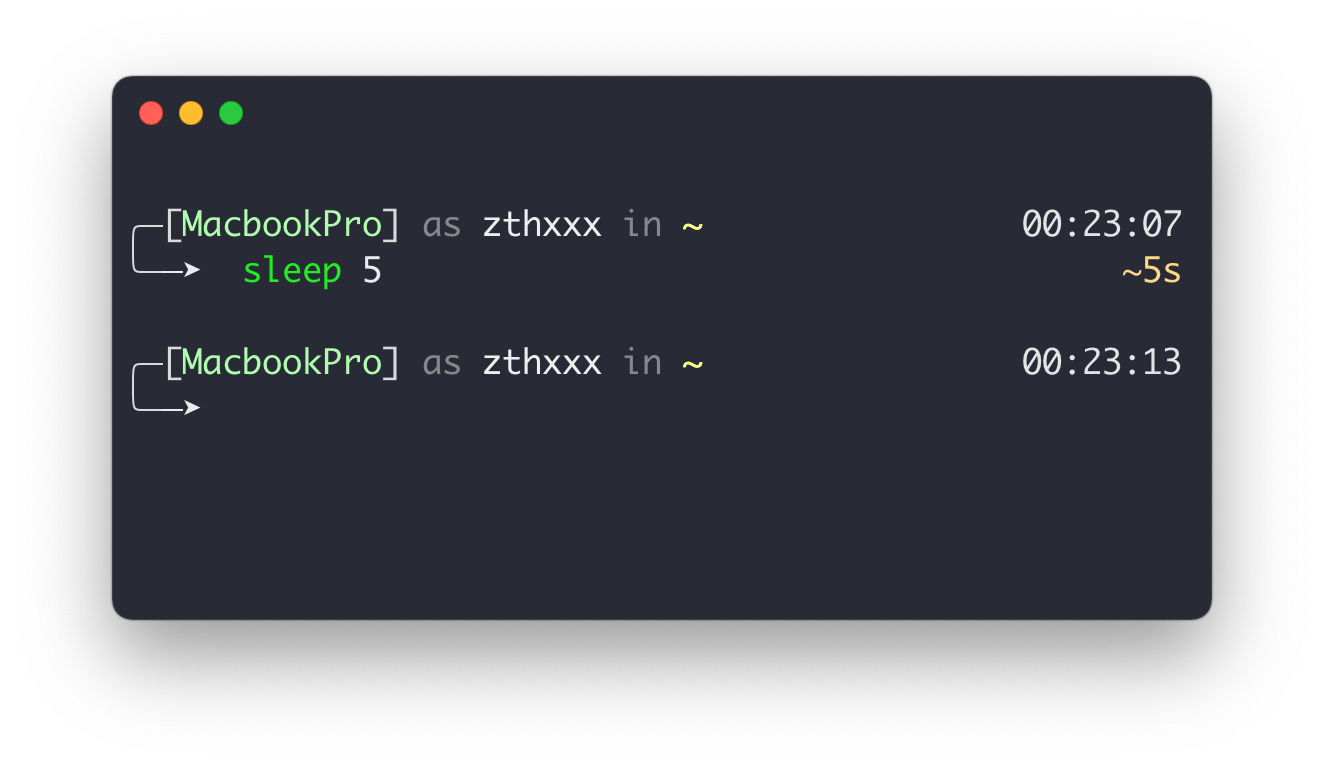
Show Execution Elapsed Time
Plugins Integration
These integrated plugins below will be auto-setup by the install script. You can see the
install.zsh-pluginsfunction in installer.sh
- jovial: Jovial plugin defines some utility functions and aliases. You can see them in jovial.plugin.zsh
- git: Short aliases for commonly used commands
- zoxide: It remembers which directories you use most frequently, so you can "jump" to them in just a few keystrokes.
- bgnotify: Background notifications for long-running commands
- zsh-history-enquirer: Widget for history searching, enhances
Ctrl+R - zsh-autosuggestions: Shell auto-completion
- zsh-syntax-highlighting: User input syntax highlighting
Install
Requirements: zsh
5.3+(released 2016) — relies on the builtinadd-zle-hook-widget
Just run the simple one-line install command:
curl -sSL https://github.com/zthxxx/jovial/raw/master/installer.sh | sudo -E bash -s ${USER:=`whoami`}
Note: The install script is designed to be "Idempotent", so you can safely execute it multiple times.
Tips: You may want to use some http proxy. Just export proxy variables before running the install command,
like:
export all_proxy=http://127.0.0.1:1086(it's equal to
export http_proxy=http://127.0.0.1:1086 http_proxys=http://127.0.0.1:1086)
Here is what the install command and script do:
-
Explain the command:
sudo: Ensures the script runs with access to install packages and change the default login shell-E: Passes through environment variables while using sudo, to receive variables likehttp_proxy-s $USER: Passes the parameters to the script, which is the real target user for installation
-
The script performs these steps:
- If
zshoroh-my-zshis not found, it will install them - Changes the default login shell to
zsh - Downloads the jovial theme/plugin files in the oh-my-zsh custom folder
- Installs integrated plugins via the local package manager
- Automatically rewrites the
ZSH_THEMEandpluginsvariables in the user's.zshrc
- If
Install with Zinit
Zinit is a fast plugin manager for zsh with simple declarative configuration.
Install Jovial and its plugins with just a single line in your .zshrc:
zinit light-mode depth=1 multisrc='*.plugin.zsh' for zthxxx/jovial
See the full out-of-the-box Zinit config here:
https://github.com/zthxxx/jovial/blob/master/examples/zinit.zshrc
Use this example .zshrc as a starter:
curl -SL https://github.com/zthxxx/jovial/raw/master/examples/zinit.zshrc -o ~/.zshrc
Install with Antigen
Antigen is a theme/plugin manager for zsh that uses simple declarative configuration.
With Antigen, installing Jovial without sudo permission is easy.
Just download Antigen and copy the example below into your ~/.zshrc,
reload zsh, and Antigen will automatically download everything only during initialization.
Download Antigen:
mkdir -p ~/.antigen && curl -SL https://github.com/zsh-users/antigen/raw/develop/bin/antigen.zsh -o ~/.antigen/antigen.zsh
Example for ~/.zshrc with Antigen:
You can manually copy this below into your
~/.zshrcfile, or use the command to download and append:
curl -SL https://github.com/zthxxx/jovial/raw/master/examples/antigen.zshrc >> ~/.zshrc
# ~/.zshrc

# [Antigen](https://github.com/zsh-users/antigen),
# a theme/plugin manager for zsh that uses simple declarative configuration.

# Load Antigen
source ~/.antigen/antigen.zsh

# Basic recommended for Antigen
antigen use oh-my-zsh
antigen bundle git
antigen bundle zoxide
antigen bundle colored-man-pages
antigen bundle zsh-users/zsh-completions
antigen bundle zsh-users/zsh-autosuggestions
antigen bundle zsh-users/zsh-syntax-highlighting

# Load the Jovial theme and plugins
antigen theme zthxxx/jovial
antigen bundle zthxxx/jovial
antigen bundle zthxxx/zsh-history-enquirer


# Any other plugins need to be set before `antigen apply`

# After all, tell Antigen that you're done, then Antigen will start
antigen apply
Then reload zsh to load Antigen with the Jovial theme:
exec zsh -il
Note that you also need to manually install other plugin bin files like:
sudo apt install -y zoxide terminal-notifier source-highlight
Install with Fig
Fig adds apps, shortcuts, and autocomplete to your existing terminal.
Install the jovial theme in just one click.
Manually Install Without oh-my-zsh
First, you need to download the jovial.zsh-theme file manually. For example, using curl:
curl -sSL "https://github.com/zthxxx/jovial/raw/master/jovial.zsh-theme" -o ~/.config/jovial.zsh-theme
Then, add these zsh settings in your ~/.zshrc and load the theme file:
# ~/.zshrc

source ~/.config/jovial.zsh-theme
Finally, don't forget to change the default login shell to zsh. You can use the chsh command:
sudo chsh -s `command -v zsh` $USER
Upgrade
Using Antigen
With Antigen, it's simple to update the jovial theme by using antigen update:
antigen update zthxxx/jovial
Note that this ONLY updates the jovial theme, without any other plugins.
To update other plugins, you need to use the antigen update command on the other plugin names again.
Using the Install Script
Since the install script is designed to be "Idempotent", if you want to upgrade the Jovial theme, run the install command again.
If you want to upgrade manually without the install command, just download and override the jovial.zsh-theme file again.
Changelogs can be found in CHANGELOG.md, and the current version you are using can be seen by running echo ${JOVIAL_VERSION}.
NOTE: Pay attention to the tips for Migration / Breaking Changes
Customization
All the elements / symbols / colors can be easily customized by overriding theme variables in ~/.zshrc
These variables are designed for customization:
JOVIAL_THEME_MODEJOVIAL_SYMBOLJOVIAL_PALETTE/JOVIAL_PALETTE_DARK/JOVIAL_PALETTE_LIGHTJOVIAL_PROMPT_ORDERJOVIAL_PROMPT_PRIORITYJOVIAL_AFFIXESJOVIAL_EXEC_THRESHOLD_SECONDSJOVIAL_DEV_ENV_DETECT_FUNCS
You can find their default values in jovial.zsh-theme (~/.oh-my-zsh/custom/themes/jovial.zsh-theme)
Symbols
All the default symbols are defined as:
JOVIAL_SYMBOL=(
    corner.top    '╭─'
    corner.bottom '╰─'

    git.dirty '✘✘✘'
    git.clean '✔'

    arrow '─➤'
    arrow.git-clean '(๑˃̵ᴗ˂̵)و'
    arrow.git-dirty '(ノ˚Д˚)ノ'
)
You can override symbols by assigning the variable with a key in JOVIAL_SYMBOL, such as arrows:
# ~/.zshrc

JOVIAL_SYMBOL[arrow]='->'
JOVIAL_SYMBOL[arrow.git-clean]='->'
JOVIAL_SYMBOL[arrow.git-dirty]='->'
Automatic Light / Dark Detection
Since v2.6, jovial ships two palettes — one tuned for a dark terminal background and one for a light background — and picks the right one automatically.
Jovial resolves the active theme mode from the fastest source available:
- If
JOVIAL_THEME_MODEis already set (env var or in~/.zshrc), it is trusted as-is and no detection is performed. - Else, if the terminal exports
COLORFGBG(e.g. iTerm2, rxvt, Konsole), its background index decides the mode instantly — a zero-cost hint, no terminal round-trip. This is preferred for terminals (like iTerm2) that are slow to answer the OSC query below. - Else, the terminal is asked for its actual background color (an
OSC 11 query):
the query is sent when the theme file is sourced and its reply is
collected at the first prompt, so the round-trip overlaps the rest of
your
~/.zshrcinstead of delaying the first prompt. The perceived luminance of the reply resolveslightordark. - If none of the above resolve (terminal never answers, shell isn't
interactive), it falls back to
dark.
In a non-interactive shell (scripts, pipelines, no tty) only the two env checks above ever run — no query, no waiting, no subprocess.
# ~/.zshrc — force a mode and skip detection entirely
JOVIAL_THEME_MODE=light    # or: dark

# optional: the "first paint budget" in seconds (see below)
JOVIAL_THEME_DETECT_TIMEOUT=0.3
Notes:
JOVIAL_THEME_DETECT_TIMEOUT(default0.3s) is the first paint budget — a hard cap on how long the first prompt may wait. Everything slow — the background reply, the git status check, and the dev-env probe — races in parallel inside this one shared window: whatever finishes in time joins the first render synchronously; whatever doesn't keeps running and rerenders the prompt the moment it completes. So a slowgit statusin a huge repo or a mute terminal can delay the first prompt by at most the budget — never longer, and never stacked. A responsive terminal spends (almost) none of it, since its reply already arrived while~/.zshrcwas loading.- A reply that arrives only after the budget is still handled: a
line-editor guard quietly swallows it (no
11;rgb:...garbage on your command line) and switches the palette on the spot. - The detection is careful with the tty: the reply is captured with
sysread(rawread(2)), the tty briefly switches to-icanon -echoviastty(^C still works: ISIG stays on) — the only place jovial shells out, and only at startup — so the reply is never echoed to the screen; keystrokes typed before the first prompt are carefully separated from the reply and replayed, not eaten. The per-prompt render path stays subprocess-free. - Because it asks the terminal emulator (not the OS), it works the same when running over SSH or inside a Docker container — the query reaches the real terminal at the far end of the pty.
- Tested with iTerm2, VSCode terminal (xterm.js), Ghostty, and
Kitty. (Under
tmux/screen, passthrough may block the query; jovial then falls back to dark — just setJOVIAL_THEME_MODEexplicitly.)
Colors
Colors live in two palettes, JOVIAL_PALETTE_DARK and JOVIAL_PALETTE_LIGHT,
which share the same keys. After the mode is resolved, jovial copies the matching
one into JOVIAL_PALETTE, so anything that reads JOVIAL_PALETTE[...] keeps
working unchanged.
Override a single key in whichever palette you want to tweak — same style as
JOVIAL_SYMBOL above:
# ~/.zshrc
JOVIAL_PALETTE_DARK[path]='%B%F{220}'
JOVIAL_PALETTE_LIGHT[path]='%B%F{208}'
Backward compatibility: the legacy single
JOVIAL_PALETTEstill works. Any key you set on it (the pre-v2.6 way) is migrated into both palettes on the first prompt, so it keeps taking effect regardless of the detected mode. See Migration.
The default dark palette is defined as:
# jovial theme colors mapping
# use `sheet:color` plugin function to see the color table
# https://zsh.sourceforge.io/Doc/Release/Prompt-Expansion.html#Visual-effects
JOVIAL_PALETTE_DARK=(
    # hostname
    host '%F{157}'

    # common user name
    user '%F{253}'

    # only root user
    root '%B%F{203}'

    # current work dir path
    path '%B%F{227}%}'

    # git status info (dirty or clean / rebase / merge / cherry-pick)
    git '%F{159}'

    # virtual env activate prompt for python
    venv '%F{159}'

    # current time when prompt render, pin at end-of-line
    time '%F{254}'

    # elapsed time of last command executed
    elapsed '%F{222}'

    # exit code of last command
    exit.mark '%F{246}'
    exit.code '%B%F{203}'

    # 'conj.': short for 'conjunction', like as, at, in, on, using
    conj. '%F{102}'

    # shell typing area pointer
    typing '%F{252}'

    # for other common case text color
    normal '%F{252}'

    success '%F{040}'
    error '%F{203}'

    # development environment version tags
    dev-env.node '%F{120}'
    dev-env.golang '%F{086}'
    dev-env.python '%F{123}'
    dev-env.php '%F{105}'
)
And the default light palette (darker, more saturated tones for contrast on a bright background):
JOVIAL_PALETTE_LIGHT=(
    host '%F{34}'
    user '%F{241}'
    root '%B%F{160}'
    path '%B%F{214}'
    git '%F{75}'
    venv '%F{30}'
    time '%F{242}'
    elapsed '%F{130}'
    exit.mark '%F{102}'
    exit.code '%B%F{160}'
    conj. '%F{102}'
    typing '%F{102}'
    normal '%F{102}'
    success '%F{28}'
    error '%F{160}'

    dev-env.node '%F{35}'
    dev-env.golang '%F{30}'
    dev-env.python '%F{25}'
    dev-env.php '%F{56}'
)
🧐 Feeling overwhelmed with those variables and numbers?
Well, %B sets the font to bold style,
and %F{xxx} / %K{xxx} is the color sheet for font / background.
For example, %F{015} sets the font color to "white", and %F{123} sets the font color close to "cyan".
Quick reference:
%F{xxx}    => foreground color (text color)
%K{xxx}    => background color (color-block)
%B         => **bold**
%U         => underline
🤓 So, where is the color sheet?
You can run the sheet:color function, which is in jovial.plugin.zsh, to display the color sheet in your terminal.
It will look like this:

Order of Parts
Prompt parts display order can be configured with JOVIAL_PROMPT_ORDER. Items are displayed from left to right in the Jovial theme at the first line.
Defaults are:
JOVIAL_PROMPT_ORDER=( host user path dev-env git-info )
Priority of Parts
In the responsive design, prompt parts can be set with a priority list using JOVIAL_PROMPT_PRIORITY.
Items are prioritized from high to low, deciding whether to still display while the terminal width is insufficient.
Defaults are:
JOVIAL_PROMPT_PRIORITY=(
    path
    git-info
    user
    host
    dev-env
)
The highest priority element will always be displayed.
current-timewill always auto-detect remaining spaces; it's the lowest priority.
You can change the order of them to obtain different effects of responsive design.
If you want to disable some parts, just remove them from the priority list.
Affixes
Affixes of the Jovial prompt parts can be overridden in the same way as above.
Defaults are:
JOVIAL_AFFIXES=(
    host.prefix            '${JOVIAL_PALETTE[normal]}['
    # hostname/username use `Prompt-Expansion` syntax by default
    # but you can override it with a simple constant string
    hostname               '${(%):-%m}'
    host.suffix            '${JOVIAL_PALETTE[normal]}] ${JOVIAL_PALETTE[conj.]}as'

    user.prefix            ' '
    username               '${(%):-%n}'
    user.suffix            ' ${JOVIAL_PALETTE[conj.]}in'

    path.prefix            ' '
    current-dir            '%~'
    path.suffix            ''

    dev-env.prefix         ' '
    dev-env.suffix         ''

    git-info.prefix        ' ${JOVIAL_PALETTE[conj.]}on ${JOVIAL_PALETTE[normal]}('
    git-info.suffix        '${JOVIAL_PALETTE[normal]})'

    venv.prefix            '${JOVIAL_PALETTE[normal]}('
    venv.suffix            '${JOVIAL_PALETTE[normal]}) '

    exec-elapsed.prefix    ' ${JOVIAL_PALETTE[elapsed]}~'
    exec-elapsed.suffix    ' '

    exit-code.prefix       ' ${JOVIAL_PALETTE[exit.mark]}exit:'
    exit-code.suffix       ' '

    current-time.prefix    ' '
    # datetime format provide by [`strftime(3)`](https://www.man7.org/linux/man-pages/man3/strftime.3.html)
    current-time.dynamic   '%H:%M:%S'
    current-time.suffix    ' '
)
Note that all JOVIAL_AFFIXES variable values wrapped in ${...} will be subject to shell Prompt-Expansion once at first load as zsh prompt. The exception to this is current-time.dynamic, which is expanded on every prompt re-draw.
So keep Single Quotes for the values you want to override in your .zshrc file:
# ~/.zshrc
JOVIAL_AFFIXES[user.suffix]=' ${JOVIAL_PALETTE[conj.]}in'
And you can use Double Quotes in your terminal to see the effect immediately for adjusting the theme.
# in terminal
$ JOVIAL_AFFIXES[user.suffix]=" ${JOVIAL_PALETTE[conj.]}in"
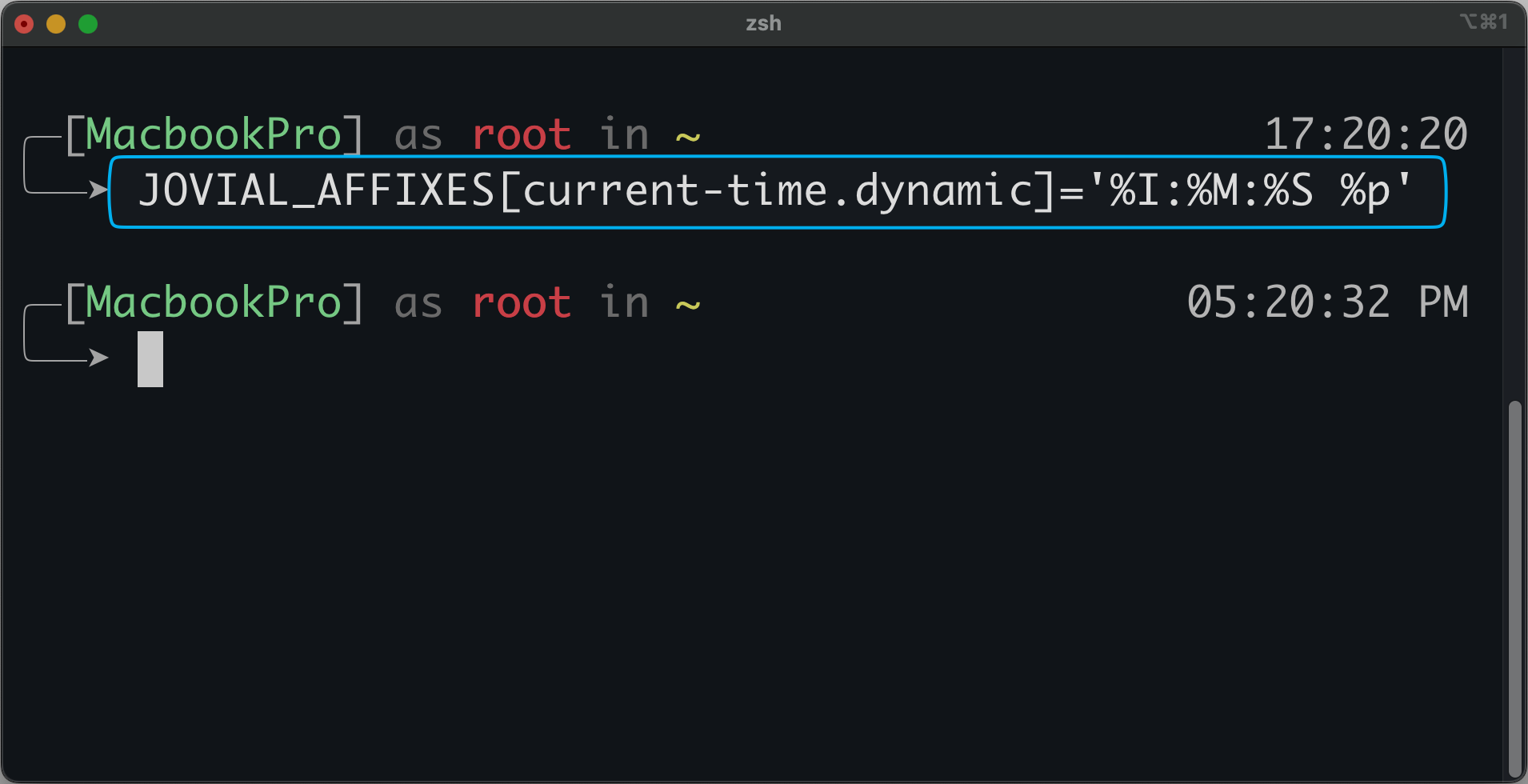
To set the time formatter string, you can set:
# ~/.zshrc

# 24 hour format (default)
JOVIAL_AFFIXES[current-time.dynamic]='%H:%M:%S'

# 12 hour format
JOVIAL_AFFIXES[current-time.dynamic]='%I:%M:%S %p'
Execute Elapsed
Default is:
JOVIAL_EXEC_THRESHOLD_SECONDS=4
This threshold is the number of seconds for the last command's execution elapsed time. It will pin the info if the threshold is reached.
Set to -1 if you want to disable displaying the time.
Detect Development Environment
Each item in JOVIAL_DEV_ENV_DETECT_FUNCS is the name of a function to detect the development environment.
You can append some custom functions for other programming languages (such as Erlang), like this:
# ~/.zshrc

JOVIAL_DEV_ENV_DETECT_FUNCS+=( your-function-name )
Or disable it by setting an empty list:
# ~/.zshrc

JOVIAL_DEV_ENV_DETECT_FUNCS=()
Font Recommended
(No need to install any specific fonts; these usually come with the OS)
Monacoin iTerm2Menloin VSCodeJetBrains Monoin JetBrains IDEs
Just the most common monospaced fonts, no need for any special font.
NOTE: Also remember to set the font line-height to 1.0
Advanced Configuration
For advanced users who want to extend Jovial's functionality:
- Custom development environment detection can be added through the
JOVIAL_DEV_ENV_DETECT_FUNCSarray - Response time optimizations can be achieved by adjusting the git status update frequency
- Shell integration can be customized by modifying the prompt expansion variables
Benchmark
By asynchronously updating the git status, it's very fast in rendering and interaction.
On average, the Jovial theme only takes 4ms per render.
Running the Jovial theme 10 times in benchmark.zsh, you can get results like this:
$ zsh -il dev/benchmark.zsh

( for i in {1..10}; do; theme.render; done; )  0.01s user 0.02s system 95% cpu 0.039 total
Changelog
See CHANGELOG.md
Migration
Run
echo ${JOVIAL_VERSION}in the terminal to see what version you are using now.
From v1 to v2
There are some breaking changes for customization.
Some customized variables and functions have been renamed:
- Variable
JOVIAL_ARROW=>JOVIAL_SYMBOL[arrow] - Function
_jov_type_tip_pointer=>@jov.typing-pointer - Arrows can now be replaced with variables
JOVIAL_SYMBOL[arrow.git-clean]andJOVIAL_SYMBOL[arrow.git-dirty] - Some keys in
JOVIAL_PROMPT_PRIORITYhave been renamed:git_info=>git-info,dev_env=>dev-env
From v2.5 to v2.6
v2.6 adds automatic light / dark detection and splits the colors into two palettes. Nothing breaks — existing configs keep working:
- The legacy
JOVIAL_PALETTE[...]overrides are still honored: each key you set is migrated into bothJOVIAL_PALETTE_DARKandJOVIAL_PALETTE_LIGHTon the first prompt, so your colors apply regardless of the detected mode. - To opt into per-mode colors, set keys on
JOVIAL_PALETTE_DARK/JOVIAL_PALETTE_LIGHTinstead. - To disable detection, set
JOVIAL_THEME_MODE=dark(orlight) in~/.zshrc. - The dev-env version tag colors moved from hardcoded values into palette keys:
dev-env.node,dev-env.golang,dev-env.python,dev-env.php.
Author
Jovial © zthxxx, Released under the MIT License.
more like this
Aritim-Light
A Light theme for both KDE and GTK based distros, pleasant to the eyes and perfect for your daily workload.