meine
meine 🌒 - A CLI file manager and system utility built with Textual. It combines intuitive command parsing with rich t…
Python★ 50
LAN Orangutan is a lightweight network scanner with persistent device labeling, multi-network support, and Tailscale in…
 291-Group
Self-hosted network discovery for homelabbers with Tailscale support.
Scan your networks, discover devices, label and track them - all from a clean web UI or CLI.
By 291 Group
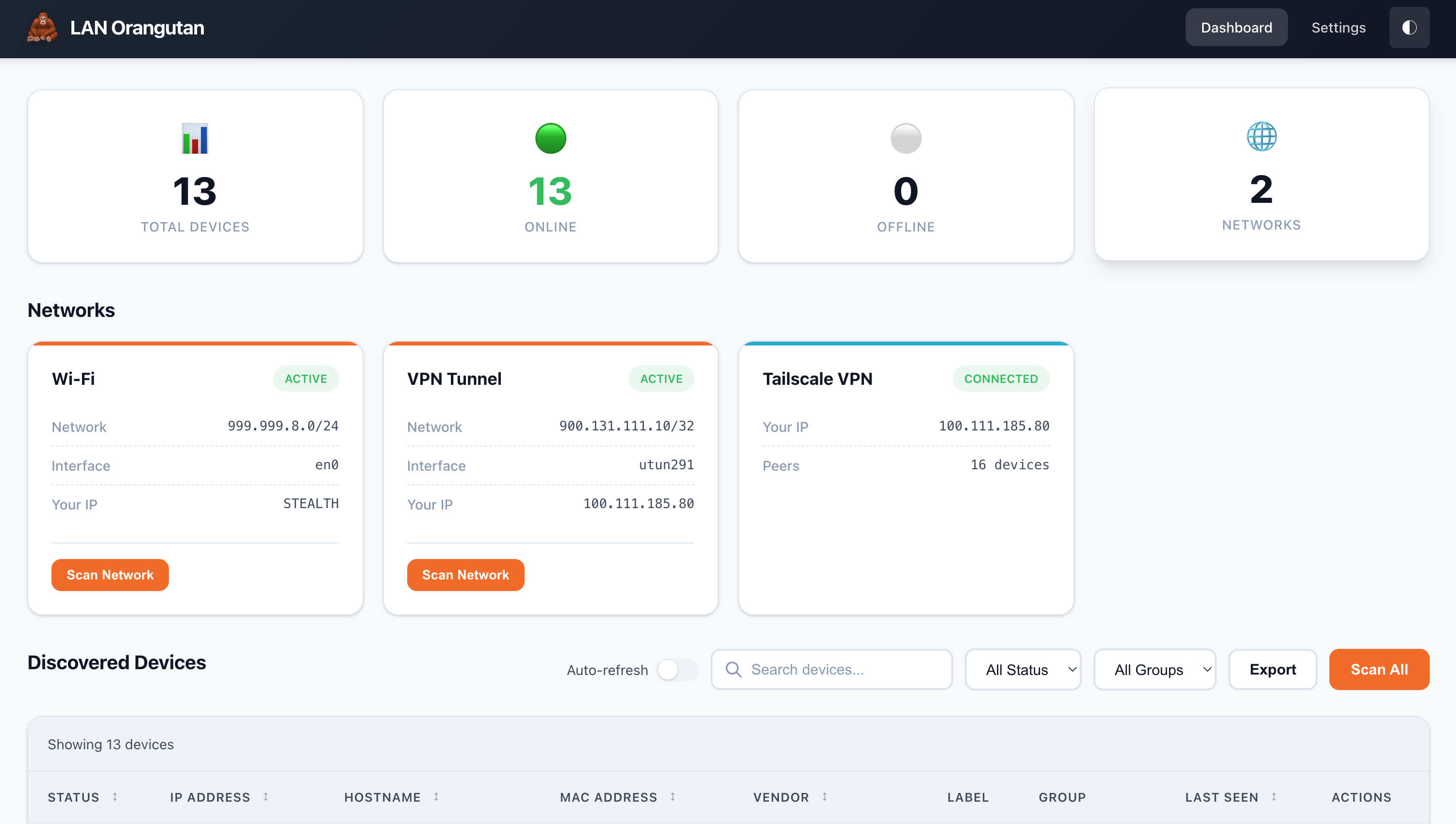
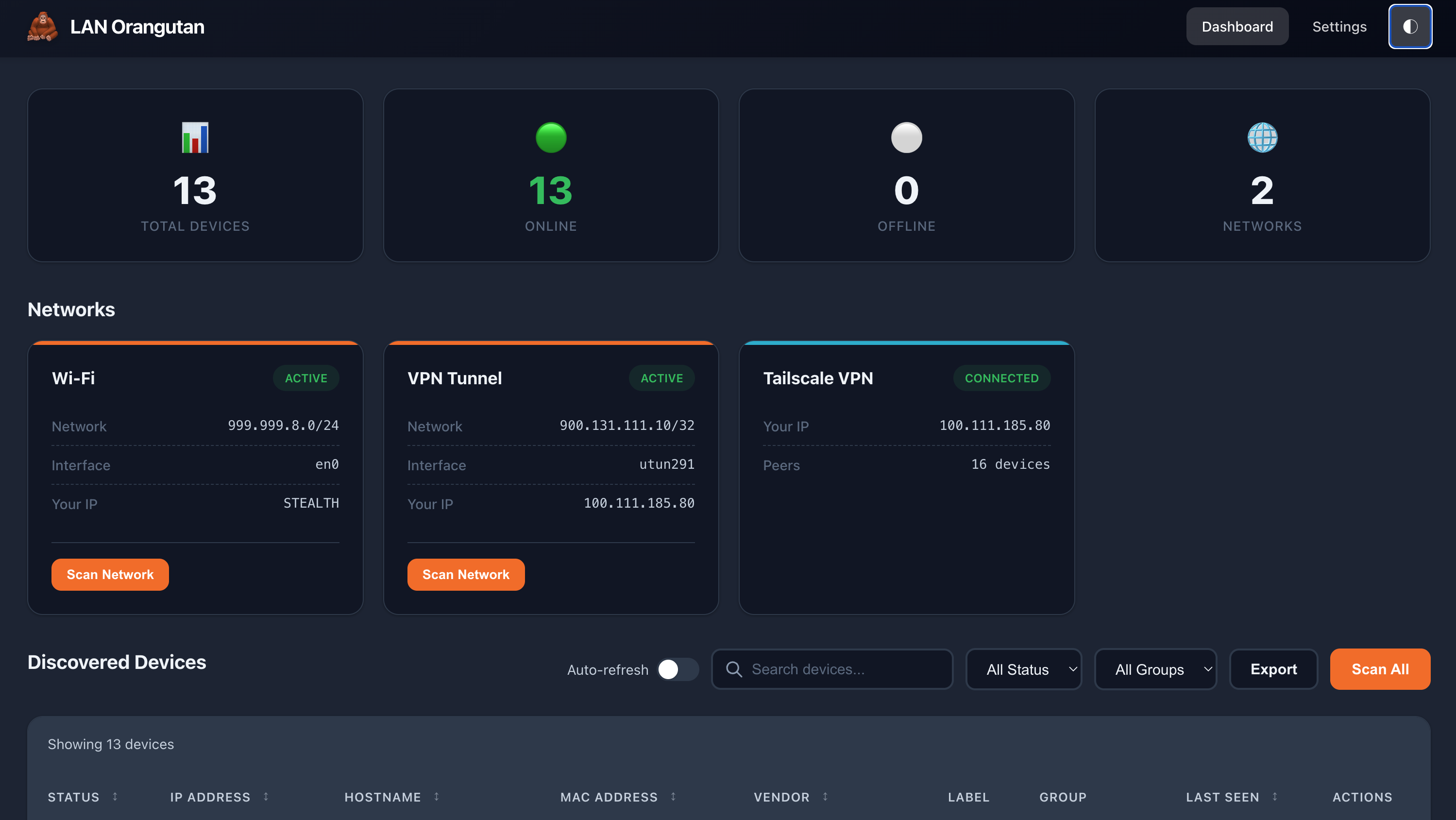
Grab the latest release of LAN Orangutan for your platform from GitHub Releases.
curl -O https://raw.githubusercontent.com/291-Group/LAN-Orangutan/main/docker-compose.yml
docker compose up -d
Then open http://<that-machine>:291 and create a password. Your data is kept in a data/ folder next to the compose file.
Docker requires Linux. The container uses host networking, because on Docker's own private network it would only ever see other containers (172.17.0.0/16) rather than the devices on your LAN. Docker Desktop on macOS and Windows runs Linux inside a virtual machine, so host networking attaches to that VM instead of your computer: the dashboard is unreachable and a scan finds nothing but the VM. On macOS and Windows, download the binary and run it directly, as described below.
# Linux/macOS - Run with sudo for full device info (MAC addresses, vendors)
sudo ./orangutan serve

# Windows (run as Administrator for full device info)
orangutan.exe serve
Open http://localhost:291 in your browser, or http://<that-machine>:291 from another computer on your network.
The first time you open it, LAN Orangutan asks you to create a password. Nothing else is reachable until you do. That is the whole setup.
If you installed LAN Orangutan with install.sh before this release, you were running a Python and PHP version of the app from /opt/lan-orangutan. Running the new install.sh replaces it with the single Go binary at /usr/local/bin/orangutan and removes that old directory.
Your config and your device list are kept. Nothing in /etc/lan-orangutan or /var/lib/lan-orangutan is touched.
Two things change that you will notice:
Upgrading through a package (.deb, .rpm, .apk) or Docker needs nothing extra, since those already ran the Go binary.
Discovery needs to see your real network. How you run LAN Orangutan decides whether it can.
| How you run it | Finds devices | MAC + manufacturer | Notes |
|---|---|---|---|
Binary, Linux, with sudo |
Yes | Yes | Everything works |
Binary, macOS, with sudo |
Yes | Yes | Everything works |
| Binary, Windows, as Administrator | Yes | Yes | Everything works |
Binary, any OS, without sudo |
Yes | No | IP addresses and hostnames only |
.deb / .rpm / .apk package |
Yes | Yes | Runs as a root service |
| Docker on Linux, host networking | Yes | Yes | The supported Docker setup |
| Docker on Linux, bridge networking | No | No | Sees only other containers |
| Docker on macOS or Windows | No | No | Not supported, see below |
Why Docker on macOS and Windows does not work. Docker Desktop runs Linux inside a virtual machine. The container never touches your real network, and the virtual machine's gateway answers probes on behalf of addresses that do not exist, so a scan appears to succeed while reporting devices that were never there. That is worse than finding nothing, because the result looks convincing. There is no setting that fixes this. Run the binary directly instead; it is a single file and takes one command.
LAN Orangutan detects this situation itself. If it cannot reach a real network it says so at startup and puts a warning on the dashboard, so results are never silently wrong.
brew install nmapsudo apt install nmap# Scan network (use sudo for MAC addresses and vendor info) sudo orangutan scan # Scan default network sudo orangutan scan 192.168.1.0/24 # Scan specific network sudo orangutan scan all # Scan all detected networks # Start web server sudo orangutan serve # Default port 291 sudo orangutan serve --port 8080 # Custom port sudo orangutan serve --bind 127.0.0.1 # This machine only, no password needed sudo orangutan serve --allow-insecure # No password at all (see Security) # List devices orangutan list # List all devices orangutan list --online # List online devices only orangutan list --format json # JSON output # Export orangutan export devices.csv # Export to CSV # Check status orangutan status # Show system status orangutan config # Show settings in effect orangutan networks # Show detected networks orangutan version # Show version info
Running with sudo (or as Administrator on Windows) allows nmap to:
Without elevated privileges, you'll still see device IPs but MAC addresses and vendors will be missing.
The web dashboard provides:
Scans run in the background, so the dashboard stays responsive and a long scan will not time out. Progress shows which network is being scanned, how many devices have been found, and a time estimate based on how long that network took to scan last time. Scanning a large network takes a few minutes, and you can cancel at any point.
The first scan of a network has no previous timing to estimate from, so it shows elapsed time instead of a percentage.
Tailscale devices are picked up automatically: if Tailscale is connected, its peers are added to your device list alongside the machines found on your local networks.
Tailscale peers cannot be found by scanning, because Tailscale gives every node its own single-address network, leaving no range to sweep. Instead the peers are read from Tailscale itself, which is faster and needs no elevated privileges.
Only peers that are currently online are listed, and they are shown with their Tailscale hostname and operating system. Peers have no MAC address, so no hardware vendor is looked up for them.
LAN Orangutan listens on your network by default, because it is normally installed on a server or a Raspberry Pi and opened from another machine. To make that safe, it shows you nothing until a password exists.
First run. Opening the dashboard presents a "create a password" screen. Until you finish it, every page and every API endpoint is refused. There is no default password and none is generated for you. What you choose is stored as a bcrypt hash in a file readable only by its owner, never in plain text, and separately from your config file so setup never rewrites a file you maintain by hand.
Signing in. After that you sign in with that password and stay signed in for a week by default. Sign out is in the header. Five wrong guesses lock that address out for fifteen minutes.
Keeping it private instead. Set bind_address = 127.0.0.1 and the dashboard is only reachable from the machine it runs on. No password is asked for, because nobody else can reach it.
Setting the password in advance. Useful for Docker and automated installs:
ORANGUTAN_PASSWORD=your-password orangutan serve

# or keep the secret out of the environment
ORANGUTAN_PASSWORD_FILE=/run/secrets/orangutan orangutan serve
Turning authentication off. If something else already controls access, such as a reverse proxy that handles login, set allow_insecure = true (or pass --allow-insecure). This disables password protection completely, so only do it when access control genuinely lives elsewhere.
There is no HTTPS built in, so put LAN Orangutan behind a reverse proxy or reach it over Tailscale if you need the connection encrypted. See SECURITY.md for the full picture, the known limitations, and how to report a vulnerability.
LAN Orangutan finds networks by reading this machine's own interfaces. A subnet reachable through a router, or a VLAN, has no local interface and so is never offered. List those explicitly:
ORANGUTAN_NETWORKS=192.168.10.0/24,10.0.5.0/24 orangutan serve
or in the config file:
[scanning]
networks = 192.168.10.0/24, 10.0.5.0/24
They appear on the dashboard alongside the detected ones and can be scanned the same way. Results for a routed network have no MAC addresses or manufacturer names, because those come from ARP and only work on the same network segment.
This is not a way to make Docker work on macOS or Windows. There the container runs inside a virtual machine whose NAT answers probes on its own, so a scan reports devices that do not exist.
Config file location:
~/.config/lan-orangutan/config.ini or /etc/lan-orangutan/config.ini (as root)~/Library/Application Support/lan-orangutan/config.ini%APPDATA%\lan-orangutan\config.iniSee config.example.ini for available options, and run orangutan config to print the settings actually in effect.
Every setting can also be supplied through the environment, which is usually easier in Docker. These override the config file.
| Variable | Purpose |
|---|---|
ORANGUTAN_PORT |
Port to listen on |
ORANGUTAN_BIND_ADDRESS |
Address to bind to |
ORANGUTAN_PASSWORD |
Set the password directly |
ORANGUTAN_PASSWORD_FILE |
Read the password from a file (wins over the above) |
ORANGUTAN_SESSION_HOURS |
How long a login lasts |
ORANGUTAN_ALLOW_INSECURE |
Skip password protection |
ORANGUTAN_DATA_DIR |
Where devices and settings are stored |
ORANGUTAN_SCAN_INTERVAL |
Auto-scan interval in seconds |
ORANGUTAN_NETWORKS |
Extra networks to scan, comma separated (see below) |
ORANGUTAN_THEME |
light, dark or auto |
git clone https://github.com/291-Group/LAN-Orangutan.git
cd LAN-Orangutan
make build          # builds to bin/orangutan with version details baked in
go build -o orangutan ./cmd/orangutan also works. It reports the commit it was built from rather than a release number, since there is no tag to read.
Run the tests with make test.
LAN Orangutan isn't trying to be the most powerful scanner out there, and that's the point. It's built to be the simplest and fastest one to reach for.
There are already excellent, deeply capable tools in this space, and they're the right choice when you need everything they offer. LAN Orangutan is for the other times, when you just want to scan a network now, without the setup and complexity that heavier tools bring. One binary, almost no configuration, running in seconds.
If you don't need the extra features, and the extra friction that comes with them, then this is for you. We'll keep pushing back on anything that makes it harder to use or deploy, because staying simple and fast is the whole reason it exists.
Found a bug, hit a problem, or have an idea? Open an issue and let us know.
Feature requests are welcome too, with one caveat that follows from the philosophy above: if something would add real complexity or setup, it's probably not a fit for LAN Orangutan. But we'd still rather hear the idea, so don't hold back.
MIT License
Built with ❤️ by 291 Group
more like this
meine 🌒 - A CLI file manager and system utility built with Textual. It combines intuitive command parsing with rich t…
search projects, people, and tags