omatunes
A lightweight, local-only offline music player built in Rust. Designed specifically for seamless integration with Hyprl…
 Balthazzahr
git clone https://github.com/Balthazzahr/omatunes.gitBalthazzahr/omatunes

omaTUNES
omaTUNES is a native Wayland music player and library manager built in Rust for Hyprland and Omarchy systems. omaTUNES is built to be as lightweight as possible while matching Omarchy's opinionated UI style — it picks up your system theme automatically, so your player always matches the rest of your desktop. omaTUNES is 100% offline, has wide support for most popular music codecs, and is designed to manage very large libraries with robust playlist and library management tools.
omatunes is a customized fork of sheep-farm/lavanda by Balthazzahr.
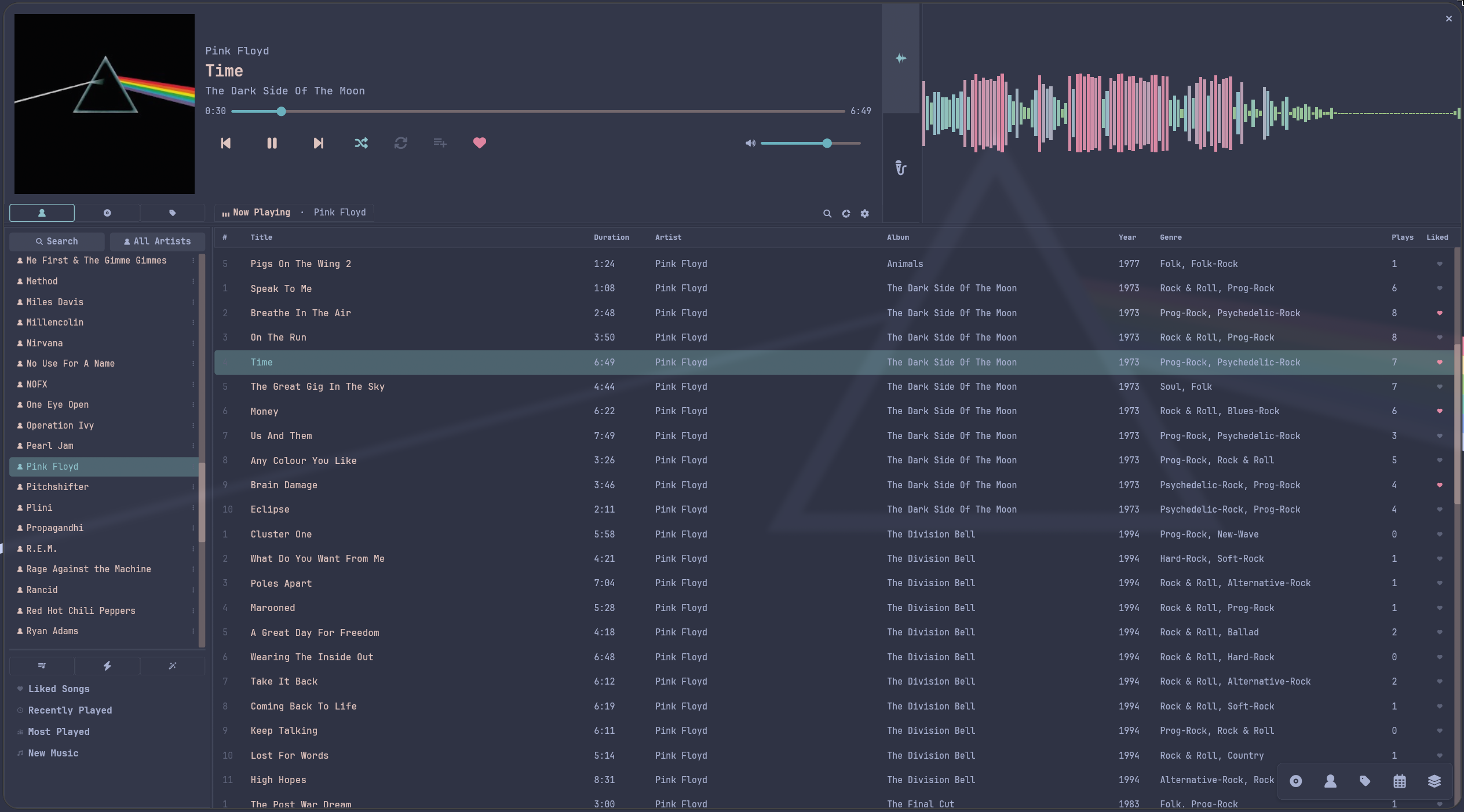
Key Features
- Wide Format Support. MP3, FLAC, OGG, Opus, WAV, AAC, M4A, AIFF — all decoded natively through Symphonia, no plugins or codecs to hunt down.
- Fully Offline & Private. No telemetry, no accounts, no internet requirement to play a song. Your play counts, likes, and playlists live in one plain JSON file on disk, fully yours.
- Smart Playlists. Build iTunes-style rule-based playlists — mix criteria like artist, genre, play count, liked status, or "last played within 2 weeks" — and let them keep themselves up to date as your library changes. No manual curation required.
- Customizable Library View. Sort, filter, and browse by Artist, Album, or Genre. Drag columns into whatever order makes sense to you, group tracks dynamically by Album, Artist, Genre, or Year via a sleek fold-out capsule control, and let the table gracefully shrink its own columns as you resize the window instead of turning into a wall of wrapped text.
- Playlist Management. Drag songs into the order you want, drag whole playlists around in the sidebar to prioritize your favorites, and add a song to any playlist right from the player controls — no need to dig through menus mid-listen.
- Synced Lyrics. Synced LRC lyrics scroll and highlight in time with the track, and you can click any line to jump straight to that moment in the song.
- Listening Statistics & Leaderboards. Complete rewrite of listening stats — a toolbar button opens a dashboard modal with Day, Week, Month, and All-Time tabs. View three-column leaderboards (Artists, Albums, Genres) ranking your top 10 by minutes played, complete with gold, silver, and bronze highlights and custom tier icons. Drill down into any leaderboard item to open a sub-window displaying the top 100 songs by play count, and receive persistent milestone toasts for daily listening counts (25/50/100 tracks), artist plays (50/100/500/1000), and genre milestones.
- Audio Visualizer 2.0 & Motion Trails. Real-time FFT spectrum analysis with 9 visually distinct canvas rendering modes (Mirrored Spectrograph with gravity-bouncing peak limiters, Radial Pulse, Liquid Ribbon, Particle Constellation web, Hyperdrive Depth Tunnel flight, Rolling Plains, Kaleidoscope Mirror, Cosmic Aurora plasma curtains, and Retro Synthwave Horizon). Features customizable visualizer background modes (Theme Default, Custom RGB with interactive sliders, Muted Reactive Pulse), mode-specific customization settings, random mode dice selector button (
\ue270), decaying ghost motion trails, audio sensitivity, and spectrum color shifting via Settings. - Theming System. Follow your Omarchy system theme live, pick from built-in presets (Nord, Catppuccin, Dracula, Gruvbox, Everforest, Monokai), or build your own — omaTUNES derives the supporting shades automatically using proper WCAG contrast math, so your custom theme never ends up with unreadable text.
- Bulk Metadata Editing. Select a stack of tracks, check only the fields you want to change, and apply edits across an entire album in one go — with autocomplete pulled straight from your existing library tags.
- Desktop & Quickshell Integration. Full MPRIS2 D-Bus support, a ready-to-go Waybar module, and a native Quickshell Player Module featuring an interactive mini-player pop-up window with live timeline scrubbing, volume controls, liked status tracking, and active shuffle/repeat highlights.
- Non-Destructive Library Handling. No forced re-organization, no renaming your folders, no importing into some walled-off library format. omaTUNES reads your music exactly where it already lives.
User Manual
The USER_MANUAL.md covers everything in detail — every keybinding, every menu, how the database is structured, and how to get the Waybar integration looking sharp.
System Requirements
| Requirement | Notes |
|---|---|
| Rust ≥ 1.75 | rustup is the easiest way to get it |
| A Nerd Font | Ships configured for JetBrainsMono Nerd Font Mono, but any Nerd Font works |
| PipeWire or PulseAudio | Audio output runs through cpal |
| D-Bus session bus | Needed for MPRIS2 — make sure DBUS_SESSION_BUS_ADDRESS is set |
| Wayland or X11 | Built and tested on Hyprland, but plays nicely on GNOME, KDE, and standard X11 window managers too |
Install Instructions
1. Install the binary
Easiest: grab a pre-built release.
mkdir -p ~/.local/bin
curl -L -o ~/.local/bin/omatunes https://github.com/Balthazzahr/omatunes/releases/latest/download/omatunes
chmod +x ~/.local/bin/omatunes
Prefer to build it yourself?
git clone https://github.com/Balthazzahr/omatunes
cd omatunes
cargo build --release
mkdir -p ~/.local/bin
cp target/release/omatunes ~/.local/bin/omatunes
2. Install the Waybar module (optional)
If you want the Waybar integration — playback controls, track info, and listening stats right in your bar — copy the scripts over and make them executable:
mkdir -p ~/.local/bin/omatunes_scripts
cp scripts/omatunes_text.py ~/.local/bin/omatunes_scripts/omatunes_text.py
cp scripts/omatunes_volume.sh ~/.local/bin/omatunes_scripts/omatunes_volume.sh
chmod +x ~/.local/bin/omatunes_scripts/omatunes_text.py
chmod +x ~/.local/bin/omatunes_scripts/omatunes_volume.sh
Full Waybar config below, and CSS styling details in the User Manual.
3. Install the Quickshell widget (optional)
If you use Quickshell or Omarchy v4, run the automated installer script to copy the widget and pop-up card files into place:
# Clone or navigate to the repository
git clone https://github.com/Balthazzahr/omatunes.git
cd omatunes
bash scripts/quickshell/install.sh
For full details on enabling the plugin in Omarchy's shell.json or standalone Quickshell's shell.qml, see the Quickshell Player Module section below.
4. Add omaTUNES to your app launcher (optional)
Drop in a desktop entry and its icon, and omaTUNES shows up in your launcher — Super + Space on Omarchy, or the app grid on GNOME/KDE:
mkdir -p ~/.local/share/applications ~/.local/share/icons/hicolor/256x256/apps

# From a clone
cp scripts/omatunes.desktop ~/.local/share/applications/omatunes.desktop
cp assets/omatunes.png ~/.local/share/icons/hicolor/256x256/apps/omatunes.png

# Or straight from GitHub, if you installed the pre-built binary
curl -L -o ~/.local/share/applications/omatunes.desktop https://raw.githubusercontent.com/Balthazzahr/omatunes/master/scripts/omatunes.desktop
curl -L -o ~/.local/share/icons/hicolor/256x256/apps/omatunes.png https://raw.githubusercontent.com/Balthazzahr/omatunes/master/assets/omatunes.png
If the entry doesn't appear right away, log out and back in — some launchers only rescan applications/ at session start.
The entry assumes omatunes is on your PATH. If you put the binary somewhere unusual, change Exec= to the full path.
Waybar Integration
The Waybar setup uses a single custom/omatunes module that shows a music note icon, artist, and
track name in the bar, with a tooltip summarising the track and your available mouse controls.
Add this to ~/.config/waybar/config.jsonc:
  "modules-left": [
    ...
    "custom/omatunes"
  ],

  "custom/omatunes": {
    "exec": "/home/yourname/.local/bin/omatunes_scripts/omatunes_text.py",
    "interval": 1,
    "return-type": "json",
    "format": "{}",
    "markup": "pango",
    "tooltip": true,
    "on-click": "/home/yourname/.local/bin/omatunes_scripts/omatunes_text.py --click play",
    "on-click-middle": "/home/yourname/.local/bin/omatunes_scripts/omatunes_text.py --click like",
    "on-click-right": "/home/yourname/.local/bin/omatunes_scripts/omatunes_text.py --click next",
    "on-scroll-up": "/home/yourname/.local/bin/omatunes_scripts/omatunes_volume.sh up",
    "on-scroll-down": "/home/yourname/.local/bin/omatunes_scripts/omatunes_volume.sh down"
  }
Replace
/home/yourname/with your actual home path — Waybar requires fully expanded paths.
For CSS styling, see the Waybar Integration section in the User Manual.
Quickshell Player Module & Omarchy v4 Bar Plugin
omaTUNES includes a native Quickshell Player Module and an Omarchy v4 Bar Plugin with an interactive pop-up control card.
FYI for Omarchy v4 Users:
install.shautomatically copies the requiredBarWidget.qml&manifest.jsonfiles directly into~/.config/omarchy/plugins/omatunes/.
Quick Install
# Clone or navigate to the repository
git clone https://github.com/Balthazzahr/omatunes.git
cd omatunes

# Run the automated installer for Quickshell & Omarchy v4
bash scripts/quickshell/install.sh
Then add "omatunes" to your bar layout configuration (~/.config/omarchy/shell.json or ~/.config/quickshell/shell.qml).
Enabling the Module
For Omarchy v4 / Omarchy Shell Users (~/.config/omarchy/shell.json)
Open your ~/.config/omarchy/shell.json configuration file and add "omatunes" to your desired panel bar section (e.g. modules, modules-left, modules-center, or modules-right depending on your layout style, such as Pure or Default):
{
  "panel": {
    "modules-center": [
      "omatunes"
    ]
  }
}
Note: Omarchy v4 plugin manifests auto-register the plugin named
omatuneswhen installed viainstall.sh. Adding"omatunes"to any module array in yourshell.jsonrenders the bar widget.
For Standalone Quickshell Users (~/.config/quickshell/shell.qml)
If you use standard Quickshell without Omarchy, import the module directory and place OmatunesWidget {} into your bar layout:
import "./modules/omatunes"

// Inside your Bar / Panel component:
OmatunesWidget {}
Module Features & Mouse Controls
-
Bar Widget Display:
- Offline (OmaTUNES closed): Automatically hides from your bar (
visible: false) to keep your panel clean. - Playing / Open: Appears on your bar with play state (
/),Artist - Song Title, and a red heart icon () if liked. - Left Click: Play / Pause track.
- Right Click: Toggle interactive mini-player pop-up window.
- Middle Click: Toggle Like / Unlike for the current track.
- Scroll Wheel Up / Down: Adjust volume smoothly.
- Offline (OmaTUNES closed): Automatically hides from your bar (
-
Pop-up Mini-Player:
- Album Cover: High-res album art (75% width). Click artwork or title to bring the main omaTUNES window to the foreground.
- Transport Controls: Shuffle (
), Previous (), Play/Pause (/), Next (), and Repeat (). Active mode buttons illuminate in your system accent color. - Volume Slider: Interactive volume control bar.
Keybindings
These fire whenever the omaTUNES window has focus:
| Key | Action |
|---|---|
Space |
Play / Pause |
→ / ← |
Seek +5s / −5s |
n / p |
Next / Previous track |
s |
Toggle Shuffle |
r |
Toggle Repeat |
+ or = |
Volume +5% |
- |
Volume −5% |
E |
Edit metadata for the selected track(s) |
The full list — including focus navigation and dialog shortcuts — is in the Keybinding Reference in the User Manual.
License
MIT
more like this
TachiSnap
TachiSnap — Pixel Snapper for animation pixel artists. Rust + WebAssembly client-side tool for cleaning up AI-generated…
bit_gossip
Pathfinding library for calculating all node pairs' shortest paths in an unweighted undirected graph.