perplexity-cli
🧠 A simple command-line client for the Perplexity API. Ask questions and receive answers directly from the terminal! 🚀🚀🚀
Python★ 176
macOS dotfiles — migrate, backup, config, brew, dev, and a whole lot more.
 aaronbates
git clone https://github.com/aaronbates/dotfiles.gitaaronbates/dotfiles$HOME sweet ~/Your dotfiles are how you personalize your system.
These are mine. Built for Mac OS X. Certified lit 🔥 🔥 🔥
Rationale
Setting up a new developer machine can be ad-hoc, manual, and time-consuming. This project simplifies that process using easy-to-understand instructions, configuration and scripts.
Our goal is to automate at least 80% of any new macOS system setup.
Setup and config for bash, curl, git, node, ruby, tmux, vim, brew, apps, dev environments and more — there's a lot to list so please see the full Package Contents.
Also, last but not least:
Sounds good? Let's go.
Note: If working on a fresh install I recommend reading my Mac OS X Setup Guide first.
Clone the repository wherever you prefer — I like to store the files in ~/projects/dotfiles and then symlink that to ~/dotfiles (see Symlinks).
$ git clone https://github.com/aaronbates/dotfiles.git
To keep the project organised all files are split into directories and grouped around topic areas:
ack — ack configbash — bash specific configbin — various binaries, symlinked to ~/bin and in $PATHcurl — curl configeditor — editor config (including linters)git — git config, attributes and ignore filesiterm2 — iterm2 themesmackup — config to backup app settings and personal files.mackup — .cfg files for custom apps, symlinked to ~/.mackupmacos — macOS prefsnode — node configruby — ruby configscreen — screen configsetup — install, migrate and backup scriptsshell — general shell configterminal — terminal themestmux — tmux configvim — vim configwget — wget config/ — project files and setup scriptSee Extending for information on adding new topics.
Symbolic links (aka "symlinks") allow you to point one location on a system to another, be that a file or directory. They are similar to aliases and shortcuts, but more "powerful" in the context we'll be using them.
Most dotfiles need to live in the root of a user's directory (~/) for applications to find them.
Rather than copy files to ~/ or put my entire $HOME under version control, I prefer to symlink dotfiles to my user directory. This offers several benefits:
~/, no mess, no need for a complex .gitignore.OK, that's enough theory, let's get things set up.
⚠️ Scripts in this project perform automated tasks. Review the code first and use at your own risk! ⚠️
This projects takes a light-weight approach to automation using a combination of Homebrew, Homebrew Cask, and shell scripts. To setup simply open Terminal then:
$ cd ~/projects/dotfiles # or wherever you cloned to.
$ ./setup.sh
The setup process will start and guide you through:
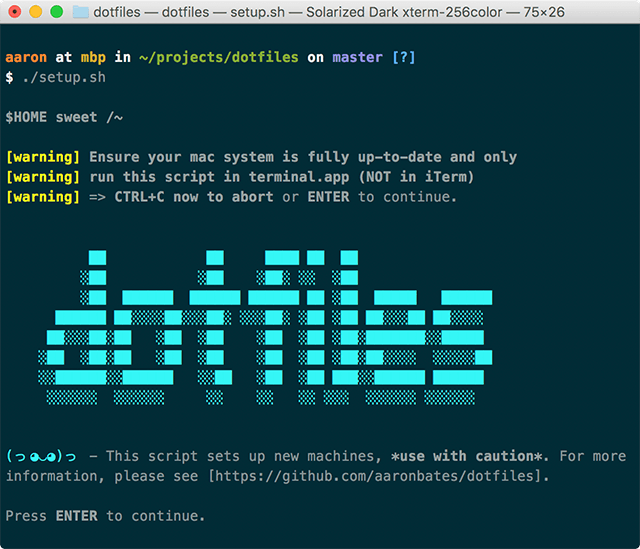
You'll also be asked to enter your password once at the start — if using on a fresh install, you'll have to restart after the first run applies system updates.
Setup consists of six steps:
This step runs the
setup/backup.shscript.
Creates ~/backup/dotfiles-backup then takes a copy of all files on the current system which would be replaced by the setup script (as defined here) — it also backs up some other useful local directories and files.
This step runs the
setup/directories.shscript.
Creates required and preferred directories (if they don't already exist) for example: ~/Applications, ~/projects, ~/code, .ssh/control, etc.
This step runs the
setup/xcodecli.shscript.
The Xcode Command Line Tools contain tools required by this setup script, this step will:
This step runs the
setup/brew.shscript.
Package managers make it easy to install, update and remove software The best package manager for OS X is Homebrew — this step installs Homebrew along with many useful formulae and apps:
The script then uses mas to install some Mac App Store applications unavailable via Homebrew.
Post application install the script setup/node.sh is run which:
asdfasdfnpm~/.node-global-modulesAfter this, the script setup/vim.sh is run which:
This step runs the
setup/symlinks.shscript.
Creates symlinks for all required directories and files to ~/. These are defined in setup/files.sh as:
$dotfilesdirarray$dotfilesfilearraybin)This also links the local repository directory to ~/dotfiles if it was cloned to a different location.
Symlinking directories: If directory bin is declared in $dotfilesdirarray then the whole directory will be symlinked to ~/bin.
Symlinking files: If directory bash is declared in $dotfilesfilearray then any file of an accepted type will be symlinked to ~/. For example:
bash/.aliases links to ~/.aliasesbash/.bash_profile links to ~/.bash_profilebash/.functions links to ~/.functionOnly files of type .*, *.cfg and *.conf will be symlinked. Also, certain files are explicitly ignored:
.DS_Store, .git, .osx and .macos*.shThe symlink script can be run independently from a shell — it performs various checks, asks questions and provides feedback. Equally there is an setup/unlink.sh which unlinks all created symlinks.
Finally a number of other tasks are performed:
chmod 700 ~/.ssh and chmod 600 ~/.ssh/* (see here)⚡ Congrats, you now have an awesome macOS setup. Open up iTerm2 and explore. 👏
It's beyond the scope of this readme to fully document all features, but you can find some tips and features of notes in the Getting Started guide.
This project can be easily customised to suit personal settings and local requirements using "local config" files. This allows you to:
As mentioned, it's very important to avoid storing private data or credentials in a dotfiles repository, using "local config" files that are never committed to public version control is a good way to achieve this.
If an ~/.extra file exists, it will be sourced on load after all other bash files. You can use this to store custom aliases, functions, exports and settings.
Example ~/.extra file:
alias myalias=some-other-command -options

my_function () {
  do something here
}

export MY_SETTING=VALUE
You could also use ~/.extra to override existing settings, functions and aliases — but at that point, it's probably better just to fork and create your own dotfiles. 🙌
$PATHThe included .path file is pre-configured and sourced on load. To add custom entries to your path, create a ~/.path.local file.
Example ~/.path.local file:
# Add to the start of the path
PATH="/your/path/here:$PATH"

# Add to the end of the path
PATH="$PATH:/your/path/here"
This will also be sourced on load and the final $PATH will be deduplicated on export.
Customise your Git config by creating a ~/.gitconfig.local file which will extend .gitconfig. Use this to store private details such as your user credentials and signing key.
Example ~/.gitconfig.local file:
[user]

  name = "Firstname Lastname"
  email = "your@emailaddress.com"

[github]

  user = your-github-username

[credential]

  helper = osxkeychain

[commit]

  signingkey = YOUR-SIGNING-KEY-HERE
Customise your Vim config by creating a ~/.vimrc.local file which will extend .vimrc.
Customise your tmux config by creating a ~/.tmux.conf.local file which will extend .tmux.conf.
Feel free to fork this repo, hack around, and make it your own 👌
This project is organised around topics, see Structure for more information.
To add a new topic to your forked dotfiles, you can simply add a /topic-name directory and put any files in there. Let's use "Java" as an example:
java directory in your dotfiles root.java.conf and .javarcIf you then edit setup/files.sh you have two options:
This will symlink the java directory to ~/java (if that doesn't already exist). Useful if you want access to a number and variety of files within a directory.
To do this, simply add "$dotfilesdir/java" to the dotfilesdirarray:
# Declare array of directories we want to symlink.
declare -a dotfilesdirarray=(
  "$dotfilesdir/bin"
  ...
  "$dotfilesdir/java"
)
Then run the symlink script to apply the link.
This will symlink files of accepted types in the java directory to ~/ (if they don't exist already) — so for our example, it would create links to ~/java.conf and ~/.javarc.
To do this, add "$dotfilesdir/java" to the dotfilesfilearray:
# Declare array of directories we want to symlink files from.
declare -a dotfilesfilearray=(
  "$dotfilesdir/bash"
  "$dotfilesdir/git"
  ...
  "$dotfilesdir/java"
)
Then run the symlink script to apply the links.
When setting up a new Mac, you may want to set some sensible defaults (as maintained by Mathias).
I have included my tweaked version of these settings in this repository, take a look but ⚠️ be very careful using this file ⚠️ — I do not recommend just running it without reviewing and understanding it carefully first.
$ cd ~/dotfiles/macos && ./.macos
If in any doubt, don't run this script, rather configure what you can manually.
Mackup is a fantastic tool that allows you to: backup personal application settings and private data; sync that data between computers; and then easily restore your configuration to a fresh install — all in a simple command line interface. Seems good!
While by no means a comprehensive backup solution, Mackup keeps things simple, currently supports over 360 applications and can store data on Dropbox, Google Drive, iCloud or any path you can copy to.
I store on Dropbox and explicitly declare which apps to sync and which to ignore — anything handled by my dotfiles is ignored (bash, git, vim etc.)
I backup a wide range of other applications including those containing credentials such as aws, gnupg and ssh. I also backup apps not natively supported using custom .cfg files. For example, to backup Ulysses (an amazing markdown writing app) I created a ~/.mackup directory and placed a ulysses.cfg file inside:
[application]
name = Ulysses

[configuration_files]
Library/Preferences/com.soulmen.ulysses3.plist
Library/Preferences/com.ulyssesapp.mac.plist
It is usually straight-forward to find which .plist files in Library/Preferences you'll need to list, they always feature the application name.
Taking that a step further we can also declare a "personal files" application using a personal-files.cfg and then cherry pick any other files we want to backup while keeping them out of a public repo:
[application]
name = Personal Files

[configuration_files]
.gitconfig.local
.extra
When I declare this in my main .mackup.cfg they are handled with ease:
[storage]
engine = dropbox
directory = mackup

# Apps to sync — if empty, syncs all supported.
# custom: personal-files, break, grammarly, iconjar, iterm2, oversight, ulysses
[applications_to_sync]
personal-files
aws
...
ulysses
A simple $ mackup backup saves everything to Dropbox and I can later $ mackup restore on a fresh install to get these settings back (you can also easily $ mackup uninstall).
These dotfiles symlink my Mackup config into ~/ — take a look 👀.
In addition to setup, it's possible to use these dotfiles on an configured Mac system to migrate to a new machine using the setup/migrate.sh script.
⚠️ Caution is advised here — see the Migration Guide for more information.
Credit, inspiration and thanks to:
And too many others to name.
MIT © 2017 Aaron Bates (http://aaronbates.me)
 There's no place like
 $HOME.
more like this
🧠 A simple command-line client for the Perplexity API. Ask questions and receive answers directly from the terminal! 🚀🚀🚀
search projects, people, and tags