hustle-tracker
An open-source time-tracking tool for monitoring your productivity with privacy-first approach. Own your hustle, optimi…
 adolfousier
git clone https://github.com/adolfousier/hustle-tracker.gitadolfousier/hustle-tracker
Hustle Tracker BETA
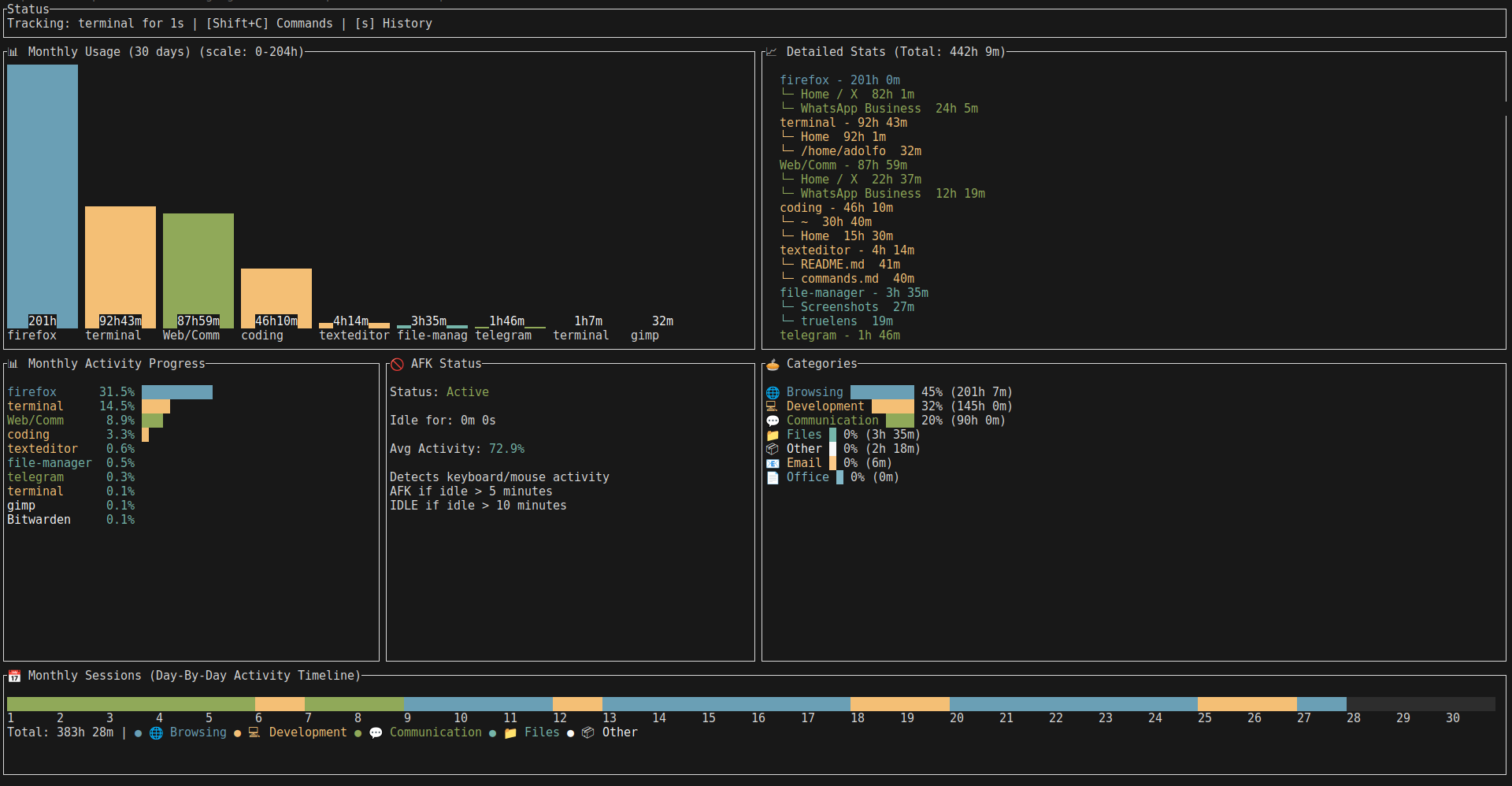
Track what apps you use and how long you spend on them.
This app runs in your terminal and shows you exactly where your time goes during work sessions. Built with Ratatui.
hustler-tracker-demo.mp4
Download Pre-Built Binaries (Easiest!)
No Rust installation needed! Download ready-to-use binaries for your platform from GitHub Releases:
- Linux: hustle_tracker-linux-x86_64
- macOS (Intel): hustle_tracker-macos-x86_64
- macOS (Apple Silicon): hustle_tracker-macos-aarch64
- Windows: hustle_tracker-windows-x86_64.exe
Prerequisites: Docker must be installed and running.
Download, make executable on Linux/macOS (chmod +x hustle_tracker-*), and run. The binary will automatically:
- Generate database credentials (
.envfile) - Start PostgreSQL via Docker Compose
- Run database migrations
- Launch the app
Note: On macOS/Windows, you'll also need the daemon binary (hustle_daemon) running in the background.
What Does This Do?
- Tracks your app usage - Automatically monitors which programs you're using
- Shows pretty charts - See your time broken down by app and category
- Saves your data - Everything stored locally in your own PostgreSQL database
- Works everywhere - Linux, macOS, and Windows
Quick Start (Easiest Way)
Linux
Copy and paste this into your terminal:
sudo apt update && sudo apt install -y docker.io curl git openssl && curl --proto '=https' --tlsv1.2 -sSf https://sh.rustup.rs | sh -s -- -y && source ~/.cargo/env && cargo install just && git clone https://github.com/adolfousier/hustle-tracker.git && cd hustle-tracker && just run
That's it! The app will start tracking automatically.
macOS
- Install Docker Desktop first
- Then paste this into Terminal:
brew install git rustup-init && rustup-init -y && source ~/.cargo/env && cargo install just && git clone https://github.com/adolfousier/hustle-tracker.git && cd hustle-tracker && just daemon-start
- View your stats anytime:
just view
Windows
- Install Docker Desktop
- Open PowerShell as Administrator
- Run this:
powershell -Command "iwr -useb https://raw.githubusercontent.com/adolfousier/hustle-tracker/main/src/scripts/windows_build/windows-install.ps1 | iex"
- View your stats anytime:
just view
Already Have Rust and Docker?
If you already have the prerequisites installed:
git clone https://github.com/adolfousier/hustle-tracker
cd hustle-tracker
cargo install just
just run
Done! The app handles everything else automatically.
How to Use It
Once the app is running:
- d - Switch to Daily view
- w - Switch to Weekly view
- m - Switch to Monthly view
- s - View session history
- b - View activity breakdowns
- r - Rename apps to organize them better
- c - Change app category
- l - View logs
- Shift+C - See all available commands
- q - Quit
Timeline Feature (v0.4.16+):
- Daily view shows a 24-hour colored activity timeline at the bottom
- Each hour is colored by your dominant activity category
- Weekly and monthly views show daily activity patterns with matching data
- See your category colors at a glance (Development=Yellow, Browsing=Blue, Communication=Green, Media=Magenta, Files=Cyan)
The app tracks automatically. Just switch between your programs normally and it records everything.
Two Ways to Run (Important!)
Linux Users → Use "Unified Mode"
Run just run and you're done. Everything works in one window.
Available commands for Linux:
just run- Start DB + build + run app (all in one!)just dev- Start DB + run in dev mode (faster builds)just db-up- Start PostgreSQL in Dockerjust db-down- Stop PostgreSQLjust build- Build TUI binary onlyjust build-daemon- Build daemon binary onlyjust clean- Clean all build artifacts and stop DBjust help- Show all available commands
macOS/Windows Users → Use "Daemon Mode"
You need two steps because of how these systems work:
- Start tracking in background:
just daemon-start - Open the dashboard:
just view
Why? On macOS/Windows, if the tracking runs in the dashboard window, it can't see when you switch to other apps. Running it in the background fixes this.
Commands for daemon mode:
just daemon-start- Start trackingjust view- Open dashboardjust daemon-stop- Stop trackingjust daemon-status- Check if running
What You Need
-
Computer: Windows 10+, macOS 10.15+, or Linux with a desktop
-
Space: About 500MB for Docker and dependencies
-
Permissions:
- macOS: Terminal application needs the following permissions (daemon binary itself does NOT need permissions):
- Accessibility
- Screen & System Audio Settings
- Input Monitoring
- Windows: Works out of the box
- Linux: Needs a desktop environment (GNOME, KDE, Hyprland, etc.)
Note: On macOS/Windows, the daemon runs in the background without needing permissions. The Terminal application itself needs the permissions listed above to monitor your system properly.
- macOS: Terminal application needs the following permissions (daemon binary itself does NOT need permissions):
Special Notes
Wayland users (Linux):
- Hyprland: Window tracking works out of the box via
hyprctl(no extra setup needed). - GNOME: Install the Window Calls extension for window tracking.
First time running: The app creates secure database credentials automatically. You don't need to configure anything.
Start on Boot (Optional)
Want the app to start automatically when you log in? The daemon binary runs in the background without needing a terminal.
Linux (Desktop Autostart):
mkdir -p ~/.local/bin ~/.config/autostart
cp target/release/hustle_daemon ~/.local/bin/
cp src/scripts/startup/neura-tracker.desktop ~/.config/autostart/
If your ~/.local/bin is not in $PATH, edit the .desktop file and set the full path in the Exec= line.
Linux (systemd user service - alternative):
mkdir -p ~/.local/bin ~/.config/systemd/user
cp target/release/hustle_daemon ~/.local/bin/
cp src/scripts/startup/neura-tracker.service ~/.config/systemd/user/
systemctl --user daemon-reload
systemctl --user enable --now neura-tracker
macOS:
cp target/release/hustle_daemon /usr/local/bin/
mkdir -p ~/Library/LaunchAgents/
cp src/scripts/startup/neura-tracker.plist ~/Library/LaunchAgents/
launchctl load ~/Library/LaunchAgents/neura-tracker.plist
Windows:
copy src\scripts\startup\neura-tracker.bat "%APPDATA%\Microsoft\Windows\Start Menu\Programs\Startup\"
Uninstall (Remove Everything)
Want to remove Hustle Tracker completely? It will delete the app, all tracked data, and the database volume.
Linux/macOS:
just uninstall
Or use the dedicated script:
./src/scripts/uninstall.sh
Windows:
From PowerShell in the app directory:
just uninstall
Or download and run the uninstall script:
powershell -ExecutionPolicy Bypass -File src/scripts/windows_build/windows-uninstall.ps1
You'll be asked twice to confirm:
- First prompt: Confirm you want to proceed
- Second prompt: Type
yesto confirm deletion (this prevents accidental removal)
The uninstall will:
- Stop the PostgreSQL database
- Remove the database volume (deletes all your tracked data)
- Delete the installation directory
Comparison with Other Apps
| Feature | Hustle Tracker | ActivityWatch | RescueTime |
|---|---|---|---|
| Your data stays with you | ✅ | ✅ | ❌ |
| Open source | ✅ | ✅ | ❌ |
| Works offline | ✅ | ✅ | ❌ |
| Terminal interface | ✅ | ❌ | ❌ |
| Fast & lightweight | ✅ | ❌ | ❌ |
Troubleshooting
Database connection errors
If you see Failed to connect to database or No such file or directory (os error 2):
- Make sure Docker is installed and running:
docker psshould work without errors - Check if PostgreSQL is running:
docker ps | grep postgres- if nothing shows up, the database container isn't running - Restart the database:
docker compose up -d(from the project directory) or just re-run the binary - it will auto-start PostgreSQL - Check your .env file: It should contain
DATABASE_URL,POSTGRES_USERNAME, andPOSTGRES_PASSWORD. If it's missing or corrupted, delete it and re-run the app to regenerate
Pre-built binary not working
- The binary requires Docker to be installed - it auto-starts PostgreSQL via Docker Compose
- On first run, the binary creates a
.envfile andcompose.ymlin~/.local/share/hustle-tracker/(Linux),~/Library/Application Support/hustle-tracker/(macOS), or%APPDATA%\hustle-tracker\(Windows) - If you previously ran from source with
just run, the binary will use the existing.envin your project directory
Port conflicts
The app uses port 52851 for PostgreSQL. If another service is using that port:
- Check what's using it:
lsof -i :52851(Linux/macOS) ornetstat -ano | findstr 52851(Windows) - Stop the conflicting service, or edit the port in
.env(DATABASE_URL) andcompose.yml
Wayland (Linux)
- Hyprland: Window tracking uses
hyprctlautomatically. Make surehyprctlis in your PATH (it is by default on Hyprland). - GNOME: Install the Window Calls GNOME extension.
- Other compositors: May fall back to X11 detection via XWayland.
- Ptyxis terminal (GNOME): Ptyxis runs in a containerized environment and may not propagate Wayland environment variables (
WAYLAND_DISPLAY,XDG_SESSION_TYPE), which can cause window detection to fail. Workarounds:- Use tmux inside Ptyxis — running the app inside a tmux session restores proper environment detection.
- Use the default Ubuntu terminal (GNOME Terminal) instead, which propagates environment variables correctly.
macOS permissions
The Terminal application (not the daemon) needs these permissions in System Settings > Privacy & Security:
- Accessibility
- Screen & System Audio Recording
- Input Monitoring
General
- App not starting? Make sure Docker is running
- Database errors? Try
just cleanthenjust run(from source), or delete~/.local/share/hustle-tracker/and re-run the binary - Want to remove the app? Use
just uninstallto safely delete everything
Contributing
Found a bug or want to add something? Check CONTRIBUTING.md.
License
See LICENSE file for details.
Star History Chart
✨ Stay Tuned
⭐ Star this repository to keep up with exciting updates and new releases, including powerful new features and productivity tracking capabilities! ⭐
Built with ❤️ by Adolfo Usier | Issues
more like this
TachiSnap
TachiSnap — Pixel Snapper for animation pixel artists. Rust + WebAssembly client-side tool for cleaning up AI-generated…
bit_gossip
Pathfinding library for calculating all node pairs' shortest paths in an unweighted undirected graph.