 casey
caseyjust

just is a handy way to save and run project-specific commands.
This readme is also available as a book. The book reflects the latest release, whereas the readme on GitHub reflects latest master.
(中文文档在 这里, 快看过来!)
Commands, called recipes, are stored in a file called justfile with syntax
inspired by make:
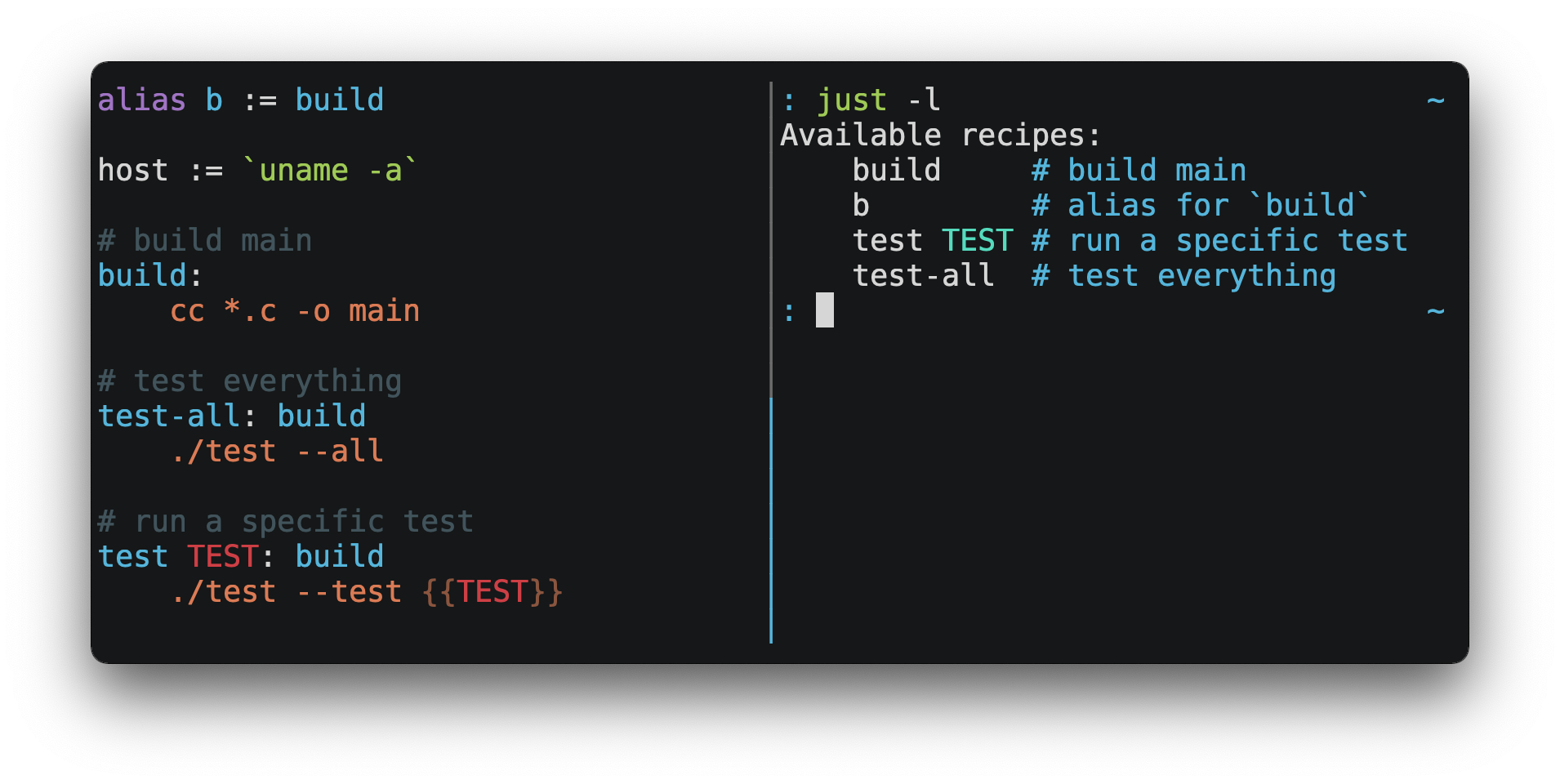
You can then run them with just RECIPE:
$ just test-all
cc *.c -o main
./test --all
Yay, all your tests passed!
just has a ton of useful features, and many improvements over make:
-
justis a command runner, not a build system, so it avoids much ofmake's complexity and idiosyncrasies. No need for.PHONYrecipes! -
Linux, macOS, Windows, and other reasonable unixes are supported with no additional dependencies. (Although if your system doesn't have an
sh, you'll need to choose a different shell.) -
Errors are specific and informative, and syntax errors are reported along with their source context.
-
Recipes can accept command line arguments, including flags and options.
-
justhas a rich expression language and many built-in-functions. -
Wherever possible, errors are resolved statically. Unknown recipes and circular dependencies are reported before anything runs.
-
justloads.envfiles, making it easy to populate environment variables. -
Recipes can be listed from the command line.
-
Command line completion scripts are available for most popular shells.
-
Recipes can be written in arbitrary languages, like Python or Node.js.
-
justcan be invoked from any subdirectory, not just the directory that contains thejustfile. -
justfilescan be organized into multiple files using modules and imports. -
And much more!
If you need help with just, please feel free to open an issue or ping me on
Discord. Feature requests and bug reports are
always welcome!
Installation
Just can be installed using your favorite package manager, by
downloading pre-built binaries, or building from source
with cargo install just.
Prerequisites
just should run on any system with a reasonable sh, including Linux, macOS,
and the BSDs.
Windows
On Windows, just works with the sh provided by
Git for Windows,
GitHub Desktop, or
Cygwin. After installation, sh must be available in
the PATH of the shell you want to invoke just from.
If you'd rather not install sh, you can use the shell setting to use the
shell of your choice.
Like PowerShell:
# use PowerShell instead of sh:
set shell := ["powershell.exe", "-c"]

hello:
  Write-Host "Hello, world!"
…or cmd.exe:
# use cmd.exe instead of sh:
set shell := ["cmd.exe", "/c"]

list:
  dir
You can also set the shell using command-line arguments. For example, to use
PowerShell, launch just with --shell powershell.exe --shell-arg -c.
(PowerShell is installed by default on Windows 7 SP1 and Windows Server 2008 R2
SP1 and later, and cmd.exe is quite fiddly, so PowerShell is recommended for
most Windows users.)
Packages
Cross-platform
| Package Manager | Package | Command |
|---|---|---|
| arkade | just | arkade get just |
| asdf | just |
asdf plugin add justasdf install just <version>
|
| Cargo | just | cargo install just |
| Cargo Binstall | just | cargo binstall just |
| Conda | just | conda install -c conda-forge just |
| Homebrew | just | brew install just |
| Nix | just | nix-env -iA nixpkgs.just |
| npm | rust-just | npm install -g rust-just |
| pipx | rust-just | pipx install rust-just |
| Snap | just | snap install --edge --classic just |
| Spack | just | spack install just |
| uv | rust-just | uv tool install rust-just |
BSD
| Operating System | Package Manager | Package | Command |
|---|---|---|---|
| FreeBSD | pkg | just | pkg install just |
| OpenBSD | pkg_* | just | pkg_add just |
Linux
| Operating System | Package Manager | Package | Command |
|---|---|---|---|
| Alpine | apk-tools | just | apk add just |
| Arch | pacman | just | pacman -S just |
| Debian 13 and Ubuntu 24.04 derivatives | apt | just | apt install just |
| Fedora | DNF | just | dnf install just |
| Gentoo | Portage | dev-build/just |
emerge -av dev-build/just
|
| NixOS | Nix | just | nix-env -iA nixos.just |
| openSUSE | Zypper | just | zypper in just |
| Solus | eopkg | just | eopkg install just |
| Void | XBPS | just | xbps-install -S just |
Windows
| Package Manager | Package | Command |
|---|---|---|
| Chocolatey | just | choco install just |
| Scoop | just | scoop install just |
| Windows Package Manager | Casey/Just | winget install --id Casey.Just --exact |
macOS
| Package Manager | Package | Command |
|---|---|---|
| MacPorts | just | port install just |
Pre-Built Binaries
Pre-built binaries for Linux, macOS, and Windows can be found on the releases page.
You can use the following command on Linux, macOS, or Windows to download the
latest release, just replace DEST with the directory where you'd like to put
just:
curl --proto '=https' --tlsv1.2 -sSf https://just.systems/install.sh | bash -s -- --to DEST
For example, to install just to ~/bin:
# create ~/bin
mkdir -p ~/bin

# download and extract just to ~/bin/just
curl --proto '=https' --tlsv1.2 -sSf https://just.systems/install.sh | bash -s -- --to ~/bin

# add `~/bin` to the paths that your shell searches for executables
# this line should be added to your shell's initialization file,
# e.g. `~/.bashrc` or `~/.zshrc`
export PATH="$PATH:$HOME/bin"

# just should now be executable
just --help
Note that install.sh may fail on GitHub Actions, or in other environments
where many machines share IP addresses. install.sh calls GitHub APIs in order
to determine the latest version of just to install, and those API calls are
rate-limited on a per-IP basis. To make install.sh more reliable in such
circumstances, pass a specific tag to install with --tag.
Another way to avoid rate-limiting is to pass a GitHub authentication token to
install.sh as an environment variable named GITHUB_TOKEN, allowing it to
authenticate its requests.
Releases include a SHA256SUM file
which can be used to verify the integrity of pre-built binary archives.
To verify a release, download the pre-built binary archive along with the
SHA256SUM file and run:
shasum --algorithm 256 --ignore-missing --check SHA256SUMS
GitHub Actions
just can be installed on GitHub Actions in a few ways.
Using package managers pre-installed on GitHub Actions runners on macOS with
brew install just, and on Windows with choco install just.
With extractions/setup-just:
- uses: extractions/setup-just@v3
  with:
    just-version: 1.5.0  # optional semver specification, otherwise latest
Or with taiki-e/install-action:
- uses: taiki-e/install-action@just
Docker
just is available as a Docker image from
the GitHub Container Registry.
To copy just into a Docker image, add the following line to your
Dockerfile:
COPY --from=ghcr.io/casey/just:latest /just /usr/local/bin/
After copying, just may also be used as part of a docker build:
RUN just
Release RSS Feed
An RSS feed of just releases is
available here.
Node.js Installation
just-install can be used to automate
installation of just in Node.js applications.
just is a great, more robust alternative to npm scripts. If you want to
include just in the dependencies of a Node.js application, just-install
will install a local, platform-specific binary as part of the npm install
command. This removes the need for every developer to install just
independently using one of the processes mentioned above. After installation,
the just command will work in npm scripts or with npx. It's great for teams
who want to make the setup process for their project as easy as possible.
For more information, see the just-install README file.
Nix Flake
The just repository includes a
flake.nix that defines
a nix flake, allowing you to use just
as an input to another flake:
{
  inputs = {
    just.url = "github:casey/just";
  }

  outputs = {self, nixpkgs, just}: {
  }
}
Backwards Compatibility
With the release of version 1.0, just features a strong commitment to
backwards compatibility and stability.
Future releases will not introduce backwards incompatible changes that make
existing justfiles stop working, or break working invocations of the
command-line interface.
This does not, however, preclude fixing outright bugs, even if doing so might
break justfiles that rely on their behavior.
There will never be a just 2.0. Any desirable backwards-incompatible changes
will be opt-in on a per-justfile basis, so users may migrate at their
leisure.
Features that aren't yet ready for stabilization are marked as unstable and may
be changed or removed at any time. Using unstable features produces an error by
default, which can be suppressed by passing the --unstable flag,
set unstable, or setting the environment variable JUST_UNSTABLE to any
value other than false, 0, or the empty string.
Requiring a Minimum Just Version
If you use features of just which require a particular version, you may use
the minimum-version1.55.0 setting to make it an error to use older
versions of just:
set minimum-version := '1.55.0'
If just encounters a minimum version greater than its own version, it will
print an error message with the required version, which is hopefully better
than the confused error message it would have otherwise produced.
The minimum-version setting should be placed at the top of the justfile,
before any usage of the new feature that it guards.
Any features which change the lexer in forward-incompatible ways will still produce an unhelpful error message, as the minimum version check is implemented in the parser, which runs after the lexer.
Editor Support
justfile syntax is close enough to make that you may want to tell your
editor to use make syntax highlighting for just.
Vim and Neovim
Vim version 9.1.1042 or better and Neovim version 0.11 or better support Justfile syntax highlighting out of the box, thanks to pbnj.
vim-just
The vim-just plugin provides syntax
highlighting for justfiles.
Install it with your favorite package manager, like Plug:
call plug#begin()

Plug 'NoahTheDuke/vim-just'

call plug#end()
Or with Vim's built-in package support:
mkdir -p ~/.vim/pack/vendor/start
cd ~/.vim/pack/vendor/start
git clone https://github.com/NoahTheDuke/vim-just.git
tree-sitter-just
tree-sitter-just is an Nvim Treesitter plugin for Neovim.
Emacs
just-mode provides syntax
highlighting and automatic indentation of justfiles. It is available on
MELPA as just-mode.
justl provides commands for executing and listing recipes.
You can add the following to an individual justfile to enable make mode on
a per-file basis:
# Local Variables:
# mode: makefile
# End:
Visual Studio Code
An extension for VS Code is available here.
Unmaintained VS Code extensions include skellock/vscode-just and sclu1034/vscode-just.
JetBrains IDEs
A plugin for JetBrains IDEs by linux_china is available here.
Kakoune
Kakoune supports justfile syntax highlighting out of the box, thanks to
TeddyDD.
Helix
Helix supports justfile syntax highlighting
out-of-the-box since version 23.05.
Sublime Text
The Just package by
nk9 with just syntax and some other tools is
available on PackageControl.
Micro
Micro supports Justfile syntax highlighting out of the box, thanks to tomodachi94.
Zed
The zed-just extension by jackTabsCode is available on the Zed extensions page.
Other Editors
Feel free to send me the commands necessary to get syntax highlighting working in your editor of choice so that I may include them here.
Language Server Protocol
just-lsp provides a language server protocol implementation, enabling features such as go-to-definition, inline diagnostics, and code completion.
Model Context Protocol
just-mcp provides a
model context protocol
adapter to allow LLMs to query the contents of justfiles and run recipes.
Quick Start
See the installation section for how to install just on your computer. Try
running just --version to make sure that it's installed correctly.
For an overview of the syntax, check out this cheatsheet.
Once just is installed and working, create a file named justfile in the
root of your project with the following contents:
recipe-name:
  echo 'This is a recipe!'

# this is a comment
another-recipe:
  @echo 'This is another recipe.'
When you invoke just, it looks for a file named justfile in the current
directory and upwards, so you can invoke it from any subdirectory of your
project.
The search for a justfile is case insensitive, so any case, like Justfile,
JUSTFILE, or JuStFiLe, will work. just will also look for files with the
name .justfile, in case you'd like to hide a justfile.
By default, running just with no arguments runs the first recipe in the
justfile:
$ just
echo 'This is a recipe!'
This is a recipe!
One or more arguments specify the recipe(s) to run:
$ just another-recipe
This is another recipe.
just prints each command to standard error before running it, which is why
echo 'This is a recipe!' was printed. This is suppressed for lines starting
with @, which is why echo 'This is another recipe.' was not printed.
Recipes stop running if a command fails. Here cargo publish will only run if
cargo test succeeds:
publish:
  cargo test
  # tests passed, time to publish!
  cargo publish
Recipes can depend on other recipes. Here the test recipe depends on the
build recipe, so build will run before test:
build:
  cc main.c foo.c bar.c -o main

test: build
  ./test

sloc:
  @echo "`wc -l *.c` lines of code"
$ just test
cc main.c foo.c bar.c -o main
./test
testing… all tests passed!
Recipes without dependencies will run in the order they're given on the command line:
$ just build sloc
cc main.c foo.c bar.c -o main
1337 lines of code
Dependencies will always run first, even if they are passed after a recipe that depends on them:
$ just test build
cc main.c foo.c bar.c -o main
./test
testing… all tests passed!
Recipes may depend on recipes in submodules:
mod foo

baz: foo::bar
Examples
A variety of justfiles can be found in the
examples directory and on
GitHub.
Recipes
The Default Recipe
When just is invoked without a recipe, it runs the recipe with the
[default] attribute, or the first recipe in the justfile if no recipe has
the [default] attribute.
This recipe might be the most frequently run command in the project, like running the tests:
test:
  cargo test
You can also use dependencies to run multiple recipes by default:
default: lint build test

build:
  echo Building…

test:
  echo Testing…

lint:
  echo Linting…
If no recipe makes sense as the default recipe, you can use
default-list1.52.0 to list the available recipes instead:
set default-list := true
Recipe Parameters
Recipes may have parameters. Here recipe build has a parameter called
target:
build target:
  @echo 'Building {{target}}…'
  cd {{target}} && make
To pass arguments on the command line, put them after the recipe name:
$ just build my-awesome-project
Building my-awesome-project…
cd my-awesome-project && make
To pass arguments to a dependency, put the dependency in parentheses along with the arguments:
default: (build "main")

build target:
  @echo 'Building {{target}}…'
  cd {{target}} && make
Variables can also be passed as arguments to dependencies:
target := "main"

_build version:
  @echo 'Building {{version}}…'
  cd {{version}} && make

build: (_build target)
A command's arguments can be passed to a dependency by putting the dependency in parentheses along with the arguments:
build target:
  @echo "Building {{target}}…"

push target: (build target)
  @echo 'Pushing {{target}}…'
Parameters may have default values:
default := 'all'

test target tests=default:
  @echo 'Testing {{target}}:{{tests}}…'
  ./test --tests {{tests}} {{target}}
Parameters with default values may be omitted:
$ just test server
Testing server:all…
./test --tests all server
Or supplied:
$ just test server unit
Testing server:unit…
./test --tests unit server
Default values may be arbitrary expressions, but expressions containing the
+, &&, ||, or / operators must be parenthesized:
arch := "wasm"

test triple=(arch + "-unknown-unknown") input=(arch / "input.dat"):
  ./test {{triple}}
The last parameter of a recipe may be variadic, indicated with either a + or
a * before the argument name:
backup +FILES:
  scp {{FILES}} me@server.com:
Variadic parameters prefixed with + accept one or more arguments and expand
to a string containing those arguments separated by spaces:
$ just backup FAQ.md GRAMMAR.md
scp FAQ.md GRAMMAR.md me@server.com:
FAQ.md                  100% 1831     1.8KB/s   00:00
GRAMMAR.md              100% 1666     1.6KB/s   00:00
Variadic parameters prefixed with * accept zero or more arguments and
expand to a string containing those arguments separated by spaces, or an empty
string if no arguments are present:
commit MESSAGE *FLAGS:
  git commit {{FLAGS}} -m "{{MESSAGE}}"
Variadic parameters can be assigned default values. These are overridden by arguments passed on the command line:
test +FLAGS='-q':
  cargo test {{FLAGS}}
The number of arguments a variadic parameter accepts may be limited with the
[arg(ARG, min=MIN)] and [arg(ARG, max=MAX)] attributes1.56.0,
which require lists to be enabled:
set unstable
set lists

[arg('FILES', min='2', max='4')]
backup +FILES:
  scp {{FILES}} me@server.com:
min and max also apply to default values.
{{…}} substitutions may need to be quoted if they contain spaces. For
example, if you have the following recipe:
search QUERY:
  lynx https://www.google.com/?q={{QUERY}}
And you type:
$ just search "cat toupee"
just will run the command lynx https://www.google.com/?q=cat toupee, which
will get parsed by sh as lynx, https://www.google.com/?q=cat, and
toupee, and not the intended lynx and https://www.google.com/?q=cat toupee.
You can fix this by adding quotes:
search QUERY:
  lynx 'https://www.google.com/?q={{QUERY}}'
Parameters prefixed with a $ will be exported as environment variables:
foo $bar:
  echo $bar
Parameters may be constrained to match regular expression patterns using the
[arg("name", pattern=PATTERN)] attribute1.45.0:
[arg('n', pattern='\d+')]
double n:
  echo $(({{n}} * 2))
The value of pattern may be a const expression1.55.0.
A leading ^ and trailing $ are added to the pattern, so it must match the
entire argument value.
You may constrain the pattern to a number of alternatives using the |
operator:
[arg('flag', pattern='--help|--version')]
info flag:
  just {{flag}}
Regular expressions are provided by the
Rust regex crate. See the
syntax documentation for usage
examples.
Usage information for a recipe may be printed with the --usage
subcommand1.46.0:
$ just --usage foo
Usage: just foo [OPTIONS] bar

Arguments:
  bar
Help strings may be added to arguments using the [arg(ARG, help=HELP)] attribute:
[arg("bar", help="hello")]
foo bar:
The value help may be a const expression1.55.0.
$ just --usage foo
Usage: just foo bar

Arguments:
  bar hello
Recipe Flags and Options
Recipe parameters are positional by default.
In this justfile:
@foo bar:
  echo bar={{bar}}
The parameter bar is positional:
$ just foo hello
bar=hello
The [arg(ARG, long=OPTION)]1.46.0 attribute can be used to make a
parameter a long option.
In this justfile:
[arg("bar", long="bar")]
foo bar:
The parameter bar is given with the --bar option:
$ just foo --bar hello
bar=hello
Options may also be passed with --name=value syntax:
$ just foo --bar=hello
bar=hello
The value of long may be omitted, in which case the option defaults to the
name of the parameter. With the following justfile, bar may be passed with
--bar:
[arg("bar", long)]
foo bar:
The [arg(ARG, short=OPTION)]1.46.0 attribute can be used to make a
parameter a short option.
In this justfile:
[arg("bar", short="b")]
foo bar:
The parameter bar is given with the -b option:
$ just foo -b hello
bar=hello
The value of short may be omitted, in which case the option defaults to the
first character of the name of the parameter. With the following justfile,
bar may be passed with -b:
[arg("bar", short)]
foo bar:
If a parameter has both a long and short option, it may be passed using either.
Multiple short options may be combined1.55.0, for example -abc is
equivalent to -a -b -c. A short option which takes a value may appear last,
for example -abcd VALUE.
Variadic * and + parameters may be options, in which case the option is
repeatable, with each occurrence contributing one value:
[arg('file', long)]
backup +file:
  scp {{file}} me@server.com:
$ just backup --file FAQ.md --file GRAMMAR.md
scp FAQ.md GRAMMAR.md me@server.com:
As with positional variadic parameters, + options must be passed at least
once, whereas * options may be omitted.
The [arg(ARG, value=VALUE, …)]1.46.0 attribute can be used with
long or short to make a parameter a flag which does not take a value.
VALUE may be an expression1.54.0.
In this justfile:
[arg("bar", long="bar", value="hello")]
foo bar:
The parameter bar is given with the --bar option, but does not take a
value, and instead takes the value given in the [arg] attribute:
$ just foo --bar
bar=hello
This is useful for unconditionally requiring a flag like --force on dangerous
commands.
A flag is optional if its parameter has a default:
[arg("bar", long="bar", value="hello")]
foo bar="goodbye":
Causing it to receive the default when not passed in the invocation:
$ just foo
bar=goodbye
Avoiding Argument Splitting
Given this justfile:
foo argument:
  touch {{argument}}
The following command will create two files, some and argument.txt:
$ just foo "some argument.txt"
The user's shell will parse "some argument.txt" as a single argument, but
when just replaces touch {{argument}} with touch some argument.txt, the
quotes are not preserved, and touch will receive two arguments.
There are a few ways to avoid this: quoting, positional arguments, and exported arguments.
Quoting
Quotes can be added around the {{argument}} interpolation:
foo argument:
  touch '{{argument}}'
This preserves just's ability to catch variable name typos before running,
for example if you were to write {{argument}}, but will not do what you want
if the value of argument contains single quotes.
Positional Arguments
The positional-arguments setting causes all arguments to be passed as
positional arguments, allowing them to be accessed with $1, $2, …, and
$@, which can then be double-quoted to avoid further splitting by the shell:
set positional-arguments

foo argument:
  touch "$1"
This defeats just's ability to catch typos, for example if you type $2
instead of $1, but works for all possible values of argument, including
those with double quotes.
Exported Arguments
All arguments are exported when the export setting is set:
set export

foo argument:
  touch "$argument"
Or individual arguments may be exported by prefixing them with $:
foo $argument:
  touch "$argument"
This defeats just's ability to catch typos, for example if you type
$argument, but works for all possible values of argument, including those
with double quotes.
Positional Arguments
If positional-arguments is true, recipe arguments will be passed as
positional arguments to commands. For shell recipes, argument $0 will be the
name of the recipe.
For example, running this recipe:
set positional-arguments

@foo bar:
  echo $0
  echo $1
Will produce the following output:
$ just foo hello
foo
hello
When using an sh-compatible shell, such as bash or zsh, $@ expands to
the positional arguments given to the recipe, starting from one. When used
within double quotes as "$@", arguments including whitespace will be passed
on as if they were double-quoted. That is, "$@" is equivalent to "$1" "$2"…
When there are no positional parameters, "$@" and $@ expand to nothing
(i.e., they are removed).
This example recipe will print arguments one by one on separate lines:
set positional-arguments

@test *args='':
  bash -c 'while (( "$#" )); do echo - $1; shift; done' -- "$@"
Running it with two arguments:
$ just test foo "bar baz"
- foo
- bar baz
Positional arguments may also be turned on a per-recipe basis with the
[positional-arguments] attribute1.29.0:
[positional-arguments]
@foo bar:
  echo $0
  echo $1
Note that PowerShell does not handle positional arguments in the same way as other shells, so turning on positional arguments will likely break recipes that use PowerShell.
If using PowerShell 7.4 or better, the -CommandWithArgs flag will make
positional arguments work as expected:
set shell := ['pwsh.exe', '-CommandWithArgs']
set positional-arguments

print-args a b c:
  Write-Output @($args[1..($args.Count - 1)])
Dependencies
Dependencies run before recipes that depend on them:
a: b
  @echo A

b:
  @echo B
$ just a
B
A
In a given invocation of just, a recipe with the same arguments will only run
once, regardless of how many times it appears in the command-line invocation,
or how many times it appears as a dependency:
a:
  @echo A

b: a
  @echo B

c: a
  @echo C
$ just a a a a a
A
$ just b c
A
B
C
Multiple recipes may depend on a recipe that performs some kind of setup, and when those recipes run, that setup will only be performed once:
build:
  cc main.c

test-foo: build
  ./a.out --test foo

test-bar: build
  ./a.out --test bar
$ just test-foo test-bar
cc main.c
./a.out --test foo
./a.out --test bar
Recipes in a given run are only skipped when they receive the same arguments:
build:
  cc main.c

test TEST: build
  ./a.out --test {{TEST}}
$ just test foo test bar
cc main.c
./a.out --test foo
./a.out --test bar
Running Recipes at the End of a Recipe
Normal dependencies of a recipe always run before a recipe starts. That is to say, the dependee always runs before the depender. These dependencies are called "prior dependencies".
A recipe can also have subsequent dependencies, which run immediately after the
recipe and are introduced with an &&:
a:
  echo 'A!'

b: a && c d
  echo 'B!'

c:
  echo 'C!'

d:
  echo 'D!'
…running b prints:
$ just b
echo 'A!'
A!
echo 'B!'
B!
echo 'C!'
C!
echo 'D!'
D!
Running Recipes in the Middle of a Recipe
just doesn't support running recipes in the middle of another recipe, but you
can call just recursively in the middle of a recipe. Given the following
justfile:
a:
  echo 'A!'

b: a
  echo 'B start!'
  just c
  echo 'B end!'

c:
  echo 'C!'
…running b prints:
$ just b
echo 'A!'
A!
echo 'B start!'
B start!
echo 'C!'
C!
echo 'B end!'
B end!
This has limitations, since recipe c is run with an entirely new invocation
of just: Assignments will be recalculated, dependencies might run twice, and
command line arguments will not be propagated to the child just process.
Parallelism
Dependencies may be run in parallel with the [parallel] attribute.
In this justfile, foo, bar, and baz will execute in parallel when
main is run:
[parallel]
main: foo bar baz

foo:
  sleep 1

bar:
  sleep 1

baz:
  sleep 1
The number of simultaneously running recipes may be limited with the --jobs
option1.56.0. The num_jobs() function returns the number of jobs,
falling back to the empty list if --jobs was not passed.
GNU parallel may be used to run recipe lines concurrently:
parallel:
  #!/usr/bin/env -S parallel --shebang --ungroup --jobs {{ num_cpus() }}
  echo task 1 start; sleep 3; echo task 1 done
  echo task 2 start; sleep 3; echo task 2 done
  echo task 3 start; sleep 3; echo task 3 done
  echo task 4 start; sleep 3; echo task 4 done
Documentation Comments
Comments immediately preceding a recipe will appear in just --list:
# build stuff
build:
  ./bin/build

# test stuff
test:
  ./bin/test
$ just --list
Available recipes:
    build # build stuff
    test # test stuff
The [doc] attribute can be used to set or suppress a recipe's doc comment:
# This comment won't appear
[doc('Build stuff')]
build:
  ./bin/build

# This one won't either
[doc]
test:
  ./bin/test
$ just --list
Available recipes:
    build # Build stuff
    test
The value of [doc] may be a const expression1.56.0.
Groups
Recipes and modules may be annotated with one or more group names:
[group('lint')]
js-lint:
    echo 'Running JS linter…'

[group('rust recipes')]
[group('lint')]
rust-lint:
    echo 'Running Rust linter…'

[group('lint')]
cpp-lint:
  echo 'Running C++ linter…'

# not in any group
email-everyone:
    echo 'Sending mass email…'
Recipes are listed by group:
$ just --list
Available recipes:
    email-everyone # not in any group

    [lint]
    cpp-lint
    js-lint
    rust-lint

    [rust recipes]
    rust-lint
just --list --unsorted prints recipes in their justfile order within each group:
$ just --list --unsorted
Available recipes:
    (no group)
    email-everyone # not in any group

    [lint]
    js-lint
    rust-lint
    cpp-lint

    [rust recipes]
    rust-lint
Groups can be listed with --groups:
$ just --groups
Recipe groups:
  lint
  rust recipes
Use just --groups --unsorted to print groups in their justfile order.
Aliases
Aliases allow recipes to be invoked on the command line with alternative names:
alias b := build

build:
  echo 'Building!'
$ just b
echo 'Building!'
Building!
The target of an alias may be a recipe in a submodule:
mod foo

alias baz := foo::bar
Or a module1.55.0:
mod frontend

alias f := frontend
$ just f build
Private Recipes
Recipes and aliases whose name starts with a _ are omitted from just --list:
test: _test-helper
  ./bin/test

_test-helper:
  ./bin/super-secret-test-helper-stuff
$ just --list
Available recipes:
    test
And from just --summary:
$ just --summary
test
The [private] attribute1.10.0 may also be used to hide recipes or
aliases without needing to change the name:
[private]
foo:

[private]
alias b := bar

bar:
$ just --list
Available recipes:
    bar
This is useful for helper recipes which are only meant to be used as dependencies of other recipes.
Enabling and Disabling Items
The [android], [dragonfly], [freebsd], [linux], [macos], [netbsd],
[openbsd], [unix], and [windows] attributes are conditional attributes.
By default, items are always enabled. An item with one or more conditional
attributes will only be enabled when one or more of those conditional
attributes is active.
The conditional attributes originally applied only to recipes, but may now be applied to all top-level items1.56.0.
This can be used to write justfiles that behave differently depending on
which operating system they run on. The run recipe in this justfile will
compile and run main.c, using a different C compiler and using the correct
output binary name for that compiler depending on the operating system:
[unix]
run:
  cc main.c
  ./a.out

[windows]
run:
  cl main.c
  main.exe
Similarly, a setting can be made conditional on the current operating system:
[unix]
set shell := ['sh', '-cu']

[windows]
set shell := ['cmd', '/c']
Allow Duplicate Recipes
If allow-duplicate-recipes is set to true, defining multiple recipes with
the same name is not an error and the last definition is used. Defaults to
false.
set allow-duplicate-recipes

@foo:
  echo foo

@foo:
  echo bar
$ just foo
bar
Expressions
Variables and Assignments
Module-level variables may be created by assigning them a value with :=:
foo := "hello"
bar := "world"

baz:
  echo {{ foo + " " + bar }}
All variables in a module may be printed:
$ just --evaluate
bar := "world"
foo := "hello"
Or the value of a single variable:
$ just --evaluate foo
hello
All variables in a submodule or a single variable in a submodule may be printed with a path to the submodule or variable1.49.0:
$ just --evaluate bob::bar
x := "world"
y := "hello"
$ just --evaluate bob::bar::y
hello
The format of exported variables may be controlled with
--evaluate-format1.49.0:
$ just --evaluate --evaluate-format shell
bar="world"
foo="hello"
The default format is --evaluate-format just:
$ just --evaluate --evaluate-format just
bar := "world"
foo := "hello"
Allow Duplicate Variables
If allow-duplicate-variables is set to true, defining multiple variables
with the same name is not an error and the last definition is used. Defaults to
false.
set allow-duplicate-variables

a := "foo"
a := "bar"

@foo:
  echo {{a}}
$ just foo
bar
Lazy
The lazy setting1.47.0 causes the evaluator to skip evaluating
unused variables. This can be beneficial when a justfile contains variables
that are expensive to evaluate but only sometimes used.
In the following justfile, token will be skipped when only invoking bar:
set lazy

token := `expensive-script-to-get-credentials`

foo:
  curl -H "Authorization: Bearer {{ token }}" https://example.com/foo

bar:
  cargo test
Because just cannot determine when exported variables are used, assignments
with export and assignments in a module with set export will always be
evaluated.
Expressions and Substitutions
Various operators and function calls are supported in expressions, which may be
used in assignments, default recipe arguments, and inside recipe body {{…}}
substitutions.
tmpdir  := `mktemp -d`
version := "0.2.7"
tardir  := tmpdir / "awesomesauce-" + version
tarball := tardir + ".tar.gz"
config  := quote(config_dir() / ".project-config")

publish:
  rm -f {{tarball}}
  mkdir {{tardir}}
  cp README.md *.c {{ config }} {{tardir}}
  tar zcvf {{tarball}} {{tardir}}
  scp {{tarball}} me@server.com:release/
  rm -rf {{tarball}} {{tardir}}
Concatenation
The + operator returns the left-hand argument concatenated with the
right-hand argument:
foobar := 'foo' + 'bar'
Logical Operators
The logical operators && and || can be used to coalesce
values1.37.0, similar to Python's and and or. The only false
value is the empty list []; every other value, including the empty string
'', is true.
These operators require set lists1.53.0, which is currently
unstable.
The && operator returns the empty list if the left-hand argument is false,
otherwise it returns the right-hand argument:
foo := [] && 'goodbye'      # []
bar := 'hello' && 'goodbye' # 'goodbye'
The || operator returns the left-hand argument if it is true, otherwise it
returns the right-hand argument:
foo := [] || 'goodbye'      # 'goodbye'
bar := 'hello' || 'goodbye' # 'hello'
Joining Paths
The / operator can be used to join two strings with a slash:
foo := "a" / "b"
$ just --evaluate foo
a/b
Note that a / is added even if one is already present:
foo := "a/"
bar := foo / "b"
$ just --evaluate bar
a//b
Absolute paths can also be constructed1.5.0:
foo := / "b"
$ just --evaluate foo
/b
The / operator uses the / character, even on Windows. Thus, using the /
operator should be avoided with paths that use universal naming convention
(UNC), i.e., those that start with \\, since forward slashes are not
supported with UNC paths.
Escaping {{
To write a recipe containing {{, use {{{{:
braces:
  echo 'I {{{{LOVE}} curly braces!'
(An unmatched }} is ignored, so it doesn't need to be escaped.)
Another option is to put all the text you'd like to escape inside of an interpolation:
braces:
  echo '{{'I {{LOVE}} curly braces!'}}'
Yet another option is to use {{ "{{" }}:
braces:
  echo 'I {{ "{{" }}LOVE}} curly braces!'
Strings
'single', "double", and '''triple''' quoted string literals are
supported. Unlike in recipe bodies, {{…}} interpolations are not supported
inside strings.
Double-quoted strings support escape sequences:
carriage-return   := "\r"
double-quote      := "\""
newline           := "\n"
no-newline        := "\
"
slash             := "\\"
tab               := "\t"
unicode-codepoint := "\u{1F916}"
$ just --evaluate
"arriage-return   := "
double-quote      := """
newline           := "
"
no-newline        := ""
slash             := "\"
tab               := "     "
unicode-codepoint := "🤖"
The unicode character escape sequence \u{…}1.36.0 accepts up to
six hex digits.
Strings may contain line breaks:
single := '
hello
'

double := "
goodbye
"
Single-quoted strings do not recognize escape sequences:
escapes := '\t\n\r\"\\'
$ just --evaluate
escapes := "\t\n\r\"\\"
Indented versions of both single- and double-quoted strings, delimited by triple single- or double-quotes, are supported. Indented string lines are stripped of a leading line break, and leading whitespace common to all non-blank lines:
# this string will evaluate to `foo\nbar\n`
x := '''
  foo
  bar
'''

# this string will evaluate to `abc\n  wuv\nxyz\n`
y := """
  abc
    wuv
  xyz
"""
Similar to unindented strings, indented double-quoted strings process escape sequences, and indented single-quoted strings ignore escape sequences. Escape sequence processing takes place after unindentation. The unindentation algorithm does not take escape-sequence produced whitespace or newlines into account.
Shell-expanded strings
Strings prefixed with x are shell expanded1.27.0:
foobar := x'~/$FOO/${BAR}'
| Value | Replacement |
|---|---|
$VAR |
value of environment variable VAR |
${VAR} |
value of environment variable VAR |
${VAR:-DEFAULT} |
value of environment variable VAR, or DEFAULT if VAR is not set |
Leading ~ |
path to current user's home directory |
Leading ~USER |
path to USER's home directory |
This expansion is performed at compile time, so variables from .env files and
exported just variables cannot be used. However, this allows shell expanded
strings to be used in places like settings and import paths, which cannot
depend on just variables and .env files.
Format strings
Strings prefixed with f are format strings1.44.0:
name := "world"
message := f'Hello, {{name}}!'
Format strings may contain interpolations delimited with {{…}} that contain
expressions. Format strings evaluate to the concatenated string fragments and
evaluated expressions.
Use {{{{ to include a literal {{ in a format string:
foo := f'I {{{{LOVE} curly braces!'
Lists
The lists setting1.53.0 allows values that are lists of strings.
It is currently unstable and will change in backwards incompatible ways. This
section documents changes in behavior when set lists is enabled.
It has not yet been decided how lists should behave with many of the built-in
functions. Functions that have been updated to accept lists are mentioned in
this section. Using lists with any other function is an error. The
join_list() function can be used to convert lists into space-separated
strings for use with un-upgraded functions. Feedback on how built-in functions
should behave with lists, and on lists in general, is most welcome! Feel free
to open an issue or leave a comment in the
set lists tracking issue.
Variadic recipe parameters are lists of strings instead of single space-separated strings.
List literals are written [a, b, c]. List literals flatten their arguments,
since lists may only contain strings and not other lists. For example,
[["a", "b"], [], "c"] evaluates to ["a", "b", "c"].
Lists in recipe and f-string interpolations are joined with spaces into a
single string.
Each argument to a dependency binds to exactly one parameter, and supplying extra arguments to a variadic dependency is an error.
Dependencies may be invoked once per element of a list with
*(recipe *argument).
A parameter evaluates to the default when the argument is the empty list.
Passing an empty list to a non-* parameter without a default is an error.
The else of an if may be omitted, in which case the if evaluates to []
when its condition is false.
Message values in assert(condition, message) and [confirm(message)] are
space-joined for display.
The + and / operators combine strings and lists. A string and a non-empty
list are combined by concatenating the string with each element of the list.
Two lists of the same length are combined into a list containing the pairwise
concatenated elements of both operands. Combining two lists of different
lengths is an error.
The ++ operator performs list concatenation.
Booleans
The canonical boolean true value is the string "true", and the canonical
boolean false value is the empty list []. All values other than the empty
list are truthy, including ''.
The condition of an if or assert() may be any expression, which is
evaluated for truthiness.
The comparison operators ==, !=, =~, and !~ may be used anywhere, not
just in if and assert(), and evaluate to "true" or [].
value =~ regexes is true if any element in value matches any regex in
regexes. It is false if either value or regexes is empty.
value !~ regexes is true if no element in value matches any regex in
regexes. It is true if either value or regexes is empty.
Values may be negated with !. !expression evaluates to "true" if
expression is [], otherwise it evaluates to [].
Settings
The script-interpreter, shell, and windows-shell settings flatten their
elements like list literals.
When positional-arguments is set, list arguments are space-joined unless they
are variadic, in which case they are passed as one positional argument per
element.
The --dotenv-filename and --dotenv-path options may be passed multiple
times, and the dotenv-filename and dotenv-path settings accept lists, in
which case multiple environment files may be loaded. The values of
dotenv-path are tried first. If none are found the current directory is
searched for the names in dotenv-filename, followed by its ancestors,
stopping in the first directory that contains any of them and loading all
matching files in that directory. If multiple environment files are loaded,
variables in files later in list take precedence over earlier ones.
Each element of the value of set dotenv-command is run as a command, with
variables from commands later in the list taking precedence over variables from
commands earlier in the list.
Attributes
The [arg(flag)] attribute makes the parameter a flag which does not take a
value on the command line. For example, with [arg('foo', long, flag)], foo
will be "true" when --foo is passed, and [] otherwise. Flag parameters
may not have a default.
The [arg(multiple)] attribute allows an option or flag to be passed more than
once, assigning the list of passed values to the parameter. When combined with
flag or value=VALUE, "true" or VALUE, respectively, are repeated for
each occurance of the flag.
The [arg(min=MIN)] and [arg(max=MAX)] attributes1.56.0 can be
used to limit the number of values an option or flag may receive.
The value of [arg(help)] may be a list, in which case the help string is the
elements of the list joined with spaces. If the list is empty, the argument has
no help string.
The value of [arg(pattern)] may be a list, in which case the argument is
accepted if it matches any pattern in the list. If the value is the empty list,
any argument is accepted. For example, with
[arg('foo', pattern=['--help', '--version'])], foo may be --help or
--version.
In [env(variable, value)] if value is [], variable is not set.
Otherwise it is set to value joined with spaces.
Functions
absolute_path()- Applies to each list element individually.append()- Applies to each list element individually and does not split elements on whitespace.assert(condition, message)- Evaluates tocondition.bool(value)Convertsvalueto the canonical boolean values. Returns[]whenvalueis"""0""false", or[], and"true"whenvalueis"1"or"true". All other values are an error. Can be used to parse booleans passed as arguments or environment variables.env(keys, default)Checks for the environment variables named inkeysin order and returns the value of the first that is set. Returnsdefaultif none are set or an error ifdefaultis omitted.is_dependency()- Returns the canonical booleans.join_list(value, separator)- Joinsvalueinto a single string. Elements are joined withseparator, or with a single space ifseparatoris omitted.len(value)- Returns the number of elements invalue.path_exists()- Returns the canonical booleans.prepend()- Applies to each list element individually and does not split elements on whitespace.quote()- Applies to each list element individually.semver_matches()- Returns the canonical booleans.show(value)- Convertsvalueinto a string containing its literal representation. Brackets are used for empty and multi-element lists, e.g.,"[]"and"["foo", "bar"]", but not single-element lists, e.g.,"foo".split(string, separator)- Splitsstringinto a list on each occurrence ofseparator. Ifseparatoris omitted,stringis split on whitespace, with leading and trailing whitespace trimmed.which()- Returns the empty list when no executable is found.
Examples
Each list element is quote()'ed separately:
set unstable
set lists

@foo *args:
  printf '%s\n' {{ quote(args) }}
$ just foo bar 'baz bob'
bar
baz bob
The return value of quote(args) is 'bar' 'baz bob', instead of
'bar baz bob', as would be the case without set lists.
Variadic positional arguments:
set unstable
set lists
set positional-arguments

foo *args: (bar args
more like this
TachiSnap
TachiSnap — Pixel Snapper for animation pixel artists. Rust + WebAssembly client-side tool for cleaning up AI-generated…
meine
meine 🌒 - A CLI file manager and system utility built with Textual. It combines intuitive command parsing with rich t…
bit_gossip
Pathfinding library for calculating all node pairs' shortest paths in an unweighted undirected graph.