greyline
A live world-time desktop wallpaper for Wayland/X11 — a modern recreation of the classic ThinkPad 'World Time' Active D…
 cothinking-dev
git clone https://github.com/cothinking-dev/greyline.gitcothinking-dev/greylinegreyline

Note
Greyline is in Beta. It works and I run it daily on my linux machine, but expect bugs or breaking changes before 1.0. It was built with AI help, but with heavy guardrails and adherence to performance, battery life and industry best practices.
A live world-time desktop wallpaper for Wayland/X11 — a world map with clocks for your cities, your home city highlighted, and a day/night terminator that tracks the sun. A modern recreation of the classic IBM/ThinkPad "World Time" Active Desktop.
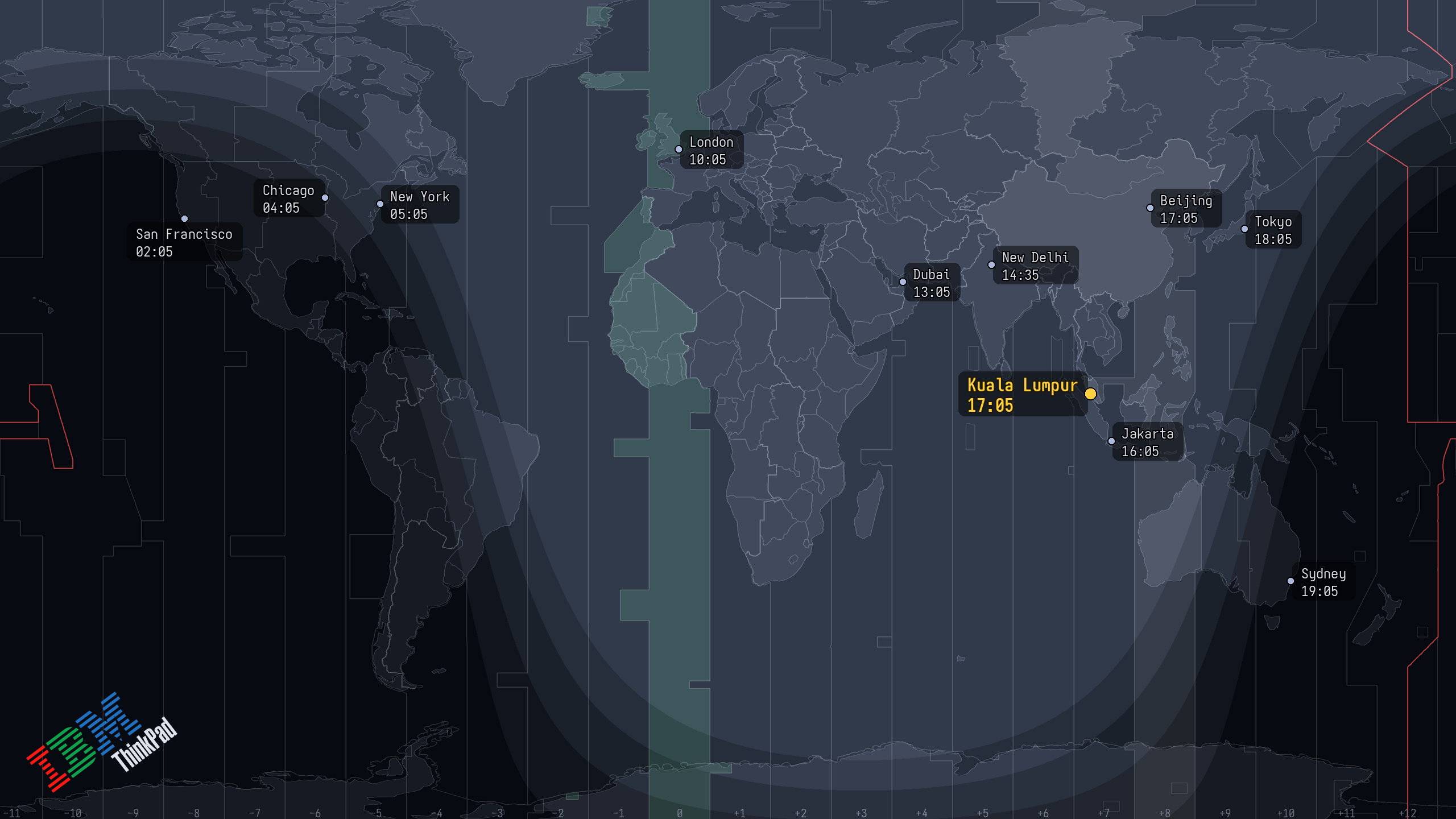
Shown with the optional ThinkPad wordmark (a user-supplied logo, see Credits). The bundled default logo is Tux.
▶ Try the live demo: greyline running in your browser (your timezone highlighted), no install needed.
greyline doesn't run a browser or a background daemon. A small Python program renders a PNG once a minute and hands it to your existing wallpaper mechanism, then exits.
Table of Contents
- Features
- Requirements
- Installation
- Usage
- Configuration
- How it works
- Principles (north star)
- Contributing
- Credits
Features
- Multi-timezone clocks at each city's real location, with accurate DST via the OS IANA
database (
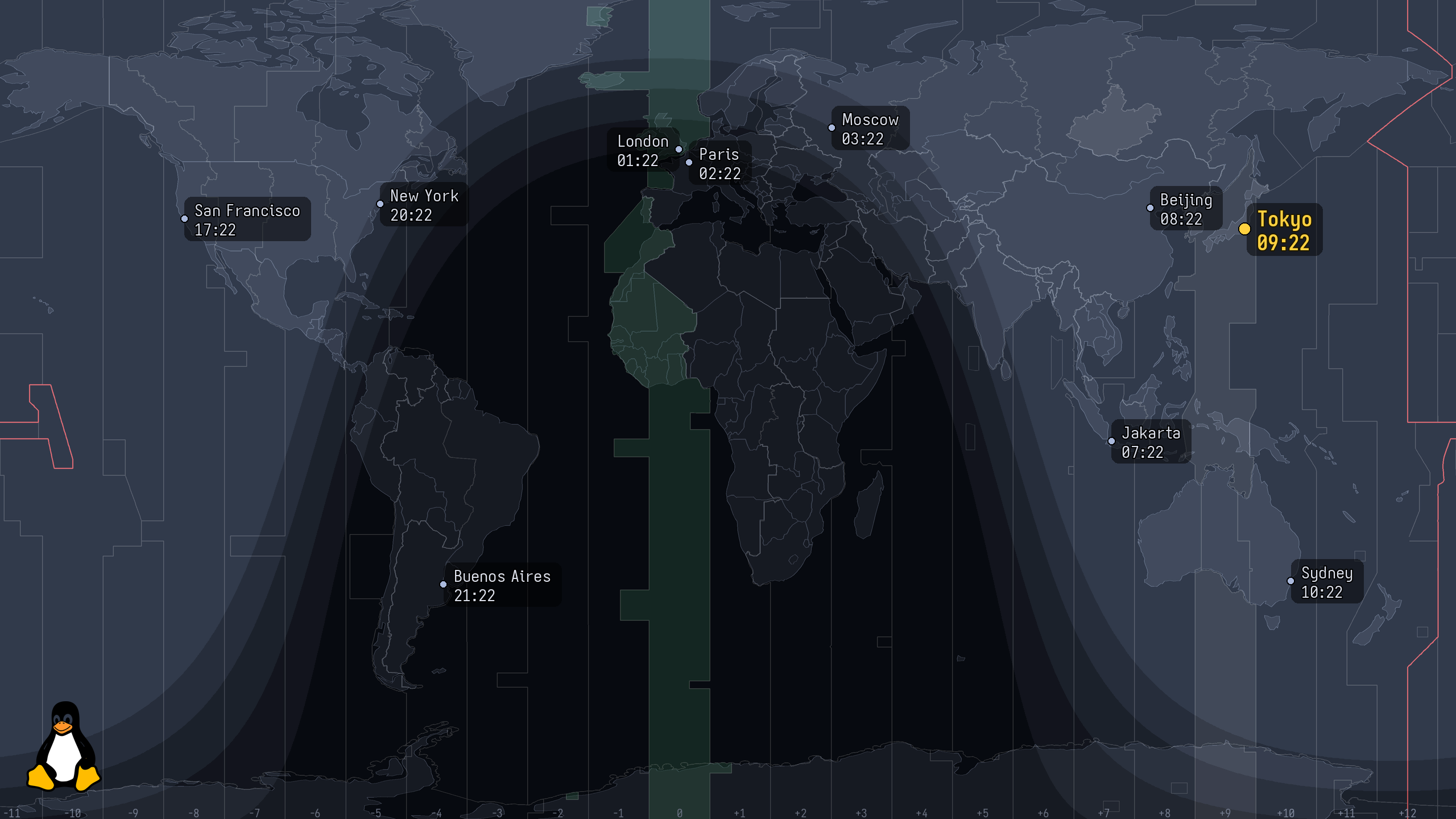
zoneinfo). 12h or 24h. - Home city accented (dot + bold label + optional timezone-column highlight), auto-detected from your system timezone or pinned in config.
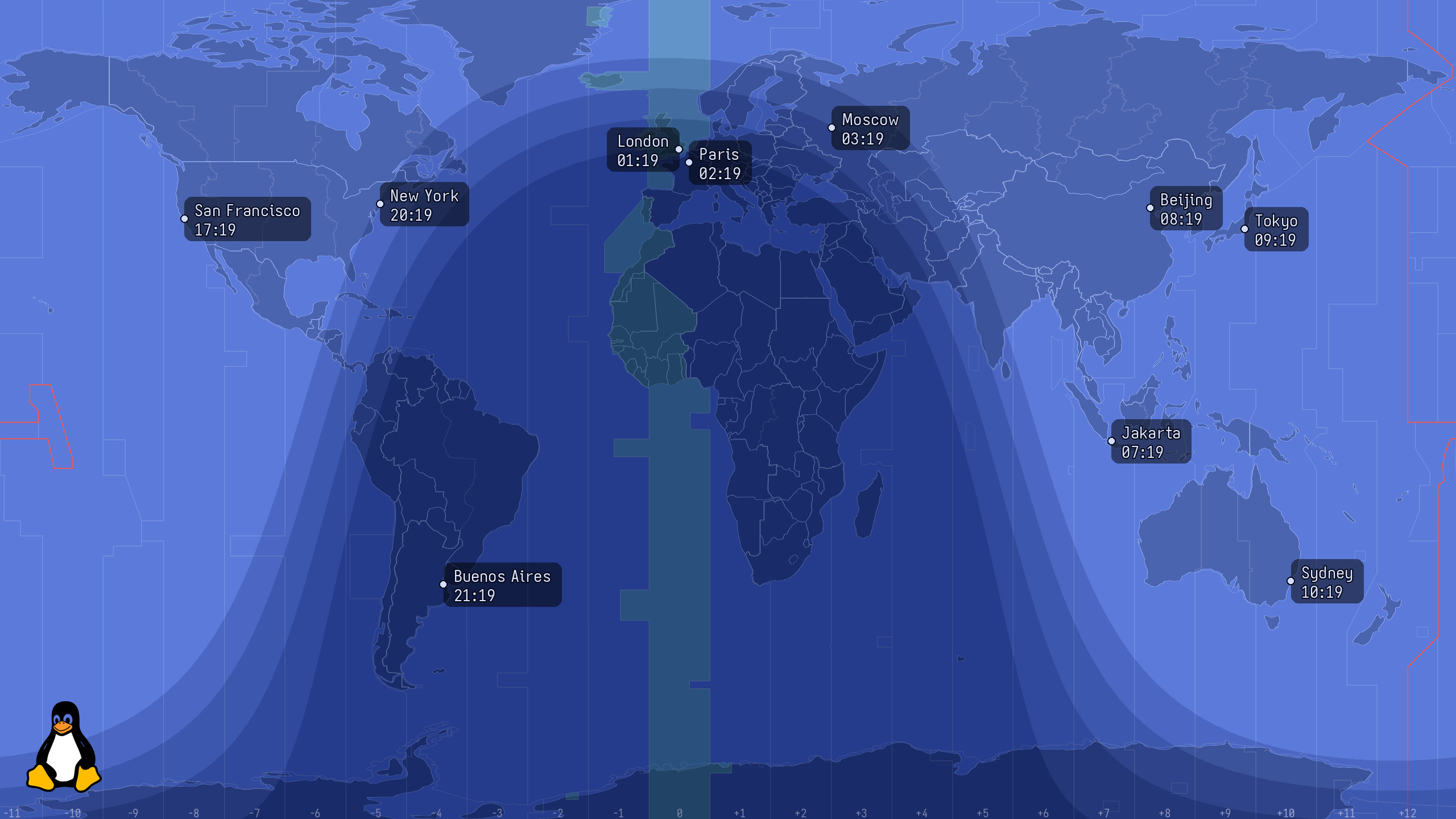
- Day/night terminator that's seasonally correct, with discrete civil / nautical / astronomical twilight bands.
- Vector map from public-domain Natural Earth data: crisp at any resolution, fully
themeable (
dark,blue, or custom), with honest zig-zag timezone boundaries, a green GMT column, and a red International Date Line. - Any resolution, multi-monitor, HiDPI. Each output rendered at native pixels.
- Swappable corner logo: ships with Tux; point
logo_pathat your own PNG. - Works on any desktop, with native backends for
sway,swww,hyprpaper,x11(feh/xwallpaper), plus a genericcommandbackend for GNOME / KDE / XFCE and anything else. - One-command setup:
greyline initdetects your desktop, writes a config, and schedules updates.
blue theme |
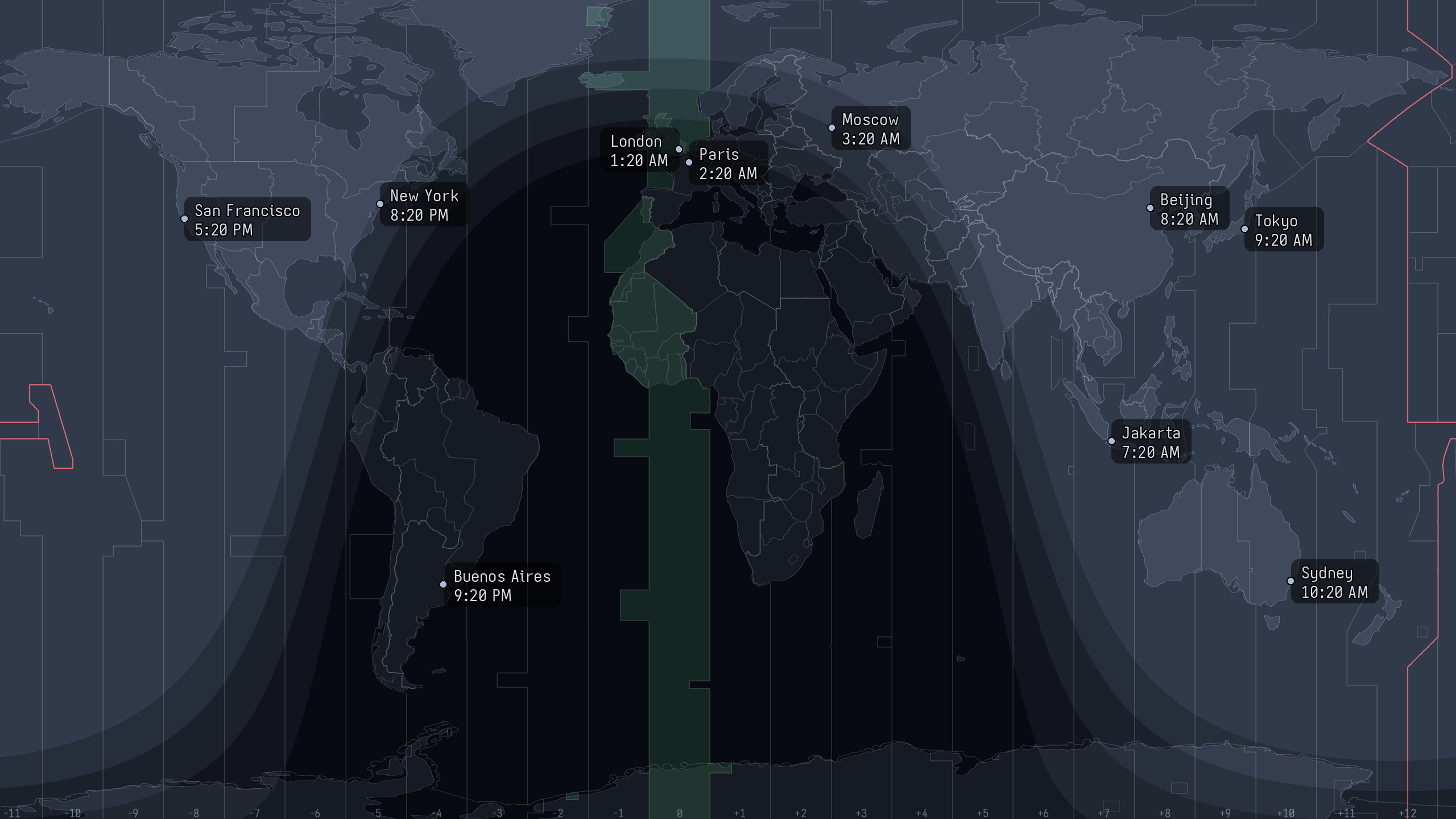
home city accented | minimal, no logo, 12h |
|---|---|---|
 |
 |
 |
Requirements
- OS: Linux, Wayland or X11 (the supported, tested target). Architectures:
x86_64andaarch64. Windows and macOS have beta, untested support — see Windows & macOS (beta). - Python ≥ 3.11, only when installing via pip/pipx/uv (the Nix package bundles its own).
- Runtime dependencies: Pillow and
tomlkit, installed automatically; plus fontconfig
(
fc-match) for font resolution. - A wallpaper mechanism for your desktop: one of the tools in the table below.
- Scheduling: a systemd user timer (most distros) or any session autostart running
greyline watch(Runit/OpenRC/s6/… — no systemd required).
greyline is distro-agnostic: install it with pipx/uv on any distribution, or via the Nix flake on NixOS. Supported desktops and what each needs:
| Desktop / compositor | Backend | Needs |
|---|---|---|
| sway / SwayFX | sway |
swaymsg |
| Hyprland, river, Wayfire, other wlroots | swww or hyprpaper |
swww / hyprpaper daemon |
| X11 window managers | x11 |
feh or xwallpaper |
| GNOME | command |
gsettings |
| KDE Plasma | command |
plasma-apply-wallpaperimage |
| XFCE | command |
xfconf-query |
| anything else with a CLI wallpaper-setter | command |
your own command |
greyline init detects your desktop and picks the backend for you; the command-backend rows
are community-verified (see Contributing).
Installation
pipx / uv (any distro, any desktop)
pipx install greyline    # or: uv tool install greyline
greyline init            # detect your desktop, write a config, schedule updates
greyline init writes a starter ~/.config/greyline/config.toml, auto-detects your
compositor/desktop and picks the backend (on GNOME / KDE / XFCE it fills in the right
wallpaper command for you), and (where systemd is present) installs and enables the
once-a-minute user timer. No git clone, no hand-copied units.
Nix (flake + home-manager) — recommended on NixOS
# flake.nix
inputs.greyline.url = "github:cothinking-dev/greyline";

# home-manager
imports = [ inputs.greyline.homeManagerModules.default ];

services.greyline = {
  enable = true;
  backend = "sway";              # auto | sway | swww | hyprpaper | x11 | command
  fontFamily = "Aporetic Sans";  # resolved via fontconfig
  settings = {
    theme = "dark";
    format = "24h";
    twilight = { bands = true; darkness = "subtle"; };
    home = { tz = "auto"; column_highlight = true; };  # "auto" = system tz
    city = [
      { name = "Kuala Lumpur"; lat = 3.14;  lon = 101.69; tz = "Asia/Kuala_Lumpur"; }
      { name = "London";       lat = 51.51; lon = -0.13;  tz = "Europe/London"; }
      { name = "New York";     lat = 40.71; lon = -74.01; tz = "America/New_York"; }
      { name = "Tokyo";        lat = 35.68; lon = 139.69; tz = "Asia/Tokyo"; }
    ];
  };
};
Run without installing
nix run github:cothinking-dev/greyline -- --out wt.png --res 2560x1440   # writes a PNG
uvx greyline --out wt.png --res 2560x1440                                # same, via PyPI
Windows & macOS (beta)
Warning
Beta and untested on real hardware. greyline is developed and tested on Linux. The Windows and macOS backends are written against each platform's documented wallpaper API but have not been run on an actual Windows or Mac desktop — only in CI (which renders the image and exercises the code, but cannot verify the wallpaper visibly changes, since CI runners are headless). The rendering itself is the same well-tested pure-Python/Pillow code as on Linux. Please open an issue to report whether it works — success or failure both help.
Known limitations: single combined desktop only (no per-monitor wallpapers yet), and no automatic scheduling — you run the update loop yourself (see below).
Install (Python ≥ 3.11; Pillow ships wheels for both OSes):
pipx install greyline # or: pip install greyline
Run — greyline auto-detects the windows / macos backend. Update once, or loop:
greyline --list-outputs    # sanity-check detection
greyline                   # render + set the wallpaper once
greyline watch             # keep it updating (foreground; Ctrl-C to stop)
You can also force the backend explicitly with --backend windows / --backend macos, or
set backend = "windows" / "macos" in the config file.
Keep it running in the background — there's no native service installer on these
platforms yet, so wrap greyline watch in the OS scheduler:
- Windows — Task Scheduler → Create Task → trigger At log on → action
Start a program:
greylinewith argumentwatch. (Or drop a shortcut togreyline watchinshell:startup.) - macOS — a
~/Library/LaunchAgents/ing.cothink.greyline.plistlaunchd agent whoseProgramArgumentsare the path togreylineandwatch, withRunAtLoadset; load it withlaunchctl load ~/Library/LaunchAgents/ing.cothink.greyline.plist.
Fonts: set font_family in the config (a fontconfig family name like "DejaVu Sans", or a
direct font-file path) and font_scale to size the label text; --font-family overrides the
config for one run. greyline uses fontconfig (fc-match) on Linux; on Windows/macOS Pillow
resolves a system font automatically (Segoe UI / Helvetica), falling back to a built-in font —
so labels always render, though exact typography may differ from Linux.
Usage
After greyline init, the wallpaper updates on its own. Everything else is subcommands:
greyline                          # render all outputs and apply (what the timer runs)
greyline init                     # first-time setup: config + backend + scheduling
greyline watch [--interval SEC]   # render+apply on a loop (any init system / WM)
greyline config set <key> <val>   # also: get [key] / unset <key>   (edits the config file)
greyline city add "<name>" <lat> <lon> <tz> [--home]   # also: list / remove "<name>"
greyline enable | disable | status   # manage the systemd user timer
greyline doctor                   # detected backend, outputs, session, timer
greyline --list-outputs           # show detected backend + outputs
greyline --out wt.png --res WxH   # render a PNG, no backend needed
Scheduling. On systemd, greyline init/greyline enable install a user timer that runs
every minute. No systemd? Any init system or WM works; skip the timer and add greyline to
your session autostart:
greyline watch # renders + applies every minute in the foreground
Configuration
Edit config from the CLI (comments in the file are preserved) or edit the file directly:
greyline city add "London" 51.51 -0.13 Europe/London --home
greyline config set theme blue
greyline config set twilight.darkness dramatic
The shipped worldtime/default-config.toml is the documented
template. Keys:
| Key | Values |
|---|---|
backend |
auto / sway / swww / hyprpaper / x11 / command |
command, resolution |
for the command backend (see below) |
map_style |
vector (default) / raster (bring your own art) |
theme, format |
dark/blue · 24h/12h |
font_family, font_scale |
label font (family name or file path) · text-size multiplier |
logo, logo_path, logo_invert, logo_scale, logo_max_height |
corner logo (default: Tux); logo_max_height caps height as a fraction of screen height |
[twilight] |
bands, darkness (subtle/medium/dramatic) |
[home] |
tz (auto or IANA), column_highlight, color |
[[city]] |
name, lat, lon, tz, optional label_side |
Desktop environments (GNOME / KDE / XFCE)
On desktops that manage their own wallpaper, greyline init configures the generic command
backend automatically: greyline renders a PNG and runs a command to set it as your wallpaper,
with {path} (the PNG) and {output} substituted.
greyline is not a live-wallpaper engine, so you don't need swww/awww or any wallpaper
daemon on GNOME — it sets a static image through the desktop's own tool (gsettings on GNOME).
Note: this replaces your desktop wallpaper; it is not an overlay. greyline re-renders and re-sets it each minute; the last image stays after greyline stops.
To set the command by hand (greyline config set command '…', or in the config file):
backend = "command"
# resolution = "2560x1440"   # optional; else largest xrandr output, else 1920x1080
# GNOME (empty-then-set defeats GNOME's same-URI cache; sets light + dark):
command = 'gsettings set org.gnome.desktop.background picture-uri "" && gsettings set org.gnome.desktop.background picture-uri "file://{path}" && gsettings set org.gnome.desktop.background picture-uri-dark "file://{path}"'
# KDE Plasma:
command = 'plasma-apply-wallpaperimage {path}'
# XFCE (the monitor segment varies — see: xfconf-query -c xfce4-desktop -l | grep last-image):
command = 'xfconf-query -c xfce4-desktop -p /backdrop/screen0/monitor0/workspace0/last-image -s {path}'
These recipes are best-effort / community-verified; the maintainers run sway and can't test them directly. If yours needs a tweak, please report it.
How it works
A scheduler runs greyline once a minute; it renders a PNG per output and hands each to the
detected backend, then exits.
flowchart LR
    T["systemd timer<br/>or greyline watch"] --> G(greyline)
    CFG["config.toml<br/>cities · theme · home"] --> G
    G --> S["sun.py<br/>subsolar point<br/>+ terminator"]
    G --> V["vectormap.py<br/>Natural Earth GeoJSON"]
    S --> R["render.py<br/>compose map, clocks,<br/>terminator, labels"]
    V --> R
    R --> P["PNG per output"]
    P --> B["backend<br/>sway · swww · hyprpaper<br/>x11 · command"]
    B --> W(["desktop wallpaper"])
Loading
sun.py— subsolar point + terminator/twilight boundary latitudes (pure astronomy math).geo.py/vectormap.py— lon/lat → pixel projection; the vector map is drawn from Natural Earth GeoJSON (supersampled for smooth coastlines).render.py— composites map + overlays, then draws clocks at native resolution with smart label placement (labels pick a side to avoid overlapping each other and the edges).backends/— the only platform-specific code; everything else is portable.
Principles (north star)
greyline optimises for universal compatibility, performance & battery life, and staying lightweight — in that order. These guide every change (see the Road to v1 tracker):
- No daemon; render once and exit. A tick renders a PNG, hands it to your existing wallpaper mechanism, and the process ends — nothing stays resident.
- Real-time updates and animations are deliberately out of scope. A clock to the minute is the contract; per-second redraws would burn battery for no real gain.
- No unbounded files or caches. Artifacts are bounded and self-managing — e.g. the KDE refresh fix ping-pongs two fixed buffers rather than writing a new timestamped file each minute.
- Solve desktop quirks at the edge. Prefer a recipe/command tweak (e.g. GNOME's empty-then-set) or a bounded mechanism over a background service or a growing pile of workaround state.
When in doubt, a change should make greyline lighter, not heavier.
Contributing
greyline is a personal passion project, built and maintained in spare time and released as free and open-source software (GPL-2.0-or-later). It's a labour of love, not a product. Issues, desktop-compatibility recipes, and pull requests are all welcome.
- Found a bug, or a
commandrecipe that needs tweaking on your desktop? Open an issue; there's a dedicated desktop-compatibility report template for GNOME/KDE/XFCE. - Run the tests with
nix flake check, orpytestin the dev shell.
Credits
Code is GPL-2.0-or-later. It descends from Maxim Proskurnya's GPL "World Time Wallpaper" tribute; the concept and original artwork are © IBM/Lenovo.
The default vector map uses public-domain Natural Earth data, and the default logo is
Tux (Larry Ewing / GIMP); both are cleanly redistributable. The original IBM/Lenovo ThinkPad
raster art and wordmark are not bundled; map_style = "raster" and the ThinkPad logo require
you to supply those files yourself (see NOTICE and docs/CREDITS.md).
Built with the assistance of AI coding tools.
more like this
DailyWallpaperHub
多源壁纸聚合平台 · 自动归档 Bing + Unsplash 精选壁纸 · AI 视觉故事生成 · 企业微信推送 · GitHub Pages 在线画廊
meine
meine 🌒 - A CLI file manager and system utility built with Textual. It combines intuitive command parsing with rich t…