xylocopa
A to-do list that runs your Claude Code agents — capture anywhere, dispatch in parallel, review from your phone.
Python★ 51
Neon Vision Editor - A lightweight, modern code & text editor for macOS built for speed, readability, and automatic syn…
 h3pdesign
git clone https://github.com/h3pdesign/Neon-Vision-Editor.gith3pdesign/Neon-Vision-Editor



Neon Vision Editor
A native editor for markdown, notes, and code across macOS, iPhone, and iPad.
Minimal by design. Quick edits, fast file access, no IDE bloat.
Download: GitHub Releases · App Store · TestFlight
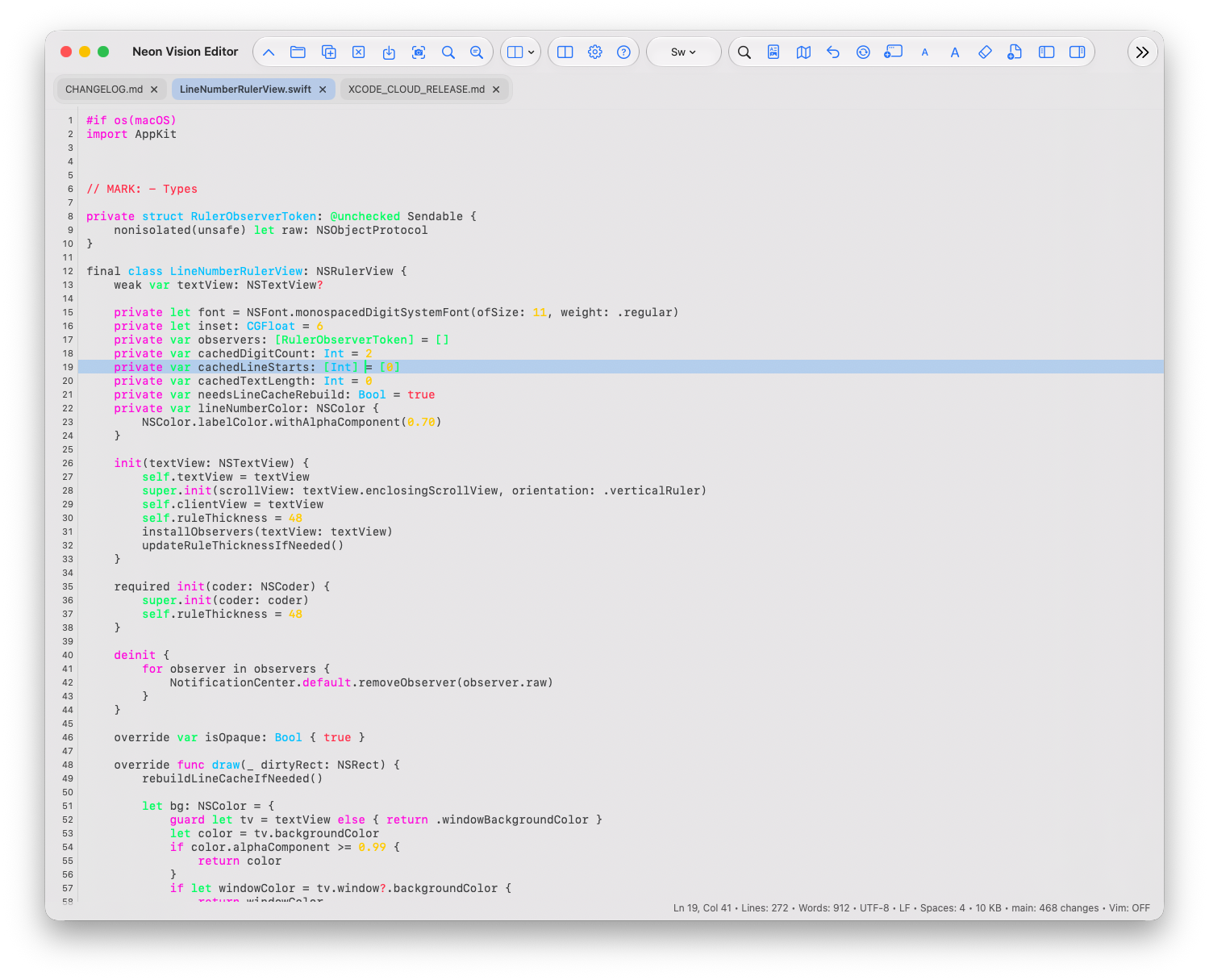
Status: active release
Latest release: v1.1.1 Next release target: v1.1.2 Platform target: macOS 26 (Tahoe) compatible with macOS Sequoia Apple Silicon: tested / Intel: not tested Direct GitHub release: v1.1.1 / App Store and TestFlight availability varies by platform and review status Last updated (README): 2026-07-30 for latest release v1.1.1
git clone https://github.com/h3pdesign/Neon-Vision-Editor.gitcd Neon-Vision-Editorxcodebuild -project "Neon Vision Editor.xcodeproj" -scheme "Neon Vision Editor" -destination 'platform=macOS,name=My Mac' buildopen "Neon Vision Editor.xcodeproj" and run, then use Cmd+P for Quick Open.| For | Not For |
|---|---|
| Fast native editing across macOS, iOS, iPadOS | Full IDE workflows with deep refactoring/debugger stacks |
| Markdown writing and script/config edits with highlighting | Teams that require complete Intel Mac validation today |
| Users who want low overhead and quick file access | Users expecting full desktop-IDE parity on iPhone |
Start Here · Release Channels · Core Workflows · Download Metrics · Project Documentation · Features
Release Spotlight · Platform Matrix · Roadmap (Near Term) · Troubleshooting · FAQ · Changelog · Contributing Quickstart · Support & Feedback
| Channel | Best for | Delivery | Current status |
|---|---|---|---|
| Direct notarized builds and fastest stable updates | GitHub Releases | v1.1.1 release docs current; v1.1.1 direct download current | |
| Apple-managed install/update flow | App Store | Check the platform listing for current availability | |
| Early testing of upcoming changes | TestFlight | Newest beta availability may vary by review state |
Release Download + Traffic Trend
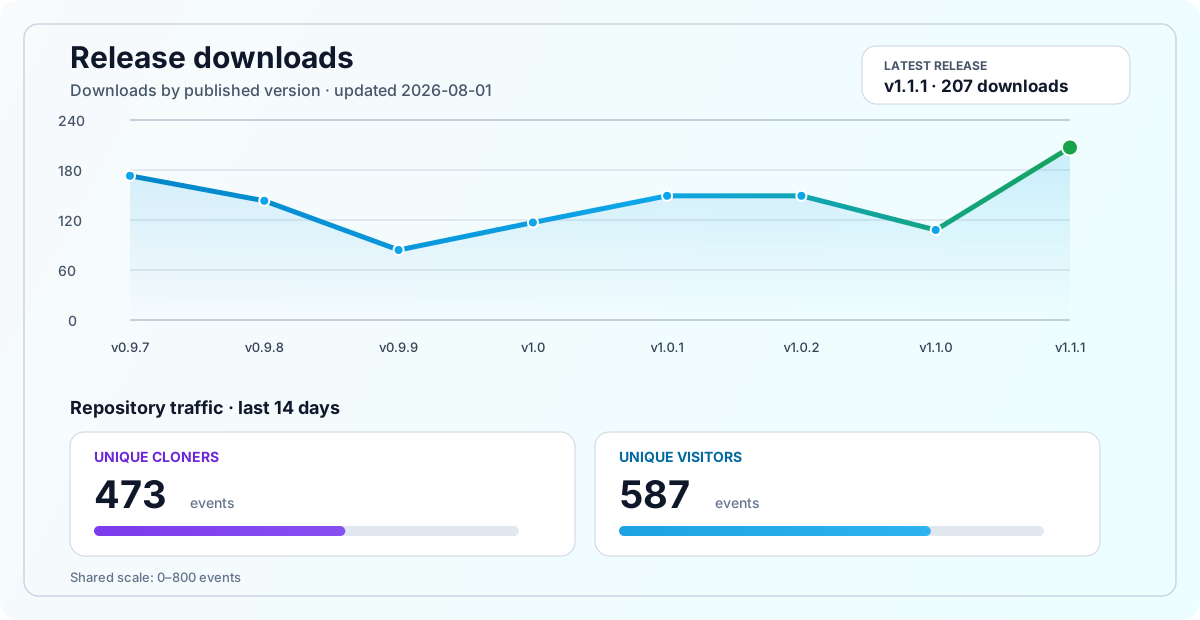
Styled line chart shows per-release totals with 14-day traffic counters for clones and views.
| Document | Purpose |
|---|---|
CHANGELOG.md |
Full release history and milestone issue coverage |
CONTRIBUTING.md |
Local setup, build, and contribution workflow |
PRIVACY.md |
Privacy guarantees and data-handling policy |
SECURITY.md |
Security policy and responsible disclosure |
release/ |
TestFlight, App Store, and release preflight checklists |
| Best For | Why Neon Vision Editor |
|---|---|
| Quick note takers | Fast native startup and low UI overhead for quick edits |
| Markdown-focused writers | Clean editing with quick preview workflows on Apple devices |
| Developers editing scripts/config files | Syntax highlighting + fast file navigation without full IDE complexity |
| Advantage | What It Means |
|---|---|
| Faster startup | Lower overhead for short edit sessions |
| Focused surface | Editor-first workflow without project-system bloat |
| Native Apple behavior | Consistent experience on macOS, iOS, and iPadOS |
Prebuilt binaries are available on GitHub Releases.
The direct GitHub release is currently ahead of the App Store version. The App Store version may temporarily lag while updates are in Apple review.
| Channel | Platform | Best For | Download | Release Track | Notes |
|---|---|---|---|---|---|
| Stable | macOS | Direct notarized builds and fastest stable updates | GitHub Releases | v1.1.1 | Current direct download |
| Store | iOS / iPadOS | Apple-managed installs and updates | Neon Vision Editor on the App Store | v0.7.8 | Current public App Store listing |
| Store | macOS | Apple-managed installs and updates | Neon Vision Editor on the App Store | v0.8.6 | Current public App Store listing |
| Store | visionOS | Apple-managed installs and updates | Neon Vision Editor on the App Store | v0.8.8 | Current public App Store listing |
| Store Review | iOS / iPadOS / visionOS | Upcoming App Store update | App Store Connect review | v1.0.2 | In Apple review |
| Beta | iOS / iPadOS / macOS | Testing upcoming changes before stable | TestFlight Invite | v1.1.1 | Early access builds for feedback; availability may vary by review state |
Install the latest release directly:
curl -fsSL https://raw.githubusercontent.com/h3pdesign/Neon-Vision-Editor/main/scripts/install.sh | sh
Install without admin password prompts (user-local app folder):
curl -fsSL https://raw.githubusercontent.com/h3pdesign/Neon-Vision-Editor/main/scripts/install.sh | sh -s -- --appdir "$HOME/Applications"
Homebrew detects Neon Vision Editor as a cask, so either command works:
brew install neon-vision-editor
Or use the explicit cask form:
brew install --cask neon-vision-editor
Cask source: Homebrew/homebrew-cask
If Homebrew asks for an admin password, it is usually because casks install into /Applications.
Use this to avoid that:
brew install --cask --appdir="$HOME/Applications" neon-vision-editor
The direct macOS build from GitHub bundles an optional nve helper for terminal workflows. It is not included in the Mac App Store build. Install it only when you want a shell command:
$HOME/bin.nve README.md nve --wait --new-window "Neon Vision Editor/UI/ContentView.swift" nve --line 42 "Neon Vision Editor/UI/ContentView.swift" # validates the line flag; cursor placement is not yet supported
Development builds can also link the repository copy:
mkdir -p "$HOME/bin"
ln -sf "$PWD/scripts/nve" "$HOME/bin/nve"
Permission model: the helper is optional and user-linked. It calls macOS Launch Services through /usr/bin/open and does not read file contents itself. Neon Vision Editor handles the document-open request inside the sandbox with user-selected read/write file access and security-scoped file access. It does not require Full Disk Access, Accessibility access, administrator permission, background services, or telemetry. See docs/CommandLineHelper.md.
Project Sidebar keeps Files, Search, Git, and Terminal in one stable surface. Remote Sessions stay opt-in and user-triggered. Markdown formatting, preview, and export stay in one contextual flow.
Neon Vision Editor keeps the surface minimal and focuses on fast writing/coding workflows. Platform-specific availability is tracked in the Platform Matrix section below.
Editing Core
Navigation & Preview
Platform, Output & Customization
Safety & Privacy
Cmd+P), project sidebar navigation, and recursive project tree rendering.scripts/nve opens files from the terminal and supports --wait, --new-window, and --line compatibility flags.Expand All / Collapse All), recent project folders, supported-files-only filtering, and default ignored heavy folders (.git, .build, node_modules, DerivedData).Save As… and Close All Tabs with confirmation.Aa control..svg files support XML editing, bracket help, and rendered SVG Preview on all platforms.
Aa control on iPhone.flowchart LR Mac["Platform: macOS shell (SwiftUI + AppKit bridges)"] Touch["Platform: iOS/iPadOS/visionOS shell (SwiftUI + UIKit bridges)"] ACT["App Layer: user actions (toolbar/menu/shortcuts)"] VM["App Layer: EditorViewModel (@MainActor state owner)"] CMD["App Layer: serialized tab commands + resource identity"] TEXT["Core: native NSTextView/UITextView editor bridges"] DOC["Core: document load/save + conflict pipeline"] OBS["Core: NSFilePresenter open-document observation"] HL["Core: syntax highlighting + runtime limits"] STRUCT["Core: CSV/TSV, plist + crash-report modes"] PREV["Core: Markdown/HTML/SVG preview + PDF export"] MINI["Core: code minimap snapshot builder"] NAV["Core: project index + find/diff workflows"] REMOTE["Core: RemoteSessionStore (Mac host + attach clients)"] DESKTOP["Core: GitService + PTY terminal (macOS-only)"] STORE["Infra: tabs + session restore store"] PREFS["Infra: settings + persistence"] SEC["Infra: SecureTokenStore (Keychain)"] POLICY["Infra: ReleaseRuntimePolicy"] MAS["Distribution: App Store target (updater-free)"] DIRECT["Distribution: direct macOS target (Sparkle + signed appcast)"] Mac --> ACT Touch --> ACT ACT --> VM VM --> CMD CMD --> STORE VM --> TEXT VM --> DOC DOC --> OBS DOC --> STORE VM --> HL VM --> STRUCT VM --> PREV VM --> MINI VM --> NAV VM --> REMOTE VM --> DESKTOP VM --> PREFS PREFS --> STORE VM --> SEC REMOTE --> SEC Mac --> MAS Mac --> DIRECT Touch --> MAS MAS --> POLICY DIRECT --> POLICY classDef platform stroke:#2563EB,stroke-width:3px,fill:transparent,font-family:ui-monospace\, SFMono-Regular\, Menlo\, Monaco\, Consolas\, Liberation Mono\, monospace,font-size:13px; classDef app stroke:#059669,stroke-width:3px,fill:transparent,font-family:ui-monospace\, SFMono-Regular\, Menlo\, Monaco\, Consolas\, Liberation Mono\, monospace,font-size:13px; classDef core stroke:#EA580C,stroke-width:3px,fill:transparent,font-family:ui-monospace\, SFMono-Regular\, Menlo\, Monaco\, Consolas\, Liberation Mono\, monospace,font-size:13px; classDef infra stroke:#9333EA,stroke-width:3px,fill:transparent,font-family:ui-monospace\, SFMono-Regular\, Menlo\, Monaco\, Consolas\, Liberation Mono\, monospace,font-size:13px; classDef distribution stroke:#DB2777,stroke-width:3px,fill:transparent,font-family:ui-monospace\, SFMono-Regular\, Menlo\, Monaco\, Consolas\, Liberation Mono\, monospace,font-size:13px; class Mac,Touch platform; class ACT,VM,CMD app; class TEXT,DOC,OBS,HL,STRUCT,PREV,MINI,NAV,REMOTE,DESKTOP core; class STORE,PREFS,SEC,POLICY infra; class MAS,DIRECT distribution;Loading
EditorViewModel is the single UI-facing orchestration point per window/scene.NSFilePresenter events and bounded metadata/content checks. Clean buffers refresh in place; dirty buffers enter Keep Local, Reload from Disk, or Compare.@MainActor.SecureTokenStore), not plain prefs.Full architecture reference: ARCHITECTURE.md. The reference tracks the current Swift 6 cross-platform structure, platform guards, editor rendering paths, performance rules, distribution boundaries, and release verification workflow.
@MainActor) and heavy work off the UI thread.Neon Vision Editor shares its editor core across macOS, iPhone, iPad, and Apple Vision Pro. Platform-specific controls adapt to available space and input rather than exposing desktop-only workflows on touch devices.
Desktop-only workflows: Git, the PTY Terminal, and SSH-hosted Remote Sessions run only on macOS. iPhone, iPad, and Apple Vision Pro remain editor, preview, and Remote Session client surfaces.
Availability key: full native workflow ·
layout adapts to space and input ·
touch-first presentation ·
local desktop capability
| Capability | macOS | iPhone | iPad | Apple Vision Pro | Notes |
|---|---|---|---|---|---|
Quick OpenCmd+P |
Keyboard and menu |
Hardware keyboard |
Keyboard and menu |
Hardware keyboard |
Keyboard-first navigation remains available whenever a hardware keyboard is connected. |
| Project workspace | Files/Search/Git/Terminal rail |
File workflow |
Files/Search workflow |
Spatial workspace |
Git and Terminal execute only on macOS. |
| Find in Files | Sidebar |
Sheet |
Sidebar |
Panel |
On Mac and iPad, results remain visible while opening a match. |
| Markdown formatting | Collapsible toolbar below tabs |
Aa status-row menu |
Collapsible toolbar below tabs |
Collapsible toolbar below tabs |
Direct Bold, Italic, Link, Quote, and Code actions; structural actions and five heading levels remain available in menus. |
| Preview Markdown, HTML, SVG |
Inline split pane |
Full-screen sheet |
Inline pane in regular width |
Inline pane |
The eye control is enabled only for supported documents and also closes the active preview. |
| Preview appearance | Templates and backgrounds |
Templates and compact controls |
Templates and backgrounds |
System Glass, Paper, Slate, or Ink |
visionOS intentionally uses its own reader surfaces instead of the full Markdown template collection. |
| Font-size gesture | Trackpad pinch |
Touch pinch |
Touch pinch |
Touch pinch |
Gestures adjust editor font size from 10 to 28 pt and retain the regular font-size controls. |
| Code Minimap | Opt-in |
Opt-in |
Opt-in |
Opt-in |
Available for supported languages; it stays hidden for document types where a minimap is not useful. |
| Diff workflows | Inline |
Sheet |
Inline |
Panel |
Compact presentations avoid taking over narrow touch layouts. |
| Git and Terminal | Local Git and PTY terminal |
-- | -- | -- | These use local macOS executables and are deliberately not exposed on mobile or spatial platforms. |
| Remote sessions | SSH owner and broker host |
Broker attach client |
Broker attach client |
Broker attach client |
Remote access is opt-in; iPhone, iPad, and visionOS explicitly save through a Mac-hosted session. |
| Save and export | Native Save As and export |
System exporter |
System exporter |
System exporter |
iPhone and iPad export Markdown and Swift with their declared content types. |
More release integrity details: Release Integrity
docs/images/README.md
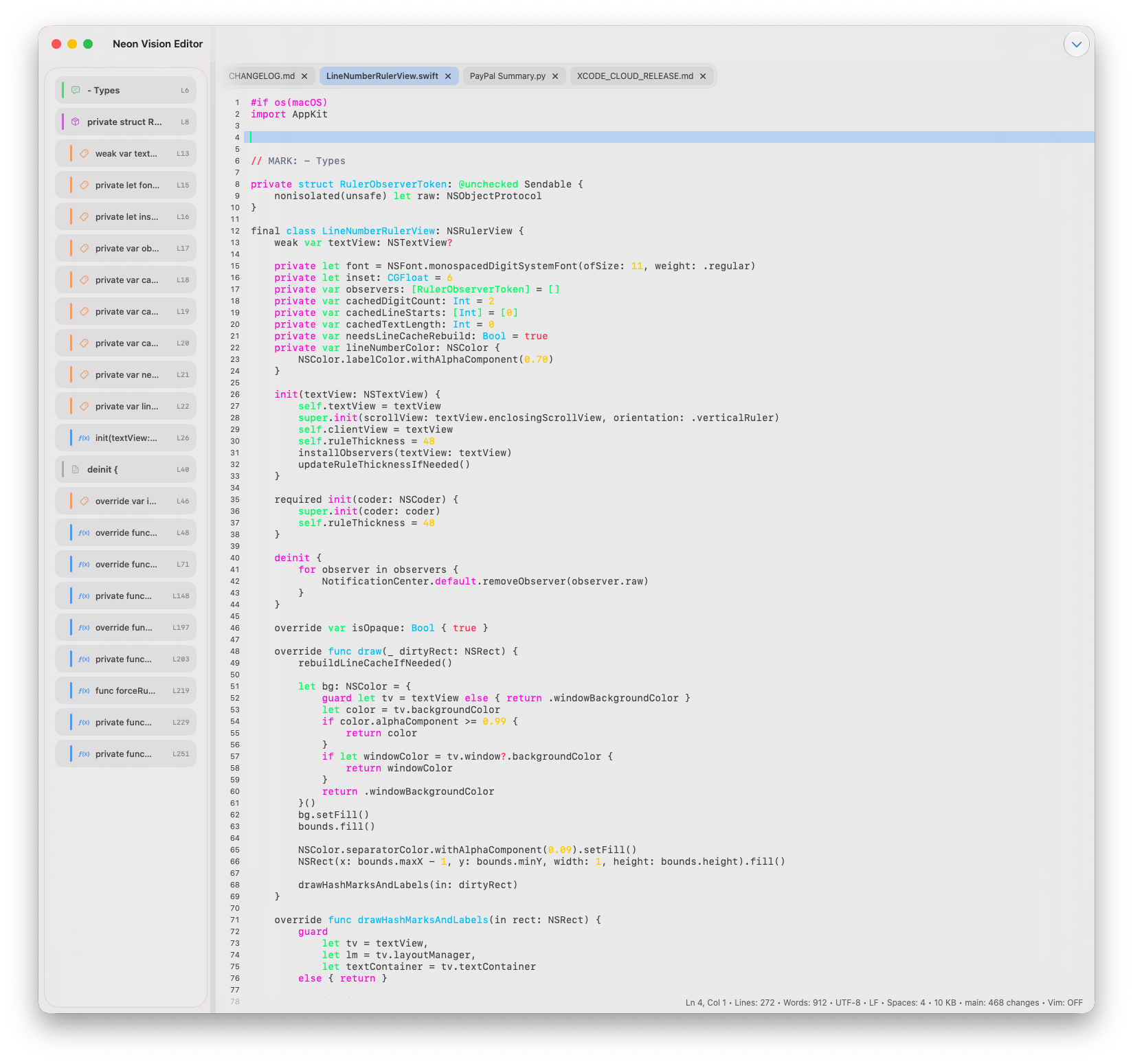
Light editor workspace with symbol navigation |
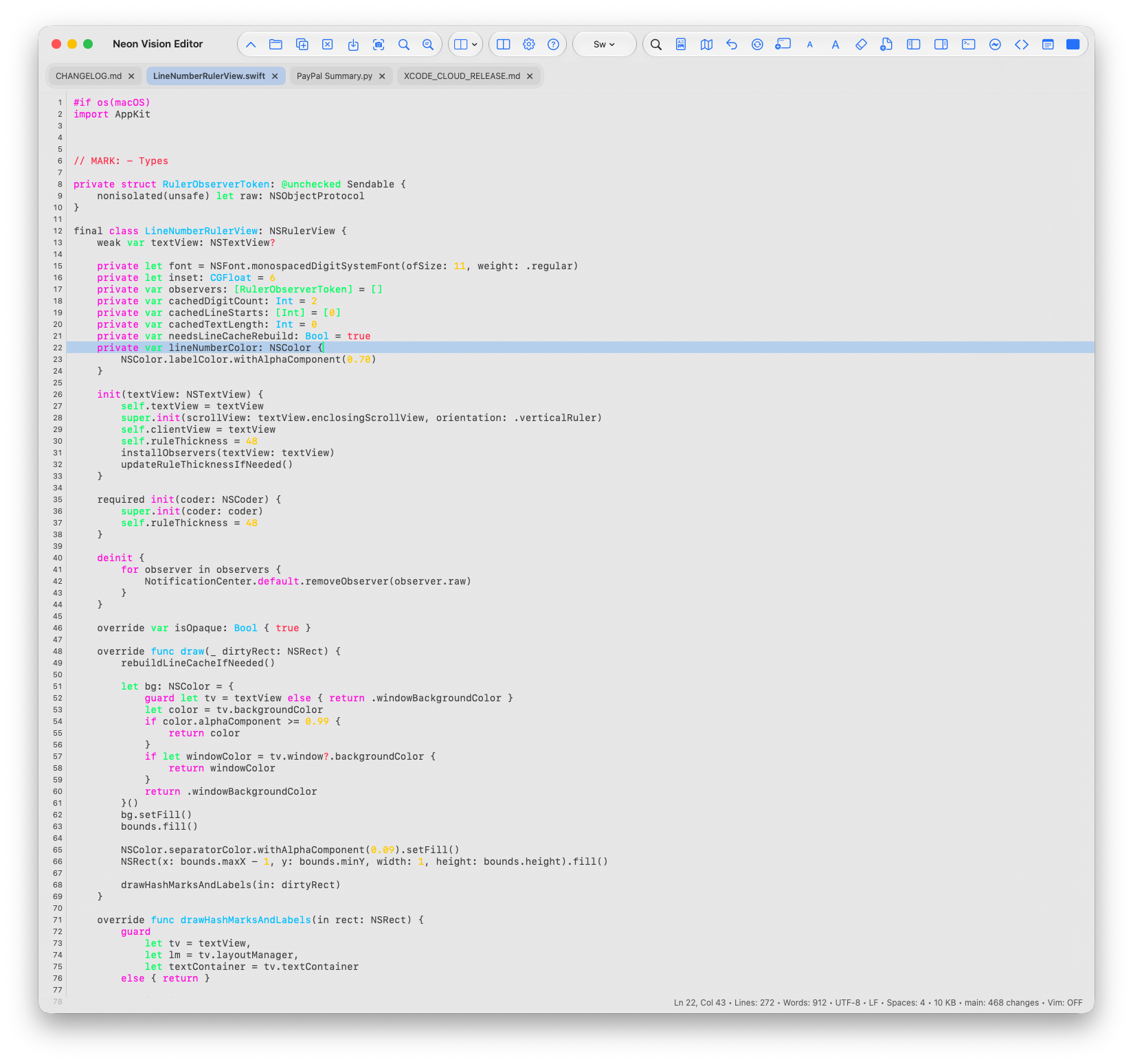
Wide light editor workspace with toolbar actions |
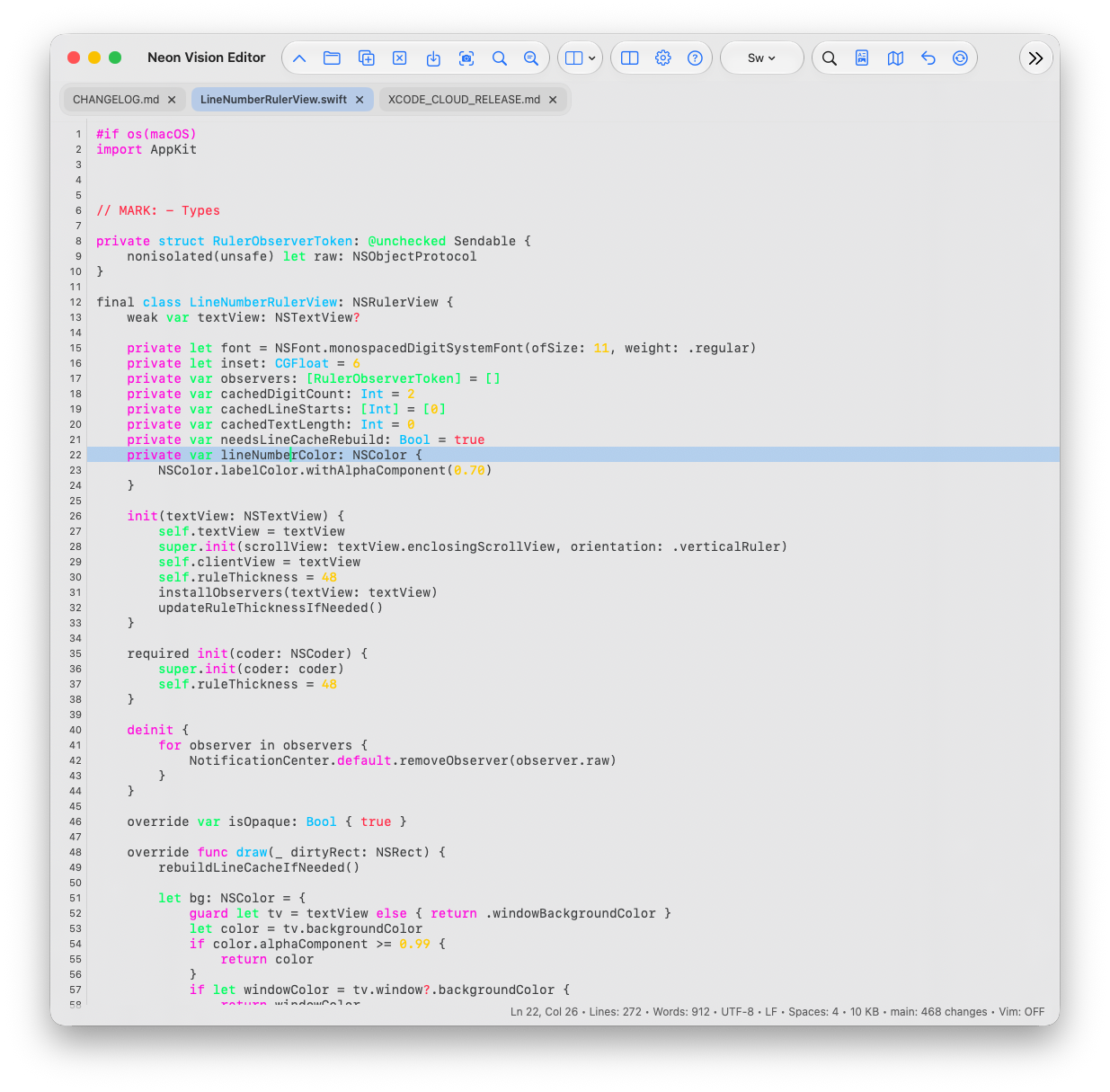
Compact light editor workspace with focused code view |
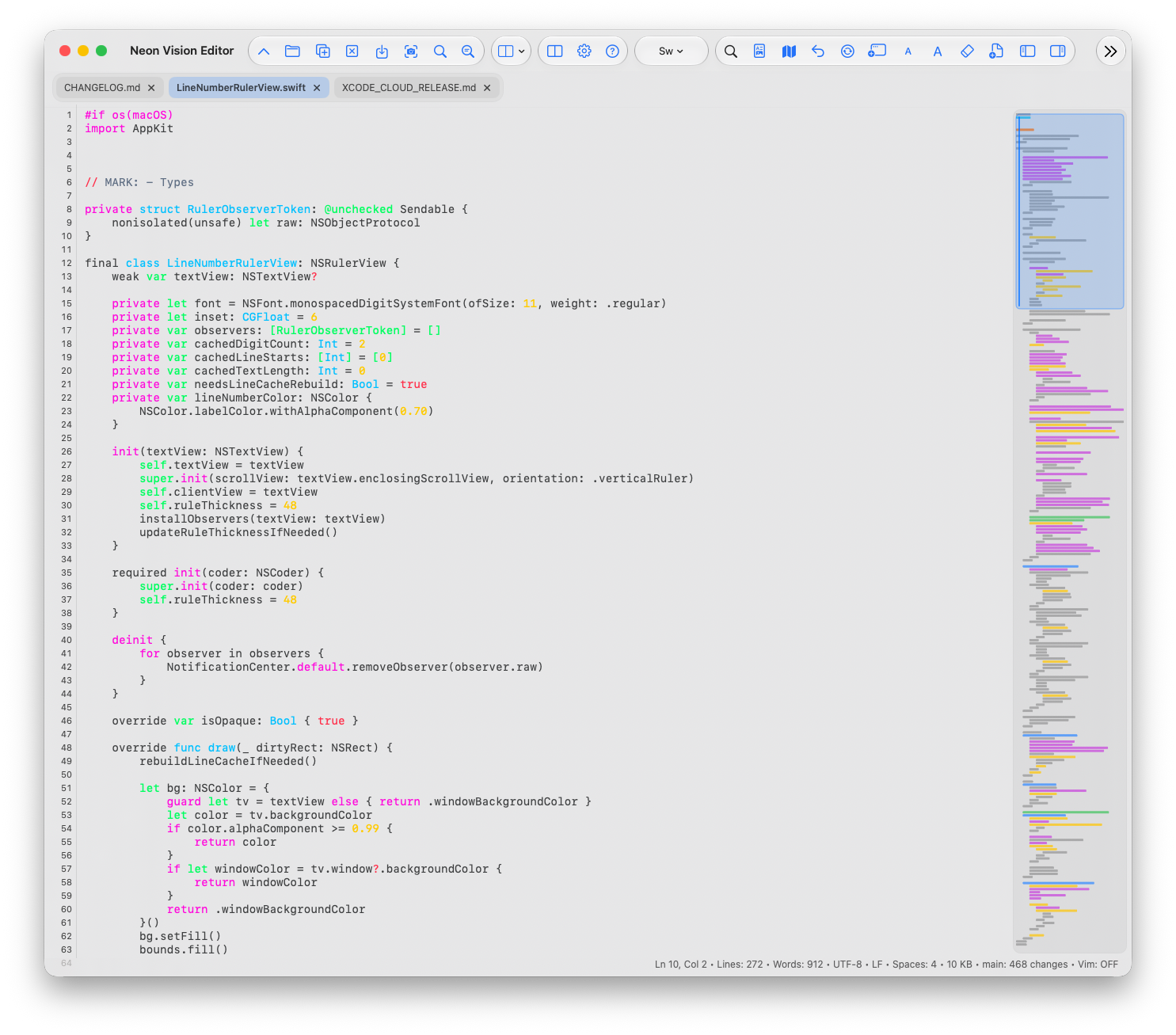
Light editor workspace with code minimap |
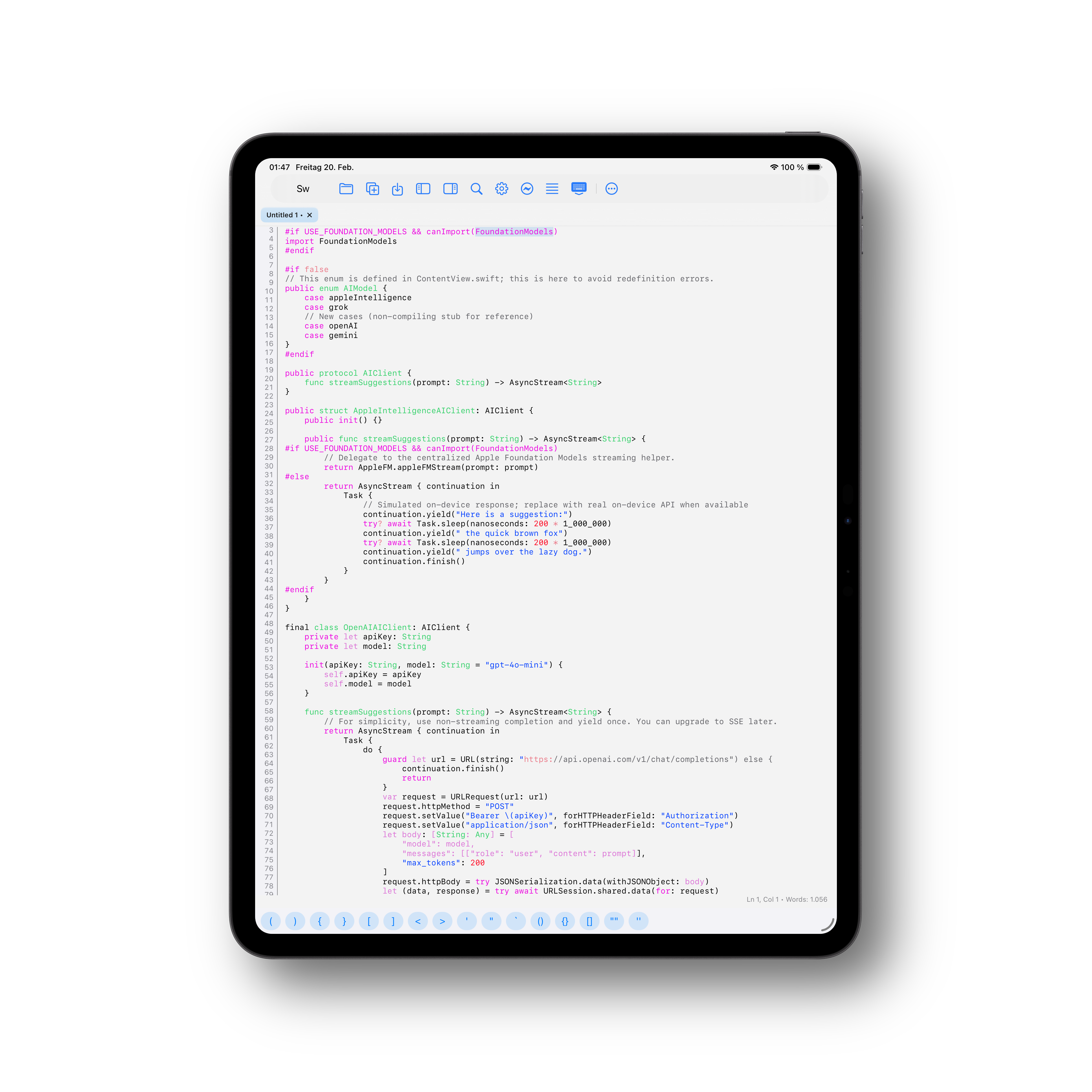
Project navigation and editing workflow on iPad |
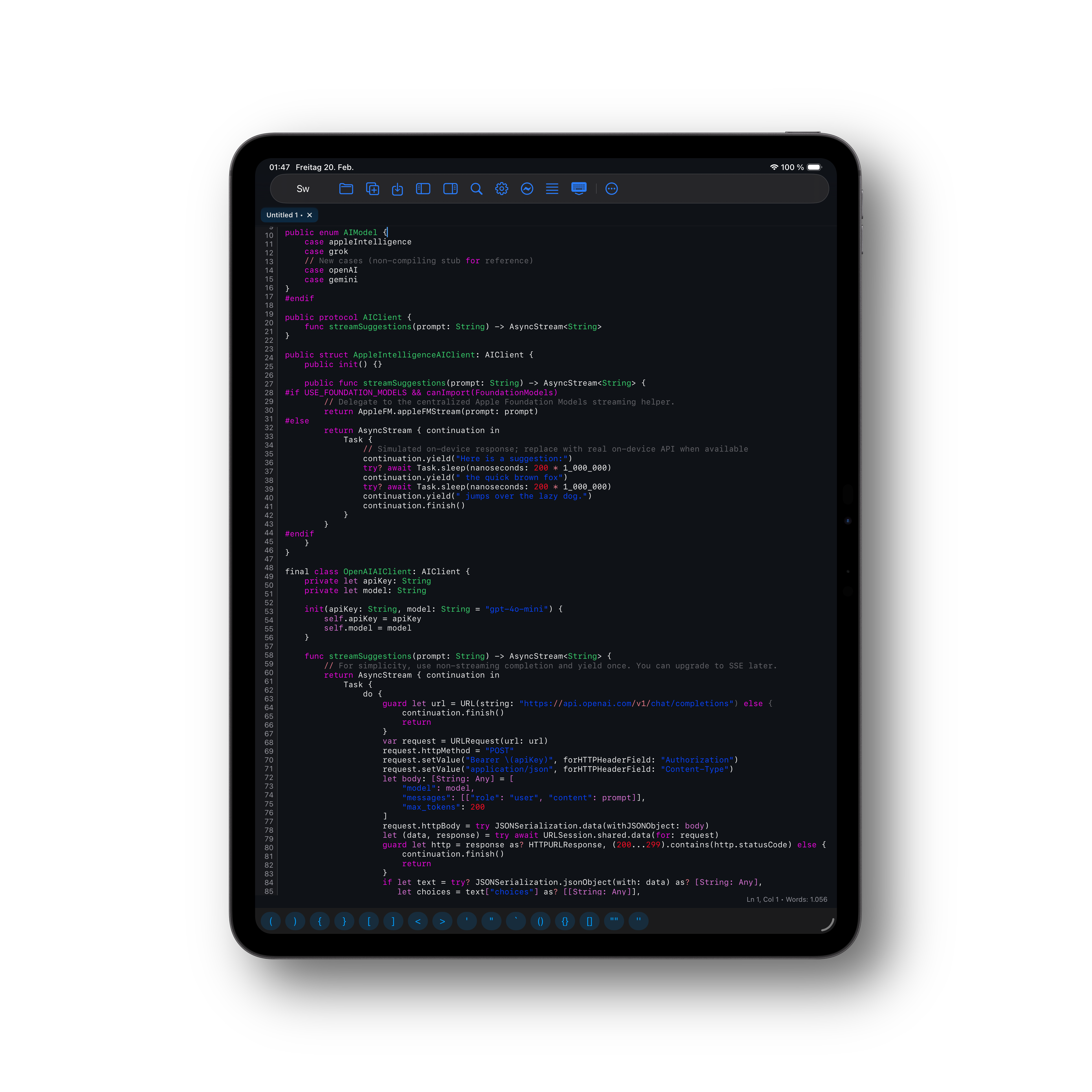
Markdown preview workflow in the editor context |
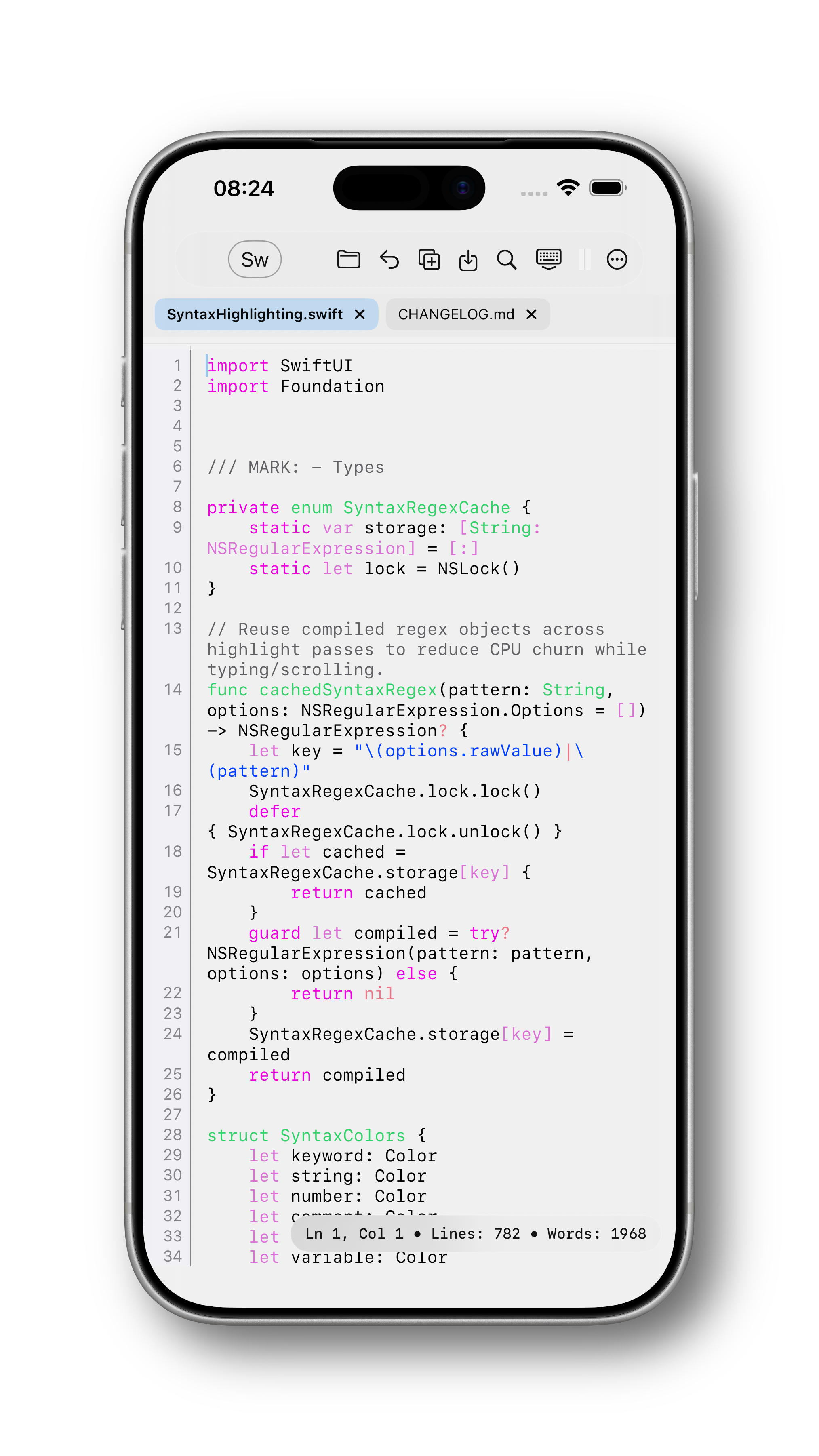
Editing workflow with syntax highlighting and accessory bar |
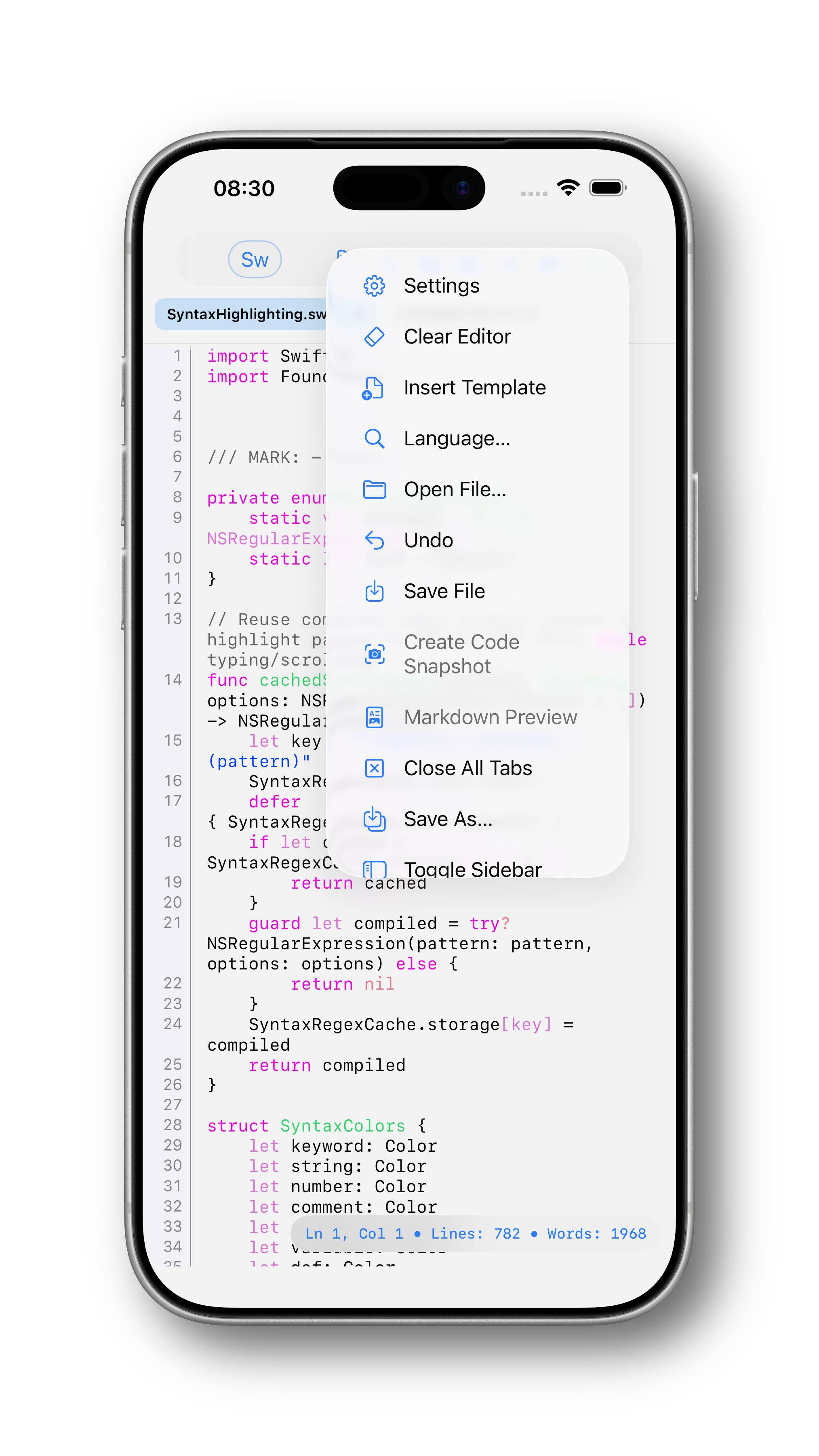
Overflow menu actions in the editor workflow |
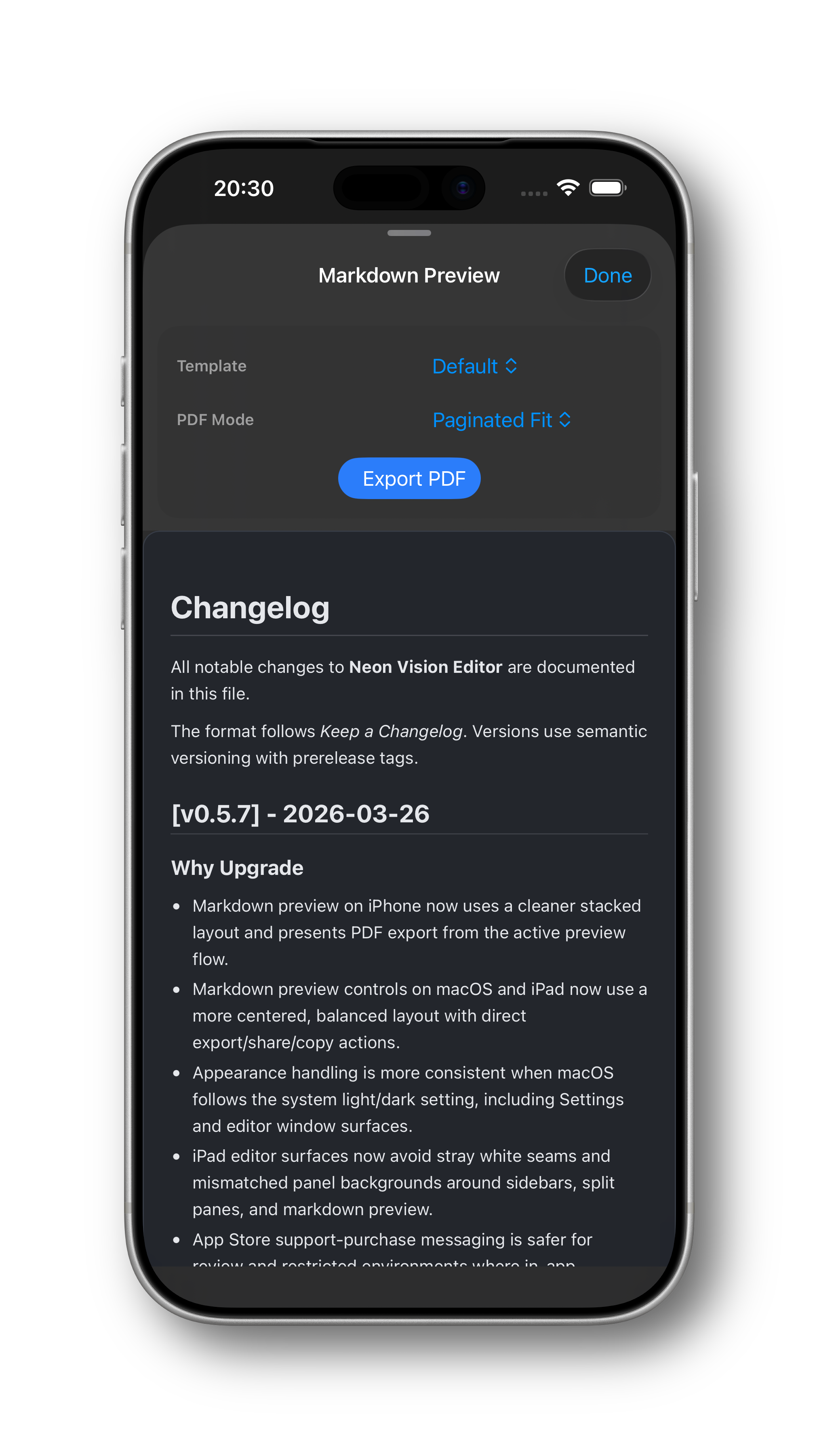
Markdown preview sheet with template, PDF mode, and export action |
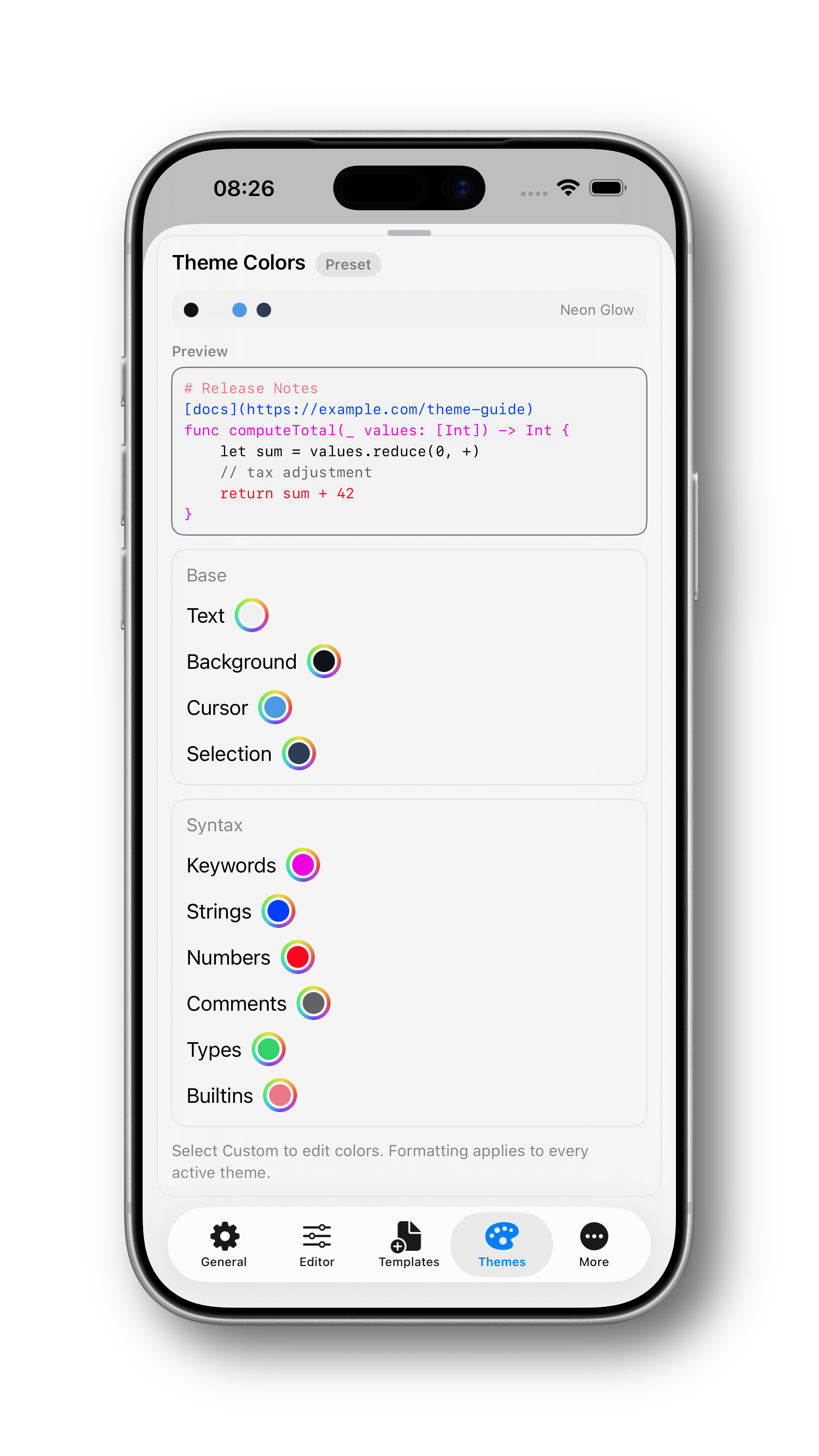
Theme color editing on iPhone |
| Track | Current Focus | Status |
|---|---|---|
| Stable direct download | v1.1.1 notarized GitHub release |
Current |
| App Store rollout | Platform releases are published independently after App Review | Check the relevant App Store listing |
| Post-0.8 stabilization | Crash triage, docs freshness, platform polish, App Store/Xcode Cloud release checks | Next patch train |
| Larger workflow work | Remote workflow hardening, minimap polish, project navigation refinements | Later v0.8+ work |
Cmd+P.Settings > DesignsSettings > Allgemein/General > WindowSettings > EditorSettings > Allgemein/GeneralSettings > Mehr/More > Remote or Settings > Remote on wider layoutsSettings > Mehr/More (platform-dependent)SecureTokenStore, not in UserDefaults.All shortcuts use Cmd (⌘). iPhone, iPad, and Apple Vision Pro require an external hardware keyboard. The table shows defaults; selected editor shortcuts can be customized in Settings > Shortcuts.
Availability key: assigned shortcut ·
external keyboard required ·
desktop command
| Shortcut | Action | macOS | iPhone | iPad | Apple Vision Pro |
|---|---|---|---|---|---|
Cmd+N |
New Window | -- | -- | -- | |
Cmd+T |
New Tab | ||||
Cmd+O |
Open File | ||||
Cmd+Shift+O |
Open Folder | ||||
Cmd+S |
Save | ||||
Cmd+Shift+S |
Save As | ||||
Cmd+W |
Close Tab | -- | -- | ||
Cmd+X, Cmd+C, Cmd+V, Cmd+A |
Cut, Copy, Paste, Select All | ||||
Cmd+Z, Cmd+Shift+Z |
Undo, Redo | ||||
Cmd+B, Cmd+I, Cmd+K |
Bold, Italic, Link in Markdown | -- | -- |
| Shortcut | Action | macOS | iPhone | iPad | Apple Vision Pro |
|---|---|---|---|---|---|
Cmd+F, Cmd+G |
Find, Find Next |
more like this
A to-do list that runs your Claude Code agents — capture anywhere, dispatch in parallel, review from your phone.
本地优先的 macOS AI Agent 信号灯:状态栏 + 桌面悬浮信号灯,自动监控 Codex / Claude Code。Local menu bar and floating desktop status lights for A…
Open-source Markdown workbench: live preview, GitHub-accurate themes, Mermaid diagrams, and page-perfect PDF export. No…
Jasspa's MicroEmacs is a powerful and efficient terminal and window based text editor. Designed to be lightweight yet f…
search projects, people, and tags