moxon-frame-generator
simple generator for 3D-printed frames for a moxon rectangle antenna
OpenSCAD★ 50
Bambu Lab Home Assistant Spaghetti Detection Integration.
 nberktumer
git clone https://github.com/nberktumer/ha-bambu-lab-p1-spaghetti-detection.gitnberktumer/ha-bambu-lab-p1-spaghetti-detectionUpgrade your Bambu Lab 3D printer experience with the Home Assistant Spaghetti Detection Integration. This integration leverages the power of both the Bambu Lab Integration and the Obico ML server, providing a solution for detecting and handling spaghetti incidents during your prints.
If you like this automation and would like to support it, you can buy me a coffee.
| Device | Compatibility |
|---|---|
| X1 Series | ✔️ |
| P1 Series | ✔️ |
| A1 Series | ✔️ |
Ensure the following prerequisites are met before installing the Spaghetti Detection Integration:
NOTE: The integration does not support the following devices:
| Device | Compatibility |
|---|---|
| Raspberry Pi (Any Model) | ❌ |
| Home Assistant Green | ❌ |
| Home Assistant Yellow | ❌ |
| Latte Panda | ❌ |
| Jetson Nano 2gb | ❌ |
Follow these steps to set up the Spaghetti Detection Integration:
Install Obico ML Server
Install Bambu Lab P1 - Spaghetti Detection Home Assistant Integration
Install Home Assistant Spaghetti Detection Automation Blueprint
For detailed installation instructions and troubleshooting tips, refer to the Installation Guide.
To install Obico ML server as a Home Assistant Add-on you have 2 options:
Add the repository URL under Settings → Add-ons → ADD-ON STORE and click ⋮ → Repositories:
https://github.com/nberktumer/ha-bambu-lab-p1-spaghetti-detection
Create docker container using the following command:
docker create \
  --restart unless-stopped \
  --env ML_API_TOKEN=obico_api_secret \
  --publish 3333:3333 \
  --name ha_bambu_lab_p1_spaghetti_detection \
  nberk/ha_bambu_lab_p1_spaghetti_detection_standalone:latest
Start the container using the following command:
docker start ha_bambu_lab_p1_spaghetti_detection
Download the docker-compose.yaml from the repository
Edit the environment variables section in the docker compose yaml:
environment:
  - ML_API_TOKEN=obico_api_secret
  - TZ=Europe/London
Run the command:
docker compose up -d
Manually copy the contents of the custom_components folder to your Home Assistant config/custom_components folder. After restarting Home Assistant, add and configure the integration through the native integration setup.
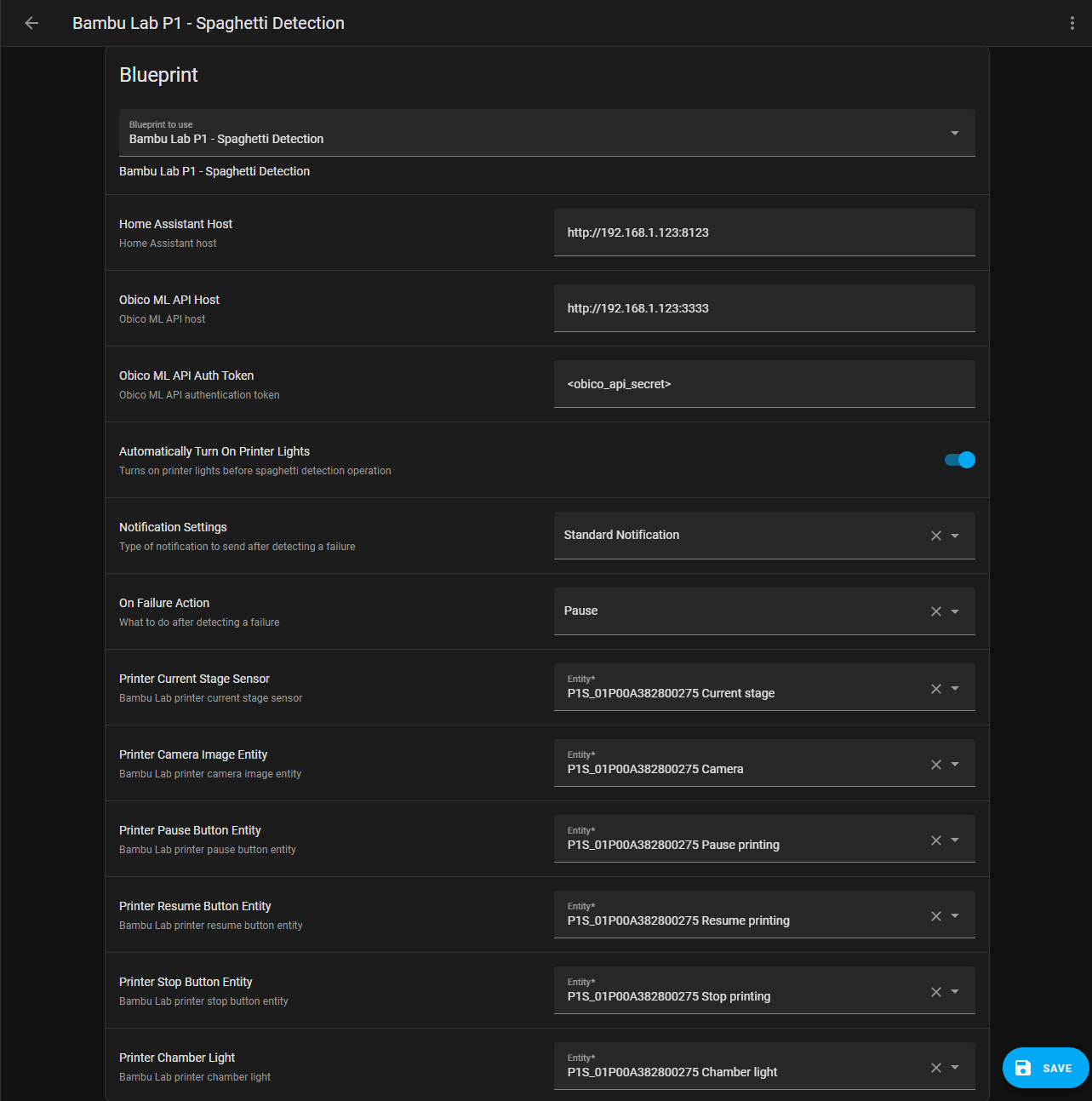
| Parameter | Description |
|---|---|
| Home Assistant Host | The address of your Home Assistant instance. Required for sending the printer camera image to the Obico ML server. Ensure to include your Home Assistant port. This address is also used for notification images. If you wish to view failure images on notifications outside your local network, provide a publicly accessible link here. |
| Obico ML API Host | The URL of the Obico ML Server. The default port number is 3333. If you installed the ML server via the Home Assistant Addon, the IP address should match your Home Assistant address. |
| Obico ML API Auth Token | The authentication token for the Obico ML Server. The default value is obico_api_secret and can be configured through the addon settings or the docker container create command. |
| Notification Settings | - Critical Notification: Generates an audible alert even when your device is in silent mode. - Standard Notification: Sends a traditional notification respecting your device's audio settings. - None: No notifications are sent in case of a failure. |
| Notification Service | The notification service of your choice for selecting a single device or a group of devices, instead of alerting all mobile devices registered in home assistant. The default is notify.notify, which notifies all devices. |
more like this
simple generator for 3D-printed frames for a moxon rectangle antenna
GPX 轨迹转 3D 可打印地形模型 | Hiking trail to 3D printable terrain | Electron + Vue。 一款面向户外爱好者与 3D 打印玩家的 Web 工具。将 GPX 徒步/骑行轨迹一键转…
Install and monitor KlipperScreen on Android via DroidKlipp APK, USB ADB forwarding, and WiFi fallback
search projects, people, and tags