agentlytics
Comprehensive analytics dashboard for AI coding agents — Cursor, Windsurf, Claude Code, VS Code Copilot, Zed, Antigravi…
JavaScript★ 555
Bambu Dashboard for viewing near real time data from Bambu Lab 3D printers.
 t0nyz0
Live print overlays for Bambu Lab printers, built for streamers. Design a dashboard once, hit Go Live, and add a single Browser Source to OBS — camera and all widgets composited into one page. No scene import, no SDP file, no Bambu Studio.
Setup → Connect → Layout → Go Live. Four steps, signposted in the app (Connect lives on the Setup page).
Quickstart · Screenshots · Supported printers · Widget catalog · Troubleshooting
BambuBoard started as a dashboard for OBS browser-source widgets. Over time v2 grew into a full multi-printer management app — useful, but a different product. v3 returns BambuBoard to its core: a polished single-printer streaming dashboard, with a guided setup flow, a visual scene-layout editor, a built-in camera feed, and a one-Browser-Source path into OBS.
v2.0.1 tag (git checkout v2.0.1) or pull the matching Docker image: ghcr.io/t0nyz0/bambuboard:2.0.1. v3 is intentionally single-printer.Everything else from v2 (LAN-only operation, Bambu Cloud auth, all the per-widget customizations) carries over. The big additions in v3: the scene editor (drag widgets around a canvas-sized preview), the composited /live page (your whole scene rendered as one page), and a built-in camera feed — so OBS needs just one Browser Source, and the printer camera works without Bambu Studio.
Live H2D dashboard — chamber camera, gcode toolpath, dual nozzles, dual AMS, MakerWorld profile, and progress bar, all composited into a single
/livepage that OBS captures with one Browser Source.
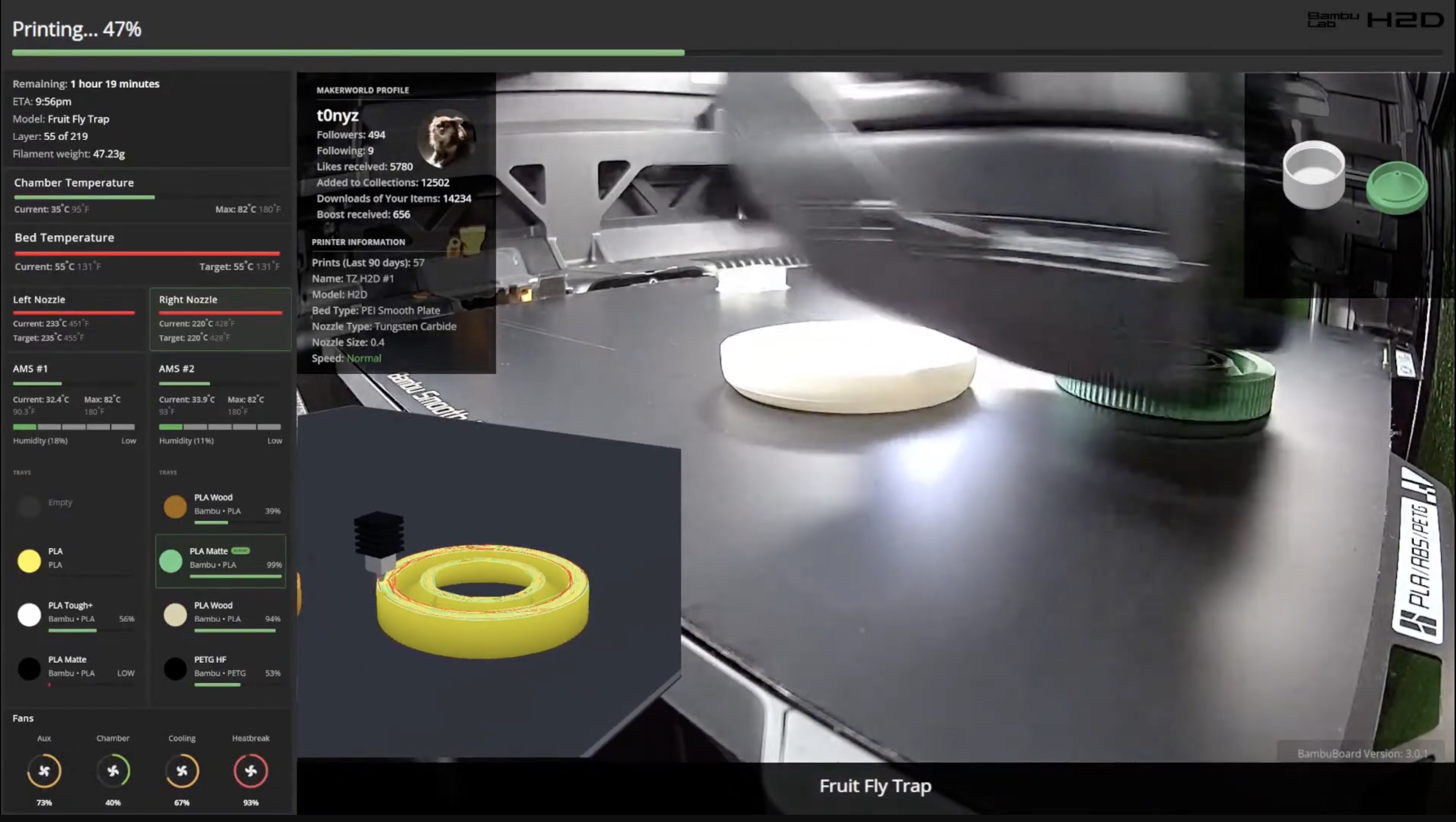
/live. BambuBoard composites the camera + every widget into one page — no scene import, no per-widget sources, no SDP. Edit and re-publish anytime; OBS updates itself./live with no Bambu Studio "Go Live" and no OBS media/SDP setup. X1 / X1C / H2D / P2S use RTSP (flip LAN Mode Liveview on the printer once); P1 / A1-class use the port-6000 chamber-image protocol. The widget picks the right transport automatically./live tab, and BambuBoard relays it (browser-encoded → server ffmpeg → RTMP). OBS is still the better choice on weak hardware (encoding happens in your browser), but you don't need it.mc_percent even through filament swaps. Single-color prints work great; multi-color/multi-object timing on complex prints can still drift — open an issue if you hit a case that's clearly off.AMS 2 Pro and AMS HT units get a live "DRYING · 60° · 11h" pill with an animated fan icon when actively heating filament.amd64 / arm64) auto-published to GHCR. Works on x86, Apple Silicon, Raspberry Pi, Synology NAS.A single command. Multi-arch image (works on x86, Apple Silicon, Raspberry Pi):
docker run -d --name bambuboard -p 8080:8080 \
  -v $(pwd)/data:/usr/src/app/data \
  ghcr.io/t0nyz0/bambuboard:latest
Then open http://localhost:8080. The first-run setup wizard appears automatically.
For docker-compose users, see docker-compose.yml — docker compose up -d and you're done.
One-command install and update for Synology NAS (or any Docker host that needs host networking):
# First time — download the update script
curl -O https://raw.githubusercontent.com/t0nyz0/BambuBoard/main/update-synology.sh
chmod +x update-synology.sh

# Run it (auto-elevates to sudo)
./update-synology.sh
Uses host networking so MQTT/RTSP can reach the printer without NAT config. Settings persist in a Docker volume across updates — run the same script to update and your config carries over automatically.
A docker-compose.synology.yml is also available if you prefer compose.
git clone https://github.com/t0nyz0/BambuBoard.git
cd BambuBoard
npm install
npm start
Open http://localhost:8080.
When you open BambuBoard for the first time, you'll be guided through:
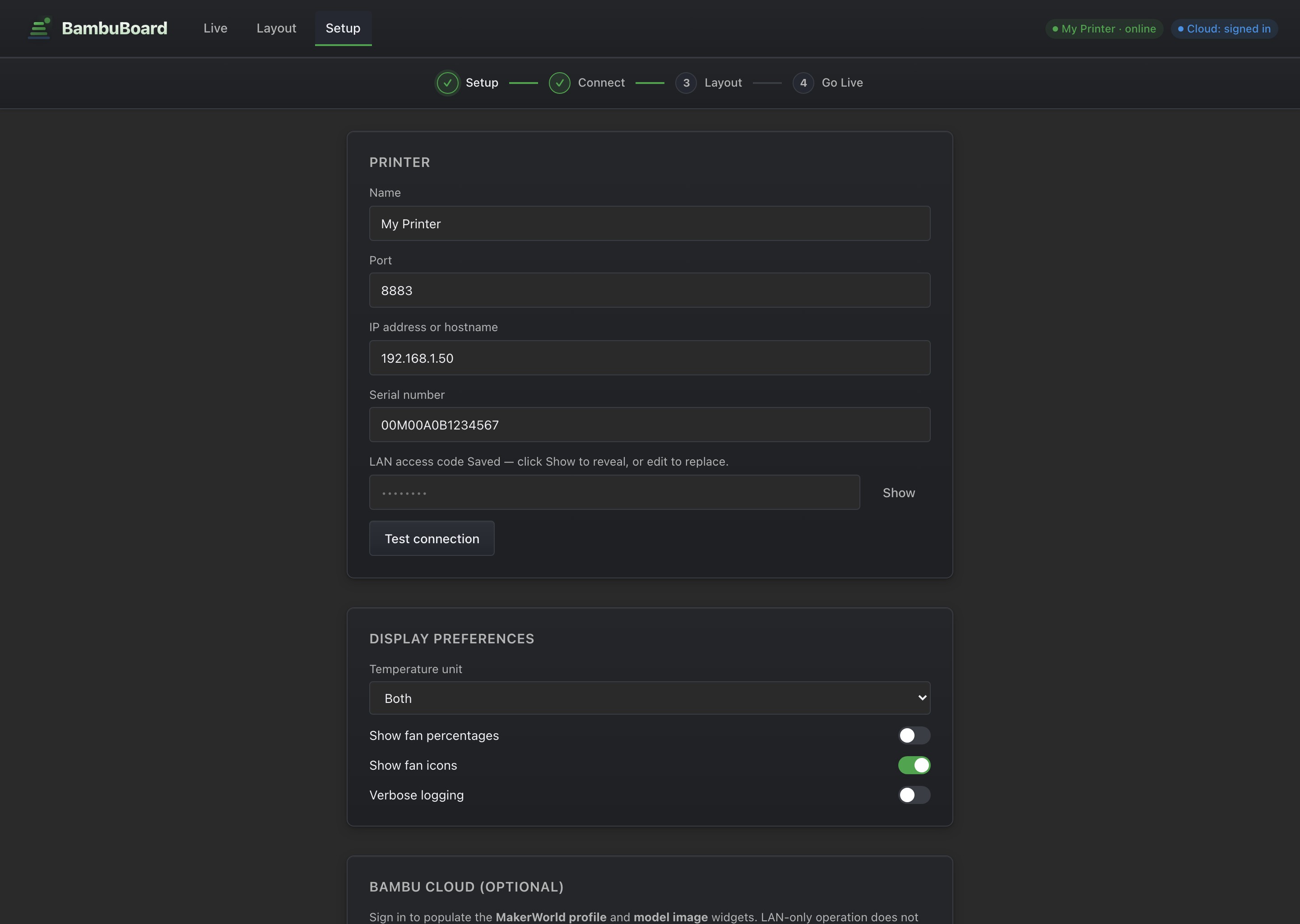
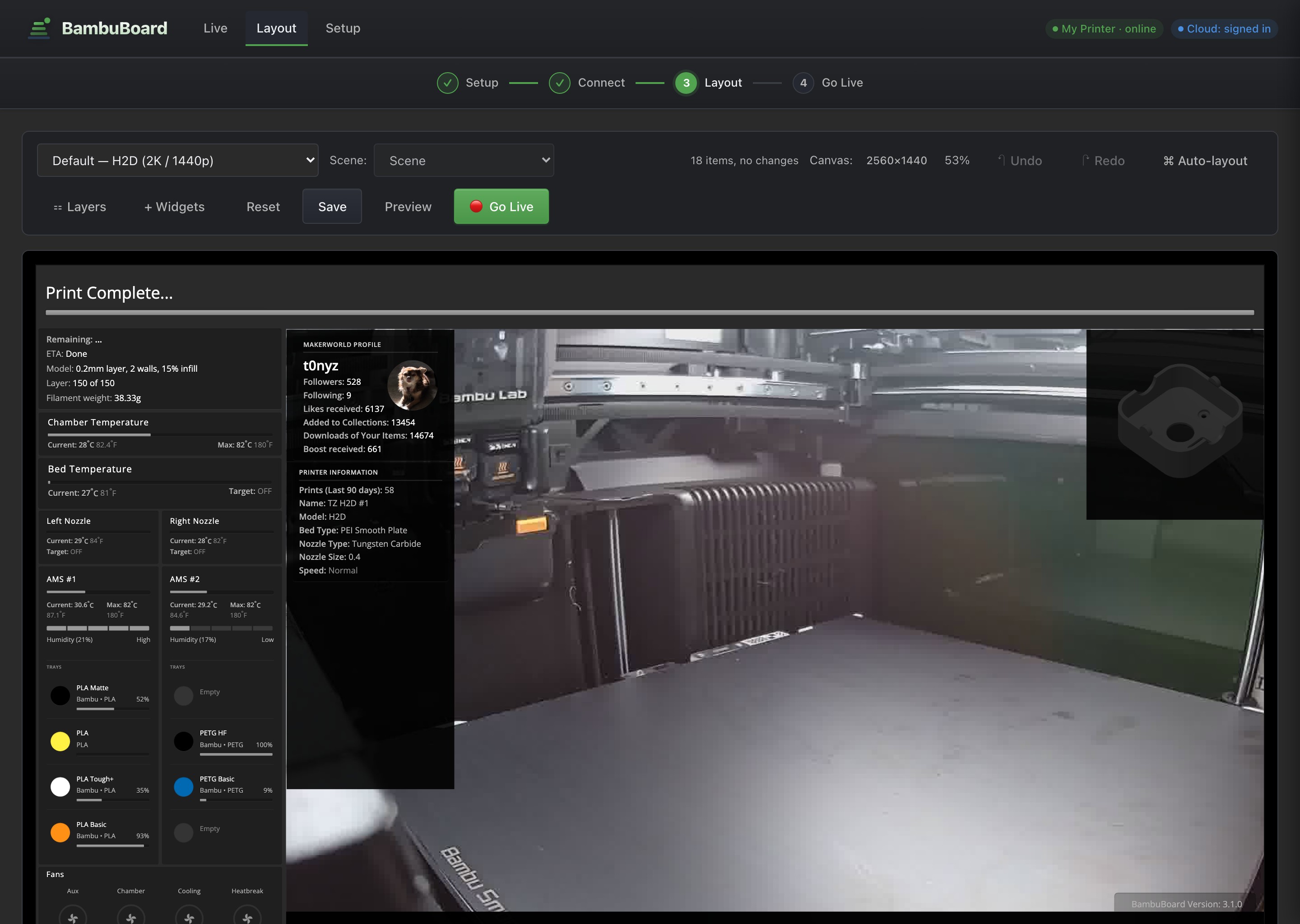
/setup) — Enter your printer's IP, serial number, and LAN access code. Test the connection from this page before saving./setup#connect, same page as Setup) — BambuBoard asks the printer to identify itself via MQTT. Within a few seconds you'll see "Auto-detected: H2D" (or whichever model). The "Continue to Layout →" button lights up./scene-editor) — A 1920×1080 canvas auto-loads the matching default template for your printer type. Drag widgets, resize, change themes, snap to grid. When you're happy, click 🔴 Go Live to publish it./) — Add one Browser Source in OBS pointing at http://<your-host>:8080/live (or use the one-click "Download OBS scene" — it's just that single source). No camera media source, no SDP. Re-publish from the editor any time and OBS updates on its own.Match your OBS canvas to the scene. Set the Browser Source size (and OBS → Settings → Video → Base (Canvas) Resolution) to your scene's resolution — 1920×1080 by default.
/livescales to fit, so a mismatch just letterboxes rather than breaking.
You'll need before starting:
Printer type is auto-detected from MQTT when BambuBoard connects — no need to remember which model you picked. The detection mirrors ha-bambulab's logic (matches by MQTT product_name, falls back to hardware version).
Honesty about testing: I personally own and actively test BambuBoard against the X1 Carbon and H2D. Every other model below is a "should work" — the detection logic, capability map, and widget set were ported from ha-bambulab (which is broadly tested), but I can't physically verify the others. If something looks off on your specific printer, please open an issue with a screenshot + the relevant chunk of
localhost:8080/data.jsonand I'll fix it.
| Model | BambuBoard type | Caps | Status |
|---|---|---|---|
| X1 Carbon | X1C |
Chamber temp | ✅ Tested by maintainer |
| H2D, H2D Pro | H2D |
Chamber temp, dual nozzle, dual AMS | ✅ Tested by maintainer |
| X1 | X1 |
Chamber temp | ⚠️ Should work — community feedback welcome |
| X1E | X1C (mapped) |
Chamber temp | ⚠️ Should work — community feedback welcome |
| P1P | P1P |
— | ⚠️ Should work — community feedback welcome |
| P1S | P1S |
— | ⚠️ Should work — community feedback welcome |
| P2S | P2S |
Chamber temp | ⚠️ Should work — community feedback welcome |
| A1 | A1 |
Single AMS | ⚠️ Should work — community feedback welcome |
| A1 Mini | A1M |
Single AMS | ⚠️ Should work — community feedback welcome |
| H2C, H2S, X2D | H2D (mapped) |
Chamber temp, dual nozzle, dual AMS | ⚠️ Should work — community feedback welcome |
AMS variants: any printer with a heating-capable AMS (AMS 2 Pro, AMS HT) gets a live drying indicator on the AMS widget when a dry cycle is running — dry_time, dry_temperature, animated fan icon. Older AMS / AMS Lite always reports zero so the indicator stays hidden, no model gating needed.
Multi-AMS: all printers support up to 4 chained AMS units via the AMS Hub. Add a second AMS widget to your scene with ?ams=1 (or ?ams=2, ?ams=3) to target the others.
BambuBoard/
├── src/                  Server (Node, Express)
│   ├── server.js         Bootstrap
│   ├── mqtt.js           Single-printer MQTT client + printer auto-detect
│   ├── config.js         Load / save / migrate
│   ├── routes/           api, pages, auth, obsScene, video (RTSP+MJPEG camera), stream (YouTube/RTMP)
│   └── lib/              caps.js (PRINTER_CAPS + printerTypeFromMqtt), chamberImage.js (P1/A1 camera)
├── views/                Pretty-URL HTML pages
├── public/
│   ├── css/              theme, components, hub, setup, scene-editor
│   ├── js/               nav (with stepper), hub (Live page), live, setup, scene-editor
│   ├── assets/           jQuery, Material Symbols, fonts (local — no CDNs)
│   └── widgets/          browser-source widgets (each its own folder)
├── OBS_settings/
│   └── templates/        Default layout starters for each printer family
├── data/                 Runtime state (gitignored): data.json, accessToken.json, note.json, scenes/
├── scripts/              build-widget-catalog.js, etc.
├── config.json           Local config (gitignored)
└── example.config.json
/setup — Step 1+2: Printer config, connection check, optional Bambu Cloud auth./scene-editor — Step 3: Visual scene editor. Auto-loads the matching template for your printer type. Save, Preview, or 🔴 Go Live to publish./ (Live) — Step 4: the published output. Shows the /live URL + copy button, a one-click single-source OBS scene download, and a live preview./live — the composited broadcast page itself (camera + every widget). Point one OBS Browser Source here. Renders the published scene, or a default layout if nothing's published yet./login — Bambu Cloud sign-in (only used when cloud auth is enabled).Every widget is a standalone HTML page. The scene editor lets you drag them onto your canvas, and /live composites the whole scene into one page for OBS — so you normally don't add widgets to OBS individually. (You still can: each widget works on its own as a Browser Source if you ever want just one.)
| Widget | Description | Recommended size | Params | Cap-gated |
|---|---|---|---|---|
AMS (ams) |
Combined AMS card: chamber temp + humidity bar + drying status (AMS 2 Pro / AMS HT) + 4 tray rows. Active tray gets a green left-edge accent. Defaults to AMS #1 (firmware id=1, which is the user-facing 'AMS #1' on H2D dual-AMS setups). Multi-AMS: ?ams=0|1|2|3. | 400×460 | ?ams=1 |
— |
AMS humidity / temp (legacy) (ams-temp) |
Standalone humidity + chamber-temp + drying readout. Superseded by the combined ams widget which now includes this header above the trays. Kept for back-compat with custom scenes that reference it. |
400×120 | — | — |
AMS #2 humidity (legacy) (ams-temp-2) |
Standalone humidity + chamber-temp + drying readout for the second AMS. Superseded by the combined ams2 widget which now includes this header above the trays. Kept for back-compat with custom scenes. |
400×120 | — | hasDualAMS |
AMS #2 (ams2) |
Combined AMS #2 card (H2D only): chamber temp + humidity + drying status + 4 tray rows. Same layout as the primary ams widget but reads ams.ams[0] (firmware id=0, which is the user-facing 'AMS #2' on H2D — Bambu's MQTT enumeration is reversed from the labeled hardware). |
400×460 | — | hasDualAMS |
Bed temperature (bed-temp) |
Heat-bed temp with target + progress bar. | 400×120 | — | — |
Live camera (camera) |
Live chamber-camera feed rendered directly in the browser — no OBS or Bambu Studio required. X1 / X1C / H2D / P2S stream over RTSP (needs LAN Mode Liveview enabled on the printer); P1 / A1-class stream via the port-6000 chamber-image protocol. The widget picks the right transport automatically. | 640×360 | — | — |
Chamber temperature (chamber-temp) |
Enclosed-chamber temperature (X1, X1C, H2D, P2S). Hides itself on printers with no chamber. | 400×120 | — | hasChamberTemp |
Fans (fans) |
All four fan speeds with animated spinning icons and circular gauge rings showing speed percentage. | 420×160 | — | — |
Gcode Toolpath (gcode-viz) |
Experimental / beta. Live three.js visualization of the active print's gcode, advancing layer-by-layer with a stylized hotend tracing the toolpath. Multi-color prints render per-tool AMS colors. Adaptive speed calibration keeps the sim locked to the printer's mc_percent through filament swaps. Single-color prints work great; multi-object timing on complex prints can still drift. | 640×640 | — | — |
Model image (model-image) |
Preview image of the current model (requires Bambu Cloud auth for live MakerWorld images). | 400×300 | — | — |
Notes / footer (notes) |
Auto-updates with the model name each print; supports a manual text override (via the /api/note endpoint). | 600×40 | — | — |
Nozzle info (nozzle-info) |
Nozzle type, size, current speed level. | 400×120 | — | — |
Nozzle temperature (nozzle-temp) |
Nozzle temperature with current/target and progress bar. Use ?nozzle=0 (right, default) or ?nozzle=1 (left) for dual-nozzle printers. | 400×120 | ?nozzle=0 |
— |
Left nozzle temperature (nozzle-temp-2) |
Left nozzle temperature (H2D/dual-nozzle). Legacy widget — equivalent to nozzle-temp/?nozzle=1. | 400×120 | — | hasDualNozzle |
Print info (print-info) |
Total prints, model name, weight, nozzle/bed. | 400×160 | — | — |
Printer info (printer-info) |
Printer name, model, serial, IP. | 400×140 | — | — |
MakerWorld profile (profile-info) |
Followers, downloads, and stats from your MakerWorld profile (requires Bambu Cloud auth). | 400×180 | — | — |
Progress (progress-info) |
Print progress bar with status text and percentage. | 600×80 | — | — |
Version stamp (version) |
Shows BambuBoard version in a corner. | 200×30 | — | — |
Wi-Fi signal (wifi) |
Wireless signal strength. | 200×80 | — | — |
20 widgets — generated by scripts/build-widget-catalog.js.
Regenerate this table after adding/changing widgets:
npm run build:widget-catalog
Cap-gated widgets are dimmed (and can't be dragged) in the scene editor's widget drawer for incompatible printer types, and several self-hide at runtime too — e.g. chamber-temp won't render on a P1P, which has no chamber.
Every widget supports query-string customization via _customizer.js:
?theme=dark|light|transparent — color scheme?accent=#51a34f — accent color (hex)?fontSize=14 — base font size in px?title=My title — override the widget's title text?pad=8 — extra body padding in pxPlus widget-specific params (see catalog above) — e.g. ?ams=2 to point an AMS widget at the third unit.
Two pre-built layouts are included, scrubbed of personal info:
default-x1 — X1, X1 Carbon, P1P, P1S, A1, A1 Mini (single nozzle, single AMS layout).default-h2d — H2D / H2D Pro (dual nozzle + dual AMS layout).The scene editor auto-loads the right one as a starting point based on the connected printer's type — you customize from there and publish with 🔴 Go Live. (/live also falls back to the matching template when nothing has been published yet.) These are layout starters, not OBS import files — OBS only ever needs the single /live Browser Source.
Both templates use the combined AMS widget (chamber temp + humidity + drying status + tray contents in one card) and a uniform 3px-gap right rail: Chamber Temp → Bed Temp → Nozzle(s) → AMS → Fans, all top-to-bottom flush. Active nozzle and active filament tray are highlighted with a green left-edge accent + soft tint while printing.
Off by default. Enable in /setup to populate the profile-info and model-image widgets with live MakerWorld data. Sign-in flow uses email + verification code (and MFA if enabled on your Bambu account). Tokens are cached in data/accessToken.json (gitignored). LAN-only operation does not require this.
All assets (jQuery, Material Symbols, fonts) are bundled locally — no external CDN dependencies. The BambuBoard server only needs LAN access to your printer's MQTT port (8883 by default) — plus, if you use the live camera, the camera port (322 for RTSP on X1/X1C/H2D/P2S, or 6000 for the chamber-image stream on P1/A1).
The first boot of v3 detects and migrates two legacy config shapes:
BambuBoard_printerURL etc.) → new printer object with type: "H2D".printers[] array) → first printer is kept; the rest are dropped with a warning.WARNING — multi-printer users: v3 is intentionally single-printer. Upgrading from v2 with more than one printer in your config will silently drop everything except the first entry on first boot. If you rely on multi-printer support, stay on v2 — use the v2.0.1 release (
git checkout v2.0.1) or pullghcr.io/t0nyz0/bambuboard:2.0.1. A pre-merge backup is saved asconfig.json.pre-merge-*-{timestamp}.bakso the original config is recoverable.
Both produce a config.json.pre-merge-*-{timestamp}.bak backup before overwriting. Legacy runtime files (accessToken.json, note.json, public/data.json) at the repo root are auto-moved into data/ on first boot.
/setup; it should show "MQTT: ✓ Connected" within 3–5s. If not, re-verify the IP, port (8883), serial, and access code. (Widget data comes over MQTT — this is separate from the camera, which has its own item below.)config.printer.type accordingly. If detection picks the wrong model (rare — usually means custom firmware), set BAMBUBOARD_PRINTER_TYPE=X1 (or whatever) as an env var; that always wins./live — make sure the BambuBoard server is running and the Browser Source URL points at http://<your-host>:8080/live (not localhost if OBS is on another machine). Publish a scene with 🔴 Go Live, or /live falls back to the default layout.npm install npm start # uses ./data/config.json (or env overrides) BAMBUBOARD_LOGGING=true npm start > /tmp/bb.log 2>&1 & tail -f /tmp/bb.log # verbose MQTT trace
Useful npm scripts:
| Script | What it does |
|---|---|
npm start |
Start the server on port 8080 (or BAMBUBOARD_PORT). |
npm run build:widget-catalog |
Regenerate the widget catalog table in this README from each widget's widget.json. Run after adding/changing widgets. |
Issues, bug reports, and pull requests are welcome — especially for printer models I don't own (P1P / P1S / A1 / A1 Mini / X1 / X1E). When filing a bug, a screenshot + the relevant chunk of localhost:8080/data.json makes triage 10× faster.
If you found BambuBoard useful, a star on the repo helps others discover it.
more like this
Comprehensive analytics dashboard for AI coding agents — Cursor, Windsurf, Claude Code, VS Code Copilot, Zed, Antigravi…
simple generator for 3D-printed frames for a moxon rectangle antenna
GPX 轨迹转 3D 可打印地形模型 | Hiking trail to 3D printable terrain | Electron + Vue。 一款面向户外爱好者与 3D 打印玩家的 Web 工具。将 GPX 徒步/骑行轨迹一键转…
search projects, people, and tags