TrailPrint-3D
GPX 轨迹转 3D 可打印地形模型 | Hiking trail to 3D printable terrain | Electron + Vue。 一款面向户外爱好者与 3D 打印玩家的 Web 工具。将 GPX 徒步/骑行轨迹一键转…
Python★ 51
Make your own running home page
 yihong0618
clone or Fork before vercel 404 need to pull the latest code
python in README means python3 python
use v2.0 need change vercel setting from gatsby to vite
2023.09.26 garmin need secret_string(and in Actions) get
  python run_page/get_garmin_secret.py ${email} ${password}
  # if cn
  python run_page/get_garmin_secret.py ${email} ${password} --is-cn
2024.09.29: Added Elevation Gain field, If you forked the project before this update, please run the following command:
sqlalchemy.exc.OperationalError: (sqlite3.OperationalError) no such column: activities.elevation_gainRUN_TYPE to db_updater in the .github/workflows/run_data_sync.yml file once then change back.python run_page/db_updater.py
Elevation Gain for past activities, perform a full reimport.SHOW_ELEVATION_GAIN in src/utils/const.tsElevation Gain may be inaccurate. You can use Strava's "Correct Elevation" or Garmin's "Elev Corrections" feature for more precise data.This project now uses MapCN (free) by default. If you choose to use Mapbox, please get your own token. Do not use the project maintainer's token - check this issue and issue #1055




automatically backup gpx data for easy backup and uploading to other software.
Note: If you don't want to make the data public, you can choose strava's fuzzy processing, or private repositories.
Clone or fork the repo.
git clone https://github.com/yihong0618/running_page.git --depth=1
pip3 install -r requirements.txt
npm install -g corepack && corepack enable && pnpm install
pnpm develop
Open your browser and visit http://localhost:5173/
You can browse your activities in the terminal using the built-in Textual TUI.
# Using make
make tui

# Or run directly with uv
uv run run_page

# Or specify a custom activities.json path
uv run run_page /path/to/your/activities.json
Keyboard shortcuts inside TUI:
1 / 2 – Switch between List and Stats views← / → – Change year filter↑ / ↓ – Navigate activitiesy – Cycle through yearst – Cycle through activity typesq – Quit# NRC docker build -t running_page:latest . --build-arg app=NRC --build-arg nike_refresh_token="" # Garmin docker build -t running_page:latest . --build-arg app=Garmin --build-arg secret_string="" # Garmin-CN docker build -t running_page:latest . --build-arg app=Garmin-CN --build-arg secret_string="" # Strava docker build -t running_page:latest . --build-arg app=Strava --build-arg client_id="" --build-arg client_secret="" --build-arg refresh_token="" # Nike_to_Strava docker build -t running_page:latest . --build-arg app=Nike_to_Strava --build-arg nike_refresh_token="" --build-arg client_id="" --build-arg client_secret="" --build-arg refresh_token="" # Keep docker build -t running_page:latest . --build-arg app=Keep --build-arg keep_phone_number="" --build-arg keep_password="" # run docker run -itd -p 80:80 running_page:latest # visit Open your browser and visit localhost:80
--build-arg VITE_USE_IMPERIAL=true to docker build ...--units imperial flag to each python3 run_page/gen_svg.py ... command in the DockerfileSecurity Notice: The Mapbox token has been migrated from
src/themes/classic/utils/const.tstoconfig.ymlfor better security management.For GitHub Actions / Automated Deployment:
- Go to your repository's Settings → Secrets and variables → Actions
- Create a new secret named
MAPBOX_TOKENwith your Mapbox token value- The build process automatically injects this token during GitHub Actions workflow execution
- You should NOT commit your token to the repository
Priority Order:
- GitHub Actions Secret (
MAPBOX_TOKENenv var) takes priority- Falls back to
config.ymlmapbox_token if secret is not set- Defaults to empty string if neither is available
Set your Mapbox token in one of these ways:
Option 1: GitHub Actions Secret (Recommended for GitHub Pages)
# Add MAPBOX_TOKEN to your repository secrets
# No changes needed to config.yml - it will use the secret automatically
Option 2: Local Development with config.yml
# config.yml
mapbox_token: 'pk.eyJ1...your-token-here'
Option 3: Environment Variable (Local Development)
export VITE_MAPBOX_TOKEN='pk.eyJ1...your-token-here'
pnpm develop
Important: Do not use the project maintainer's token - check this issue and issue #1055 for security and rate limit concerns.
If using the classic theme, you can customize the map tile style in the classic theme's configuration. The dashboard theme uses Mapbox by default (configured via
config.yml).
const MAP_TILE_VENDOR = 'mapcn'; // Default (free!)
const MAP_TILE_STYLE = 'osm-bright';
const MAP_TILE_ACCESS_TOKEN = ''; // Not needed for MapCN
Currently supported MAP_TILE_VENDOR options include:
Using MapCN (Default) MapCN is a free map tile provider and is now the default. No configuration needed!
Available MapCN styles:
**No access token required! ** 🎉
When using MapCN (Carto Basemaps), please ensure you comply with their attribution requirements:
The project template already includes appropriate attribution in the map display.
If you prefer Mapbox, MapTiler, or Stadia Maps, you can change the vendor:
const MAP_TILE_VENDOR = 'mapbox'; // or 'maptiler' or 'stadiamaps'
const MAP_TILE_STYLE = 'dark-v10'; // style for chosen vendor
const MAP_TILE_ACCESS_TOKEN = 'your_access_token_here';
Each MAP_TILE_VENDOR provides multiple MAP_TILE_STYLE options. Ensure the style matches your selected vendor. For available MAP_TILE_STYLE names, refer to the classic theme's map configuration.
When using "mapbox", "maptiler" or "stadiamaps", you must configure an ACCESS_TOKEN. The default token may cause quota limit issues if not replaced.
Running Page 3.0 introduces a pluggable theme architecture. Built-in themes include Dashboard (modern single-page layout) and Classic (original multi-page layout).
Edit config.yml and rebuild:
# dashboard | classic | custom
theme_preset: classic
For detailed architecture, theme descriptions, custom theme creation, and the shared core layer API, see docs/theme-system.md.
All personalization is done through config.yml at the project root. Edit this file directly — no code changes needed.
# config.yml
mapbox_token: 'your-token-here'   # https://account.mapbox.com
avatar: 'https://...'              # Profile avatar URL
locale: zh                         # zh | en
theme: dark                        # system | light | dark
theme_preset: dashboard            # dashboard | classic | custom

goals:
  Run:
    yearly: 2000                   # Annual distance target (km)
    monthly: 150                   # Monthly distance target (km)
    weekly: 35                     # Weekly distance target (km)
    unit: distance                 # distance (km) | time (minutes)
src/utils/analytics.ts file (if present).const USE_GOOGLE_ANALYTICS = false; const GOOGLE_ANALYTICS_TRACKING_ID = '';
privacy protection,setting flowing env:
# ignore distance for each polyline start and end.
IGNORE_START_END_RANGE = 200

# ignore meters for each point in below polyline.
IGNORE_RANGE = 200

# a polyline include point you want to ignore.
IGNORE_POLYLINE = ktjrFoemeU~IorGq}DeB

# Do filter before saving to database, you will lose some data, but you can protect your privacy, when you using public repo. enable for set 1, disable via unset.
IGNORE_BEFORE_SAVING =
You can using Google map Interactive Polyline Encoder Utility, to making your IGNORE_POLYLINE.
Download your running data and do not forget to generate svg in
totalpage
GPX dataCopy all your gpx files to GPX_OUT or new gpx files
python run_page/gpx_sync.py
TCX dataCopy all your tcx files to TCX_OUT or new tcx files
python run_page/tcx_sync.py
FIT dataCopy all your tcx files to FIT_OUT or new fit files
python run_page/fit_sync.py
Garmin datatype running add args --only-runtcx files add args --tcxfit files add args --fitEnter the following command in the terminal
# to get secret_string
python run_page/get_garmin_secret.py ${your email} ${your password}
Copy the Secret output in the terminal,If you are using GitHub, please configure GARMIN_SECRET_STRING in GitHub Action.
# use this secret_string
python run_page/garmin_sync.py ${secret_string}
example:
python run_page/get_garmin_secret.py xxxxxxxxxxx
only-run:
python run_page/garmin_sync.py xxxxxxxxxxxxxx(secret_string) --only-run
Garmin-CN datatype running add args --only-runtcx files add args --tcxfit files add args --fitEnter the following command in the terminal
# to get secret_string
python run_page/get_garmin_secret.py ${your email} ${your password} --is-cn

Copy the Secret output in the terminal,If you are using GitHub, please configure GARMIN_SECRET_STRING_CN in GitHub Action.

example:
python run_page/garmin_sync.py xxxxxxxxx(secret_string) --is-cn
only-run:
python run_page/garmin_sync.py xxxxxxxxxxxxxx(secret_string) --is-cn --only-run
Garmin-CN data to Garmintype running add args --only-run
The Python version must be >=3.10Enter the following command in the terminal
# to get secret_string
python run_page/get_garmin_secret.py ${your email} ${your password} --is-cn
Enter the following command in the terminal
# to get secret_string
python run_page/get_garmin_secret.py ${your email} ${your password}
Enter the following command in the terminal
# to sync garmin-cn to garmin-global
python run_page/garmin_sync_cn_global.py ${garmin_cn_secret_string} ${garmin_secret_string}
Nike Run Club dataPlease note:Due to the discontinuation of Nike Run Club in mainland China, you can only log in through a VPN. Before starting, please ensure that you are using a global non-mainland China proxy, allowing you to access
nike.cominstead ofnike.com.cn, as shown in the following image.

Sign in/Sign up NikeRunClub account

after successful login,openF12->Application->localstorage-> copy the content of "access_token" from the value of keyhttps://www.nike.com.
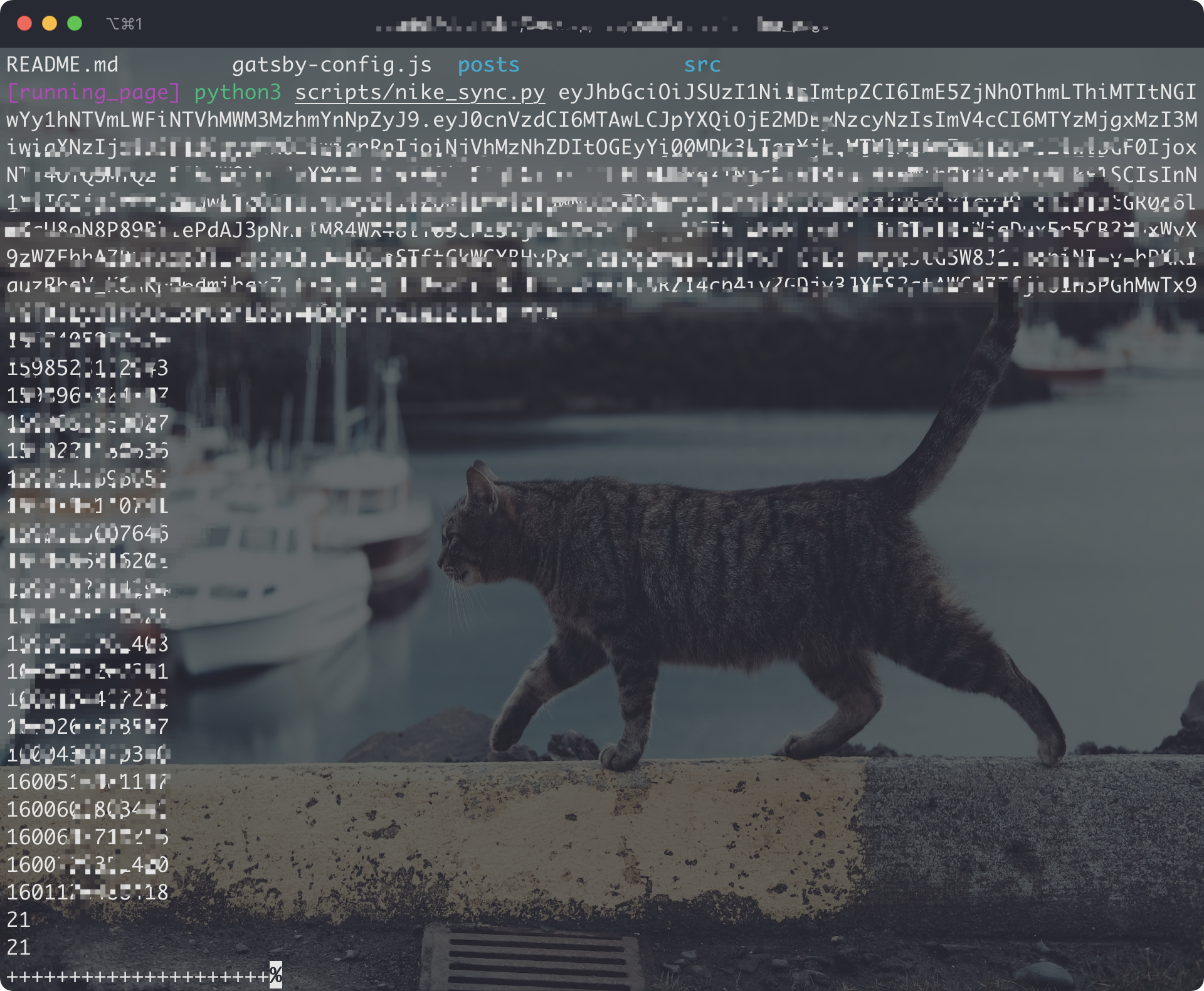
Execute in the root directory , you should be able to see the image below, and then you can log into your account on the mobile as usual:
python run_page/nike_sync.py ${access_token}

if you want to automate the submission of NRC data, you can refer to issue692.
If you've previously synced activities and want to continue syncing new ones, with --continue-sync args
python run_page/nike_sync.py ${access_token} --continue-sync
Nike Run Club dataPlease note: When you choose to deploy running_page on your own server, due to Nike has blocked some IDC's IP band, maybe your server cannot sync Nike Run Club's data correctly and display
403 error, then you have to change another way to host it.
Get Nike's refresh_token
ALL need to do outside GFW.

Login from this website, open F12 -> XHR -> get the refresh_token from login api.
copy this refresh_token and use it in GitHub Secrets or in command line
Execute in the root directory:
python run_page/nike_sync.py ${nike refresh_token}
example:
python run_page/nike_sync.py eyJhbGciThiMTItNGIw******
Strava data [!NOTE] Strava updated its Developer Program in June 2026. If you use Strava as the data source, or upload activities to Strava before syncing, check your app tier in the Strava API settings dashboard. Standard Tier developers need a Strava subscription to access the API; existing Standard Tier developers are affected from June 30, 2026. See Strava's announcement for details.
Sign in/Sign up Strava account
Open after successful Signin Strava Developers -> Create & Manage Your App
Create My API Application: Enter the following information
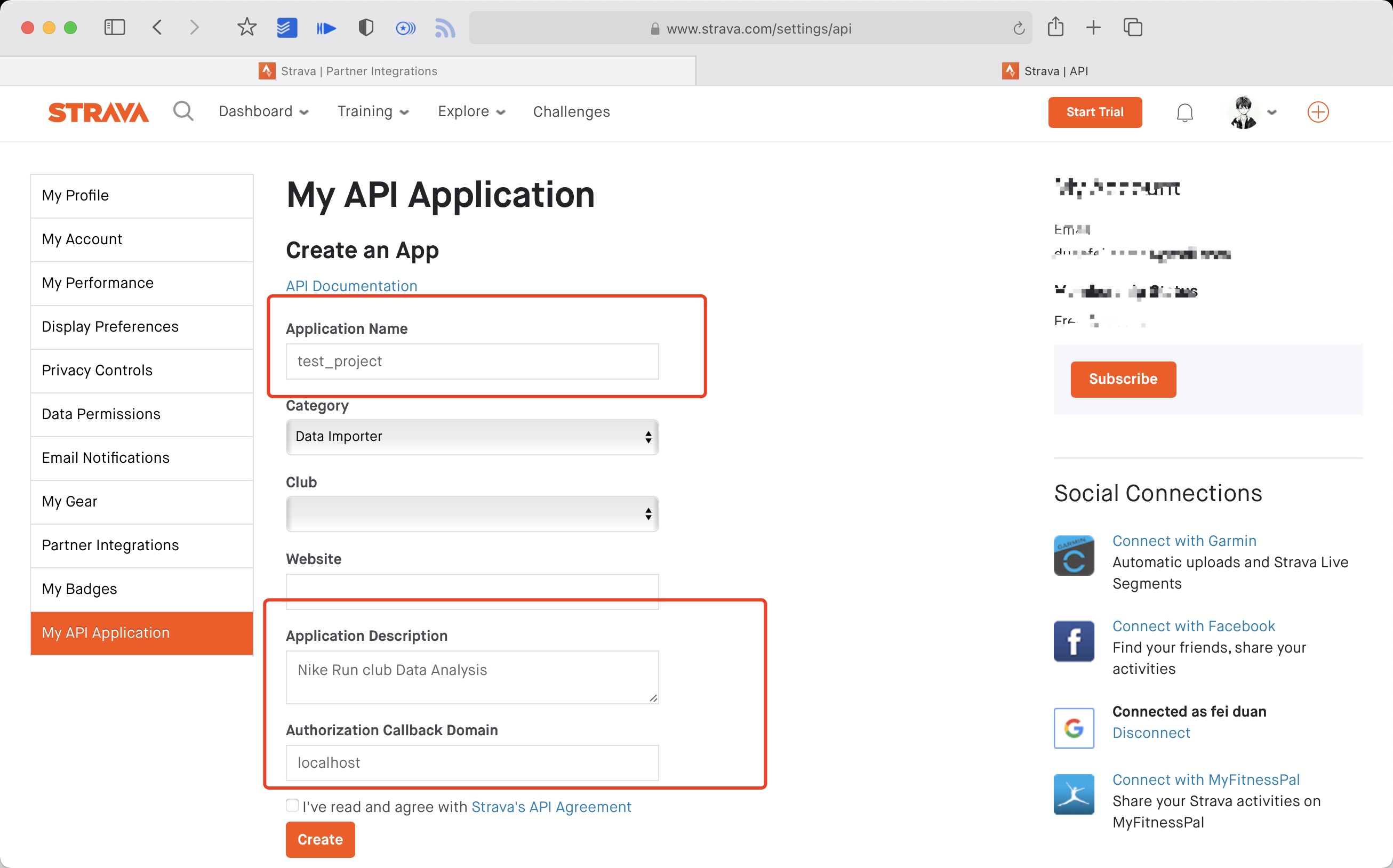
Created successfully:

Use the link below to request all permissions: Replace ${your_id} in the link with My API Application Client ID
https://www.strava.com/oauth/authorize?client_id=${your_id}&response_type=code&redirect_uri=http://localhost/exchange_token&approval_prompt=force&scope=read_all,profile:read_all,activity:read_all,profile:write,activity:write
Example:
https://www.strava.com/oauth/authorize?client_id=115321&response_type=code&redirect_uri=http://localhost/exchange_token&approval_prompt=force&scope=read_all,profile:read_all,activity:read_all,profile:write,activity:write
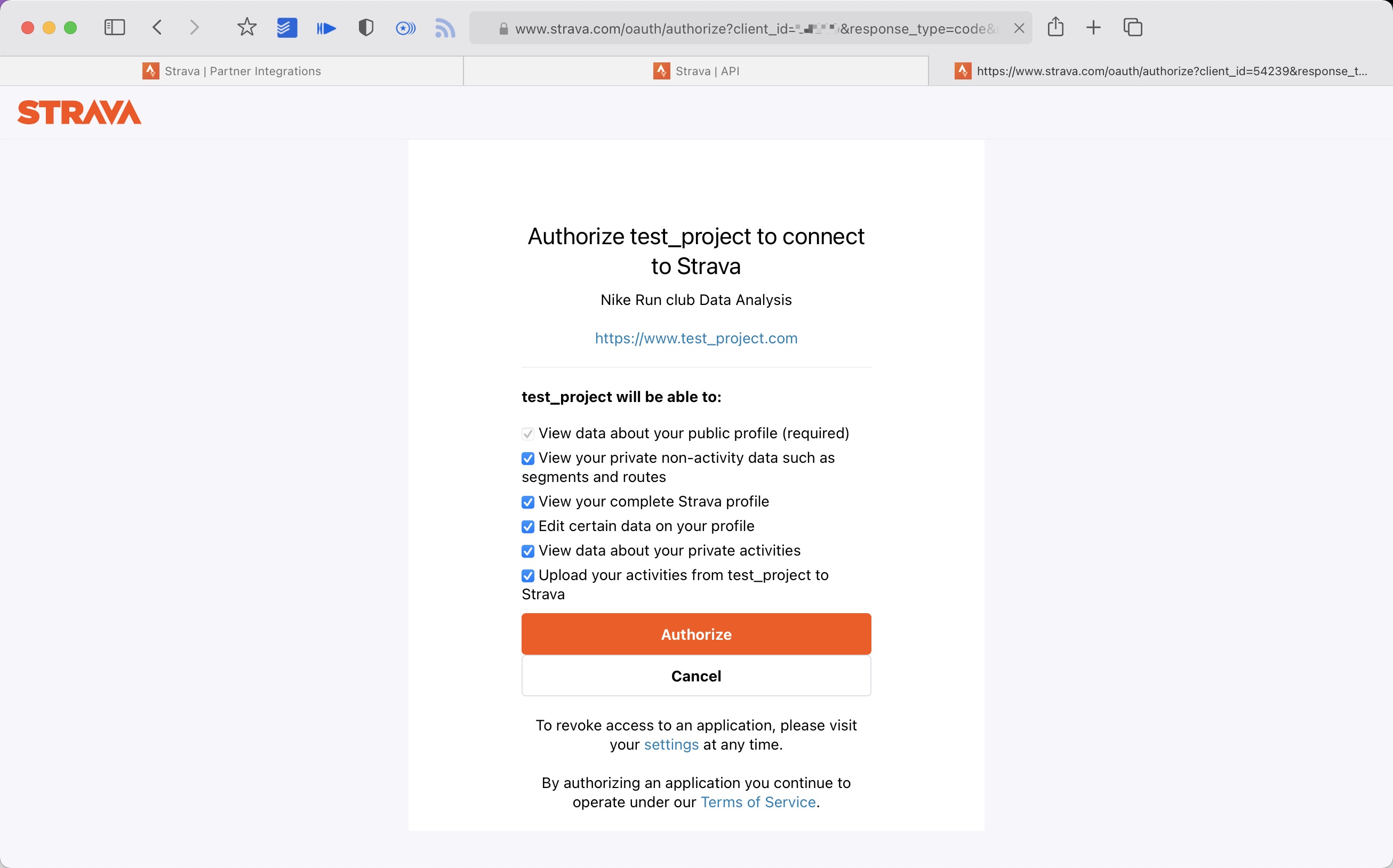
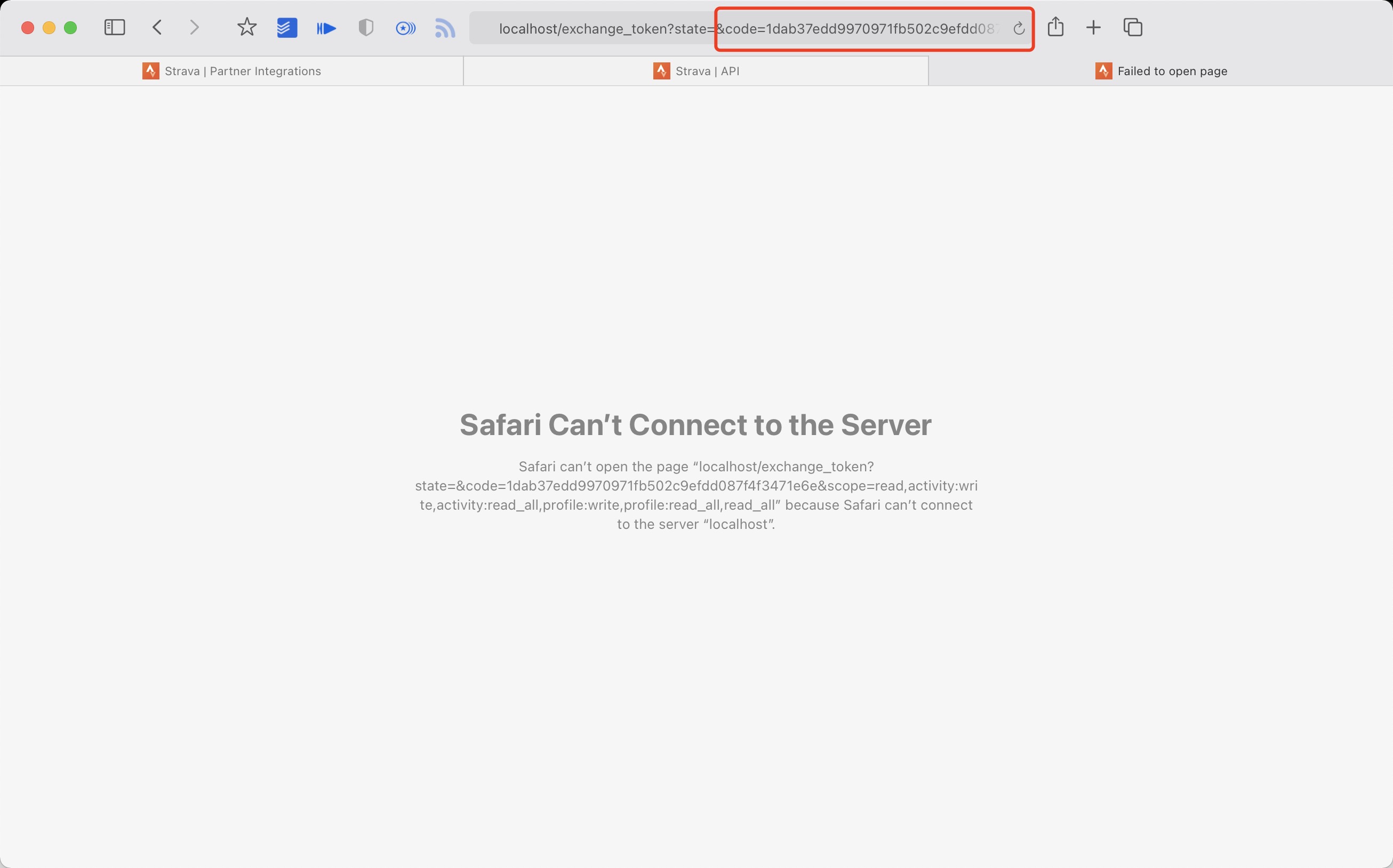
Get the code value in the link
example:
http://localhost/exchange_token?state=&code=1dab37edd9970971fb502c9efdd087f4f3471e6e&scope=read,activity:write,activity:read_all,profile:write,profile:read_all,read_all
code value:
1dab37edd9970971fb502c9efdd087f4f3471e6
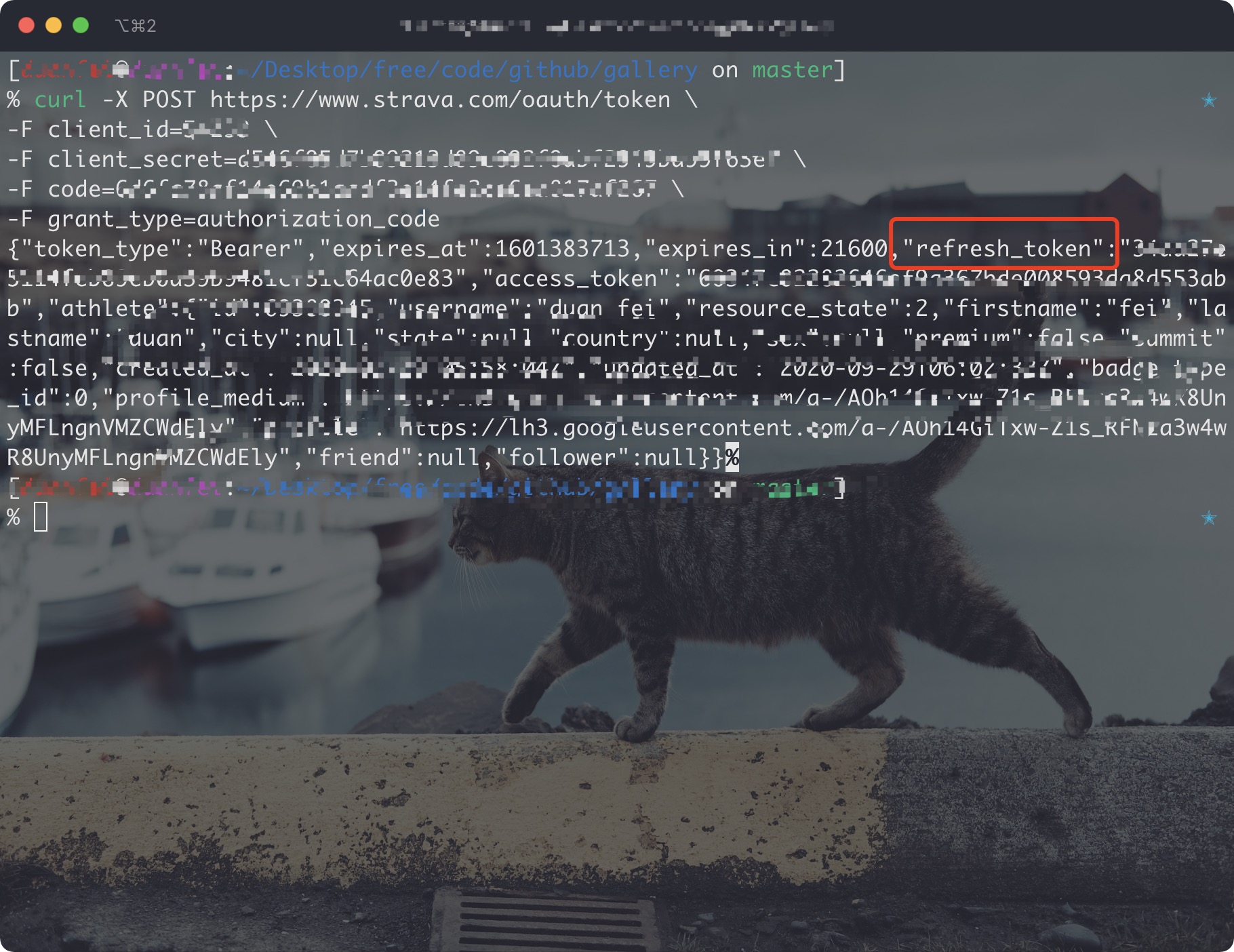
Use Client_id、Client_secret、Code get refresh_token: Execute in Terminal/iTerm
curl -X POST https://www.strava.com/oauth/token \
-F client_id=${Your Client ID} \
-F client_secret=${Your Client Secret} \
-F code=${Your Code} \
-F grant_type=authorization_code
example:
curl -X POST https://www.strava.com/oauth/token \
-F client_id=12345 \
-F client_secret=b21******d0bfb377998ed1ac3b0 \
-F code=d09******b58abface48003 \
-F grant_type=authorization_code
Sync Strava data
The first time you synchronize Strava data you need to change line 12 of the code False to True in strava_sync.py, and then change it to False after it finishes running. If you only want to sync
type runningadd args --only-run
python run_page/strava_sync.py ${client_id} ${client_secret} ${refresh_token}
References:
follow the strava steps
copy all your tcx files to TCX_OUT
Execute in the root directory:
python run_page/tcx_to_strava_sync.py ${client_id} ${client_secret} ${strava_refresh_token}
example:
python run_page/tcx_to_strava_sync.py xxx xxx xxx
or
python run_page/tcx_to_strava_sync.py xxx xxx xxx --all
if you want to all files add args --all
follow the garmin steps
copy all your tcx files to TCX_OUT
Execute in the root directory:
python3 run_page/tcx_to_garmin_sync.py ${{ secrets.GARMIN_SECRET_STRING_CN }} --is-cn
example:
python run_page/tcx_to_garmin_sync.py xxx --is-cn
or Garmin Global
python run_page/tcx_to_garmin_sync.py xxx
if you want to all files add args --all
follow the strava steps
copy all your gpx files to GPX_OUT
Execute in the root directory:
python run_page/gpx_to_strava_sync.py ${client_id} ${client_secret} ${strava_refresh_token}
example:
python run_page/gpx_to_strava_sync.py xxx xxx xxx
or
python run_page/tcx_to_strava_sync.py xxx xxx xxx --all
if you want to all files add args --all
Nike Run Club data and upload to stravapython run_page/nike_to_strava_sync.py ${nike_refresh_token} ${client_id} ${client_secret} ${strava_refresh_token}
example:
python run_page/nike_to_strava_sync.py eyJhbGciThiMTItNGIw****** xxx xxx xxx
Garmin data and upload to stravafinish garmin and strava setup
Execute in the root directory:
python run_page/garmin_to_strava_sync.py ${client_id} ${client_secret} ${strava_refresh_token} ${garmin_secret_string} --is-cn
e.g.
python run_page/garmin_to_strava_sync.py xxx xxx xxx xx
Strava data and upload to Garminfinish garmin and strava setup, at the same time, you need to add additional strava config in GitHub Actions secret: secrets.STRAVA_EMAIL,secrets.STRAVA_PASSWORD,secrets.STRAVA_JWT, Note: STRAVA_JWT is superior to STRAVA_EMAIL and STRAVA_PASSWORD ,STRAVA_JWT is the strava_remember_token field of the Strava web login Cookie.
Execute in the root directory:
python run_page/strava_to_garmin_sync.py ${{ secrets.STRAVA_CLIENT_ID }} ${{ secrets.STRAVA_CLIENT_SECRET }} ${{ secrets.STRAVA_CLIENT_REFRESH_TOKEN }} ${{ secrets.GARMIN_SECRET_STRING }} ${{ secrets.STRAVA_EMAIL }} ${{ secrets.STRAVA_PASSWORD }}
if your garmin account region is China, you need to execute the command:
python run_page/strava_to_garmin_sync.py ${{ secrets.STRAVA_CLIENT_ID }} ${{ secrets.STRAVA_CLIENT_SECRET }} ${{ secrets.STRAVA_CLIENT_REFRESH_TOKEN }} ${{ secrets.GARMIN_SECRET_STRING_CN }} ${{ secrets.STRAVA_EMAIL }} ${{ secrets.STRAVA_PASSWORD }} ${{ secrets.STRAVA_JWT }} --is-cn
If you want to add Garmin Device during sync, you should add --use_fake_garmin_device argument, this will add a Garmin Device (Garmin Forerunner 245 by default, and you can change device in garmin_device_adaptor.py) in synced Garmin workout record, this is essential when you want to sync the workout record to other APP like Keep, JoyRun etc.

the final command will be:
python run_page/strava_to_garmin_sync.py ${{ secrets.STRAVA_CLIENT_ID }} ${{ secrets.STRAVA_CLIENT_SECRET }} ${{ secrets.STRAVA_CLIENT_REFRESH_TOKEN }} ${{ secrets.GARMIN_SECRET_STRING_CN }} ${{ secrets.STRAVA_EMAIL }} ${{ secrets.STRAVA_PASSWORD }} ${{ secrets.STRAVA_JWT }}--use_fake_garmin_device
ps: when initializing for the first time, if you have a large amount of strava data, some data may fail to upload, just retry several times.
type running add args --only-runpython run_page/coros_sync.py 'your coros account' 'your coros password'
run_data_sync.yml env.RUN_TYPE: corosconfigure the COROS_ACCOUNT , COROS_PASSWORD
python3 run_page/igpsport_sync.py 'your igpsport phone' 'password' --with-gpx
You can replace with-gpx with with-fit to acquire data in fit format.
python3 run_page/joyrun_sync.py 'your joyrun phone' 'verication code' --with-gpx
You can replace with-gpx with with-tcx to acquire data in tcx format.
python3 run_page/komoot_sync.py 'your komoot email' 'password' --with-gpx
| Parameter | Description |
|---|---|
mail |
Login using specified email address |
password |
Use provided password and skip interactive prompt |
-n, --anonymous |
Skip authentication, no interactive prompt (valid only with -d) |
--with-gpx |
Download all tours as GPX |
-r, --remove-deleted |
Remove GPX files (from --output dir) without corresponding tour in Komoot (deleted and previous versions) |
--start-date=YYYY-MM-DD |
Filter tours on or after specified date |
--end-date=YYYY-MM-DD |
Filter tours on or before specified date |
-e, --no-poi |
Do not include highlights as POIs |
python3 run_page/onelap_sync.py 'your onelap phone' 'password' --with-fit
Intervals.icu dataSync running activities from Intervals.icu. Downloads original FIT/GPX files.
Log in to Intervals.icu, go to Settings → Developer Settings to find your Athlete ID and create an API Key.
Execute in the root directory:
python run_page/intervals_icu_sync.py ${athlete_id} ${api_key}
If you want to sync all historical data (default is last 6 months):
python run_page/intervals_icu_sync.py ${athlete_id} ${api_key} --all
To specify a custom start date:
python run_page/intervals_icu_sync.py ${athlete_id} ${api_key} --start-date 2024-01-01
If your data comes from a Huawei/China device using the GCJ-02 coordinate system, add --gcj02 to fix the coordinate offset (converts GCJ-02 to WGS-84 in downloaded FIT/GPX/TCX files):
python run_page/intervals_icu_sync.py ${athlete_id} ${api_key} --gcj02
RUN_TYPE to intervals_icu in the run_data_sync.yml fileINTERVALS_ICU_ATHLETE_ID and INTERVALS_ICU_API_KEY to your GitHub repository secretspython run_page/gen_svg.py -h
usage: gen_svg.py [-h] [--gpx-dir DIR] [--output FILE] [--language LANGUAGE] [--year YEAR] [--title TITLE] [--athlete NAME] [--special FILE] [--type TYPE]
[--background-color COLOR] [--track-color COLOR] [--track-color2 COLOR] [--text-color COLOR] [--special-color COLOR] [--special-color2 COLOR] [--units UNITS]
[--verbose] [--logfile FILE] [--special-distance DISTANCE] [--special-distance2 DISTANCE] [--min-distance DISTANCE] [--use-localtime] [--from-db]
[--github-style GITHUB_STYLE] [--circular-rings] [--circular-ring-color COLOR] [--empty-data-color COLOR] [--birth YYYY-MM]
options:
-h, --help show this help message and exit
--gpx-dir DIR Directory containing GPX files (default: current directory).
--output FILE Name of generated SVG image file (default: "poster.svg").
--language LANGUAGE Language (default: english).
--year YEAR Filter tracks by year; "NUM", "NUM-NUM", "all" (default: all years)
--title TITLE Title to display.
--athlete NAME Athlete name to display (default: "John Doe").
--special FILE Mark track file from the GPX directory as special; use multiple times to mark multiple tracks.
--type TYPE Type of poster to create (default: "grid", available: "grid", "circular", "github", "monthoflife").
--background-color COLOR
Background color of poster (default: "#222222").
--track-color COLOR Color of tracks (default: "#4DD2FF").
--track-color2 COLOR Secondary color of tracks (default: none).
--text-color COLOR Color of text (default: "#FFFFFF").
--special-color COLOR
Special track color (default: "#FFFF00").
--special-color2 COLOR
Secondary color of special tracks (default: none).
--units UNITS Distance units; "metric", "imperial" (default: "metric").
--verbose Verbose logging.
--logfile FILE
--special-distance DISTANCE
Special Distance1 by km and color with the special_color
--special-distance2 DISTANCE
Special Distance2 by km and corlor with the special_color2
--min-distance DISTANCE
min distance by km for track filter
--use-localtime Use utc time or local time
--from-db activities db file
--github-style GITHUB_STYLE
github svg style; "align-firstday", "align-monday" (default: "align-firstday").
--birth YYYY-MM Birth date in format YYYY-MM
Circular Type Options:
--circular-rings Draw distance rings.
--circular-ring-color COLOR
Color of distance rings.
Github Type Options:
--empty-data-color COLOR
Color for empty dates in github style poster (default: #444444)
Generate github style svg show
python run_page/gen_svg.py --from-db --title "${{ env.TITLE }}" --type github --athlete "${{ env.ATHLETE }}" --special-distance 10 --special-distance2 20 --special-color yellow --special-color2 red --output assets/github.svg --use-localtime --min-distance 0.5
If you want to change the display color of empty data(only github style), please use --empty-data-color:
python run_page/gen_svg.py --from-db --title "${{ env.TITLE }}" --type github --athlete "${{ env.ATHLETE }}" --special-distance 10 --special-distance2 20 --special-color yellow --special-color2 red --output assets/github.svg --use-localtime --min-distance 0.5 ----empty-data-color grey
Generate grid style svg show
python run_page/gen_svg.py --from-db --title "${{ env.TITLE_GRID }}" --type grid --athlete "${{ env.ATHLETE }}" --output assets/grid.svg --min-distance 10.0 --special-color yellow --special-color2 red --special-distance 20 --special-distance2 40 --use-localtime
python run_page/gen_svg.py --from-db --type circular --use-localtime
Generate a "Runner Month of Life" visualization as if your entire life consisted of only 1000 months.
python3 run_page/gen_svg.py --from-db --type monthoflife --birth 1989-03 --special-distance 10 --special-distance2 20 --special-color '#f9d367' --special-color2 '#f0a1a8' --output assets/mol.svg --use-localtime --athlete yihong0618 --title 'Runner Month of Life'
Generate your share png using GPT gpt-image-1(last one)
python run_page/auto_share_sync.py --api_key xxxxxxxxx --base_url xxxxxxxx
If you want to generate a share png for a date
python run_page/auto_share_sync.py --api_key xxxxxxxxx --base_url xxxxxxxx --date 2023-11-11
If you want to auto gen in ci you can refer this link
For more display effects, see: https://github.com/flopp/GpxTrackPoster
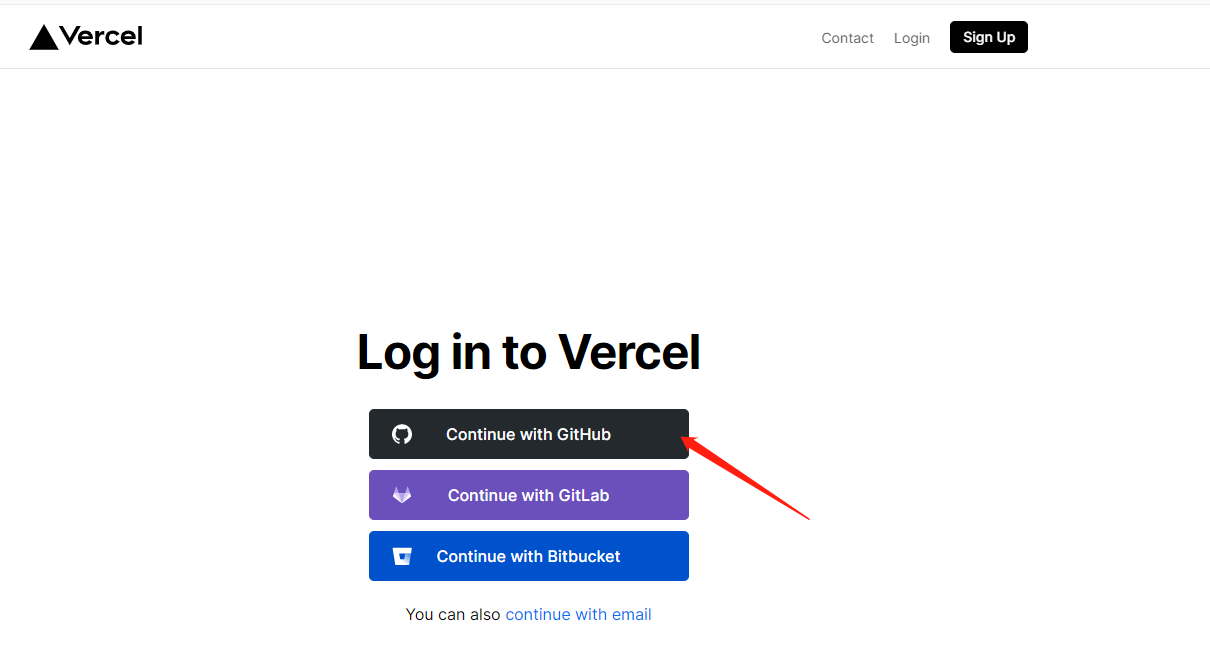
Vercel to deploy vercel connects to your GitHub repo.
import repo

Awaiting completion of deployment
Visits
Cloudflare to deploy Login to Cloudflare dashboard.
Click Workers & Pages on the left side.
Click Create application and select Pages tab, connect your GitHub account and select running_page Repo, then click Begin setup.
Scroll down to Build settings, choose Create React App from Framework preset, and set Build output directory to dist.
Scroll down, click Environment variables (advanced), then add a variable like the below:
Variable name =
PYTHON_VERSION, Value =3.11
Click Save and Deploy
Go to repository's Settings -> GitHub Pages -> Source, choose GitHub Actions
Go to the repository's Actions -> Workflows -> All Workflows, choose Run Data Sync from the left panel, and click Run workflow.
Run Data Sync will update data and then trigger the Publish GitHub Pages workflowOpen your website to check on the results
F5.Ctrl+F5 (Windows) or Shift+Cmd+r (Mac) to force clearing the cache and reload the page.make sure you have write permissions in Workflow permissions settings.
If you want to deploy your running_page to xxx.github.io instead of xxx.github.io/running_page or redirect your GitHub Pages to a custom domain, you need to do three things:
xxx.github.io, where xxx is your GitHub username${{ github.event.repository.name }} and change to run: PATH_PREFIX=/ pnpm buildconfig.yml, set your custom domain URL or leave empty GitHub Actions Actions source code The following steps need to be taken
change to your app type and info

Add your secret in repo Settings > Secrets (add only the ones you need).

My secret is as follows
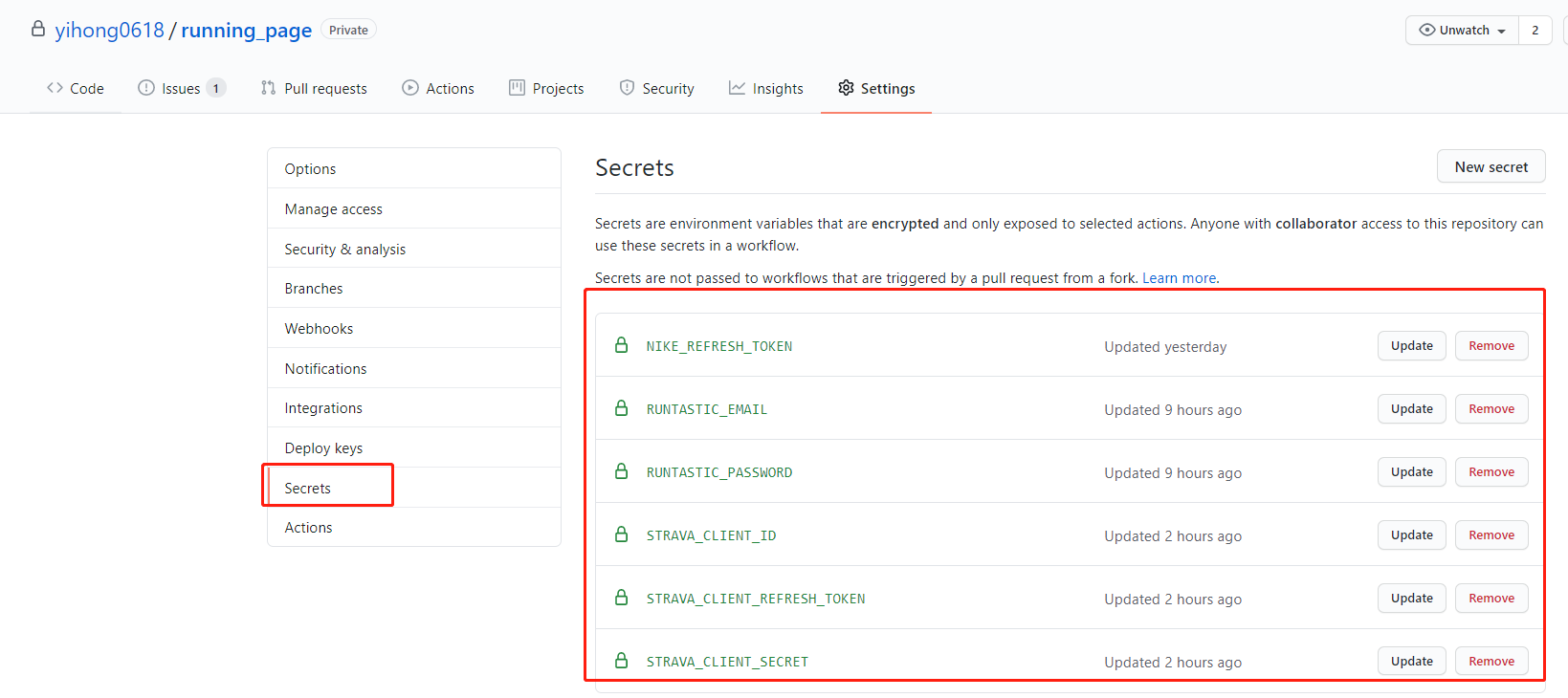
Go to repository's Settings -> Code and automation -> Actions ->General, Scroll to the bottom, find Workflow permissions, choose the first option Read and write permissions, click Save.
iOS Shortcuts Take the keep app as an example. Close the app after running, and then automatically trigger Actions to update the data.
Get actions id (need to apply token)
curl https://api.github.com/repos/yihong0618/running_page/actions/workflows -H "Authorization: token d8xxxxxxxxxx" # change to your config
Binding shortcut instruction
Get it via icloud running-page-shortcuts-template
Modify the dictionary parameters in the following figure
Automation
When SAVE_DATA_IN_GITHUB_CACHE is set to true in the run_data_sync.yml file, the script can store fetched and intermediate data files in the GitHub Action Cache. This helps keep your GitHub commit history and directory clean.
If you are deploying using GitHub Pages, it is recommended to set this value to true, and set BUILD_GH_PAGES to true.
supported manufacturer:
Before submitting PR:
black (black .)Just enjoy it~
Strava API limit
https://www.strava.com/settings/api https://developers.strava.com/docs/#rate-limiting
Strava API Rate Limit Exceeded. Retry after 100 seconds
Strava API Rate Limit Timeout. Retry in 799.491622 seconds
vercel git ignore gh-pages:
you can change settings -> build -> Ignored Build Step -> Custom command
if [ "$VERCEL_GIT_COMMIT_REF" != "gh-pages" ]; then exit 1; else exit 0;
more like this
GPX 轨迹转 3D 可打印地形模型 | Hiking trail to 3D printable terrain | Electron + Vue。 一款面向户外爱好者与 3D 打印玩家的 Web 工具。将 GPX 徒步/骑行轨迹一键转…
A browser-based visualization framework for exploring and analyzing Zarr and NetCDF datasets.
search projects, people, and tags